imageTo get the most value from your Security solutions, you need to understand the business value of the different features they include to decide if, when, and how to go about turning them on. And when you’re ready to enable new features, you need clear guidance to make it happen.  

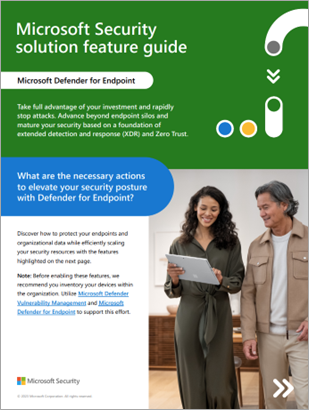
This is why we recently published new Microsoft Security solution feature guides on Microsoft Defender for Office 365 and Defender for Endpoint. Each guide briefly highlights five key product features and the value they provide, then points directly to step-by-step enablement instructions. 

  • Microsoft Security solution feature guide:
    Microsoft Defender for Office 365

    Defender for Office 365 provides integrated threat protection for your email and collaboration tools. With this guide, you can learn about and enable:
      1. Incident and alert management
      2. Attack simulations and training campaigns
      3. Automated investigation and response triggers
      4. Scanning with Safe Links
      5. Attachment checks with Safe Attachments
  • Microsoft Security solution feature guide:
    Microsoft Defender for Endpoint

    Defender for Endpoint helps you rapidly stop attacks, scale security resources, and evolve defenses across your operating systems and network devices. The guide covers the following features and links to instructions so you can: 

      1. Define manual response actions
      2. Explore automated investigations
      3. Enable endpoint reporting and policy settings
      4. Engage in advanced threat hunting
      5. Choose either active or passive mode for antivirus

Check out the Microsoft Defender for Office 365 and Microsoft Defender for Endpoint solution feature guides to learn how you can get more value from Microsoft Security and take your first steps toward enabling more features today.   

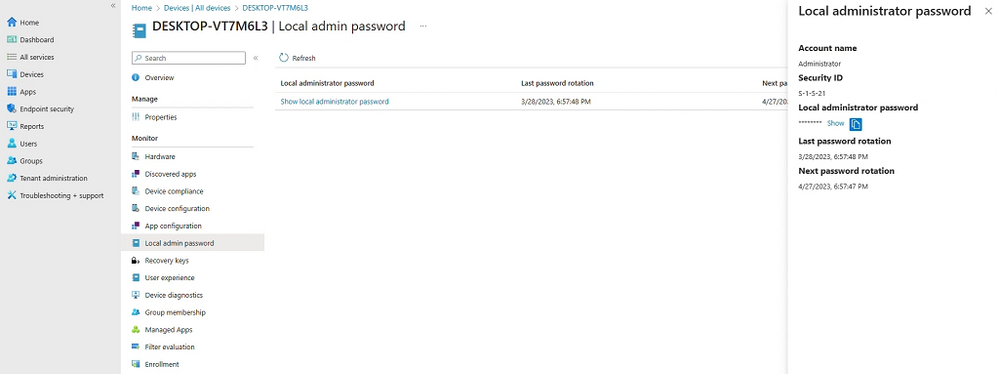
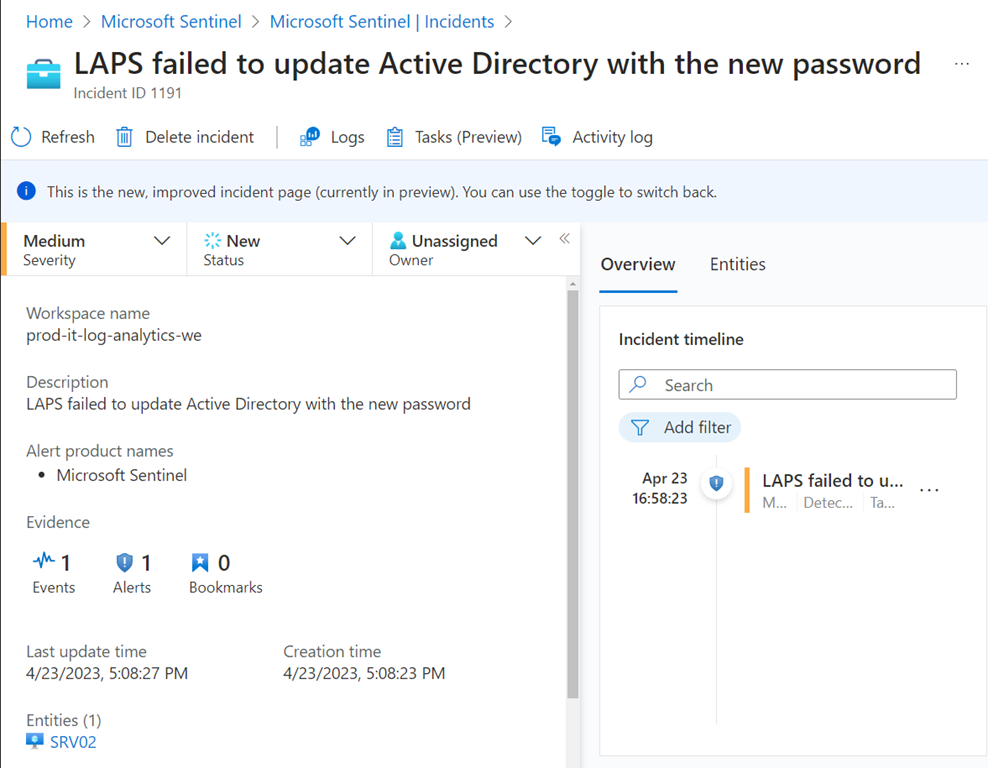
Organizations are securing their workstation & servers by randomizing their Local Administrator account passwords & storing them in Azure AD using the new public preview of Microsoft’s “Windows Local Administrator Password Solution”.

Kaido Järvemets, a Microsoft MVP has written a blog about using Microsoft Sentinel to collect events from the new “Windows Local Administrator Password Solution”.

imageWindows Local Administrator Password Solution (LAPS) is a crucial security feature that helps organizations manage local administrator passwords for their domain-joined computers. In this blog post, we will explore how to create Data Collection Rules (DCRs) for Sentinel that will collect LAPS events from your environment.

Before you continue read my previous blog posts:

Read the entire blog post here:

imageThis keeps coming up so I’m writing a quick post about it. Many organizations using Microsoft 365 GCC still haven’t set up “Microsoft 365 Usage Analytics” through Power BI Pro.

WHAT IS IT?
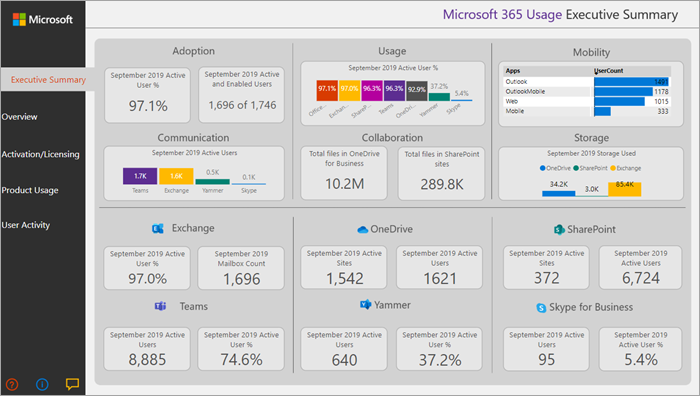
Microsoft 365 Usage Analytics is a no-cost Power BI report that shows live information about what products & services are being used in a Microsoft 365 tenant. (Note: You must purchase 1 Power BI Pro license to use it)

This summary lets you quickly understand usage patterns in Microsoft 365 and how and where your employees are collaborating.  It includes:

  • Adoption
    • how may users are enabled
    • how many people in your organization are actively using Microsoft 365
    • how many are returning users
    • how many are using the product for the first time
  • Usage
    • volume of active users
    • key activities for each product for the last 12 months
  • Communications preferences
    • do users prefer Teams, Yammer, email, or Skype calls
    • are there shifts in patterns in the use of communication tools
  • Collaboration preferences
    • do users prefer OneDrive or SharePoint to store documents and collaborate with each other
    • does these trends evolve month over month
  • Storage
    • track cloud storage for mailboxes, OneDrive, and SharePoint sites
  • Mobility
    • track which clients and devices people use to connect to email, Teams, Skype, or Yammer
  • Activation
    • track service plan (for example, Microsoft 365 Apps for enterprise, Project, and Visio) activations in your organization.
    • see the devices on which people have installed Microsoft 365 apps
  • Licensing
    • overview of license types
    • count of users who were assigned each license type
    • license assignment distribution for each month

Additionally, administrators can create their own reports or customer the existing template.

BEFORE YOU BEGIN…

  • You need to be a Microsoft 365 Global admin to enable data collection.
  • You need the Power BI Desktop application to use the template file.
  • You need a Power BI Pro license or Premium capacity to publish and view the report.

HOWTO:
For step by step guidance on setting this up for GCC tenants, visit:

Follow the instructions above link re: downloading the Power BI template for GCC & using Power BI Desktop.

For more information about Usage Analytics, visit:

————————

(BTW: This is a nice video walkthrough of how to connect Microsoft 365 Commercial – not Government – to Usage Analytics.  The catch is that you should not click the “Go to Power BI” button in the Microsoft 365 reports pageThis will not work because the button leads to the “Power BI Service” & the “Power BI Marketplace stored Usage Analytics template”.  This template ONLY points to Commercial environments – not Government. I’m sharing this video nonetheless to allow people to see how this is usually done outside of GCC tenants)

imageIf you’re a public sector or government entity, be careful when considering purchasing Microsoft 365 F3 licensing to “save money” over Microsoft 365 G3.

TRADING BUDGET FOR COMPLIANCE & GOVERNANCE
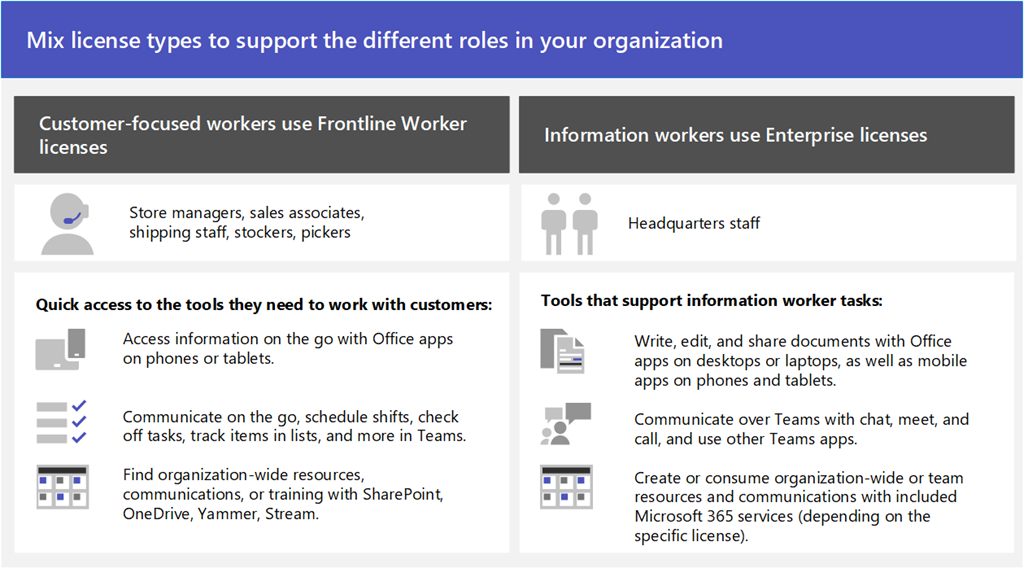
Getting Microsoft 365 F3 user subscription licenses for a segment of your users may be a great solution for saving money on licensing for “field workers”, “technicians” & “non-office based workers” that don’t have the same robust needs as traditional information workers… but it’s only a good option if you don’t have governance or compliance needs for these workers.

DIFFERENCES BETWEEN E3 & F3
This article goes over the differences between E/Enterprise licenses & F/Field Worker user subscription licenses however there’s more than this.

Here are a few features not available to Microsoft 365 F3 licensed users:

  1. Ability to run eDiscovery searches on F3 user email, files, chat
  2. Ability to put an F3 user’s mailbox on either Litigation Hold or In-place Hold
  3. Ability to Audit user content
  4. Ability to provide Email Archiving (aka Archive Mailbox)
  5. Ability to apply Data Loss Prevention rules for email, files, chat or endpoints
  6. Use more than 2GB of storage per F3 mailbox
  7. Ability to Delegate Access to others to the mailbox
  8. Ability to recover a single item in an Exchange mailbox

Many of these limitations are summarized in the table comparing subscription license types:

Note: For folks that have Microsoft 365 F3 and discover they have a need for one or more of the above features, the solution is to purchase one of the following for each existing F3 licensee:

  • Exchange Online Plan 2
  • Step up to Microsoft 365 E3/G3

imageAzure Lighthouse allows IT organizations to manage, secure & maintain the Azure subscriptions of other organizations – even across completely different Azure enrollments.

INITIALLY FOR CSPs
Originally created for Cloud Service Providers to enable them to manage the Azure subscriptions of hundreds of customers, Azure Lighthouse is also used by central IT authorities to provide their Azure skills & expertise as a service provider to other organizations (departments, agencies, etc.) that lack IT professionals with management, security, scale, governance, compliance & other needs. 

In turn, these depts or agencies can provide a central IT authority with specific access to their Azure instance for:

  • Read-only, monitoring
  • Limited administrative control
  • Full subscription control

And there is no charge to use it.

For more information on this service, visit my previous post on Azure Lighthouse here:

Also, go to the following:

Posted by: kurtsh | April 28, 2023

WHITEPAPER: What’s in my Microsoft 365 subscription?

imageHere’s a fun one.  Have you ever wondered?

What’s in my Microsoft 365 subscription and how does it compare to all the other plans?

This is a downloadable chart that shows all of the modern work subscription plans available to customers in the Commercial space including:

  • Microsoft 365 E3, E5, E5 Security, E5 Compliance
  • Office 365 E1, E3, E5
  • Enterprise Mobility & Security E3, E5
  • Windows 11 Pro, Enterprise E3, Enterprise E5
  • Microsoft 365 F1, F3, F5 Security, F5 Compliance, F5 Sec+Comp
  • Office 365 F3

It also has the Add-on Subscriptions available to customers and what subscription plans they are eligible to be used against such as:

  • Priva Privacy Risk Management
  • Priva Subject Rights Requests
  • Microsoft Intune Plan 2
  • Microsoft Intune Remote Help
  • 10-year Audit Log Retention
  • Teams Premium
  • SharePoint Syntex
  • …and more.

Download the .PDF chat here:

Posted by: kurtsh | April 28, 2023

NEWS: Gartner: “Is It Time to Move to Windows 11?”

imageGartner recently published a Gartner Research Note that discusses their recommendation around deploying Windows 11:

The release of the Windows 11 2022 update signals that it is time for enterprises to introduce Windows 11 into annual update processes. I&O leaders should start with new PCs being purchased early in 2023, and then upgrade existing, compatible devices running Windows 10 21H2 or 20H2.

Quick Answer
Is it time to move to Windows 11?

Yes. I&O leaders should introduce Windows 11 22H2 as part of their annual Windows feature update processes, instead of Windows 10. New PCs being purchased in early 2023 should be first to get the new OS, then upgrades to existing, compatible devices running Windows 10 should follow.

More detail around this recommendation is available in the fully-licensed-for-distribution Gartner Research Note available below:

imageAs documented on the Windows 10 Enterprise and Education and Windows 10 Home and Pro lifecycle pages, Windows 10 will reach end of support on October 14, 2025.

The current version, 22H2, will be the final version of Windows 10, and all editions will remain in support with monthly security update releases through that date. Existing LTSC releases will continue to receive updates beyond that date based on their specific lifecycles.

Read more here:

imageAre you preparing for a Microsoft Certification exam?

We’re excited to announce Practice Assessments on Microsoft Learn, our newest free exam preparation resource that allows you to assess your knowledge and fill knowledge gaps so that you are better prepared for your certification exam.

These assessments provide you with an overview of the style, wording, and difficulty of the questions you’re likely to experience on the exam. Through these assessments, you’re able to assess your readiness, determine where additional preparation is needed, and fill knowledge gaps bringing you one step closer to the likelihood of passing your exam.

Below is a list of some of the Practice Assessments available:

For pointers to all exams, visit:

imageMicrosoft 365 customers with eligible Microsoft 365 subscriptions can request FastTrack deployment assistance (RFA) in the Microsoft admin center.

The new RFA form will automatically verify a tenant’s eligibility for FastTrack assistance and lists their eligible M365 products.  In addition, tenant admins can quickly check the status of their RFAs and view the organization’s RFA history. 

Admins can find the Request for Assistance (RFA) form here:

  1. At the home page, select Advanced deployment guides & assistance.
  2. Select the FastTrack Assistance tab. *
  3. Select Submit a new request.

Customers, Microsoft field, and non-FRP partners can still submit RFAs at the FastTrack portal.

*It may take several days for the RFA form and the new FastTrack Assistance page to appear in all M365 tenants.

« Newer Posts - Older Posts »

Categories