Posted by: kurtsh | December 28, 2011

INFO: So you’re going to CES 2012. Now what? (Part 3)

image_thumb[1]_thumbA coworker asked me to summarize some things they should look into for their first trip to CES in Las Vegas.

Here’s the continuing thread of stuff I thought of:

Things NOT to do:

  • CENTRAL HALL FOOD
    Don’t eat at the Sbarro Pizza/Nathan’s Hot Dogs/Eatery just outside of the Central Hall. There’s always a massive line, it’s packed and the food is half-cooked and terrible. You’ve been warned. Your alternatives are as follows:

      • Hilton
        There’s tons of places to eat at the Hilton and it’s worth the walk.  Plan your lunch ahead of time however and go either at 11:00AM or 1:30PM to avoid the rush to Tres Rios Cantina, Paradise Café, or Superbook Deli.
        http://www.lvhilton.com/Hotel/dining
      • Renaissance Hotel
        ENVY Steakhouse is one of the best steakhouses in Las Vegas and it’s right next door to the Convention Center.  Literally right next door.  Open from 11AM-2PM for lunch.
        http://www.envysteakhouse.com/
  • CES END OF SHOW PARTY
    If you’re interested, there’s a monster party at TAO Nightclub at the Venetian on Friday. Personally, I wouldn’t bother with the end of show party because it’s hell & you probably won’t get in anyway.
    http://www.cesweb.org/events/tao-htm.htm

Other things to do:

  • CES BADGE HOLDER DISCOUNTS
    Review the CES badge holder discounts for dinner deals and stuff.
    http://www.cesweb.org/hotelTravel/lasVegas.asp#Discounts-and-Coupons
  • RESERVATIONS FOR EVERYTHING
    Make your show, restaurant, spa, whatever reservations way beforehand.
    For restaurants, I naturally use Opentable.com like everyone else.
    For shows, I personally go to Vegas.com for most of what I do because it’s the most convenient (they have a line into every show and every gig) and admittedly I’ve screwed up my reservations before and they’ve taken care of me no muss – no fuss on the phone.  Worth every penny.
  • GET GIFT CERTIFICATES
      • VEGAS.COMGo to the COSTCO in Marina Del Rey and pick up VEGAS.COM $100 gift certificates for $80.  That’s right – 20% off.  Use those for your trip and save.
      • SPAFINDER.COM – Go to COSTCO and purchase gift certificates for SpaFinder at 20% off.  These can be used at:
      • RESTAURANT.COM – Visit RESTAURANT.COM for pre-paid gift certificates for meals. (Use code SAVE to get 80% off the certificates)
        http://restaurant.com

Here’s some previous posts that I made about CES:

Posted by: kurtsh | December 27, 2011

INFO: So you’re going to CES 2012. Now what? (Part 2)

image_thumb[1]A coworker asked me to summarize some things they should look into for their first trip to CES in Las Vegas.

Here’s the continuing thread of stuff I thought of:

Let’s get this out of the way first and foremost:  
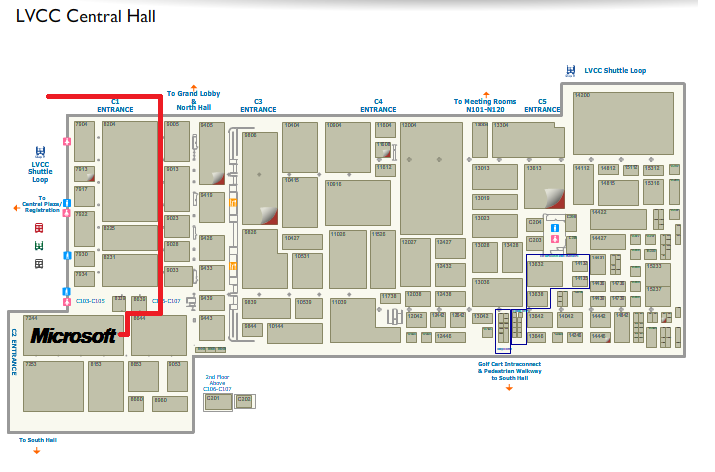
Microsoft’s booth is in the Central Hall – booth #7244. We’re right in front of Intel, next door to Motorola, Dolby, and Mitsubishi. 

Follow the RED LINE on the map:

image

Things to do:

  • MICROSOFT KEYNOTE
    You may want to try to see the Microsoft Keynote on Monday at 6:30PM but be aware: There are 1000’s of people that wait in line and they start waiting up to 6 hours ahead of time so it’s a challenge.  If you’re not in the first 5000 or so, you may have to go to an overflow room where the keynote is broadcast live on a large projection TV. http://www.cesweb.org/events/keynotes.asp#Steve-Ballmer
  • BEST OF CES: INNOVATIONS
    In the Central Hall, there are these shelves just inside the entrance. These are “Best of CES” nominees or Innovations award winners. Basically, if you can’t cruise the whole convention floor, this is a good way to skim through the hot items.
    http://www.cesweb.org/awards/innovations/about.asp#About-Innovations
  • WALKING THE SHOW FLOOR
    A good summary of what is being displayed is available at this URL below.  Otherwise here’s my opinions:
    http://www.cesweb.org/showFloor/by-hall.asp 

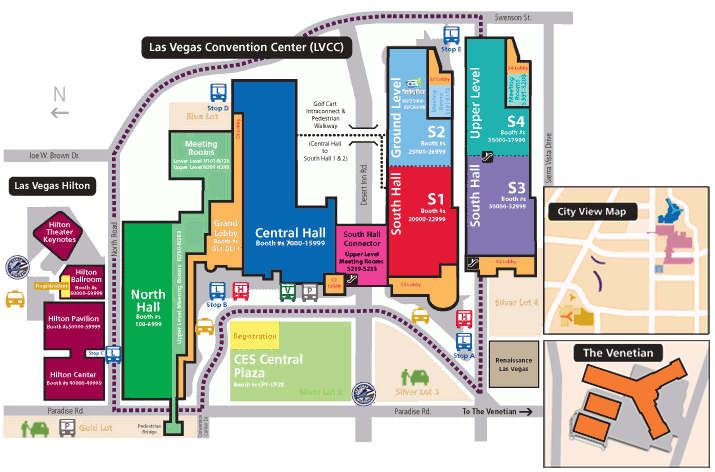
    image

      • Central Hall
        This is likely the hall you want to concentrate on if you’re in IT as many of the big names are there in computing: Intel, Motorola, Microsoft, Sony, Toshiba, Samsung, etc.
        It is also where the biggest Consumer Electronics folks have their booths: Some of the largest names lurk here in monstrous booth spaces, including: LG, JVC, Samsung, Panasonic, Audiovox, Sharp, Casio, Nikon, Fuji, Hitachi, Monster, Poloroid, etc.
        …this is the fun hall.  All the big players live in Central.  I spend 2 days here usually to really cover everything and get the experience.
      • South Hall 1, 2
        This is a lonnnnnng hall (affectionately referred to as the “cruise ship”
        by some) where they have home automation & home theatre technologies. Leviton, Zigbee partners, & Philips are usually present here along with Altec Lansing, Lexar, Sandisk, Ritek, Netgear, Magellan, TomTom, Synaptics, etc.
        …honestly, this isn’t really my ball of wax. It’s mostly smaller booths focused on flash memory or home stuff which I’m not really into. I spend usually 1/2 a day here.
      • South Hall 3, 4
        This is the top half of the “cruise ship”, (it’s a lonnnnnnng hall that’s kind of like a cruise ship) where a few major wireless/cellular companies are. RIM, Verizon, & Nokia. They also have some major accessories & PC equipment manufacturers here including NVidia, Kodak, Fujitsu, Powermat, Viewsonic, PCD, Plantronics, NAVTEQ, 3M, Garmin, Belkin, Diamond, and a few others.
        …but the rear of this hall is also known as the “International Zone”; the back 1/3rd is entirely populated with International manufacturers & you’ll find that speaking a second language here is almost a pre-req. I spend a 1 day here because of all the wireless.
      • North Hall
        It’s interesting if you’re into cars, car accessories or car audio equipment. JVC, Ford, OnStar, Kia, Kenwood, Audi, Pioneer, Cerwin Vega, etc.
        It features “Mommy Tech” – a small area featuring technology for parents – something that I’ve looked at over the past couple years. Things like GPS’s for kids, how-to-block-texting-while-driving, etc. There’s also a small area for technology for senior citizens, which is quite illuminating.
        Half the pavillion is populated usually by little mobile accessory companies – folks that sell batteries, holsters, clips, screen protectors, stuff like that.
        …I spend no more than 2 hours here usually… mostly on Mommy Tech.  I have a ‘guy’ that worries about car audio for me so that I don’t have to. [grin]
      • Central Plaza
        Also known as the parking lot. This is the area directly outside of the halls – it’s across from registration and where the busses are at. There’s only one reason in my mind to go there and that’s LENOVO. I think this is their only presence and it’s in a tent. Albeit it’s a pretty big presence. Weird how they chose the Plaza though.
        …I’ll spend no more than an hour out here on my way to lunch to pay my respects to Lenovo and see what they’re showcasing.
      • Venetian or Hilton
        Frankly, I rarely go to either location. Hilton is entirely International resellers looking for US partners – and I am not a US partner. Most of the time, the booth presences at the Venetian are designed more for deal making and one-on-one discussions – not so much for independent discovery.
        …no love here.
Posted by: kurtsh | December 27, 2011

INFO: So you’re going to CES 2012. Now what? (Part 1)

imageA coworker asked me to summarize some things they should look into for their first trip to CES in Las Vegas.

Honestly, I’d never even thought about it.  So here’s a random list of things that came out of my brain when I wrote back.  Hope they’re interesting to you too.

Preparation:

  • PLAN YOUR SCHEDULE
    The CES Expo/Exhibit floor is open during the following hours:
      • Tuesday, January 10: 10 a.m.-6 p.m.
      • Wednesday, January 11: 9 a.m.-6 p.m.
      • Thursday, January 12: 9 a.m.-6 p.m.
      • Friday, January 13: 9 a.m.-4 p.m.
  • DOWNLOAD THE FOLLOWING CES EXPO CONTENT:
  • PARTY PLANNING
    There’s quite a few parties going on.  If you’re only now looking into this, you’re probably too late to register, but that being said, there’s a few items to look into:
      • THE WINDOWS PARTY
        We have an invite-only party going on.  Each attendee must have a sponsor – I myself can’t afford to attend but if you’re a customer of mine and are interested, contact me.  (No promises!)
      • CES TWEETUP PARTY
        Don’t know if any of you use Twitter but there’s a CES-sponsored Tweet up going on at the Las Vegas Hilton.
        http://www.cesweb.org/events/CES-Tweetup.asp
      • CES PARTY LIST
        Check out the CESPartyList for interesting stuff to attend.
        http://cespartylist.com/

imageThis is an oldie but it’s worth writing about because it happens to some people quite often.  If you find that when you open Word, that the new document that you start with his horked in some way – the margins are weird, the font is too small, etc. – it probably means that somehow the Default Template got modified. 

Don’t ask how this happens.  It can be when a document you load asserts it’s changes on your default template somehow.  In any case, you pressed “SAVE” accidentally and it saved the changes to your default document template.

This is a file located at: (Windows 7, Word 2010)

C:\Users\[username]\AppData\Roaming\Microsoft\Templates\Normal.dotm

The easy solution for most is to simply go to this file, and DELETE IT.  Word 2010 will automatically recognize that it’s gone and recreate the default template.  Remember however that if you made any changes to the default template in the past (added a company logo or something like that) they’ll be gone.

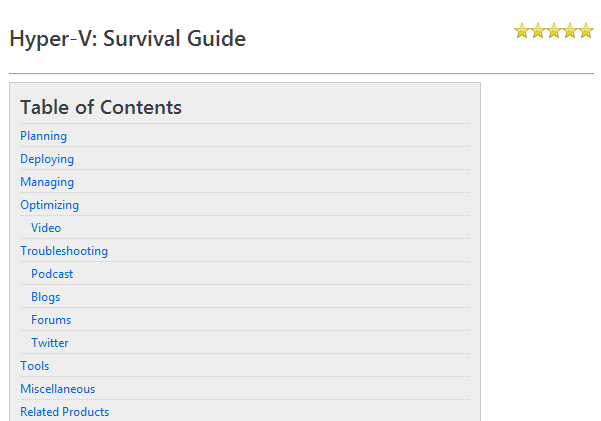
imageMost impressive!

Looks like 3 Survival Guides exist on Microsoft.com right now.  These are monster compilations of everything you’d probably want to know about a given product.  They are on Wikis so the content can be modified and updated regularly.  The PowerShell one is probably the most organized and well done – probably because Tony Soper from Microsoft has been the primary contributor and organizer of the guide.

Check them out!

Posted by: kurtsh | December 26, 2011

INFO: Skype & it’s alignment with Microsoft’s big bets

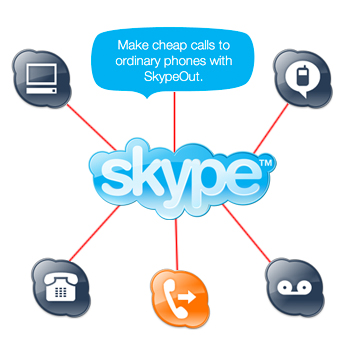
imageSkype’s alignment with Microsoft’s business initiatives couldn’t be better. 

UNIFIED COMMUNICATIONS IS THE FUTURE… OF PERSONAL COMPUTING
Unified communications for businesses & consumers over packet-based networks is a major usage scenario of personal computing & if you don’t believe that, you should probably look at the transition & transformation being made by the telcos to packet-based services.

Unified communications includes presence, instant messaging, voicemail, audio communications, video communications, data sharing, voice/video/data conferencing, PBX/POTS integration, etc. and this level of complexity requires the power and the interface of the computer.

WHAT DOES SKYPE PROVIDE
If you assume that Unified Communications is one of the next generation’s ‘inevitable technologies’, you have to examine how an acquisition of an IP-based telco like Skype could make a tremendous amount of sense for a technology company like Microsoft in the UC space – not to mention providing Microsoft with a massive strategic advantage as a GENERAL business/consumer technology provider.

At the basest level, Skype provides the following:

  • Largest VOIP customer-base in the world
  • Complete advertising platform
  • Worldwide POTS connectivity & presence
  • Cross-platform integration
  • Patents & technologies in audio/video communications

Now apply these benefits to Microsoft’s existing initiatives and you can see how the acquisition’s alignment with Microsoft’s ‘big bets’ is excellent.

  1. SKYPE & LYNC 2010:
    Small & medium businesses now have an opportunity to bridge their Skype implementations with manageable Lync 2010 solutions. Use your Skype solutions and when you wanna grow up… here’s Lync.
  2. SKYPE & WINDOWS LIVE MESSENGER
    #1 consumer VOIP solution in the world? Meet the #1 instant messaging solution in the world. Now hook up and play nice. Make the directories “be one”. Provide Windows Live authentication for Skype.  Booya.
  3. SKYPE & WINDOWS PHONE 7
    Skype – now shipping on every Windows Phone 7 device, including those from Nokia & their worldwide distribution network. The best client engineered for the best mobile phone platform. Guaranteed to be there. Forever.
  4. SKYPE & WINDOWS 7/8-BASED SLATES
    Every Windows slate will be a phone via Bluetooth headset. With the infrastructure to back it. Guaranteed. And with Windows 8, it’ll fit natively right into the OS’s touchable interface – perfect for a softphone.
  5. SKYPE IN EVERY MICROSOFT STORE
    Skype peripherals, Skype subscriptions/credits, Skype installations on Windows PCs. All on parade at our stores. Need to learng Skype?  Go to the store.  Need to set up Skype?  Go to the store.  Need some peripherals optimized for Skype?  Go to the store.  Get the picture?
  6. SKYPE & MICROSOFT ADVERTISING
    Skype’s recent release of advertising in their VOIP client opens a new target for Microsoft Advertising: 150M Skype users. The ability for ad sales folks to tout such a rich based of advertising targets inherently strengthens ad sales & thus other ad-driven properties… like Bing.
  7. SKYPE & XBOX 360/KINECT
    And did you forget that Xbox 360’s Kinect provides video & audio calls over the Internet? Now make that a reality by connecting with any Skype user as well.
  8. SKYPE & OFFICE 365
    This is the killer. Remember that that Skype is big in small/medium biz. Office 365 provide Lync Unified Communications (voice, video, data, conferencing, etc.) & Exchange messaging in the cloud. Now you’ve got Skype which provides adhoc voice & video telecom along with 150M active users.

One of the biggest benefits of Skype in my mind is it’s cross-platform availability.  This virtually guarantees ubiquity with no great investment on Microsoft’s part, making it an easy leader in the UC space.  Unlike other unified communications players in both the consumer & enterprise space, Microsoft effectively has the #1 position for both:

  • Consumer unified communications
    (Skype, #1 consumer UC client + Windows Live Messenger, #1 IM client)
  • Mobile unified communications
    (only mobile device UC client available on all major mobile operating systems
  • Enterprise unified communications
    (Lync 2010 – rated #1 UC platform by Gartner)
Posted by: kurtsh | December 26, 2011

INFO: Multitasking kills attention span, focus, & memory

image

Multitasking damages your mental capacity to concentrate.

I’ve written about a similar phenomenon before called ‘infomania’, (see QUESTION: Is your short-term memory disappearing like mine? and STUDY: Email can diminish an individual’s IQ) related to getting constant notifications like IM toasts, incoming emails, phone calls, etc. but I just recently uncovered another article about this issue.  It’s something I saved from back in 2009 from Stanford University research.

Here’s a clip from the article:

Stanford Report, August 24, 2009

Media multitaskers pay mental price, Stanford study shows

Think you can talk on the phone, send an instant message and read your e-mail all at once? Stanford researchers say even trying may impair your cognitive control.

BY ADAM GORLICK

Attention, multitaskers (if you can pay attention, that is): Your brain may be in trouble.

People who are regularly bombarded with several streams of electronic information do not pay attention, control their memory or switch from one job to another as well as those who prefer to complete one task at a time, a group of Stanford researchers has found.

High-tech jugglers are everywhere – keeping up several e-mail and instant message conversations at once, text messaging while watching television and jumping from one website to another while plowing through homework assignments.

But after putting about 100 students through a series of three tests, the researchers realized those heavy media multitaskers are paying a big mental price.

"They’re suckers for irrelevancy," said communication Professor Clifford Nass, one of the researchers whose findings are published in the Aug. 24 edition of the Proceedings of the National Academy of Sciences. "Everything distracts them."

Posted by: kurtsh | December 26, 2011

HUMOR: Microsoft product placement! Woohoo!

0625090132

[this was originally supposed to post to my other blog but I accidentally posted it here & decided to leave it]

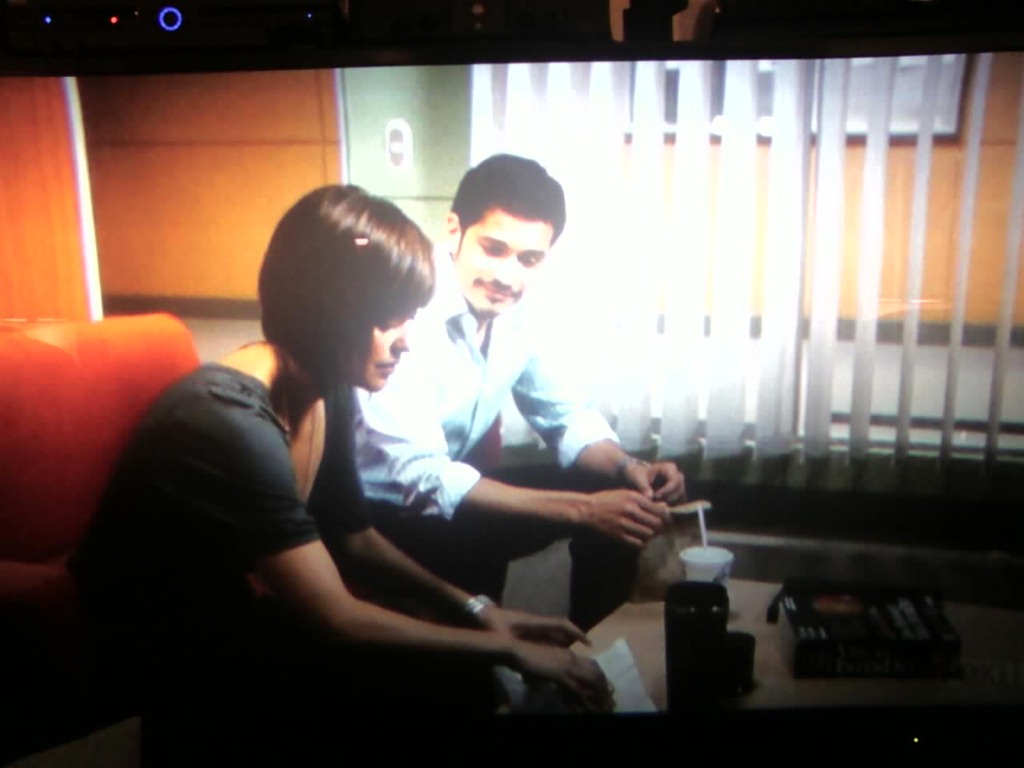
I just found a few pictures I took a couple years ago in 2009.  It’s a shot of my big screen TV when a show called CSI:NY was on I believe. 

If you look really carefully at the shot, you can see the two actors talking in basically a detective’s office.  If you’ve seen CSI, you know what the show’s about.

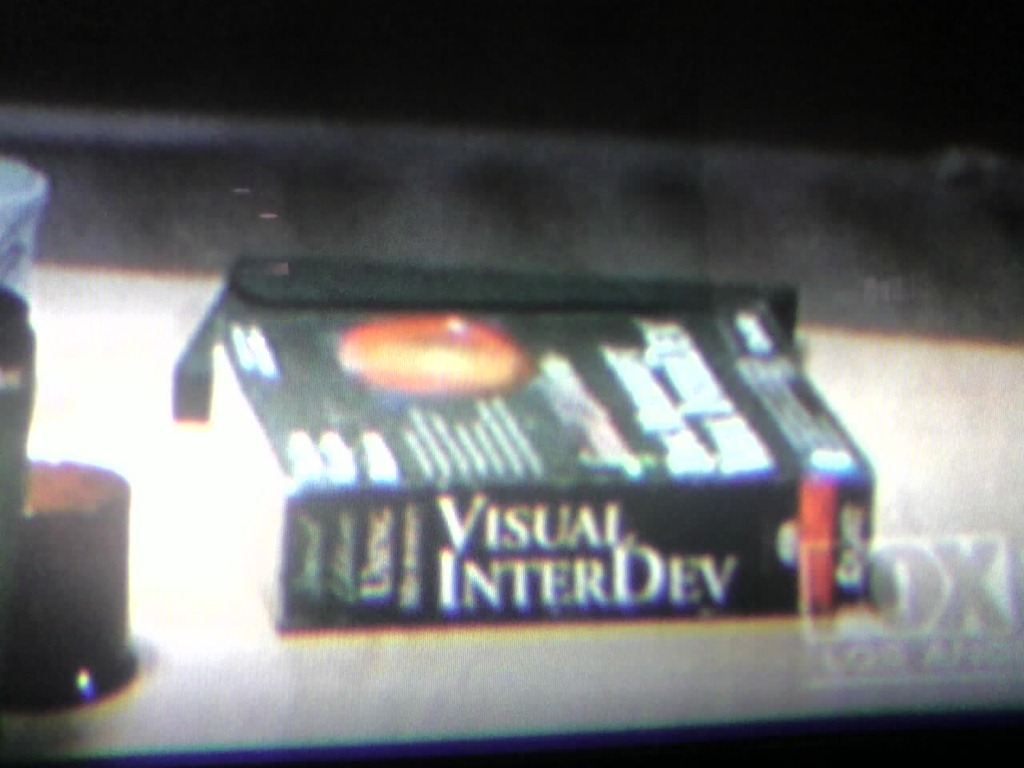
The thing that caught my eye – like any other good geek – was the book on the table.  I looked the table and said, “Whhhaaaa?”  and immediately whipped out the camera phone.  (At the time, a Samsung i760 Windows Phone)

This is what I saw:

0625090131

The quick explanation for those of you not familiar with some of Microsoft’s more ancient products:  This is Visual Interdev.  The product was produced in 1997 and was phased out around 2000.  The book I suppose was a prop that they just through onto the table… in 2009.

Nice to see Que’s books on Interdev are still in good rotation!

Here’s the answer to a question that seems to be lurking on the Internet unanswered that I figured out on my own:

Q: What is “RESERVED SPACE AND OTHER CONTENT” on my Zune?  Why is it taking up 8.4GB of space (or whatever amount) on my device?  YES, I already tried changing that “Reserved Space slide bar” under Settings and it did nothing.

image

A: It’s lots of stuff.

  • Orphaned podcast content.  Do you use podcasts?  If you do, there’s a good chance that there’s old content in there from podcasts that you’ve since de-subscribed from.  Or content that you’ve downloaded manually outside of subscription.  This content is NOT considered part of your PODCAST storage but instead considered part of Reserved Space.  Yes, I know this makes no sense.  Just go with it.
    To delete it, connect your Zune to your Windows desktop, go to the Zune software on your desktop.  Now click DEVICE – PODCASTS.  Click on each podcast and look at the stuff there… are there old podcasts from a year ago in there?  If it’s not recent stuff, congratulations:  You just found some (or most) of the junk that’s clogging up your Reserved Space.  I cleared 3.5GB by eliminating orphaned podcasts.
  • Storage for Apps.  Have you installed Zune apps?  Those free games and tools that they offer off the marketplace?  It turns out they eat up a bit of storage each & how much depends on the app.  And this is NOT considered part of your APPS storage but instead considered part of Reserved Space.  I got rid of 500MB this way.
  • Content NOT managed by Zune PC client.  If some of the the music, videos, or pictures on your Zune are not managed (i.e. synchronized) with your PC through the Zune PC client software, it will not be categorized as music, videos, or pictures in the “storage bar”.  It will instead be categorized as Reserved Space.
    …this of course means that the Reserved Space isn’t actually being wasted.  It actually contains music/videos/pictures that you copied over to you Zune.  This content just isn’t classified as MANAGED music/videos/pictures. 

    If you want to “reduce” the Reserved Space allocation and instead recategorize your content in the music/videos/pictures categories, what you need to do is sync your Zune’s content to your PC:

      • Connect your device and go to a category – for example:  Music.
      • Select all the content that isn’t already being synchronized (or just select everything if you want it all synched and categorized as Music)
      • Right mouse click the content and select the right mouse menu item, “COPY TO MY COLLECTION”.
      • Watch the "Reserved Space” storage allocation in the storage bar diminish… and your “Music” allocation grow, as it shifts from one category to another.

I know there’s more.  I’ve heard that content that that you copy over as a guest while connected to someone else’s PC is considered “Reserved Space”.  I’ve also heard that remnants of failed copies can consume this space but I’ve not confirmed this.

A good explanation about what Reserved Space is, is available on the Answers site.
http://answers.microsoft.com/en-us/zune/forum/zune_install-player/reserved-space-and-content-from-other-computers/0e542859-b42e-4682-b980-495f863bfb2a

As I get more information re: “Reserved Space”, I’ll post it.

image

Wanna know how Windows 7 is licensed?  Here’s a 17 page guide that goes over OEM licensing vs Volume License Upgrades, Virtualized Desktops, Professional vs Enterprise, Step-ups, etc.:

The Windows® 7 operating system (OS) will help business users around the world become more productive and will help IT departments enhance security and control and streamline PC management.

Microsoft® Volume Licensing solutions provide the most flexible, cost effective way to give your organization access to the latest Windows desktop technologies. Whether your business wants to upgrade to Windows 7, have access to advanced technologies like Windows 7 Enterprise and the Microsoft Desktop Optimization Pack, or deploy emerging virtualization scenarios, there is a Volume Licensing program that is right for your organization.

This document provides an overview of the products available through Volume Licensing, information about the products that are eligible for upgrades, and the key choices you have for utilizing Windows in your organization.

This document is for descriptive informational purposes only and is not meant to replace or override other licensing documentation such as the Windows 7 End User License Agreement, Product Use Rights, Product List, or Licensing Briefs that will be available at http://www.microsoft.com/licensing/ with the launch of Windows 7.

« Newer Posts - Older Posts »

Categories