imageAre you an Official Xbox Magazine subscriber?  Then you may have noticed that this month’s issue (February 2012) has something conspicuously missing. 

The DemoDVD is GONE.

At first I thought that someone had ripped off my disc as my copies always came in plastic with a DVD along side the magazine inside.  But alas, Future, the publisher, has the decided to stop shipping the DemoDVD.  After 131 discs, that’s all she wrote.  SOB!

WAIT A SECOND.  I PAID TOP DOLLAR FOR THOSE DVDS.
Yeah, they know that.  As a result, they are providing all subscribers with 3 extra issues of the magazine to compensate for not having DVD’s any more.  Yeah, I know.  Kinda weak sauce.  But at least it’s something.  And they’ve spent the money in other ways to enhance the magazine.  For example:  The paper stock used in the magazine is noticeably thicker & stronger, and print is clearer and colors more vivid.

HOW TO GET YOUR 3 COMPLIMENTARY ISSUES OF OXM
To get your 3 complimentary issues of Official Xbox Magazine – IF YOU’RE AN EXISTING MAGAZINE SUBSCRIBER:

  1. Login to the site http://www.oxmonline.com/customerservice
    You’ll need your email address that was used with your subscription and your zip code.  You’ll see the following frame.

    image

  2. Hit the Go To Redemption Page button.  This will lead you to this page:

    image

  3. Press the REDEEM NOW button.  You should see this final screen.

    image

WHAT ELSE IS THERE?  HOW ABOUT DIGITAL VERSIONS OF ALL THE PAST ISSUES?
Another thing that they’ve introduced is they now have the entire back catalog of OXM Magazines available in .PDF form.  The WHOLE BACK CATALOG.  To get to it, here’s the URL:

Here’s the last issue posted from the holiday season:

[NOTE 1/5/12:  There is a problem currently with downloading issues from 2008 and before.  I contacted OXM about it and hopefully they are working on it.]

imageHere it is… an actual discount offer for TechNet Professional Subscriptions – 15% off. 

If you’re in the market for TechNet Pro, you better take advantage of this.

This is a great opportunity to get access to full versions of software (for evaluation purposes only) with no time bombs or feature limits. Read the terms and conditions for the offer and make sure to use promo code TNFLA12.

(Note: You’re supposed to be a subscriber of the “TechNet Flash Newsletter” in order to take advantage of this deal.  To sign up for TechNet Flash Newsletters, go to THIS LINK.)

From now until February 29th, 2012 Microsoft TechNet Flash subscribers will receive a 15% discount on a new Microsoft® TechNet Subscriptions Professional (the “Offer”):

  • The Offer is available to Microsoft TechNet Flash subscribers only. The 15% discount is based on the estimated retail price in USD; however, actual prices may vary by country, exchange rate and local taxes. Each individual acquiring a subscription in connection with the Offer (the “Subscriber”) is responsible for all related taxes.
  • The Offer is valid only for a new twelve (12) month subscription to TechNet Subscriptions Professional and may not be combined with any other promotions, discounts or offers.
  • The Offer is limited to one (1) per individual Subscriber and may not be used on volume license orders.
  • To receive the Offer, the Subscriber must be a current TechNet Flash subscriber.

For details on your use rights for evaluation software, evaluation and testing usage scenarios and a list of product titles included with your new subscription to TechNet Subscriptions Professional, please visit: http://technet.microsoft.com/subscriptions and become familiar with the Microsoft TechNet Subscriptions Software License Terms, the TechNet Terms of Use, and the Microsoft Privacy Statement.

imageWe’re pleased to announce the beta version release of updated product baselines for the Microsoft Security Compliance Manager (SCM 2) tool that are now available for download and review!

Available beta baselines are:

  • Windows 7 SP1 Security Compliance Baseline
  • Windows Vista SP2 Security Compliance Baseline
  • Windows XP SP3 Security Compliance Baseline
  • Office 2010 SP1 Security Baseline
  • Internet Explorer 8 Security Compliance Baseline

SCM 2 enables you to quickly configure and manage your desktops and laptops, traditional data center, and private cloud using Group Policy and Microsoft System Center Configuration Manager.

After you import the beta baselines into SCM 2 using the Import Baselines Wizard, provide us with your feedback.

Posted by: kurtsh | December 29, 2011

HOWTO: Reinstall hidden/unlisted apps on Windows Phone apps

I have numerous Microsoft Internal, only “corporate” applications installed on my Windows Phone (as in “unlisted & not available to the public”) and for a number of reasons such as uninstalls, etc., I needed to reinstall several of them.

So the question is:

How do you reinstall applications that AREN’T publicly viewable on the Windows Phone Marketplace? (i.e. Unlisted applications)

HIDDEN & NOWHERE TO BE FOUND: “THE ZUNE DESKTOP CLIENT”
The problem is, since the applications are “MS Internal” as we call them, there’s no reference to them other than the original installation links for these apps.

Typically the installation links are for the Zune software and look like this*: http://social.zune.net/External/LaunchZuneProtocol.aspx?pathuri=navigate%3FphoneAppID%3Db63f3651-0875-e011
(* See below for a discussion about an alternative installation link type)

The reasonable assumption is that if you go to the Zune Desktop client, you should be able to just reinstall the apps, right? NOPE.  When you go back to that link to “reinstall” the app, this is all you get:

image

(Notice that there’s no “reinstall” option/button.  So you’re stuck.)

HIDDEN & NOWHERE TO BE FOUND: THE ON-DEVICE & ONLINE WINDOWS PHONE MARKETPLACE
In the other locations where you would typically install software, there’s no indicators of how to get at these internal/unlisted applications you’d previously installed.
image

If you go to your device and visit the Windows Phone Marketplace (i.e. the MARKETPLACE app), there’s obviously no place to look for the app (because it’s an “internal”, Microsoft-only application, remember?) so I can’t just look it up on the phone to re-download.  And there’s no listing on the phone for “previously downloaded” or “currently purchased/owned applications” so that idea’s out the window.  (Interestingly, this was a feature of the Windows Mobile Marketplace back with Windows Phone 6.5.)

Now if you go to the Windows Phone Marketplace online, (i.e. http://www.windowsphone.com/en-US/marketplace) you still won’t find the internal application because, again, there’s no public listing and no “special place” for those apps to reside.

image

(In case you weren’t counting, that’s THREE places to install applications from on the Windows Phone platform – and none of them have a place to reinstall previously downloaded applications – especially those that are internal/unlisted in the marketplace.  And not even the original link works.  [insert tech rage here])

SOLUTION:  YOUR ACCOUNT’S “APP PURCHASE HISTORY” ON WINDOWSPHONE.COM
It turns out there’s yet, a FOURTH place to download software from.  It’s located in your “account” on WindowsPhone.com.  There is an installation history located online for your phone (which you can’t get rid of near as I can tell) that lists every application that you’ve installed – free or otherwise.  This of course includes “internal/unlisted” applications.

Here’s how to find & reinstall those apps:

  1. Login to https://www.windowsphone.com with the Windows Live ID you used for your Windows Phone.
  2. Click “My Phone”.
  3. Click “Account”
  4. Scroll below to “App Purchase History”
  5. Select the application that you’d previously installed and click “Reinstall” next to it.

———————–
A QUICK WORD ABOUT “APP INSTALLATION LINKS”:
Most links that I’ve seen for Windows Phone applications begin with http://social.zune.net… leading to the installed Zune Desktop Client on your Windows PC.

Recently, there is a new Windows Phone application installation link that I’ve seen that’s doesn’t depend on the Zune Desktop Client, and instead leads you to the Windows Phone Marketplace web site on the Internet.  It’s something like:

This is important because as you can see below, there’s a LINK that says REINSTALL.  This is the only place I’ve seen this and while useful, only certain unlisted/private applications have this link available.  So if you have a link like this, you’re fortunate:  Reinstallation should be as easy as pressing the big RED “Reinstall” button below.

image

Posted by: kurtsh | December 28, 2011

VIDEO: The Microsoft “BlueHat” Briefing

imageTwice a year Microsoft hosts an invite only security briefing on the Redmond campus called “BlueHat”.  While attendance is open to Microsoft employees, access to the event is invite only for non Microsoft employees. 

The good news is that some of the briefings are recorded and made available to the public on the “BlueHat Security Briefings” TechNet page here:

Available videos include:

There are more, these are just a sample.

In addition to videos of the current sessions, there is an archive of many of the previous BlueHat events available for perusal.

Posted by: kurtsh | December 28, 2011

RELEASE: TechNet Magazine – November 2011

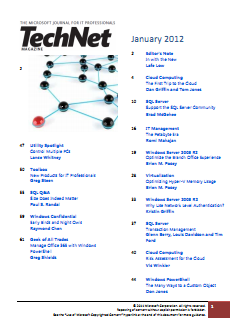
imageRemember Microsoft TechNet Magazine?  Did you know that you can download digital versions of the magazine now at no cost?

The November 2011 issue released a few weeks ago with the December on the way.  All previous issues area also available to download.

This November issue covered:

  1. SQL Server – Effective Query Tuning
  2. Windows Confidential – Jump Once, Jump Twice
  3. SQL Server 2012 – Sometimes Partial is Preferable
  4. Windows 7 – The Time Is Now for Windows 7
  5. Windows PowerShell – Scripting Crash Course
  6. Editor’s Note – Lucky No. 7
  7. Windows Networking – Secrets of Windows Event Auditing
  8. Geek of all Trades – Expand Beyond One
  9. Windows 7 – Migrating to 64-Bit
  10. Windows Server 2008 R2 – Networking in Failover Clusters
  11. SQL Q&A – Defrags and Disasters
  12. Toolbox – New Products for IT Professionals
  13. Microsoft Exchange Server 2010 – Server Roles
  14. Utility Spotlight – Windows 7 Installation Simplified
  15. Cloud Computing – Cloud Security Concerns

Past issues are available here to download:

Posted by: kurtsh | December 28, 2011

INFO: So you’re going to CES 2012. Now what? (Part 3)

image_thumb[1]_thumbA coworker asked me to summarize some things they should look into for their first trip to CES in Las Vegas.

Here’s the continuing thread of stuff I thought of:

Things NOT to do:

  • CENTRAL HALL FOOD
    Don’t eat at the Sbarro Pizza/Nathan’s Hot Dogs/Eatery just outside of the Central Hall. There’s always a massive line, it’s packed and the food is half-cooked and terrible. You’ve been warned. Your alternatives are as follows:

      • Hilton
        There’s tons of places to eat at the Hilton and it’s worth the walk.  Plan your lunch ahead of time however and go either at 11:00AM or 1:30PM to avoid the rush to Tres Rios Cantina, Paradise Café, or Superbook Deli.
        http://www.lvhilton.com/Hotel/dining
      • Renaissance Hotel
        ENVY Steakhouse is one of the best steakhouses in Las Vegas and it’s right next door to the Convention Center.  Literally right next door.  Open from 11AM-2PM for lunch.
        http://www.envysteakhouse.com/
  • CES END OF SHOW PARTY
    If you’re interested, there’s a monster party at TAO Nightclub at the Venetian on Friday. Personally, I wouldn’t bother with the end of show party because it’s hell & you probably won’t get in anyway.
    http://www.cesweb.org/events/tao-htm.htm

Other things to do:

  • CES BADGE HOLDER DISCOUNTS
    Review the CES badge holder discounts for dinner deals and stuff.
    http://www.cesweb.org/hotelTravel/lasVegas.asp#Discounts-and-Coupons
  • RESERVATIONS FOR EVERYTHING
    Make your show, restaurant, spa, whatever reservations way beforehand.
    For restaurants, I naturally use Opentable.com like everyone else.
    For shows, I personally go to Vegas.com for most of what I do because it’s the most convenient (they have a line into every show and every gig) and admittedly I’ve screwed up my reservations before and they’ve taken care of me no muss – no fuss on the phone.  Worth every penny.
  • GET GIFT CERTIFICATES
      • VEGAS.COMGo to the COSTCO in Marina Del Rey and pick up VEGAS.COM $100 gift certificates for $80.  That’s right – 20% off.  Use those for your trip and save.
      • SPAFINDER.COM – Go to COSTCO and purchase gift certificates for SpaFinder at 20% off.  These can be used at:
      • RESTAURANT.COM – Visit RESTAURANT.COM for pre-paid gift certificates for meals. (Use code SAVE to get 80% off the certificates)
        http://restaurant.com

Here’s some previous posts that I made about CES:

Posted by: kurtsh | December 27, 2011

INFO: So you’re going to CES 2012. Now what? (Part 2)

image_thumb[1]A coworker asked me to summarize some things they should look into for their first trip to CES in Las Vegas.

Here’s the continuing thread of stuff I thought of:

Let’s get this out of the way first and foremost:  
Microsoft’s booth is in the Central Hall – booth #7244. We’re right in front of Intel, next door to Motorola, Dolby, and Mitsubishi. 

Follow the RED LINE on the map:

image

Things to do:

  • MICROSOFT KEYNOTE
    You may want to try to see the Microsoft Keynote on Monday at 6:30PM but be aware: There are 1000’s of people that wait in line and they start waiting up to 6 hours ahead of time so it’s a challenge.  If you’re not in the first 5000 or so, you may have to go to an overflow room where the keynote is broadcast live on a large projection TV. http://www.cesweb.org/events/keynotes.asp#Steve-Ballmer
  • BEST OF CES: INNOVATIONS
    In the Central Hall, there are these shelves just inside the entrance. These are “Best of CES” nominees or Innovations award winners. Basically, if you can’t cruise the whole convention floor, this is a good way to skim through the hot items.
    http://www.cesweb.org/awards/innovations/about.asp#About-Innovations
  • WALKING THE SHOW FLOOR
    A good summary of what is being displayed is available at this URL below.  Otherwise here’s my opinions:
    http://www.cesweb.org/showFloor/by-hall.asp 

    image

      • Central Hall
        This is likely the hall you want to concentrate on if you’re in IT as many of the big names are there in computing: Intel, Motorola, Microsoft, Sony, Toshiba, Samsung, etc.
        It is also where the biggest Consumer Electronics folks have their booths: Some of the largest names lurk here in monstrous booth spaces, including: LG, JVC, Samsung, Panasonic, Audiovox, Sharp, Casio, Nikon, Fuji, Hitachi, Monster, Poloroid, etc.
        …this is the fun hall.  All the big players live in Central.  I spend 2 days here usually to really cover everything and get the experience.
      • South Hall 1, 2
        This is a lonnnnnng hall (affectionately referred to as the “cruise ship”
        by some) where they have home automation & home theatre technologies. Leviton, Zigbee partners, & Philips are usually present here along with Altec Lansing, Lexar, Sandisk, Ritek, Netgear, Magellan, TomTom, Synaptics, etc.
        …honestly, this isn’t really my ball of wax. It’s mostly smaller booths focused on flash memory or home stuff which I’m not really into. I spend usually 1/2 a day here.
      • South Hall 3, 4
        This is the top half of the “cruise ship”, (it’s a lonnnnnnng hall that’s kind of like a cruise ship) where a few major wireless/cellular companies are. RIM, Verizon, & Nokia. They also have some major accessories & PC equipment manufacturers here including NVidia, Kodak, Fujitsu, Powermat, Viewsonic, PCD, Plantronics, NAVTEQ, 3M, Garmin, Belkin, Diamond, and a few others.
        …but the rear of this hall is also known as the “International Zone”; the back 1/3rd is entirely populated with International manufacturers & you’ll find that speaking a second language here is almost a pre-req. I spend a 1 day here because of all the wireless.
      • North Hall
        It’s interesting if you’re into cars, car accessories or car audio equipment. JVC, Ford, OnStar, Kia, Kenwood, Audi, Pioneer, Cerwin Vega, etc.
        It features “Mommy Tech” – a small area featuring technology for parents – something that I’ve looked at over the past couple years. Things like GPS’s for kids, how-to-block-texting-while-driving, etc. There’s also a small area for technology for senior citizens, which is quite illuminating.
        Half the pavillion is populated usually by little mobile accessory companies – folks that sell batteries, holsters, clips, screen protectors, stuff like that.
        …I spend no more than 2 hours here usually… mostly on Mommy Tech.  I have a ‘guy’ that worries about car audio for me so that I don’t have to. [grin]
      • Central Plaza
        Also known as the parking lot. This is the area directly outside of the halls – it’s across from registration and where the busses are at. There’s only one reason in my mind to go there and that’s LENOVO. I think this is their only presence and it’s in a tent. Albeit it’s a pretty big presence. Weird how they chose the Plaza though.
        …I’ll spend no more than an hour out here on my way to lunch to pay my respects to Lenovo and see what they’re showcasing.
      • Venetian or Hilton
        Frankly, I rarely go to either location. Hilton is entirely International resellers looking for US partners – and I am not a US partner. Most of the time, the booth presences at the Venetian are designed more for deal making and one-on-one discussions – not so much for independent discovery.
        …no love here.
Posted by: kurtsh | December 27, 2011

INFO: So you’re going to CES 2012. Now what? (Part 1)

imageA coworker asked me to summarize some things they should look into for their first trip to CES in Las Vegas.

Honestly, I’d never even thought about it.  So here’s a random list of things that came out of my brain when I wrote back.  Hope they’re interesting to you too.

Preparation:

  • PLAN YOUR SCHEDULE
    The CES Expo/Exhibit floor is open during the following hours:
      • Tuesday, January 10: 10 a.m.-6 p.m.
      • Wednesday, January 11: 9 a.m.-6 p.m.
      • Thursday, January 12: 9 a.m.-6 p.m.
      • Friday, January 13: 9 a.m.-4 p.m.
  • DOWNLOAD THE FOLLOWING CES EXPO CONTENT:
  • PARTY PLANNING
    There’s quite a few parties going on.  If you’re only now looking into this, you’re probably too late to register, but that being said, there’s a few items to look into:
      • THE WINDOWS PARTY
        We have an invite-only party going on.  Each attendee must have a sponsor – I myself can’t afford to attend but if you’re a customer of mine and are interested, contact me.  (No promises!)
      • CES TWEETUP PARTY
        Don’t know if any of you use Twitter but there’s a CES-sponsored Tweet up going on at the Las Vegas Hilton.
        http://www.cesweb.org/events/CES-Tweetup.asp
      • CES PARTY LIST
        Check out the CESPartyList for interesting stuff to attend.
        http://cespartylist.com/

imageThis is an oldie but it’s worth writing about because it happens to some people quite often.  If you find that when you open Word, that the new document that you start with his horked in some way – the margins are weird, the font is too small, etc. – it probably means that somehow the Default Template got modified. 

Don’t ask how this happens.  It can be when a document you load asserts it’s changes on your default template somehow.  In any case, you pressed “SAVE” accidentally and it saved the changes to your default document template.

This is a file located at: (Windows 7, Word 2010)

C:\Users\[username]\AppData\Roaming\Microsoft\Templates\Normal.dotm

The easy solution for most is to simply go to this file, and DELETE IT.  Word 2010 will automatically recognize that it’s gone and recreate the default template.  Remember however that if you made any changes to the default template in the past (added a company logo or something like that) they’ll be gone.

« Newer Posts - Older Posts »

Categories