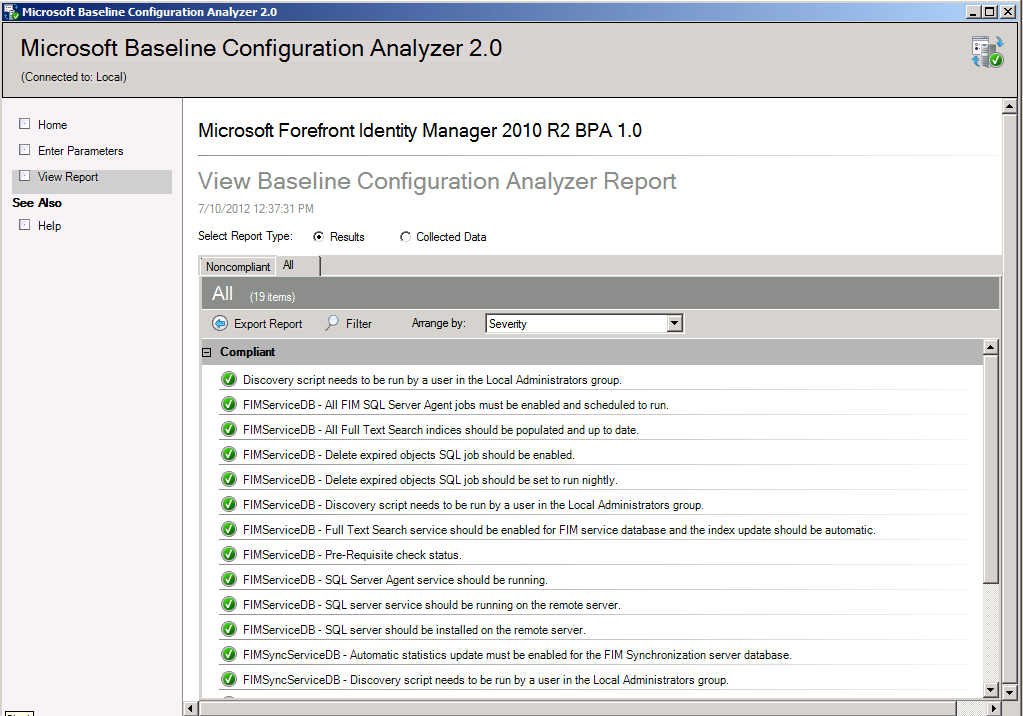
imageWe’ve released the Microsoft® Forefront™ Identity Manager 2010 R2 Best Practices Analyzer (4.1.2515.0). 

The FIM2010 R2 Best Practices Analyzer is a tool that lets you verify the implementation of Best Practices. These best practices typically relate to the usage and administration aspects of your FIM 2010 R2 deployment, to ensure they are managed and operated well.

Here’s a list of some of the best practices that the new FIM2010R2 BPA detects and helps correct:

DOWNLOAD: Microsoft® Forefront™ Identity Manager 2010 R2 Best Practices Analyzer 4.1.2515.0
http://www.microsoft.com/en-us/download/details.aspx?id=30419
Posted by: kurtsh | August 24, 2012

HUMOR: Old to New Microsoft?

MicrosoftOLDtoNEW

Click it to see the morph I put together in about 60 seconds.
(FYI: I used FotoMorph, a free morphing tool for Windows that’s quite excellent!)

imageIf you’re in IT or you’re at all a Windows geek, you need to check Windows-to-Go out. 

Windows-to-Go allows you to boot your complete Windows 8 Enterprise Edition environment off of a USB 3.0 flash drive (Windows-to-Go certified hardware) from basically any Intel computer.  (I understand that this even works on MacBooks even though it’s not supported)  The performance, because of the hardware requirements, is outstanding.  You really can’t tell that it’s just a USB stick you’re booting off of.

WHAT YOU NEED:

  • Windows 8 Enterprise (installed on a PC)
  • Windows 8 Enterprise .ISO image (via TechNet/MSDN or Volume Licensing downloads)
  • A Windows-to-Go certified USB 3.0 flash drive
    (Technically, any USB drive – even 2.0 drives – might work however they are not guaranteed to either work nor perform well.  If you’re going to do this, be prepared to just BUY a certified USB flash drive.  It’ll be about $80.  Trust me on this.)

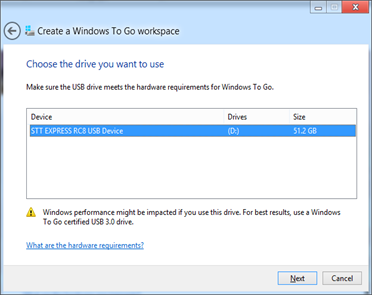
Here’s some quick and dirty steps on how to build your first Windows-to-Go flash drive:

  1. Run “Windows-to-Go” from the Control Panel on a Windows 8 Enterprise PC.  (Remember that Windows-to-Go is only available to Enterprise Edition users)  WinKey-X will allow you to bring up the Control Panel easily.

    image

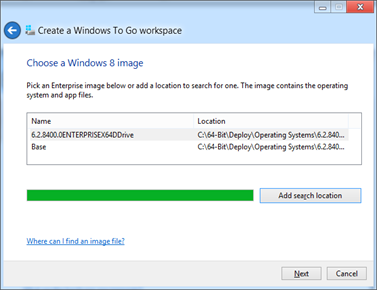
  2. Select an .WIM image.  If you have the Windows 8 Enterprise media in .ISO format, simply double click on the .ISO to mount it as a virtual DVD drive beforehand and navigate to \sources\install.wim for a base image.  The tool should automatically find this .WIM file if you had mounted the virtual DVD beforehand.

    image

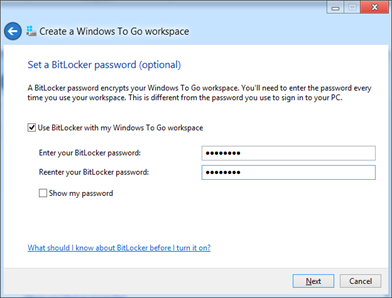
  3. Enable BitLocker if desired.  This will encrypt all data on the drive and require that you enter a BitLocker password before every boot.

    image

That’s it.  The process of building the Windows-to-Go drive will commence.

WAIT… THAT’S EXPENSIVE!  WHY USB 3.0 CERTIFIED FLASH DRIVES ONLY?
Please refer to this post I wrote about the specifications required for Windows-to-Go but basically, there’s no guarantee that Windows-to-Go will work correctly with lesser flash drives. 

We have several expectations of latency & performance as well as long-term reliability & durability that we tuned the Windows 8 operating system for in the Windows-to-Go scenario and those expectations are only met by Windows-to-Go certified flash drives.

SO, WHAT SHOULD I NOTICE ONCE I BOOT TO IT?
Here’s a few key features of Windows-to-Go that’s sure to amaze & delight.

  1. Pre-OS Password Unlock
    If you install Windows-to-Go with BitLocker – an option during the installation procedure – you will need to type a PIN in order to decrypt & use the BitLocker-encrypted Windows-to-Go flash drive.  This ensures that if the device is ever lost, there’s no concern of data leakage:  BitLocker uses a phenomenal level of volume encryption for the data on the drive.
  2. imageInaccessible Local Hard Drive
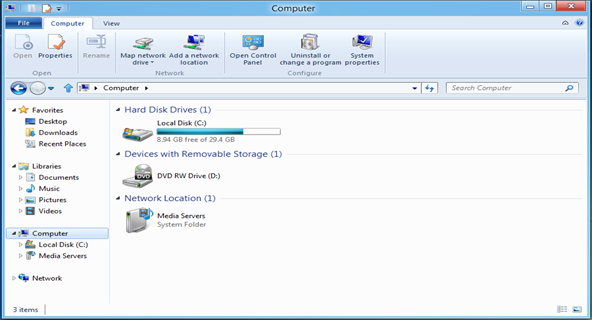
    Notice that if you go to My Computer from the Desktop, the local hard drive of the host PC is not listed and is otherwise inaccessible.  This is to prevent data leakage from the WTG “Work” environment and also protect that environment from malware that may reside on the local storage.
  3. Accidental Drive Removal Resilient
    Try pulling out the drive:  You’ll find that the entire OS pauses.  This was a major innovation in Windows that was introduced in Windows 8 Windows-to-Go.  It freezes all system processing until the drive is returned to the USB port.  The user has 60 seconds to accomplish this and if they do plug it back in, they get a "don’t do that again" dialog on the screen.  If they DON’T return the USB drive to the port in 60 seconds, a hard shutdown takes place in order to ensure that the data on the desktop display doesn’t fall into the wrong hands.
  4. VPN out
    VPN is fully available from the Windows-to-Go environment if a network’s available.
  5. Windows Store is disabled by default
    By design the Windows Store is not available to ensure that the WTG environment is not modified unnecessarily.  This can be overridden by Group Policy if necessary.

And exception FAQ on Windows-to-Go is available below:

Posted by: kurtsh | August 21, 2012

DOWNLOAD: “QuickHelp Starter” for Office 2013

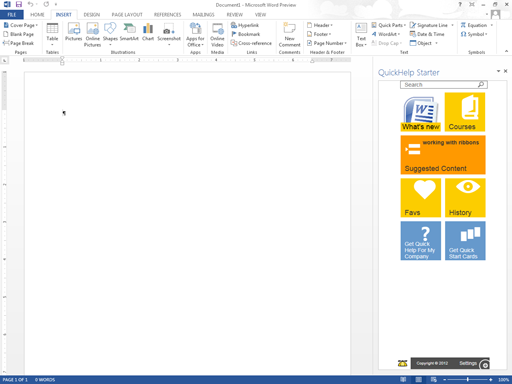
Brainstorm produced a neat FREE add-in for Office 2013 called “QuickHelp Starter” that shows within the frame of the Office application, how to use certain key functions of the application – either Word 2013 or Excel 2013.

imageOFFICE.COM DESCRIPTION
QuickHelp Starter is a collection of short videos that display in Word 2013 and Excel 2013 so you can work with features as you learn about them. Watch the videos that QuickHelp Starter recommends specifically for you, or search for the information you need within the collection. If there’s a particular video that you want to view later, bookmark it. Not sure which videos you already watched? QuickHelp Starter saves your viewing history.

PROVIDER DESCRIPTION
QuickHelp Starter is a collection of short videos that help users understand the ‘how’ and ‘why’ of features in Word 2013 and Excel 2013. Users increase productivity by increasing their ability to effectively utilize their productivity software. Features include:

  • Suggested Content: QuickHelp Starter will recommend videos specific to each user.
  • In-application Content: Videos are displayed directly within Word 2013 and Excel 2013 allowing users to follow along.
  • Search: All content is completely indexed and searchable, allowing users to quickly find content for their specific needs.
  • Favorites: Users can bookmark favorites so they can refer back to helpful videos at a future date.
  • History: Complete history is tracked allowing users to find previously watched videos.

DOWNLOAD: “QuickHelp Starter” for Office 2013 (v1.2)
http://office.microsoft.com/en-us/store/quickhelp-starter-WA102927044.aspx?redir=0

Have you been enjoying Click-to-Run functionality from the new Office Customer Preview?

image

So you have an App-V infrastructure in the lab and wish you could deploy the new Office in test for a side-by-side experience?

Lucky you!  We have the Office 2013 Preview available pre-sequenced for you to deploy via App-V 5.0!

(NOTE:  App-V 5.0 beta is needed.  If your customer hasn’t already they need to sign up for the beta here: https://connect.microsoft.com/MDOPTAP/Survey/NominationSurvey.aspx?SurveyID=14058&ProgramID=7604)

UPDATE 10/6/12:
And it’s installed.  What’s amazing is that I guess this could really be as big as anyone wants to it be.  I don’t have a wall big enough for something like this.  V__5AD0

———————–
ORIGINAL POST:
Anyone want a really HUGE display?

V__A780

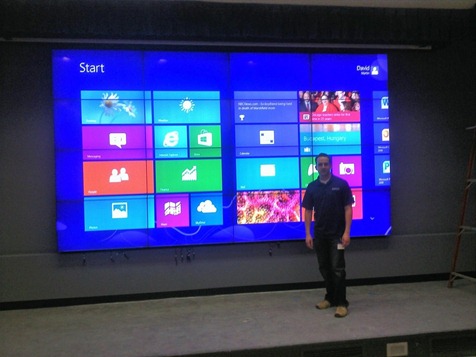
The photo doesn’t do this justice:  These are massive 60+” panels in a 3×2 configuration presenting a gargantuan single HDMI display.  What you’re looking at is something called the Casgan PiXelWall:  A multiscreen high definition series of displays with ultrathin bezels that combine to form a highly configurable wall monitor.

They’re deployed anywhere from showrooms, to Entertainment industry theatres, to command & control centers for Enterprise companies, to the home theatres of the rich & famous.

As you can see, the configuration above is a configuration being put together for a client of a friend that works at Casgan.  The first thing they through up on the PiXelWall was a 6 display configuration showcasing a single monitor view of a Windows 8 display.  Looks pretty sexy, ‘eh?

image

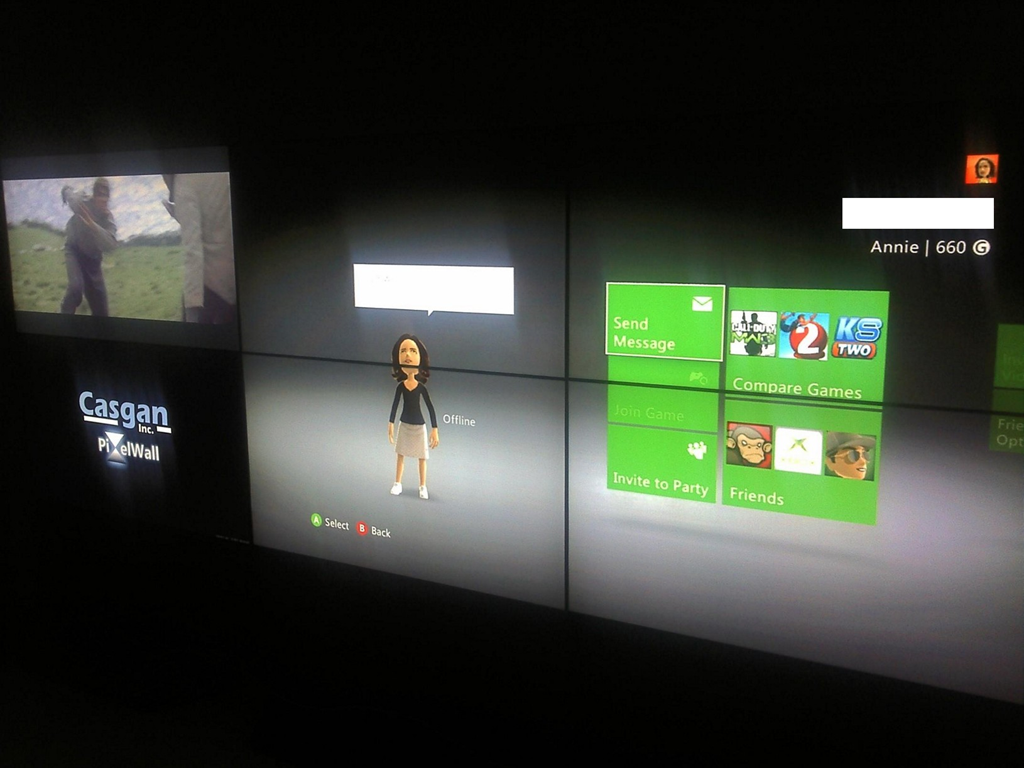
As mentioned earlier, the displays are configurable on the fly so you can have one display configured for say watching a live feed – like TV – and another for computer stats – and yet another for… recreational usage, as evidenced above.

A fact of life is that laptop batteries don’t last forever. But it’s a fact that we largely forget about, and we blame Windows for being a “power pig” & only until the battery completely fails do we consider that it’s a hardware issue.  The truth is that a lot of folks find their laptop’s battery doesn’t last very long and the reason is… it’s OLD!  And it’s dying! 

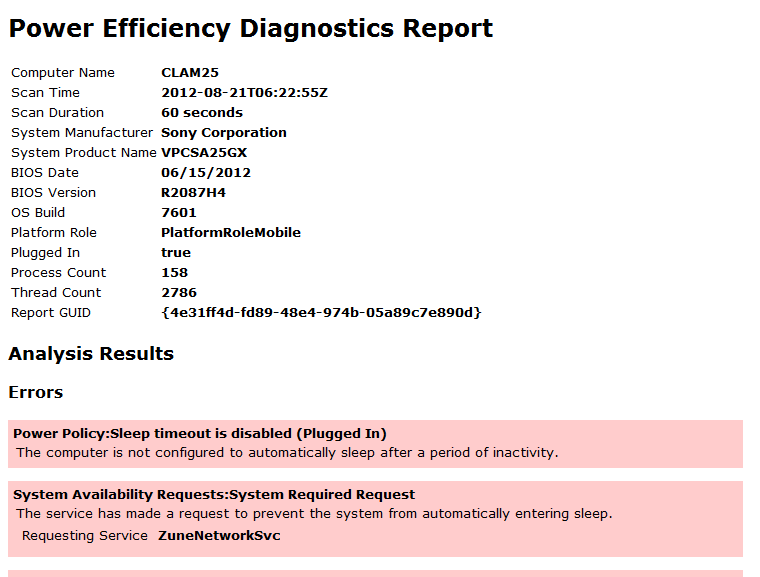
So how does one figure out – without too much effort, whether their battery is failing and if they want better battery life, they need to get a battery replacement?  It turns out that in Windows 7 & Windows 8, we have some great tools that make it very easy to determine how well your machine is doing power-wise in just 60 seconds.

imageHOW TO RUN A 60 SECOND REPORT ON YOUR LAPTOP’S POWER CONSUMPTION:

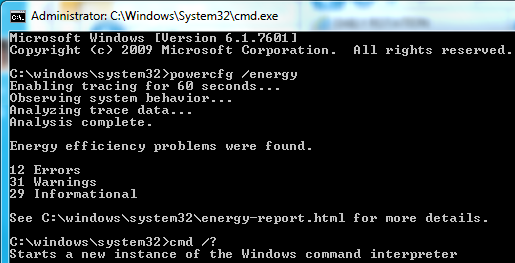
  1. Open a CMD shell with Administrative privileges in Windows 7 or 8.
  2. Run POWERCFG /ENERGY and a 60 second analysis will be run on your machine.
  3. If any issues arise, the analysis will tell you how many issues the OS found on the screen once it’s finished.  A report should be written to your \windows\system32 directory called “energy-report.html

image

ANALYZING THE RESULTS
The resulting HTML file will tell you a lot.  For example, one of the things it will tell you is what applications are the biggest power hogs on your system.  On my system for example, besides the usual suspects, like Internet Explorer, I found some surprising CPU hogs on there like Soluto & Windows Live Writer.  Something to know when you’re on the road and want to conserve battery.

The thing you’re looking for in this case is in the 3rd section, near the end entitled, “Battery:Battery Information”.  There are two numbers you need to look at in this section:

  • Design Capacity
  • Last Full Charge

These two numbers should be relatively close to each other obviously.  On my PC for example, I have a Design Capacity of 52170 and a Last Full Charge of 48770, meaning that the maximum charge I can hold on my battery is apparently about 93.5%.  Not bad.

If you have largely divergent numbers, you probably have yourself a bad battery and it’s time to replace it.

Posted by: kurtsh | August 20, 2012

INFO: “Client Hyper-V” for Windows 8

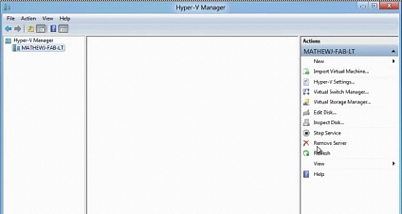
imageWindows 8’s Client Hyper-V is real, and it’s spectacular.  Forgive my enthusiasm but this is the desktop virtualization technology you’ve been waiting for on the desktop: A true type-1 client hypervisor, with all the power of Microsoft’s best virtualization technology… right up against the metal.

That means all the ‘against-the-metal’ speed & ‘x64’ power of the BEST server virtualization technology at your workstation without loading Windows Server on your machine as your base OS… and you still get to use it on any current generation x64 processor and have the richness of the Windows hardware/driver ecosystem!

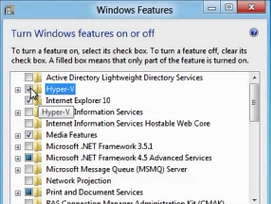
imageHOW TO TURN IT ON:

  1. Open Windows 8 CtrlPanel
  2. Go to Programs&Features & click Turn Windows Features On or Off
  3. Check "Hyper-V" (and the tools)
  4. Reboot… and you’re done.

You’ll notice Hyper-V Manager & Hyper-V Virtual Machine Connection client appear on the Start page, so if you’re used to Windows Server’s Hyper-V, you’re gonna be in familiar territory.  In the meantime, here’s some references that you’ll need once you’ve got things going:

Posted by: kurtsh | August 17, 2012

VIDEO: Windows Server 2012 recordings @ TechEd 2012

imageI’ve noticed something:  It seems like not too many people know exactly HOW MUCH content is available for Windows Server 2012.

Folks – there’s so much recorded & written it’s insane.  Maybe we’re not doing a good enough job of exposing it but in any case, here’s a simple list of all the sessions on Windows Server 2012 from the recent TechEd 2012 Conference in Orlando, FL.

Each are 1hr & 15min long.

For more sessions, visit:
http://channel9.msdn.com/Events/TechEd/NorthAmerica/2012

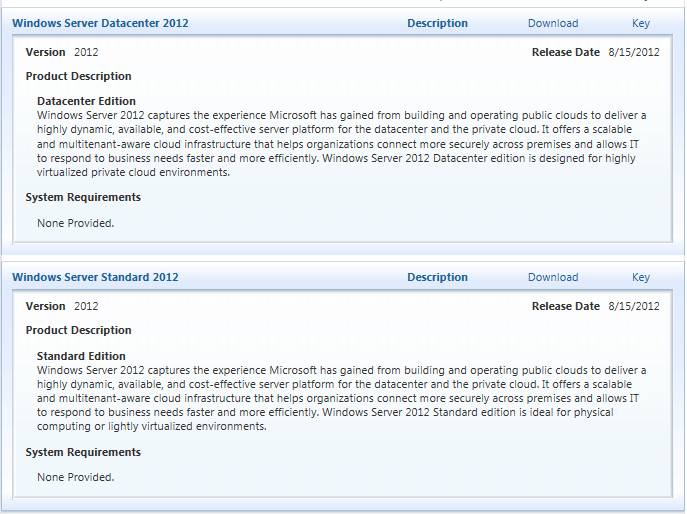
For Volume Licensing customers, the .ISO images of Windows Server Datacenter 2012 and Windows Server Standard 2012 are now available on the Volume Licensing Service Center web site:

image

VIDEO RECORDINGS
The following overview video recordings are available for Windows Server 2012:
(Note: Each are roughly 1hr & 15min long)

(Note:  There’s a LOT more recorded content than this.  I only listed the above recordings because it was what one of you wanted to hear about.  If you’d like to see all the Windows Server 2012 content from TechEd 2012, check this post out:
VIDEO- Windows Server 2012 recordings @ TechEd 2012)

LICENSING:
Find licensing and pricing details in the downloadable datasheet; find the answers to the most commonly asked pricing and licensing questions:
http://www.microsoft.com/en-us/server-cloud/windows-server/2012-editions.aspx

DOWNLOAD:  Windows Server 2012  – Volume Licensing Service Center
https://www.microsoft.com/Licensing/servicecenter/Downloads/DownloadsandKeys.aspx
(Requires Volume Licensing Administration privileges for your organization)

« Newer Posts - Older Posts »

Categories