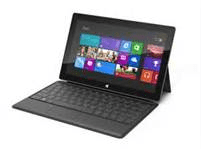
 Until yesterday, I’d never encountered any problem with the Surface worth writing about. My issues were mainly usability concerns and basic 1.0 sort of issues.
APPS CRASHING TO THE DESKTOP
However recently an issue has been cropping up every so often. When I run the "Finance" application, the requisite ‘Loading…’-ish screen comes up… then after a few seconds, it suddenly displays the Desktop, as if the application crashed and the default reaction is to go to the Desktop environment instead of the START menu. Also the Explorer environment (the taskbar, system tray, etc.) looks like it’s crashed & is being reloaded, as if I’d killed EXPLORER.EXE and it was bringing itself back. This in it of itself isn’t that big a deal in that usually if I attempt to run the app again, it will load.
A SUDDENLY EMPTY TASK BAR?
The issue is that immediately after the crash, if you bring up the Windows 8’s "Task Bar" a.k.a. WinKey-Tab/Swipe Left to view the running apps in memory, NOTHING APPEARS. It’s as if all the running apps got deregistered from the Task Bar… but they’re still running in the background. The reason I know they’re still running is that there’s no load time if I attempt to run any programs I believed were previously loaded.
For example: If I had previously run Mail, Calendar, MetroTwit, and Internet Explorer M-tro before this "Finance crash" occured, I can return to the START page, run "Mail" and it’ll pop right up without any load time. Because it was still in memory. Once I do this, the app (in this case, “Mail”) does appear in the Task Bar and can be switched to.
I considered a few possibilities:
- The Finance App is buggy.
The problem with this theory is that the crash clearly affects the operating system. By having a “blank” Task Bar from Windows 8, that tells me that there’s more at work here than the app itself – especially considering every app is sandboxed to protect one apps issues from impacting another running app.
- My Surface is damaged.
Some of you may know about the well-publicized fall of my Surface from the roof of my car while driving. This did occur to me that the fall might have somehow caused some damage from the impact… however I’ve now seen these symptoms on BOTH of my Surface RT devices (I own 2) and I’ve seen it also on the Windows 8 LAPTOP that I’m typing this post on right now. The Mail app did the same behavior as the Finance app not more than 5 min ago.
- Windows 8 has a bug.
This is the most likely scenario. The question is where? And how do we fix it?
This is a problem. I don’t want my Surface crashing on a customer who’s just having fun jamming away on it. Must. Fix. Now!
- FIX ATTEMPT #1: REBOOT
I tried the ol’ tried and true tactic of rebooting thinking it was a temporary condition. Unfortunately in this case, it was not. I’ve heard that this has fixed the issue for some but definitely not for me. The Finance app still resulted in the same issues.
- FIX ATTEMPT #2: UNINSTALL/REINSTALL
I attempted to uninstall the Finance app and reinstall it from the Store but an interesting thing happened: The reinstall appeared to leverage some locally cached copy because there was NO download time (the app is 16.5MB and should have at least taken a second or two over my 3Mb DSL) and the installation was near instantaneous despite "supposedly having uninstalled" the Finance app. And of course the issue remained. <sad trombone here>
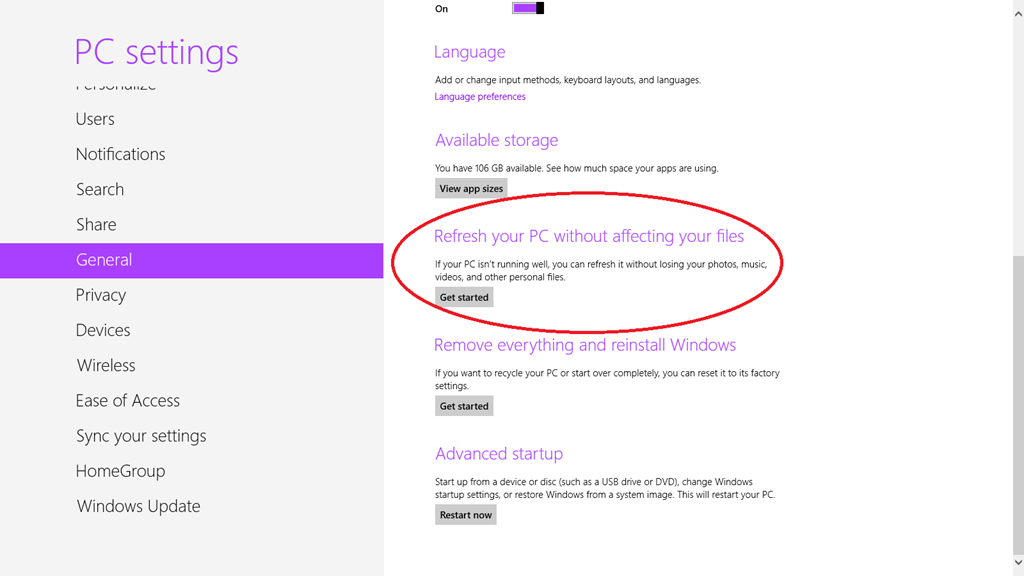
- FIX ATTEMPT #3: “REFRESH YOUR PC WITHOUT AFFECTING YOUR FILES”
Running out of things to try, I attempted my very first SETTINGS – GENERAL – “Refresh your PC with affecting your files”. It’s supposed to be a complete OS refresh while keeping applications, user data/documents, and application & profile settings completely intact. I’ve never actually done this before and if this didn’t work, I was going to shift gears and try "Remove everything and reinstall Windows" as a last ditch attempt to get things fixed. Because clearly something was either wrong with the Finance app… but probably something was likely wrong with the OS as well given the sudden "task bar" corruption that I was experiencing.
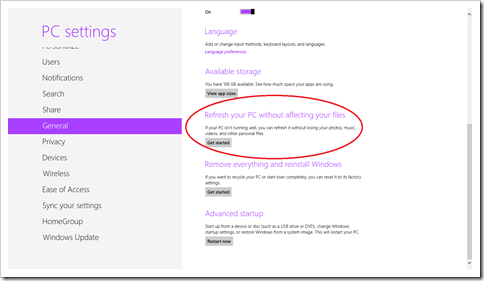
And lo and behold, it seemed to work. After about 15 mins of reinitializing the device, everything works great. All my Windows Store bought apps were still there as was my documents & configuration information information. There was a little bit of resetting that needed to be done to my START page layout but other than that, things were tip top.
So if you’re running into the same problem, maybe this will work for you!
Comments Off on INFO: “I have an Windows 8/RT app that just disappears/crashes & drops me into the desktop or a blue background. Dude, WTF?”
Posted in Uncategorized
 The entire 147 page “Windows 8 for Dummies” (Dell Pocket Edition) is available for free via Dell’s web site.















 kurtsh
 Kurt Shintaku's Blog
You must be logged in to post a comment.