Created by The Windows Club:

- DOWNLOAD: Infographic on Windows Phone 8 Features (Poster)
http://media-cache-ec4.pinterest.com/originals/b4/d6/e5/b4d6e50dff90ebcda989ff27e8e1d951.jpg
Created by The Windows Club:
Comments Off on DOWNLOAD: Infographic on Windows Phone 8 Features (Poster)
Posted in Uncategorized
I hadn’t installed the Skype Desktop in a long while. Then I saw this:
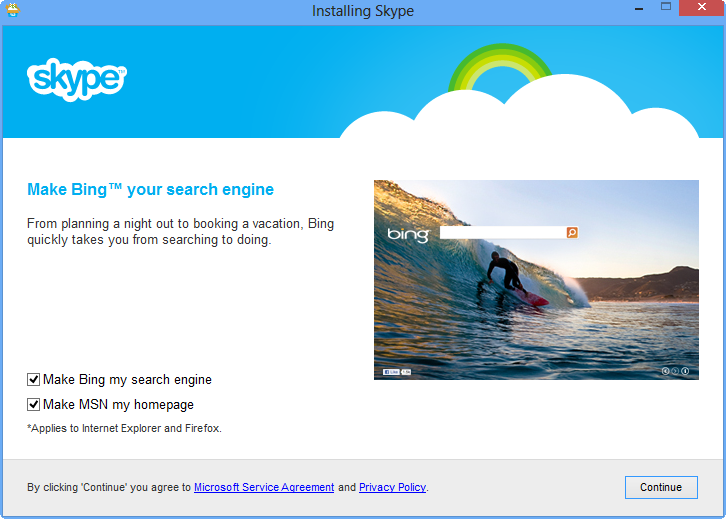
If this makes you lol, like it did me, great! If you don’t know what this is… well, never mind.
Comments Off on HUMOR: Something I just discovered about Skype
Posted in Uncategorized
Does your Windows Phone 8 occasionally reboot, freeze, randomly shutdown, or display a “SIM Error” message, dropping your cellular connectivity?
I figure there are people out there that have encountered the same things as I have so I thought I’d document some of what I’ve heard/experienced:
Comments Off on INFO: Windows Phone 8… shutdowns, reboots, & freezes?
Posted in Uncategorized
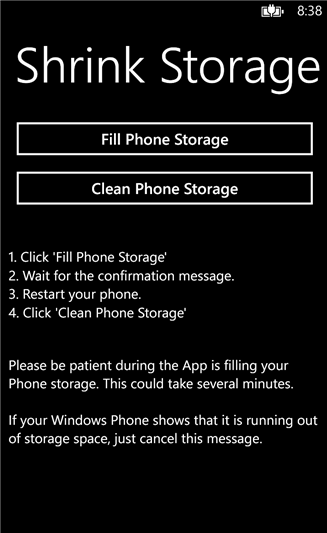 Are you running out of “free space” on your Windows Phone 8 device like me?
I have an HTC 8X Windows Phone 8 device & it has 16GB but lacks an microSD expansion. I’ve loaded about 5.2GB worth of media, photos, and apps on the device & discovered some rather weird instability that occurs once the device gets to about 1.0GB of free space (freezes, reboots, etc.) so I always make sure I am above that threshold.
Here’s the problem:
Q: So what the heck is 5.4GB of “other”?
I found a tool on the Windows Phone Store that appears to fix this problem by freeing up much of that ‘other’:
The background on the interwebs says that Joe Belfiore himself has admitted the free storage clean up needs some tuning and thus after using the device for a while, “other” storage can build up and eat up your free space.
There’s some key things to know before using the tool:
Personally, I had 1.51GB left before I used the tool. After running Shrink Storage, using the ‘Fill Phone Storage’ function, rebooting, using the app for a bit, then checking Phone Storage, I noticed I had 2.28GB free. Remember: This was BEFORE I used the ‘Clean Phone Storage’ feature.
After running Shrink Storage again, then using the ‘Clean Phone Storage’ feature, I found I had 3.79GB of storage: An improvement of exactly 2.28GB of free space.
Thumbs up, Manu Bauer! (The author of the tool)
————————–
UPDATE 3/31/13:
Apparently Corporate VP Joe Belfiore tweeted something that verified that this is a known issue.
http://answers.microsoft.com/en-us/winphone/forum/wp8-wpstart/what-is-other-under-storage/979d2948-249b-4303-a475-4183b15af2d6
There’s also been a few articles that talk about what other things you can do to reduce your storage utilization.
http://www.wpxbox.com/windows-phone-other-storage/
————————–
UPDATE 4/1/13:
I thought I’d elaborate on the issues I started having out of the blue a few days ago – all of which were completely resolved once I did the above optimization:
Comments Off on HOWTO: Free up space on a Windows Phone 8 device
Posted in Uncategorized
Wanna stop paying for 3rd party cloud storage like BOX, DropBox, etc.?
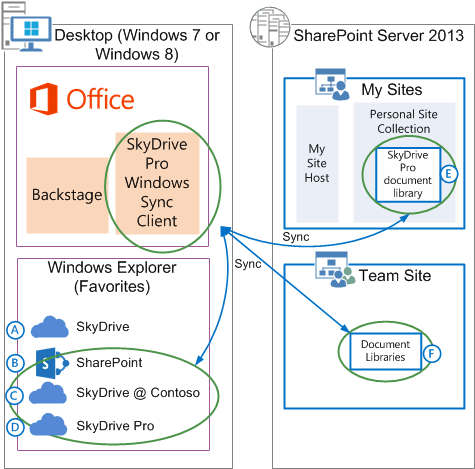
Just posted a few days ago, this is a TechNet article that goes into detail about what SkyDrive Pro is, how it’s architected, and what solutions it addresses.
Published: March 26, 2013
Summary: Learn about SkyDrive Pro, its architecture, and the benefits of using SkyDrive Pro in SharePoint Server 2013.
Applies to: SharePoint Server 2013 Standard | SharePoint Server 2013 Enterprise
This article helps administrators learn about SkyDrive Pro, the SkyDrive Pro architecture in SharePoint Server 2013, and the benefits of using SkyDrive Pro. Before you read this article, you should be familiar with My Sites. For more information, see My Sites in What’s new in social computing in SharePoint Server 2013.
In this article:
View the article here:
http://technet.microsoft.com/en-us/library/dn167720.aspx
Comments Off on INFO: Overview of SkyDrive Pro in SharePoint Server 2013
Posted in Uncategorized
The other day, I stumbled upon two new utilities that I thought were cool enough to write about.
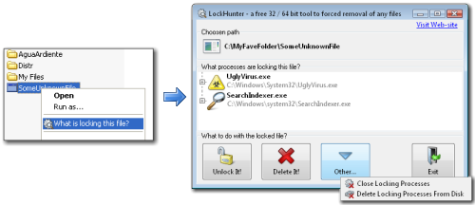
LockHunter is a foolproof file unlocker. It is a free tool to delete files blocked by something you do not know. LockHunter is useful for fighting against malware, and other programs that are blocking files without a reason. Unlike other similar tools it deletes files into the recycle bin so you may restore them if deleted by mistake.
Key Features
- Shows processes locking a file or folder
- Allows to unlock, delete, copy or rename a locked file
- Allows to kill locking process
- Allows to remove locking processes from hard drive
- Can unload DLLs from processes
- Integrates in to Explorer menu
- It deletes files into the recycle bin, so you may restore them if deleted by mistake
- Supports both 32 and 64bit Windows
DOWNLOAD: LockHunter – Free Desktop-integrated File Unlocker
http://lockhunter.com/
————————
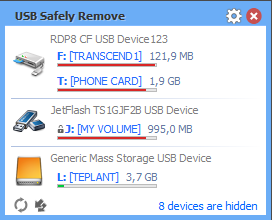 And then there’s USB Safely Remove, made by the same developer. This tool is NOT free however I think it’s equally valuable. I bought it instantly.
USB Safely Remove is an enhanced and hassle-free replacement for Windows safe removal tool. It saves your time and gives you more power on active work with any kind of USB/eSATA devices.
- It saves time…
- Displaying what prevents a device from being stopped
- Safe removal via hotkeys
- Lets you recognize a device in a snap…
- The handy menu with device icons
- Real device names and the ability to rename them
- Lets you hide devices you never need to stop
Extends your portable opportunities…
- Program autorun on device connection/disconnection
- Command line for safe removal
- Hiding drives of empty card reader slots
- Powers off devices in Vista and Win7
- Card reader memory cards ejection one-by-one
- Re-activating a device that just stopped!
DOWNLOAD: USB Safely Remove – 3rd party SysTray Storage Removal tool
http://safelyremove.com/
Comments Off on TOOL: “LockHunter” & “USB Safely Remove” – Free 3rd party file unlocker & paid storage removal tool
Posted in Uncategorized
 BUILD is coming!
The upcoming BUILD 2013, Microsoft’s Developers Conference was announced on the Official Microsoft Blog, along with all the pertinent details.
BUILD 2013
www.buildwindows.com
Moscone Center
San Francisco, CA
June 26th (9:00AM) -28th (2:30PM)
Registration begins April 2nd at 9AM PDT
Early bird registration $1,595 (1st 500 registrants)
Standard registration $2,095 (all others until sold out)
Follow @bldwin for more information.
For a look at the videos from BUILD 2012, check this out:
http://channel9.msdn.com/Events/BUILD/2012
Comments Off on EVENT: Microsoft BUILD 2013 – San Francisco, June 26-28
Posted in Uncategorized
Read below & see for yourself:
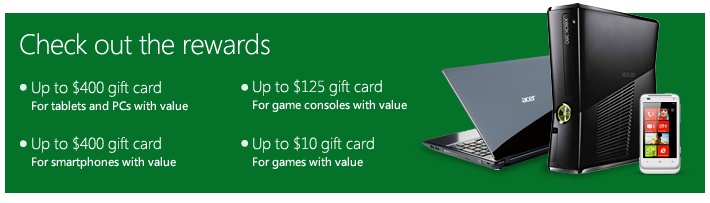
How to redeem this offer
*Valid March 4, 2013 until March 31, 2013. Available in select Microsoft retail stores in US (not including Puerto Rico); not valid Microsoft online store. To be eligible for trade-in, your tablet, PC, phone, game console, or game media, should include device power cord, if available, and device cannot be password protected. Applicable Microsoft store gift-card value will be determined at trade-in, and is subject to Microsoft’s discretion and manager approval. Not valid on prior orders or purchases; cannot be transferred or otherwise redeemed for cash or gift cards. Not combinable with other offers. All trade-ins are final. Other Recycle for Rewards terms and conditions apply. See store associate for details.
Visit the web site for more details:
http://content.microsoftstore.com/store/offers#offer-recycle-rewards
Comments Off on DEAL: Microsoft “Recycle for Rewards” program – Only 3 days left! (Local Microsoft Stores only)
Posted in Uncategorized
This week there was a lot written in the press about the basic premise that a move to the cloud is dramatic enough without having to deal with significant & time-consuming integration, compatibility, and continuity problems.
The tl;dr version can be best summarized as, “You get what you pay for”, but there’s more to it than that. Read on:
 CNET: “My Google Spreadsheet Fail”
  ZDNET: My big email switch: Why I picked Office 365 over Google Apps
 Comments Off on NEWS: Productivity in the Cloud & Why Reliability Online Matters
Posted in Uncategorized
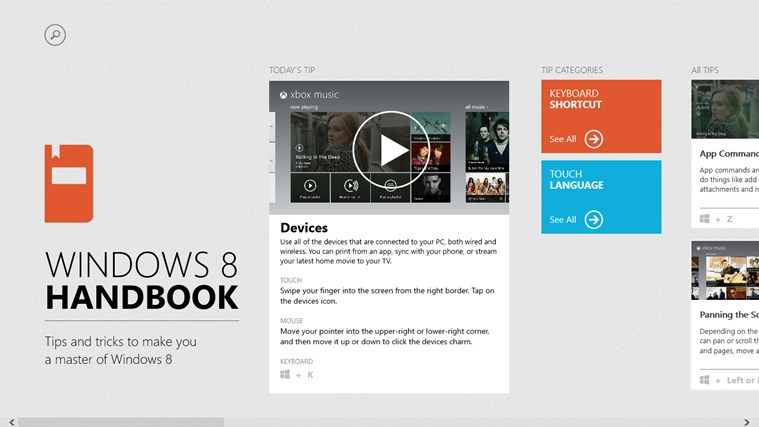 Are you deploying Windows 8?
Here are a few resources that you’ll want to keep handy for your users.
APP: Windows 8 Handbook
http://apps.microsoft.com/windows/en-US/app/windows-8-handbook/283f362e-b936-448f-8379-b66a39698dd9
GUIDE: Windows 8 Quick Reference Book (11.8MB, PDF)
http://www.oemsalescenter.com/ConLib/CustomizerControls/create.aspx?T=&PID=38787&catid=d39e1c00-7c1e-409d-afde-360a607f312d
BOOKS: Windows 8 Plain & Simple (And other MS Press books)
http://shop.oreilly.com/product/0790145338945.do
REFERENCE: QuickStart Card for Microsoft Windows 8 ($4.95)
http://www.brainstorminc.com/for-business/train-by-product/microsoft/windows/windows-8
Comments Off on INFO: Training References for Windows 8
Posted in Uncategorized
 kurtsh
 Kurt Shintaku's Blog

You must be logged in to post a comment.