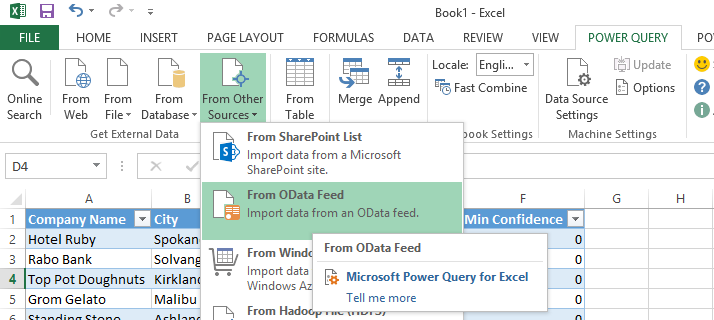
imageSummary: The Self-Service Business Intelligence workshop is an intensive two-day class that is designed to get you up to speed using tools easily accessible to Power Users. First you will learn the basics of creating models using Power Pivot. Then using Power Query you will shape additional data that can be found in external data sources.  Finally, you will learn the best ways to present your data by building reports using Excel, Power View and Power Map. You will also learn how to make the self-service BI solutions you create scalable across your entire enterprise environment.

Prerequisites: This class is targeted for Power Users or End Users that are looking to design their own self-service Business Intelligence solutions.  Because this class is focused on self-service end user solutions, previous SQL Server knowledge is not required.  It is not mandatory but ideally students would have a basic understanding database terminology (tables, views column, rows, etc..)

System Requirements:
Excel 2013 allows you to follow entire class
Excel 2010 allows you to follow Power Pivot and Power Query.  A hosted SharePoint service can be used to try Power View.

  • Instructor: Devin Knight
  • Duration: 2 Days
  • Location: Microsoft Office
    3 Park Plaza
    Suite 1600
    Irvine, CA 92614
  • Schedule: 12/2/2013 – 12/3/2013
    8:30 AM – 5:00 PM
Registration:
http://pragmaticworks.com/LearningCenter/Workshops/BusinessAnalytics.aspx/12-2-13_LosAngelesSelf-ServiceBusinessIntelligenceWorkshop

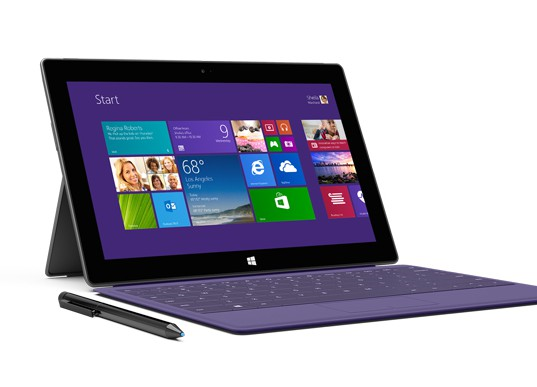
imageI have historically looked at Surface Pro & Pro 2 as my "advanced companion device"… my home away from home, so to speak. 

  • PREVIOUSLY WITH SURFACE PRO 1, it was simply my handwritten note-taking device, customer presentation machine, & "hey-look-at-me-your-capacitive-touch-tablet-can’t-do 90%-of-what-I’m-doing" image device. My limitation was storage capacity (max 128GB) & battery life to a lesser degree.
  • NOW WITH SURFACE PRO 2, I’m syncing all my data, 100% of it, between my home desktop & my Surface.  I now have all-day battery life exceeding 8hrs while on Power Saver.

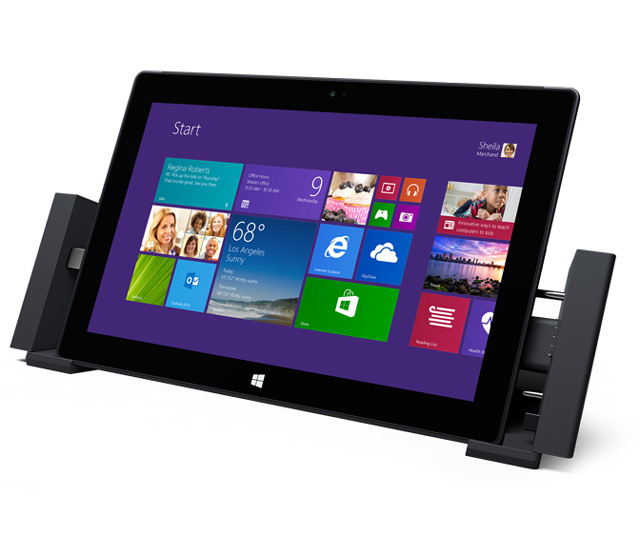
…this makes for an interesting quandary for me because with its new 4th-gen Intel Haswell CPU & its DisplayPort, my Surface Pro 2 is officially better than ANY other laptop or desktop I own.  With the dock I get big-ol’ screens for home use, and when I’m on the road, I get portability, great battery life, 256GB of storage (I typically need about 140GB) & it’s both a consumption & a creation device. 

BOTTOM LINE: 
I believe Surface Pro 2 has met the vision of having “one single device” for everything with this release.

————————–
EPILOGUE: So now the question is, why do I need my Lenovo X1 Carbon?  While is a great laptop, it’s slower.  It’s screen is bigger, yes, but I don’t need a bigger screen while I’m on the road visiting customers, and when I am home, my Surface dock connects to larger displays anyway.  The battery’s not any better.  I can’t use it as a tablet.  It’s got DisplayPort on the side so it’s got that going for it but outside of being a “home base” device… I’m not sure what to do with it other than keep it synced for those times when I might have long term work away from home requiring the larger screen.

Posted by: kurtsh | October 26, 2013

TRAINING: SQL PASS Summit 2013 On-Demand Video Recordings

image

If you’re interested in Microsoft SQL Server, you should already know about the PASS Summit, the independent (Microsoft-supported) SQL Server conference that happens every year. 

PASS Summit is 100% SQL Server focused so if you make your living working on Microsoft SQL Server, this conference is nirvana.  With over 190 technical sessions delivered over 2-days of pre-conference learning, plus 3-days of main conference attendance, PASS Summit provides the ultimate networking & education experience for IT Professionals looking to meet SQL MVPs, experts & peers in the industry.  It also provides and opportunity to get face-to-face support with Microsoft CSS & SQLCAT, while participating in chalktalks throughout the event.

Here’s a short example of many of the sessions for Microsoft SQL Server administrators & programmers:

imageThe PASS Summit for 2013 published recordings of many of their 190 sessions online at PASS TV:

If you’re interested in knowing what was presented, download the PDF Session Schedule here:

I’ve gotten this question more than once so I thought I’d jot down a quick answer:

Q: Why doesn’t Surface Pro & its Docking Station have an HDMI port?

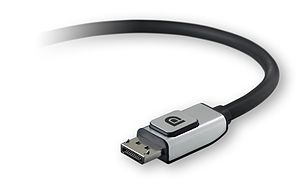
The simple answer is that it has something better: A DisplayPort.

imageFor those that can’t get over their need for HDMI, DisplayPort has $5-$10 cabling or dongles that easily transform the port into VGA, microHDMI, fullHDMI, DVI, component, etc.  The technology also supports the encrypted path of HDMI 1.4 for playing protected content like that from BluRay.  It transmits both audio & video over a single channel exactly as HDMI does… but there are a several major big differences that give it a leg up.

DisplayPort supports:

  • DAISY CHAINING. You can connect a DisplayPort cable to your monitor then connect that monitor to another monitor then connect that one to another monitor… 4 simultaneous 1080p+5.1 channels over a single cable. Unlike HDMI which is single channel only.
  • BI-DIRECTIONAL I/O. You can connect touch screens to DisplayPort and push 1080p video to it, and have touch I/O from the display transmitted BACK to the device over the same DisplayPort connection without needing a second USB cable to loop back to the PC.

There are other benefits but these are the two big ones most people like to hear about. DisplayPort standard is not used a lot outside of Macintoshes because there’s a licensing fee involved that eats into most PCs margin, however the VESA organization that manages the IP for DisplayPort granted Microsoft the right to use DisplayPort for Surface Pro. (Terms/conditions weren’t disclosed)

Bottom line: You should be very happy that DisplayPort is on Surface Pro & the dock. It’s a much better solution than HDMI which is far less capable, but more popular because it’s cheap & does the job.

Xbox One is going on tour juuuuuust before the release on November 22nd.  And you can be there here in Los Angeles, CA via the Xbox One “Test Drive” – a decked out Xbox One truck making an appearance here in Southern California.  Meet us at a Test Drive stop and we’ll put a controller in your hands, a game on the screen, and a spring in your step that’ll carry you through to launch.

This is where you want to be if you want to see the new console in action & get hands-on time with the NEW games, the NEW Kinect, & the NEW Xbox One controller.

  • imageNov 17, 12pm to 8pm
    Outlets At Orange
    One City Boulevard, West
    Orange CA, 92868
  • Nov 18, 10am-4pm
    USC @ McCarthy Quad
    1201 S Figueroa St,
    Los Angeles, CA 90089
  • Nov 20, 10am-10pm
    Microsoft Store @ Century City
    10250 Santa Monica Blvd
    Los Angeles CA, 90067
  • Nov 22 to Nov 24
    LA Auto Show – LA CONVENTION CENTER

Follow the Xbox One Test Drive here:
@XboxOneTrucks: http://www.twitter.com/xboxonetrucks 

And by the way:  Consider yourselves invited.

Xbox One: Invitation
Posted by: kurtsh | October 24, 2013

INFO: An Unboxing of the Surface Dock Accessory

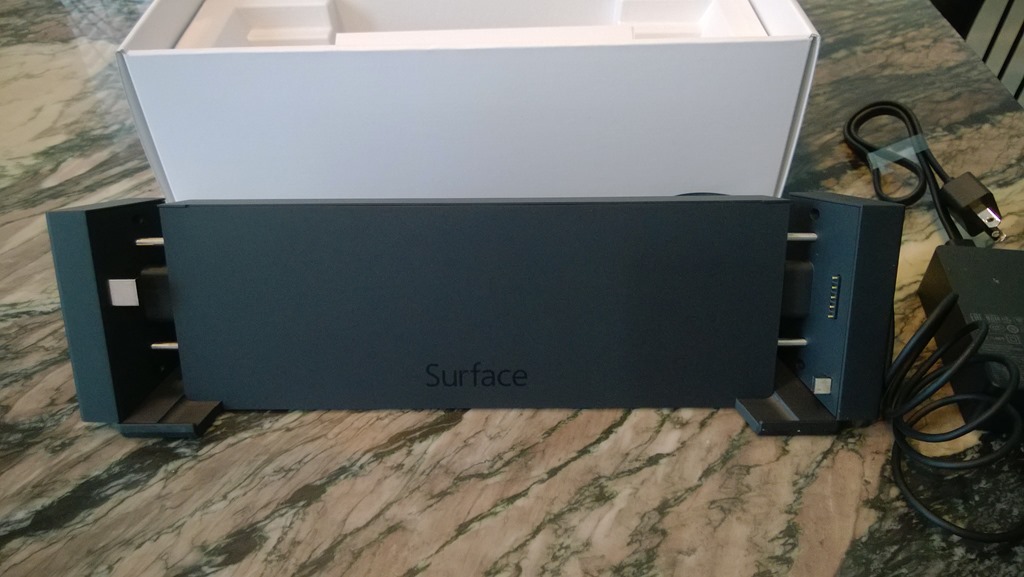
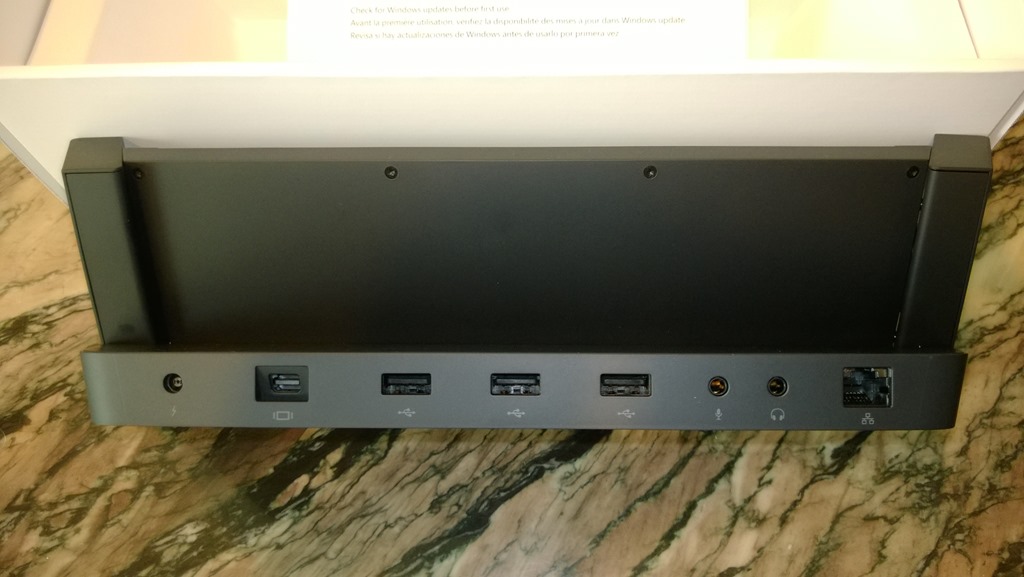
WP_20131023_10_10_00_ProI got a Surface dock.  
Smile

It’s wonderful & works beautifully with my Surface Pro 2.  Extremely well designed.  I haven’t tested my Surface Pro 1 with it yet but I’m sure it works fine as well… worth every dollar.  (And I paid $199 for it.) 

I was previously on the fence about this device, but after using it in production, I’m totally sold. Simply by docking my Surface Pro into this unit, I instantly get:

  • Connected to my multiple external displays over DisplayPort
  • Stereo audio from my dock-connected Jawbone speakers
  • Wired Ethernet connectivity
  • An immediate charging system for my Surface Pro 2 & future Power Cover
  • Over the USB ports
    • Access to my dock-connected USB 3.0 hard drive
    • Use of my dock-connected USB mouse & microphone
    • Connected to my 1080HD LifeCam Cinema camera
    • Connected to my Lync-integrated Polycom CX300 Deskphone

…and despite being able to use a USB connected keyboard, I continue to use the Surface Type Cover to type because I like using the cover keyboards that much.

WP_20131023_10_12_13_ProWP_20131023_10_12_35_Pro

WP_20131023_10_12_50_ProWP_20131023_10_13_31_ProWP_20131023_10_11_44_Pro

WARNING:
In case you’re wondering… “Where’s the USB 3.0 port?”  One photo that I’m missing is a side shot of the dock where the USB 3.0 port is.  You can see all the other ports on the back but I simply forgot to take a shot of the USB 3.0 port on the side… but trust me, it’s there.

Posted by: kurtsh | October 24, 2013

INFO: Notes on Surface Pro 2 Improvements I’ve noticed

imageCouple things folks haven’t talked about re: Surface 2, so I will:

  1. The Polartec fleece cover on the back of the Type Cover is now doubly reinforced to keep it from tearing away from back, which is a known problem for the original Type Cover.
  2. The magnets holding the keyboards and the power adapter are noticeably stronger. Avoids accidental detaching like in the past & provides a better "click in".
  3. The touchpad buttons on Type Cover 2 are… a bit hard to keep pressed down for things like drag & drop, so much so that I occasionally have use my left hand to hold the left button down while I drag with my right hand.  They no longer "click" and are almost identical to the Touch Cover buttons except that with the newly introduced carbon fiber banding (which makes Type Cover 2 rigid for lapability) makes pressing the left button difficult.  So despite the other TC2 benefits like backlighting & shorted scissor switches, I may see how this is compared to using Type Cover 1 because I love that touchpad.
  4. Type Cover 2 is very sturdy relative to Type Cover 1. TC1 felt a little flimsy and wiggled a lot when you attempted to type on your lap. TC2 is like a plate of unyielding fiberglass & I really like that especially in tandem with the 2nd angle available on the kickstand.
  5. I prefer the old Windows logo on the back of the Surface instead of the word Surface. This is one case where I think the fragmentation of the brand might be a mistake. But who am I to contradict Panos Panay & Michael Angiulo?
  6. The display on Surface Pro 2 is definitely better than SP1. The color accuracy is better but the thing I noticed was that glass is thinner, which I believe has to do with the usage of Gorilla Glass 3. If you compare the depth of SP1 & SP2’s glass edge you can see the difference. This is important for folks that ink with precision through a stylus/digitizer – like me.
  7. OneNote 2013 inking while on Power Saver rocks, a benefit of the faster, yet more power conservative 4th gen Intel Core i5 CPU (aka Haswell).  It was awesome before but now I’m looking at ~8 hrs of non-stop all-day handwritten note-taking glory.
  8. The Surface dock is SICK.  I love this thing.  I don’t know why.  I’ll write more about that later since I’m one of the few that got one.
Posted by: kurtsh | October 23, 2013

VIDEO: “The World of Windows Embedded” (2 min)

Did you ever wonder how diverse & widespread the usage of Windows actually is? 

Especially through the usage of our embedded solutions, Windows is actively in use in a lot more places than you probably think.  Most of today’s modern ATMs today – especially the touch screen models, for example, use Windows Embedded but so do most of the green screen text versions as well.  (Many of these older machines are dial-up OS/2 retrofits from back in the early 2000’s) 

He’s some of the many places where Windows is used in your daily lives that you probably didn’t even know about.

World of Windows Embedded

I was recently asked what sort of training is available for end users for Visio 2013.  There’s a decent amount out there and it’s free.

image“Make the switch to Visio 2013” Training
http://office.microsoft.com/en-us/support/make-the-switch-to-visio-2013-RZ102925050.aspx?CTT=5&origin=HA104032123

  • Top changes to know about (3:20)
    Get a quick overview of the biggest changes in Visio 2013: from the start screen, to redesigned shapes, to the new .vsdx format.
  • The ribbon (4:41)
    Menus and toolbars are replaced by the ribbon. In this video, take a tour of the ribbon to find things you need.
  • Adding and changing shapes (4:04)
    Watch this video to learn how to add shapes, format them, arrange them, group them, and more. Plus, learn the new Change Shape feature.
  • The Backstage (2:19)
    This video shows you what you can find on the Backstage: from print preview, to exporting, to changing Visio options
  • Course summary
    A brief reminder of the key points in this course.

imageMicrosoft Visio Webcast Series
Ready to learn how Microsoft Visio can help you simplify your work? The new Visio makes it easier than ever to create and share professional, versatile diagrams that simplify complex information. Now’s the time to register, attend our free Visio webcast series, and find out more about Visio 2013.

All webcasts will begin at 1:30 pm EST / 10:30 am PST and will run for 90 minutes.

image

For Windows 8.1 upgraders only!

Hover is Back – Internet Explorer brings the classic Windows 95 capture-the-flag game to the web with brand new 3D graphics and touch gameplay.

Visit the official web site for Hover at http://hover.ie.  Also available for Internet Explorer 11 users to play within the browser.

« Newer Posts - Older Posts »

Categories