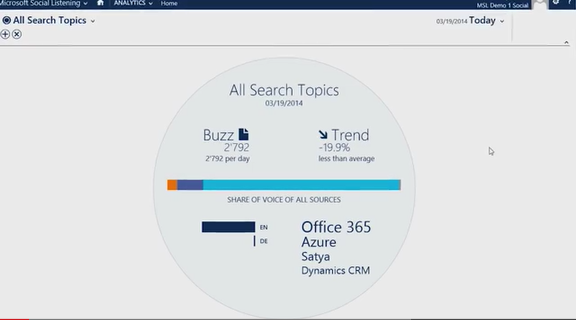
This is really cool… almost an early warning system for sales & marketers.  Ever wish you could identify if there’s positive or negative feelings about your brand both domestically and internationally without having to know the culture or language of other geographies?

That’s Microsoft Social Listening.

Microsoft Social Listening


imageI am incredibly excited to announce the availability of Microsoft Social Listening.  This powerful tool will enable your people to tap directly into the social conversation so your customer-facing employees can create amazing customer experiences.  Marketers can track sentiment related to your brand and understand how their marketing tactics are resonating.  Sales people can stay on top of the competition while watching for social buying signals.  Service teams can delight customers by providing real-time social care.  Because, that’s just it, we don’t think your social tool should be relegated to just a select few individuals in your organization, we believe the power of social listening should be given to everyone.  How do we do that?  By making it part of your current Microsoft Dynamics CRM Online subscription (for customers with 10 professional seats, MSL comes at no additional charge) and by making it super easy to use.

image

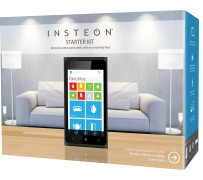
Yay!  Home automation hobbyists rejoice!  INSTEON has released their apps for Windows 8 & Windows Phone!

This means from any Windows 8 touch device, any Windows desktop, or Windows Phone, you can control the INSTEON home automation appliances, sockets, and devices in your home remotely over the Internet.

For INSTEON devices, check out the Microsoft Store here:

Here’s a description of the solution:

The new INSTEON Hub connects you to your home from any smartphone or tablet. Control INSTEON light bulbs, wall switches, outlets and thermostats. Receive email or text alerts from motion and water leak sensors while you’re away.

Download the INSTEON for Hub app, Connect your INSTEON Hub, Select your favorite INSTEON devices for your home and Enjoy!

The INSTEON Hub works in combination with your router and smartphone or tablet to control INSTEON devices in your home while you’re there, when you’re at work, or out of town.

imageThe INSTEON for Hub app works in concert with the Hub to automatically configure your Hub and router for remote access – so simple, anyone can do it.

  • Easy Device Scheduling
    Want to turn on your bedside lamp automatically to help wake you up in the morning? How about program the porch light to turn on and off automatically with the rise and fall of the sun? No problem.
  • Get Alerts
    Create alerts by adding water leak sensors, motion sensors, door/window sensors and more. The INSTEON Hub will send text and email alerts to you as well as anyone else you wish. The Hub also stores the status of these sensors, so you can easily check on your sensors from within the app at anytime.
  • Stay Connected
    Wonder what triggered the motion sensor or just want to check in on the kids or your pets? Add a wireless camera and you’ll see it all from your smartphone. The INSTEON cameras feature pan/tilt control and night vision. Setting up this camera within the INSTEON for Hub app is the easiest setup that you have ever seen!
  • Cloud-based Service
    The INSTEON Hub stores your homes configuration in the cloud which allows access from any number of smartphones and tablets you may own. Add another smartphone by simply downloading the app, sign in and enjoy.
  • NO MONTHLY FEES
    No monthly fees to view, control and monitor your home. Other systems on the market charge hundreds of dollars a year for services that you can enjoy for free with the INSTEON Hub.
Posted by: kurtsh | June 10, 2014

NEWS: Xbox E3 Media Briefing announcements

E3, the Electronic Entertainment Expo in Los Angeles, is off a to a great start with Microsoft’s keynote taking place on Monday 6/9/14.  imageI think Wired’s article says it all when it comes to Microsoft’s E3 kick off:

And with that, here’s a list of what was announced/shown:

imageDevs, are you looking forward to building apps with Kinect for Windows v2, launching this summer? In this Jump Start, explore the brand new Software Development Kit with experts from the Kinect engineering team. Learn about the new APIs and app model, see fascinating demos, and get samples (plus source code) for both desktop and Windows Store apps. Even if you don’t have a Kinect device, you won’t want to miss this entertaining event.

Date/Time:
July 15, 2014 9:00am–5:00pm PDT

Registration:
http://www.microsoftvirtualacademy.com/liveevents/programming-the-kinect-for-windows-jump-start

imageJune 9th.  From the Galen Center in Los Angeles, Calif. Xbox celebrates Sunset Overdrive, the next step for Halo and premieres upcoming games for Xbox One.  Nuff said? 

Pre-show at 9:00am PDT, Briefing at 9:30am PDT

Watch it live on:

clip_image001

Are you tackling BYOD? Windows 8.1 Update, Windows Server 2012 R2, and Windows Phone can help!

Find out how in this demo-filled, three-day Jump Start course with live Q&A. Plus, get the latest from the TechEd and Build conferences, and prepare for MCSE: Desktop Infrastructure and MCSA: Windows 8.1 certifications.

Seasoned experts share real-world experience as they explore the new feature set in Windows 8.1 Update. Dive deep into key enterprise scenarios around System Center Configuration Manager 2012 R2 and Windows Intune management and security, and explore virtual desktop infrastructure (VDI), disk deduplication and tiering, and the Remote Desktop app.

Windows 8.1 Update can simplify the management of tomorrow’s IT environments, while tangibly improving today’s end-user experience. Sign up for this fast-paced Jump Start, and find out more!

Course Outline:

  • Introduction
  • What’s New in Windows 8.1 for Users
  • What’s New in Windows 8.1 for IT Administrators
  • BYOD Challenges
  • Going Mobile: Usability and Flexibility
  • Going Mobile: Administration
  • Apps and Virtual Desktops on Every Device
  • Better Compatibility for Websites
  • Summary

Live Event Details

  • June 17–19, 2014
  • 9:00am–11:30am (PDT)
  • What: Fast-paced live virtual session
  • Cost: Free
  • Audience: Windows Administrators and other IT Pros
  • Prerequisites: This course will be useful to anyone implementing BYOD or charged with managing Windows 8.1 for the enterprise.

Registration
http://www.microsoftvirtualacademy.com/liveevents/windows-8-1-update-for-enterprise-jump-start

Panos Panay, the father of Surface, did a Reddit AMA earlier this week:
http://www.reddit.com/r/IAmA/comments/26m9cu/
we_are_panos_panay_and_the_surface_team_at/

They disclosed some very interesting things and hinted at others.  In case you weren’t aware, one year ago, Reddit was where the Surface team first hinted at the vaunted “Power Cover” keyboard that was eventually released to the public – an attachable keyboard that also augmented the battery of the device, increasing the battery life by 70-80% through some previously undocumented metal contact points at the base of the tablet.

WHAT’S THAT POWER PORT FOR?
Something really excited me:  During the AMA this week, there was a discussion that caught my attention… a very specific set of comments from the Surface Product Group that implied Thunderbolt-connectivity & with that, the possibility of external discrete GPUs via, of all things, the newly redesigned power port on Surface Pro 3.  Here’s the two relevant comments:

To illustrate the point:

  1. imagePOWER CONNECTOR
    Take a look at the photos of the power adapter.  It has only 6 metal contacts on one side from which it passes a charge to the device but there’s a TON of space in the middle of the connector… as if there’s room for other metal contacts.  If you take a really close look inside the power port on the Surface Pro 3, you’ll see that it’s actually a 40+ pin connector.  Who the heck needs 40 pins to charge the battery on a mobile device?
  2. imageDOCKING STATION CONNECTOR
    Take a look at the Surface Pro 3 docking station photos available online.  Unlike the dock for SP1 and SP2 which had docking connectors for:
    – USB 3.0
    – Power
    – DisplayPort
    …there’s only a single port connection between the dock & the Surface Pro 3, and that’s via the power port.

It’s appears that the power port is at least also used for passing a lot of data… i.e. much much more than just power.  Given the comments made by the Surface team, it could be Thunderbolt of some sort, and if that’s true, having external GPUs just became a slim possibility.  At least that’s the rationale being bandied about.

Imagine if you’re on the road & need battery life, you’d probably use the Surface Pro 3 normally as a mobile productivity device.  If you’re seated at a desk with power however and need additional graphics processing beyond the Intel integrated graphics (HD 4xxx or 5000), it might be possible in the future to plug in via the Power Connector and get accelerated graphics for gaming, CAD, animation, etc. through an external GPU. 

And suddenly, you’ve got a serious workstation, worthy of what many do with full sized desktops.  Let’s just say, I’m crossing my fingers!

imageA WORD ABOUT EXTERNAL GPUS
If you’re not familiar with how graphical processing is extended via external GPUs. the Sony VAIO Z did exactly this in its last iteration – albeit via a proprietary connection instead of Thunderbolt.  Sony provided discrete graphics processing to a small form factor laptop by externalizing the GPU inside a secondary, physical chassis.  The result was an optional add-on device that delivered an improvement in graphics throughput, when connected to the laptop, by roughly 60-80%.

The photo to the right shows the chassis which is conveniently an external add-on Blu Ray drive that happens to also include the discrete GPU & chipset.  It was connected by a fat, ultra-high bandwidth cable.

Here’s a link to it: http://www.anandtech.com/show/4474/sony-updates-vaio-z-thinner-lighter-light-peak-and-external-gpu

imageIt’s now become Reddit lore for being the perfect example of a great AMA response, but during the “Panos Panay & Surface Team AMA” on Reddit earlier this week, someone asked the question (summarized):

  • “Why’d you guys switch from Wacom’s Active Digitizer to N-Trig’s Digitizer?” 

Microsoft Distinguished Scientist & Director of Applied Sciences division of Microsoft Research, Stevie Bathiche chimed in – his response is at this link (http://aka.ms/steviebpen) but I’m reproducing it here for those that are subscribing:

Hi.. this is StevieB. I anticipated the pen digitizer question.. so I have been thinking about how to talk about it over the weekend. I hope you and other folks find it useful. I will try to answer the rest of your questions preceding. Below is about your Wacom and Pressure question.

There are 3 main types of pen digitizer technologies: Electromagnetic, passive capacitive (those conductive rubber tipped pens that trick the digitizer into looking like a finger), and active capacitive.

imageElectromagnetic works by putting a printed circuit board across the entire device, typically situated underneath the display and its backlight. This is a completely separate system from the touch digitizer that typically goes in front of the display. The circuit board has a bunch of planar coils that emit an electromagnetic field (like one side of a transformer). The Other side of the transformer is located in the pen itself. As the pen approaches these fields and coils it couples the EM signal and adds a load. This load is picked up across multiple coils and the position of the stylus is then interpolated. These field lines can emit 15mm or so above the display, and thus the mechanism for hover. Data is transmitted from the pen to the device (pressure and button data), by modifying the frequency content of the load. To get orientation there is typically a secondary coil/circuit.. and simple trig can extrapolate the orientation of the pen.. this is important for later to remove mechanical parallax. Among the three this technique has been around the longest.

Passive stylus, works by simply acting as an extension of your finger, by being a conductor to passively couple with the electrostatic signal from the transmit and receive rows and columns of the digitizer. This technique uses the same transparent conductive lines in front of the display to do both the finger and “fake” finger/stylus.

Finally, active capacitive solutions started coming into fruition in the early 2000s. Their mode of operation is to use the same transparent conductive lines as passive stylus does above, but rather the pen tip injects an electrostatic signal which is picked up by these touch capacitive lines. Think of the pen is a mini radio and the sensing lines in front of the display the device are little antennas. The junction(s) (where the rows and columns of the transparent conducting lines cross) which receives the strongest signal is correlated to the position of the pen. To do this, the pen typically needs a battery, but the pen can emit all kinds of signals from buttons, pressure, and other. We purchased a really fantastic active capacitive pen and touch technology a couple years ago: you may remember the company that did the CNN election boards.. Perceptive Pixel. This is no doubt the most fantastic pen technology around for large non-mobile screens. Active capacitive field is defiantly showing a lot of activity by a number of different touch makers.. cause it is a natural extension of touch technology and its integration with the touch solution.

Now let’s go into what makes a great stylus from a hardware perceptive : 1) Precision is king. The more accurate and consistent the pen tip is to the actual ink of the display the more natural and more accurate you as an artist and user are able to execute. a. The Precision problem is broken down into 3 categories: i. Visual Parallax: from pen tip to ink on screen. This is where you think the pen tip is. ii. Electronic parallax: from pen tip to digitizer and where the digester thinks the pen tip actually is.
iii. Digitizer precision and linearity across the entire screen. 2) Feel and sound: should sound and feel like writing on paper. 3) Pen weight, feel, and ergonomics. 4) Consistent and accurate pressure sensitivity 5) Buttons for switching modes (erase, selection, and other commands) 6) Latency: the lag of ink behind the pen tip (highly app dependent)… good developers can keep this number to a minimum. 7) Palm detection so the computer can reject false touches. 8) Device Integration: how it fits, and the industrial design requirements.

Now that we have a bit of a background of the different popular pen digitizer options and the hardware characteristics of what makes a good pen. Let’s go into a brief pros and cons of each of these (I am gonna skip passive stylus as it is still offers an obvious compromise in experience for our current applications [for now]). But before we begin, please let me say first none of these 3 options are generally more superior than one another. It all depends on the application and even more importantly the implementation/execution of technology. The performance of any one of these technologies is highly dependent on how thoughtful, careful, the engineering put into by the device makers to integrate the digitizer system. I have seen some really poor implementations of all 3 of these solutions above by various device makers. Using the brand of technology does not guarantee performance in the least bit.

[next comment]

Electromagnetic Stylus: 1) Precision: This can be very good for electromagnetics but it is highly dependent on implementation. To get the corners working well, and avoid non-linearity, the digitizer sitting behind the display must extend slightly beyond the display. Also metal objects or magnetics objects near the digitizer or in front of even in the device greatly effect noise and performance. This highly constraints the device maker from having a certain boarder size, and also the types of materials they use on the device and in the pen. Because magnetic fields shift with the environment, you will see drift and offsets… The device maker must do a really good job of calibrating the device.. and if the user puts something infront of the device (say a case that has metal in it), then they must be able to do the same level of calibration. Outside of these constraints, EM pen can give very good results. 2) Visual Parallax: this just depends on thickness the cover glass is… and none of the technologies really have an advantage of disadvantage here. 3) Electronic parallax: because the EM digitizer is buried behind the display and the coils are not located the tip of the pen, the digitizer must calculate the orientation of the pen and translate position from that… this is really never perfect and will often be dependent on where you are on the display.. so it is not a single mathematical transform for all points on the display.. it can be highly complex.. most of the time, the simple route is what is taken. 4) Digitizer precision and linearity across the entire screen: best way to test this.. is take ruler and draw straight diagonal lines across the display. Note how the lines are never really straight… this is very hard to do. 5) Feel and sound: Typically today we work with various materials to change the coefficient of static and dynamic friction of the tip on glass.. but there are other techniques we are working on to make this even better no matter what pen technology is used. 6) Pen weight, feel, and ergonomics. Because it is magnetic based the pen cannot be made out of metal. EM stylus has all kinds of shapes and sizes… from really thin and uncomfortable (but can be docked) to ones that feel like a pen. The pro here is that the pen does not need batteries. 7) Consistent and accurate pressure sensitivity: generally known to do a great job. This is much more about how the pressure curve looks like than the number of bits… I will explain below. 8) Buttons for switching modes (erase, selection, and other commands): because the pen and modify the signals actively (powered by the coils).. it can communicate buttons and pressure information. 9) Latency: the lag of ink behind the pen tip (highly app dependent)… good developers can keep this number to a minimum. 10) Palm detection so the computer can reject false touches: does not really have advantage of active capacitive.. but over passive stylus it does. 11) Device Integration: how it fits, and the industrial design requirements: because the pen digitizer is a separate digitizer from the touch, this solution will add anywhere between 0.4-1mm in thickness, a few mm around the bezel of the device, and a few 10’s of grams of weight. It is a bit harder ti integrate into the device cause of the constraints around materials and mechanics.

Active Capacitive Stylus: 1) Precision: in the past I have seen some not so good implementations here, but I am so pumped to see our current results in Pro3. We really did move the mark here. The Pen is really much more precise, linear, and linear across the entire device. The first comment I hear from artists when they use the device, is how precise the pen is. 2) Visual Parallax: this just depends on thickness the cover glass is… and none of the technologies really have an advantage of disadvantage here. In Pro 3 we have dropped the optical parallax to .75mm.. this one of the lowest parallax I have seen anywhere for inking tablets. This means as you move your head around your pen tip, the pen tip stays closer to the ink. 3) Electronic parallax: because the antenna lines are just behind the cover glass (for us that is .55mm thick!) the electronic parallax is further reduced.. and this is one of the reasons our pen feels more accurate. 4) Digitizer precision and linearity across the entire screen: do the ruler test! 5) Feel and sound: We are using new materials to change the dynamic and static friction of the pen tip. The result is a more paper like feel. As an industry we can do better.. but it is going to have to go to a different mechanism.. more on that later J 6) Pen weight, feel, and ergonomics. Because the signal emits from the tip of the pen, metal objects in the body do not effect performance.. this is why we were able to do a beautiful anodized aluminum pen, that feels like a high quality pen in hand. Now we do need a battery, but the advantage of a battery is that one can emit a more powerful signal for other functions.. like click note: click the top of the pen once and OneNote automatically gets pulled open (even over the lock screen [secured]).. and double click and you get the acetate layer for clipping out portions of the screen into OneNote… pretty neat!.. and you can hold the pen about 3-5 feet away to do that… and you cannot do such an experience if you did not have a battery. 7) Consistent and accurate pressure sensitivity: just as good as our previous implementations.. as good as they come in my opinion. More on that below. 8) Buttons for switching modes (erase, selection, and other commands): because the pen is powered it can emit all kinds of commands via its emitted signals (buttons, pressure information, click note). 9) Latency: the lag of ink behind the pen tip (highly app dependent)… good developers can keep this number to a minimum. We have one caveat during hover.. while our latency is still best in class when you are inking, you may notice a bit of a lag during hover.. but only during hover mode.. 10) Palm detection so the computer can reject false touches: about the same as EM. 11) Device Integration: Active capacitive digitizer are integrated into the touch controller, and use the same touch sensing lines. This is a fantastic form of integration, which makes for a thinner and lighter device. Also there are less restriction on materials.. for example our Type Keyboard clicks into the bottom portion of the device bezels via magnetics.. this would really be a bad thing for an EM digitizer.

[next comment]

Pressure I have heard a few folks worry about the 256 pressure levels vs. 1024… One can claim absurd amounts of resolution 10,12,14,16 bits.. whatever.. but in the end eventhough system is spitting out a 10 or 16 bit number does not mean there is a 10 or 16 bits worth of useful information there.. just like an overspeced digital camera.. the sensor is 20 megapixels.. does not mean the resultant image is 20 megapixels worth of information. You can do this experiment yourself.. I did it over the weekend to try to prove a point to my friends: I took the best known a EM based device I know of and compared it to Pro 3. I started by first downloading and installing a Microsoft PowerTool software called “digiInfo”.. this allows you to record and see Windows messages… I set the software to record pressure on both device. And then a built a small rig to hold the stylus above the digitizer with a about 50 grams downward pressure. Recorded the data of the static pressure.. imported to excel and did some statistics.. here is what I saw: the 1024 pressure tip static-pressure-number had a standard deviation 3 times greater than that of the 256 pressure tip. In end, the performance was the same.. eventhough one had 2 bits less reported info. This makes a lot of sense.. let me put it another way. The Pro 3 pen measures from 10grams-400 grams of pressure and maps 256 levels to that… the mapping is nonlinear.. cause the human hand force activation is non-linear… but one can approximate about 1-1.8 grams per level. The 10 bit pen.. goes from 10-500 grams.. and supposedly does about ~0.4 grams. Think about both those numbers and that is both super super sensitive.. the best weight scale I have can do .1 gram increments…. The only reason it works is cause it averages the heck out of the numbers which adds a considerable amount of lag.. this lag one cannot do on a stylus.. so you are stuck with a nosier signal comparatively in a stylus. With any new stylus there is a difference in the force curve that you have to get used to… and that is likely what people will notice.. not the difference in bit resolution. We are going to make that easier for you by later giving you a piece of software that allows you to map your own force curve! I encourage you to get one of those scales and try to control it to the .1 grams.. will shed some light on the topic. The feedback from artists I have heard.. is that they do not see a difference.. and that is cause really the resultant info is not different.

WinTab: yes we have wintab driver support. See the link below to download and install it for pro3. In the future I hope apps start using the more modern APIs.. Wintab is old and outdated.. adds latency, and inserts itself in the pen path.. http://www.ntrig.com/Content.aspx?Page=Downloads_Drivers select the windows 8.1 option.

DPI You are right for higher DPI screens a number of the older desktop applications are not DPI aware. Things are getting better though. Windows 8.1 supports different scalars nor for different simultaneous monitors.

Retina: Anywhere between 190-300 dpi is a good place to be for tablets.. people hold them closer and you really want to avoid seeing jaggy lines.. but over specing the screen here can be dangerous and we are already seeing people going beyond 300 DPI.. there is not much benefit at all.. and in the end if not done right can cause more harm….I love our screen 100% SRGB and high contrast.. combined with great DPI. Balanced approach.

Home Button Heard some feedback on people pressing by mistake.. we are definitely looking into it.

Custom Keyboard.. Good feedback.. I agree.

Hope you find this helpful.. sorry it was a bit long 🙂 StevieB

Posted by: kurtsh | May 29, 2014

INFO: Ad-free Outlook.com

imageDid you ever wonder how you can pay to get rid of any presence of ads on Outlook.com?  This is one of those hidden gems that’s been around forever but no one knows about.  It was originally called “Windows Live Hotmail Plus” but got renamed a bit ago. 

The deal is for $19.95 USD a year, you get:

  • No graphical ads
    There are no graphical ads in Ad-free Outlook.com—all you see is your email, photos, and documents.

  • No account expiration
    You don’t need to log in to keep your account active as long as your Ad-free Outlook.com subscription is current.

  • Technical support
    If you have a problem with your account, we’ll be there to help with technical support at no additional charge.

LINK: Ad-free Outlook.com
http://windows.microsoft.com/en-us/outlook/ad-free-outlook

image

[taken from the MSPress Blog]

Greetings! We’re thrilled to share another new free ebook with you: Introducing Microsoft Azure HDInsight, by Avkash Chauhan, Valentine Fontama, Michele Hart, Wee Hyong Tok, and Buck Woody. Here are the download links (and below the links you’ll find an ebook excerpt that describes this offering):

« Newer Posts - Older Posts »

Categories