imageHere’s a couple interesting documents available on the eLearning benefit from Software Assurance.  If you’re a Software Assurance benefits administrator, you’ll want to take a look at these to understand how to best get this computer-based training out to your users.

AlwaysOpenIEinDesktopFor those of you that prefer to use the desktop version of Internet Explorer 10 instead of the Modern UI version in the Start Page, you have the option of setting “Desktop IE10” as the default for all hyperlinks clicked throughout the OS.

The one-time task you need to do to set this up is:

  1. Open Desktop IE
  2. Go to Tools/Internet Options
  3. Select the Programs tab
  4. Under "Choose how you open links", choose "Always in Internet Explorer on the desktop"
  5. Select the "Open Internet Explorer tiles on the desktop" checkbox.

Many people don’t know that you can get a wealth of information about Microsoft Volume Licensing from our Volume Licensing web site at http://www.microsoftvolumelicensing.com.

One of the documents on this site is the Product List.

imageimage

image

System Center Configuration Manager (SCCM) SP1 Beta just posted.  And check out the enhancements listed below!

The System Center Configuration Manager team is pleased to announce the release of System Center 2012 Configuration Manager Service Pack 1 (SP1) Beta!  This build is now available for download on the Microsoft Download Center: http://www.microsoft.com/downloads/details.aspx?FamilyID=a171bcea-2dbb-4fc5-8dd1-4ec22f2eb4ef.

Configuration Manager SP1 enhancements include:

  • Deployment and management of Windows 8 and Windows Server 2012
  • Distribution point for Windows Azure to help reduce infrastructure costs
  • Automation of administrative tasks through PowerShell support
  • Management of Mac OS X clients and Linux and UNIX servers

One of the great new benefits of this platform is Windows 8 apps, and ConfigMgr 2012 SP1 allows you to deploy and update these apps alongside your existing native and virtual applications. ConfigMgr SP1 will support the deployment and management of Windows to Go USB drives, as well as enable you to more easily manage policies for new Windows 8 client-side caching, roaming user profiles, and folder redirection features.  For mobile workers, ConfigMgr 2012 SP1 Beta will include the new ability to detect 3G and 4G network connections to prevent delivering software at a time when data charges may apply. To read more about the Beta release, please view the following blog post:  http://blogs.technet.com/b/server-cloud/archive/2012/09/10/system-center-2012-configuration-manager-sp1-beta-and-windows-intune-update.aspx

Please note, ConfigMgr SP1 is a standalone build intended only for your lab environment.  Please do a fresh install, as upgrade from ConfigMgr 2012 or ConfigMgr 2007 is not supported.

ConfigMgr SP1 Beta Release Notes
For the ConfigMgr SP1 Beta release notes, please reference the TechNet link here: http://technet.microsoft.com/en-us/library/jj591611.aspx.

Submitting Feedback
We look forward to your feedback on ConfigMgr SP1 Beta!  Please submit your feedback using the ConfigMgr SP1 OpenBeta feedback form on Connect:https://connect.microsoft.com/ConfigurationManagervnext/Feedback.  Although we review each item submitted, we are unlikely to be able to respond to all feedback individually.

Discussions on ConfigMgr SP1 Beta
For general questions or discussion items, please leverage the ConfigMgr OpenBeta community discussion group here:
http://innovation.connect.microsoft.com/discussions?ProjectName=configmgrsp1openbeta.

Package Conversion Manager (PCM) v2.0
Microsoft System Center 2012 ConfigMgr SP1 Package Conversion Manager v2.0 (PCM) is a feature pack download that lets you convert ConfigMgr 2007 packages into System Center 2012 ConfigMgr SP1 applications. PCM has been updated and v2.0 Beta is being released in the download center here: http://www.microsoft.com/downloads/details.aspx?FamilyID=21191778-5308-4efc-82fe-c8396ed68169. Please note the RTM release of PCM is not compatible with ConfigMgr SP1 Beta – you must use PCM v2.0 if you are converting ConfigMgr 2007 packages to ConfigMgr SP1. For PCM v2.0 feedback, please leverage the feedback form here: https://connect.microsoft.com/ConfigurationManagervnext/Feedback.

Thank you,

System Center Configuration Manager Team

This may seem obvious for some however the touchpad of the Samsung Series 9 is, as most people have discovered, difficult to use when the default driver for mice is used.  The thing moves slowly, you can’t disable tapping, you can’t turn on multitouch gestures, you can’t optimize palm rejection, etc.

There’s two options:

OPTION #1:  INSTALL THE WINDOWS 7 DRIVER
The easy answer is to simply download and install the Windows 8 x64 driver into Windows 8.  I installed the driver using Windows 7 compatibility mode just to be safe and lo-and-behold, it was just fine to use after doing so.  (And making some configuration changes to the driver via CTRL PANEL-MOUSE, of course)

You SHOULD be able to click on the link below and just download the Windows 7 Touchpad driver fro the Samsung Series 9 here:
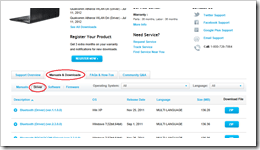
imageIf for some reason this doesn’t work, try this:

When you load the page, scroll to the tab called “Manuals & Downloads” and click it. What you’re looking for is a driver called “Touchpad (Driver) (ver.2.9.0.0)” dated Nov 25, 2011.  It’s a 194.6MB download.

Yeah – pretty big for a simple driver I know but part of the explanation for this massive download size is in the post I wrote called “Making configuration changes to the Samsung Series 9 touchpad” below.

image

After successfully installing the x64 drive, apply the optimizations that I write about here:

OPTION #2:  INSTALL THE ELAN WINDOWS 8 DRIVER
Here’s the thing:  I found some real Windows 8 Drivers for an Elan Touchpad.  Why do you care?  This is the touchpad brand that ships on many current Samsung Series 9 systems.

You’ll notice however that I didn’t say “ALL” current Samsung Series 9 systems.  The reason is, early Samsung Series 9 models shipped with the Synaptics touchpad and Synaptics drivers.  Later on, for whatever reason, Samsung started shipping Elan touchpads and Elan drivers – so if you download the touchpad driver from the Samsung web site, you’ll download a massive 180MB file that contains the drivers for both Synaptics & Elan in them, since the driver pack has no idea which touchpad your laptop has.

If you check your Samsung and you see under CTRLPANEL –> Device Manager:  “Mice”, the name “ELAN PS/2 port Smart-Pad”, you know you have a ELAN touch pad and the driver below will work.

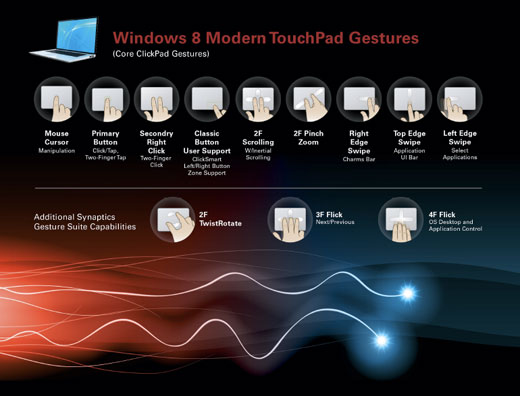
The benefit of the Windows 8 driver is that it will enable “Windows 8 Gesture Support” meaning you can swipe-in from left to switch apps, swipe-in from right to display charms, swipe in from top to display app controls, as well as multi touch gestures for scrolling and zooming.

IMPORTANT:  You MUST uninstall any previous ELAN software that you’ve installed previously.  Go into Programs & Features & “uninstall” anything that reads “ELAN blahblahblah” then reboot before you install the Windows 8 drivers below (and reboot again after doing the new driver install), otherwise the Mouse Tab for configuring the touchpad options won’t display correctly.  If you screwed up and installed over the old ELAN software, just uninstall everything, reboot, then reinstall the Windows 8 ELAN drivers below… then reboot one more time.  (You will probably need to plug in a USB mouse to have some sort of mouse control.)

imageWAIT… WHAT IF I HAVE THE SYNAPTICS TOUCHPAD?
I’m afraid right now, that there’s no official drivers publicly available yet.  Synaptics doesn’t appear to have made the SGS 12.3 Windows 8-designed drivers available yet.

If you’re curious however as to what they do and how to use them once you get them, here’s the product page for the drivers:

———————–

(Note:  Alright, alright, alright.  So if you’re super-curious, I have in fact found some Synaptics drivers with the version number of “16.2.12.3” published 9/7/12 for both 32bit & 64bit.  Sound interesting?  Yeah, I thought so.  The problem is I don’t have a Synaptics touchpad to test this on any more so I have no idea if these work however here’s the link if you really feel daring.  Caveat installer.)

Posted by: kurtsh | September 7, 2012

HOWTO: Enroll/Activate/Use your Software Assurance Benefits

imageMany of you have Software Assurance benefits.  Some of you even know what they are!

The question that is asked often is,

“So how do I use these benefits?  Is there a set of instructions for each benefit on how to use them, step-by-step?”

Answer:  YES.

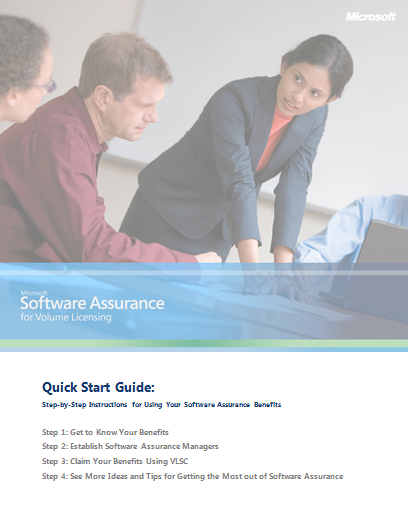
It’s called the Software Assurance Customer QuickStart Guide and it’s an extremely valuable 15 page overview that provides STEP-BY-STEP instructions on how to activate, manage, and use each of the benefits that you have as a result of your volume licensing contract with Microsoft.

Here’s the table of contents:

    • Familiarize yourself with Software Assurance
    • Check your benefits through the Volume Licensing Service Center (VLSC)
    • Tips for choosing Software Assurance Managers
    • Steps to register Software Assurance Managers
        • How to register
    • Follow steps for specific benefits
    • New Products.
        • New Product Versions
        • Step-up Licensing
        • Microsoft Desktop Optimization Pack (MDOP)
        • Windows 7 Enterprise
    • Deployment
        • Planning Services
        • License Mobility through Software Assurance
        • Windows Thin PC
        • Windows Virtual Desktop Access
        • Office Roaming Use Rights
        • TechNet benefits through Software Assurance
        • Microsoft Office Multi-Language Pack
    • Support
        • 24X7 Problem Resolution Support
        • System Center Advisor
        • Extended Hotfix support
    • Training
        • E-Learning
        • Home Use Program (HUP)
        • Training Vouchers
    • Specialized Benefits
        • Cold Backups for Disaster Recovery
        • Enterprise Source Licensing Progra
        • Spread Payments
    • Getting Help for VLSC

Download the paper here – and keep it handy!

SOFTWARE ASSURANCE INTERACTIVE CHART
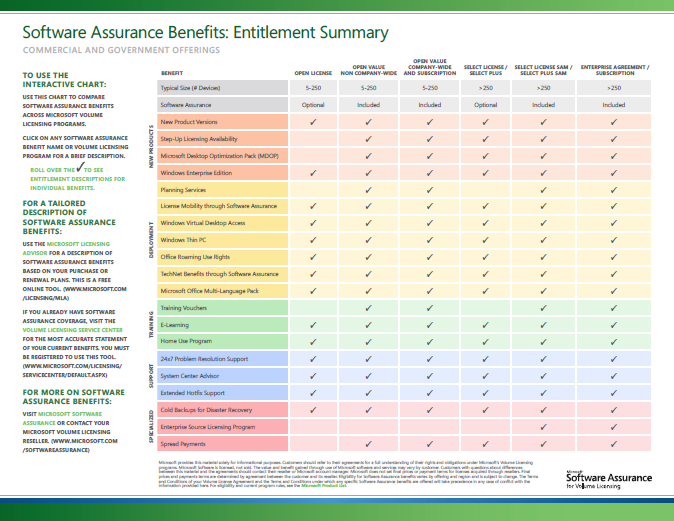
Additionally, there is an UPDATED CHART of all the Software Assurance benefits that you may be eligible for.

imageThe chart is actually ‘interactive’ in that when you hover over it using Acrobat, you will see a brief description of the benefit.

REQUIREMENTS
It should be noted that none of this is useful if you don’t have actual permissions to manage your company’s Software Assurance benefits.  The “Microsoft Volume Licensing Administrator” for your Volume Licensing Contract can designate you (and others) to be “Software Assurance Benefits Admins” which will empower you to use, distribute, and delegate benefits for your company. 

This “Volume Licensing Administrator” is often the person that negotiated the contract in procurement, but lacking that, if you know your Large Account Reseller contact – the reseller responsible for the caretaking of your agreement with Microsoft (Insight, Softchoice, Dell Licensing/ASAP, Enpointe, SHI, etc.) – can provide you with the appropriate rights assuming they are given the go-ahead to do so by the VL Administrator.

The process for doing this is located here:
http://www.microsoft.com/licensing/existing-customers/manage-my-agreements.aspx

imageMicrosoft Visual Studio Tools for Applications gives you a way to enable end users to customize your existing applications using Visual Basic and Visual C#. You can incorporate a custom integrated development environment (IDE) that is similar to the Visual Studio IDE into the application. End-user developers can use the IDE to customize the application by creating add-ins that extend the functionality of the application to meet their needs.

    image

    Save the date: February 19 – 21, 2013!

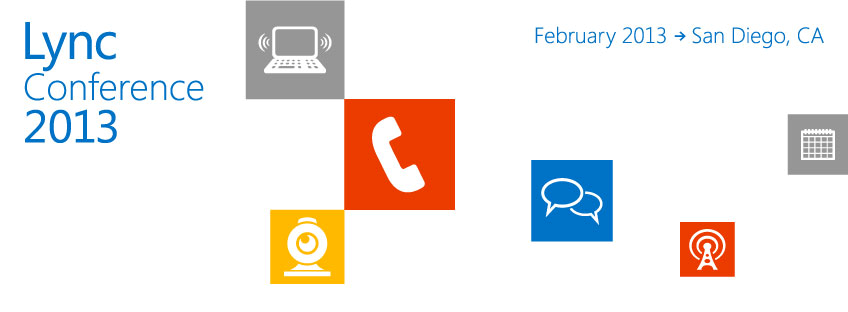
    The Lync team is excited to announce the first ever Lync Conference, February 19 – 21, 2013 at the Hotel del Coronado in San Diego. Join Microsoft Lync customers and partners in sunny San Diego as we gather together for this inaugural event. Learn from the best, network with other like-minded attendees, and celebrate the past, present, and future of Microsoft Lync!

    Please Save the Date and stay tuned for more information as we gear up for this exciting event in the coming months.

    imageSign up for updates on registration at:
    http://www.lyncconf.com/

    imageWindows Management Framework 3.0 makes some updated management functionality available to be installed on Windows 7 SP1, Windows Server 2008 R2 SP1 & Windows Server 2008 SP2. Windows Management Framework 3.0 contains Windows PowerShell 3.0, WMI & WinRM.

    Windows PowerShell 3.0
    Some of the new features in Windows PowerShell 3.0 include:

    • Workflow
      Windows PowerShell Workflow lets IT Pros and developers apply the benefits of workflows to the automation capabilities of Windows PowerShell. Workflows allow administrators to run long-running tasks (which can be made repeatable, frequent, parallelizable, interruptible, or restart-able) that can affect multiple managed computers or devices at the same time.
    • Disconnected Sessions
      PowerShell sessions can be disconnected from the remote computer and reconnected later from the same computer or a different computer without losing state or causing running commands to fail.
    • Robust Session Connectivity
      Remote sessions are resilient to network failures and will attempt to reconnect for several minutes. If connectivity cannot be reestablished, the session will automatically disconnect itself so that it can be reconnected when network connectivity is restored.
    • Scheduled Jobs
      Scheduled jobs that run regularly or in response to an event.
    • Delegated Administration
      Commands that can be executed with a delegated set of credentials so users with limited permissions can run critical jobs
    • Simplified Language Syntax
      Simplified language syntax that make commands and scripts look a lot less like code and a lot more like natural language.
    • Cmdlet Discovery
      Improved cmdlet discovery and automatic module loading that make it easier to find and run any of the cmdlets installed on your computer.
    • Show-Command
      Show-Command, a cmdlet and ISE Add-On that helps users find the right cmdlet, view its parameters in a dialog box, and run it.

    WMI
    WMI in Windows Management Framework 3.0 introduces:

    • A new provider development model
      This new model brings down the cost of provider development and removes the dependency on COM.
    • A new MI Client API to perform standard CIM operations.
      The API can be used to interact with any standard WsMan + CIMOM implementation, allowing management applications on Windows to manage non-Windows computers.
    • The ability to write Windows PowerShell cmdlets in native code
      The new WMI Provider APIs supports an extended Windows PowerShell semantics API allowing you to provide rich Windows PowerShell semantics. e.g., Verbose, Error, Warning, WhatIf, Confirm, Progress

    WinRM
    With Windows Management Framework 3.0:

    • Connections are more robust
      Remote connections communicating over WinRM are more robust to transient network failures such as a flaky WAN connection. In the case of a complete network failure, connections are gracefully disconnected and can be reconnected when network connectivity is restored.
    • Remoting is more Standards-compliant
      Standard WS-Management operations, including Create and Delete, can be performed over WMI. Remoting for cmdlets written in native code using the new WMI provider development model uses WS-Management instead of DCOM.
    • Multiple PowerShell sessions can be shared in the same process
      PowerShell sessions from the same user to the same session configuration (WinRM plug-in) can run in a single shared process instead of separate processes. This improves scalability and performance by allowing multiple sessions to share memory and other server resources.

    Management OData IIS Extensions
    Management OData IIS Extension enables an administrator to expose a set of PowerShell cmdlets as a RESTful web endpoint accessible via the Open Data Protocol (OData). This enables Windows and non-Windows clients to discover and invoke PowerShell cmdlets remotely over standard web protocols and interfaces.

    imageServer Manager CIM Provider
    The Server Manager CIM Provider packaged with Windows Management Framework 3.0 allows you to manage your Windows Server 2008 R2 SP1 and Windows Server 2008 SP2 servers from Server Manager in Windows Server 2012 or Remote Server Administration Tools for Windows 8

    References:

    Download:

    image

    This week, Mitch Tulloch and the Windows Server team have released a new updated version of the FREE e-Book for IT professionals: Introducing Windows Server 2012 RTM Edition. With Windows Server 2012 RTM launching on Sept 4th, this book is a great way to get quickly skilled up on all the new improvements in this latest Windows Server – one of the most ambitious releases of Windows Server for IT Pros since Active Directory was released in Windows Server 2000! In this 256-page eBook, you’ll find 5 chapters of detailed technical content covering the following key improvements to building a Private Cloud at your shop with Windows Server 2012:

    • Building a foundation for Private Cloud
      Understand the latest improvements that takes Windows Server 2012 and Hyper-V beyond basic virtualization: Increased VM scalability, Hyper-V extensible network switch, Network Virtualization, Improved Live Migration, Enhanced Quality of Service (QoS), Resource Metering and Hyper-V Replica.
    • Designing a highly available, easy-to-manage multi-server platform
      Includes Failover Clustering Enhancements, SMB Transparent Failover, Live Storage Migration, NIC Teaming, Chkdsk improvements, DHCP Server Failover, Storage Spaces, Thin Provisioning, Server for NFS datastores, new multi-server Server Manager, PowerShell 3.0 and Active Directory enhancements.
    • Deploying web applications on-premise and in the cloud
      Includes improvements to scale, manage and deliver open Web Applications, such as: NUMA-aware scalability, Centralized SSL certificate support, IIS CPU Throttling, Dynamic IP Address Restrictions, FTP Logon Attempt Restrictions, WebSocket and HTML5 Support.
    • Enabling modern anywhere, any-device workstyles
      Unified Remote Access, Simplified VDI deployment, User-Device Affinity, Enhanced BranchCache, Branch Office Direct Printing, Remote FX enhancements, Enhanced USB redirection, User Profile Disks, Dynamic Access Control, BitLocker enhancements and DNSSEC support.

    DOWNLOAD: Introducing Windows Server 2012 RTM Edition (PDF, ePUB, MOBI)
    http://blogs.msdn.com/b/microsoft_press/archive/2012/09/05/free-ebook-introducing-windows-server-2012-rtm-edition.aspx

    « Newer Posts - Older Posts »

    Categories