image

This is pretty cool.  If you’re gonna stand up SharePoint, which is designed to reach the maximum number of people in your organization or customer base, why use in house hardware when you can just put it in Windows Azure’s virtual machines and pay as you go?

Microsoft SharePoint Server 2010 provides rich deployment flexibility, which can help organizations determine the right deployment scenarios to align with their business needs and objectives. Hosted and managed in the cloud, the Windows Azure Virtual Machines offering provides complete, reliable, and available infrastructure to support various on-demand application and database workloads, such as Microsoft SQL Server and SharePoint deployments.

While Windows Azure Virtual Machines support multiple workloads, this paper focuses on SharePoint deployments. Windows Azure Virtual Machines enable organizations to create and manage their SharePoint infrastructure quickly—provisioning and accessing nearly any host universally. It allows full control and management over processors, RAM, CPU ranges, and other resources of SharePoint virtual machines (VMs).

Windows Azure Virtual Machines mitigate the need for hardware, so organizations can turn attention from handling high upfront cost and complexity to building and managing infrastructure at scale. This means that they can innovate, experiment, and iterate in hours—as opposed to days and weeks with traditional deployments.

This paper is intended for IT professionals. Furthermore, technical decision makers, such as architects and system administrators, can use this information and the provided scenarios to plan and design a virtualized SharePoint infrastructure on Windows Azure.

This paper explains how organizations can set up and deploy SharePoint within Windows Azure Virtual Machines. It also discusses why this type of deployment can be beneficial to organizations of many sizes.

Funny how I just stumble upon these things.

image

Free to Choose – Back-to-School Special:
Jumpstart Your Education with Books from Microsoft Press

Whether you’re learning a Microsoft app, studying for a Microsoft certification exam, or mastering a Microsoft programming language, you’ll find the Microsoft Press book in our Back-to-School Special to fit your needs.

  • Save 50% on ebooks and 40% on print books from Microsoft Press.
  • Microsoft Press ebooks from oreilly.com are DRM-free. You get free lifetime access, multiple file formats, and free updates. Now includes Dropbox syncing.
  • Use discount code B2S2 – Deal expires September 18, 2012 at 11:59pm PT, and cannot be combined with other offers.

image

Whoa.  Remember that guy that wrote that Power Users book on Windows 7?  HE’S BAAAACK.

You’re beyond the basics, so dive right into optimizing Windows® 8—and really put your PC or tablet to work! This supremely organized reference packs hundreds of timesaving solutions, troubleshooting techniques, and workarounds. It’s all muscle and no fluff. Discover how the experts keep their Windows 8 systems running smoothly—and challenge yourself to new levels of mastery.

  • Master essential Windows 8 maintenance and security features
  • Implement best practices to help prevent and combat viruses, malware, and identity theft
  • Apply quick fixes to the most common problems using expert tips and step-by-step repair guides
  • Use advanced troubleshooting techniques by understanding how Windows 8 works
  • Develop a recovery plan to restore your system and data in the event of a disaster
  • Know when to use power utilities for advanced performance, maintenance, and diagnostics

The thing is 655 PAGES.  What makes it interesting is check out these topics it goes over… sound interesting?

  • What Is WinSxS and Do I Need It? – pg 284
  • BitLocker and Dual-Boot Systems – pg 330
  • Repairing Internet Explorer 10 – pg 359
  • Recovering Encrypted Data – pg 461
  • Restoring Windows from Another PC – pg 481
  • Using Linux to Rescue Your Windows System – pg 491
  • Using Third-Party Rescue Tools and Services – pg 505
  • Working Safely with Windows 8 Encryption – pg 513

Here’s the sampler if you want to see the full table of contents.  Cripes – this looks so good, I’m gonna go get it myself with my own cash!

image

Look what ELSE just released! Available in PRINT, ePub, MOBI, and .PDF formats. All 720 pages!

Portable and precise, this pocket-sized guide delivers ready answers for the day-to-day administration of Windows Server 2012. Zero in on core operations and daily tasks using quick-reference tables, instructions, and lists. You’ll get the focused information to solve problems and get the job done—whether at your desk or in the field.

Get fast facts on these essential topics:

  • Managing servers running Windows Server 2012
  • Creating user and group accounts
  • Monitoring services, processes, and events
  • Administering Active Directory
  • Managing files, folders, drives
  • Automating administrative tasks and policies
  • Administering data sharing, security, and auditing
  • Managing TCP/IP networking
  • Implementing data backup and recovery
  • Administering network printers and print services

image

Look what just released!  Available in PRINT, ePub, MOBI, and .PDF formats.  All 672 pages!

Portable and precise, this pocket-sized guide delivers ready answers for administering computers running Windows 8. Zero in on core operations and daily tasks using quick-reference tables, instructions, and lists. You’ll get the focused information to solve problems and get the job done—whether at your desk or in the field.

Get fast facts on these essential topics:

  • Configuring and optimizing Windows 8 computers
  • Customizing the desktop and UI
  • Configuring user and computer policies
  • Managing disk drives and file systems
  • Managing devices, drivers, and software
  • Administering data access, availability, resource sharing, and security
  • Configuring and troubleshooting TCP/IP networking
  • Administering TPM and BitLocker Driver Encryption
  • Managing mobile users and remote access

Lenovo just published a driver for the Alps TouchPad that they have on some models.  I’ve been on a quest to find Windows 8 TouchPad drivers for all my laptops that have been upgraded to Windows 8 for one big reason:

I want Edge Swiping. 

Edge Swiping is a function that needs to be built into the driver & its control software.  It allow the Windows 8 user to use their finger to ‘swipe left’ from the right edge, to reveal the Windows 8 Charms bar.  Functions that Edge Swiping provides include:

  1. Edge Swipe LEFT – “Reveal Windows 8 Charms bar”
  2. Edge Swipe RIGHT – “Change foreground task in Windows 8””
  3. Edge Swipe UP – “Reveal Windows 8 Configuration bar”

This is very specific to Windows 8 and does NOT WORK with previous Windows 7 drivers.

I have not tested this driver since I don’t actually have an Alps TouchPad on my Lenovo hardware but it’s clearly published very specifically for Windows 8.  I figured I’d post it just in case someone found this interesting.  The file’s 16MB in size.

UltraNav1Looks like Lenovo has published a BETA driver for their ThinkPad Synaptics UltraNav TouchPads for Windows 8.

They snuck it out a couple days ago I think and it supports bother 32/64bit Windows 8 on a ton of listed systems:

  • T530, W530, T430s, X230, X230 Tablet, X1 Carbon, L430, L530, Edge E420, Edge E425, Edge E520, Edge E525, T520, W520, T420s, X220, X220 Tablet, X1

I went ahead and tested this on my Lenovo ThinkPad x201 Tablet, and yes, sure enough, Edge Swiping for Windows 8 works!  Edge Swipe Left to get the Charms Bar, Edge Swipe Right to Change Tasks, Edge Swipe Up to get the Configuration Menu.

UltraNav2At first glance, the Mouse Tab for the UltraNav TouchPad doesn’t look that much different.  But once you bring up the Settings button, you’ll see some difference in references to Gestures & edges.

The file’s 32MB in size.

Posted by: kurtsh | September 14, 2012

WHITEPAPER: Windows & Office Language Rights Explained

Here’s a document that I received that goes over Language Rights for Office & Windows.  Enjoy.

image

VIEW ON/DOWNLOAD FROM DOCS.COM:
http://docs.com/NO6S

Posted by: kurtsh | September 14, 2012

BETA: Security Compliance Manager (SCM) 3.0 Beta

image

Just posted!  SCM 3.0 Beta!

As part of a select group of our key customers and partners, we are happy to invite you to participate in the Security Compliance Manager (SCM) 3.0 Beta review program which includes security compliance baselines for several new Microsoft products:

  • Windows Server 2012
  • Windows 8
  • Internet Explorer 10

The library of settings in SCM 3.0 enable you to customize your own baselines with settings not included in our built-in baselines. Use these new resources to define custom baselines, meet business-critical needs, and elevate the security of Windows Server 2012, Windows 8, and Internet Explorer 10 in your environment.

To download the beta release of the SCM 3.0 join the project on Microsoft Connect:

SCM is a free tool from the Microsoft Solution Accelerators team that enables you to quickly configure and manage your computers whether their located on desks, in traditional datacenter, or in a private cloud using Group Policy and Microsoft® System Center Configuration Manager. To learn more about the current version of Security Compliance Manager, SCM 2.5, visit the TechNet Library http://go.microsoft.com/fwlink/?LinkId=113940.

Please send any questions or comments to the Solution Accelerators Security Team: Secwish at microsoft dot com.

IMG_0350

UPDATE 9/15/12 12:45PM:
I’ve gotten confirmation today that the Synaptics TouchPad drivers (v12.3) I’d originally linked to, when installed on Windows 8, do in fact provide Windows 8 Edge Swipe capabilities just as the Elan Drivers do below! 

This will reveal the Charms bar on the right, the Configuration Bar on the bottom, and the Task Bar on the left of the screen.  Yay!

————–
ORIGINAL POST:
It’s clear that my last post about this was not clear enough based on all the pings I’m getting so, here’s attempt #2:

If you have Windows 8 installed on a laptop with an Elan Touchpad on it such as many (not all) of the Samsung Series 9 ultrabooks, here’s a driver that will provide you with the following functionality on the touchpad:  (See below if you have a Samsung Series 9 ultrabook that doesn’t have an Elan touchpad in it.)

  1. Edge Swipe LEFT – “Reveal Windows 8 Charms bar”
  2. Edge Swipe RIGHT – “Change foreground task in Windows 8””
  3. Edge Swipe UP – “Reveal Windows 8 Configuration bar”
  4. Multitouch Scroll – Use two fingers to scroll up & down in a window
  5. Disable Tapping – Stop the cursor from moving when you accidentally graze the touchpad
  6. Disable Drag & Drop – Prevent accidental movement of icons & highlighted content
  7. Enable PalmTracking – Also known as Palm Rejection, prevent the pointer from moving when your palm accidentally rests on the touchpad
  8. Diminish Sensitivity – Reduce the sensitivity of the touchpad

(Note: Once this driver is installed this is all configurable from Control Panel – Mouse.)

Things to remember before installing the driver:

  1. ELAN1UNINSTALL PREVIOUS ELAN DRIVERS
    If you had previous ELAN drivers, uninstall them by going to CONTROL PANEL – PROGRAMS & FEATURES and get rid of anything that reads “ETD…” or “ELAN Technologies”.  If you fail to do this step, the Control Panel tab for your touchpad will not display correctly.
    (If you do screw this up, uninstall all the drivers again by plugging in a USB mouse to your system, and then reinstall the new Elan drivers and you should recover fine.)
  2. REBOOT AFTER EVERY STEP.
    After you uninstall the OLD Elan drivers (if you had them) reboot.  After you install the NEW Elan drivers, reboot.  If not, the Windows 8 specific functionality may not work.
  3. DOWNLOAD THE RIGHT ELAN DRIVER.
    Here’s a link to the driver you want. It appears to be for both x86/x64.
    Visit http://www.station-drivers.com/page/elantech.htm and click on the DISK icon for the 11.13.0.2 driver)

ELAN2CONFIGURATION
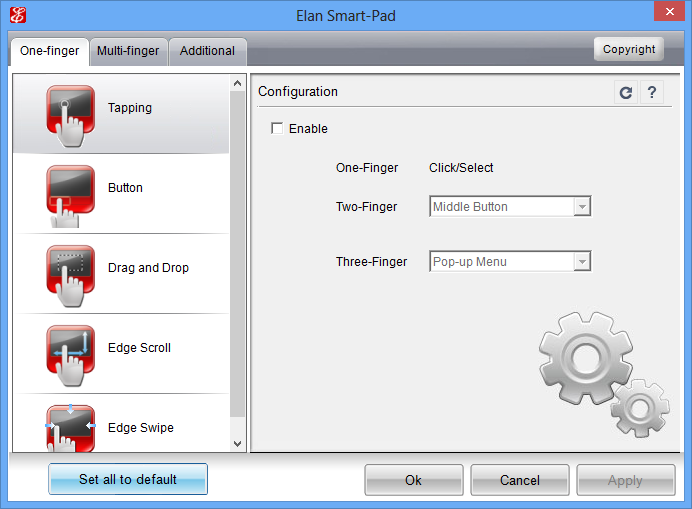
Once downloaded – go to CONTROL PANEL – MOUSE.  There should be an “ELAN” tab at the top.  Select it and click on the “Options…” button.  The following window should appear.  I recommend the following:

  1. DISABLE TAPPING
    Uncheck the “Enable” check box for Tapping.  It is what causes your mouse to jump all over the place.
  2. DISABLE DRAG & DROP
    It’s too easy to accidently move stuff when this is enabled.  Disable it by clicking on “Drag and Drop” and unchecking the “Enable” box.

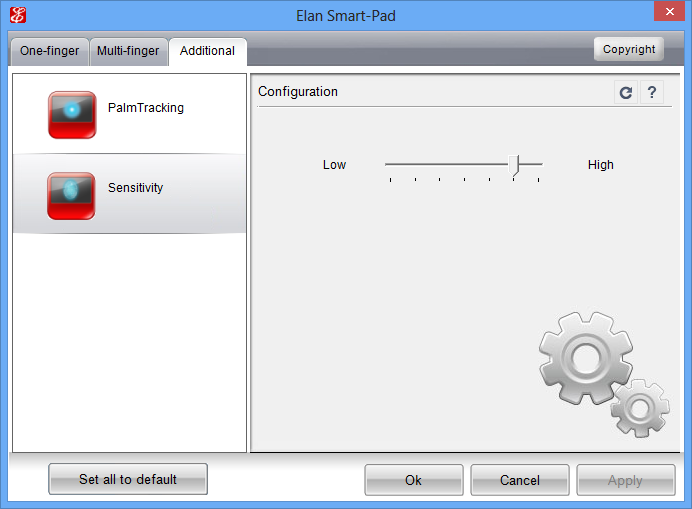
ELAN3There are other options available in the “Additional” tab such as “Palm Tracking” and “Sensitivity” that you will need to play with to see what works for you.  See the photo to the right to see what options are available in this tab.

SYNAPTICS TOUCHPAD USERS:
What if you have a Synaptics Touchpad?  Here’s a quote from my previous post:

I have in fact found some Synaptics drivers with the version number of “16.2.12.3” published 9/7/12 for both 32bit & 64bit. Sound interesting? Yeah, I thought so. The problem is I don’t have a Synaptics touchpad to test this on any more so I have no idea if these work however here’s the link if you really feel daring. Caveat installer.)

« Newer Posts - Older Posts »

Categories