imageHave you ever wanted the direct URL for an app within the Windows Store? 

There’s unfortunately not a real clear cut way to do it.  Here’s the way I’ve found how to get to it via the “SHARE” charm in the Windows 8 Charms menu. 

Say for instance you love the game “Hearts” for Windows 8 and you want to get the direct URL to the app in the Windows Store to post it in your blog or something.  The way to do this is:

  1. Run the app (“Hearts”)
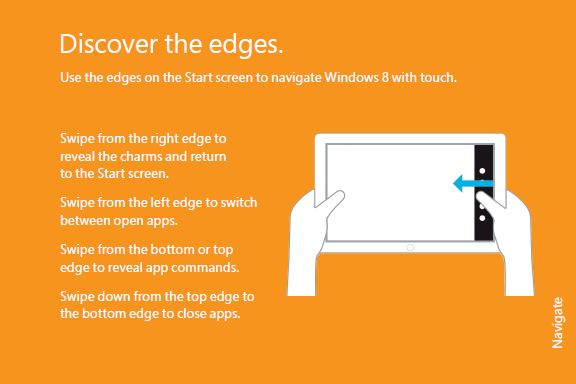
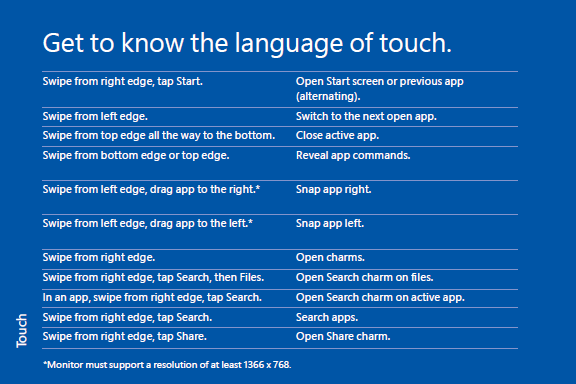
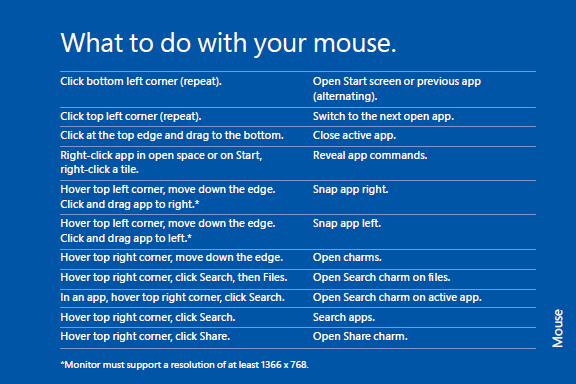
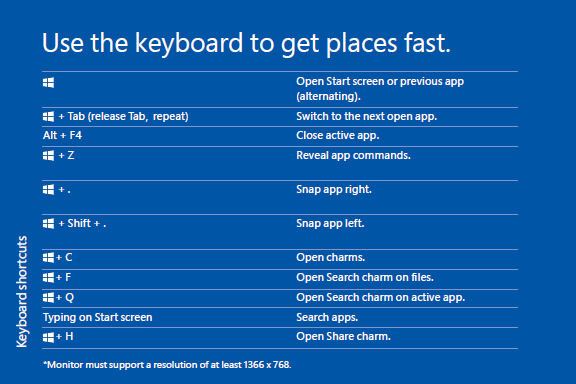
  2. Open the Charms Bar (WinKey-C)
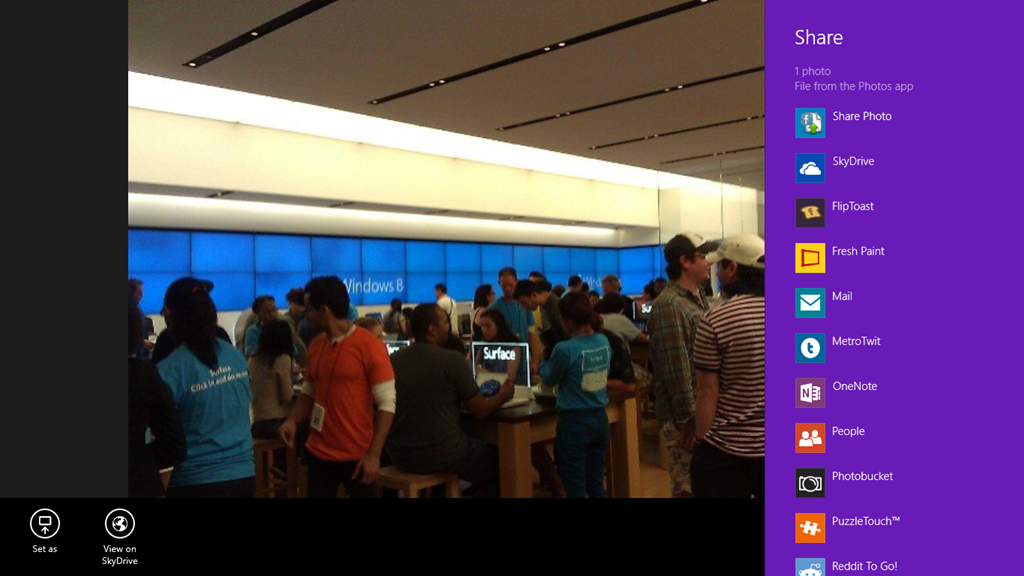
  3. Select the SHARE charm
  4. Select “Mail” – an email will be created with the direct URL for the app in it
  5. Send the email to yourself

And you’ll have the URL in the mail in seconds.  In this case, the URL for “Hearts” is: http://apps.microsoft.com/webpdp/en-US/app/hearts-deluxe/6e7be2d2-e586-460e-add1-fc3858ee0c8e

Posted by: kurtsh | October 14, 2012

NEWS: Xbox Music. Music streaming. For free.

…with unlimited skipping.  That’s right.  No limits on skipping.  Unlike Pandora.

All Windows 8 & Windows RT devices will get Xbox Music, which will provide unlimited music streaming at NO CHARGE from a catalog of 30,000,000 songs and 70,000 music videos.

Artist-based radio is called “SmartDJ” on Xbox Music and allows you to listen to a specific artist and other “like-artists” that are available, and again:  You can skip any song you don’t like an unlimited number of times.

Xbox Music provides a list of all your music, all previously streamed or downloaded music, all your playlists, and all purchases in a single location.

WAIT – ISN’T THERE A SUBSCRIPTION OPTION?
If you’d like to be able add songs to your own custom playlists and have the playlists automatically synced and accessible across your Tablet, Phone, PC, and Xbox 360, for easy access.

Here’s the announcement, and the online video:
http://www.microsoft.com/en-us/news/features/2012/oct12/10-14XboxMusic.aspx 

Xbox Music: Coming to Windows 8 & Windows RT devices FOR FREE


There’s a very good write up from Dean Takahashi here at Venture Beat as well:

UPDATE 10/14/12:
Since posting this write up, I seem to have gotten a fair amount of traffic from it telling me that it’s not just a MS phenomenon.  In the interests of helping everyone else, I wanted to post a couple things that have happened since.

  1. imageCLEARING CACHED IDENTITIES
    Some of the authentications came back.  I have no idea why.  After a while I began to think that some of the cached credentials that had been stored were no longer valid, nor were they being updated.

    So what I did was I went into:
    CONTROL PANEL –> CREDENTIAL MANAGER
    [GENERIC CREDENTIALS]

    …and deleted every credential that looked related to Outlook or our corporate mail system.  Outlook simply re-requested the credentials when I opened it again, I made sure to check “Remember” or whatever it is that you check to keep the login credentials persistent for the next time my PC needed them, and things got better again.

  2. imageREMOVING “OTHER PEOPLE’S CALENDARS”
    This is a weird one.  Looking at the Synchronization logs in Outlook/Exchange, (Outlook “Folder List” –> Sync Issues) I could see that several other people’s calendars were being synced to my machine. 

    This is of course useful when you need to be able to schedule things but if the users are on other Exchange systems, Exchange Online, Exchange Beta pilots, things can get hairy authentication wise apparently.  You can see in the screenshot to the right that I apparently am having permissions-based synchronization issues with numerous calendars. (Jose, Angie, & Ahmed in the above screenshot.)

    So I started to delete these cached calendars from my Outlook profile.  I went into Outlook and right mouse-clicked each calendar that I didn’t want to sync, and clicked “Remove Calendar”.

  3. CLEAR LOCAL CONFLICTS/FAILURES
    I started looking at the local synchronization failures in Outlook “Folder List” –> Sync Issues –> “Conflicts”, and also “Local Failures” and started deleting mail objects that looked to be having issues synchronizing.  I also made sure to “Empty Deleted Items” to ensure they were “gone”.
  4. RESTART INTERNET EXPLORER/OUTLOOK
    I forgot to mention this the first time but after changing settings in IE and clearing my credentials, I also closed out all instances of Outlook and Internet Explorer – i.e. restarted things.  None of these changes will work if you don’t close out the apps.

———————–

imageORIGINAL POST:
A week or so ago, I suddenly started getting and absolutely insane number of authentication dialogs from Lync, from Outlook, from Exchange… everywhere.  And for the life of me, I couldn’t figure out what the heck happened.

After all, my Active Directory login credentials when I first signed into my computer should be all that it needs.  I shouldn’t have to ‘sign in again’.

So I started doing some basic research on the matter.  After some very late night inspection, it turns out that a Security setting in Internet Explorer was mysteriously changed on my PC and I don’t know why.  The only thing I can think of is someone in our IT department pushed out a Group Policy object to my PC (and possibly others) & then later said, "oops" and removed object.  But if you know how GPOs work, this wouldn’t change Internet Explorer’s configuration BACK to the correct setting and they didn’t bother to set it back to the correct setting with another GPO… so I’ve been stuck with the wrong Security setting for a couple weeks.

So in case you folks ever get the same repeated “Windows Security” or “Outlook” authentication/login credential dialog boxes, here’s how I resolved it:

  1. Open Internet Explorer –> Tools –> Internet Options
  2. Click the Security tab.  Click the “Local Internet” icon.  Press the “Custom Level” button.  This will open a “Security Settings” dialog box with a list of settings..
  3. Scroll down to near the bottom of the list make sure there is check in front of "Automatic logon with current user name and password.”
    (This actually was already selected on my PC)
  4. Repeat this for “Trusted Sites” just as you did for “Local Internet”.
    (This is the setting that had been undone on my PC.  Note that if I go to Internet Options –>
    Trusted Sites and press the “SITES” button, I have our company’s Internet domain listed as a trusted site over https:.)

This got rid of all of my repeated authentication requests.

Posted by: kurtsh | October 10, 2012

INFO: Roaming layout for applications in Windows 8

StartPageIf you’re like most Windows 8 users, you’ve gone hog wild on all the new MX-style apps that are available and reorganized them on the START page.  You’ve spent time moving tiles around, shrinking some, enlarging others, putting them into groups, etc.

If you’re like most computer users however, you’ve also got more than one PC.  So the question arises:

Q: How can I sync my START PAGE LAYOUT across all my Windows 8 PCs?

It turns out that your layout is stored here:
C:\Users\<user>\AppData\Local\Microsoft\Windows\appsFolder.itemdata-ms

Basically, here’s the steps that are required:

  1. Install all your apps
  2. Overwrite the file “appsFolder.itemdata-ms”
  3. Logout / log back in

Yes, yes.  Layout synchronization has been requested as a feature request.

Posted by: kurtsh | October 8, 2012

INFO: MEC 2012 post-conference content

image

Looking for content from the Microsoft Exchange Conference 2012?

The site to go to is “I am MEC” – the Microsoft Exchange Community, where they’ve posted all the Exchange content from TechEd 2012 as well as the following presentations from MEC 2012:

Besides the 4 keynotes above, I’ve just received word that they’ll be posting all the Day 1 Breakout session content to the site and are working on it right now. As you may know, there were no recordings of the day 2 or 3 content as they were all chalktalks, which is the reason why MEC was hailed as an ‘in-person’ event. There may be some content that the Day 2 and 3 speakers may wish to share and if there is, we will be posting that to the site in the future.

Posted by: kurtsh | October 8, 2012

NEWS: Microsoft acquires PhoneFactor

This is one of the coolest acquisitions I’ve seen us do.  Imagine two-factor, PHONE-BASED authentication that works with Active Directory, Windows Azure authentication, SharePoint Server, IIS, etc.

That’s PhoneFactor.

imageToday I am excited to announce that we are welcoming PhoneFactor to the Microsoft family. For those of you not familiar with PhoneFactor, they are an industry leader in phone-based multi-factor authentication (MFA) and their solutions bring a unique blend of security and convenience to our developers, partners and customers.

People are connecting to critical applications and services through an ever-growing number of devices – corporate PCs, business or personal laptops, personal phones, and more. These applications and devices are generally only secured using single factor authentication (i.e. passwords). As many are aware, single-factor authentication can often be insufficient, which is why leading businesses around the world are turning to MFA to enhance security in a multi-device, mobile, and cloud-centric world. Typical MFA solutions require the user to have something they know (like their password) and something they physically possess (a device of some kind like a smartcard) – and the result is often too complex or hard to use. MFA is meant to provide enhanced security, but for it to be effective it must also be convenient. PhoneFactor is popular because its solutions interoperate well with Active Directory so users don’t have to learn new passwords and IT administrators and application developers can use infrastructure and services they already know. Also, perhaps most importantly, PhoneFactor is popular because it conveniently relies on a device that most users already have with them – their phone.

PhoneFactor’s solutions can be implemented to help Microsoft customers protect data in SharePoint, on their file servers and with their critical business apps running on-premises. In addition, they can be used to enhance the security of applications running in the cloud. To learn more about PhoneFactor and what our MFA solutions can do for you – today – please visit: www.PhoneFactor.com.

Read more here:

imageThis has been well-known for a while but for those of you who haven’t tried it, NFL Sunday Night Football is available in high definition 1080p streams using Microsoft Silverlight on your computer.

Watch HD 1080p stream LIVE (dynamically adjusts resolution based on your bandwidth in real-time), switch between 5 different camera views instantly, watch two views PiP, view real-time stats of teams/players, fwd/rew/slomo/freeze the broadcast, and more!

Here’s a quick list of the fantastic interactive features available in the new Silverlight NFL player:

  1. imagePiP CAMERA ANGLES ON-DEMAND: Be sure to check out the Picture-in-Picture functionality we built in there, giving you the ability to switch between 1 of 5 camera angles LIVE during the game in either the small picture window or the main video frame.
  2. DYNAMICALLY ADJUSTING VIDEO QUALITY: Notice that the video quality automatically & seamlessly changes depending on your available bandwidth from 300kbps (480i) to 2.1Mb (1080p). Hover over the bandwidth icon in the lower right hand corner to see your current bandwidth.
  3. imageSTATS & COMMENTARY ON-DEMAND: During the game & commercial breaks, you hace access to game stats and play-by-play information from top NBC commentators. Click on the "Reveal" button in the bottom left corner to see social networking discussions and game stats live.
  4. CLICKABLE ADS & FULL SCREEN EXPANSION: Expand the entire windows to the size of your display… and click on the screen during ads throughout the game to jump to the advertiser’s web site for "special deals".
  5. imageREWIND/FAST FWD/15 SEC JUMP: View the broadcast llke you were using your DVR! Rewind 15 seconds to review the last play or rewind/ffwd through the live broadcast just as if it was being recorded live, all without lame "Buffering…10%" messages. (Courtesy of patented Microsoft Windows Media 9 streaming)
  6. MULTIPLATFORM: The Silverlight broadcasting experience is portable, making it possible to broadcast the stream to Windows PCs, Macs, and Windows Phone 7 devices. That’s right: A rich interactive NFL experience scaled down to your phone. Awesome.
  7. imageHIGHLIGHTS & EXTRAS: Missed the pregame or the first part of the game? View the ‘good parts’ with a simple click of the scenes listed in front of you. Replay the pregame commentary.
  8. SHARE-A-PLAY: Wicked hit? Awesome pass? Disgusting north-south run? Hit the Share button and instantly share the play with others over Facebook, Twitter, email, and any number of 12 different social networking facilities.
  9. PAUSE & SLO-MO: Totally forgot about this. Need to hit the head? Wanna see if the catch was REALLY inbounds? Was the pass made over the line of scrimmage? Rewind the play and slow it down in HIGH DEF and see it for yourself if the refs don’t review it.

But don’t just take my word for it. Take a look at what the edito fo Macworld said about the Silverlight experience of watching the NFL on NBC… on a Mac!

——————–

SIDENOTE: Be sure to check out the first 30-40 min of every NFL "Sunday Night Football" broadcast – specifically the "star cam" & the "cable cam" views. It’s view-worthy for no other reason than since the game’s not yet started, there’s really nothing much for the cameras to focus on other than the fans-in-the-stands & the cheerleaders and frankly that makes for some great entertainment in it of itself.

[repost from Oct 2010]

Posted by: kurtsh | October 7, 2012

INFO: My CES 2013 Preparation Checklist

imageHere’s a list of stuff that I’m packing for my trip to CES 2013 in Las Vegas – even though we’re not gonna be there. Hope it helps someone who’s going. 

This is sort of a rip off of my 2012 list but this time I’m going through and remembering all the stuff I REALLY ACTUALLY USED on my last trip.

For the 2012 list, check this link out:
https://kurtsh.com/2011/12/22/info-my-ces-preparation-checklist/

Posted by: kurtsh | October 7, 2012

VIDEO: Halo 4: Forward Unto Dawn (Part 1)

imageIn preparation of the launch of Halo 4, 343 Industries is producing a mini-series in 5 parts.  The first part released this past Friday, with a new episode to be released every Friday… basically up until November 6th, the launch of Halo 4. 

So be sure to preorder.  BTW:  If you do so at the Microsoft Store, they’ll give you a $25 gift card as well.

They also have backstory content available on the site as well:
http://halo.xbox.com/en-US/Universe/ViewMore?articleId=55106d5891d94281bdbc079ef3e0a62d&artType=All

image

Hastati Squad pays the price for Cadet Lasky’s defiance at Corbulo Academy of Military Science.

Thomas Lasky came to Corbulo Academy of Military Science with his mother and brother’s impressive military careers hanging over his head. Haunted by ghosts from his past, he has serious doubts about the war he’s expected to fight. As fellow cadet Chyler Silva tries to help him find his place at the academy, tensions with other squad members approach the breaking point.

Halo 4: Forward Unto Dawn is a live-action digital series that takes you back to the beginning of the human and Covenant war and leads directly into the events of Halo 4. Be sure to tune in every Friday to Halo Waypoint and Machinima Prime, where you can watch the story unfold through a series of five episodes.

Watch here:
http://halo.xbox.com/en-US/Universe/detail/halo-4-forward-unto-dawnpart-1/55106d58-91d9-4281-bdbc-079ef3e0a62d

imageLync 2010 is awesome.  It’s fast, convenient, federates with other Lync-companies for secure messaging, and integrates with everything in the Office suite.

One thing that presenters often want however is the ability to see what their “Audience’s view” is like end-to-end. 

Assuming that your IT infrastructure supports it in it’s Lync implementation, add the following characters to the end of any Lync URL to get the option of accessing the meeting via the web:

?sl=

EXAMPLE:
So if you have the following Lync conference URL, which connects you to your conference call through the installed Lync client:

https://join.companyname.com/meet/namegoeshere/J7THYCPG

to get the Web Client, the URL should become:

https://join.companyname.com/meet/namegoeshere/J7THYCPG?sl

The resulting experience is a Silverlight client “over the web”. (See below)  The client below is just a web browser with Silverlight components displaying the participants list, the instant messaging window, attachment controls, any sharing being done on the stage, and most other functions from the traditional Lync client.

image

« Newer Posts - Older Posts »

Categories