image

Just announced:

Those who say what happens in Vegas, stays in Vegas have got it right again. I am excited to announce that Microsoft will once again be hosting our annual management conference, Microsoft Management Summit 2013, in Las Vegas April 8-12, 2013 at the beautiful Mandalay Bay Resort and Casino.

We are planning a great week of technical training, content and networking that you can only get at MMS. If you want to be the first to know when registration opens, please like us on Facebook or send e-mail to mmsnotfy@microsoft.com.

Following on the heels of the releases of Windows Server 2012 and System Center 2012, I am really excited for the chance for everyone to learn more about our latest capabilities and share what’s ahead at our annual gathering. And remember, we had a very early sell-out last year so be on the look-out for registration information and be sure to secure your spot.

Big news for folks using VDI:

"RDP 8.0 Update for Windows 7 SP1:
Enabling a great WAN user experience for Windows 7 SP1 virtual desktops"

imageToday, on the Windows For Your Business Blog, Karri Alexion-Tiernan announced additional information on the Remote Desktop Protocol 8.0 Update for Windows 7 SP1. This is exciting news and I’d like to talk about some of the functionality you will see when it is available for download in late Q4 CY2012.

As many of you already know, a salient feature of Windows Server 2012 and Windows 8 is the ability to deliver a rich user experience for remote desktop users on corporate LAN and WAN networks. Thanks to RemoteFX and Remote Desktop Protocol 8.0 (RDP 8.0) in Windows 8, customers can deploy Windows 8 virtual desktops using Windows Server 2012 Remote Desktop Virtualization Host and support users on low bandwidth, high latency networks such as work from home users and branch office users.

Can customers deploy Windows 7 as the VDI guest operating system on Windows Server 2012 and deliver a great experience to users on WAN networks? Absolutely yes! Read on to learn how.

The RDP 8.0 update will enable RDP 8.0 (including all the RemoteFX enhancements in Windows 8 that make RDP 8.0 the protocol of choice for VDI) on Windows 7 Service Pack 1. Specifically, the update will provide the following capabilities.

Posted by: kurtsh | October 16, 2012

VIDEO: “Surface Movement”… and more.

In case you missed it, here’s the first Surface TV advertisement:

Surface Movement


Not surprisingly, with the release of this ad also came… the social networking:

I hope to see you at the Century City Microsoft Store on October 26th when we launch Surface for Windows RT.  I will be there all day and if you’re a customer of mine, I’d love to set up a special time on site to get our Enterprise “white glove” folks to give you the VIP treatment at the store… so let me know!

Posted by: kurtsh | October 15, 2012

HOWTO: Fix issues with Windows Phone app purchases

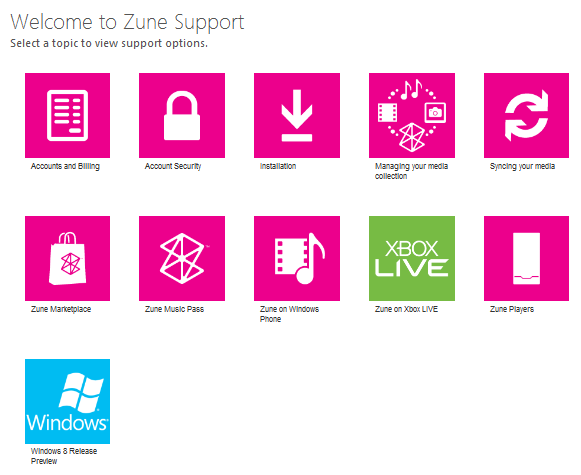
imageIf you purchase an app from the Windows Phone Marketplace and you have an issue like you’re double billed for the same item, the process for getting the issue resolved is through this web site:

Yes, that’s the Zune Support web site.  It’s all the same thing, all the same billing as I understand it. 

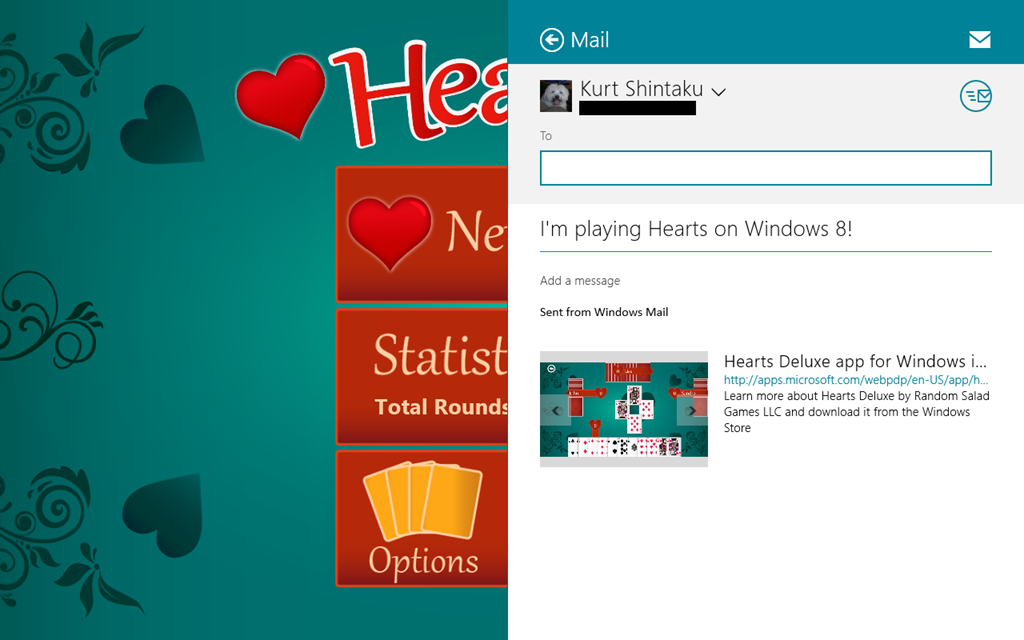
imageHave you ever wanted the direct URL for an app within the Windows Store? 

There’s unfortunately not a real clear cut way to do it.  Here’s the way I’ve found how to get to it via the “SHARE” charm in the Windows 8 Charms menu. 

Say for instance you love the game “Hearts” for Windows 8 and you want to get the direct URL to the app in the Windows Store to post it in your blog or something.  The way to do this is:

  1. Run the app (“Hearts”)
  2. Open the Charms Bar (WinKey-C)
  3. Select the SHARE charm
  4. Select “Mail” – an email will be created with the direct URL for the app in it
  5. Send the email to yourself

And you’ll have the URL in the mail in seconds.  In this case, the URL for “Hearts” is: http://apps.microsoft.com/webpdp/en-US/app/hearts-deluxe/6e7be2d2-e586-460e-add1-fc3858ee0c8e

Posted by: kurtsh | October 14, 2012

NEWS: Xbox Music. Music streaming. For free.

…with unlimited skipping.  That’s right.  No limits on skipping.  Unlike Pandora.

All Windows 8 & Windows RT devices will get Xbox Music, which will provide unlimited music streaming at NO CHARGE from a catalog of 30,000,000 songs and 70,000 music videos.

Artist-based radio is called “SmartDJ” on Xbox Music and allows you to listen to a specific artist and other “like-artists” that are available, and again:  You can skip any song you don’t like an unlimited number of times.

Xbox Music provides a list of all your music, all previously streamed or downloaded music, all your playlists, and all purchases in a single location.

WAIT – ISN’T THERE A SUBSCRIPTION OPTION?
If you’d like to be able add songs to your own custom playlists and have the playlists automatically synced and accessible across your Tablet, Phone, PC, and Xbox 360, for easy access.

Here’s the announcement, and the online video:
http://www.microsoft.com/en-us/news/features/2012/oct12/10-14XboxMusic.aspx 

Xbox Music: Coming to Windows 8 & Windows RT devices FOR FREE


There’s a very good write up from Dean Takahashi here at Venture Beat as well:

UPDATE 10/14/12:
Since posting this write up, I seem to have gotten a fair amount of traffic from it telling me that it’s not just a MS phenomenon.  In the interests of helping everyone else, I wanted to post a couple things that have happened since.
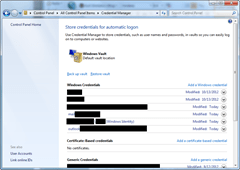
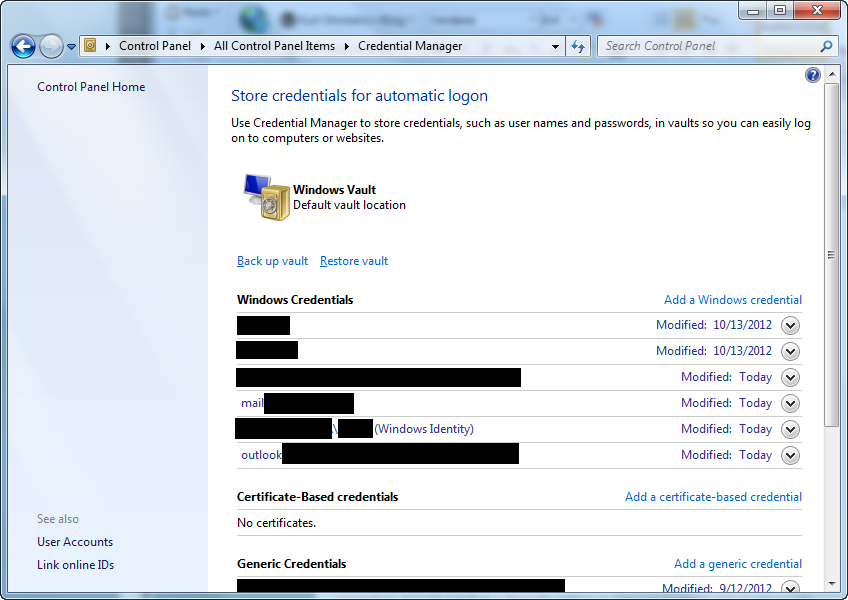
  1. imageCLEARING CACHED IDENTITIES
    Some of the authentications came back.  I have no idea why.  After a while I began to think that some of the cached credentials that had been stored were no longer valid, nor were they being updated.

    So what I did was I went into:
    CONTROL PANEL –> CREDENTIAL MANAGER
    [GENERIC CREDENTIALS]

    …and deleted every credential that looked related to Outlook or our corporate mail system.  Outlook simply re-requested the credentials when I opened it again, I made sure to check “Remember” or whatever it is that you check to keep the login credentials persistent for the next time my PC needed them, and things got better again.
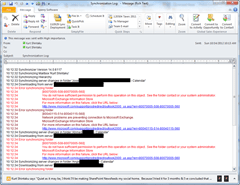
  2. imageREMOVING “OTHER PEOPLE’S CALENDARS”
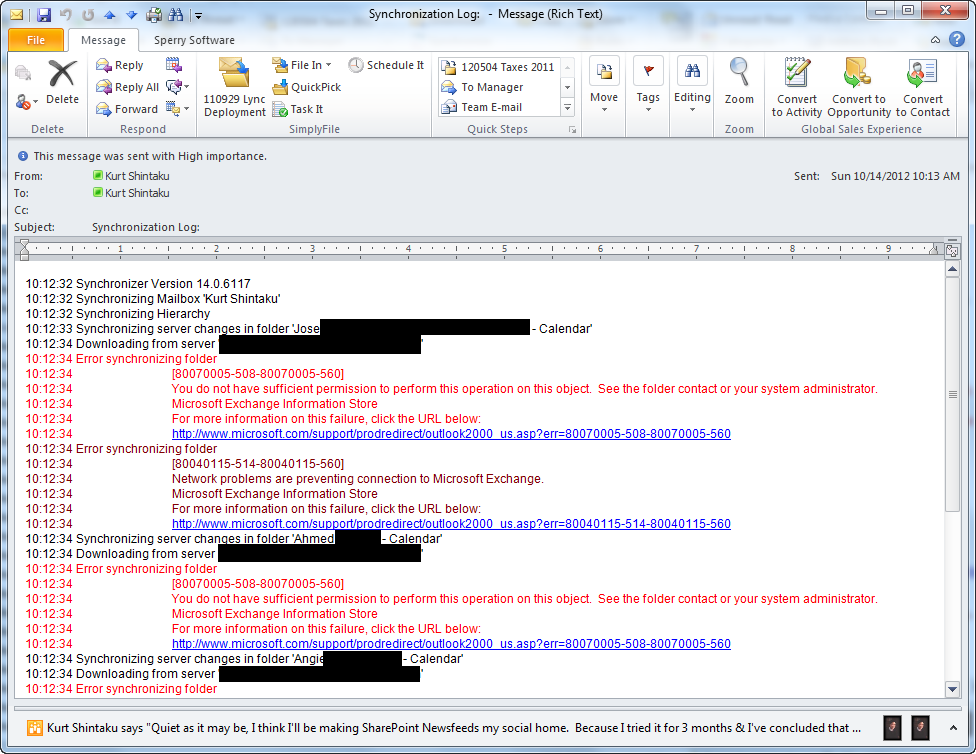
    This is a weird one.  Looking at the Synchronization logs in Outlook/Exchange, (Outlook “Folder List” –> Sync Issues) I could see that several other people’s calendars were being synced to my machine. 

    This is of course useful when you need to be able to schedule things but if the users are on other Exchange systems, Exchange Online, Exchange Beta pilots, things can get hairy authentication wise apparently.  You can see in the screenshot to the right that I apparently am having permissions-based synchronization issues with numerous calendars. (Jose, Angie, & Ahmed in the above screenshot.)

    So I started to delete these cached calendars from my Outlook profile.  I went into Outlook and right mouse-clicked each calendar that I didn’t want to sync, and clicked “Remove Calendar”.

  3. CLEAR LOCAL CONFLICTS/FAILURES
    I started looking at the local synchronization failures in Outlook “Folder List” –> Sync Issues –> “Conflicts”, and also “Local Failures” and started deleting mail objects that looked to be having issues synchronizing.  I also made sure to “Empty Deleted Items” to ensure they were “gone”.
  4. RESTART INTERNET EXPLORER/OUTLOOK
    I forgot to mention this the first time but after changing settings in IE and clearing my credentials, I also closed out all instances of Outlook and Internet Explorer – i.e. restarted things.  None of these changes will work if you don’t close out the apps.

———————–
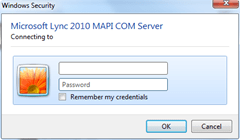
imageORIGINAL POST:
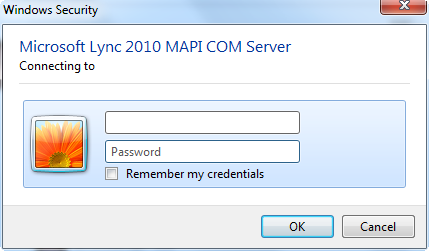
A week or so ago, I suddenly started getting and absolutely insane number of authentication dialogs from Lync, from Outlook, from Exchange… everywhere.  And for the life of me, I couldn’t figure out what the heck happened.

After all, my Active Directory login credentials when I first signed into my computer should be all that it needs.  I shouldn’t have to ‘sign in again’.

So I started doing some basic research on the matter.  After some very late night inspection, it turns out that a Security setting in Internet Explorer was mysteriously changed on my PC and I don’t know why.  The only thing I can think of is someone in our IT department pushed out a Group Policy object to my PC (and possibly others) & then later said, "oops" and removed object.  But if you know how GPOs work, this wouldn’t change Internet Explorer’s configuration BACK to the correct setting and they didn’t bother to set it back to the correct setting with another GPO… so I’ve been stuck with the wrong Security setting for a couple weeks.

So in case you folks ever get the same repeated “Windows Security” or “Outlook” authentication/login credential dialog boxes, here’s how I resolved it:

  1. Open Internet Explorer –> Tools –> Internet Options
  2. Click the Security tab.  Click the “Local Internet” icon.  Press the “Custom Level” button.  This will open a “Security Settings” dialog box with a list of settings..
  3. Scroll down to near the bottom of the list make sure there is check in front of "Automatic logon with current user name and password.”
    (This actually was already selected on my PC)
  4. Repeat this for “Trusted Sites” just as you did for “Local Internet”.
    (This is the setting that had been undone on my PC.  Note that if I go to Internet Options –>
    Trusted Sites and press the “SITES” button, I have our company’s Internet domain listed as a trusted site over https:.)

This got rid of all of my repeated authentication requests.

Posted by: kurtsh | October 10, 2012

INFO: Roaming layout for applications in Windows 8

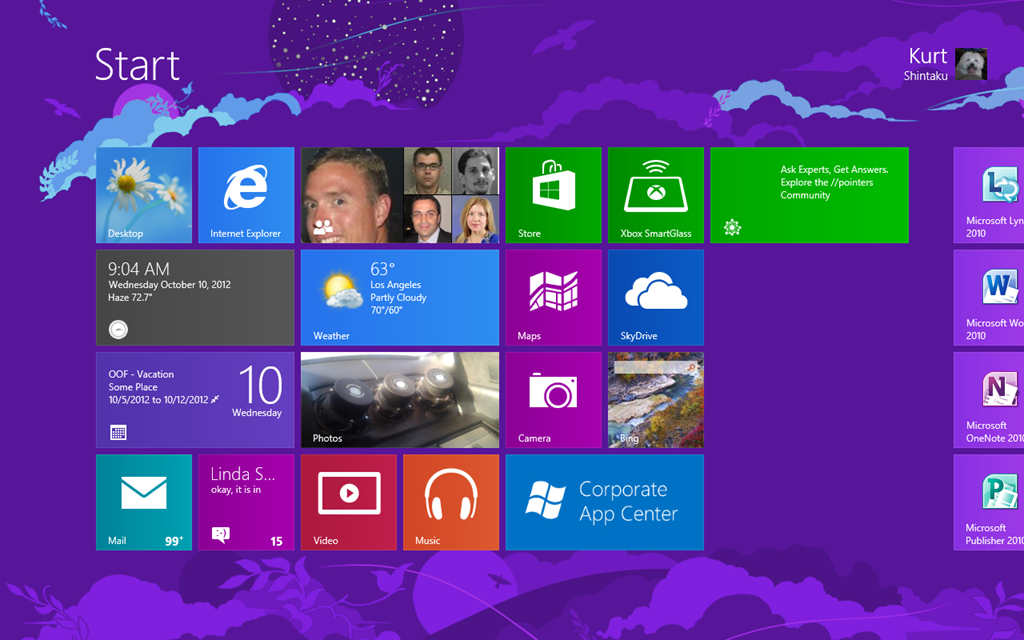
StartPageIf you’re like most Windows 8 users, you’ve gone hog wild on all the new MX-style apps that are available and reorganized them on the START page.  You’ve spent time moving tiles around, shrinking some, enlarging others, putting them into groups, etc.

If you’re like most computer users however, you’ve also got more than one PC.  So the question arises:

Q: How can I sync my START PAGE LAYOUT across all my Windows 8 PCs?

It turns out that your layout is stored here:
C:\Users\<user>\AppData\Local\Microsoft\Windows\appsFolder.itemdata-ms

Basically, here’s the steps that are required:

  1. Install all your apps
  2. Overwrite the file “appsFolder.itemdata-ms”
  3. Logout / log back in

Yes, yes.  Layout synchronization has been requested as a feature request.

Posted by: kurtsh | October 8, 2012

INFO: MEC 2012 post-conference content

image

Looking for content from the Microsoft Exchange Conference 2012?

The site to go to is “I am MEC” – the Microsoft Exchange Community, where they’ve posted all the Exchange content from TechEd 2012 as well as the following presentations from MEC 2012:

Besides the 4 keynotes above, I’ve just received word that they’ll be posting all the Day 1 Breakout session content to the site and are working on it right now. As you may know, there were no recordings of the day 2 or 3 content as they were all chalktalks, which is the reason why MEC was hailed as an ‘in-person’ event. There may be some content that the Day 2 and 3 speakers may wish to share and if there is, we will be posting that to the site in the future.

Posted by: kurtsh | October 8, 2012

NEWS: Microsoft acquires PhoneFactor

This is one of the coolest acquisitions I’ve seen us do.  Imagine two-factor, PHONE-BASED authentication that works with Active Directory, Windows Azure authentication, SharePoint Server, IIS, etc.

That’s PhoneFactor.

imageToday I am excited to announce that we are welcoming PhoneFactor to the Microsoft family. For those of you not familiar with PhoneFactor, they are an industry leader in phone-based multi-factor authentication (MFA) and their solutions bring a unique blend of security and convenience to our developers, partners and customers.

People are connecting to critical applications and services through an ever-growing number of devices – corporate PCs, business or personal laptops, personal phones, and more. These applications and devices are generally only secured using single factor authentication (i.e. passwords). As many are aware, single-factor authentication can often be insufficient, which is why leading businesses around the world are turning to MFA to enhance security in a multi-device, mobile, and cloud-centric world. Typical MFA solutions require the user to have something they know (like their password) and something they physically possess (a device of some kind like a smartcard) – and the result is often too complex or hard to use. MFA is meant to provide enhanced security, but for it to be effective it must also be convenient. PhoneFactor is popular because its solutions interoperate well with Active Directory so users don’t have to learn new passwords and IT administrators and application developers can use infrastructure and services they already know. Also, perhaps most importantly, PhoneFactor is popular because it conveniently relies on a device that most users already have with them – their phone.

PhoneFactor’s solutions can be implemented to help Microsoft customers protect data in SharePoint, on their file servers and with their critical business apps running on-premises. In addition, they can be used to enhance the security of applications running in the cloud. To learn more about PhoneFactor and what our MFA solutions can do for you – today – please visit: www.PhoneFactor.com.

Read more here:

« Newer Posts - Older Posts »

Categories