Posted by: kurtsh | February 15, 2013

INFO: The Microsoft Wedge Mouse… great for Surface Pro!

imageHonestly, I hadn’t tried this mouse before.  This new “Wedge Mouse” of ours seems a little odd looking and frankly, not very ergonomic.  But with the release of the Surface Pro, I decided to live a little and give it a try when I was buying accessories.

Man, am I glad I did.  This thing is HELLA cool.

I’ve been reading our documentation on the device.  I was a little disappointed with the Microsoft Arc Touch Mouse in that it seemed to cramp my hand despite the fact that the arc in the unit was designed to provide some modicum of ergonomics.

Here’s what I see as valuable differentiators in this mouse:

  1. WORKS ON POLISHED SURFACES
    Have you ever used a mouse on a semi-reflective table (usually at a hotel) and discovered that it won’t track or move the mouse pointer correctly? It can’t be understated how well this mouse works on polished granite or other tables that used to not work with laser or camera-based optical mice.  Read more about it here:
    http://www.microsoft.com/hardware/en-us/bluetrack-technology
  2. SUPERLIGHT & PORTABLE
    This is a really small mouse with no cables and is almost undetectable in your pocket.  That’s what I’d liked about the Arc Touch mouse but it had one major drawback:  It has a BIG MAGNET on it which is a disaster if you have your wallet in your pocket. 
  3. AUTO-SHUT OFF
    The mouse shuts down after 30 seconds if you shutdown your PC.  No more replacing the battery just because you forgot to power it down.
  4. BLUETOOTH RELIABILITY
    This is the single best bluetooth mouse I’ve ever used.  The pairing with my Surface Pro was fast, the mouse is super-responsive, and most importantly… the connection is RELIABLE.  In my experience, bluetooth mice have the tendency to be unreliable, disconnecting frequently, going to sleep when you don’t want it to, causing all sorts of frustration while using it.  Not with the Wedge mouse.  This is very well designed.
  5. MOUSE & KEYBOARD CENTER 2.0 SOFTWARE COMPATIBILITY
    For configuration & per-application settings, Wedge mouse works with the free & incredibly useful “Mouse & Keyboard Center 2.0” software product from Microsoft.
    DOWNLOAD: http://www.microsoft.com/hardware/en-us/d/wedge-touch-mouse 
  6. NO CRAMPING
    Strangely, contrary to my original thinking, this thing doesn’t really cramp my hands.  I thought that because it was so small, it’d cause cramping over a long period of time but nope… it’s just fine.  Really interesting and I don’t know why.

If you want to pick one up, here’s the links:

Note:  The only difference between the Surface edition and the Standard edition is that the Surface edition’s sides use the same VaporMg casing metal of the Surface.  Functionally, they are otherwise identical.

Surface24WA friend posed the following question to me:

  • “Can I use the Surface RT power supply on a Surface Pro?”

SURFACE RT POWER SUPPLY ON SURFACE PRO
The answer was briefly addressed by the Surface team during their recent AMA on Reddit.  YES, you can although the charge will be much slower.

From my own observation, this makes complete sense:  They operate at the same voltage but charging will be much slower because the amperage of the RT power supply is almost half of what the Pro power supply is.  This matters to many primarily because of the disparity between the cost of these two accessories.

  • Surface RT has a 24W Power Supply (12V at 2A, $39.99 MSRP) – See photo above
  • Surface Pro is 44W Power Supply (12V at 3.6A, $79.00 MSRP) – See photo below

SURFACE PRO POWER SUPPLY ON SURFACE RT
Conversely, the Surface Pro Power Supply works on the Surface RT.  While I haven’t seen any specific documentation on this topic on the Surface support web site, I’ve snapped that onto my unit and it charges just fine.  Possibly even faster due to the higher amperage but I wouldn’t know since I’m not benchmarking the charge.

Ordering for either power supply is available at the Surface web site:
http://www.microsoft.com/Surface/en-US/accessories/home#power-supply

Surface48W

Posted by: kurtsh | February 15, 2013

INFO: Where are the drivers for Surface Pro?

imageUPDATE 5/2/13:
And there they are!  We just released a whole pack of drivers & firmware updates to enable IT professionals to update, provision, and image Surface Pro devices.

https://kurtsh.com/2013/05/01/release-surface-pro-driver-pack-for-windows-8/

—————–

ORIGINAL POST 2/15/13:
Where are the drivers for Surface Pro?  I was searching for the answer to this question myself and turned up the following on our support forums:

The basic answer is that Surface Pro firmware updates are delivered via Windows Update as described here:
http://www.microsoft.com/Surface/en-US/support/performance-and-maintenance/install-software-updates-for-surface

Other peripherals were pointed to here.  I haven’t tried these myself (I just rely on Windows Update) so caveat user:

imageThe U.S. State Department released on 12/4/12 a document to help dispel common misperceptions about the Patriot Act.

The ability of cloud consumers to exploit the full value of cloud innovation has been increasingly threatened over the last year by misplaced assertions that use of cloud services provided by a company subject to the U.S. legal process will routinely expose customer data to seizure by U.S. law enforcement authorities. As this controversy jeopardizes opportunities on both sides of the Atlantic and around the world for needed economic and employment growth, the record needs to be set straight.

This document dispels these myths and discusses certain aspects of U.S. laws that are often mischaracterized abroad, and that discourage citizens of other countries from storing their data with U.S. cloud providers.

In addition, the State Department has created a useful webpage that compiles resources related to data privacy and law enforcement concerns. The page includes copies of several recent speeches made by U.S. officials and summary materials and links related to specific subject matters.

The page is: http://useu.usmission.gov/data_privacy.html.

Use the following command to shutdown your Surface Pro: 
([Windows Key] + ‘R’ to get the run command)

  • shutdown.exe /r /o /f /t 00

It will bring up a touch-friendly boot menu, that among other things, will help you either troubleshoot your PC by putting it in ‘safe boot’ or allow you to boot to USB/network for Windows-to-Go or the Windows Recovery USB flash drive:

WP_20130213_002

Posted by: kurtsh | February 13, 2013

INFO: Responses to 6 Concerns about Surface Pro

imageWhile the feedback from my customers has been overwhelmingly positive since the launch of Surface Pro (“This is things is awesome… people are drooling over my unit over here”, “I can’t wait to show our users”, “I think this is going to dramatically slow down iPad orders”)  I’ve still heard a couple concerns about the device from folks that haven’t used it yet or gotten them in their hands.

This is difficult because I don’t have seeding or evaluation units right now (as all of you know by now) and ultimately, people’s opinions about Surface Pro are formed once they get their hands on it and provision it for the first time for their own personal use.

To assuage certain concerns, I thought I’d take the time to correct certain misperceptions of folks that haven’t yet procured one to help them understand why “what they hear” often times isn’t representative of what the actual experience is of using Surface Pro.

  • START BUTTON: “My users (and I) won’t use this without a START button.”
    <ks> “Individuals that need the comfort of the START button can install on using Stardock’s START 8 tool which is a $4.99. It’s enterprise-deployable, comes with an .ADMX template, and is Group Policy manageable.”
    http://www.stardock.com/products/start8/
  • BATTERY LIFE: “The battery life is only 4-5hrs.”
    <ks> “4-5 hours was found to be a good balance between battery weight & battery life. GM Panos Panay has made references to an upcoming accessory that will provide more portable power for individuals that require longer term or emergency power, leveraging the special power contacts at the base of the tablet.”
    http://allthingsd.com/20130207/microsoft-hints-at-battery-add-on-for-surface-pro/
  • LAP USAGE: “It’s hard to balance & type on when it’s on my lap.”
    <ks> “Customers that require the ability to type on their lap may buy optional, low cost leather portfolios which provides a more stable base for typing.  These cost as little as $13.”
    http://www.amazon.com/KHOMO-Leather-Microsoft-Surface-Windows/dp/B00A0M3MY4/
  • DISK STORAGE: “The hard drive only has 23GB/83GB free space.”
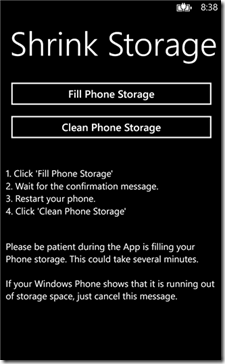
    <ks> “The Surface Pro is a PC so it should be compared with other PCs. The current space available is almost exactly the same as what is available on MacBook Air devices of the same drive sizes.  Additionally, during provisioning for most users, they will find that 6GB+ of additional space can be freed by uninstalling Office 365 trial & transferring the recovery partition to a USB flash drive.”
    http://www.zdnet.com/surface-pro-versus-macbook-air-whos-being-dishonest-with-storage-space-7000011009/
  • PROVISIONING: “Since we’re not buying through our traditional OEM, how do we provision these?
    <ks> “Surface Pro can be provisioned in the same manner in which any other PC is imaged & prepared. Volume shipments can be directed to the service provider for provisioning, leveraging the process in place today simply deploying an image for Windows 8. Volume orders for Enterprise customers may be made at our Commercial Order web site.”
    http://www.surface.com/commercialorder
  • VIEWING ANGLE: “The viewing angle of the display is not adjustable.”
    <ks> “The display kickstand is angled at a specific degree based on average usage.  For people that require an adjustable viewing angle, there are low cost portfolio cases that provide multiple viewing angles.”
    http://www.amazon.com/Microsoft-Multiple-compatible-Keyboard-Features/dp/B009SE4DNO/
Posted by: kurtsh | February 12, 2013

RELEASE: Internet Explorer 10 Blocker Toolkit

imageThe Internet Explorer 10 Blocker Toolkit enables users to disable automatic delivery of Internet Explorer 10 as an important class update via Automatic Updates (AU) feature of Windows Update (WU).

To help our customers become more secure and up-to-date, Microsoft will distribute Windows Internet Explorer 10 as an important update through Automatic Updates for Windows 7 SP1 and higher for x64 and x86 and Windows Server 2008 R2 SP1 and higher for x64.
This Blocker Toolkit is made available to those who would like to block automatic delivery of Internet Explorer 10 to machines in environments where Automatic Updates is enabled. The Blocker Toolkit will not expire.
Note:

  • For computers running Windows 7 or Windows Server 2008 R2, the Blocker Toolkit prevents the machine from receiving Internet Explorer 10 via Automatic Updates on the Windows Update and Microsoft Update sites.
  • The Blocker Toolkit will not prevent users from manually installing Internet Explorer 10 from the Microsoft Download Center, or from external media.
  • Organizations do not need to deploy the Blocker Toolkit in environments managed with an update management solution such as Windows Server Update Services or Systems Management Server 2003. Organizations can use those products to fully manage deployment of updates released through Windows Update and Microsoft Update, including Internet Explorer 10, within their environment.
  • Even if you used the Blocker Toolkit to block Internet Explorer 8 or Internet Explorer 9 from being installed as a high-priority or important update, you will still need to use the Internet Explorer 10 version of the Blocker Toolkit to block Internet Explorer 10 from being installed. There are different registry keys used to block or unblock automatic delivery of Internet Explorer 8, Internet Explorer 9 and Internet Explorer 10.

RELEASE: Internet Explorer 10 Blocker Toolkit
http://www.microsoft.com/en-us/download/details.aspx?id=36512

It seems to be lost on some folks that you’re SUPPOSED to use the DESKTOP for most of your computing.  Windows 8 is designed to be primarily used…:

  • TODAY:  
    …for it’s DESKTOP experience for 90% of what you do
    …for it’s WINDOWS 8 experience for 10% of what you do
  • TOMMORROW:
    …for it’s WINDOWS 8 experience for 90% of what you do
    …for it’s DESKTOP experience for 10% of what you do

Did you catch that?  No?  One more time:

YOU’RE SUPPOSED TO BE USING THE DESKTOP ON WINDOWS 8 FOR THE GREAT MAJORITY OF WHAT YOU DO.  THAT’S WHAT IT’S THERE FOR:  COMPATIBILITY & PRODUCTIVITY.  No one expects the world to be dumping all desktop applications for Windows 8 apps 3 months into Windows 8’s existence.

EXHIBIT A:  DOS-to-WINDOWS
For those that don’t remember the first major Microsoft User Experience transition, when we moved from DOS to Windows, it’s important to know that people didn’t suddenly dump all their DOS applications for what little was available on Windows.  People had lots of DOS-based apps like Multiplan & WordStar that they ran… and they happened to have a few crappy Windows 16-bit apps like “Microsoft Write” that were cute but nothing to get too excited about.

Then over time, across Windows versions  1.0, 2.0, 3.0, and 3.1, an interesting thing happened:  Windows 16-bit applications got better than their DOS-based counterparts especially once Word, Excel, and PowerPoint were released for Windows.  Users transitioned gradually over to using Windows primarily.  This is a process that took 3-4 years to accomplish but eventually, it happened.

Same goes for Windows 8.  Sure you’ll continue to use your DESKTOP apps today, like Office, Quicken, AutoCAD, iTunes, Starcraft II, Photoshop, Vegas Video, Roxio, Final Draft, Rosetta Stone, SAT Prep, yadda yadda yadda… but you’ll want to transfer over to WINDOWS 8 apps when available.  Why?  They’ll be optimized for mobility & touch which means that they’ll be more power efficient, usable without a keyboard, and leverage global operating system functions like "SHARE” and “SEARCH”.

EXHIBIT B: WINDOWS 3.1-to-WINDOWS 95
<to be filled in when I get a break… but you old school folks can extrapolate, right?  Think about the slow Win16-to-Win32 transition that happened from Windows versions 4.0, 5.0, 5.1, 6.0, & 6.1>

WHEN IS ‘TOMMORROW’?
Sometime in the future… no one really knows.  The bottom line is we’re now at Windows 8 (a.k.a. version 6.2) and the point is this:

  1. Windows 8 users are supposed to be using the DESKTOP.  You’re not expected to use WINDOWS 8 apps for even half of what you do today.  The value in today’s computing is in what we do day-to-day and that work is done in the DESKTOP so Windows 8 supports the DESKTOP just as well as Windows 7 does.
  2. The value WINDOWS 8 apps provide are mobility, scalability, offline/online connectedness & usability with touch.  And if you believe that mobility, touch, and tablets are the future, then WINDOWS 8 apps are the future.
  3. The transition to any new UI takes a long time.  It a gradual process and requires value in the destination UI and it requires developers to make the transition first.  It’s happened before and it’ll happen again.
Posted by: kurtsh | February 12, 2013

NEWS: Patch Tuesday 2/12/13. It’s a whopper.

UPDATE 2/12/13 5:49PM:
Official blog post from the Microsoft Security Response Center posted on the patches:
http://blogs.technet.com/b/msrc/archive/2013/02/12/baseball-bulletins-and-the-february-2013-release.aspx

————————-
ORIGINAL POST

Might as well manually kick off Windows Update on your personal machines guys.  This is a doozy and as you can tell below, it needs to be done.  Depending on your system, it could be as little as 70MB or higher than 170MB.

MS13-009 Critical – Cumulative Security Update for Internet Explorer (KB2792100)

MS13-010 Critical – Vulnerability in Vector Markup Language Could Allow Remote Code Execution (KB27970529)

MS13-011 Critical – Vulnerability in Media Decompression Could Allow Remote Code Execution (KB2780091)

MS13-012 Important – Critical – Vulnerabilities in Microsoft Exchange Server WebReady Document Viewing Could Allow Remote Code Execution (KB2809279)

MS13-013 Important – Vulnerabilities in FAST Search Server 2010 for SharePoint Parsing Could Allow Remote Code Execution (KB2784242)

MS13-014 Important – Vulnerability in NFS Server Could Allow Denial of Service (KB2790978)

MS13-015 Important – Vulnerability in .NET Framework Could Allow Elevation of Privilege (KB2800277)

MS13-016 Important – Vulnerabilities in Windows Kernel-Mode Drivers Could Allow Elevation of Privilege (KB2778344)

MS13-017 Important – Vulnerabilities in Windows Kernel Could Allow Elevation of Privilege (KB2799494)

MS13-018 Important – Vulnerability in Windows TCP/IP Could Allow Denial Of Service (KB2790655)

MS13-019 Important – Vulnerability in CSRSS Could Allow Elevation of Privilege (KB2790113)

MS13-020 Critical – Vulnerability in OLE Automation Could Allow Remote Code Execution (KB2802968)

2755801 – Microsoft Security Advisory Update for Vulnerabilities in Adobe Flash Player in Internet Explorer 10

Posted by: kurtsh | February 11, 2013

NEWS: Got Exchange? Don’t upgrade to iOS 6.1

UPDATE 2/15/13 8:00AM
eWeek writes about the nature of the OS bug that Apple distributed to all iDevice users upgrading to iOS 6.1.

And in case you hadn’t heard, in addition to the other reported iOS 6.1 bugs (the cellular networking bug, the Exchange ‘ping’ bug) a pretty surprising information security bug has emerged:  “With the right sequence of button clicking, it’s possible to get to an iPhone user’s voicemails, contacts, and photos—even if the iPhone is locked and password protected.”

——————-

UPDATE 2/13/13 1:59PM:
As of 8:25AM this morning when I checked, Apple produced their own KB article for the ongoing issue of ‘Rapid growth in transaction logs, CPU and memory consumption on Exchange 2010 when a user syncs mailbox when you use an iOS 6.1 device’:

The article points that a fix would be made available in their upcoming software update and listed steps to avoid the bug.

——————-

UPDATE 2/12/13 11:37AM:
We have a formal support document that describes our current statement around our understanding of the matter:

  • MICROSOFT SUPPORT: Rapid growth in transaction logs, CPU use, and memory consumption in Exchange Server 2010 when a user syncs a mailbox by using an iOS 6.1-based device
    http://support.microsoft.com/kb/2814847

——————-

UPDATE 2/11/13 3:27PM:
Apple has reportedly released a 6.1.1 update to iOS.  I don’t know if this fixes the issue for certain however based on the articles I’ve read, the matter may be addressed.  As soon as I hear anything, I’ll edit this post:

UPDATE:  Nope.  They still haven’t fixed the problem as of 2/12/13.

——————-

UPDATE 2/11/13 1:38PM:
So I got a more proper explanation which supersedes that which I’d provided originally:

EAS/iOS 6.1 Repeated Meeting Response Creates Transaction Log Growth Issue:  After the recent release of iOS 6.1 Update, our customers are reporting an issue around how iOS is communicating with Exchange server when the user responds to a meeting invite or update using iOS device. The behavior is such that iOS gets an error back from Exchange when trying to issue the meeting response command and simply retries the command over and over again. Depending on whether the user is an Exchange On-Premises or Exchange Online (Office 365) customer, this will have a slightly different impact.

  • Exchange Online customers: The iOS device will get blocked by Exchange Online for issuing too many commands in a short period of time (EAS Throttling). The end user will get an error message on the device stating that the service is unavailable.
  • Exchange On-Premises customers: The iOS device will continuously retry the meeting response operation – there is no automatic blocking of this behavior. This results in server side resource consumption issues (like transaction log growth, server/CPU load increase, etc.) which can potentially impact other users in the environment. The effects of this behavior seem to be magnified for customers who have configured Exchange compliance features (litigation hold, single item recovery, etc.).

Status: We are working with Apple’s support and engineering teams on this issue.

If we have any end users affected by this issue, they should report the issue to Apple Support and engage with Microsoft Support for any help needed on server side.

At this time, here are some recommended action items for customers to mitigate or prevent this issue:

  1. Consider delaying the rollout of iOS 6.1 or blocking 6.1 devices in your organization.
  2. If iOS 6.1 is already deployed, consider advising users to not respond to meeting invites or updates using iOS 6.1 devices.
  3. Exchange administrators should monitor transaction log growth if they know they have iOS 6.1 devices connecting to their Exchange infrastructure.
  4. If iOS 6.1 devices are found to be repeatedly issuing meeting response commands to Exchange, Administrator can delete the user’s device partnership in EMC or advice user to delete & recreate the EAS mail account profile on the device.

————————

This is causing havok all over the place for folks with Exchange infrastructures.  Issues that have arisen as a result of this issue include draining the device battery, halting email connectivity, and chewing up your data usage. (And this is just the list of issues that I’ve read from the articles below)  If you want to avoid this, don’t upgrade your iDevice to Apple iOS 6.1:  Wait until it’s patched.

To be clear, this is an issue that has arisen only as of the release of Apple iOS 6.1.  iOS devices connected to Exchange Activesync backends, when responding to meeting invite changes or updates, are making repeated commands and are effectively floodpinging the mail infrastructure.  This overwhelms the servers like a Denial of Service attack & after a certain threshold (EAS Throttling), the Exchange Activesync infrastructure refuses requests from that device for a certain period of time.  This effectively disconnects that device from email.  Raising the threshold before the device is ignored on the Exchange infrastructure does nothing because ultimately, the device will reach that threshold anyway.  More importantly, the surge in traffic results in potentially no one being able to get email.

This issue does not exist for Android/Windows Phone users.  There’s more to the issue than just this but again, this is not an issue for Android or Windows Phone users.  The result to the end users are:

  • The device is constantly draining its battery
  • Email connectivity is constantly disrupted; emails that are in the ‘Outbox’ sometimes don’t get sent even after email connectivity has been restored
  • Network utilization increases which is an issue if the device has a data cap

Vodafone has recommended that people hold off on the upgrade entirely and there are plenty of articles reporting the issue:

« Newer Posts - Older Posts »

Categories