image

This session will provide Sysadmins with tips, tricks and real world experiences on how best to approach Windows 10 for their organization.  Bring your questions and your own experiences and we will do our part in making sure you leave with the information and tools to best deploy Windows 10. 

Speaker Bio: Yong Rhee
Yong is a Windows Premier Field Engineer, who helps educate, deploy, maintain best practices and troubleshoot Windows Clients and Servers out of Irvine, CA.

Meeting Schedule:

  • 6:00 PM – 6:15 PM Eat and Greet
  • 6:15 PM – 6:30 PM Welcome
  • 6:30 PM – 7:30 PM Speaker – Yong Rhee
  • 7:30 PM – 8:30 PM Round table Q&A (bring your Windows 10 questions)
  • 8:30 PM – 8:45 PM Closing Announcements

Date/Time:
Nov 12, 6:00PM

Location:
Microsoft Playa Vista
13031 W. Jefferson Blvd, Suite 200
Los Angeles, CA 90094

Registration:
http://www.meetup.com/socalpfedays/events/225934396/

For those of you who are SharePoint jockeys:

clip_image002

This meeting’s presentation will cover a range of general workflow best practices, while also demonstrating a number of cloud connectors available in Nintex Workflow, that enable integration from SharePoint 2013 or SharePoint Online to nearly all popular cloud services.

Speaker: Tom Castiglia
Tom has been building document management and workflow solutions for more than 20 years, and he recently sold his prior company, Hershey Technologies to Konica Minolta, where he now works as Microsoft Practice Director. Tom has also been active in the local technology community, as a founding board member for both the San Diego .NET User Group and the San Diego SharePoint Users Group. Today, he focuses on workflow solutions for SharePoint using Nintex and he was recently recognized by Nintex as a "virtual Technical Evangelist" (vTE).

Have you had problems getting Windows Live Writer installed on Windows 10?

I’ve been both upgrading machines from Windows 7 & 8.1 to Windows 10… and I’ve also been installing brand new machines with Windows 10.  Along the way, I discovered that Windows 10, often if installed NEW, won’t install Windows Live Writer correctly. 

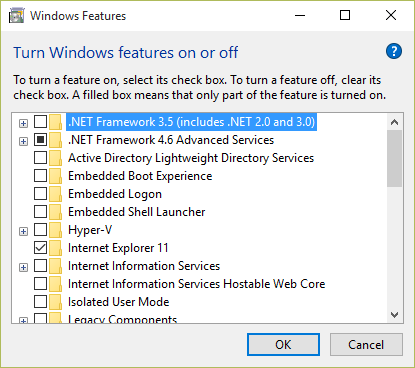
The problem is that repeatedly, it insists on attempting to install .NET Framework 3.5… and fails.  Most people would think to simply look for the installation executable on Microsoft.com and install it from there, but on Windows 10, .NET Framework 3.5 is supposed to be an installable feature within Windows 10 itself.  If you go to CONTROL PANEL – PROGRAMS & FEATURES & click “Turn Windows features on or off” (in the left hand column) it should display the following dialog box:

image

Fair enough, right?  Just check off .NET Framework 3.5 and away we go, right?  NOPE.  For some reason, this fails without any explanation.

SOLUTION: DISM OFFLINE INSTALLATION
It turns out that the problem is that the .NET Framework source files aren’t available directly from your machine and you need to some how get them.  There’s two ways to get .NET Framework 3.5 installed – both involve having the Windows 10 installation media. 

  1. INSTALLER TOOL
    The easy way is to download the .NET Framework 3.5 Offline Installer tool and plug in your Windows 10 installation media. (likely a USB drive)  Run the tool and it will instruct you to point to the location of your installation media (D:, E:, etc.) and it will tell you if the right source files are available.  Press install and it will execute a DISM command line instruction that will install .NET Framework 3.5.

    image
     

  2. COMMAND LINE
    Alternatively, you can execute the command line instruction on your own if you’re comfortable with that.
     
    Dism.exe /online /enable-feature /featurename:NetFX3 /source:F:\sources\sxs /LimitAccess
     
    Where, F: is your installation media.

At this point, you should be able to install Windows Live Essentials either over the web or from the full download.

WINDOWS LIVE ESSENTIALS INSTALLATION:

————–

Taken in large part from the following threads/posts:

Posted by: kurtsh | November 7, 2015

RELEASE: Surface Book Drivers and Firmware (1.0)

In case you missed it, a couple days ago, we published the drivers for Surface Book for download:

imageCumulative and current firmware and drivers for the Surface Book. This firmware and driver package contains drivers for all of the components in the Surface Book, as well as updates to the system firmware that have been released via Windows Update. These drivers and firmware are compatible with Windows 10, including Enterprise versions. The driver MSI and ZIP files include all of the drivers and firmware needed to deploy custom images of Windows on your Surface devices. Additionally, the WinTab driver is provided for those professionals needing WinTab compatibility with certain Surface Pen enabled applications.

  • SurfaceBook_Win10_151102_0.msi 168.6 MB
  • SurfaceBook_Win10_151102_0.zip 704.1 MB
  • Wintab-1.0.0.20-64-bit.zip 4.5 MB

Use these drivers and firmware to prepare your custom images for enterprise deployment, or to repair problems with custom installations of Windows on your Surface Book. These drivers and firmware are compatible with Windows 10, including Enterprise versions. The ZIP file allows you to selectively install or deploy individual drivers. The MSI will install all relevant drivers automatically. Additionally, the WinTab driver is provided for those professionals needing WinTab compatibility with certain Surface Pen enabled applications.

Posted by: kurtsh | November 7, 2015

INFO: Scan/Repair System Files on Windows 10

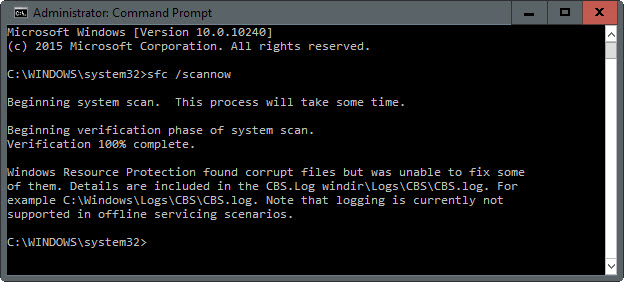
imageThere’s an old article posted on our Wiki on how to do an auto-repair of Windows in the event you suspect some form of OS corruption – and it’s particularly simple but effective with Windows 10.

It involves using two tools:

  • System file check (SFC)
  • Deployment Image Servicing & Management (DISM)

Again, despite being written in 2013, this article works for Windows 10 and is particularly useful for scenarios when Windows appears to be behaving badly for totally unknown reasons.  If you’re an IT Professional or even if you’re just a geek Windows jockey, I encourage you to keep this post in your back pocket.

I also found a tool that orchestrates the usage of SFC & DISM, called SFCfix.  It appears to automate the steps outlined above.

This is a quick post that I wanted to make sure made it to the blog: Have you ever used OneDrive for Business from Office 365 (the Click-to-Run media) and saw an “!” next to the OneDrive for Business icon in the System Tray.

When you investigate Sync Errors, you see that you’ve received the error “Credentials needed” on your files. While looking through the Internet for a resolution – specifically for the Office 365/Click-to-run version of OneDrive for Business (not the .MSI installable version), I came across a brief mention of there potentially being something wrong with the cached credentials in Windows’ Credential Manager.

SOLUTION: CLEAR CREDENTIAL MANAGER
I have no idea which credential it was but I went into Control Panel – Credential Manager and basically deleted any credentials I had in there. Lo-and-behold, after a reboot the Sync Errors had disappeared and everything was fine with OneDrive for Business.

If you’re having the same problem with the Office 365 OneDrive for Business, try this as a solution.

SOLUTION: LOG IN TO ONEDRIVE FOR BUSINESS FROM THE WEB
Another possibility that’s worked for me in the past when using the old OneDrive for Business client, is to go to my OneDrive for Business site via Internet Explorer, logging in, then stopping & starting the OneDrive for Business client.  There’s two ways of doing this:

  1. LOGIN USING YOUR ONEDRIVE FOR BUSINESS URL
    Go to OneDrive for Business directly.  This is usually “https://companyname-my.sharepoint.com/personal/username_companyname_onmicrosoft_com” orhttps://companyname-my.sharepoint.com/personal/username_companyname_com”
  2. LOGIN TO OFFICE 365
    Go to the general login page for Office 365.  This is “https://login.microsoftonline.com/”
    To verify that you can access OneDrive for Business, you can hit the “grid” icon in the upper lefthand corner and select “OneDrive”.

The OneDrive for Business client may start syncing on it’s own if you wait.  Alternatively, you can EXIT the systray tool and restart it from the START menu.

—————————
MORE ON FIXING ONEDRIVE FOR BUSINESS… FOR OFFICE 2013 SPECIFICALLY
Note: I’d also found some other articles – including those for Office 2013’s version of OneDrive for Business, which is handled differently from the OneDrive for Business that comes with Office 365.  Here’s some of those posts:

Fix OneDrive for Business Sync Problems
https://support.office.com/en-us/article/Fix-OneDrive-for-Business-sync-problems-e12c6a8b-4bbe-4391-9c23-1a52b55a1967
October 21, 2015, update for Office 2013 (KB2986219)
Fixes the following issue:   After you install October 13, 2015, update for Office 2013 (KB3085566), you can’t synchronize files by using the OneDrive for Business client, and you receive the following error messages instead of an option available to enter your credentials.
Credentials needed
Please enter your credentials
https://support.microsoft.com/en-us/kb/2986219

—————————
SHAREPOINT/ONEDRIVE CONSTANTLY SYNCING?
If you’re having issues with the OneDrive for Business client CONSTANTLY syncing and never completing, you may want to look at this post:

imageI stumbled upon something that may be interesting to you.  (It was for me)  It’s called the Search Engineers blog, an active blog on very technical search topics from Premier’s search-centric team members.

RARE SKILLS
This is kind of a big deal in my mind.  Enterprise Search is sort of a dark art and many people don’t know how to tune the SharePoint Search engine, much less build out search workflows that align with business processes.

The team apparently originates from both the SharePoint side of the house as well as our long-ago FAST Search acquisition.  The bottom line is that it’s a warehouse of Enterprise Search experts that Microsoft enterprise customers can tap through their Premier Support & Services contracts.

Check out the blog.  It’s VERY interesting… at least to SharePoint Search tuners & jockeys:

Posted by: kurtsh | November 4, 2015

NEWS: Microsoft Azure, now even more Open with Red Hat

AzureLogoThe Azure cloud platform has been built from the ground up to be an open platform, and currently 1 in 4 Azure virtual machines is powered by Linux and 60% of the solutions in Azure marketplace are Linux based. Today we are announcing another significant step forward in our ongoing openness efforts and support for Linux on Azure, and I am pleased to inform you that we have entered into a partnership with Red Hat to provide joint, enterprise grade support on Azure for a breadth of Red Hat solutions. Key elements of the partnership include:

  • Red Hat solutions available natively to Microsoft Azure customers. In the coming weeks, Microsoft Azure will become a Red Hat Certified Cloud and Service Provider, enabling customers to run their Red Hat Enterprise Linux applications and workloads on Microsoft Azure. At this time, Red Hat Cloud Access subscribers will be able to bring their own virtual machine images to run in Microsoft Azure. Microsoft Azure customers can also take advantage of the full value of Red Hat’s application platform, including Red Hat JBoss Enterprise Application Platform; Red Hat JBoss Web Server; Red Hat Gluster Storage; and OpenShift, Red Hat’s Platform-as-a-Service (PaaS) offering. Also, in the coming months, Microsoft Azure and Red Hat plan to provide Red Hat On-Demand— “pay-as-you-go” Red Hat Enterprise Linux images available in the Azure Marketplace, supported by Red Hat.
  • Integrated enterprise-grade support spanning hybrid environments. Customers will be offered cross-platform, cross-company support spanning the Microsoft Azure and Red Hat offerings in an integrated way, unlike any previous partnership in the public cloud. By co-locating support teams the experience for customers will be simple and seamless.
  • Unified workload management across hybrid cloud deployments. Red Hat CloudForms will integrate with Microsoft Azure and System Center Virtual Machine Manager, offering Red Hat CloudForms customers the ability to manage Red Hat Enterprise Linux on both Hyper-V and Microsoft Azure. Support for managing Azure workloads from Red Hat CloudForms is expected to be added next year, extending the existing System Center capabilities for managing Red Hat Enterprise Linux.
  • Collaboration on .NET for a new generation of application development capabilities. Expanding on the preview of .NET on Linux announced by Microsoft in April, developers will have access to .NET technologies across Red Hat offerings, including OpenShift and Red Hat Enterprise Linux, jointly backed by Microsoft and Red Hat. Red Hat Enterprise Linux will be the primary development and reference operating system for .NET Core on Linux.

For more information:

  • Visit the Microsoft and Red Hat landing page here and view the announcement webcast by Microsoft’s Scot Guthrie and Red Hat’s Paul Cormier.
  • Attend (or watch a recording) of a technical webinar on running Red Hat solutions on Microsoft Azure.
  • Go here to learn more about our overall Microsoft open cloud approach and join our social blog.

Today, I learned that the charger for the Surface Book outputs a much high amperage than the Surface Pro 3. 

  • The Surface Pro 3 power supply/brick operates at 12V & 2.53A = 30.36W
  • The Surface Book power supply/brick operates at 12V & 4A = 48W

This is a big deal:  Despite looking nearly identical to another – including the connector to the Surface itself – the rate of charge is dramatically higher using the Surface Book charger because of the higher wattage outputted. 

There’s a couple ways to tell which power supply is which if you own both:

  1. The Surface Book’s power characteristics (Output: 12V & 4A) are listed on the power supply in tiny, tiny print.  If you’re old like me, this can be hard to read
  2. The Surface Book power supply has a holographic sticker on there that reads “Windows”.  The Surface Pro 3’s power supply has a stick that reads “Windows 8”.

Bottom line: If you’re gonna grab a power supply to take on the road, the Surface Book’s 4A power supply is the one you’re gonna wanna take.

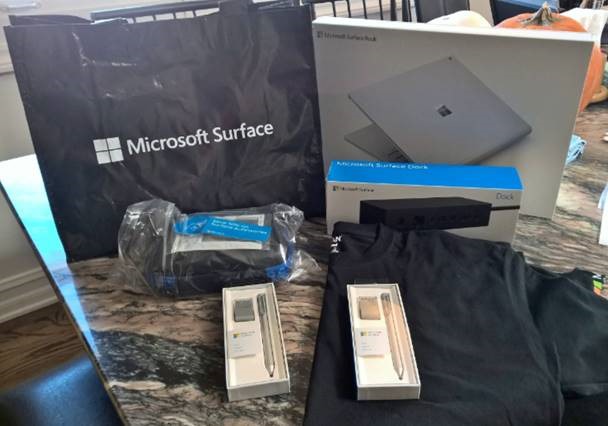
This is sitting on my kitchen table right now.  This is the package I bought:clip_image002

Surface Book with Core i7/16GB GDDR5 RAM/512GB SSD/discrete Nvidia GPU and new Surface Pen, and the new Surface dock.

Notice the two extra Surface pens.   That’s because they work on the Surface Pro 3 and 4 – which I’m also getting or already have.  This means the tail eraser works. I bought them because I know I’ll probably lose one of them – I’m so irresponsible.  Also I don’t believe that the extra tips come with the pen that comes with the Surface Book, but they do come with the extra pens.

A WORD ABOUT THE NEW SURFACE PEN
I actually had to read the instructions to figure this out but there’s a new pairing feature of sorts. 

  • Press & hold the eraser for 5 seconds and a little light on the side of the pen will begin flashing.
  • Hold the pen tip to the Surface screen for 10 seconds to pair it to the Surface.

You can also pair it using the normal Bluetooth pairing technique through Control Panel.

A NOTE ABOUT COMPLETE FOR BUSINESS
It turns out there is a new Complete warranty type being offered by the Microsoft retail stores called “Complete for Business”.  

There’s some sort of detail where if you get the dock and Complete for Business – which has THREE YEARS of warranty coverage – they will discount the package by something like $60.  I didn’t even know about this bit but was glad I heard about it while I was there.

EXTRA SURFACE STUFF… FREE! (FOR MICROSOFT RETAIL STORE BUYERS)
One more benefit of picking up your Surface from the store:  Apparently if you get it at the retail store, you also get a free Surface T-shirt, a free Surface case (looks like it’s for the power supply), a 8GB USB flash drive, and a coupon for 10% off Surface accessories until Nov 24th

This may be a limited time offer thing though so don’t hold me to it.

« Newer Posts - Older Posts »

Categories