imageI have clients that have historically used a 3rd party cloud file storage service but since the release of OneDrive for Business & its advanced sync client, most are reassessing that earlier decision & instead investigating why it makes sense to instead use OneDrive for Business – especially clients using Office 365 in production.

Here’s a few matters to consider when evaluating the use of OneDrive for Business for your end user’s personal file storage in the cloud:

Posted by: kurtsh | May 15, 2016

NEWS: SQL Server 2016 releasing June 1st

Earlier this month, we made some big announcements around SQL Server’s future.

imageSQL Server 2016 is the foundation of Microsoft’s data strategy, encompassing innovations that transform data into intelligent action. With this new release, Microsoft is delivering an end-to-end data management and business analytics solution with mission critical intelligence for your most demanding applications as well as insights on your data on any device. Recently, we had the opportunity to showcase the exciting capabilities and what customers are doing with SQL Server 2016 at our Data Driven event. Building on this momentum, today we are excited to announce the following:

  • SQL Server 2016 will be generally available on June 1, 2016. This will allow you to build mission-critical, and business critical intelligent applications with the most secure database1, the highest performance data warehouse2, end-to-end mobile BI on any device, in-database advanced analytics, in-memory capabilities optimized for all workloads, and a consistent experience from on-premises to cloud. These capabilities are built-in to SQL Server for industry-leading low cost of ownership.
  • New SQL Server 2016 performance benchmarks. Today, Lenovo published a new #1 TPC-H 30 TB world record3 using SQL Server 2016 and Windows Server 2016 on Lenovo System x3950 X6. This result, in addition to recent benchmarks by software and hardware partners, as well as key applications across variety of workloads, proves that SQL Server 2016 is the fastest in-memory database on the planet for your applications.
  • The SQL Server 2016 editions include Enterprise, Standard, Express, and Developer. In March, we announced that the SQL Server 2016 Developer edition will be a free download to enable broad access to and development on the full capabilities of the latest SQL Server release.

Read the rest of the blog here:

Containers are officially live & in-production in Microsoft Azure.

imageI’m excited to announce the general availability of the Azure Container Service; the simplest, most open and flexible way to run your container applications in the cloud.

But why a container service? Lately it seems like you can’t have a discussion about cloud computing without also talking about the benefit of container ecosystems for development agility and portability. Organizations are already experimenting with container technology in an effort to understand what they mean for applications in the cloud and on-premises, and how to best use them for their specific development and IT operations scenarios.

However, as organizations adopt containers and look to scale them in production, they discover that deploying and operating containerized application workloads is a non-trivial exercise. The complexity of tracking and managing high-density containers at scale grows at an exponential rate, making traditional, hands-on management approaches ineffective.

Azure Container Service addresses these challenges by providing simplified configurations of proven open source container orchestration technology, optimized to run in the cloud. With just a few clicks you can deploy your container-based applications on a framework designed to help manage the complexity of containers deployed at scale, in production.

We built Azure Container Service to be the fastest way to get the benefits of running containerized applications, using your choice of open source technology, tools and skills and with the support of a thriving community and ecosystem.

With Docker image support and our commitment to open source software in the orchestration layer, your application is fully portable across any cloud and on-premises. Unlike other container services, the Azure Container Service is built on 100% open source software to maximize portability of workloads and offers a choice among popular orchestration engines: DC/OS or Docker Swarm.

Read more below:

To visit the Azure Container Service page, visit:

imageStarting May 1, 2016 (ending June 30th, 2017), any customers – either new or existing – that pre-purchase Azure credit on their Enterprise Agreements will get an Azure Support plan upgrade for 12 months at no cost.

The upgrade works as follows:

  • For customers NOT purchasing an Azure Support plan: They will automatically receive a “Azure Standard” support for 12 months.
  • For customers already purchasing an “Azure Standard” support plan: They will receive an automatic upgrade to the next tier of support ,”Azure Professional Direct” Support for the term of their plan.
  • For customers purchasing $100k in Azure credit OR consume $10k in Azure/month: They will automatically receive “Azure Professional Direct” support for 12 months.
  • For customers already purchasing an “Azure Professional Direct” support plan: They will receive a credit for 6 Application Consulting sessions at no cost.

WHAT ARE THESE TIERS?
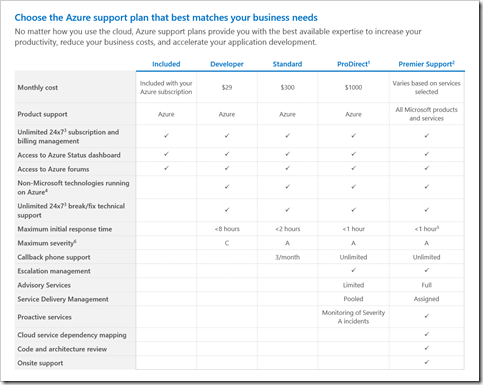
Azure Standard support offers unlimited technical assistance for subscription management and break-fix issues.

Azure Professional Direct support offers faster initial response and escalation management for high priority issues, proactive monitoring of business critical support issues and account management.

Here’s a chart describing the Support plans available today for Azure:

image

For more detail around the offer & the tiers of service available visit the following blog sites:

imageWe’ve published a series of posters specifically for cloud architects.

These architecture posters give you information about Microsoft cloud services and platforms, including Office 365, Microsoft Azure, Microsoft Intune, Microsoft Dynamics CRM Online, private cloud datacenter, and hybrid on-premises and cloud solutions.

IT decision makers and architects can use these resources to determine the ideal solutions for their workloads and to make decisions about core infrastructure components such as identity and security.

This is list is growing constantly.  There will be 4 additional posters published for Office 365, for example. 

For the current index of all architecture resources for Microsoft Azure cloud & Office 365 – go here:

Posted by: kurtsh | May 15, 2016

OFFER: 10% off DockerCon Registration

image

If you’re thinking of attending DockerCon (Seattle, WA – June 19­-21, 2016), you’re in luck! 

We at Microsoft love Docker and containers and have implemented container support in BOTH our on-premises solutions beginning with Windows Server 2016 as well as in Microsoft Azure via the Azure Container Service.

Even better, we’re the top-tier Diamond sponsor of DockerCon 2016 and will be presenting during the following timeslots:

Saved image from Tweetium (167) (002)

And as a sponsor, we’re entitled to provide our customers with 10% off using the code: “DockerConDiscount”

Register for DockerCon 2106 here:
http://2016.dockercon.com/

image

Are you interested in understanding how you can save on costs by using Microsoft Azure?

Cost savings are a frequently cited benefit of cloud adoption; however, many customers lack a holistic model for evaluating the economic benefits and costs that public cloud solutions afford. In order to better anticipate the economic benefits of Microsoft Azure, you can use Forrester’s Total Economic Impact (“TEI”) model.

Download “The Total Economic Impact of Microsoft Azure,” a commissioned study conducted by Forrester Consulting, for free to learn about the key benefits, costs, and risks associated with implementing Microsoft Azure and deepen your understanding.

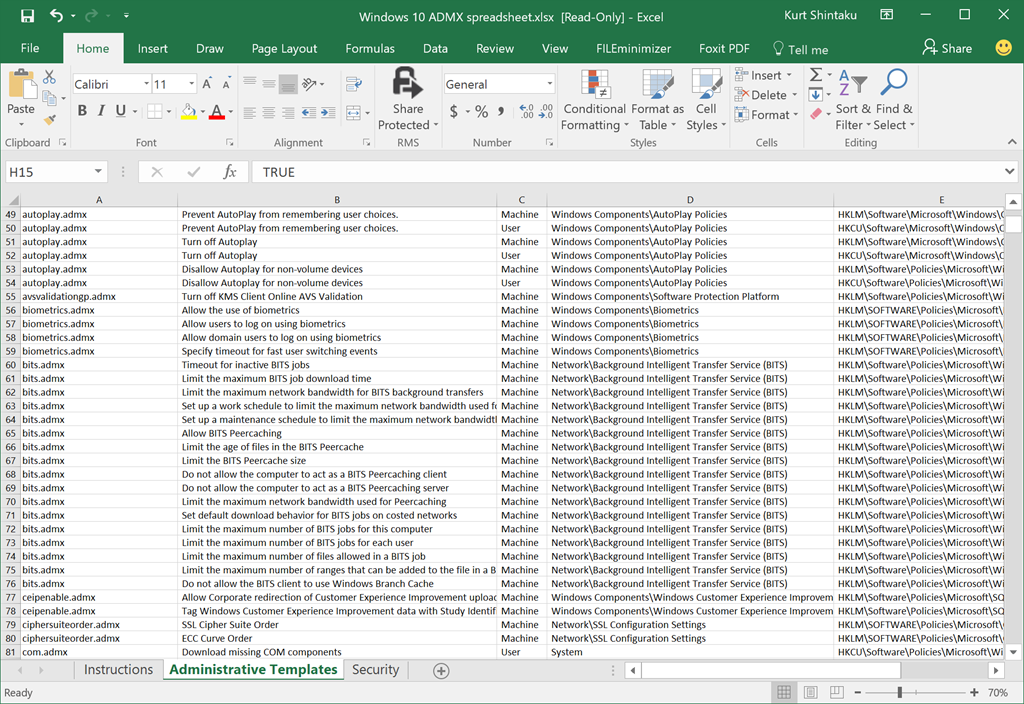
imageThese spreadsheets list the policy settings for computer and user configurations that are included in the Administrative template files delivered with the Windows operating systems specified. You can configure these policy settings when you edit Group Policy Objects.

You can use the filtering capabilities that are included in this spreadsheet to view a specific subset of data, based on one value or a combination of values that are available in one or more of the columns. In addition, you can click Custom in the drop-down list of any of the column headings to add additional filtering criteria within that column.
To view a specific subset of data, click the drop-down arrow in the column heading of cells that contain the value or combination of values on which you want to filter, and then click the desired value in the drop-down list. For example, to view policy settings that are available for Windows Server 2012 R2 or Windows 8.1, in the Administrative Template worksheet, click the drop-down arrow next to Supported On, and then click At least Microsoft Windows Server 2012 R2 or Windows 8.1.

What’s New?
The Administrative Template spreadsheet contains three columns that provide more information about each policy setting’s behavior related to reboots, logoffs, and schema extensions. These columns are the following:

  • Reboot Required: A "Yes" in this column means that the Windows operating systems requires a restart before it applies the described policy setting.
  • Logoff Required: A "Yes" in this column means that the Windows operating system requires the user to log off and log on again before it applies the described policy setting.
  • Active Directory Schema or Domain Requirements: A "Yes" in this column means that you must extend the Active Directory schema before you can deploy this policy setting.
  • Status: A "New" in this column means that the setting did not exist prior to Windows Server 2012 R2 and Windows 8.1. It does not mean that the setting applies only to Windows Server 2012 R2 and Windows 8.1. Refer to the column entitled "supported on" to determine to which operating system the policy setting applies.

Contents include:

  • TP4 Policy Settings Spreadsheet.xlsx
  • Windows 10 ADMX spreadsheet.xlsx
  • Windows 8.1 Update and Windows Server 2012 R2 Update 1 .xlsx
  • Windows Server 2016 TP5 policy settings spreadsheet.xlsx
  • WindowsServer2003SP2GroupPolicySettings.xls
  • WindowsServer2008andWindowsVistaSP1GroupPolicySettings.xlsx
  • WindowsServer2008R2andWindows7GroupPolicySettings.xlsx
  • WindowsServer2012andWindows8GroupPolicySettings.xlsx
  • WindowsServer2012R2andWindows8.1GroupPolicySettings.xlsx
  • WindowsServer2012R2UpdateGroupPolicySettings.xlsx
  • WindowsVistaGroupPolicySettings.xls

Get the entire package here:

imageMicrosoft shipped a NEW sync client for OneDrive & OneDrive for Business cloud file storage services.  As of this week, Microsoft made the new sync client’s usage mandatory if you wish to continue to sync your OneDrive for Business files. (This applies if you have fewer than 250 clients in your organization. Office 365 tenants with more than 250 clients will not have this requirement placed on them)

Previously there were separate sync clients for each service: One for OneDrive & one for OneDrive for Business.  As of a month or so ago, there is now a NEW single client for syncing files from BOTH services. (Users that need to sync SharePoint document repositories will ALSO need to install/maintain the old OneDrive for Business client to continue to sync those files)

BACKGROUND
Microsoft has 2 services for cloud file storage: OneDrive & OneDrive for Business.

  • OneDrive is a consumer service designed to provide anyone with 5GB or more of free online file storage (The storage a user has can be as high as 1TB, if the user also has a Office 365 Home subscription)
  • OneDrive for Business is a commercial service that provides business users that are subscribed to certain Office 365 plans “unlimited cloud file storage”. (There is an initial cap of 10TB by default per user, however this can be increased upon request)

Each of these services PREVIOUSLY had separate sync clients – or separate software that would synchronize files between their Windows computer & the cloud file storage service.

ONLY ONE “SYNC CLIENT” EXISTS FOR ONEDRIVE & ONEDRIVE FOR BUSINESS imageAs of this winter, the sync client for BOTH OneDrive (Consumer) and OneDrive for Business are one and the same.  A single sync client is installed & used to synchronize files from both services. 

Click here to help determine which OneDrive sync client am I using?

To get the next-gen sync client for both services, download it here:

You can install & configure the OneDrive “next gen” sync client to sync files to your local machine using:

image

The next gen sync client, despite being a single client, will have 2 icons in the system tray once configured properly: OneDrive Consumer sync (circled in GREEN) & OneDrive for Business sync (circled in RED)

If you previously used the old OneDrive (Consumer) & OneDrive for Business sync client, you will find that after the new “next gen” OneDrive sync client will automatically take over the configuration & responsibility for synchronization of your OneDrive (Consumer) file sync & you’ll find that the old OneDrive (Consumer) client will have been uninstalled.

This is not the case for OneDrive for Business file sync. 

CONFIGURING THE NEXT GEN SYNC CLIENT FOR YOUR ONEDRIVE FOR BUSINESS
Even after the next-gen sync client is installed, your OneDrive for Business files will continue to be synchronized by the OLD OneDrive for Business client, which should still be installed and exist in your Start Menu.  See below:

image

There are 2 OneDrive clients for Windows today: One is used for both OneDrive (Consumer) & OneDrive for Business file sync. This is the application listed (above) in the START menu as “OneDrive”.

The other client is the old, legacy “OneDrive for Business” client that is listed separating the START menu (above) and is still available but only for syncing SharePoint document shares.

The reason for this is that the old OneDrive for Business client is still required if you need to sync SharePoint document repositories to your local PC.  For this reason, the next gen sync client LEAVES ONEDRIVE FOR BUSINESS ALONE. 

You will however need to manually configure the next gen sync client you just installed to also sync your OneDrive for Business files.  (If you are syncing SharePoint document repositories, those will continue to be synced by the old OneDrive for Business client and will need to remain installed)

To configure the next gen sync client to sync your OneDrive for Businesss files, you need to simply add your work account by launching the OneDrive sync client, assuming it’s been properly installed.  Click the link below to start this process:

Go to the following link for more information on on the manual configuration process:

SYNCING SHAREPOINT DOCUMENT REPOSITORIES
If you need to sync files to your local machine from SharePoint document repositories, you will need to continue to use the original OneDrive for Business sync client.  If you were using it previously, it should still be installed and still be running on your PC.

image

The old OneDrive for Business sync client continues to sync SharePoint document folders via the icon circled in  LIGHT BLUE in the system tray, alongside the two icons controlled by the new next gen sync client for OneDrive.

If you need to download or install the old OneDrive for Business sync client to sync with SharePoint document stores, (also known as the Groove client) download it here:

  • How to install the OneDrive for Business sync client for SharePoint 2013 and SharePoint Online
    (Note: This is for the preview version of the OD4B sync client and NOT the next-gen sync client)
    https://support.microsoft.com/en-us/kb/2903984

FOR IT ADMINISTRATORS
We have documentation for IT admins dealing with this OneDrive sync client transition.

We’re opening up a public preview to a new product for both Windows & Macintosh we announced back in October called “GigJam”.

WHAT IS GIGJAM?
GigJam helps you spontaneously and momentarily involve others in your work. You just summon all the live information you need, divvy it up by circling what you want to share and crossing out what you don’t and control what others can see or even co-work with you in real time. Now you can finally involve others inside and outside your organization to help you get work done in the moment.

Here are just a few examples of how GigJam lets you change the way you work:

Getting instant help and closure on a customer email

Getting spot feedback on work-in-progress
Safely getting a partner’s input


To enroll in the beta program, visit the web site below:

For more on announcements around GigJam, visit the blog:

« Newer Posts - Older Posts »

Categories