With the availability of the October 2018 release of Windows 10, SwiftKey is now the keyboard technology incorporated into Windows softkeyboard.

image

PREDICTION TYPING… NOW AVAILABLE FOR PHYSICAL KEYBOARDS
One of the things that Richard Hay of the ObservedTech podcast highlighted however is that even if you’re not using the SwiftKey-powered softkeyboard to type on Windows 10, (i.e. you’re using a physical keyboard) you can still take advantage of SwiftKey’s AutoComplete suggestions & AutoCorrect spelling.

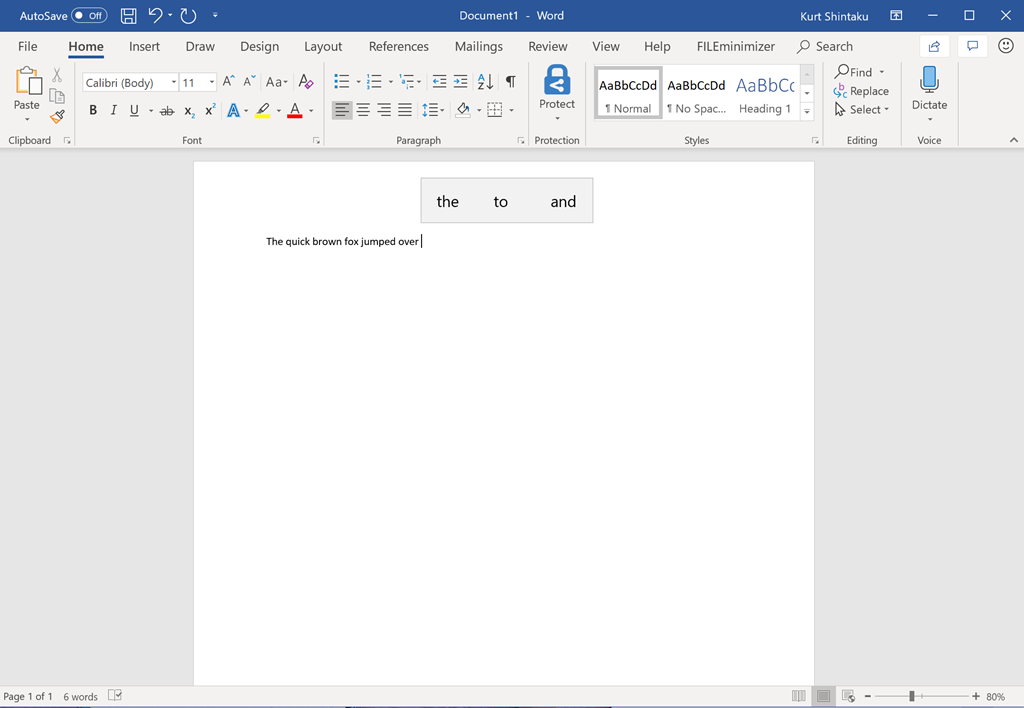
When AutoComplete & AutoCorrect are manually enabled for hardware/physical keyboards, suggestions for your next word will appear next to your newly typed words on the screen – just as Swiftkey for iOS/Android does on mobile devices. Additionally, misspelled words will automatically be corrected as you type.

TURNING ON AUTOCOMPLETE & AUTOCORRECT
If you have upgraded your system to Windows 10 release 1809, you need to turn on both AutoComplete suggestions & AutoCorrect spelling for hardware keyboards to take advantage of typing prediction.

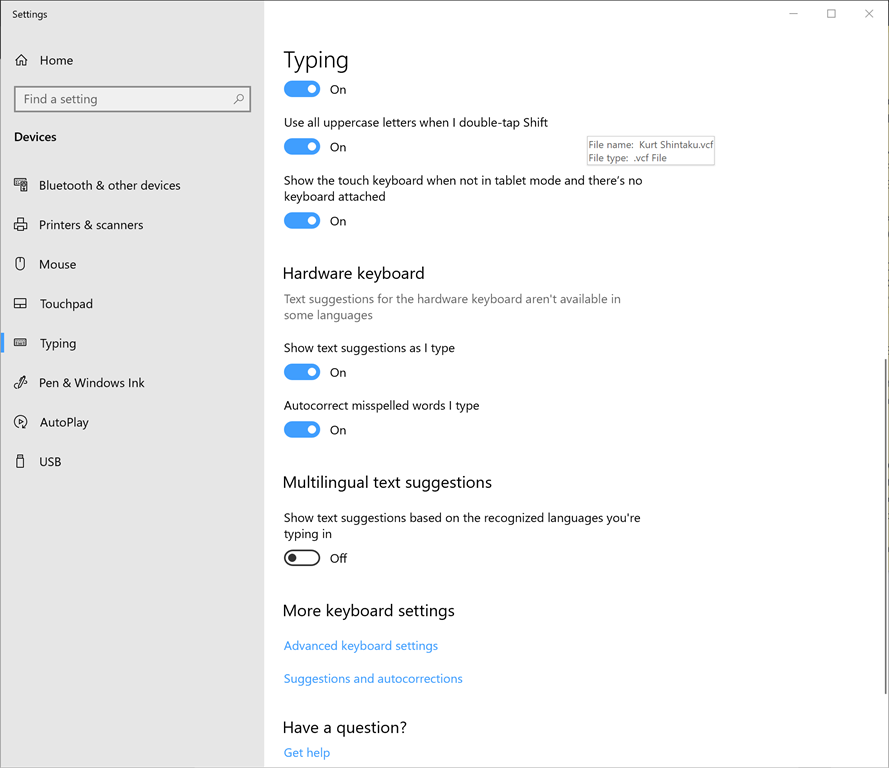
  1. Go to Settings – Devices – Typing
  2. Scroll to the bottom & find “Hardware keyboard”
  3. Turn on “Show text suggestions as I type”
  4. Turn on “Autocorrect misspelled words I type”

When you go to anywhere in the operating system and you begin to type into your physical keyboard, you’ll see both AutoComplete & AutoCorrect kick in:

  • providing AI-derived hints about what the next word is you’ll want to enter in a bubble near your cursor
  • autocorrecting your spelling as you type in any application (not just Word or PowerPoint) or presenting you with the correct spelling of the word in a bubble near your cursor

image

TYPING INSIGHTS
Additionally, if you’re interested in the impact that Swiftkey AutoComplete & AutoCorrect is having on your time & accuracy, there is a linked called “Typing Insights” that provides you with statistics on how often SwiftKey has helped you.

  1. Go to Settings – Devices – Typing
  2. Click “Typing Insights”

image

imageThe Office “dual use rights” policy will be retired as of August 1, 2019. The “dual use rights” policy provides Microsoft 365 customers with the ability to use a perpetual installation of Office (aka Office Professional Plus – the static .MSI version, in the case of Office 2016) in lieu of Office 365 ProPlus if they qualify for the “From SA” SKU.

From the announcement:

Beginning August 1, 2019, new and renewing agreements that include the “From SA” version of Microsoft 365 E3 or E5 will no longer have rights to deploy the perpetual Office client. Customers with active Enterprise Agreements will not be impacted by these changes until their current agreement expires. There are no changes to the use rights of Productivity Servers or Productivity Server CALs that are programmatically included for all Microsoft 365 E3 and E5 customers.

Read more about this retirement here:

imageWe are happy to announce the addition of a new Power BI template, Manager Impact, for Office 365 Workplace Analytics. This template shows trends of manager behavior – how managers interact with their teams – within your organization.

Learn about the Manager Impact Power BI template in Workplace Analytics in this blog post here:

PAST UPDATES FOR WORKPLACE ANALYTICS 
For past monthly updates on Workplace Analytics, visit the Office 365 Analytics blog:

For documentation for Workplace Analytics, visit:

Microsoft open sourced WPF, Windows Forms and Windows UI XAML Library at Microsoft Connect(); 2018.

Read more about this announcement here:

imageFor best practices around implementation, lessons learned, recommended approaches, visit our Instructor-led Training site for Microsoft Teams.

This site includes a set of webinars hosted by Microsoft’s Engineering Team for customers to learn more about the main features of Teams, or to discuss hot topics – E.g. Skype to Teams transition. 

Here’s a listing of what’s available now:

  • #ThisIsTeams – Microsoft Teams Overview
  • Getting started with Teams
  • Teams tips & tricks
  • Manage your upgrade from Skype for Business to Microsoft Teams
  • Switch from Skype for Business to Teams: End User Guidance
  • Teams for Education – Webinars

Customers can enroll in the webpage at no charge.

Posted by: kurtsh | December 18, 2018

INFO: A Year of Microsoft 365 Updates

imageThe Microsoft 365 Blog publishes the newly released services & features available to customers every month in a single blog post.

For review, here’s the 2018 year’s posts/updates: (Yes, September is missing.)

imageRegistration is open for Microsoft Business Applications Summit 2019.

Meet the engineers behind the tools you use every day and get a sneak peek at what’s new and next.

Microsoft Business Applications Summit
June 10-11, 2019
Georgia World Congress Center
Atlanta, GA

Registration:
https://www.microsoft.com/en-us/businessapplicationssummit

Check out last year’s sessions available on-demand:

Microsoft Business Applications 2018 included 200+ keynotes and sessions led by the experts behind Dynamics 365, Power BI, PowerApps, Mixed Reality, Microsoft Flow and Excel.

https://www.microsoft.com/en-us/businessapplicationssummit/sessionsondemand

Posted by: kurtsh | December 12, 2018

BETA: Microsoft Edge Insider Program

imageWe’ve announced the “Microsoft Edge Insider Program”, a program that will allow everyone’s voices to be heard as we adopt the Chromium open source project in the development of Microsoft Edge to create better web compatibility for our customers and less fragmentation of the web for all web developers.

Read more about this transition here:

Sign up for the Edge Insider program here:

Posted by: kurtsh | December 10, 2018

TRAINING: Microsoft Teams training for IT Pros

New free Microsoft Teams training for IT Pros is available online as of this week.

The module below is part 1: “Introduction to Upgrade from Skype for Business to Microsoft Teams (Upgrade part 1 of 4)” (33:00)https://www.youtube.com/watch?v=lAoqEG777d8

Modules 2-4 are available at:
https://aka.ms/TeamsAcademy

Posted by: kurtsh | December 10, 2018

INFO: Deploying Microsoft Teams

imageLooking to make the journey to Microsoft Teams? Read this overview of a Teams deployment:

    1. Technical and legal assessment in the early stages to identify and define what controls are required to implement Microsoft Teams in your organization.

    2. Undertake a network assessment and prepare for the rollout. At this point you can start to create the adoption and change management strategy and key user stories that drive user engagement during and after the rollout.

    3. Test these change management and adoption strategies with an IT Pilot.

    4. Refine and run a business pilot in one or two business units leveraging these strategies.

    5. Refine and leverage the strategy and learnings for a wider rollout.

More details available here:

« Newer Posts - Older Posts »

Categories