Posted by: kurtsh | April 15, 2020

RESOURCES: Office 365 Government

imageHere is some public content on Microsoft’s Office 365 Government.

Microsoft Government Cloud Case Studies

Other Government relevant sites:

imageMicrosoft Teams "Brady Bunch" view is coming. 3×3 live video grids with the necessary centrally-managed bandwidth controls, live text voice-to-text captioning, user/org-level broadcast security policies, regulatory policy & compliance reporting, etc. etc.

Revealed on, of all places, the Microsoft Education blog:

Posted by: kurtsh | April 12, 2020

TRAINING: How to secure your cloud data in Azure

(Yes, this is free)

Azure was designed for security and compliance. Learn how to leverage the built-in services to store your app data securely to ensure that only authorized services and clients have access to it.

image

These are the modules you will go over

  1. Security, responsibility and Trust in Azure
        1. Introduction
        2. Cloud security is a shared responsibility
        3. Tips from Azure Security Center
        4. Identity & Access
        5. Encryption
        6. Overview of Azure certificates
        7. Protect your network
        8. Protect your shared documents
        9. Azure Advanced Threat Protection
        10. Understand Security Considerations for Application Lifecycle Management solutions
  2. Top 5 security itesm to consider before pushing to production
  3. Configure security policies to manage data
  4. Security Azure Storage account
  5. Configure & manage secretes in Azure Key Vault
  6. Secure your Azure resources with Role-based Access Control
  7. Secure your Azure SQL Database

Sign up now!  It’s free & a fantastic primer.

Yesterday, we announced a $20 million commitment to help 3rd parties develop solutions to COVID-19.

HOW TO APPLY FOR AZURE CREDIT
If you’d like to take advantage of this commitment of funding from Microsoft, the way to do this is by applying for funding through our partner, the COVID-19 HPC Consortium.

(There is no link on the AI-for-Health site to apply for grants.  The orchestration of grants are entirely done through the COVID-19 HPC Consortium.)

WHAT IS THE COVID-19 HPC CONSORTIUM?
The COVID-19 High Performance Computing Consortium, a private-public effort spearheaded by the White House Office of Science and Technology Policy, for which Microsoft is providing researchers access to the world’s most powerful computing resources, which can significantly speed the pace of scientific discovery in the fight to stop the virus. Around the world, Microsoft’s research scientists, spanning computer science, biology, medicine and public health, are collaborating on projects in the consortium.

“The COVID-19 HPC Consortium encompasses computing capabilities from some of the most powerful and advanced computers in the world. We hope to empower researchers around the world to accelerate understanding of the COVID-19 virus and the development of treatments and vaccines to help address infections. Consortium members manage a range of computing capabilities that span from small clusters to some of the very largest supercomputers in the world.”

APPLICATION SITE:
To apply, visit:

———-

Background articles:
https://www.geekwire.com/2020/amazon-microsoft-join-white-house-team-unleash-high-performance-computing-covid-19/

https://techcrunch.com/2020/03/22/ibm-amazon-google-and-microsoft-partner-with-white-house-to-provide-compute-resources-for-covid-19-research/

Have you deployed Office 365?  Are you interested in getting in the “Calendar.help” beta/preview?

imageWHAT IS SCHEDULER FOR OFFICE 365?
In case you don’t know what “Scheduler for Office 365” is, it’s also known as the “Calendar.help Preview” for Office 365 or “Cortana for Office 365”.

Scheduler provides an English language AI called “Cortana” to all users, enabling them to schedule meetings between people and automatically confirm their availability – just as a human administrative assistant would – by checking their Exchange Online calendars for availability.  If the invitee is from outside the scheduler’s tenant, it will interact with them over email – like a human – to verify that they can make the selected times or check with them for other open times.

Read more here:

“CUT THE LINE” TO THE SCHEDULE PREVIEW
Use the code CupcakeFrosting at sign up to skip the waitlist and get early access to the Scheduler preview at https://calendar.help/.

FEEDBACK
If you’d like to provide feedback, here’s the Scheduler user voice site where you can submit requests/comments: https://calendarhelp.uservoice.com/forums/569233-request-or-vote-on-a-feature

SUPPORT
Get support for Scheduler/Calendar.help at supportATcalendarDOThelp.

imageDepending on how you have Microsoft Word configured, the grammar checker may highlight a “double space” after a “.” as incorrect grammar/style. 

If you want to select how many spaces after a period you want Word to check for while you type documents, follow these instructions:

(Note: These instructions were done using the subscription version of Word from Office 365 ProPlus, in Version 2003, Build 12624.20382.  This exceeds “Word 2019”.)

  • Open Word
  • Click File – Options.  The Word Options menu should open.
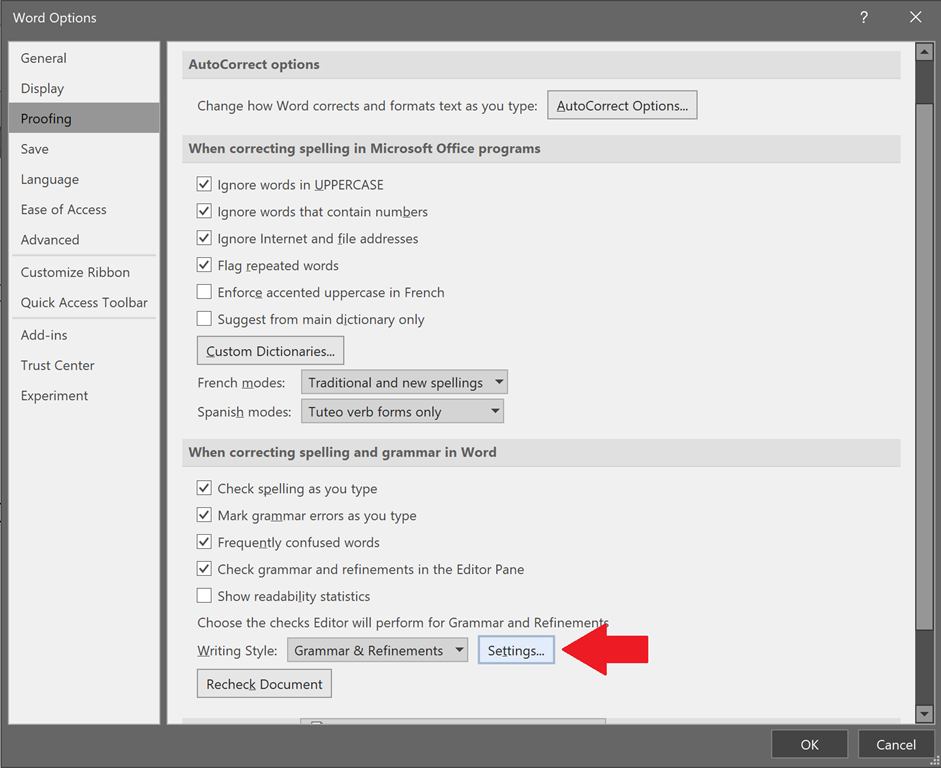
  • Click Proofing.  The context menu should display, “Change how Word corrects and formats your text”
  • Scroll to “When correcting spelling and grammar in Word”.
  • imageClick “Settings…” button next to “Choose the checks Editor will perform for Grammar and Refinements Writing Style”.  The Grammar Settings dialog box will appear.
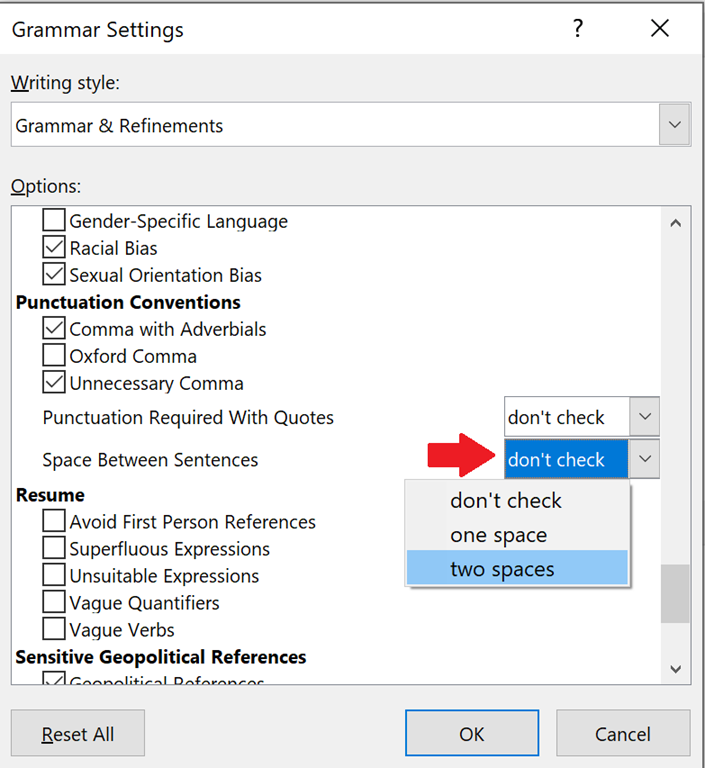
  • Scroll until you see “Punctuation Conventions”
  • Select the drop down list box next to “Space Between Sentences” – select either “one space” or “two space” or “don’t check”
  • Click OK – this will close the Grammar Settings dialog box.
  • Click OK – this will close the Word Options box.

Moving forward, the Word Grammar checker should only highlight spaces after periods that deviate from your selection.

Mid-April, were purportedly going to be releasing a new Microsoft Teams client & backend to support some new features – many of which folks have been waiting a long while for.

Some of these features were highlighted in this post about the “3rd anniversary” of Microsoft Teams.

BACKGROUND VIDEO FILTERING
You may have “background blur” in your tenant if you’re in the First Look ring:

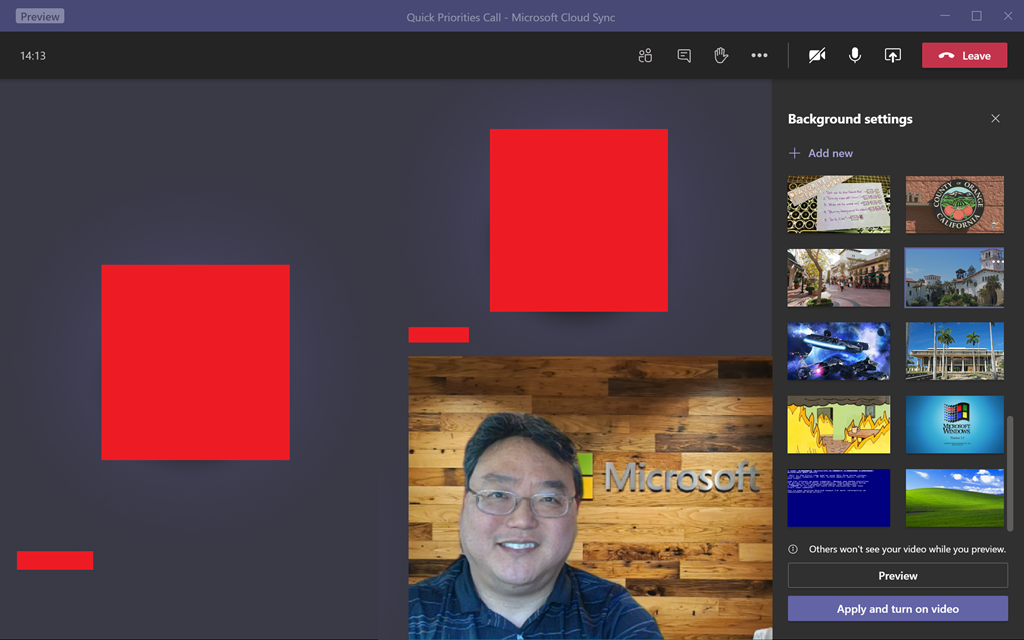
But we’re going to be shipping “custom backgrounds” as well.  Should be arriving in the next few months:

NOISE SUPPRESSION
We’ll also be giving users the ability to block out background noises during Teams conference calls.  Dog barks, traffic noise, doorbells, children, eating noises, phone rings, etc.

OTHER IMPROVEMENTS
There’s also a massive number of features that are covered in the post.  Here’s a summary:

  • OPTIMIZE FOR LOW QUALITY CONNECTIONS
    Great audio quality even under networks with high packet loss
  • BACKGROUND VIDEO FILTERING FOR MOBILE
    Keep the focus on you with Background Blur for iOS (coming soon)
  • SCHEDULE MEETINGS THAT PARTICIPANTS CAN SELF-ADJUST
    Easily conduct interviews, virtual healthcare visits, and more with the Bookings App in Teams
  • “RAISE HAND” REQUEST TO SPEAK
    Raise hands in Teams meetings when you have something to say
  • AUTO-ADJUST QUALITY TO CHANGING NETWORK BANDWIDTH
    The new Satin codec makes the Teams meeting and calling experience even better
  • VOICE FOR SMALL BIZ
    Microsoft 365 Business Voice available in the US on April 1st
  • MULTI-WINDOW CHAT
    Pop out Teams chats into multiple windows.  Have Teams Meetings/concalls in separate windows as well.
  • OFFLINE USE
    Access Teams even without an Internet connection when you’re on an airplane or out of signal.
  • MASSIVE TEAMS
    Include up to 10,000 users in an individual team – instead of the old 5,000 user limit.
  • ADHOC CHATS WITH LARGE GROUPS
    Group chat with up to 250 people
  • TEAMS – SKYPE INTEROP
    Teams & Skype Consumer chat and calling interoperability

MICROSOFT TEAMS-CENTRIC HARDWARE
There were several Teams hardware technology announcements made with partners:

  • RealWear headset for hands-free Teams collaboration
  • Teams Walkie Talkie on the Samsung XCover Pro
  • Introducing Bose headsets for Teams
  • Teams collaborations bars let you transform your small spaces into collaborative workspaces!
  • New Teams phones from Poly
  • Device management experience in Teams admin center

FIRST LINE WORKERS
For folks using Teams to communicate with first-line workers, there’s been a dramatic number of changes to inherit basically what was in Kaizala into Teams.

  • Get ahold of the right on-shift employees using targeted communications
  • Workforce management integrations and Teams
  • New Capabilities in Shifts
  • Updates to Microsoft 365 Licensing for Firstline Workers

Read the details here:

imageOffice 365 ProPlus will become Microsoft 365 Apps. Where necessary we will use the “for business” and “for enterprise” labels to distinguish between the two.

(For more on “Microsoft 365”, visit: https://www.microsoft.com/en-us/microsoft-365/what-is-microsoft-365)

How does this renaming of the product impact Office 365 ProPlus users/admins

Review the following. This article answers the questions:

  • When does the new name take effect?
  • What do admins need to do?

Read the following docs:

For Frequently Asked Questions, such as:

  • Why are you making these changes?
  • How does Office fit into Microsoft 365? Will I still be able to use Word, Excel, and PowerPoint?
  • Is there anything new or different in Microsoft 365 Apps for business or Microsoft 365 Apps for enterprise plans that wasn’t in Office 365 Business or Office 365 ProPlus plans? Any new features?
  • When will the Microsoft 365 Business and Microsoft 365 Apps for enterprise plans be available?
  • Are all of the Office 365 plans going away? What isn’t changing?
  • I’m an existing SMB or ProPlus customer. Do I need to take any action?
  • My company uses Office 365 ProPlus, and I have questions about this change. Where can I learn more?

Review the following

Posted by: kurtsh | April 10, 2020

INFO: Cloud Adoption Framework for Azure

imageTo help get organizations jumpstarted on adopting the cloud and making sure no stone is left unturned, the Cloud Adoption Framework is a great way to provide a PLAN for folks looking for explicit guidance on what steps they should take.  It’s a great way to build confidence & provide a jumpstart.

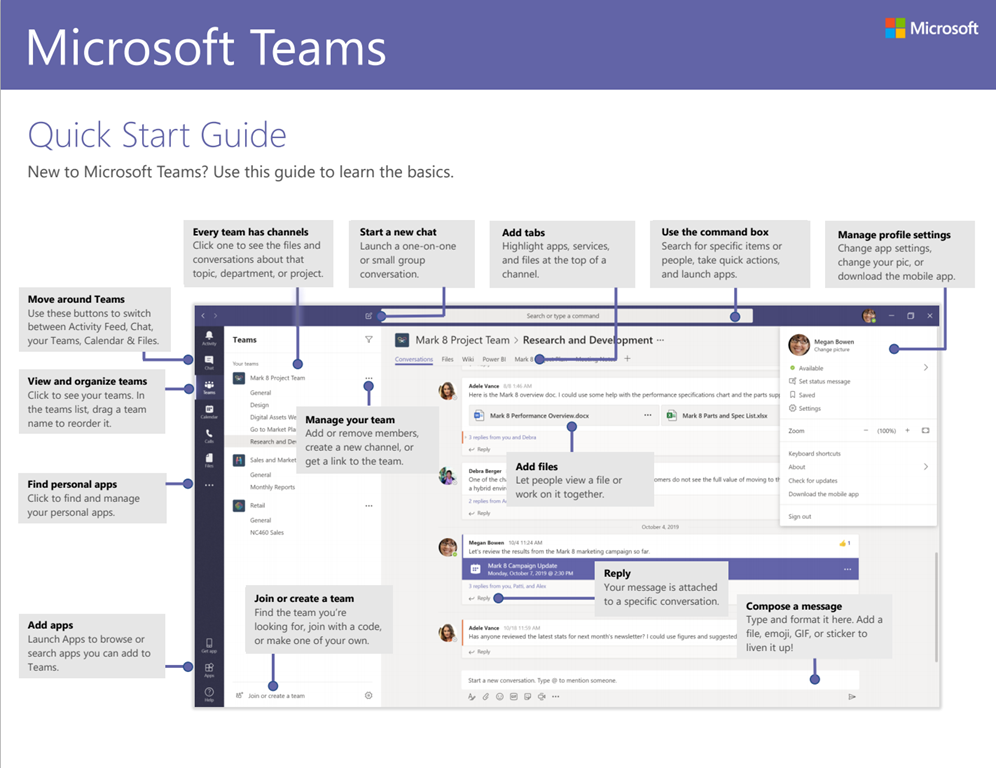
imageIn case you don’t have these, here’s a bunch of .PDF 1 pagers (or more) that act as quick reference guides for end users that need something for each of the Office ProPlus apps, as well as Office 365 services like OneDrive for Business, Yammer, etc.

QuickStart Guides for Office 365 Services

QuickStart Guides for Office 365 ProPlus for Windows

QuickStart Guides for Office for Mac

QuickStart Guides for Office Mobile

« Newer Posts - Older Posts »

Categories