imageHere’s a quick summary of “what’s new in the April 2020 for Microsoft Teams”:

What’s new for End Users:

  • “Increase in the number of simultaneous videos” in Teams meetings from 4 to 9
  • “Raise Hands” for interrupting the speaker
  • “Background effects”
  • “Background Blur for iOS”
  • Live captions in iOS and Android
  • Microsoft 365 Live Event Limit Increases
      • Attendee limit: events can support up to 20,000 attendees
      • Concurrent events: 50 events can be hosted simultaneously across a tenant
      • Event duration: event length has been increased to 16 hours per broadcast’
  • Share system audio in Teams live events
  • End the meeting for all participants
  • 1:1 Call Recording

What’s new for IT Admins:

  • [NEW] Meetings Dashboard
  • Improve voice quality with local media optimization for direct routing
  • Local Media Optimization
  • Control profile picture settings on Teams
  • Get insights into Teams app usage in your environment
  • Easily assign a policy to a large group of users
  • New Meeting Controls
        • Default lobby setting
        • Lobby settings for PSTN participants

What’s new for Chat & Collaboration:

  • The Yammer app for Microsoft Teams is now available!
  • Acknowledge exceptional efforts and mindsets
  • Channel cross-post editing

What’s New: Developers

  • Additional Power Automate triggers for Teams
  • Compliance recording partner solutions for Microsoft Teams 

What’s New: Teams for Education

  • Teams meetings for remote learning
  • Live events for A1 faculty licenses

What’s New: Government

  • Private Channels now available in GCC
  • Advisor for Teams in now available in GCC as a preview

Read the details here:

imageMicrosoft is providing a series of deployment guides for customers who have engaged in a Zero Trust security strategy. In this guide, we cover how to deploy and configure Azure Active Directory (Azure AD) capabilities to support your Zero Trust security strategy.

For simplicity, this document will focus on ideal deployments and configuration. We will call out the integrations that need Microsoft products other than Azure AD and we will note the licensing needed within Azure AD (Premium P1 vs P2), but we will not describe multiple solutions (one with a lower license and one with a higher license).

Read the entire guide here:

imageAttention Microsoft Teams users:  Work from home like a pro & change your inbound ring tone.

  1. Open Teams – click your profile photo.
  2. Open Settings – click Calls.
  3. Under “Ringtones” click “Calls for you” dropdown list.
  4. Select a DIFFERENT RINGTONE other than “Default”.  Default is for noobs.  You have your choice of :
        1. Default
        2. Bounce
        3. Bop
        4. Bubbles
        5. Drop Drop
        6. Eureka
        7. Flutter
        8. High Score
        9. Next Level
        10. Plink
        11. Ring Ring
        12. Ripple
        13. Spacetime
        14. Wish Granted
        15. Wobble

(Reference: https://support.office.com/en-us/article/Manage-your-call-settings-in-Teams-456cb611-3477-496f-b31a-6ab752a7595f)

————

p.s. If you’re tired of the existing ringtones in Microsoft Teams and want to use your own .MP3 as a ringtone, vote up this link on the Teams Uservoice feedback site.  In the meantime, here’s the ringtone I use on my actual cell phone for forwarded Microsoft Teams calls that come over PSTN calling:

(No, you cannot set custom ringtones for inbound calls on Teams – yet.  I believe we’re workin’ on it.)

image(The SharePoint Conference – a 3rd party event – was pushed out to next year on March 23-25, 2021.  It’s been replaced by the following.)

Microsoft 365 Virtual Marathon is a free online, 36 hour event happening May 27-28 2020. We will have sessions going the whole time with speakers from around the globe. This event is free for all wanting to attend. Come join us as we talk about the many different pieces of Microsoft 365 including Azure.

Microsoft 365 Virtual Marathon is a joint effort with SPC and members of the Office 365 community.

We will have keynotes from key Microsoft employees and sessions from thought leaders and members of the community from around the world.

Subject matter will include: 

  • Accelerate Office 365 Success: How to Best Plan, Manage and Control Migration Projects
  • Microsoft Teams, SharePoint, Yammer…What Should I Use, and When?

Get registered here:  

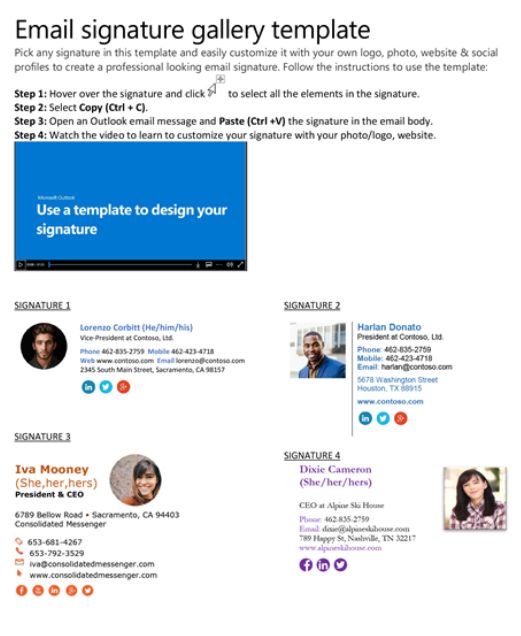
Psst.  Does your email signature look ghetto? Do you need to step up your signature-game but don’t have a lot of time to do it in?

imageAUTO-SIGNATURE CREATION GUIDE & TEMPLATES FOR OUTLOOK
Here’s a quick guide – with downloadable templates & 2 min video tutorial! – to how to put together a more professional looking auto-signature for your Outlook emails.

Enjoy!

This slipped by me.

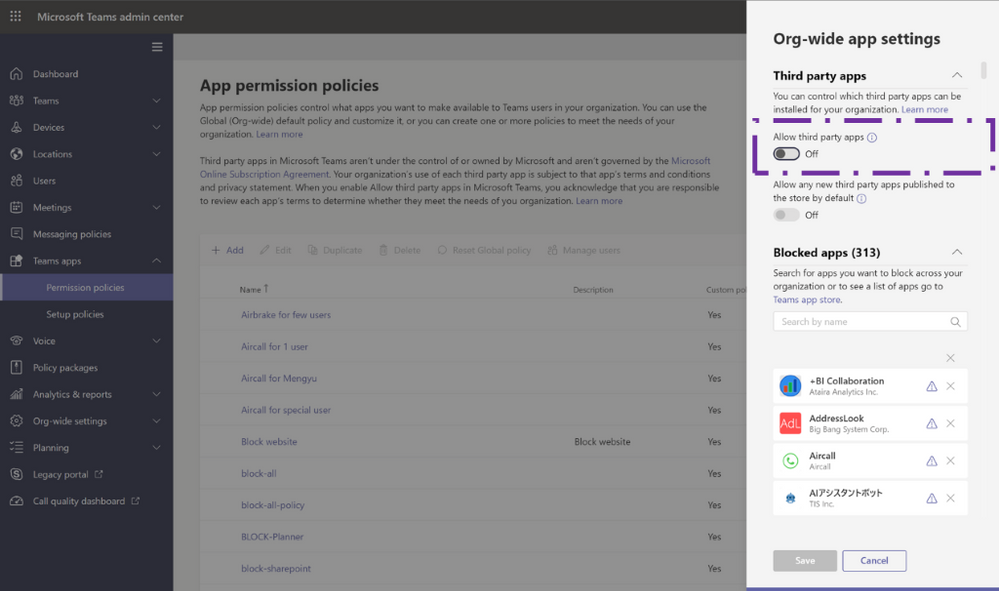
imageMicrosoft Teams Government Community Cloud (GCC) customers can now benefit from a plethora of applications to further customize and accelerate their results across different categories.

From project management to DevOps or social to education apps, Teams enables you to get more from our hub for teamwork.

Read more about using 3rd party apps within Microsoft Teams in GCC here:

imageWe are very excited to announce a Microsoft Teams ‘Ask Microsoft Anything’ (AMA) for Teams Meetings and Live Events in Microsoft Teams!

The AMA will take place on Thursday, May 7, 2020 from 9:00 a.m. to 10:00 a.m. PT in the Microsoft Teams AMA Space. Add the event to your calendar and view in your time zone here.

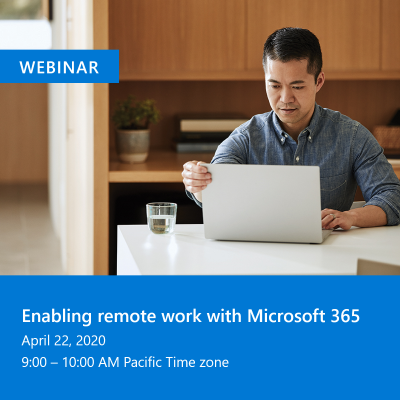
imageJoin us for deep dive discussion on securing your end users. Our experts will discuss a wide range of topics from managing end user desktops and browsers to securing applications and devices.

This episode of “Enabling remote work with Microsoft 365“ will focus on maintaining security and control in your organization by securing remote access to applications, as well as managed and unmanaged devices.

imageThis playbook walks you through using #Yammer in a range of campaign management scenarios.

Included is a list of campaign ideas that have been implemented by companies that use Yammer to build company culture, improve communication, and drive engagement.

imageWe continue our webcast series ‘Enabling remote work with Microsoft 365’ with Part 2.

In this episode we will focus on extending productivity across mobile devices as well as how to deliver virtualized applications and desktop environments to every platform with Windows Virtual Desktop.

« Newer Posts - Older Posts »

Categories