imageEnsuring that sensitive data is protected from risky or inappropriate sharing, transfer, or use has always been a top priority for organizations. The new reality of significant numbers of employees working from home or other remote locations indefinitely has created renewed emphasis on providing strong and coordinated protection on the endpoints they use every day. To help customers accelerate their deployment of a comprehensive information protection strategy across all their environments, we are announcing the public preview of Microsoft Endpoint Data Loss Prevention (DLP).

At Microsoft, we have long invested in developing cutting-edge information protection solutions for our customers. Microsoft Information Protection (MIP) is a built-in, intelligent, unified, and extensible solution that understands and classifies your data, keeps it protected, and prevents data loss across Microsoft 365 apps (e.g., Word, PowerPoint, Excel, Outlook), services (e.g., Microsoft Teams, SharePoint, Exchange), third-party SaaS applications, and more – on premises or in the cloud. Endpoint DLP now extends MIP classification and protection to devices.

Microsoft 365 customers only need to create DLP policies once in the Microsoft 365 compliance center. They can then apply the policies to Exchange, Teams, SharePoint, OneDrive for Business, and now – to endpoints as well. All that is required is for the endpoint to be onboarded in your environment using your established device management onboarding process.

Endpoint DLP identifies and protects information on endpoints. Endpoint DLP does not restrict or limit the use of applications, web browsers, or other services when sensitive data is not present. It delivers three core capabilities: Native protection, seamless deployment, and integrated insights.

Endpoint DLP is native to Windows 10 and the new Microsoft Edge browser. There is no need to install or manage additional DLP software on Windows 10 machines anymore. Providing DLP experiences natively on the endpoint has many benefits.

——–

Endpoint DLP starts rolling out to customers’ tenants in Microsoft 365 E5/A5, Microsoft 365 E5/A5 Compliance, and Microsoft 365 E5/A5 Information Protection and Governance.

For more information, visit:

image

Improve the agility, reliability, and efficiency of your distributed systems by using Kubernetes.

Get the practical Kubernetes deployment skills you need in this O’Reilly e-book. You’ll learn how to:

  • Develop and deploy real-world applications.
  • Create and run a simple cluster.
  • Integrate storage into containerized microservices.
  • Use Kubernetes concepts and specialized objects like DaemonSet jobs, ConfigMaps, and secrets. 

Learn how to use tools and APIs to automate scalable distributed systems for online services, machine learning applications, or even a cluster of Raspberry Pi computers.

imageSave the date and join us for a one-hour "Ask Microsoft Anything" (AMA) event on Tuesday, August 11th from 8:00-9:00 a.m. Pacific Time to get answers to questions about managing iOS and macOS devices using Microsoft Endpoint Manager. We’ll be here to help you with everything from setting up automatic enrollment and remotely managing user-owned devices to custom configurations and troubleshooting.

To join, simply, visit the Microsoft Endpoint Manager AMA space on Tuesday, August 11th and click "Start a New Conversation" to post your question. This event is open to all Tech Community members and we’ll have the Microsoft Intune and Configuration Manager product and engineering teams–plus members of the MVP community–standing by to provide answers.

Save the date to join us live at 8:00 a.m. Pacific Time. We’ll also open up the AMA space 24 hours in advance for those that can’t attend live—and post a recap of the event later this week.

We look forward to answering your questions!

ANNOUNCEMENT BLOG:
https://techcommunity.microsoft.com/t5/microsoft-endpoint-manager-ama/ama-managing-ios-and-macos-devices-with-microsoft-endpoint/m-p/1524292

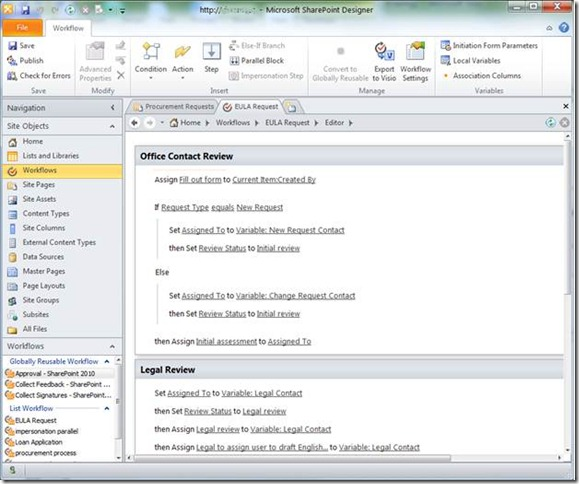
imagePer the article entitled, “Support update for SharePoint 2010 workflows in Microsoft 365”, SharePoint 2010 Workflows will be shutting down in November 2020 which leaves limited time for those processes to be migrated if workflow owners haven’t already done so.

  • Starting August 1st, 2020, SharePoint 2010 workflows will be turned off for newly created tenants. 
  • Starting November 1st, 2020, Microsoft will begin to remove the ability to run or create SharePoint 2010 workflows from existing tenants.

DOCUMENTATION:
Here’s the key documentation on the matter:

ASSISTANCE:
You can use the following services and partner programs to help with your migration from SharePoint 2010 workflows:

imageJoin this Microsoft Planner ‘Ask Microsoft Anything’ (AMA) on Tuesday, July 28, 2020 at 9:00 to 10:00 AM PT!

An AMA is a live online event similar to a “YamJam” on Yammer or an “Ask Me Anything” on Reddit. Share your questions and feedback about Microsoft Planner in the Planner AMA space during this one-hour event. Members of the Planner team will be online to respond directly to your posts.

During the AMA, open the Planner AMA space, and submit your questions and feedback as a new post by clicking on, "Start a New Conversation" at the top of the page.

Add this event to your calendar.

Have you tried the “magic select” option in Paint3D yet? It’s really handy if you want to quickly to cut out something from a picture.

imageThe “magic select” tool lets you easily crop the background of any picture to turn into a sticker to wrap or tile onto 3D objects. Here’s how it works:

  • Click on Insert and choose one of your favorite photos.
  • Use the “select” tool to drag and select the area that you want. The magic select button will appear.
  • Use the add and remove button to draw onto areas that you want to add or remove.
  • Once finished, click on the green check mark and the selection will pop-out as a separate layer.

You’ll love creating cut-outs from your favorite family photos, BFF selfies, or pet pics with magic select, then using them as stickers to personalize your creations.

You can make this a sticker by clicking on “make sticker”.

Read the original post here:

imageWe’ve published the latest summary of the Public Sector roadmap to the Microsoft US Public Sector blog.  This month we cover the following:

  • References and Information Resources
  • Office 365 & Managing Crisis Communications
  • Microsoft 365 for US Government Service Descriptions
  • Newsworthy Highlights
  • Public Sector Blog Spotlight (GCC, GCCH, DOD)
  • Roadmap Changes This Month (GCC, GCCH, DOD)

Read it here:

imageMicrosoft Whiteboard is not yet available in Microsoft 365 GCC/Microsoft Team for Government. 

It is on the roadmap to be available to our GCC customers, however, and will be FedRAMP reviewed.

In the meantime, there are a couple alternatives:

IDG recently published a study around the cost advantages associated with cloud-based security information and event management (SIEM) solutions.  In summary:

  • Forty percent—lower staffing costs.
  • Forty percent—lower operational expenses (OpEx).
  • Thirty-four percent—lower capital expenses (CapEx).

For a broader discussion around these numbers, read this about the IDG study & how Microsoft’s cloud-based SIEM, Azure Sentinel, can help you lower your security costs while improving your security coverage & speed of execution.

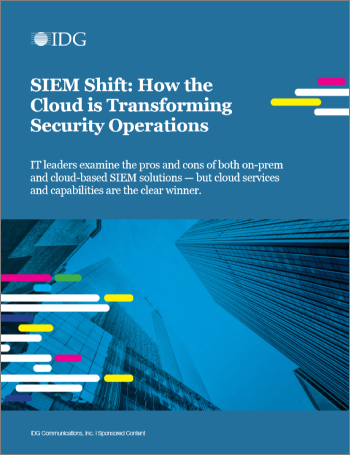
The IDG report is available below, entitled, “SIEM Shift: How the Cloud is Transforming Security Operations”.

imageMany security professionals are realizing that their on-premises or private cloud-based security information and event management (SIEM) system can’t keep up—so they’re migrating this key security operations tool to the public cloud.

The IDG report, SIEM Shift: How the Cloud is Transforming Security Operations, delves into the results of a survey of 300 security and IT decision-makers to discover why more security professionals are moving to cloud-based SIEM. The report reveals that cloud-based SIEM:

  • Reduces SIEM costs by lowering or eliminating infrastructure, maintenance, licensing, and staffing costs.
  • Helps improve protection with AI and faster threat response.
  • Boosts SIEM performance, scalability, and stability.
  • Augments security teams with AI, reducing alert fatigue and automating common tasks.

Learn how your peers are strengthening their defense against threats.

imageFor those unaware: Office 365 GCC uses Entra Public/Commercial. (Formerly known as Azure AD Public) This includes all other Government Community Cloud (GCC) products & services including, Dynamics 365 GCC, Power Platform GCC, Microsoft 365 Copilot GCC, etc.

For an explanation of this, please review the following:

Why does Office 365 GCC use Microsoft Entra Public?
The first Office 365 US Government environment, Government Community Cloud (GCC), was created when Microsoft had a single cloud directory. The Office 365 GCC environment was designed to use Microsoft Entra Public while still adhering to controls and requirements outlined in FedRAMP Moderate, Criminal Justice Information Services (CJIS), Internal Revenue Service (IRS) 1075, and National Institute of Standards and Technology (NIST) Special Publication (SP) 800-171. Azure Government, with its Microsoft Entra infrastructure, was created later. By that time, GCC had already secured the necessary compliance authorizations (for example, FedRAMP Moderate and CJIS) to meet Federal, State, and Local government requirements while serving hundreds of thousands of customers. Now, many Office 365 GCC customers have two Microsoft Entra tenants:

  • one from the Microsoft Entra subscription that supports Office 365 GCC
  • and the other from their Azure Government subscription,

with identities in both.

Read more here:

« Newer Posts - Older Posts »

Categories