imageWith the dawn of the COVID-19 pandemic, state and federal agencies around the globe were looking at ways to modernize data intake for social services recipients. The government of a country of about 40 million citizens reached out to Microsoft and asked us to assist in this endeavor. Going paperless eliminates waiting in line at an agency office, and lowers the chance of COVID-19 transmission. The ability to make requests or apply for federal or local assistance online makes the process safer and more efficient, as once data is collected citizens should start receiving funds more accurately and quickly.

Security is a major concern of not only major governments but of other entities using Microsoft Power App intake forms. Organizations and agencies needed to be certain that Microsoft Power App intake forms could not be used to collect data from large, sensitive databases containing personal information like names, addresses, Social Security or national security identification numbers, telephone numbers, or bank account information for direct deposit. If internet-facing forms collect personal information, and are not securely implemented, bad actors can use those forms to cleverly gain access to millions—if not billions—of personal records.

We authored this white paper specifically for those agencies and organizations who are transforming data intake to partially or 100-percent paperless. Microsoft wants to ensure that customers are implementing our technologies with the most secure approach possible, and adhering to compliance with all data privacy laws. Microsoft is also making recommendations in the white paper regarding the best way to implement the NIST Cybersecurity Framework in order to identify, protect, detect, respond, and recover from cybersecurity attacks.

Posted by: kurtsh | June 18, 2021

RELEASE: Outlook Roaming Email Signatures

Ever notice your email “auto” signature doesn’t follow you from device to device?  It’s because it was originally stored in Outlook locally per device.

imageComing soon (July 2021) to Exchange Online & Outlook.com users, if you’ve got email signatures, they’ll now be stored in your Email Account in the cloud and “follow you” from device to device.

(No word on availability for GCC/GCC High/DoD.)

Read the details on how this will work in the article below.

A new superpower for communicators has been introduced with Yammer for broadcasting critical messages: 

“Essential Announcements” ensure that critical announcements reach your audience across Yammer and their Outlook inbox – and even Teams.  Reach your audience (community) and measure reach & impact with Conversation Insights.

imageSome announcements are crucial to keeping employees up to date – whether it’s regarding safety, protocols, policies, or other priority news. In these instances, corporate communicators and leaders need ways to guarantee that messages are delivered to every employee. This feature allows Yammer community admins to set an announcement as ‘essential’ to ensure that it’s delivered via email to every member of that community, even if it is outside of their preferred notification settings.

How it works

Community admins and network admins can now choose to set a post as an ‘essential announcement’ by changing the announcement delivery options before they post, which will notify all community members by email including those members who are not setup to receive email notifications of updates in Yammer. The total number of members will also be listed at the bottom of the editing card. Admins must be using the new Yammer experience to use this feature, but members using both the classic and new Yammer will receive the notifications. Learn more about how to send announcements in Yammer here. When members receive email notifications for essential announcements, they will be able to reply directly to the announcer by email. The email would also contain a note explaining to the member that they received this email as the community admin chose to make an essential announcement.

For those that have the Yammer Communities app for Teams installed, announcements and @mentions made in Yammer will also appear in your Microsoft Teams activity feed.

Read more here:

imageThe launch of Microsoft Lists and Tasks in Microsoft Teams last year added new options to an already robust catalog of Microsoft work management tools. They seemed to overlap with Microsoft To Do, Microsoft Planner, and Microsoft Project for the web, causing a lot of (understandable) confusion and questions, all of which boiled down to, “Which tool should I use?”

Today, we’re answering that question with three aptly named when-to-use guides. These one-page documents, which are linked below, focus on different work management scenarios and the Microsoft tools that enable them:

Read the rest of the article and download the guides here:

imageMicrosoft Viva is an employee experience platform that brings together communications, knowledge, learning, resources, and insights. Powered by Microsoft 365 and experienced primarily through Microsoft Teams, Viva fosters a culture where people and teams are empowered be their best from anywhere.

Join us Thursday, June 17th at 12 noon eastern, to learn how Microsoft Viva can take your organizational employee experience to the next level as we cover: Download the meeting invite here.

View original invite here:

imageOn June 2nd, we announced the acquisition of ReFirm Labs to enrich our device firmware analysis and security capabilities across devices that form the intelligent edge from servers to IoT. The addition of ReFirm Labs to Microsoft will bring both world-class expertise in firmware security and the Centrifuge platform to enhance Microsoft’s ability to analyze and help protect firmware backed by the power and speed of our cloud.

Read more here:

imageFor anyone looking for the datasheets for any of the Microsoft Surface device and accessory announcements made back in April, here’s links to the materials for each announced item:

Azure MFA admins – ever wish there was a way to migrate your users from SMS/Phone to something more secure like Push?

Microsoft has a new Preview feature called "Nudge" that can help!

imageYou can nudge users to set up Microsoft Authenticator during sign-in. Users will go through their regular sign-in, perform multifactor authentication as usual, and then be prompted to set up Microsoft Authenticator. You can include or exclude users or groups to control who gets nudged to set up the app. This allows targeted campaigns to move users from less secure authentication methods to Microsoft Authenticator.

In addition to choosing who can be nudged, you can define how many days a user can postpone, or "snooze", the nudge. If a user taps Not now to snooze the app setup, they will be nudged again on the next MFA attempt after the snooze duration has elapsed.

Read more about this new, free features here:

imageYou may have noticed a new Weather icon/object in your taskbar on Windows 10 that just sort of showed up.  If you right mouse click on it, nothing special happens.  Nice ‘eh?

Wanna turn it off?

WHERE’D THIS COME FROM?
The “weather widget” came from the optional Feature Update from the 2004/Spring 2020 release of Windows 10.  If you installed the optional feature update (KB5001391), it just appears.  We made an announcement about it back in April 2021.

HOW TO TURN OFF THE WEATHER & NEWS WIDGET IN WINDOWS 10
The issue is that no one knows what this thing is called (it’s official name is News & Interests widget) and it’s not entirely intuitive how to disable it.  It’s actually simple once you’ve done it.

  1. imageRight mouse click on the taskbar.
  2. Click on the “News & Interests” menu item.
  3. Select “Turn off”

And that’s it.  There’s some other items in there to minimize the widget or change it’s update frequency but the reality is that, for me, it’s consuming space on my taskbar which is the most valuable real estate on my desktop so… having some widget there that I never use is not an option.

imageWhile it might feel more productive to power through back-to-back meetings, Microsoft’s latest research shows the opposite is true. Learn more in Microsoft’s Work Trend Index:

In our latest study of brain wave activity, researchers confirmed what many people sense from experience: Back-to-back virtual meetings are stressful. But the research also points to a simple remedy—short breaks.

“Our research shows breaks are important, not just to make us less exhausted by the end of the day, but to actually improve our ability to focus and engage while in those meetings,” says Michael Bohan, senior director of Microsoft’s Human Factors Engineering group, who oversaw the project.

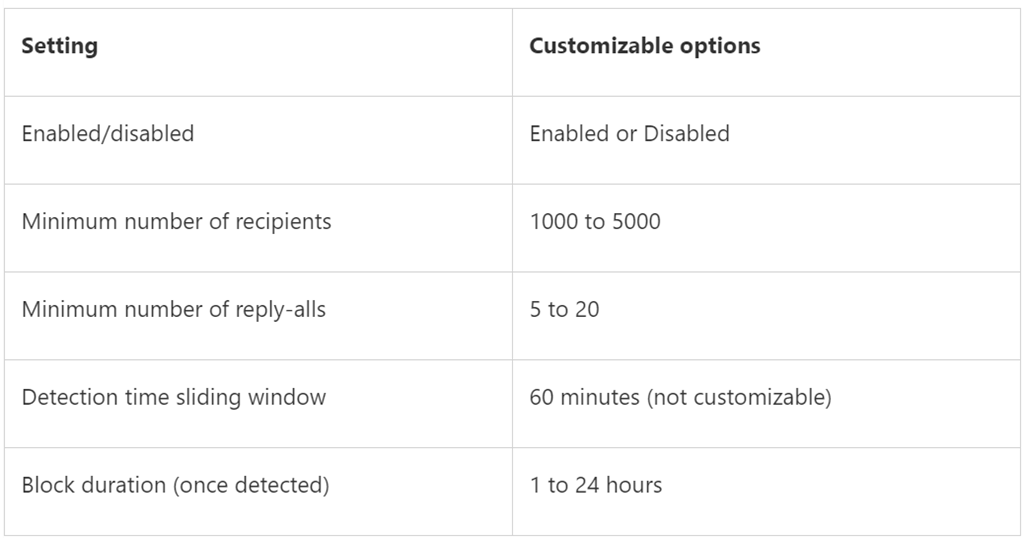
Settings in Microsoft Outlook make it easier and automatic to carve out these essential breaks between back-to-backs—and because we know that one size does not fit all, companies have two options. Individuals can set scheduling defaults that automatically shorten meetings they schedule. And now customers have the ability to set organization-wide scheduling defaults that shorten meetings and create space for breaks for everyone at the company.

“The back-to-back meetings that have become the norm over the last 12 months just aren’t sustainable,” says Jared Spataro, CVP, Microsoft 365. “Outlook and Microsoft Teams are used by millions of people around the world, and this small change can help customers develop new cultural norms and improve wellbeing for everyone.”

Read the key findings here:

« Newer Posts - Older Posts »

Categories