imageWouldn’t it be cool to be able to take an app and make it stay in-front or “on-top” of everything else on your desktop? 

This is usually a list that you need to refer to or a time tracking app, or an IM tool.

Microsoft’s “Always On-Top” function does exactly this.  It’s a new feature of the Microsoft PowerToys – a free suite of a dozen or so useful tools for Windows 10/11 that extend the Windows OS in a variety of useful ways.

If you’re interested in installing it, it’s downloadable below:

DOWNLOAD:

imageGentle reminder:  If you buy an Xbox Series S/X for Christmas or the holidays, be sure to get a Microsoft Complete plan for it.

This is a 3 year extended warranty on the console for any problem you might have on it & normally costs $49 – however I think we’re only charging $39 in December 2021.  This supercedes the 1 year limited warranty that your Xbox Series S/X has at purchase.

  • Your new Xbox Series S/X has a “limited 1 year warranty” that will protect it from design flaws and non-user initiated failures. This warranty does NOT protect the Xbox from accidents – like “drops” or “power surges”, “spills”, etc.
  • Microsoft Complete for Xbox” plans provide 3 years of coverage that covers most issues including user accidents – including a broken Xbox controller! Exact details available here:

Microsoft Complete for Xbox: For mechanical breakdowns and/or accidental damage claims, maximum of:

  • one (1) Xbox console replacement
  • two (2) Xbox One standard controller replacements OR
    one (1) Xbox Elite Controller replacement (whichever is applicable to your purchase)
  • one (1) associated power supply unit with attaching cords replacement, when such are originally supplied by Microsoft within a single, all-in-one packaged purchase.

“COMPLETE” REQUIRES A BIT OF WORK TO ACQUIRE
Admittedly, this process used to be really easy to do through the Microsoft Store in Windows 10/11 or online through your Microsoft Account web site… but now it’s kind of a pain.  Here’s the steps on how to do this:

PREQUISITES

  1. COMPLETE WITHIN 45 DAYS OF PURCHASE
    You must complete this within 45 days of purchasing your Xbox Series S/X.  How they know when you’ve bought the console I don’t know but you DEFINITELY can’t have your Xbox Series S/X hooked up and used for longer than 45 days or they won’t allow you to buy Microsoft Complete.
  2. GET SERIAL NUMBER
    You will need the serial number of your XBox either from the console itself or from the box it was purchased in.  I take a photo using my phone.

STEPS TO GET MICROSOFT COMPLETE

  1. LOG IN TO MICROSOFT ACCOUNT
    Sign into https://account.microsoft.com.
  2. GO TO “DEVICES” PAGE
    Click on the “Devices” pane & click “View All Devices” or
    go to https://account.microsoft.com/devices 

    image
  3. REGISTER XBOX SERIAL NUMBER
    Click on “Register device” & enter the serial number of your Xbox.  Remember to do this only when you’re ready to hook up your Xbox & want to start your Microsoft Complete.
    (Note: Once submitted, this may take as much as 5 minutes to register)

    image
  4. CALL MICROSOFT SALES
    In the US, call (877)696-7786 and state that you’d like to purchase “Microsoft Complete for your Xbox Series S/X”.  They will charge your $49 for the warranty & ask for your:
      1. Microsoft Account identity (name@outlook.com, for example)
      2. The Serial Number of the newly registered Xbox
  5. VERIFY REGISTRATION OF YOUR NEW “MICROSOFT COMPLETE FOR XBOX” WARRANTY
    You should receive a 12-digit “Complete Service Request Number” from the sales agent.
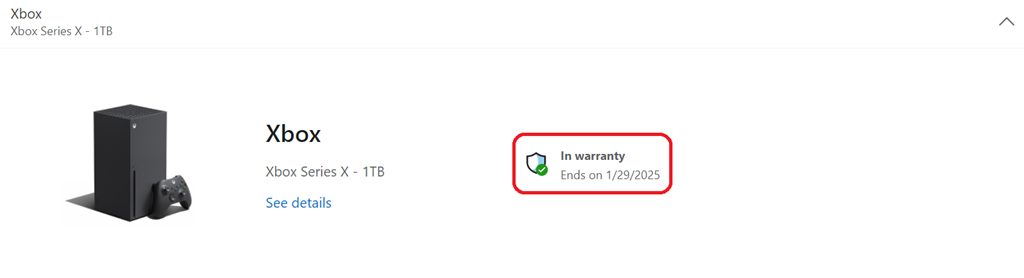
    Go back to the Registered Devices page for your Microsoft Account and you should see an “In warranty” date that is roughly 3 years from your date of registration.
    image

You will need to have a credit card registered on the Microsoft Account that is used for your Xbox Live account.  If you don’t, you may be able to provide a credit card number on the phone but I don’t know that for certain.

If you want to auto-start an applications in Windows 11 – regardless of whether it’s a UWP or a Win32 app – do the following:

imageOPEN THE APPS FOLDER
Open File Explorer (any file folder window) and copy the following into the address bar to go to the “apps” folder:

shell:appsfolder

These are the apps that are installed on your Windows 11 computer. Keep this window open.

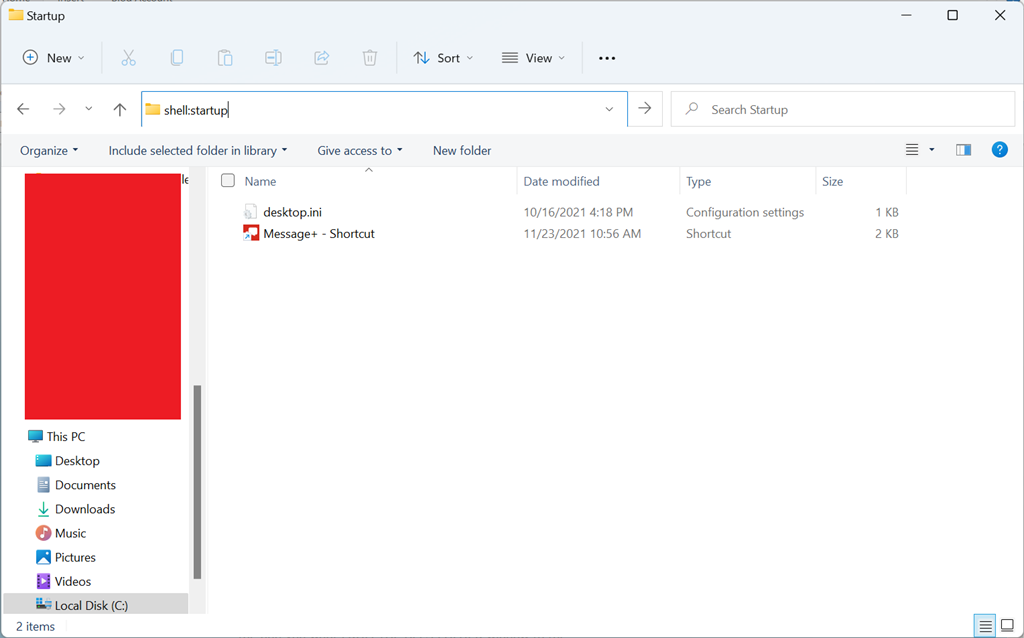
imageOPEN THE STARTUP FOLDER
Next, open another instance of File Explorer (again, any other file folder window) and  following folder:

shell:startup

These are the applications that are set to “automatically start” upon login.  There may or may not be anything here.

COPY A SHORTCUT FROM “APPS” TO “STARTUP”
Finally, using your right mouse button, drag the icon for the app you want FROM THE APPS FOLDER window to the STARTUP FOLDER window and “create shortcut”.

That’s it.  Next time you login, it’ll run this UWP or Win32 app you’ve shortcutted to.

Posted by: kurtsh | November 8, 2021

INFO: Microsoft Security Product Name Changes

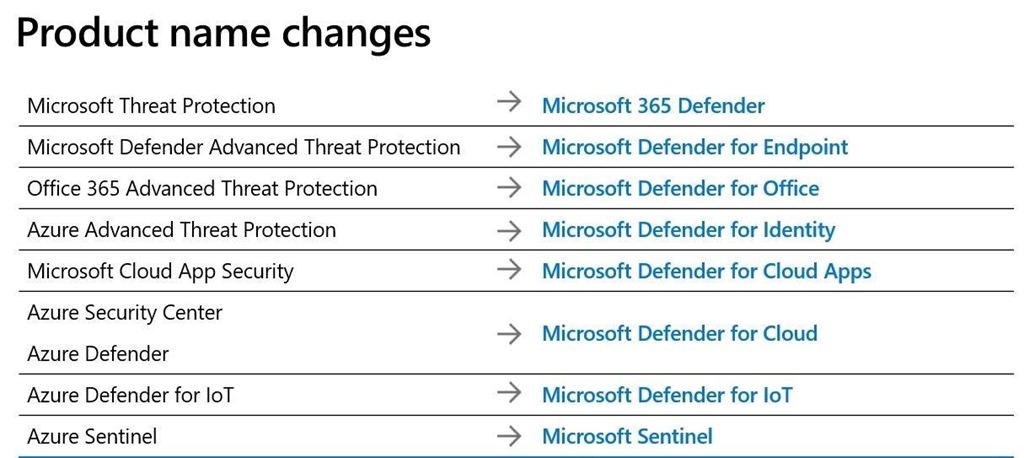
MicrosoftSecurityProductNameChangesHere’s a quick cheat sheet of Microsoft’s security product name changes.

  • Microsoft 365 Defender
    (Previous: Microsoft Threat Protection)
  • Microsoft Defender for Endpoint
    (Previous: Microsoft Defender Advanced Threat Protection)
    (Previous: Windows Defender Advanced Threat Protection)
  • Microsoft Defender for Office
    (Previous: Office 365 Advanced Threat Protection)
  • Microsoft Defender for Identity
    (Previous: Azure Advanced Threat Protection)
  • Microsoft Defender for Cloud Apps
    (Previous: Microsoft Cloud App Security)
  • Microsoft Defender for Cloud
    (Previous: Azure Security Center & Azure Defender)
  • Microsoft Defender for IoT
    (Previous: Azure Defender for IoT)
  • Microsoft Sentinel
    (Previous: Azure Sentinel)

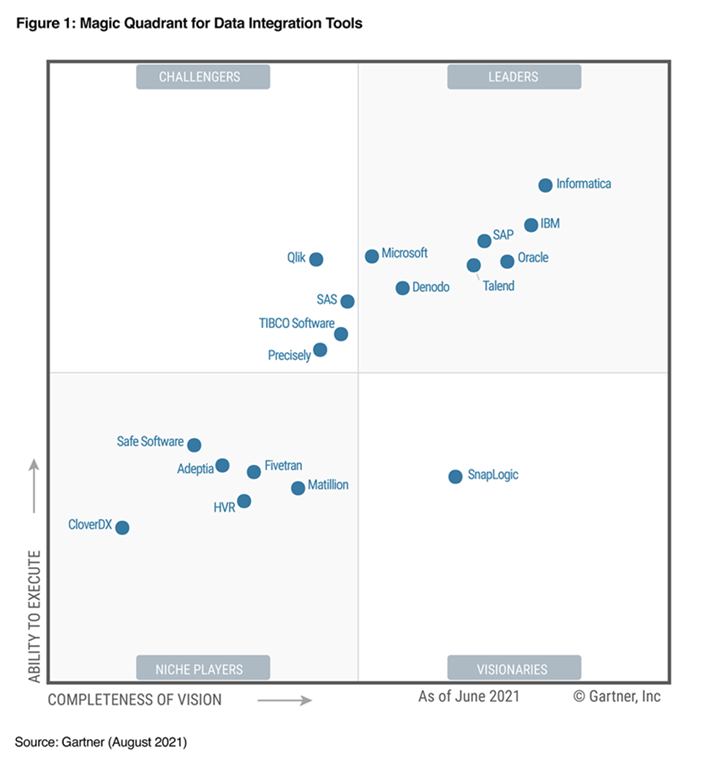
imageWe are announcing that Microsoft has been named a Leader in the 2021 Gartner Magic Quadrant for Data Integration Tools.

We believe this recognition reflects our continued commitment to delivering comprehensive and cost-effective data integration solutions, including both code-first and low- or no-code tooling for on-premises, hybrid, and cloud workloads.

Read more at the announcement blog here:

imageJoin our team of Azure Innovation Specialists at this digital event as we walk you through Microsoft’s vision of the modern development platform, available today and ready for you to implement across your organization. You will see the team demonstrate the best of Visual Studio Code, Azure, GitHub, PowerApps and more!

Drive your business to new heights by empowering your developers with the only end-to-end platform solution that offers best-in-class development tools, security, and compliance capabilities, with unmatched collaboration and productivity.

Posted by: kurtsh | November 5, 2021

EVENT: “US Public Sector Summit” – December 2, 2021

Screenshot_20211105-073918_LinkedInHear from Microsoft Chairman & CEO Satya Nadella—in conversation with President of Microsoft US Deb Cupp—about the key challenges & trends impacting the public sector & why the case for digital transformation has never been more urgent.

  • Take on today’s challenges with tested solutions
    Empower your organization to achieve more with comprehensive end-to-end cloud capabilities proven with real-life case studies from the public sector.

  • Maximize your impact for good
    Get technology and resources to improve social and environmental issues—and the skilling initiatives to empower the workforce.

  • Build better experiences for all
    Improve digital services for individuals and organizations by using secure, inclusive, and accessible digital services.

Review the agenda & the speaker list featuring top leaders from both State & Local Government, Education, and Federal organizations as well as Microsoft.

imageWe started rolling out a version of the Visio web app with core capabilities to Microsoft 365 commercial subscribers in August. This means that anyone with an Office 365 or Microsoft 365 commercial subscription in your organization can start diagramming with Visio at no additional cost. 

If it’s available in your tenant, users can directly access the new Visio Web App by going to:

Following is a complete list of the Microsoft 365 commercial plans that will include the Visio web app:

  • Microsoft 365 Business Basic
  • Microsoft 365 Business Standard
  • Microsoft 365 Business Premium
  • Microsoft 365 Apps for business
  • Office 365 E1
  • Office 365 E3
  • Office 365 E5
  • Office 365 F3
  • Microsoft 365 F3
  • Microsoft 365 E3
  • Microsoft 365 E5
  • Microsoft 365 Apps for enterprise
  • Office 365 A1
  • Office 365 A3
  • Office 365 A5
  • Microsoft 365 A1
  • Microsoft 365 A3
  • Microsoft 365 A5

(We intend to enable Visio in Microsoft 365 for GCC, GCC High, and other sovereign clouds following the worldwide release.)

Read more about this new benefit of Office 365 in the announcement blog post below:

Posted by: kurtsh | November 5, 2021

DOWNLOAD: “Azure Training Journey” – The Guide

We have a great guide that was released that provides organizations with guidance around how to go about taking training that they have available through the Enterprise Skills Initiative.

It’s 45 pages that goes over:

  1. What a person’s role might be
  2. What learning path they should take
  3. What classes are available
  4. A syllabus for each class delivered in ESI

Here’s an excerpt of the description of this tool:

  • imageA map for the next milestone
    Use this guidebook to discover the recommended journey for your team. The following pages describe the recommended tracks learners can take to receive the maximum benefits of this program.
  • Master the basics and beyond
    Each journey is designed to help managers and learners identify where to start and where to go based on their specific role or projects.
  • Everything you need in one place
    After determining which journey is the right fit, find courses, training opportunities, and other important information that sets your team up for success.

Download the training guide below:

Microsoft just released a paper on the evolution of zero trust covering:

  • Five lessons learned over the last two years
  • Updated Zero Trust architecture
  • What’s next for zero trust

Excerpt:

imageLooking back at the last two years, to say that our security strategies have evolved would be an understatement. Organizations around the world made overnight transitions to remote work models in response to a global pandemic, forcing them to reassess attack surface areas as they underwent an accelerated digital transformation. Meanwhile, cybercriminals seized new opportunities—introducing COVID-19-themed social engineering campaigns and accelerated ransomware attacks. Nation-state actors launched increasingly bold and sophisticated nation-state attacks.1

In this environment, security transformation has become key to survival. The mandate to explicitly verify every access request, focus on least privilege access overall, and constantly assume breach to maintain vigilance was made clear, as exemplified by calls from governments and businesses worldwide to accelerate the adoption of Zero Trust strategies.

Announcement blog with summary, insights, & download link:

« Newer Posts - Older Posts »

Categories