Gawd, I’m such a post leech, but I can’t help it.  I apologize to Steven Bink and his crew but I can’t stop:  Recently, they’ve been posting so much good tech that I have to repost.

image This is small tool that adds Attach and Detach option to contextual (aka right-click) menu of Virtual disk (vhd) files. That enables those operations to be done without trip to Disk Management console. Detach option is available on hard drive contextual menu also.

Additionally program can be used as classic utility in order to see various information about virtual disk, even without attaching it.

Do notice that this program only works with Windows 7 and Windows Server 2008 R2. Older operating systems are not supported.

LINK:  "VHD Attach”
http://bink.nu/news/vhd-attach.aspx

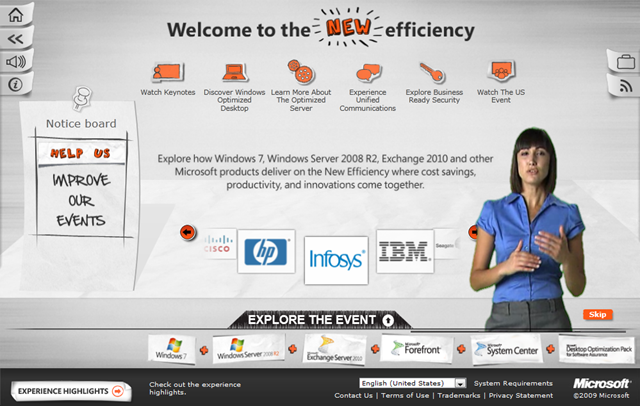
image The other week we launched a web site called “The New Efficiency” which describes how customers to become more efficient and “do more with less” through the use of Microsoft latest wave of products, namely Windows 7, Windows Server 2008 R2, and Exchange Server 2010.

In a bit of irony though, the front page of the web site is MASSIVE because it downloads a large interactive Silverlight environment.  The first page load may take as long as a full minute to load over a 3Mb pipe before you ever ready touch anything on the screen.  Not particularly efficient if you ask me.

That being said, when you load it up, you’ll likely find it pretty immersive and interactive.  Here’s a sample of what you’ll be able to see:

  • 5 Keynote Presentations from the Microsoft San Francisco Launch event, TechEd Europe, and Exchange Connections in Las Vegas.
  • Overviews for the Desktop, the Server, and the Unified Communications space.
  • Overviews of Security
  • A full redelivery of what was presented at the Exchange 2010 US Event

All in all, a pretty good site… just the initial load takes a while.

LINK:  Virtual Launch of “The New Efficiency”
http://www.thenewefficiency.com/

image In October 2009, Microsoft commissioned Forrester Consulting to examine the total economic impact and potential return on investment (ROI) enterprises may realize by deploying Microsoft Exchange 2010. Microsoft Exchange 2010 is the newest release of Microsoft’s messaging and collaborative server software solution featuring email, voicemail, calendaring, contacts, and tasks; support for mobile and Web-based access to information; and support for data storage. This study illustrates the financial impact of deploying Microsoft Exchange 2010 for a retail and distribution organization of 1,500 employees and $450 million in annual revenue.

In conducting in-depth interviews with nine existing customers, Forrester found that these companies achieved cost avoidance of storage, reduced cost of high availability, cost avoidance in voicemail, savings in backup systems, fewer help desk calls, cost avoidance of mobility, enhanced communication security, and simplified compliance and legal discovery, among other benefits.

Today, Forrester released “Total Economic Impact” study which concludes organizations can expect a payback period of less than six months with Exchange 2010.

DOWNLOAD: “Total Economic Impact of Microsoft Exchange 2010”
http://go.microsoft.com/?linkid=9694416

Posted by: kurtsh | November 11, 2009

BETA: SkyDrive Explorer (3rd party tool)

image Man, this is a cool tool.  It’s called Skydrive Explorer and it’s NOT made by Microsoft but I wish it were.

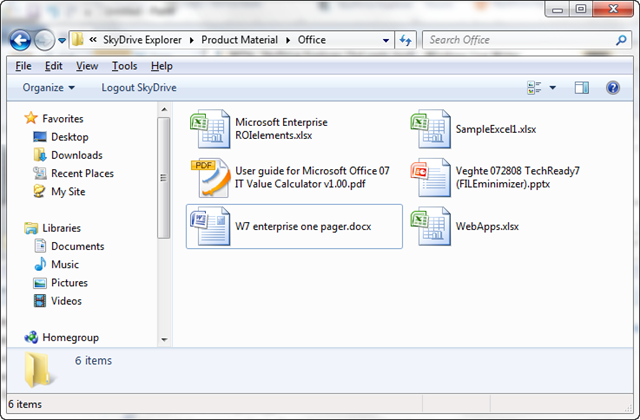
Skydrive Explorer is, put simply, a means of using the File Explorer interface of Windows to access Skydrive.  With the ability to open & navigate folders, create new folders, drag & drop files from desktop to storage and back, delete files & folders, etc. etc. Skydrive Explorer makes for one cool tool.

Based on the the Readme, it appears that the tool works by screen scraping the web site and pushing instructions through script which is pretty darned cool.  Here’s what the README says:

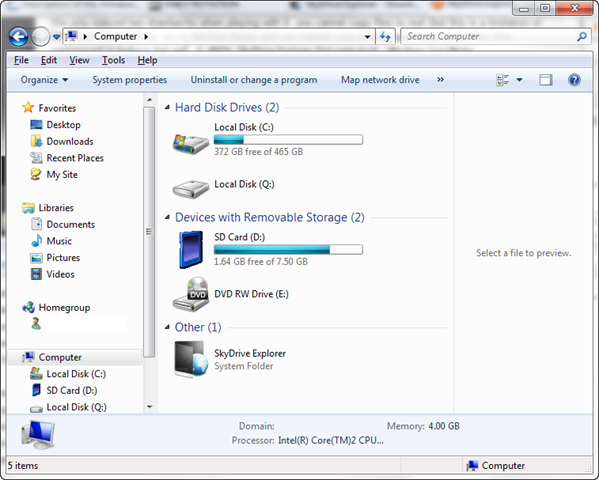
After the installation you will see the "SkyDrive Explorer" icon in My Computer, this is your entry point into fast and comfortable work with online Windows Live SkyDrive service.

To start work and open the session, you must enter the Windows Live credential into the logon dialog. Work session is active until the reboot or forced logout from SkyDrive Explorer, which can be made by clicking Logout command in the toolbar. During the session the credentials are not requested again.

With the current beta version you can enjoy the following functionality:

  • View the structure and contents of folders in SkyDrive
  • View files information (type, size, creation date in GMT format)
  • Create new root folders and subfolders
  • Copy files into the storage
  • Delete files and folders
  • Copy files from the storage to the computer
  • Copy folders and subfolders from the storage to the computer saving their structure
  • Use Drag & Drop for files operations
  • Rename files and folders
  • Create links to SkyDrive folders
  • Copy URL of the selected objects into the Clipboard
  • Autoupdate feature

Note: SkyDrive protocol is not documented, so the needed information is received by parsing web pages with content as response from service. If the content format is changed, SkyDrive Explorer functionality
can be partly or totally disabled.

image

Accessing a Skydrive Folder through the File Explorer interface

DOWNLOAD: 
http://www.skydriveexplorer.com/index.php

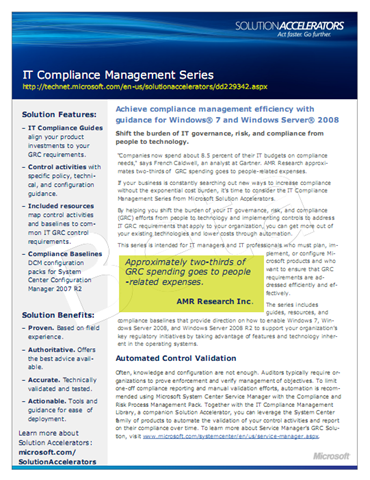
image The Compliance Solution Accelerators team has just released valuable extensions to the IT Compliance Management Series. And with “Companies now spend(ing) about 8.5 percent of their IT budgets on compliance needs," says French Caldwell, an analyst at Gartner (CIO Magazine, Sept 2007), these couldn’t be more timely.  These new offerings provide spe­cific technical guidance and resources for Windows 7, Windows Server 2008 and Windows Server 2008 R2.

The IT Compliance Management Series will help you shift the burden of your IT gov­ernance, risk, and compliance (GRC) efforts from people to IT systems and implement controls to address IT GRC requirements that apply to your organization. This series is intended for IT managers and IT professionals who must plan, implement, or configure Microsoft products and who want to ensure that IT GRC requirements are addressed efficiently and effectively.

In addition to the already released IT Compliance Management Guide, the series now includes Beta versions of IT Compliance Management: Windows 7 and IT Compliance Management: Windows Server 2008 and Windows Server 2008 R2. Reviewers are asked to provide feedback on this collection of guides, resources, and compliance baselines that provide direction on how to enable Windows 7, Windows Server 2008, and Windows Server 2008 R2 to support your organization’s key IT GRC initiatives by taking advantage of features and technology inherent in the operating systems.
The IT Compliance Management Series Beta review program includes IT Compliance Management: Windows 7 and IT Compliance Management: Windows Server and Windows Server 2008 R2.
The IT Compliance Management for Windows 7.zip file includes the following files:

  • IT Compliance Management Guide: Windows 7.docx. This guide will help your organization identify and implement GRC controls in Windows 7.
  • IT Compliance Management Resources: Windows 7.xlsx. This Microsoft Excel workbook will allow you to configure Windows 7 in accordance with your organization’s configuration and change control practices. The Instructions tab provides reader instructions; users can filter the workbook by IT GRC grouping or control activity type.

The IT Compliance Management for Windows Server 2008 and Windows Server 2008 R2.zip file includes the following files:

  • IT Compliance Management Guide: Windows Server 2008 and Windows Server 2008 R2.docx. This guide will help your organization identify and implement IT GRC controls in Windows Server 2008 and Windows Server 2008 R2.
  • IT Compliance Management Resources: Windows Server 2008 and Windows Server 2008 R2.xlsx. This Microsoft Excel workbook will allow you to configure Windows Server 2008 and Windows Server 2008 R2 in accordance with your organization’s configuration and change control practices. The Instructions tab provides reader instructions; users can filter the workbook by IT GRC control grouping or control activity type.
  • IT Compliance Configuration Packs—DCM Baselines for Windows Server 2008. Three DCM Configuration Packs for Windows Server 2008 are included for you to use with the DCM feature in Configuration Manager 2007 R2. These packs assist in validating the configurations prescribed in the IT Compliance Management Resources workbook.

Note: This Beta review period will run November 9, 2009 to December 9, 2009. Please take advantage of this opportunity to provide feedback and influence the development of these new compliance offerings. Feedback and questions for these Beta releases will be conducted via a brief survey and on the Compliance Management Forum. Visit the forum for complete instructions and the survey link.
The previously released IT Compliance Management Guide.zip file includes the following files:

  • IT Compliance Management Guide.docx. This guide will prepare you for a conversation with GRC subject matter experts such as attorneys, auditors, specialists, and consultants working for your organization. It introduces an approach based on Microsoft Operations Framework (MOF) 4.0 that can help you address compliance requirements as well as organization-wide governance initiatives.
  • IT Compliance Management Resources.xlsx. This Microsoft Excel workbook contains four worksheets. The Instructions worksheet provides reader instructions on the use of the tabs within this workbook. The GRC Control Objectives worksheet contains high-level objectives applicable to an IT department assigned GRC duties. The GRC Configuration Job Aids worksheet contains GRC objectives and associated Microsoft product configuration guidance to meet these objectives. The GRC Management Inventory worksheet contains GRC management guidance and additional product guidance for the management of a GRC solution.

This Solution Accelerator also includes the following files:

  • Release Notes.rtf. Provides information about updates and changes to the IT Compliance Management Guide.
  • IT Compliance Management Guide data sheet.docx. A two-page overview of the IT Compliance Management Guide that describes its purpose and provides other relevant information for IT managers and IT professionals.

Note: The IT Compliance Management Guide replaces the Regulatory Compliance Planning Guide version 1.0, published July 7, 2006.

To ask questions or provide feedback, subscribe to the Compliance Management Forum. This forum also provides the ability to join discussions and collaborate on GRC-related compliance management issues with your peers.

During this Beta period, reviewers are being asked to provide feedback on guides, re­sources, and compliance baselines that provide direction on how to enable Windows 7, Windows Server 2008, and Windows Server 2008 R2 to support your organization’s key IT GRC initiatives by taking advantage of features and technology inherent in the operating systems. Successful implementation of these recommendations will allow or­ganizations to simplify the enforcement and management of their IT GRC objectives.

Looking for other Windows 7 resources from the Solution Accelerators team? Check out the Windows Desktop Solution Accelerators page.

Want more Windows Server 2008 R2 resources? Visit the Windows Server 2008 R2 So­lution Accelerators page.

DOWNLOAD
http://go.microsoft.com/fwlink/?linkid=56419

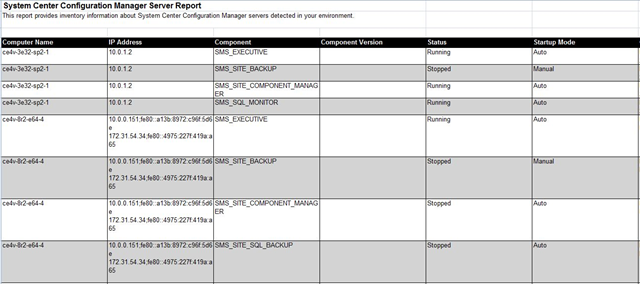
image The Solution Accelerator team is pleased to announce the immediate availability of the Microsoft Assessment and Planning Toolkit 5.0 Community Technical Preview (CTP). Designed to simplify and streamline the IT infrastructure planning process across multiple scenarios through network-wide automated discovery and assessments, this tool provides a quick and complete inventory of the current IT environment of any organization, hardware and device compatibility assessment, and actionable reporting of recommended hardware upgrades for migration.

The MAP Toolkit 5.0 CTP includes these new features:

  • Heterogeneous Server Environment Inventory for Technologies including Windows Server, Linux, UNIX and VMware.
  • Ability to determine usage of deployed System Center Configuration Manager, a member of the Core Client Access License Suite.
  • Readiness assessment for migration or upgrade to Microsoft Office 2010.

Over 800,000 Microsoft customers and partners including Costco Wholesale Corporation, Continental Airlines, and Pella Corporation have already downloaded and used this toolkit to help plan for their server and PC deployments.

image

Additional MAP Toolkit Features include:

  • Windows 7 Hardware and Device Compatibility Assessment.
  • Windows Server 2008 R2 Hardware and Device Compatibility Assessment.
  • Virtualization Candidates Assessment for Hyper-V Server Consolidation.
  • Inventory of VMware Server Hosts and Guests.
  • Enhanced Usability and Improved Inventory Performance.
  • SQL Server Instance Discovery.
  • Desktop Security Assessment for Anti-virus and Anti-malware Programs Installation.
  • Forefront Client Security/NAP Readiness Assessment.

Next Steps

image FYI: Exchange Server 2010 is now available on MVLS/Technet/MSDN for customers to download.  (Remember that Exchange Server is now x64 only!)

——————

MVLS:  https://licensing.microsoft.com

clip_image002

Technet Plus:  https://technet.microsoft.com/en-us/subscriptions/securedownloads/default.aspx

clip_image004

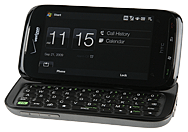
imageI’ve been struggling for the past 2 days trying to get my HTC Touch Pro 2 to install as a tethered USB modem on my Windows 7 Ultimate x64 installation – the last item on my migration path from the 32-bit world to the 64-bit world of Windows.

I’m used to Samsung devices admittedly.  With Samsung Windows Phones, like clockwork, all you’d need to do is set the phone to “tether” mode on the phone and plug it into the serial port of your computer on any current Windows OS and walla – the driver would either install miraculously or it would be downloaded over the Internet from Windows Update.  No muss, no fuss.  100% functional every single time.

HTC… not so much.

THE UNEXPECTED EXPERIENCE – HTC AUTO INSTALL = NOT?
I followed the following procedure above for my HTC Touch Pro 2 from Verizon and all I go was “Could not install driver" after Windows clearly went to Windows Update to check for a current driver.

Now I know that the driver for this phone as a tethered modem is a very basic driver but for some reason there’s nothing registered for it’s hardware identifier within the Windows 7 x64 OS or online in Windows Update.  (This usually means – ahem – that the OEM manufacturer didn’t bother to register the driver with Microsoft, something Samsung has done repeatedly for previous operating systems)

So I searched… GOD, did I search… high and low for a driver to download and install.  I tried unzipping them and pointing “Device Manager” to the unpacked drivers and it would never recognize any of them.

It got to the point where I was able to actually configure the phone to be a BLUETOOTH WIRELESS MODEM (which did autoinstall correctly using Windows Update by the way) but still couldn’t get Windows Update to pick up the HTC TP2 as a wireless tethered modem despite it being USB connected.
image THE TURNING POINT:  THE VZACCESS DISC
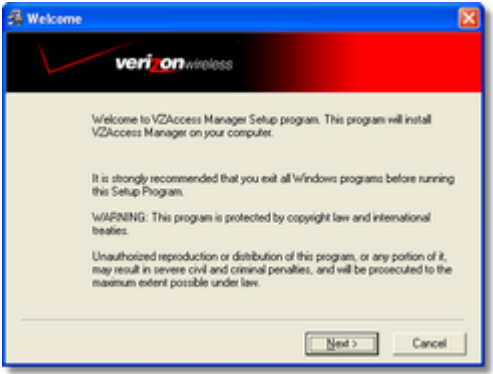
I’d installed the VZAccess Manager Software to see if the drivers would install and the phone would be recognized as a device.  After all – the thing is supposed to be an end to end installer right?  No joy.  I installed the VZA Manager software and even it wasn’t able to finagle the OS to recognize the phone.

I was beginning to hate life when I realized:  HEY.  Maybe the drivers were on the disc?  I searched the disc and found nothing.  Then I thought… HEY.  Maybe the drivers got installed by some miracle on my machine during the VZA install but the installer didn’t install them correctly?  Grasping at straws?  YES.  But desperate times…

HOLY CRAP.  I do a search of my machine and lo and behold, I find this directory:

C:Program Files (x86)HTCWModem_InstallerVista64

There’s a bunch of .SYS files and .INF files in there.  Lookin’ good!  I open START-CONTROL PANEL-DEVICE MANAGER and right mouse button click on the “Generic Serial” devices listed under OTHER DEVICES, and click “Update driver software”.  I point to “C:Program Files (x86)HTCWModem_InstallerVista64” annnnnnd….
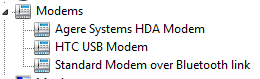
imageBOING!  “HTC USB Modem” appears!  Hallelujah!  I do the same for the “other” Generic Serial entry in OTHER DEVICES (there were two) and “HTC Diagnostic Interface (COM8)” appears!

SETTING UP THE DIAL UP NETWORKING CONFIGURATION
The rest is downhill.  I go to START-CONTROL PANEL-NETWORK AND SHARING CENTER and I click the link for “Set up a new connection or network”.  I click “Set up a Dial Up Connection” on the next screen, then select my newly created “HTC USB Modem” and click ‘Next’.

I fill in the following information:
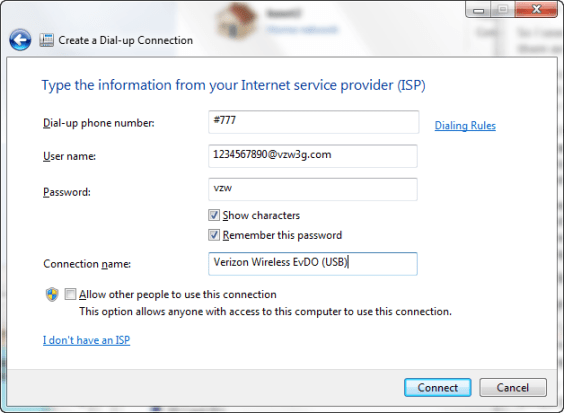
imageThe User name is simply your phone number with “@vzw3g.com” appended to it.  And that’s it!  The software should autotest things and you should be good to go!

BUT WHY NOT JUST STICK WITH BLUETOOTH IF THAT ALREADY WORKED?
I stuck to trying to figure this out over USB instead of staying happy with just Bluetooth tethering which did in fact work because of one reason:  SPEED.  I was recording about 990kbps download speeds over Verizon’s network while using the Bluetooth configuration and knew that the HTC Touch Pro 2 was capable of EvDO Rev A speeds that were much higher.

imageThe moment I tethered the phone and tested my new HTC USB Modem driver enabled configuration, I saw a massive difference in overall bandwidth.  I got as high as 1892kbps… a speed that starts to rival my home DSL line.

BUT I DON’T HAVE THE VZACCESS MANAGER!
Yeah, you’re supposed to download it from this link.  You will need a current subscription to Verizon Wireless’ services to get in.

Now that being said, I’ve zipped up the stupid directory of drivers for my phone and have posted it to my web site to make it easy for people to install.

Anyway, I hope this saves at least ONE person out there the trouble that I had to go through to figure this out.

Posted by: kurtsh | November 7, 2009

DOWNLOAD: Sharepoint 2007 & 2010 Posters available online

There’s a massive number of posters that’s been made available to Sharepoint architects, administrators, and managers to print and hang in their offices or war rooms.  I wasn’t even aware of half of these but they certainly help articulate processes and systems within Sharepoint which in it of itself is very complex.

DOWNLOAD: 

Here’s a sampling of the Sharepoint 2010 posters available on the site.

image imageimageimageimage imageimageimage

image image

imageimage imageimage

image Apparently, we’re releasing a service called “Word Automation Services” specifically for Sharepoint 2010 that is specifically designed to address one major area of server-side usage of Word:  Document format conversion.

The Word Automation Services is a new shared service in SharePoint Server 2010. The Word Automation Services provides unattended, server-side conversion of documents into formats that are supported by the Microsoft Word client application.

In simplest terms, the Word Automation Services takes the "Save As…" functionality of the Word client application and replicates it for the server. Specifically, the Word Automation Services provides the following capabilities:

  • Opens documents that Word can open, including:

    • Open File Format documents (.docx, .docm, .dotx, .dotm).

    • Word 97-2003 documents (.doc, .dot).

    • Rich Text Format files (.rtf).

    • Single File Web Pages (.mht, .mhtml).

    • Word 2003 XML Documents (.xml).

    • Word XML Document (.xml).

  • Supports all automatic tasks that execute when a document opens, such as:

    • Updating the Table of Contents, the Table of Authorities, and index fields.

    • Recalculating all field types.

    • XML mapping.

    • Merging of "alternate format chunks".

    • Setting the compatibility mode to the latest version or to previous versions of Word.

  • Saves documents types that Word can save. This list is identical to the previous list of files that the Word Automation Services can open, but also includes the following types:

    • Portable Document Format (PDF) files.

    • XML Paper Specification (XPS) files.

With the Word Automation Services, many of the tasks that previously required you to run the Word client application can now be automated to run unattended in a more reliable and scalable way than in previous solutions.


THE WORD BLOG ANNOUNCEMENT
This is what the Word blog has to say on the topic:

Have you ever wanted to convert .docx files into PDF? We’ve heard from many customers trying to perform server side conversions of Open XML files (.docx) into fixed formats (PDF and XPS) using the Word desktop application, and that’s what motivated us to create Word Automation Services.

As a component of SharePoint 2010, Word Automation Services allows you to perform file operations on the server that previously required automating desktop Word:

  • Converting between document formats (e.g. DOC to DOCX)
  • Converting to fixed formats (e.g. PDF or XPS)
  • Updating fields
  • Importing "alternate format chunks"
  • Etc.

If you’ve done any automation of Word, you’re probably familiar with the challenges of doing so – challenges well documented by this Knowledge Base article: http://support.microsoft.com/kb/257757. With Word Automation Services, those challenges are a thing of the past:

  • Reliability – The service was built from the ground up to work in a server environment, which means that you no longer have to worry about issues like dialog boxes that bring the process to a halt, expecting a user to provide input; creating interactive user accounts under which to run the application to avoid running into permissions issues, etc.
  • Speed – The service is optimized to perform server-side file operations, and in doing so provides performance significantly better than existing solutions.
  • Scalability – The service can take advantage of the processing power available on typical server hardware (multiple processors, additional memory). For example, although a single instance of WINWORD.EXE can only utilize a single core of processing power, with Word Automation Services, you can specify the number of simultaneous conversions (and the # of processing cores) to use based on the available hardware.

And you still have a solution that has 100% fidelity with respect to the Word desktop application – documents are paginated the same way on the server as they are on the client, ensuring that what you see on the client is what you get from the server.

Word Automation Services and the Open XML SDK: Better Together

One of the most important things to understand about the service is what it doesn’t do: this service is not intended to be a 1:1 replacement for the existing desktop object model.

Instead, the server is one half of a replacement for the existing object model – the other half being the Open XML SDK.

  • The SDK is designed to handle tasks that don’t require application logic, such as inserting or deleting content (paragraphs, tables, pictures), inserting data from other data sources, sanitizing content (removing content, accepting tracked changes), etc.
  • The service is designed to handle those few tasks that do need application logic: reading all of the document formats that Word supports, converting to all of the output format that Word supports, recalculating dynamic fields, etc.

The two halves together enable the creation of rich, end-to-end solutions that never require automation of the client applications, yet sacrifice none of its capabilities – another topic we’ll discuss in more detail in the future.

« Newer Posts - Older Posts »

Categories