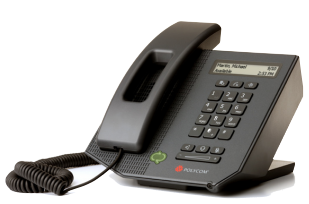
imageThis is the current object of my techno-lust.  It’s the CX300.  Why?  Why would I go ga-ga over a stupid desk phone?  Well clearly you’ve never used one in tandem with a Microsoft Unified Communications infrastructure.

  • FANTASTIC audio quality. 
    The speakers on this phone are good enough to play high def music through.  It’s head-over-heels better than our Nortel phones or my $200 speakerphone at home.  And since the connection is VOIP/Digital, I get CD-quality audio if I’m talking to another UC-enabled user who’s using Office Communicator.  The audio is as if the person was standing right next to me.
  • DIAL PAD.  Nuff said.
    Finally!  I own a CX200 – Polycom’s predecessor to the CX300.  It’s excellent in every way – except there’s no dial pad.  I have to dial the phone using Office Communicator and my mouse/keyboard.  BUZZZZ.  With the CX300, I can initiate a call from Office Communicator then if I need to enter in digits after the calls been made (PIN info, concall details, etc.) I can do so directly on the phone – which is what is intuitive to me as a user of phones for 35 years.
  • PLUG-AND-PLAY.  Done.
    I plugged this thing in, and it worked.  It did this on Windows Vista and it did this on Windows 7 – both 32-bit and 64-bit versions.  No driver install, no configuration, no nothing.  Brilliant.
  • I CAN WALK AROUND.  Untethered.
    I can’t stress how important it is to be able to use the phone ONLY WHEN I WANT TO.  I don’t have a headset off my ear, I just have to reach over and pick up the phone when I want to make a call or answer a call.  And I get my all-too-familiar dial tone when I pick it up.  Glorious. 

This phone is basically about $130 and it has nothing but a USB 2.0-cable off of it.  It plugs into your desktop/laptop and immediately becomes the conduit by which one can make & receive calls using Office Communicator as the “intelligence” behind it. 

The following is a review that was posted to the Office Communicator Team blog.  I don’t particularly care for the formatting of their blog so I’m reposting their entire review here.

Device Highlight: Polycom® CX300

While most of the time we focus on Office Communicator from a Software perspective, it’s easy to forget that really good phone experiences come from pairing Office Communicator with great devices!

For this post we’re going to take a look at a device that the Office Communicator team worked hard on to get just right, the Polycom CX300.

This device is my preferred device at work, as it has some really great acoustics from both the headset and the speakerphone.  It provides me with that much needed hardware interaction that I’ve grown up with that I just can’t seem to get with a headset.

While I use this device day to day, I’m finding some neat tips & tricks that I wanted to share with you.  For those of you who have this devices already, these tips will improve your experience.  For those of you who don’t, these tips will provide an overview of the great user experience.

  • Quick Calling
    This device behaves just like a regular phone, so pick up the handset and dial a number.  It just works!  Also if you wish to verify your number before placing your call, just dial the phone number you want to call, review it in the display, and pick up the handset (or press the speaker button). Your call will start.
  • Interaction with Office Communicator
    As this device was designed to work with Office Communicator, it has some really nice features to keep you connected.   The first and most prominent of which is the big presence light on the front of the device.  This light is your presence so you can at a glance know what your presence is.

    Even further as this device is your primary device for Office Communicator, when you click the toast on your desktop the call is picked up on the speaker phone of the device.  You could pick-up the handset to answer the call if you wanted too as well.

  • Voicemail
    One thing that I find really convenient about this device is the interaction with voicemail.  The device has a voicemail indicator right on the 1 key that lights up when you have voicemail.  Then when you want to call your voicemail you can just press and hold the 1 key to call!
  • Rejecting a Call
    Everyone gets those calls that you just can’t answer right now, whether you’re in a meeting or trying to concentrate on finishing up a last minute presentation.   When you need to reject a call fast, just hit the backspace key.
  • Multiple Calls
    You’re on a call with someone and someone else calls you. What do you do?  You can accept the call from your desktop by clicking on the “toast”, or just press the Hold key on the device to switch to the new call!  This button will put your current call on hold, and automatically accept the incoming call for you.
  • Advanced Device Settings
    One of the features that not many people know about is that the device has settings that you can modify.  Although most people will never have to change a setting, you may want to configure your own personal preferences.

To get to the settings, unplug your device from your desktop and plug it back in again.   When the device lights up, press the 5 key to enter the settings.  From there follow the onscreen directions.

Settings you can change:

  • Rate at which volume is increased or decreased using the volume buttons on the device
  • Whether you wish to remember the previous volume level of your last call, or to reset to the default volume level.
  • Size of the text on the display

For more information:

Hi everyone, we wanted to get you a quick link to a new whitepaper written by our friend and MVP Ment van der Plas.  During our recent trip to Amsterdam the team had a chance to sit down with Ment and talk about Virtualization, and in particular his experience in the area of Application Virt

Ment has imagespent some serious time and effort writing this paper, and he just let us know it is now final and released.  So, we wanted to get you a link in case anyone would be interested.  A few people in Redmond helped review his paper, but it is largely based on real world, customer experiences, and expert advice developed over the past dew years talking with customers.

Here is an excerpt from the Introduction:

‘……Taking all Microsoft Application Virtualization delivery models into consideration it’s very the dependent of the needs of the organization which delivery technology fits best. This whitepaper addresses some detailed functionality differences between the three main scenarios; the App-V Full Infrastructure, System Center Configuration Manager 2007 R2 Integrated and Standalone. As a result the provided comparison matrix in this document can support in making the right decision.
If any delivery model stands out on general common criteria it would be Configuration Manager 2007. Configuration Manager is a broad management platform and a de facto standard amongst electronic software distribution systems…….’

The entire Whitepaper can be downloaded here.
Here is a blog post from Jeroen van de Kamp reviewing the paper
Here is the link to Log*in Consultants Netherlands BV, where Ment is based.
This link will take you to Ment’s blog, with some great content on it.

[taken from SC team blog]

image We released System Center Service Manager 2010 Release Candidate on schedule today! It is now available for our TAP and RDP customers (only) across the world and can be downloaded from http://connect.microsoft.com starting now. 

This is the final milestone before RTM!  Please download the build if you are in TAP or RDP and let us know what you think.  Some of the improvements listed below (in bold) were added to the scope of the project in this milestone directly as a result of customer feedback.  Please keep the feedback coming!

Enhancements delivered since Beta 2 include:

  • Upgrade and migration support for TAP customers
  • Improved Performance, Scale and Stability
  • Improved Notifications with batching email
  • New Change Management Features
    • Reviewer Notification
    • Line Manager Approval
  • New and Updated Reports
  • Improved Self Service Software Provisioning
  • Improved View Editing
  • UX Improvements throughout the product
  • Data Warehouse improvements
  • Authoring Tool Improvements
    • Extending and adding classes and relationships
    • Support for controls in form customization
    • Added workflow activities in activity library
  • Localizability and Globalization bug fixes
  • Supportability bug fixes
  • Support for Disaster Recovery
  • New versions of product documentation

A few important notes:

  • An updated version of the Authoring Console will be released to TAP and RDP in about a week.
  • Upgrade is supported only from Beta 2 Update + QFE to RC for TAP customers in production.  While there is no technical limitations here, only those customers are supported.
  • RC to RTM upgrade will also only be supported for TAP customers in production.
  • This milestone is an EN-US language only milestone.  Announcements about the availability of other languages will be announced soon.

Thank you to our customers and partners for the feedback on Connect, in the forums, and on the blog!
(Individuals interested in participating in the SCSM Rapid Deployment Program should send an email to scsmbeta [at] live [dot] com)

[taken from the SCSM blog]

image Check out the Operations Manager 2007 R2 Sizing Helper.

The Operations Manager 2007 R2 Sizing Helper is an interactive Excel document designed to assist you with planning & sizing deployments of Operations Manager 2007 R2. It helps you plan the correct amount of infrastructure needed for a new OpsMgr R2 deployment, removing the uncertainties in making IT hardware purchases and optimizes cost. A typical recommendation will include the recommended hardware specification for each server role, topology diagram and storage requirement.

The Operations Manager Sizing Helper is most useful when used with the Operations Manager 2007 R2 Design Guide (http://go.microsoft.com/fwlink/?LinkId=184377).

image

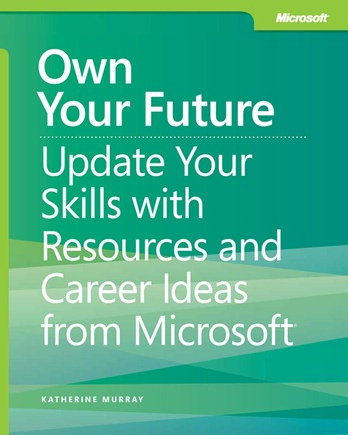
We’re thrilled to offer another free ebook: Own Your Future: Update Your Skills with Resources and Career Ideas from Microsoft, by Katherine Murray. The ebook contains eight chapters and an appendix describing how you can assess and build your technology-based job skills.

To give you a sense of the ebook’s content, here is its Foreword, by Microsoft Learning’s Lutz Ziob:

Foreword

In the midst of a struggling economy, our fast-changing, knowledge-based economy has created unprecedented challenges for employers and workers alike. Employers increasingly need workers with a broad range of information technology (IT) skills. These skills will become even more important as we continue to retool major sectors of our economy, such as healthcare, transportation and energy. By 2014, more than three-quarters of all jobs in the United States will require some level of computing or technology skills, and the vast majority of newly created jobs will require post-secondary education or training.

To meet this demand, students need a solid foundation in science, technology, engineering, math, and design, as well as in related disciplines such as computer science. And this means that workforce training systems need to be improved and expanded to meet the needs of all workers—the underemployed, the unemployed, and students who need better access to the requisite skills. Everyone entering or already in the workforce should have access to the resources they need to become lifelong learners who can adapt to an ever-changing workplace.

Technology is only one piece of the puzzle, but it has a pivotal role to play in these efforts. It can offer students, workers, and employers the training tools they need, and it can help to quickly and efficiently expand access to educational resources. IT also helps people develop other essential 21st-century skills such as collaboration and teamwork, finding and interpreting information,
and using data to aid in decision making.

In this book, students will find a wealth of Microsoft resources they can use to identify the technology skills they need, and gather knowledge and experience to help them take charge of their careers. Here at Microsoft, we care about students’ career success and hope these resources will open doors to learning that will lead them to better opportunities and a deeper understanding of the way technology continues to change and improve the ways people work—both here in the U.S. and around the world.

Lutz Ziob
Microsoft Learning General Manager

(taken from the MSPress blog)

image

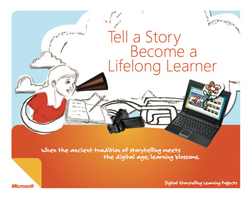
If you’re a teacher, you may be interested in this new 25-page eBook we released designed to help you teach students about story telling using digital tools such as Windows Movie Maker & Microsoft Photostory 3.

Created in collaboration with Mary Lane Potter, a teacher, writer and editor in Seattle, Washington, this educational tool can help students better express themselves and in the process of doing so, become better learners as well.

The ancient tradition of storytelling meets the digital age.  When students create a movie or interactive slideshow to tell their story, learning becomes personal.  With digital storytelling, students can:

  • Improve their writing.
  • Show creativity.
  • Have a voice.

Digital storytelling projects lend themselves well to portfolio assessment.

Create movies and slide shows from photos and videos—right in your classroom. You can use either Windows Live Movie Maker or Photo Story.

(This is one of many free tools available to teachers from the “Free Tools for Teachers” guide, a eBook available from Microsoft:
DOWNLOAD: 
http://www.microsoft.com/education/teachers/guides/freetools.aspx)

Sign up for our Hands-on Lab Online (HOLO) event “Asset Management with System Center Configuration Manager 2007” today.
What is a “Hands-on-lab Online” event? It’s an online event where you listen to a live presentation and work on lab exercises. As you work on your labs, Microsoft experts can assist and provide guidance by chatting with you one-on-one or by virtually taking control of your lab.
Sign up soon as registration and seating is limited.

————

Hands-on-lab Online:  Asset Management with System Center Configuration Manager 2007

image Microsoft System Center Configuration Manager 2007 gives organizations better control over their IT infrastructure and assets through asset intelligence technologies that provide IT administrators visibility into what hardware and software assets they have, who is using them, and where they are. Asset Intelligence translates inventory data into information, providing rich reports that help IT administrators optimize software and hardware usage.

  • Generating Asset Intelligence Data with Configuration Manager 2007:
    Configuration Manager includes an Asset Intelligence feature that helps administrators identify applications deployed in the environment, as both physical and virtual applications. In this hands-on lab, you will see how easy it is to enable Asset Intelligence data collection and how simple it is to report application deployments. You will also see how to install an Asset Intelligence Synchronization Point, how to customize the application database, and how to identify clients that will not be able to install a specific application.

Join us to learn more!

Prerequisites for running the lab:
BEFORE THE EVENT – Check to make sure the virtual lab works on your computer here: http://test.vlabcenter.com/default.aspx

  • Install the ActiveX control. The Microsoft "Virtual Machine Remote Control" ActiveX control is required to start the virtual lab. Please have it installed prior to attending the event.
  • Review system requirements. These system settings are required to run the labs successfully.
  • If you have any issues, please contact support.

Audience:
IT Generalist

Date:
Tuesday, June 08, 2010 12:00 PM Pacific Time

Registration:
Please contact me if you are a customer of mine, for registration information as the attendance for this online training is limited due to server capacities.

Sign up for our Hands-on Lab Online (HOLO) event “Software Distribution with System Center Configuration Manager 2007” today.
What is a “Hands-on-lab Online” event? It’s an online event where you listen to a live presentation and work on lab exercises. As you work on your labs, Microsoft experts can assist and provide guidance by chatting with you one-on-one or by virtually taking control of your lab.
Sign up soon as registration and seating is limited.

————

Hands-on-lab Online:  Software Distribution with System Center Configuration Manager 2007

image Ready to deploy Windows 7? Looking to streamline software deployment? Learn how to create and deploy a Windows 7 image using Microsoft System Center Configuration Manager (SCCM) 2007. Learn how to streamline the distribution of software to remote or branch locations using SCCM branch distribution capabilities.

  • Deploying Windows 7 with Configuration Manager 2007: 
    Your company is ready to roll out the newest Microsoft client operating system, Windows 7. What is the best way to deploy Windows 7 in a corporate environment? In this hands-on lab, you will see how to use the operating system deployment capabilities of SCCM 2007 to create an image of a Windows 7 reference system and then deploy that image to upgrade a Windows Vista or Windows XP client.
  • Implementing Branch Distribution Points in Configuration Manager 2007:
    Do you have locations with a very small number of computers that you need to distribute software and updates to, but you do not want to install secondary sites or remote distribution points? In this hands-on lab, you will experience the new SCCM feature called branch distribution points. You’ll configure a client computer to be the distribution point for a set of clients to streamline software distribution.

Prerequisites for running the lab:
BEFORE THE EVENT – Check to make sure the virtual lab works on your computer here:
http://test.vlabcenter.com/default.aspx

  • Install the ActiveX control. The Microsoft "Virtual Machine Remote Control" ActiveX control is required to start the virtual lab. Please have it installed prior to attending the event.
  • Review system requirements. These system settings are required to run the labs successfully.
  • If you have any issues, please contact support.

Audience:
IT Generalist

Date:
Tuesday, May 04, 2010 12:00 PM Pacific Time

Registration:
Please contact me if you are a customer of mine, for registration information as the attendance for this online training is limited due to server capacities.

image Sign up for our Hands-on Lab Online (HOLO) event “How to Deploy Windows 7 in Your Enterprise” today.
What is a “Hands-on-lab Online” event? It’s an online event where you listen to a live presentation and work on lab exercises. As you work on your labs, Microsoft experts can assist and provide guidance by chatting with you one-on-one or by virtually taking control of your lab.
Sign up soon as registration and seating is limited.

Learn about Microsoft Deployment Toolkit (MDT), the recommended process and toolset to automate desktop and server deployment and the Windows Automated Installation Kit (AIK), which is designed to help IT professionals deploy the Windows 7 operating system.

  • Introduction to Deploying Windows 7 Using the Windows Automated Installation Kit:

Windows Automated Installation Kit (AIK) is a collection of tools and documentation that you can use to create system images and automate the deployment of the Windows operating system.

  • Getting Started with Microsoft Deployment Toolkit 2010:
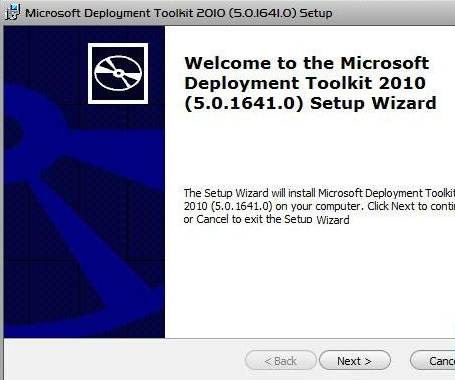
    Microsoft Deployment Toolkit (MDT) 2010, the recommended process and toolset to automate desktop and server deployment, provides a common console with the comprehensive tools and guidance needed to efficiently manage deployment of Windows 7.
  • Zero-Touch Installation Using Microsoft Deployment Toolkit 2010 and System Center Configuration Manager:
    The Zero-Touch Installation process requires no interaction during deployment and is fully automated through System Center Configuration Manager 2007 R2. We recommend this strategy if your IT organization has experts in deployment, networking, and Configuration Manager 2007 R2 products, and it has a managed network with 500 or more client computers.
  • Join us to learn more!
    (For more information on the Microsoft Deployment Toolkit 2010, visit http://technet.microsoft.com/en-us/solutionaccelerators/dd407791.aspx)

    Prerequisites for running the lab:
    BEFORE THE EVENT – Check to make sure the virtual lab works on your computer here: http://test.vlabcenter.com/default.aspx

    • Install the ActiveX control. The Microsoft "Virtual Machine Remote Control" ActiveX control is required to start the virtual lab. Please have it installed prior to attending the event.
    • Review system requirements. These system settings are required to run the labs successfully.
    • If you have any issues, please contact support.

    Audience:
    IT Generalist

    Date:
    Tuesday, May 18, 2010 12:00 PM Pacific Time

    Registration:
    Please contact me if you are a customer of mine, for registration information as the attendance for this online training is limited due to server capacities.

    image Heat up your skills with the all-new FireStarter event series. Each day tackles a single Microsoft technology, including free sessions presented live by Microsoft developer and IT pro evangelists and technology specialists – with special appearances from Microsoft luminaries.

    Cloudy with a chance of Awesomeness!
    The cloud is everywhere and here at Microsoft, we’re flying high with our cloud computing release, Windows Azure. As most of you saw at the Professional Developers Conference, the reaction to Windows Azure has been nothing short of “wow” – and based on your feedback, we’ve organized this Windows Azure Firestarter event to help you take full advantage of the cloud.

    This daylong event will focus on helping developers get ‘cloud ready.’ We’ll start by revealing Microsoft’s strategic vision for the cloud, and then offer an end-to-end view of the Windows Azure platform from a developer’s perspective. We’ll also talk about migrating your data and existing applications (regardless of platform) onto the cloud. We’ll finish up with an open panel and lots of time to ask questions.

    Agenda:


    Session

    Speaker

    Notes

    8:45 – 9:00

    Event Kick off

    Mithun Dhar


    9:00 – 9:30

    Windows Azure Vision


    Opening Keynote

    9:30 – 10:30

    Platform Overview for Developers

    Steve Marx

    Technical Strategist Steve Marx will walk you through the key technologies of the Windows Azure platform. From Blob Storage to “Dallas” – Steve will give you the complete run down of everything Azure!

    10:30 – 10:45

    Break


    10:45 – 12:00


    Data in the cloud


    Cloud gives you more than just access to a database. There are new data stores such as blob storage. New concepts to understand such as data partitioning and scale out. This session will discuss everything from table storage to SQL Azure, what you can do with them and why would you use them.

    12:00 – 1:00


    Lunch

    Cloud Cover Live


    1:00 – 2:30

    Building Applications for the cloud

    David Aiken

    How do you build for scale out, handle failures & capacity planning? How do you build applications that use .Net, PHP or Java for Azure?  This session walks you through how to build a new application that designed for the cloud regardless of the platform.

    2:30 – 2:45

    Break


    2:45 – 4:15

    Migrating Applications to the cloud

    Mark Kottke

    Many customers today are moving applications and services into the cloud. This session walks you through how you can successfully migrate existing applications to Windows Azure. What are the tips, tricks, gotchas and best practices?

    4:15 – 5:00


    Panel and Close


    Open discussion to both speakers and lead engineers from the product teams.


    Audience:
    Professional Developer/Programmer

    Date/Time:
    Tuesday, April 06, 2010 8:30 AM Pacific Time

    Registration:
    http://msevents.microsoft.com/CUI/EventDetail.aspx?EventID=1032441229&Culture=en-US

    « Newer Posts - Older Posts »

    Categories