This guy Jeff Loucks wrote a blog post that I really think deserves some recognition… because, cripes, if I couldn’t figure out how to do this.  And I work for the damned company.  [insert cranial smoke here]

[taken from Jeff’s post]
Have you ever wondered how to change the default address book in Outlook when you are using Exchange. If you have ever sent an email and tried to find your contacts using the To: button you know that by default the Exchange Global Address Book is the first source of contacts. What a pain.

I always find it difficult to locate where to change the default so I thought I would post it in case you are looking. I know I will come back to this post because even after having found it, I still can’t remember how to do it. It is just one of those things that has never been intuitive.

Additionally:

  • Have you ever found that Outlook 2010’s “Suggested Contacts” got referenced before your actual Contacts list?  “Suggested Contacts” as you likely know, often has basically empty contact entries in it.
  • Have you ever discovered that your “Contacts” list was for some reason not being referenced when resolving names?

SOLUTION:
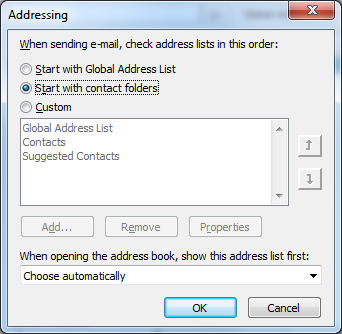
The secret lies in this dialog box:

image

The question is:  How the heck do you get there?

Check out Jeff’s post for the answer to that question:

Posted by: kurtsh | July 5, 2011

INFO: Using WiDi on the Samsung Series 9

I wanted to use WiDi on my Samsung Series 9.  WiDi is an Intel specific technology that enables one to wirelessly transmit both the video & audio of their display to a HD television at 1080p.  The TV needs to be either equipped with a WiDi receiver built in or it needs to have a WiDi receiver attached to it.

Here’s the instructions for using the Intel WiDi functionality.
http://www.intel.com/support/wireless/wtech/iwd/sb/CS-031109.htm

imageNEEDS A NEW WIFI+BT+WIDI ADAPTER
This is the weird part about the Samsung Series 9:  They list WiDi as a feature however the wireless network adapter I got in my unit was a Broadcom BCM943225HMB Wifi N Bluetooth mini PCI-e Card.  This does not work with WiDi even though the rest of the hardware does.

To use WiDi, it’s not enough to just have an Intel processor/chipset with WiDi support on it.  You have to also have an Intel Wireless Adapter with WiDi support. WiDi in our case, requires an Intel Centrino Advanced-N 6230 (~$30) or similar Intel Wireless Networking adapter with WiDi support.  I believe that most people would specifically need to get the 6230 model because it’s the PCI-E mini card from Intel that supports WiDi and both Wireless 802.11b/g/n AND Bluetooth.  The 6200 and prior models lack Bluetooth, which I assume is a requirement for people that want to use Bluetooth UC headsets, mice, tethering, etc.

Like I said, my Samsung Series 9 shipped with a Broadcom 802.11b/g/n WLAN+BT PCI-E Mini Card so to get this to work, I would need to open the case and swap out the socketed Broadcom PCI-E mini card with the newly acquired Intel 6230. 

And while I was in there, I might also add 4GB more of RAM into the extra DIMM slot.

clip_image002

The Samsung Series 9 has a large, revolutionary new multitouch ClickPad that supports gestures, multi-touch actions, etc.  However it’s configuration for many people needs to be adjusted.

These are the changes I made to improve the ClickPad experience for myself.

————-

Q: Have you ever had to drag-and-drop a file, email or a folder using the ClickPad & found the cursor to be incredibly imprecise?

The following instructions will stabilize your control over the mouse using the ClickPad.

  1. Click Start-Control Panel-Mouse
  2. Click “Device Settings” tab
  3. Click the “Settings” button
  4. Click “SmartSense” & click the ‘gears’ icon
  5. Slide “SmartSense” all the way to the right
  6. Slide “Filter Activation Time” all the way to the left
  7. [OPTIONAL] Check “Restrict Tapping to zone”
    [OPTIONAL] Shrink the zone in the Advanced Filters window to something smaller
    (Note these optional settings don’t matter if you disable tapping/follow the instructions below for PROBLEM #2)

EXPLANATION:
Because there’s no discrete left-click button, the pad will often recognize a “left click” (a click of the bottom left part of the ClickPad) as mouse movement on the screen.  It’s difficult to get any kind of precision when both your thumb clicks and the fingers are detected as “moving the mouse”.   I was once dragging and dropping a large folder within Outlook to another location and accidentally dropped it in the wrong location because the mouse had moved when I “clicked”.  Took me a while to figure out where it had gone.

WHY?
The issue is that Samsung Series 9’s ClickPad is configured by default to be a bit too sensitive for me.  Any light brush movement on my part would cause the cursor to wiggle, making it inaccurate for many purposes and it doesn’t detect accidental touches very well through it’s default configuration.  Turning up this functionality to max solves a lot of problems.

———————-

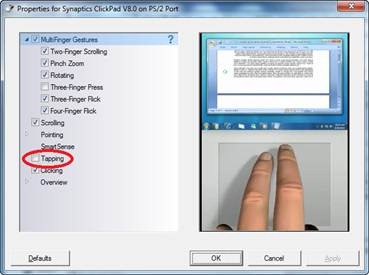
clip_image004Q: Have you ever been typing and seen the cursor just suddenly jump somewhere else?

The following instructions will disable the ‘tap to click’ functionality eliminating any possibility that an accidental touch will move the cursor elsewhere.  Very useful when you find that the cursor seems to randomly move to other locations in your emails or written documents based on accidentally touching the ClickPad.

  1. Click Start-Control Panel-Mouse
  2. Click “Device Settings” tab
  3. Click the “Settings” button
  4. Uncheck “Tapping” completely.
  5. Click OK
Posted by: kurtsh | July 2, 2011

NEWS: Microsoft & GPU Compute over HPC

‘Ever heard of “GPU Compute”?

Microsoft is doing a ton of work in this space.  GPU Compute where we leverage High Performance Computing (HPC) models to schedule jobs to a GPU and gains some pretty significant efficiencies.  

“In this co-processing model, the compute intensive portions of an application use the parallel computing capabilities of the GPU, while the sequential part of an application’s code runs on the CPU.”

This has huge ramifications for particular industries:

clip_image001

For more information:

You read that right.

clip_image002

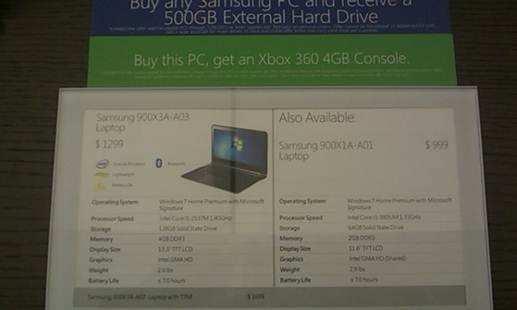
At the Microsoft Store launch at Century City here in Los Angeles, I discovered something.  The thinnest Windows laptop on the market – thinner than a MacBook Air – has been SERIOUSLY discounted at the Microsoft Store:

Samsung Series 9 -  900X31-A03

  • 128GB SSD
  • 4GB DDR3 RAM
  • 13.3” TFT LCD
  • …$1299  (The A03 specifically lacks a TPM chip)
    (Also $999 for the 64GB SSD/2GB RAM model) 

Additionally, the purchase in the store also nets you:

  • FREE Xbox 360 4GB Console
  • FREE Samsung 500GB External Hard Drive
  • FREE AMC movie tickets (2) to see Transformers: Dark of the Moon (Only at Century City store)

This appears to be an in-store-only price drop that they quietly applied and haven’t advertised.  Don’t know if it’s at other stores but for anyone looking to get another laptop for spouses or relatives, this is a spectacular price.  Compare this with the webstore price of $1449 or the $1600 price tag on Amazon.

Posted by: kurtsh | July 1, 2011

Goin’ on vacation… see you later in July

I’m going on vacation.  The final fiscal year quarter was brutal and almost hammered me. (April, May, June) and I’m going to go to Vegas.  Hopefully I’ll be able to get caught up with my posts then but right now, I gotta go win some cash and eat some disgustingly decadent food and recharge.

Here I come. Take cover Nevada.
Posted by: kurtsh | July 1, 2011

Congratulations Microsoft Store Century City!

It’s a beautiful day…
Smile

After months and months of training, preparation, & hard work, the Microsoft Store in Century City is now open!  Congratulations to Stephen, Patricia, Vanessa, Elizabeth, Stephanie, Jamie Grace, Andy, Amanda, John, Daniel, Julio, Dave, Dorian, Lamar, and anyone else from the team that I know and left out cuz I can’t keep all 47+ of you straight but you’re all awesome and I wish I could bottle up some of that energy y’all have because it’s 10x more potent than “5 hour”.

Posted by: kurtsh | June 28, 2011

INFO: Office Deployment Tools for the Enterprise

imageA coworker showed me this list.  (Thanks Mark)

This is a list of tools that companies can use to assist with the deployment of Office 2010 in their company.

It covers everything from deployment to on-going management to security to end user education.  (I have a separate post on end user training for Office 2010)

Tool

Function

Description

Microsoft Assessment and Planning Toolkit

System readiness assessment for Office 2010

MAP is an assessment and planning tool targeted at IT Professionals to help them begin the deployment process. The tool inventories your current environment and assesses the readiness of those computers for migration to the new technology, in this case Office 2010. MAP is an agentless tool, this means it can discover the computers in your network without installing any components on the target computers. MAP uses technologies already available in your IT environment to perform inventory and assessments.

Office Environment
Assessment Tool

OEAT assists in the discovery and Office 2010 compatibility of Office Add-ins and interfacing programs

OEAT scans client computers for add-ins and applications that interact with Office 97-2007 Office system, and Office 2010. The tool is designed to be used by IT Pros who are assessing application compatibility as part of their Office 2010 migration planning. The tool now incorporates functionality to compare the discovered add-ins and applications against the list of add-ins that are pledged to be compatible by ISVs who submit them to the Microsoft Independent Software Vendor (ISV) Application Compatibility Visibility Program.

Office Migration and
Planning Manager

Office file readiness assessment and migration tools

OMPM is a tool targeted at IT Pros assisting them to discover and assess compatibility of existing Office documents for migration from the binary document formats (Office 97-2003:.doc, .xls, etc.) to OpenXML formats (Office 2007 & newer:.docx, .xlsx, etc.). Additionally OMPM 2010 adds features to assess macro compatibility with Office 2010 and 64 bit Office compatibility. The toolkit also contains the Office File Converter (OFC) which enables bulk document conversions from binary to OpenXML formats.

Office Code Compatibility Inspector

OCCI provides guidance to a Office developer to remediate VBA code

OCCI is an add-in developers can use in Microsoft Excel 2010, Microsoft PowerPoint 2010, Microsoft Word 2010, and Microsoft Visual Studio 2008 to troubleshoot and resolve potential issues with Microsoft Visual Basic for Application (VBA) Macros and add-ins. The tool helps guide a developer in remediating issues in VBA code to expedite migration to Office 2010. The tool scans code in a project for known compatibility issues, and then notifies you if it finds items in the code from the object model that have changed in some way or have been removed.

Office Customization tool

OCT enables IT Pros to consistently customize the installation of Office

The OCT is part of the Setup program and is the recommended tool for most customizations. OCT allows IT Pros to maintain a standard set of customizations for deployment including:
Setup(install location, licensing, etc.), Features (control locally installed components), additional content(add/remove files and registry keys), and Outlook configuration. The OCT is available only with volume licensed versions of Office 2010 and the 2007 Office system. OCT is used to maintain Office deployment customizations – this only applies during initial deployment. Using the OCT to configure user settings establishes the initial default values for the settings. Users can modify most of the settings after Office is installed. If you want to enforce user settings, use Group Policy.

Config.xml
(Included in VL products)

Used to control install tasks for Office

Config.xml is used by IT Pros to further customize the Office installation. OCT is the primary customization tool, however config.xml can be used to further the customization and contains a few unique options. Config.xml is typically leveraged to install multiple languages and to setup a local install cache.

Microsoft Deployment
Toolkit

Common console to manage OS and application customization and deployments

MDT is the recommended process and toolset for automating Windows 7 and Office 2010 deployments. MDT 2010 Update 1 supports Office 2010 and readily exposes the Office customization options – including OCT and Config.xml. MDT can be used to combine Office installation with an OS deployment or build a task sequence to install applications only. MDT readily provides the infrastructure to reliably chain additional installation packages, such as interactive guides, add-ins, etc. MDT provides LTI deployment or it can be partnered with SCCM to facilitate ZTI.

User State Migration Tool

USMT scans a destination desktop and migrates user settings to new target image

USMT supports migrating user settings including user data and support application data. Office is one of the supported applications by USMT.

Compatibility Pack

Component is required by OMPM to perform file conversions

Open, edit, and save documents, workbooks, and presentations in the Open XML file formats, which were introduced to Microsoft Office Word, Excel, and PowerPoint beginning with Office 2007 and continuing with Office 2010. Existing installations of the compatibility pack were updated via update service

Office 2010
Deployment Kit for App-V

Deployment kit enables sequencing and deployment of Office 2010 with Microsoft App-V

The deployment kit is not a traditional tool but rather a kit of components to enable Office license activation and enablement of key virtual proxies to allow proper local system integration.

Office 2010 Security Guide

End-to-end solution to help you plan, deploy, and monitor the security configuration for Office 2010

OSG 2010 is delivered via the Security Compliance Manager tool. This enables customers to take advantage of the experience of Microsoft security professionals, and reduce the time and money required to harden the environment. This end-to-end Solution Accelerator will help you plan, deploy, operate, and manage your security baselines. Access the complete database of Microsoft recommended security settings, customize your baselines, and then choose from multiple formats—including Desired Configuration Management (DCM) packs, Security Content Automation Protocol (SCAP), XLS, or Group Policy objects (GPOs)—to export the baselines to your environment to automate the security baseline compliance verification process. Use Security Compliance Manager to achieve a secure, reliable, and centralized IT environment that will help you better balance your organization’s needs for security and functionality.

Group Policy Admin templates

Office templates provide IT Pros the ability to enforce configuration policies

Admin templates provide several thousand potential configuration options IT Pros can leverage to further customize Office even after installation and primarily enforce policies in the Office applications. Some settings are policy enforced while others are user preferences only.

Office 2010 KMS Host Activation Pack

Volume activation in Office 2010 now aligns with Windows activation using KMS or MAK activation methods

KMS activates the computers, or KMS clients, from a KMS host server that contains a KMS host key that is supplied by Microsoft. This method replaces direct activation through Microsoft, and gives the local administrator control of the process. KMS activation is generally suggested for customers planning to activate 50 or connected client computers.

Sharepoint Service Configuration

Several collaboration features for Office 2010 are controlled by configurations on the SharePoint server.

Office Web Apps
Powerpoint Broadcast
Co-Authoring Administration
Excel Services Administration
InfoPath Forms Administration
Access Service Administration

Interactive Guides

(Also “Learn where Menu & Commands are in Office 2010”)

Menu and toolbar guides

These interactive guides show you where your favorite menu and toolbar commands are located in Office 2010. Just click the command or button that you want to find and the guide will show you its location in the 2010 version of the program. The locally installable versions are available for local installation by IT Pros at or before Office 2010 deployment.

Posted by: kurtsh | June 28, 2011

BETA: Microsoft Security Compliance Manager version 2

imageMicrosoft Security Compliance Manager (SCM) 2 enables organizations to take better advantage of their existing knowledge and investments, and customize security and compliance settings with ease. Customers can harden their machines to industry standards, monitor for configuration drift and address the configuration requirements of hundreds of regulations like SOX, PCI and HIPAA. Learn more.

New SCM 2 features include:

  • GPO import: SCM 2 can now import Group Policy Object (GPO) Backup files to allow organizations to import and compare their existing knowledge against Microsoft baseline recommendations. This long-awaited feature effectively helps you to customize and manage your organization’s existing knowledge stored in Active Directory.
  • Baseline setting customization: Modifying baselines just got easier. Adding, extending, or deleting settings from a baseline is an effortless process in this new version of the tool.
  • Local GPO functionality: Apply security baselines directly to client and server computers using the LocalGPO command-line tool, which enables you to secure stand-alone computers and test different baselines without using Active Directory to deploy them. Use this tool to create local policy snapshots that you can import into SCM 2 using the new GPO import capabilities, which you can then compare, customize, and export as needed.
  • Additional features: These include a new and enhanced UI that provides simpler navigation in the tool, and improved installation with SQL Server 2005 and later releases of SQL Server.

Version 2 of the SCM tool will release with a full complement of Microsoft product baselines, including these new and/or updated baselines:

  • Windows Internet Explorer 9
  • Windows Server 2008 R2 Service Pack 1 (SP1)
  • Windows Server 2008 SP2
  • Windows Server 2003 SP2

In more detail
Microsoft Security Compliance Manager (SCM) 2 provides security and compliance configuration recommendations from Microsoft, centralized baseline management features, a baseline portfolio, customization capabilities, and security and compliance baseline export flexibility to accelerate your organization’s ability to efficiently manage the security and compliance process for the most widely used Microsoft products and technologies. The formerly stand-alone product-specific security guides are now included in the SCM tool.

Version 2 of the SCM tool releases with a full complement of Microsoft security and compliance baselines, including a new Windows Internet Explorer 9 Security Baseline, and updated baseline versions for Windows Server 2008 R2 SP1, Windows Server 2008 SP2, and Windows Server 2003 SP2.

These new beta baselines provide:

  • Setting severity ratings, allowing you to quickly sort, prioritize, and apply Microsoft security and compliance recommendations.
  • Consolidated product baselines that eliminate EC and SSLF baseline components, and make viewing, customizing, and implementing your security baselines easier than ever!
  • New compliance-based settings groups allow quicker and easier compliance reporting and audit preparation, when used with the  GRC management solution within System Center.

Additional product baselines are currently in development, including baselines for: Windows 7 SP1, Microsoft Exchange Server 2007, Exchange Server 2010, SQL Server 2008 and SQL Server 2008 R2 (multiple roles), Office 2010, Windows Vista SP2, Windows XP SP3, and Windows Internet Explorer 8.

Call to Action

  • Join the Security Compliance Manager Beta Review Program:  Join the beta, and influence the development of this latest version of the tool.
  • Tell us what you think! Test drive the beta release, and send us your constructive feedback. We value your input; this is the perfect opportunity to be heard.

The beta will be available for download on Microsoft Connect through early August.

Note: New and existing users can access the beta version of Microsoft Security Compliance Manager 2 through Microsoft Connect. For existing users, simply download the beta and use the installation wizard to walk you through the upgrade process, and automatically transfer your existing baselines and settings.

Tell your peers and customers about Security Solution Accelerators! Please forward this to anyone who wants to learn more about security and Microsoft Solution Accelerators.

Already using Security Solution Accelerators? We’d like to hear about your experiences. Please send comments and suggestions to  secwish@microsoft.com.

imageSomething I learned today about the “Home Use Program” that customers with Software Assurance have:

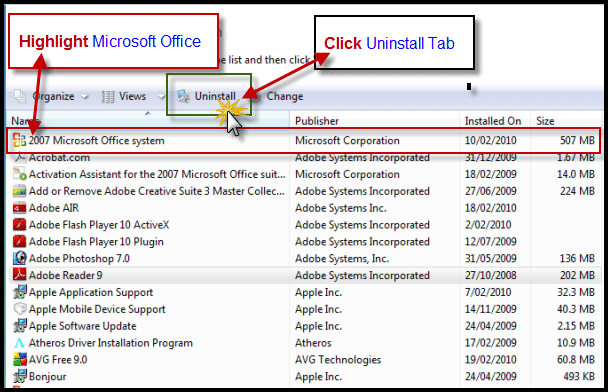
If a company decides to discontinue Software Assurance on their agreement, all HUP licenses will need to be uninstalled from end user home desktops as HUP is an SA benefit and it expires with the SA Benefits expiration.

This is from the Product List posted on www.microsoft.com/licensing.

Customers are not responsible for their individual employee’s compliance with the Home Use Program end user license terms.  Those terms are between Microsoft and the customer’s employee and do vary from the rights provided under the customers Volume Licenses (e.g. the employee may install only one copy of the HUP software). We do require that customers limit the Home Use Program access to employees and inform employees of when they should discontinue use of the Home Use Program software in conjunction with a lapse in Software Assurance coverage or employment termination.

« Newer Posts - Older Posts »

Categories