imageWith Forefront Protection for Exchange being discontinued, (Reminder: Existing implementations will continue to function & be supported) all eyes are on the upcoming replacement technology coming in 2013 called “Anti-Malware Protection for Exchange Server 2013”.


There are several anti-malware protection options in Exchange Server 2013 Preview:

  • Built-in anti-malware protection in Exchange Server 2013 Preview You can use the built-in Exchange on-premises anti-malware protection feature in order to help you combat malware. For more information, see Configure the Default Anti-Malware Policy.
  • Exchange Online Protection You can elect to purchase the Microsoft Exchange Online Protection (EOP) hosted email filtering service. EOP leverages partnerships with several best of breed anti-malware engines, thereby providing efficient, cost effective, multi-layered anti-malware protection.

    NOTE: The EOP standalone offering is not currently available, but will be in a future milestone. However, the EOP anti-malware protection features are included in the Exchange Online Preview offering. For more information, see Anti-Malware Protection.

  • File-level anti-malware scanning You can use file-level anti-malware programs in the Windows operating system on computers running Exchange servers in order to help further enhance the security and health of your Exchange organization. When doing so, there are important considerations for how to best implement file-level scanning with either EOP or the Exchange Server 2013 Preview built-in anti-malware features. For more information, see File-Level Anti-Malware Scanning on Exchange Servers.
  • Third-party anti-malware protection You can also use a third-party anti-malware protection program if you feel that best suits your anti-malware protection needs.

Read more here:

<taken from the SCVMM blog>

imageThe Microsoft Virtual Machine Converter (MVMC) Solution Accelerator is a Microsoft-supported, stand-alone solution for the IT pro or solution provider who wants to convert VMware-based virtual machines and disks to Hyper-V®-based virtual machines and disks.

MVMC provides the following features:

  • Converts and deploys virtual machines from VMware hosts to Hyper-V hosts including Hyper-V on Windows Server® 2012. As part of the machine conversion MVMC converts the virtual disks attached to the source virtual machine. It also migrates configuration such as memory, virtual processor and so on from the source virtual machine to the converted virtual machine deployed on Hyper-V. It adds virtual network interface cards (NICs) to the converted virtual machine on Hyper-V.
  • Converts VMware virtual disks to Hyper-V based virtual hard disks (VHDs).
  • Supports conversion of virtual machines from VMware vSphere 4.1 and 5.0 hosts to Hyper-V.
    • Note MVMC also supports conversion of virtual machines from VMware vSphere 4.0 if the host is managed by vCenter 4.1 or vCenter 5.0. You have to connect to vCenter 4.1 or 5.0 through MVMC to convert virtual machines on vSphere 4.0.
  • Offers fully scriptable command-line interfaces for performing virtual machine and disk conversions that integrates well with data center automation workflows and Windows PowerShell scripts.
  • Has a wizard-driven GUI, making it simple to perform virtual machine conversion.
  • Uninstalls VMware tools prior to conversion to provide a clean way to migrate VMware-based virtual machines to Hyper-V.
  • Supports Windows Server guest operating system conversion, including Windows Server 2008 R2, Windows Server 2008 and Windows Server 2003 SP2.
  • Enables conversion of Windows® client versions including Windows 7.
  • Installs integration services on the converted virtual machine if the guest operating system is Windows Server 2003 SP2.

For all the details and a download link please see the followin
http://www.microsoft.com/en-us/download/details.aspx?id=34591

image

<taken from the MSOpeness blog>

Since 2010, we’ve worked with Red Hat to support our mutual customers with enhanced interoperability in Windows environments. This continues with today’s beta release of Red Hat Enterprise Linux (RHEL) 5.9.

The RHEL 5.9 beta was engineered with Windows Server 2008 R2 and Windows Server 2012 Hyper-V interoperability in mind. The device drivers needed to run RHEL as a first-class guest on Hyper-V are built right in, making it easier for customers to manage their heterogeneous Red Hat Enterprise Linux-Windows environments for virtualization and private cloud. The Hyper-V drivers included in this release will soon be certified through the Red Hat Hardware Certification Program – further validation that customers can expect a reliable, enterprise-class virtualization experience.

We’ll continue to collaborate with an eye on what’s next for our mutual customers, including work that is underway to provide interoperability with future releases of RHEL and Red Hat Enterprise Virtualization (RHEV).

Check out Red Hat Enterprise Linux 5.9 Beta:
http://www.redhat.com/about/news/archive/2012/9/red-hat-announces-beta-availability-for-next-minor-release-red-hat-enterprise-linux-5

imageMicrosoft Research released a piece of software that I think is pretty cool called “Cliplets”.  It’s hard to explain other than to refer to the BING web page as an example.  It takes a still photo and makes one small part of it animated and live.  For example: 

You could have a STILL photo of a faucet with a stream of water coming from it…
…and have the water in the stream actually fall as if the photo were a video, while everything else in the photograph remains still.

Here’s an example of this exact animated photo:
http://research.microsoft.com/en-us/um/redmond/projects/cliplets/cliplets/fountain.gif

Released in June 7th of 2012, here’s a blurb from the site:

Microsoft Research Cliplets is an interactive app that gives users the power to create "Cliplets" — a type of imagery that sits between stills and video, including imagery such as video textures and "cinemagraphs". The app provides a simple, yet expressive way to mix static and dynamic elements from a video clip.

More information & the software download:

Posted by: kurtsh | October 1, 2012

Test

Test

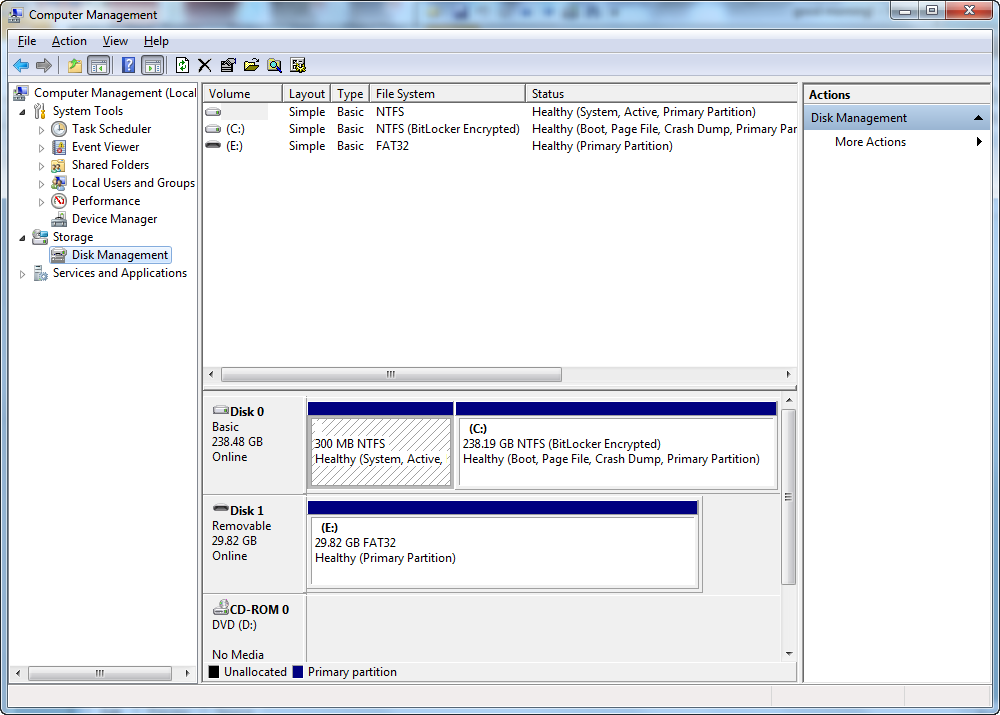
imageRecently I was asked how to extract individual files or folders from a Windows Backup Full Drive image done on Windows 7. 

The issue is that the backup files are stored in a .VHD file, the contents of which are unreadable directly from File Explorer. 

The answer is that you have to “Attach” the .VHD file as a ‘virtual drive’ to your system, then navigate that ‘virtual drive’ to find the files you need and copy them off the backup image, then “Detach” the .VHD file once you’re done.

Here’s some basic steps:
(Note:  You must have Administrator privileges to proceed – or provide yourself with FULL administrative privileges over the Backup/.VHD files in question)

  1. Click START button
  2. Right click computer, select “Manage”.
  3. Click Disk Management
  4. Right click Disk Management, select “Attach VHD”.
  5. In the File dialog, find the VHD file and attach it.  This will result in a new “DISK” appearing in the graphical display representing the disks connected to your computer.  This “new disk” isn’t really a new disk drive but rather the backup image of your computer.  (This is generally known as ‘mounting a drive’)
  6. You should be able to go to My Computer at this point and find a new drive available to navigate – this is the “backup” that the Windows Backup made.   Navigate the directory structure of the drive and copy the files out of the backup that you need to your local drive or to a USB flash drive.
  7. When done detach the VHD by going back into Disk Management.
  8. Select the Disk that represents the VHD you mounted, and right click on the word “DISK” on the left hand side.  Select “Detach VHD”.
Posted by: kurtsh | September 30, 2012

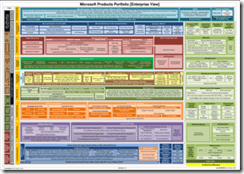
RELEASE: Microsoft Products Portfolio 2.8

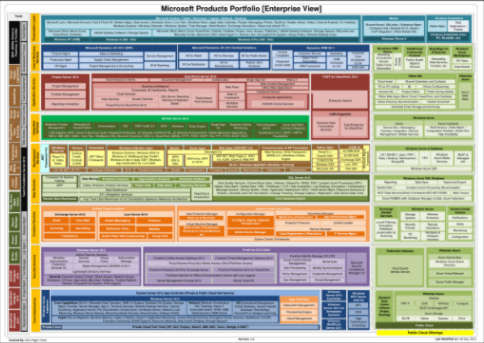
imageWe’ve just released v2.8 of two customer-ready documents known as our Product Portfolio One-pager.

The one-page shows all of Microsoft products in a single scalable view. I have them available in .PDF as well as a Visio document for managed customers of mine that are interested.

The documents are viewable from ZOOM.IT, leveraging Microsoft Deep Zoom technology.

The following products were added since 2.7:

  • PowerPoint Storyboarding
  • Microsoft Lync
  • Windows 8 Modern App and Windows Runtime | Windows SDK for Windows 8 | Multilingual App Toolkit | Windows 8 Ads in Apps SDK | Windows App Certification Kit | Live SDK
  • Windows Server 2012 for Embedded Systems
  • Azure Media Services
  • Windows Azure Online Backup Service
  • Project Online under 0ffice 365
  • Microsoft Surface (under Microsoft Hardware)
  • Windows Azure Mobile Services
  • WebMatrix 2
  • SuperPreview
  • Microsoft Office (Word, Excel, PowerPoint, Outlook, OneNote, Project, Visio, Access, Publisher) (Enterprise View only)
  • Microsoft Office (All-up view only)
  • MSN (All-up view only)
  • MSN TV (All-up view only)
  • Windows Phone 7.8 (All-up view only)

The following was changed between 2.7 & 2.8:

  • Windows 7 to Windows 8 along with Major changes
  • Windows Phone 7.5 to Windows Phone 8 along with Major changes
  • Windows Server 2008 R2 to Windows Server 2012
  • Major changes into Office 365
  • Hyper-V Cloud Fast Track to Private Cloud Fast Track
  • Detailed capabilities of the Windows Azure Appliance are removed and just a place holder exist.
  • EMC2 added into the Private Cloud Fast Track
  • Windows Small Business Server Essentials to Windows Server 2012 Essentials
  • .NET Framework 4.0 to .NET Framework 4.5
  • ASP.NET 4.0 to ASP.NET 4.5
  • MVC 3.0 to MVC 4.0
  • WebForms to ASP.NET Web Pages 2
  • Fast Track Data Warehouse 3.0 Appliance | HP Business Decision & Consolidation Appliance to Fast Track Data Warehouse 4.0 & Consolidation Appliance Reference Architecture
  • MSF has been removed since MOF includes the principles of MSF
  • Parallel Processing to MPP
  • Robotics  Dev Studio 2008 to Robotics  Dev Studio 4 (All-up view)
  • Team Foundation Server 2010 to Team Foundation Server 2012
  • Forefront Protection for Exchange Server to Forefront Online Protection for Exchange
  • Forefront Online Protection for Exchange to Forefront Protection 2010 for Exchange Server
  • Forefront Security for OCS R2 to Forefront Security for Office Communications Server
  • Forefront Security for SharePoint Server to Forefront Protection 2010 for SharePoint
  • TMG Server to Forefront Threat Management Gateway 2010
  • Identity Manager to Forefront Identity Manager 2010 R2
  • UAG Server to Forefront Unified Access Gateway 2010
  • HPC (MPI & Dryad [Map Reduce]) to Hadoop
  • Created Reporting & Visualization category under SQL Server and included SSRS | Power View | Data Alerts
  • LightSwitch to VS LightSwitch
  • AVICode to Application Performance Management
  • WP7 SDK to WP8 SDK
  • System Center Virtual Machine Manager Self Service Portal 2.0 To System Center 2012 App Controller (Private & Public Cloud Self Service)
  • SCVMM Self Service Portal 2.0 To App Controller along with Cloud Management (Capability)
  • Forefront Endpoint Protection (Client) to Endpoint Protection
  • Windows Server 2012 features are split into multiple categories:
      • Server features. Following features are added into Core Capabilities
          • IIS 8.0
          • Offloaded Data Transfers
          • SMB 3.0 Support
          • Resilient File System
          • Storage Mgmt. Provider
          • Server Manager
      • Hyper-V features. Following features are added into Hyper-V
          • Live Migration
          • Dynamic Memory
          • Hyper-V Replica
          • Hyper-V Application Monitoring
          • Cluster Shared Volumes
          • Encrypted cluster volumes
          • Multitenant security and isolation
          • PVLAN
          • Hyper-V Extensible Switch
          • Extension monitoring
          • Network virtualization
          • NUMA support
          • Resource Metering
          • Data Center Bridging
      • VDI features.  Following features are added into VDI
          • Centralized Management
          • Virtual Desktops
          • Session-Based Desktops
          • RemoteApp
          • RemoteFX
          • Intelligent patching
      • Networking features.  Following features are added into Networking
          • Network Virtualization
          • NIC Teaming
          • Hyper-V Extensible Switch
          • IPAM
          • SMB Multichannel & SMB Direct
      • Dynamic Access Control & IPV6 support are added into Security area of Windows Server 2012

The following was removed since 2.7:

      • Home server (No roadmap)

See the diagrams here:

(If you’re a customer of mine, contact me and I’ll get the updated 2.8 files to you.)

Posted by: kurtsh | September 30, 2012

INFO: Calling Microsoft for Help

imageEver wonder:

“How do I call Microsoft for help?”

Many of these numbers are listed at:
http://support.microsoft.com/contactus/

But if you’re looking for a direct number, here’s some to keep on record:

  • Consumer Answer Desk/Support: 800-MICROSOFT
    (Note: Phone support is fee-based.  You may be eligible for complimentary support if you have your product ID and are within the support timeframe)
        • Monday – Friday 5:00 – 21:00 Pacific Time
        • Saturday 6:00 – 15:00 Pacific Time
        • Sunday 6:00 – 15:00 Pacific Time
  • Xbox Support: (800) 469-9269
        • 6 am to 10 pm Pacific Time
  • Games for Windows Live Support:  (877)-274-4349
        • 7 am to 9 pm Pacific Time
  • Skype:  Customer Chat only
    https://support.skype.com/en/faq/FA10656/What-is-l​ive-chat-support
  • Priority (Business) Technical Support: (800) 936-4900
  • Volume Licensing Service Center & Software Assurance Benefits Support line: (866) 230-0560
  • Terminal Services/Remote Desktop Services Activation: (888) 571-2048
  • Product Activation: (888) 352-7140
  • TechNet Plus (non-Software Assurance TechNet): (800) 344-2121
  • Premier Support (Corporate support; contract ID req.): (800) 936-3500
  • Volume Licensing Media Information: (800) 360-7561
  • Online Services (Office 365, Windows Intune, Windows Azure): (866) 676-6546
  • MSDN Help Desk: (866) 230-0560

imageThe 17-page summary known as the Windows 8 Product Guide for Business was updated for the RTM release on Sept 18th.  It goes through all the business-focused improvements made to Windows 8 as well as the technologies it inherits and improves upon from Windows 7 including:

  • Changing work environments and Windows 8
  • New possibilities for mobile productivity
  • Enhanced end-to-end security features
  • Manageability and Virtualization Advancements

In particular, there’s a great discussion of Client Hyper-V, Trusted Boot, and Windows-to-Go… all brand new ‘super features’ of Windows 8.

RELEASE: Free eBook: “Windows 8 Product Guide for Business”
http://www.microsoft.com/en-us/download/details.aspx?id=28970

Posted by: kurtsh | September 29, 2012

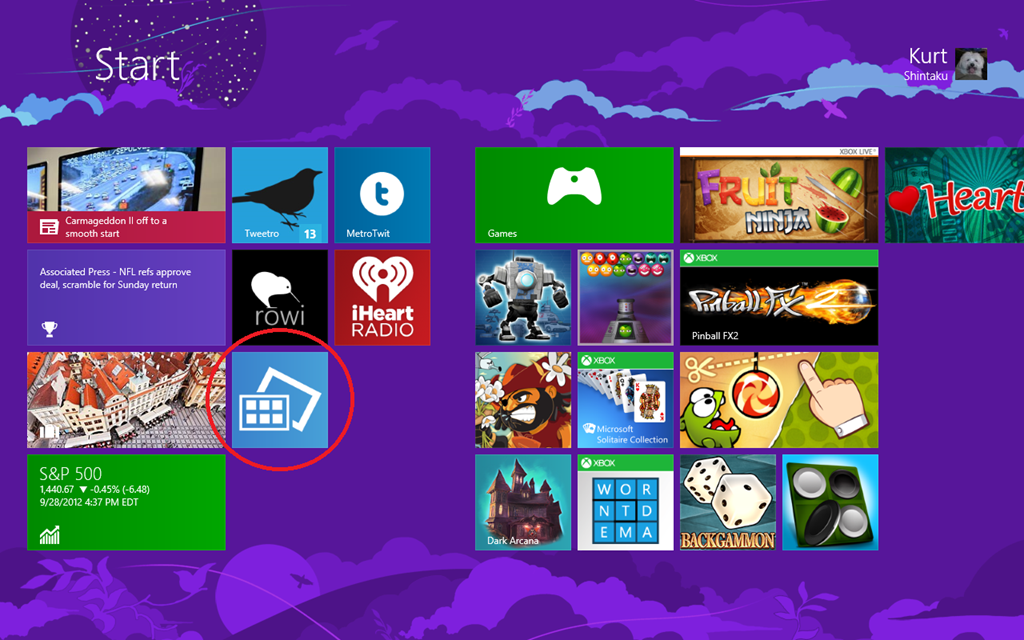
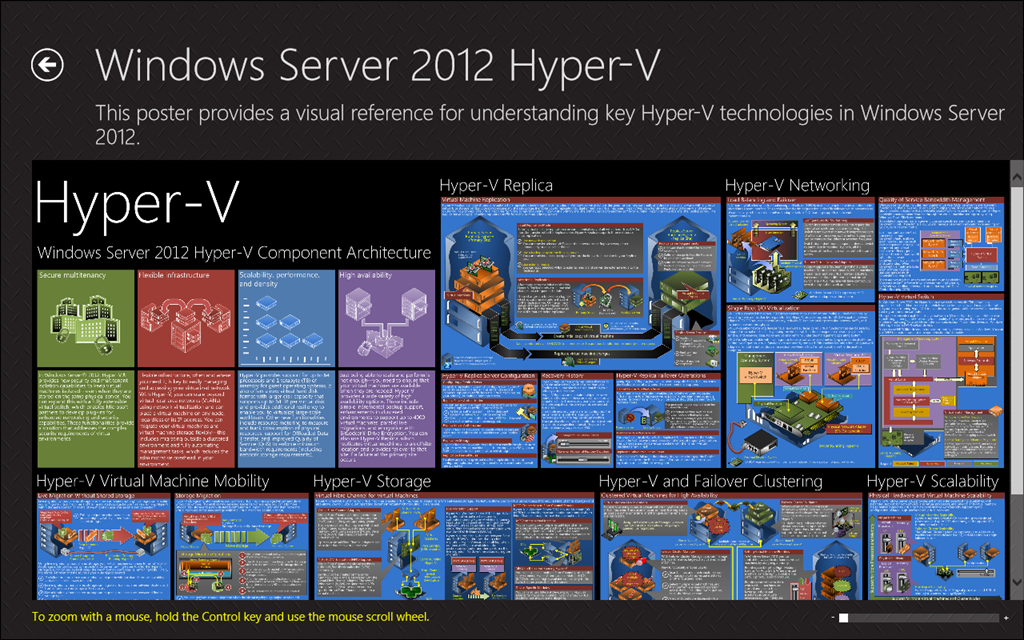
DOWNLOAD: “Server Posterpedia” app for Windows 8

This is a pretty cool app that posted recently to the App Store for Windows 8.  It lists all the current vector-based posters that we’ve made public on Microsoft.com in .PDF format.  The posters they include, current as of 9/29/12, are:

  • Hyper-V for Windows Server 2012
  • Hyper-V for Windows Server 2008 R2 with SP!
  • Hyper-V for Windows Server 2008
  • Remote Desktop Services for Windows Server 2008 R2 with SP1
  • Features and Technologies for Windows Server 2008 R2
  • Features and Technologies for Windows Server 2008
  • Active Directory for Windows Server 2008
  • Active Directory for Windows Server 2003
  • Architecture for Exchange Server 2010
  • Architecture for Exchange Server 2007
  • Services for SharePoint Server 2010
  • Deployment for SharePoint Server 2010
  • SQL Database Federation for Windows Azure

Screenshots below:

ServerPedia1

ServerPedia2

ServerPedia3

« Newer Posts - Older Posts »

Categories