A 360 degree view of the all-new Surface.
Surface is HERE.
A 360 degree view of the all-new Surface.
Comments Off on VIDEO: Surface is HERE.
Posted in Uncategorized
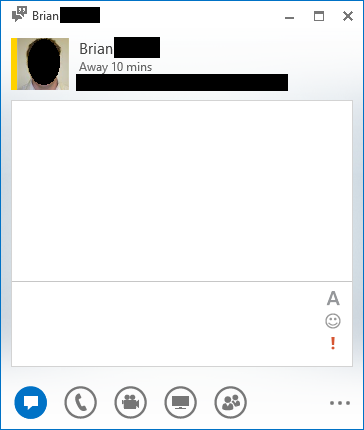 Take a look at the snapshot to the right: This is the new Lync 2013 client. Notice there’s no “gear-like” configuration icon? There’s the “…” at the bottom of the screen but that doesn’t provide client UI configuration.
The point is, there’s no way to reveal a MENU BAR (File, Edit, Tools, etc.) like you used to with previous versions of Lync.
Q: So how do you manually save a conversation?
It turns out that the answer is “CTRL-S”. This is the only way to do so without waiting for the client to ‘auto-save’ the conversation (if you have this set up. There’s no FILE-SAVE CONVERSATION drop down any more.
For folks that haven’t used Lync before, the saved conversation will be found in a folder in Outlook called “Conversations History” off the root of your mailbox.
Why this isn’t documented in Lync’s help, I don’t know. And that’s why I’m typing it up here.
Comments Off on HOWTO: Manually save a conversation in Lync 2013
Posted in Uncategorized
Y’know those groups of apps in the START screen? Did you know you can NAME them? Apparently a lot of folks don’t. Take a look at the screen shot below. There are 2 things I’ve highlighted:

From this overhead or “zoomed-out” view of the START screen, you can do two important things:
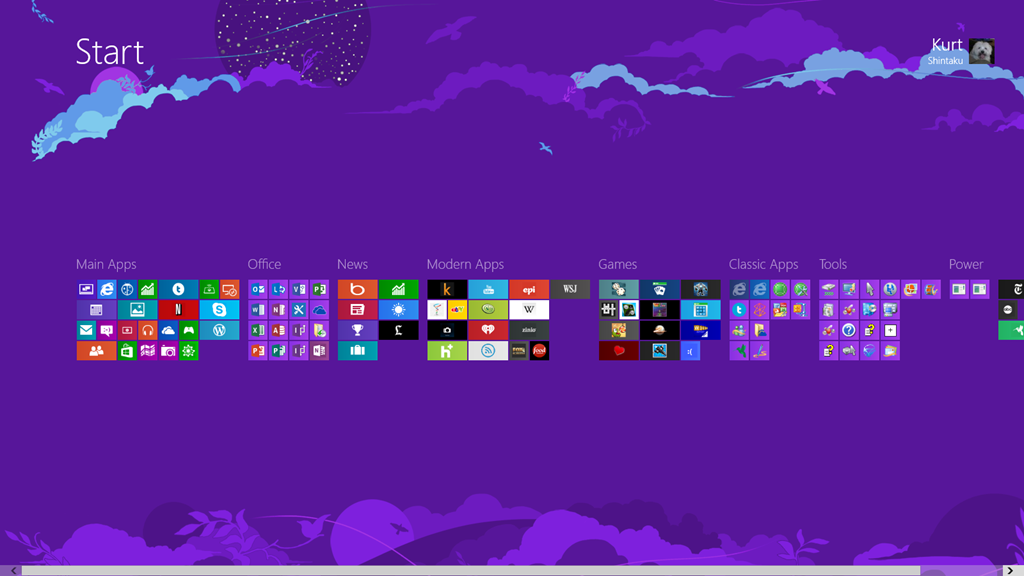
This will reveal, in particular, the “Name Group” button, highlighted below. When you click on it, it will allow you to name the program group you selected earlier.

Type the name of the program group and you’re done!

Once you’ve named the group, one other thing you can do is drag & drop the program group to move it around in the START screen, so that you can order them in the way that’s most convenient to you.
You can see below, I’m dragging and dropping a program group called “Modern Apps” around the screen.

Comments Off on HOWTO: Add names to Program Groups in Windows 8
Posted in Uncategorized
 The Windows 8 and Windows RT Product Guide describes the many new and improved features in Windows 8 and Windows RT. Whether you’re working or playing, at home, in the office, or on the go, Windows is designed for you.
The reimagined Start screen brings together your sites, people, and apps that you care about. You can get all kinds of different apps for free or to buy in the Store. With Windows 8 and Windows RT, you can get the protection, speed, and reliability you’re used to from Windows and then some.
Comments Off on DOWNLOAD: Windows 8 and Windows RT Product Guide
Posted in Uncategorized
There’s been quite a few posts written about the upcoming Microsoft Surface from most major media outlets now that the embargo has been lifted on reviews for the production device.
Here’s some of the crème de la crème.
 ANANDTECH: Microsoft Surface Review
  ENGADGET: Microsoft Surface with Windows RT
  BGR: Microsoft Surface Review: A Tale of Two Tablets
  TIME: Microsoft Surface Review: The PC of the Future Needs More Apps
  MASHABLE: Surface Is a Tablet Windows Users Will Love [REVIEW]
  CNET: Microsoft Surface review: Innovative tablet stranded in an app desert
  ALL THINGS D: Hardworking Tablet With PC Chops
  WIRED: Microsoft Dives Deep to Surface a Hit
  PC MAGAZINE: Microsoft Surface with Windows RT
  CNN Money: First look at Microsoft’s Surface tablet
  BOSTONHERALD: Surface headed for wish lists
  TGDAILY: Why Microsoft’s Surface Tablet is my new favorite device
  BETANEWS: Microsoft Surface review for real people
 [Thanks to Brian Larson for helping me seek out & uncover many of these reviews]
Comments Off on NEWS: The early results from the media around Surface
Posted in Uncategorized
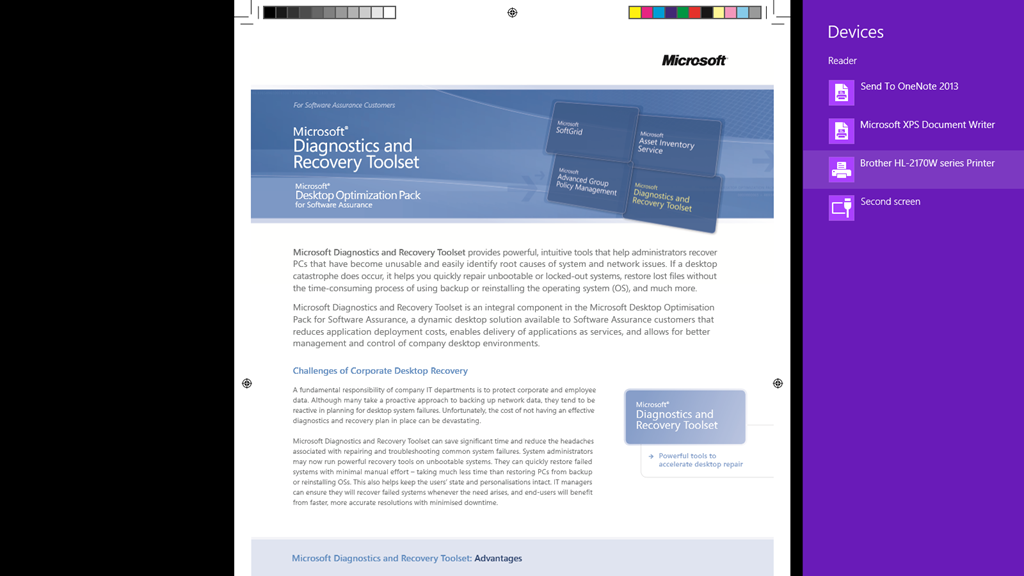
In case there’s anyone else out there using Windows 8 & trying to print documents, like Acrobat PDFs that are rendered in the Reader app in Windows 8… and finding it difficult to figure out how to do so, the quick answer is:
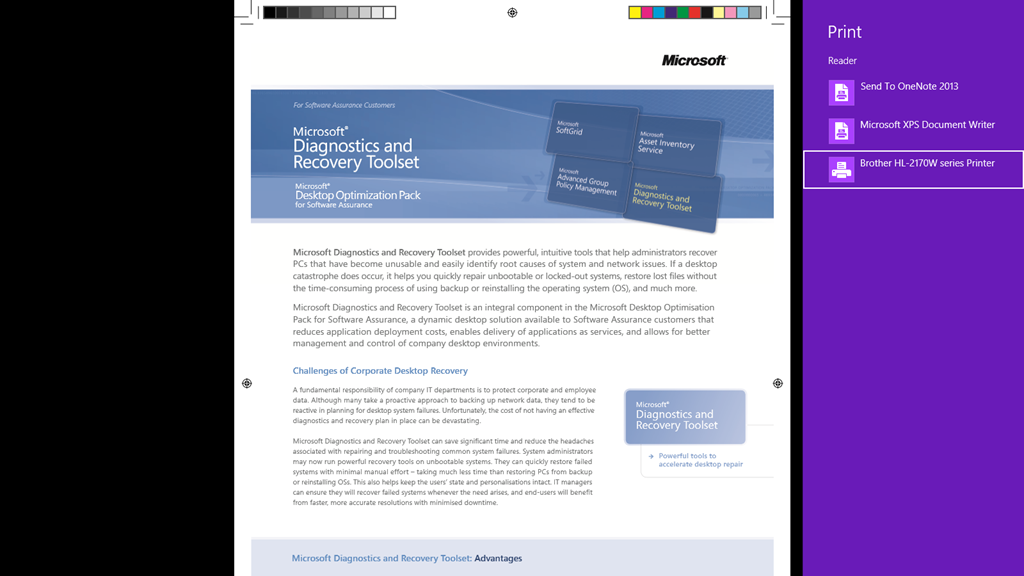
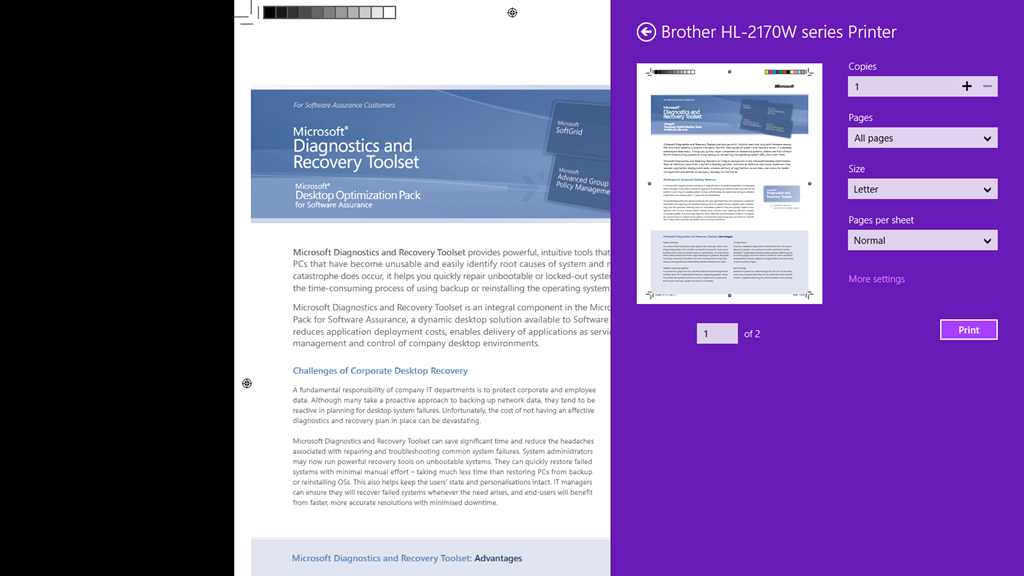
Alternatively, if you open the Charms Bar on the right and select the DEVICES icon, you can select a device (a printer) to send the document to… which will print it. (See below)

Comments Off on HOWTO: Print from the Windows 8 Reader app
Posted in Uncategorized
 The SharePoint Blog as a recent post on their web site that goes over the differences between SkyDrive and SkyDrive Pro which I found interesting.
SkyDrive is for people to sync their personal files to the cloud and across their devices. SkyDrive is available free to individuals and is included in Office 365 Home Premium. With over 60 million users, SkyDrive has become synonymous with personal cloud storage. It enables access to documents across devices. In the new Office, SkyDrive becomes the default save location, making it easy to create, store, and share files with others.
SkyDrive Pro is a document storage service that organizations provision and manage for their users. It will be available as a service together with many Office 365 plans, and on-premises with the new version of SharePoint.
Like its consumer counterpart, SkyDrive Pro enables people to synchronize their work documents from SharePoint to the cloud, and also take documents offline when they’re on the go. People can access or edit their documents across devices; files are automatically synchronized with SkyDrive Pro when connected online.
After SkyDrive Pro is set up, you can save documents directly to SkyDrive Pro from Office desktop applications, or synchronize them directly from SharePoint.
There are also 4 other FAQ type questions that are answered in this blog post so take a look see.
Comments Off on INFO: The Difference between SkyDrive and SkyDrive Pro
Posted in Uncategorized
Surface with Windows RT Drop Test — from 30" onto hardwood floor. Surface Reliability Lab, Redmond WA, Monday October 15th 2012. Nice.
Comments Off on VIDEO: Surface with Windows RT Drop Test
Posted in Uncategorized
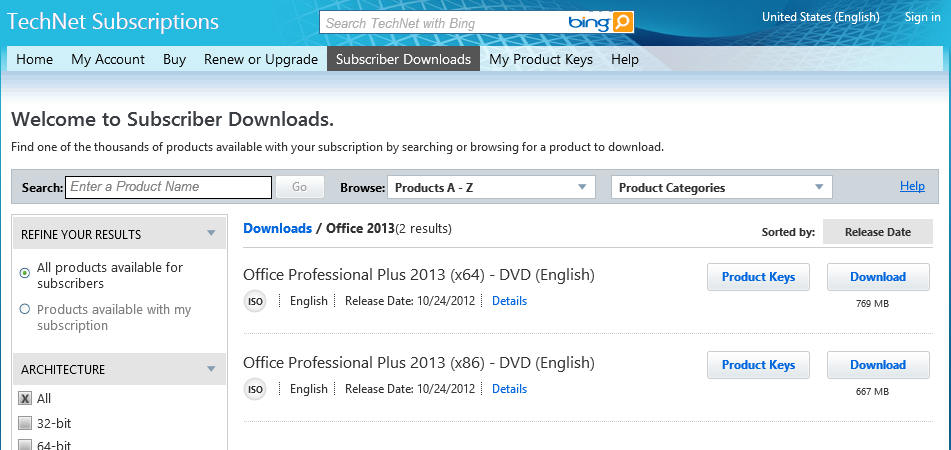
Wow. That was fast. Office Professional Plus 2013 (x86/x64) are now available for MSDN/TechNet subscribers.
Comments Off on RELEASE: Office ProPlus 2013 now available on MSDN/TechNet!
Posted in Uncategorized
 Paul Clement (MS MVP) wrote a fairly significant & exhaustively documented step-by-step post on the Microsoft Press blog about Windows Server 2012’s new Data Deduplication feature that I think is worth reading for anyone using Windows Server as their file server front end.
Much like the Windows Server 2012 Data Classification Toolkit which provides automatic identification of sensitive information & ‘classifies it’, Data Deduplication provides added value to customers using Windows Server specifically to provide file services for their end users. This is in contrast to folks using non-Windows-based NAS solutions that are front ended using client-accessed SAMBA based Linux variants: These cannot leverage either DCT or Data Dedupe.
Paul here! For as long as there has been file servers running in our organizations, there has been the need to control data sprawl to conserve expensive storage space. As disks began getting larger in capacity and less expensive in cost this issue has moved from critical to more of an annoyance for IT staff to manage. Larger disks meant more space to save data and less urgency to deal with duplicate files.
Solutions have existed for many years to deal with what is known as “deduplication,” both in software and hardware; however they were expensive and not always as simple as they claimed to be.
With the newly minted Windows Server 2012, one feature of the exhaustive list of under the hood improvements and additions is a Service called Data Deduplication. Finally, a built-in and free tool that is integrated with the operating system is here for us to realize some pretty significant storage savings without the need to make it a capital project.
…
Read more at:
Comments Off on INFO: Windows Server 2012’s Data Deduplication Feature
Posted in Uncategorized
 kurtsh
 Kurt Shintaku's Blog
You must be logged in to post a comment.