A coworker, Lee Reese, passed this on to me. It’s a humorous explanation of what the cloud is at differing levels of control. For those that don’t get the differences between PaaS, IaaS, and SaaS:
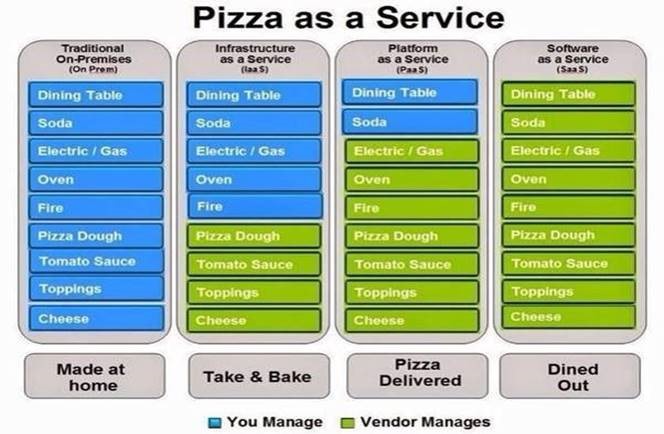
A coworker, Lee Reese, passed this on to me. It’s a humorous explanation of what the cloud is at differing levels of control. For those that don’t get the differences between PaaS, IaaS, and SaaS:
Comments Off on INFO: Explaining the cloud… through Pizza
Posted in Uncategorized
Found this neat set of instructions on how to repartition & reformat a USB thumb drive without any additional utilities or tools from the command prompt using DiskPart that I thought I’d share. (And I’m basically posting this to make sure I can find it again in the future.)
From a command prompt in Windows:
1. From Command prompt type diskpart
2.Within Diskpart, use the List Disk command to check which disk the USB device is. The USB device should be obvious; in my case, it’s the 14GB disk.
DISKPART> list disk
Disk ### Status Size Free Dyn Gpt
——– ————- ——- ——- — —
Disk 0 Online 232 GB 1024 KB
Disk 1 Online 149 GB 0 B
Disk 2 Online 149 GB 7168 KB
* Disk 3 Online 14 GB 0 B
3 Once the disk is known, select the disk and run the rest of the displayed commands (change "disk 3" to the number of your disk):
DISKPART> select disk 3
Disk 3 is now the selected disk.
DISKPART> clean
DiskPart succeeded in cleaning the disk.
DISKPART> create partition primary
DiskPart succeeded in creating the specified partition.
DISKPART> select partition 1
Partition 1 is now the selected partition.
DISKPART> active
DiskPart marked the current partition as active.
DISKPART> format fs=ntfs quick
100 percent completed
DiskPart successfully formatted the volume.
DISKPART> assign
DiskPart successfully assigned the drive letter or mount point.
DISKPART> exit
(taken from http://community.spiceworks.com/topic/128581-how-to-delete-partition-on-usb-thumb-drive)
Comments Off on HOWTO: Delete a partition on a USB Thumb Drive
Posted in Uncategorized
 In case you missed it, Omer Atay, a developer on the OneNote team released an addin to OneNote called “OneTastic”:
Here’s a look at Onetastic, an add-in to enhance OneNote functionality with a set of built-in features and an extensible macro processor that allows you to download and modify macros and add new ones yourself.
Onetastic features will light up in the Home tab as well as some right-click menus. When you install the add-in, you will see the following buttons added to your Home tab:
Included in OneTastic are:
Here’s a video that shows these features:
For more information, visit the announcement blogs and download the add-in here:
Comments Off on RELEASE: “OneTastic” – FREE add-in for Microsoft OneNote 2010/2013
Posted in Uncategorized
New free eBook for Azure developers!
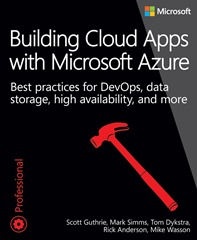
Greetings! We’re happy to release a free ebook today: Building Cloud Apps with Microsoft Azure: Best practices for DevOps, data storage, high availability, and more, by Scott Guthrie, Mark Simms, Tom Dykstra, Rick Anderson, and Mike Wasson.
You can download all formats (PDF, Mobi and ePub) at the Microsoft Virtual Academy.
This ebook walks you through a patterns-based approach to building real-world cloud solutions. The patterns apply to the development process as well as to architecture and coding practices.
The content is based on a presentation developed by Scott Guthrie and delivered by him at the Norwegian Developers Conference (NDC) in June of 2013 (part 1, part 2), and at Microsoft Tech Ed Australia in September 2013 (part 1, part 2). Many others updated and augmented the content while transitioning it from video to written form.
Who should read this book
Developers who are curious about developing for the cloud, are considering a move to the cloud, or are new to cloud development will find here a concise overview of the most important concepts and practices they need to know. The concepts are illustrated with concrete examples, and each chapter includes links to other resources that provide more in-depth information. The examples and the links to additional resources are for Microsoft frameworks and services, but the principles illustrated apply to other web development frameworks and cloud environments as well.
Developers who are already developing for the cloud may find ideas here that will help make them more successful. Each chapter in the series can be read independently, so you can pick and choose topics that you’re interested in.
Anyone who watched Scott Guthrie’s "Building Real World Cloud Apps with Windows Azure" presentation and wants more details and updated information will find that here.
…
Read more or download the books here:
Comments Off on DOWNLOAD: Free Microsoft Press eBook, “Building Cloud Apps with Microsoft Azure: Best practices for DevOps, data storage, high availability, and more”
Posted in Uncategorized
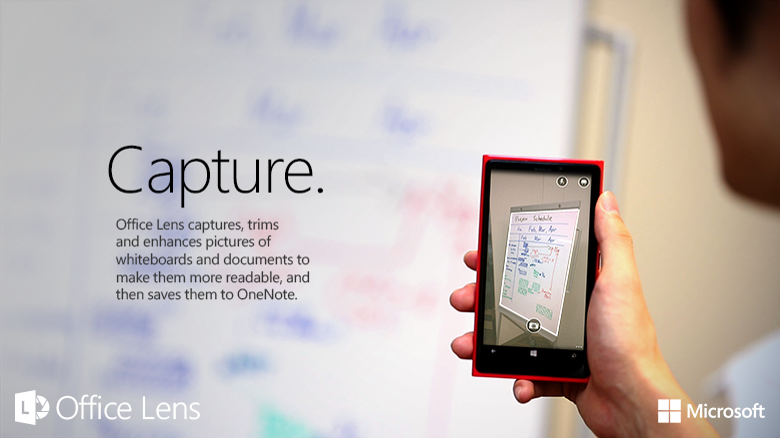 Office Lens for Windows Phone is a tool that, using the phone’s camera & OneNote as a photo store, allows you to capture:
What I want to talk about is capturing projected presentation slides in presentations you are present in because this is a feature that is really excellent and I don’t think it’s fully realized by everyone that has it.
Here’s basically how you capture slides you see projected during meetings:
The images will be stored, saved, and replicated to your OneNote workbook. A single page will be added to the “Quick Notes” section of your cloud connected OneNote workbook.
Here’s a video on using Office Lens on YouTube:
(taken from http://blogs.office.com/2014/03/17/office-lens-a-onenote-scanner-for-your-pocket/)
Comments Off on HOWTO: Capture projected meeting slides using Office Lens
Posted in Uncategorized
Just announced:
Today, we are excited to announce the general availability of Enhanced Mitigation Experience Toolkit (EMET) 5.0. EMET is a free tool, designed to help customers with their defense in depth strategies against cyberattacks, by helping block and terminate the most common techniques adversaries might use in comprising systems. EMET 5.0 further helps to protect with two new mitigations, and with new capabilities giving customers additional flexibility on their deployments.
EMET helps to protect systems, even before new and undiscovered threats are formally addressed by security updates and antimalware software.
…
Read more here:
http://blogs.technet.com/b/msrc/archive/2014/07/30/general-availability-for-enhanced-mitigation-experience-toolkit-emet-5-0.aspx
Comments Off on RELEASE: Enhanced Mitigation Experience Toolkit (EMET) 5.0
Posted in Uncategorized
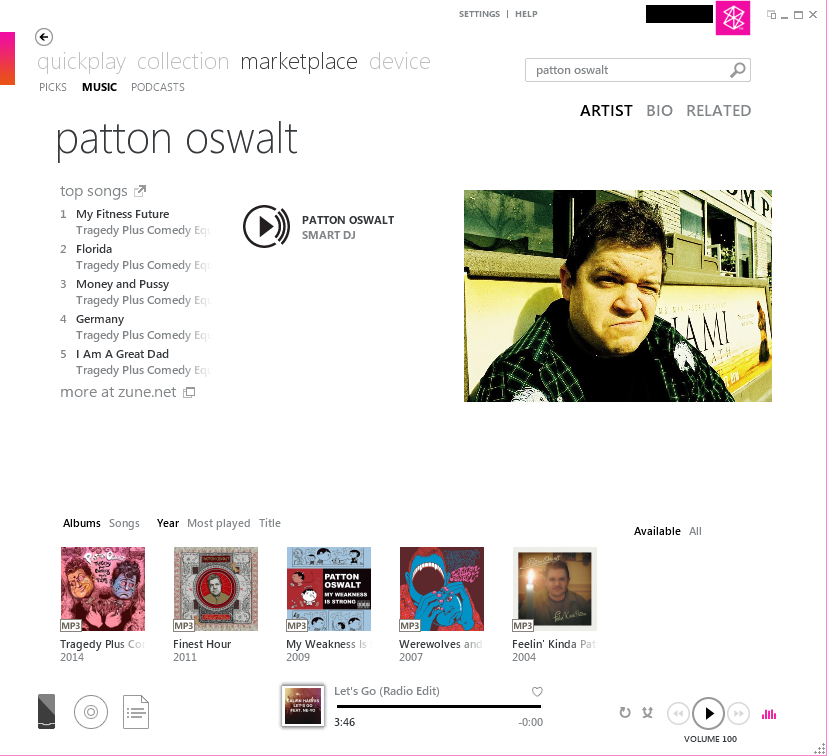 I have an Xbox Music Pass which provides unlimited access to the entire Xbox Music Library – all the music & content it has available online – and of the greatest features of “XMP” is access to all the Comedy Albums I want.
ALL THE “FUNNY” I’LL EVER NEED
Yup. Xbox Music Pass isn’t just for “music”. It’s also excellent for spoken word content, which is a perfect example of the kind of content that I probably wouldn’t want to buy but instead listen to once by either downloading to my device for offline play or streaming to my device on-demand while on the road.
And since Xbox Music Pass works with my Windows PC, my Windows Phone 8, my Xbox 360/One, or even a iPhone/iPad/Android device, I can get my “funny” fix any time I want.
RECOMMENDED COMEDY GENRES
Something that’s also overlooked is the fact that not only do you get the ability to download or stream any of your favorite comedian’s albums – one of mine happens to be Patton Oswalt who has 5 albums available to listen to on Xbox Music – but you also get recommendations as to other comedians that are similar to your favorites.
This is a great way to discover other comedians and listen to their albums – again, at no additional charge.
WHAT COMEDIANS ARE AVAILABLE TO LISTEN TO?
A common question I get is “what’s available?” and the problem is that comedy is really subjective. What’s funny to me may not be funny to you.
So, in an effort to provide a large spectrum of what’s available on Xbox Music, here’s a list I manually made of all the artists that have their albums available to download or stream on Xbox Music.
This should give you an idea of how incredibly expansive the comedy library is. For example: I’ve hyperlinked Patton’’ Oswalt’s albums below along with the first few comedians on this list: (http://music.xbox.com/search/Patton%20Oswalt)
Comments Off on INFO: Comedians on Xbox Music… available via Xbox Music Pass
Posted in Uncategorized
 Remember all those conferences we used to have?
On the week of May 4th, 2015, (Star Wars day!) Microsoft will be holding a single event encapsulating all these conferences in Chicago:
May 4th, 2015 – Join us in Chicago for the inaugural unified Microsoft commercial technology event. If you’ve attended TechEd, SharePoint Conference, Microsoft Exchange Conference, Lync Conference, Project Conference or and Microsoft Management Summit, this the place for you to be! More details will be shared in September, follow us on Twitter @MSCloud to stay connected.
For more information, check the announcement blog post:
Comments Off on EVENT: Microsoft converges IT-centric conferences into a "Unified Technology Event for Enterprises"
Posted in Uncategorized
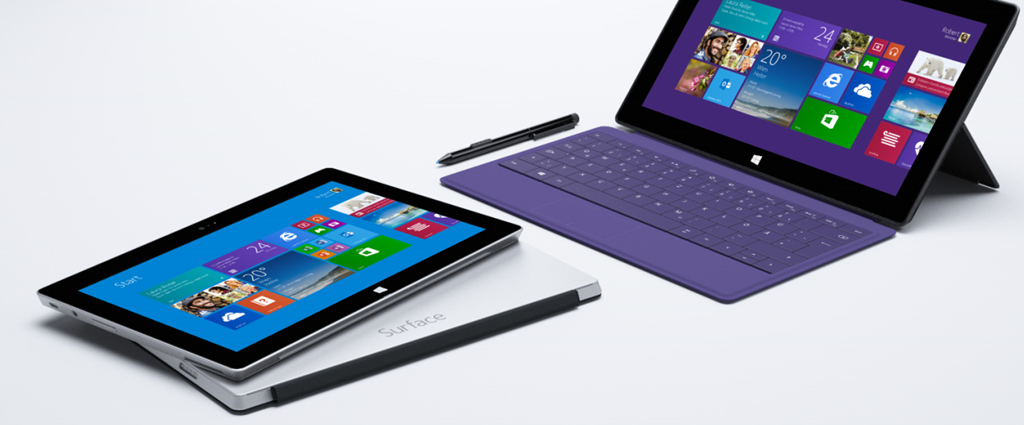
There’s a lot of blogs out there purporting to write about Surface but they’re really just trying to garner clicks for ad revenue. So here’s a list of good Surface blogs that I’ve been following:
Comments Off on INFO: Reference list of Surface Blogs
Posted in Uncategorized
As an Office 365 administrator, you can use the user software page in the Office 365 admin center to allow or not allow users to install Office software from the Office 365 portal. For example, you might want to let users install Word, Excel, and PowerPoint, but not Visio. Whatever you decide to do, your choice applies to all users.
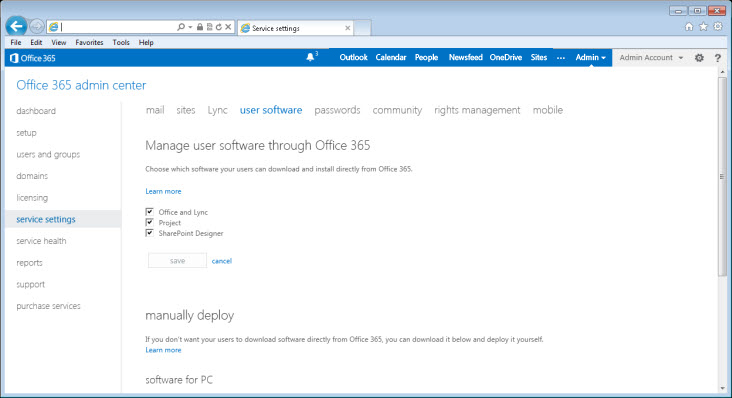
For more information, read the TechNet article:
Comments Off on INFO: Choosing what software Office 365 Enterprise users can install
Posted in Uncategorized

 kurtsh
 Kurt Shintaku's Blog
You must be logged in to post a comment.