imageReknown Cloud Services Advisor & Consultant, David Chappell, has written a whitepaper that describes Microsoft’s Data Platform from the top down.

It’s an excellent paper, about 18 pages, and great reading for folks looking for a primer.

We use data in many different ways, and the volume, variety, and velocity of that data increase every day. Because of this, organizations rely on lots of different data technologies. Taken as a group, these technologies make up a data platform.

One way to think about the technologies in a data platform is to divide them into three categories based on the kind of data they work with. Those categories are:

  • Operational data, such as transactional data used by a banking system, an online retailer, or an ERP application. This data is typically both read and written by applications, commonly in response to user requests. A banking application might read your account balance, for instance, then write a new value to reflect a deposit you make. And while operational data was once almost entirely relational, the increasing volume and variety of data have changed this. Today, working with unstructured operational data can be just as important.
  • Analytical data, such as the information kept in a data warehouse. This data is typically read-only, and it usually includes historical information extracted over time from other data sources, such as operational databases. Analytical data is commonly used for things such as business intelligence and machine learning, and like operational data, it can be either relational or unstructured. 
  • Streaming data, such as data produced by sensors. The defining characteristic of streaming data is velocity; if the data isn’t processed quickly, it can lose a large share of its value. Many streaming scenarios today relate to the Internet of Things (IoT), where the focus is on interacting with data provided by lots of devices. Streaming data is also used in other situations, such as analyzing financial transactions as they happen. In both cases, the challenge is to work effectively with large amounts of data being produced in real time.

imageThe Microsoft data platform provides technologies for all three categories, along with connections among the three. Figure 1 summarizes the platform’s offerings in each area. [See graphic to the right]

This paper focuses on the middle column in the figure, Microsoft’s offerings for working with analytical data. (For more on the other two categories, see the companion papers Operational Data Scenarios Using the Microsoft Data Platform and Streaming Data Scenarios Using the Microsoft Data Platform.) And don’t be confused by the diagram: These technologies aren’t layered in the sense that each one depends on the others shown below it. Instead, think of each column as a group of technologies for working with data in a particular way. Also, realize that the lines between the columns are permeable—these technologies can be used together in various combinations. For example, the analytical technologies in the center column are often used together with both the operational technologies in the left column and the streaming technologies in the right column.

Download the whitepaper here:

image

Wow.  In case you missed it, we just released SCCM Update 1602.  And this is not a small update:

Today, we are excited to announce the release of our first update for the current branch of System Center Configuration Manager! The latest version of Configuration Manager is now 1602.

This update includes the following improvements:

  • Client Online Status: You can now view the online status of devices in Assets and Compliance. New icons indicate the status of a device as online or offline.
  • Support for SQL Server AlwaysOn Availability Groups: Configuration Manager now supports using SQL Server AlwaysOn Availability Groups to host the site database.
  • Windows 10 Device Health Attestation Reporting: You can now view the status of Windows 10 Device Health Attestation in the Configuration Manager console to ensure that the client computers have a trustworthy BIOS, TPM, and boot software.
  • Office 365 Update Management: You can now natively manage Office 365 desktop client updates using the Configuration Manager Software Update Management (SUM) workflow. You can manage Office 365 desktop client updates just like you manage any other Microsoft Update.

A QUICK WORD ON OFFICE 365 UPDATE MANAGEMENT:
Office 365 ProPlus update management is discussed in the video below:

Update Office 365 ProPlus with native Configuration Manager Controls

It is also discussed in greater detail on the Office blog here:

  • New Antimalware Policy Settings: New antimalware settings that can now be configured include protection against potentially unwanted applications, user control of automatic sample submission, and scanning of network drives during a full scan.

This update also includes new features for customers using System Center Configuration Manager integrated with Microsoft Intune. Some of the features that you can expect to see are:

  • Conditional Access for PCs Managed by Configuration Manager: You can now use conditional access capabilities to help secure access to Office 365 and other services on PCs managed with Configuration Manager agent. Conditions that can be used to control access include: Workplace Join, BitLocker, Antimalware, and Software Updates.
  • Windows 10 Conditional Access Enhancements: For Windows 10 devices that are managed through the Intune MDM channel, you can now set and deploy an updated Compliance Policy that includes additional compliance checks and integration with Health Attestation Service.
  • Microsoft Edge Configuration Settings: You can now set and deploy Microsoft Edge settings on Windows 10 devices.
  • Windows 10 Team Support: You can now set and deploy Windows 10 Team configuration settings.
  • Apple Volume Purchase Program (VPP) Support: You can now manage and deploy applications purchased through the Apple Volume Purchase Program for Business portal.
  • iOS App Configuration: You can now create and deploy iOS app configuration policies to dynamically change settings such as server name or port for iOS applications that support these configurations.
  • iOS Activation Lock Management: New capabilities include enabling iOS Activation Lock management, querying for the status, retrieving bypass codes, and performing an Activation Lock bypass on corporate-owned iOS devices.
  • Kiosk Mode for Samsung KNOX Devices: Kiosk mode allows you to lock a managed mobile device to only allow certain apps and features.
  • User Acceptance of Terms and Conditions: You can now see which users have or have not accepted the deployed terms and conditions.

There’s actually more.  Read the entire announcement below on the SCCM Team blog:

imageAnyone looking to evaluate or deploy Microsoft Intune should download this eBook by MVP Mai Ali, about the technology entitled, “Microsoft Intune Step by Step”.

This book documents step by step instructions on how to configure Microsoft Intune and demystifies the implementation and configuration process.  It includes topics on Software distribution, Mobile Management Policies, Software updates and reporting, as well as alerts generated for updates, configuration and security situations.

Here is outline of Microsoft Intune Step By Step eBook (pdf):

  • Chapter 1 – Definition of Microsoft Intune.
  • Chapter 2 – Configure Microsoft Intune.
  • Chapter 3 – Implement and Configure ADFS for Single Sign-ON.
  • Chapter 4 – Create Intune groups to organize users and devices.
  • Chapter 5 – Set Mobile Devices Management (MDM) Authority.
  • Chapter 6 – Create Mobile Management Policies.
  • Chapter 7 – Manage Computers Using Microsoft Intune.
  • Chapter 8 – Deploy Applications Using Microsoft Intune.
  • Chapter 9 – Configure Alerts, Notifications and Reports.
  • Chapter 10 – Enroll Mobile Devices in Intune.
  • Chapter 11 – Configure Mobile Application Management policies “MAM”.
  • Chapter 12 – Resource Access profile with Microsoft Intune.
  • Appendix – Firewall Ports and Proxy Server Settings for Client Computers.

Interested? Grab the FREE eBook here:

image

For all those that have historically been EverNote users that want to migrate their data to take advantage of OneNote, it’s integration with Office 365, it’s strong support for Digital Ink, unlimited monthly uploads, and it’s FREE.

OneNote has become one of the most popular note-taking apps as a result of hard work we’ve done to deliver a superior experience across all platforms, including Mac (4+ rating in Mac App Store), Android (4.0 rating), Windows (4.3 rating) and iOS (4.5 rating). We even hear from Evernote fans who acknowledge OneNote’s appeal but are hesitant to make the switch due to the fact that all their ideas and information reside in Evernote.

Today, we are removing this barrier and are thrilled to announce a tool that will help you import your Evernote notes into OneNote. The OneNote Importer tool (for Windows initially) migrates all of your Evernote content into OneNote, giving you the opportunity to switch to OneNote and have all your notes in one place, on all your devices. We will deliver the Importer tool for Mac in the coming months.

Making the move to OneNote from Evernote


While OneNote is free on all devices, it comes with Office and works seamlessly with Outlook, Word, Excel and PowerPoint to help you stay organized, collaborate and get things done. Evernote Premium ($49.99/year) is more than 70 percent of the cost of Office 365 Personal ($69.99/year), which includes all the apps you know and love, plus 1 TB of storage.

To read more from the announcement,c click the link below:

image

Interested in a free LIVE course on Deploying Windows 10 with System Center Configuration Manager.

Looking to use System Center Configuration Manager (SCCM) to automate deployment of Windows 10? Join experts Aaron Czechowski and Ed Gallagher as they step you through it. Windows 10 represents a major paradigm shift for Microsoft and the Windows ecosystem in general as we modernize the platform by introducing “as a service” capabilities. Hundreds of millions of devices are already running Windows 10 today. Businesses are beginning to evaluate the new capabilities of Windows 10, including Windows as a service, as part of their deployment plans. With Windows 7 recently transitioning into extended support, businesses need to begin planning for the future of their Windows operating system environment.

Although there are many aspects to consider in managing a Windows device, one of the essential early stages of the lifecycle is deployment. More than 70 percent of businesses use System Center Configuration Manager for PC management, and that market share continues to grow every quarter. SCCM is an industry leader, and the Operating System Deployment (OSD) feature is one of the most popular and frequently used. The product supports many traditional operating system deployment methods, in addition to newer Windows 10 deployment scenarios, such as in-place upgrade. Join us, and get your questions answered.

Note: Want a head start? Take a look at the free e-book from Microsoft Press, Deploying Windows 10: Automating deployment by using System Center Configuration Manager.

COURSE OUTLINE:

  • Preparing Your Environment for System Center Configuration Manager
  • Configuration Manager Operating System Deployment Concepts
  • Deploying and Supporting Windows 10

imageDATE/TIME:
March 16, 2016
9am–12pm PDT

COST:
Free

REGISTRATION:
Deploying Windows 10: Automating Deployment by Using System Center Configuration Manager
https://mva.microsoft.com/liveevents/deploying-windows-10-automating-deployment-by-using-system-center-configuration-manager

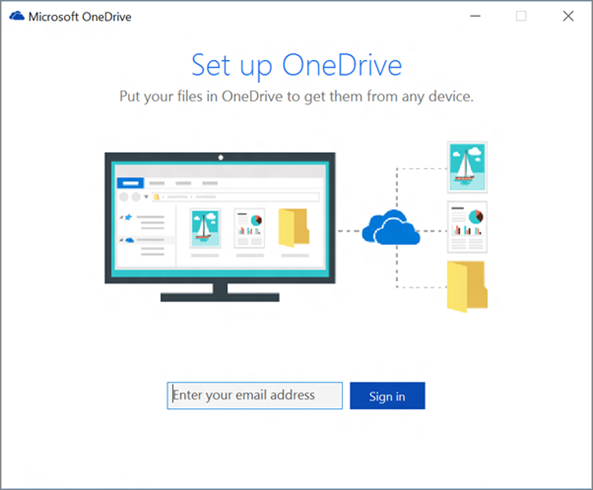
imageIf you’ve used OneDrive for Business (OD4B), and you’re using the old Windows sync client, you might notice that occasionally due to what looks like some sort of conflict during an attempt to sync a file and the user’s actions DURING the sync process… a file or directory may “hang” and just continuously attempt to sync in an never ending loop.

In other words, it looks like OD4B is just constantly trying to sync that file or folder but it never seems to complete.  You never get that satisfying “green checkmark” next to the files/folder & OD4B’s system tray icon continuously looks like it’s syncing.

HOW TO REMEDIATE FILES OR FOLDERS THAT HAVE HUNG DURING SYNC
This is what has worked for me, in order to get the sync to complete.  (Note: This problem doesn’t seem to happen with the new OneDrive for Business Next Generation sync client)

  1. Go to either your OneDrive for Business sync folder or your SharePoint sync folder.  This is usually something like: 
    c:\users\yourname\OneDrive – Microsoft
    c:\users\yourname\SharePoint
  2. Look for the file or folder causing the sync hang.  Navigate through the folder structure until you find the ONE file or folder that’s the root of the hang.
  3. Move the file/folder in question to somewhere on your drive that is not being synced.  For example, your desktop or your Videos folder.
  4. Right mouse click the file or folder and copy it.
  5. Wait for OD4B to sync.  This should finally stop the system tray icon from indicating that a sync is happening.
  6. Paste it back to the original folder or location.
  7. Wait for OD4B to sync.  This should initiate another sync between your PC & the cloud to replicate the newly copied file.  The sync should complete successfully:  The file should have a green checkmark next to it and the system tray OD4B icon should stop syncing.
  8. Delete the copy of the file you MOVED to you machine on your desktop or in the video folder.

imageWhat is the Total Economic Impact of Microsoft Office 365 for Enterprise Customers?

Forrester worked with Microsoft to analyze the total economic impact that Office 365 has on a number of its customers, who shared these business challenges and objectives:

  • “We were reaching a tipping point with over half of our system users being mobile users.  All roads lead to mobile first and we needed to support it through the cloud”
  • “Moving to Office 365 is part of an overall program to cut support costs in half.  to do that we needed to move to a more of a consumer style support model.”
  • “Business executives asked “how can we reduce IT costs and increase productivity?”

Conclusions included:

  • ROI / IRR
  • Payback Time
  • NPV

For an infographic that summarizes all conclusions as well as the ability to download the original report from Forrester at no cost, visit:

Posted by: kurtsh | March 9, 2016

BETA: Windows Defender Advanced Threat Protection

At the RSA Conference, we announced a new service designed to proactively monitor your machines for intrusions & threats.

imageTo help protect our enterprise customers, we are developing Windows Defender Advanced Threat Protection, a new service that will help enterprises to detect, investigate, and respond to advanced attacks on their networks. Building on the existing security defenses Windows 10 offers today, Windows Defender Advanced Threat Protection provides a new post-breach layer of protection to the Windows 10 security stack. With a combination of client technology built into Windows 10 and a robust cloud service, it will help detect threats that have made it past other defenses, provide enterprises with information to investigate the breach across endpoints, and offer response recommendations.

Here’s a video explaining the goals of Windows Defender Advanced Threat Protection:

Announcing Windows Defender Advanced Threat Protection

For more details on the new features of the upcoming Windows Defender Advanced Threat Protection service, read the rest of the announcement here:

Posted by: kurtsh | March 9, 2016

BETA: Azure Container Service Preview

Interested in Docker Containers?  So are we!  Container support is being built into Windows Server 2016 but Microsoft’s first support for it is in Azure, by way of the Azure Container Service.

imageIn today’s cloud-first world, businesses increasingly rely on applications to fuel innovation and productivity. We are seeing more and more technologies that are specifically designed for the cloud to take advantage of the associated flexibility and scalability it allows. Containers are emerging as an attractive way for developers to quickly and efficiently build and deploy these “born in the cloud” applications.

This week, Microsoft announced the Azure Container Service preview to help customers deploy and manage containers using their favorite tools. Azure Container Service optimizes the configuration of popular open source tools and technologies specifically for Azure, delivering an open solution that offers portability for both your containers and your application configuration. You select the size, the number of hosts, and choice of orchestrator tools, and Container Service handles everything else.

Read the announcement here:

Posted by: kurtsh | March 9, 2016

BETA: Azure Stack Technical Preview

If you’re looking to stand up not just a Virtual Machine farm, but a REAL Private Cloud driven by elasticity & self-service, check out Microsoft’s new Azure Stack.

imageThe first Technical Preview of Microsoft Azure Stack, the only hybrid cloud platform that is consistent with a leading public cloud, is live today. Born from Azure, Azure Stack helps organizations deliver Azure services from their own datacenters.

With Azure Stack, organizations can embrace hybrid cloud computing on their terms by helping them address business and technical considerations like regulation, data sovereignty, customization and latency. Azure Stack enables that by giving businesses the freedom to decide where applications and workloads reside without being constrained by technology.

“Just like Azure, Azure Stack is a comprehensive platform for hosting modern business applications.  Azure and Azure Stack have a standardized architecture, including the same portal, a unified application model, and common DevOps tools,”  wrote Microsoft’s Mike Neil, Corporate Vice President of Enterprise Cloud. “The application model is based on Azure Resource Manager, which enables developers to take the same declarative approach to applications, regardless of whether they run on Azure or Azure Stack. Tooling-wise, developers can use Visual Studio, PowerShell, as well as other open-source DevOps tools thereby enabling the same end user experiences as in Azure.”

Here’s an early look at Azure Stack from Jeffery Snover, father of Powershell:

An early look at Azure Stack and what it means for IT, with Jeffrey Snover

Read more of the announcement here:

Visit the Azure Stack web site here:

« Newer Posts - Older Posts »

Categories