Amgen’s Tour of California, a cycling tour, is using Microsoft Band 2 on 10 of their riders and tracking each rider’s measurables for analysis, with the goal of ultimately having a better understanding what it takes health-wise to complete an event like the Amgen Tour.

image

Welcome to our new Microsoft Band blog! Each day we will analyze rider data recorded from the previous day’s stage. We provided wearable wrist units to 10 of the 144 riders in the race to track metrics such as speed/distance (via GPS), heart rate, calories, UV exposure, and sleep patterns. During the course of the week we hope to provide insight on physical requirements it takes to complete a challenging 8-day stage race such as the 782-mile Amgen Tour of California.”

imageCloud computing is uniquely susceptible to the perils of myths. In this research, Gartner writes, “From a consumer perspective, ‘in the cloud’ means where the magic happens, where the implementation details are supposed to be hidden.”

To address this and other misperceptions that surround cloud, Gartner offers a top 10 list of cloud myths—covering important workloads like dev-test as well as issues such as security, scalability, and hybrid capability—to clarify how the cloud actually works for the enterprise.**

Get the report here:

Posted by: kurtsh | May 23, 2016

RELEASE: Microsoft Azure Cost Estimator Tool

clip_image002[4]The Azure Cost Estimator is a locally installable tool (.MSI) which will scan your environment and tell you what can be moved to the cloud and the anticipated cost.  

The Azure Cost Estimator has been designed keeping in mind the need to provide the IT manager of next generation organizations the ability to quickly assess running cost of the existing on-premises workload on Azure.

About the tool

  1. The tool provides real world machine hardware usage
  2. It recommends appropriate Azure instance to match the scanned workload
  3. It also generates 31-day cost estimates of running such an Azure instance

Features

  1. The tool supports
    1. Microsoft technologies (Hyper-V, SCVMM)
    2. VMware technologies (vCenter, ESXi)
    3. Physical environments (Windows, Linux)
  2. Support to A series, D-series and G-series Virtual Machines
  3. Support to all regions apart from US
  4. Price conversion in 24 currencies with the latest prices.
  5. It is able to export to Excel/.csv that can be used for discussions with Systems Integration partner or a Microsoft representative
  6. Create Cost Estimates and My Scenarios from the available Services
  7. Cost Estimates can be generated using Scan tool results
  8. Support for IP Range Feature in the Scan Your Environment Functionality
  9. Import and Export functionality in "Scenarios"
  10. Updated Sample Scenarios
  11. New services added in tool – Unlimited Data Plan, Metered Data Plan, Data Catalog, Data Lake Store, Data Lake Analytics, SQL Data Warehouse, IoT Hub, Application Gateways, Active Directory B2C, Active Directory Domain Services, Dev Test Lab, Service Fabric, Security Center
  12. No data is sent to Microsoft at any time. All report and profile information resides on the machine where the tool is installed

Value Proposition

  1. Can be Installed and a profile scan completed within 15 minutes (can be deployed on a Windows client)
  2. Enables a comparison with on-premises running costs (e.g. hardware, power, cooling, building, security, and systems management among others)

This should make comparisons between different scenarios much easier for individuals calculating total costs.  (Note: No information is captured by Microsoft.)

UPDATE 5/23/16:
I found a great support article entitled, “Fix OneDrive for Business sync problems” that goes over issues you may have when syncing files using the old “longtime” OneDrive for Business sync client.  It should be used to augment what I wrote below around SharePoint doc library syncs that “won’t stop”.

image

—————

ORIGINAL POST:
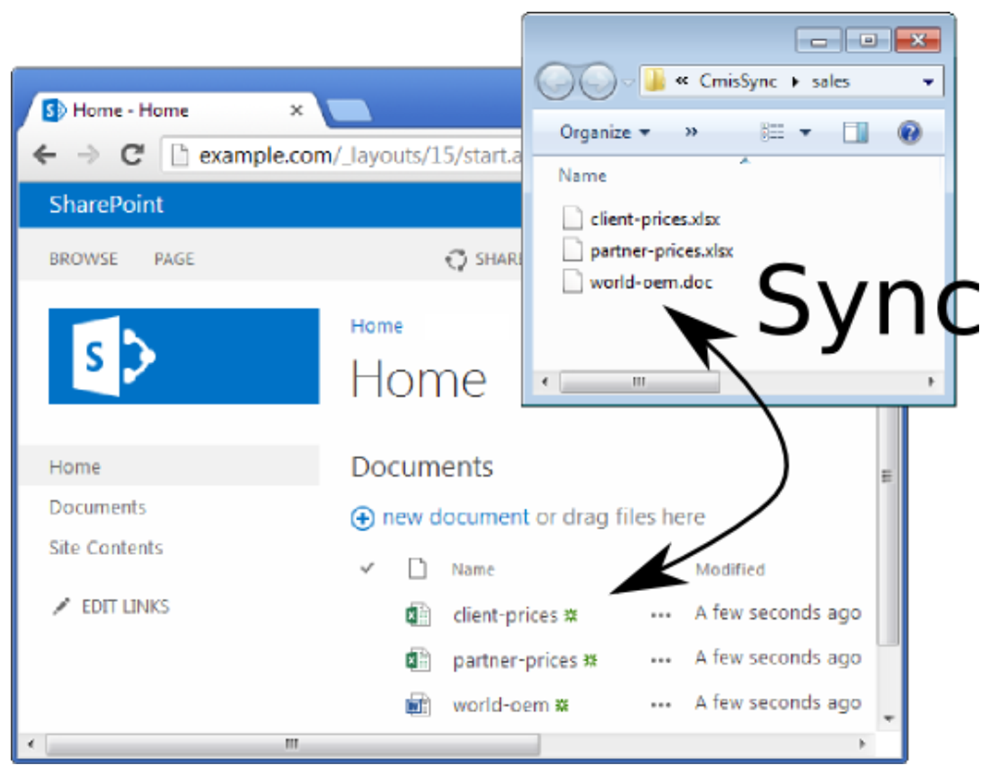
imageSo you’ve installed the old OneDrive for Business sync client to ensure that you can synchronize files and folders from SharePoint sites.  And you’ve happily synched several repositories and everything’s looking great, right?

What if you see the old OneDrive for Business client’s icon in the systray and it just won’t stop synching or appears to continuously attempt to sync an unresolved file?

BACKGROUND:
Sometimes the OneDrive for Business client gets hung syncing a file if you open, edit, or otherwise modify the file while it’s being synced from your client to the SharePoint site. 

This can also happen if you are synching with the SharePoint site, and you disconnect your computer or otherwise halt the sync process while changes are being uploaded to the SharePoint site.

Both of these sync issues are completely resolved with the next-gen sync client for OneDrive however, that doesn’t matter since the next-gen sync client doesn’t YET work with SharePoint document repositories.  (It will when we release an updated version of the OneDrive sync client in Q3CY16)

RESOLUTION:
The way to fix this is a bit of a workaround but it does fix the issue.  At least until the next-gen sync client is updated to also sync SharePoint document folders:

  1. Determine what file is causing the conflict/hang.  Go to your SharePoint folder and identify which folder is the source of the perpetual sync.  Navigate the folder to find the file that is specifically causing the issue
  2. If the file is an Office document, open the file and save it under another file name in the same directory.  Then delete the old file.  This will eliminate the conflict and your old OneDrive for Business sync client will stop attempting to sync.
  3. If the file is non-Office-based, move the file locally & wait for the file’s disappearance to resolve.  Move the file back to the SharePoint folder, and this should resolve the conflict.  There is a chance that this won’t work, and if this is the case, rename the file before moving it back to the SharePoint folder.

Note: Be careful if you share the file with others.  Make sure they aren’t using the same file at the same time so as not to remove it from the SharePoint site while they are using it.

OneDrive for Business may not display sync icon overlays on files and folders. This includes the status for items that are syncing, items that synced, or items that did not sync.

imageA successful sync icon overlay contains a green circle with check mark, as shown in the following screen shot to the right.

FIX:
To fix this problem automatically, download the CAB below. In the File Download dialog box, click Run or Open, and then follow the steps in the easy fix wizard.

  • This wizard may be in English only. However, the automatic fix also works for other language versions of Windows.
  • If you’re not on the computer that has the problem, save the easy fix solution to a flash drive or a CD, and then run it on the computer that has the problem.

DOWNLOAD:
http://download.microsoft.com/download/1/C/7/1C7D7C26-C23F-46F7-90B0-06A28C4416EA/MicrosoftEasyFix20152.mini.diagcab

According to the dialog box, the fix involves giving the sync overlay graphics priority when displaying the graphics for the icon.

For more information on this, visit:

Posted by: kurtsh | May 19, 2016

RELEASE: Interactive Map: Azure Platform

image

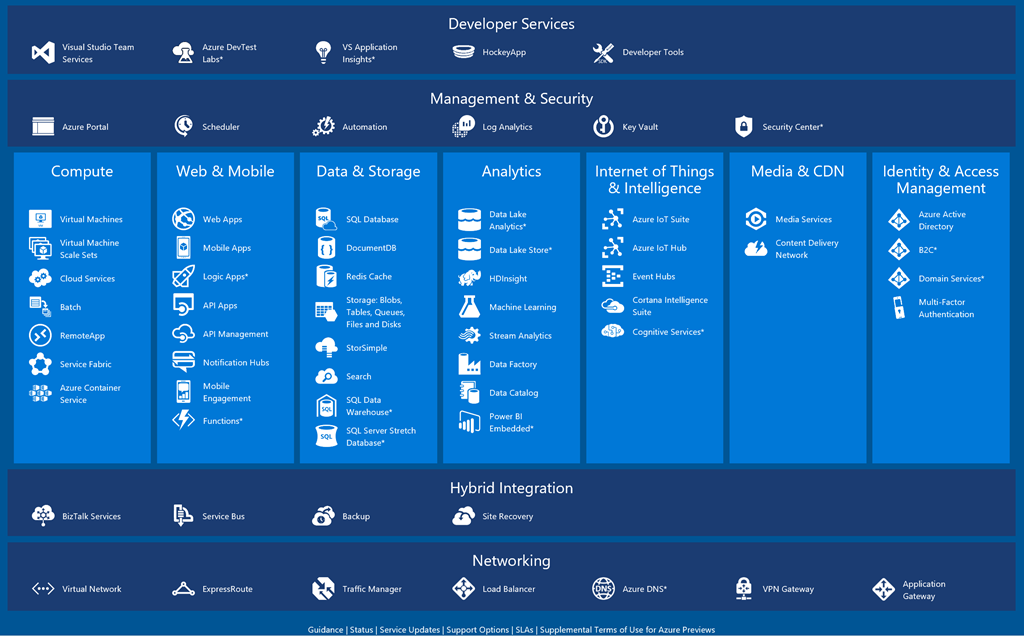
Are you lost when it comes to understanding the avalanche of cloud services that Microsoft offers in the Platform-as-a-Service & Infrastructure-as-a-Service space?

INTERACTIVE MAP FOR AZURE PLATFORM
Fear not!  Enter the Interactive Map for the Azure Platform!  This map provides an overhead view of all services and allows the viewer to click into any service for not just a short-and-sweet definition of the service, but also:

  • Overview
  • Pricing
  • Documentation
  • Limits

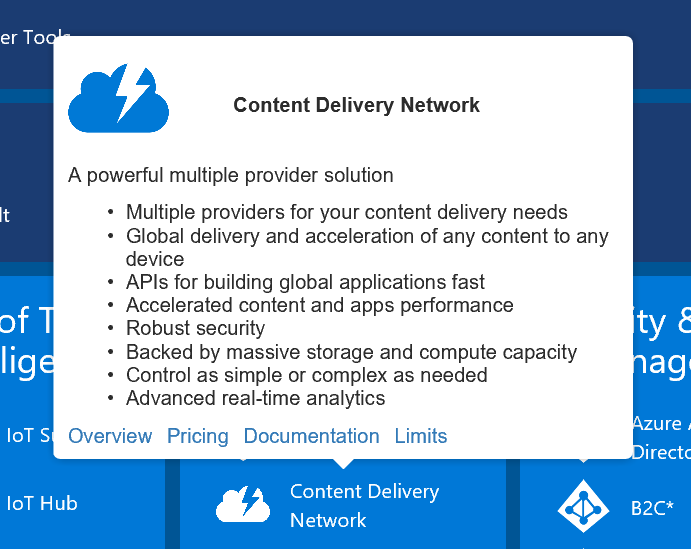
imageFor example:  Interested in knowing what Azure offers as for Content Delivery Network services? (CDN)

Click on it and get the following balloon.  (See photo on the right)

LINKS FOR OTHER KEY REFERENCES
There are also links at the bottom that remind you where to go for:

To check out this interactive map of Azure Platform services, visit:

I’ll admit that one of the things I’ve been eagerly anticipating is the fusion between SharePoint sites & Office Groups.

  • SharePoint provides something that every team absolutely needs:  Shared file storage.  It also provides context around those files and the ability to sync those files locally to your PC.
  • Office Groups on the other hand, provide threaded messages with integration with Exchange for richer collaboration amomgst team members, something that SharePoint lacks.

But between the two, if faced with choosing just one, I choose SharePoint & Document folders every time.  People need to share documents: For me, communications can always be handled by email and distribution lists.

SHAREPOINT SITES + OFFICE GROUPS: CHOCOLATE & PEANUT BUTTER
Now, as you can see in the video below, Office Groups is being integrated into SharePoint sites to provide both document sharing as well as threaded messaging that is present and archived in the site as well as delivered via Exchange.

All on one site.

The Mobile and Intelligent Intranet: SharePoint sites and PowerApps

This video shows a lot more than just Office Groups. SharePoint Mobile clients, PowerApps, and other features are reviewed so check it out.

For a write up about these features, check out the SharePoint blog post here:

Saved image from Tweetium (32)

Now you can benefit from the expanded support for SAP applications on Azure to run your mission-critical SAP workloads. Azure is an enterprise-proven cloud platform that provides unparalleled performance and can handle the largest SAP HANA workloads of any hyperscale cloud provider.

Twenty years and counting, Microsoft and SAP, are committed to delivering innovation for our joint customers. Hear from our Senior Solution and Development Executives on ways to leverage your investments in SAP to drive customer value.

In this webinar you’ll learn about:

  • SAP applications on Azure
  • HANA on Azure
  • Architectural guidance
  • Demo of HANA deployment on Azure native VMs

Register at the link below!

imageMicrosoft & SAP CEOs Satya Nadella and Bill McDermott announced deeper cloud integration between our two companies.

SAP customers will be able to run HANA, SAP’s in-memory databasesolution on Microsoft Azure.  It will specifically perform best on Azure relative to other cloud providers by having far higher data load capacities through the availability of greater dedicated compute power & memory.

Additionally, there will be greater connections between Concur, SuccessFactors, and Ariba with Microsoft industry leading cloud productivity solution, Office 365, which will more directly integration with SAP’s toolset.

For more details on the new partnership, read the announcement here:

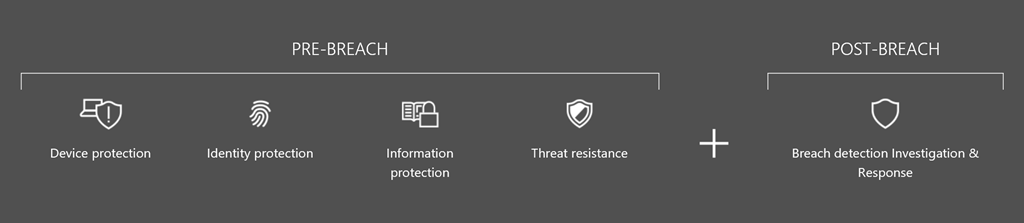
Windows Defender Advanced Threat Protection is a new service that helps our enterprise customers to detect, investigate, and respond to advanced and targeted attacks on their networks.

image

Windows Defender ATP is composed of three parts:

  1. The Client – end-point behavioral sensor, built into Windows 10 (Windows 10 Anniversary update, Windows Insider Preview Build number 14332 and later) and activated upon service enrollment. The client logs relevant security events and behaviors from the endpoint.
  2. Cloud security analytics service – processing data from endpoints in combination with historical data and Microsoft’s wide data repository to detect anomalous behaviors, adversary techniques and similarity to known attacks. The service runs on the Microsoft scalable big data platform, and uses a combination of Indicators of Attacks (IOAs), generic analytics and machine learning rules, as well as Indicators of Compromises (IOCs) collected from past attacks.
  3. Microsoft and community intelligence – our Hunters and researchers investigate the data, finding new behavioral patterns and correlating the data with existing knowledge from the security community.

To sign up for the preview of Windows Defender: Advanced Threat Protection, visit the following site:

« Newer Posts - Older Posts »

Categories