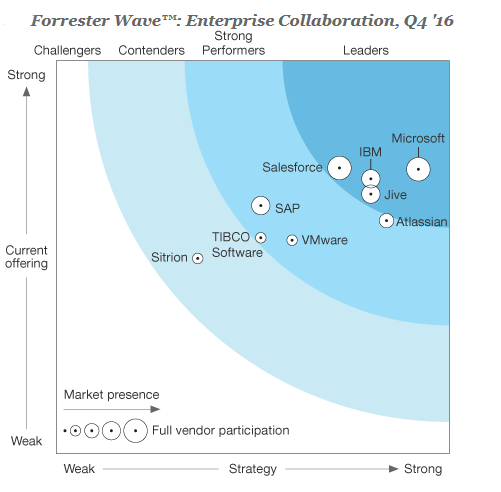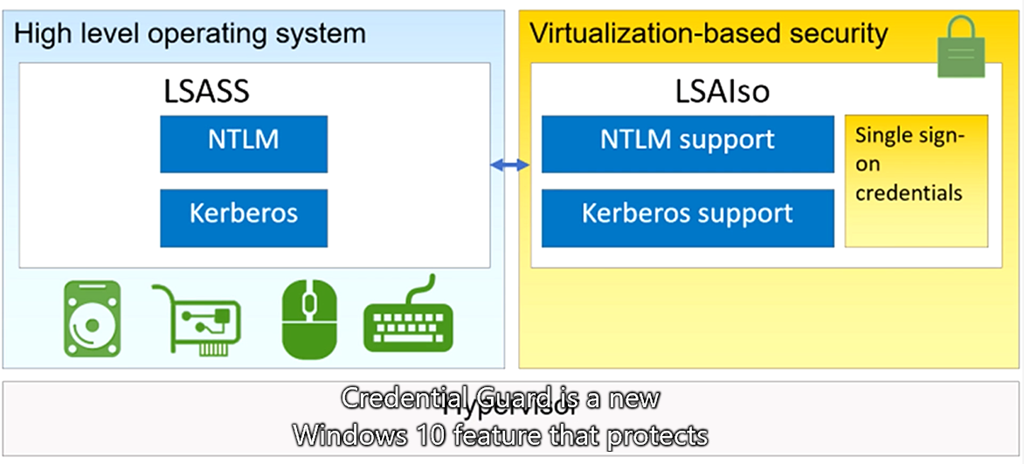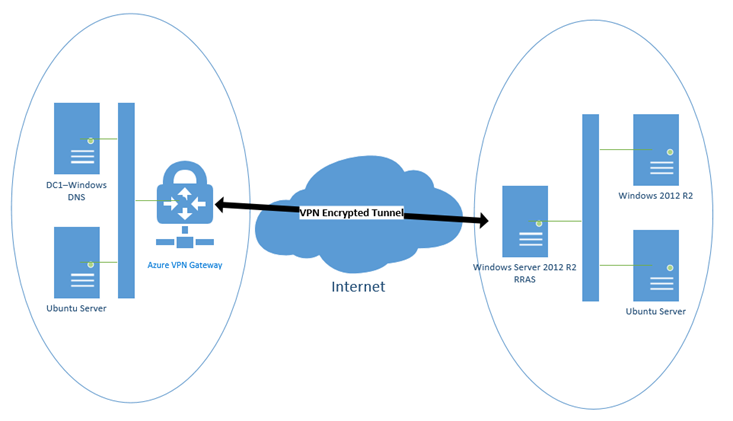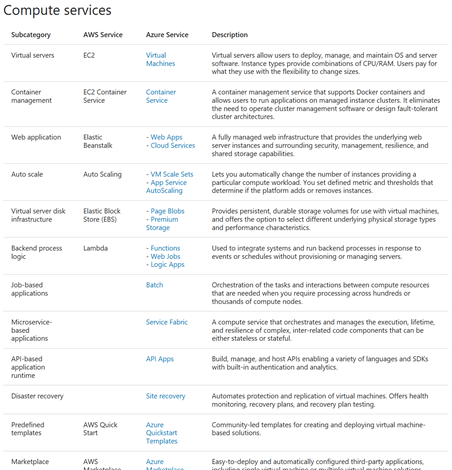
imageI really like this list as a guideline for folks considering security for their cloud solutions.  Here’s consideration #1, pictured to the right.

It’s part of the Microsoft Secure blog, a blog dedicated to Microsoft’s point of view on security, privacy, reliability, and trust. It’s the place to go for in-depth articles on Microsoft products and services, as well as tips and recommendations for improving security in your organization.

Here is a larger list of 8 questions to think about for adaptive cloud security. Step 1: Check your budget.

To read the full list, visit:

image

On October 25-28, 2016, SQL PASS 2016 took place in Seattle, WA – the world’s largest gathering of SQL Server and BI professionals.

If you’re interested in downloading the SQL PASS 2016 Keynote from Day 2 entitled, “Datawarehousing in the Cloud” by David J. DeWitt & Willis Lang, I’ve got the deck below.

imageStarting in February 2017, Microsoft will no longer support Project 2013 (through Office 365 or MSI) connecting to Project Online. Customers who need to connect to Project Online will need to move to Project 2016.

For more information, please check out Premier PFE, Brooks White’s blog here:

We announced 2 new support offerings: Windows Server Premium Assurance and SQL Server Premium Assurance. These offerings add 6 more years of product support for Windows Server and SQL Server, allowing for a minimum of 16 years of total support:

  • 5 years for Mainstream Support
  • 5 years of Extended Support
  • 6 years of Premium Assurance

image

The additional support period provides Security Updates and Bulletins rated “Critical” and “Important” (see the Security Bulletin Severity Rating System for definitions) for both products.

To learn more about Windows Server Premium Assurance and SQL Server Premium Assurance, and the six additional years of product support they provide, read the datasheet. The new offerings will be available early next year.

For more details, read the announcement blog post here:

imageAbout a week ago, a couple of Microsoft Researchers released a tool presented at Black Hat Europe 2016 called "SAMRi10" (pronounced “Samaritan”), a short PowerShell (PS) script which alters remote SAM access default permissions on Windows 10 & Windows Server 2016. This hardening process prevents attackers from easily getting some valuable recon information to move laterally within their victim’s network.

Here’s a summary of the tool’s goals & functionality:

Overview

Reconnaissance (recon for short) is a key stage within the Advanced Attackers’ kill chain. Once attackers have breached a single end-point, they need to discover their next targets within the victim’s corporate network, most notably privileged users. In order to enable admins to harden their network against such recon attacks targeting local users, we had developed the “SAMRi10” (pronounced Samaritan) tool.

Introduction

Reconnaissance (recon for short) is a key stage within the Advanced Attackers’ kill chain. Once attackers have breached a single end-point, they need to discover their next targets within the victim’s corporate network, most notably privileged users

Attackers utilize compromised credentials in order to move laterally within their victims’ network. These compromised credentials may consist of either domain or local credentials. Local credentials, especially those of local admins, are a lucrative target for the attackers as they are less managed (password complexity and change policy) and less monitored (no traffic and logs besides the specific computer).

Querying the Windows Security Account Manager (SAM) remotely via the SAM-Remote (SAMR) protocol against their victim’s domain machines, allows the attackers to get all domain and local users with their group membership and map possible routes within the victim’s network. Recently, some frameworks (e.g. BloodHound) have automated that mapping process.
By default, the SAM can be accessed remotely (via SAMR) by any authenticated user, including network connected users, which effectively means that any domain user is able to access it. Windows 10 had introduced an option to control the remote access to the SAM, through a specific registry value. On Windows Anniversary update (
Windows 10 Version 1607) the default permissions were changed to allow remote access only to administrators. An accompanying Group Policy setting was added, which gives a user-friendly interface to alter these default permissions.

In order to enable admins to have granular control over remote access to SAM for all Windows 10 versions, we had developed the “SAMRi10” (pronounced Samaritan) tool. The SAMRi10 tool is a short PowerShell (PS) script which alters these default permissions on all Windows 10 versions and Windows Server 2016. Most significantly, this hardening process should block attackers from easily getting valuable recon information.

SAMRi10 can be downloaded from here. In-depth usage instructions are included in the download package.

Posted by: kurtsh | December 19, 2016

WHITEPAPER: Azure Onboarding Guide for IT Organizations

image

There’s a 103 page document that we’ve produced called the “Azure Onboarding Guide for IT Organizations”.

The purpose of this document is to provide an overview, guidance, and best practices for enterprise IT departments to introduce, consume, and manage Microsoft Azure-based services within their organization. The target audience is enterprise architects, cloud architects, system architects, and IT managers.

It covers the following:

  1. Moving to the Cloud
  2. Managing security, compliance, and data privacy
  3. Azure enterprise administration
  4. Integrating Azure into the corporate network
  5. Extending Active Directory to Azure
  6. Operating Azure IaaS Services
  7. Migrating existing services to Azure
  8. Offering management for cloud-based services

Download the whitepaper here:

For more papers & documentation, visit:

https://pbs.twimg.com/media/C0DeWcYXgAAoY1_.jpg:smallCome attend our free, two-day technical training for IT professionals and developers with experts who build the cloud services across Microsoft Azure, Office 365, and Windows 10.

Join over 70 technical training sessions covering a range of topics across Microsoft Azure and the hybrid platform including security, networking, data, storage, identity, mobile, cloud infrastructure, management, DevOps, app platform, productivity, collaboration and more.

Register below:

image

We have a new free ebook to share! This ebook, Containerized Docker Applications Lifecycle with Microsoft Tools and Platform, by Cesar de la Torre, was published by the Microsoft DevDiv team. Cesar has previously written for Microsoft Press, so we’re helping spread the word about his new ebook. Enjoy!

image

Have you ever opened up the Windows 10 Mobile Outlook calendar app and have it close on you 10 seconds later… and no matter how many times you open the app, it just keeps closing down on you?

This might also happen when you open the Windows 10 Outlook Mail app as well.  (I believe this actually applies to both Windows 10 Desktop & Windows 10 Mobile.)

CAUSE:
Do you have an Office 365 email account?  This might apply to Exchange (on-prem) account users as well but I had this problem and near as I can tell, something in my local Outlook database for the Office 365 account got corrupted on my Windows 10 Mobile phone.

I’ve read stories about this having to do with some sort of malformed HTML in an Calendar or Email object that it was reading/processing and the result was an errorless crash of the respective app.

SOLUTION:
The solution is simple. 

  1. Go to you Account settings in your phone, find the Exchange/Office 365 account that exists for your device, and DELETE IT.  This won’t delete any content on your account in the cloud of course – just the local copy on your phon.
  2. Shutdown/Reboot your phone – this is normally done by holding down the Power button and the Volume Up button simultaneously for a few seconds.  Power it back on.
  3. Run the Calendar/Email app.  At this point, your calendar should be clear of any calendar items from your Office 365/Exchange account.  More importantly, the app should stop “dying” or “crashing” on you every 10 seconds and you should be able to use it, just as you would normally.
  4. Re-add your Office 365/Exchange account, and do a sync from the Mail app, which will resync your email, contacts, and calendar.  This process may take a long while.

If all went right, you should be able to open your calendar and email without it crashing on you while you’re using it.

imageI’m a little late on this but in case you missed it, Microsoft Flow is released & “generally available”

Microsoft Flow is a cloud-based service that makes it simple to automate common tasks and business processes across your applications and services, such as Office 365, Slack, Dropbox, SalesForce.com, Dynamics 365 and many more.

WHY FLOW?
What differentiates Microsoft Flow from other cloud-based automation services like IFTTT, are a few characteristics that are hallmarks of Microsoft’s cloud:

  1. NATIVE OFFICE 365 INTEGRATION
    Microsoft Flow is the end user automation & productivity solution for Office 365 & Dynamics 365.  

    Every SharePoint Online user in the world can now use Microsoft Flow to take action directly from the context of their SharePoint Lists. In the coming months, we will be adding the ability to run any flow on-demand for a specific document or list item.

    We are adding new services every week. Just this month we’ve added a dozen third-party services, including Bit.ly, Campfire, Cognitive Services Text Analytics, Instapaper and Pinterest. Microsoft Flow can also work with on-premises data in SharePoint Server or SQL Server.

  2. ENTERPRISE MANAGEMENT
    Flow comes with the Microsoft Flow Admin Center to provide control over the Microsoft Flow environments inside of their organization.

    Data-loss prevention policies control the flow of data and the use of services within the Enterprise.  Administrators of Premium Plan 2 subscriptions will also be able to see the services used by Microsoft Flow overall.

    Environments will enable IT to store flows by geography or team for Premium users. (Plan 2) When you create an environment, you can pick its geographic location. Today, we offer the United States, Europe, Asia-Pacific, Australia, India, and Japan as regions, with more coming soon.

    Premium services access (like Salesforce & Common Data Store) for Flow is also available to subscribers of Premium Plan 1 or 2.

  3. imageCROSS-PLATFORM DESKTOP & MOBILE
    Get notifications on your desktop, iOS or Android devices, via native apps for each OS platform.

    Create flows directly on your mobile device, easily & intuitively for end users.  Access the template gallery to get started and navigate through available services via keyword or category. 

    Watch this short video to get to know our mobile app. 

    Create flow buttons for mobile device users to quickly trigger any action at anytime and anywhere.

PRICING
Microsoft Flow is now available in both free and paid service plans. Using premium services like Salesforce and the Common Data Service is exclusive to Microsoft Flow Plans 1 and 2, and each plan has a different limit on the number and frequency of runs.

  • “FLOW FOR OFFICE 365”
    If you are an Office 365 or Dynamics 365 customer, a Microsoft Flow plan called “Flow for Office 365” is included at NO CHARGE with your license. Learn more about pricing here.
    It has the following additional benefits over the “free” service:
        • 2000 runs/user/month (1200 more)
        • 5 min Flow frequency (vs 15 minutes)
        • 99.9% Service Level Agreement (No SLA for free)
        • Connectivity to Dropbox, Twitter & Excel
        • Access to on-premises data using on-premises data gateway
        • Collaboration with co-workers on flows (coming soon)

For more information on Microsoft Flow, visit the following sites:

« Newer Posts - Older Posts »

Categories