Posted by: kurtsh | September 1, 2020

BETA: Azure Maps for Power BI (Public Preview)

imageThe Azure Maps visual for Power BI will be releasing as a preview this week. Power BI is a powerful analysis and visualization tool. Azure Maps is an important tool for gaining geospatial context and insights that can be used in decision making.

This initial release includes the following visualization layers:

  • Bubble layer
  • 3D bar chart layer
  • Reference layer
  • Custom tile layer
  • Real-time traffic overlay

In addition to these visualization layers, this visual also leverages built-in Power BI features, such as tooltips, color themes, as wells as filter and slicer support.

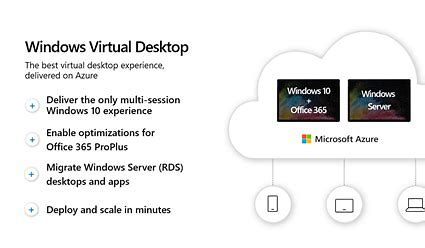
imageWindows Virtual Desktop announced 2 new very impactful features you should know about:

  • Azure portal integration
    With the Azure portal integration, you get a simple interface to deploy and manage your apps and virtual desktops. Host pool, workspace, and all other objects you create are Azure Resource Manager objects and are managed the same way you manage other Azure resources.
  • A/V redirect for Microsoft Teams
    ”Once you enable A/V redirect in the Desktop client for Windows, the audio and video will be handled locally for Microsoft Teams calls and meetings. You can still use Microsoft Teams on Windows Virtual Desktop with other clients without optimized calling and meetings.”

Read more and find pointers to the documentation here:

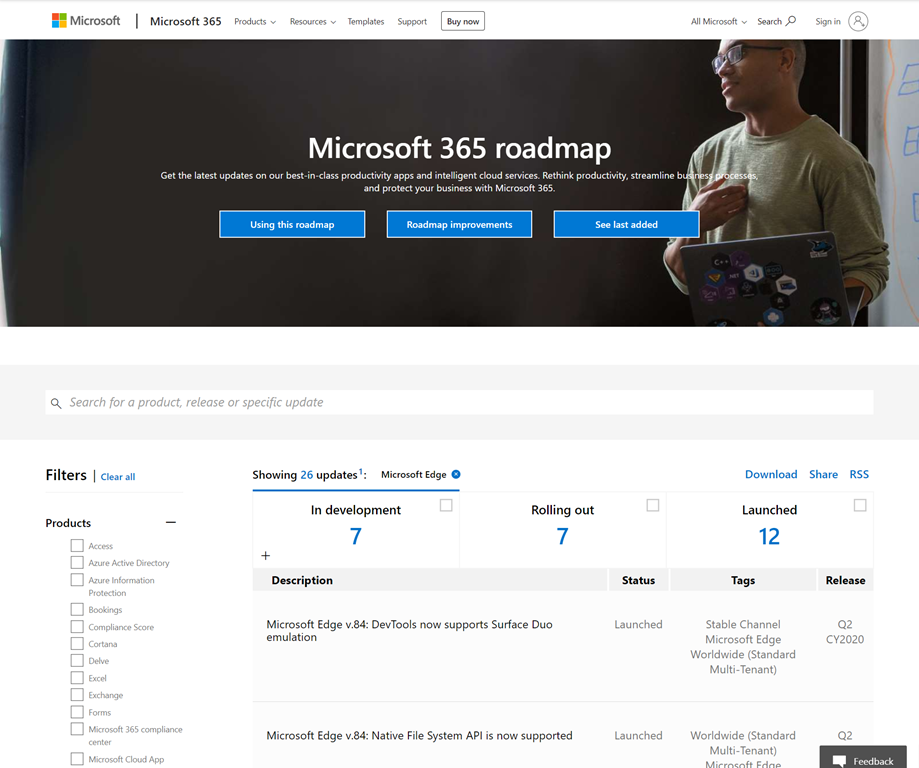
imageEdge is now integrated into the Microsoft public roadmap.

Today, we are announcing the availability of Microsoft Edge enterprise features on the Microsoft 365 Roadmap portal, and a new Microsoft Edge release schedule for Beta & Stable channel releases.

The M365 roadmap portal lets you view upcoming Microsoft Edge enterprise features—you can filter by “Microsoft Edge” in the Products field, or by “Beta channel” and “Stable channel” in the Release Phase field. Developers should continue to reference our Platform Status page for information on supported and upcoming platform features.

See the full announcement here:

Posted by: kurtsh | August 27, 2020

EVENT: PASSsummit 2020 (Virtual) Nov 10-13, 2020

imagePASSsummit 2020 has gone Virtual!

PASS is the premier event for SQL Server database administrators, developers, & architects.  Community driven & supported by Microsoft, PASSsummit has been one of the most successful conferences for data people of all facets.

Learn about the Virtual Summit Packages with over 200 hours of expert-led content, on-demand access, and PASS networking opportunities.

Register here: https://www.pass.org/summit/2020/

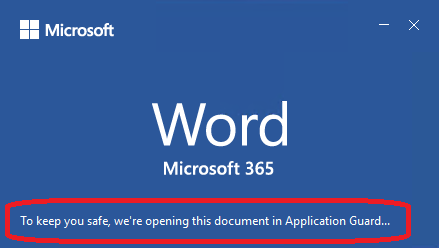
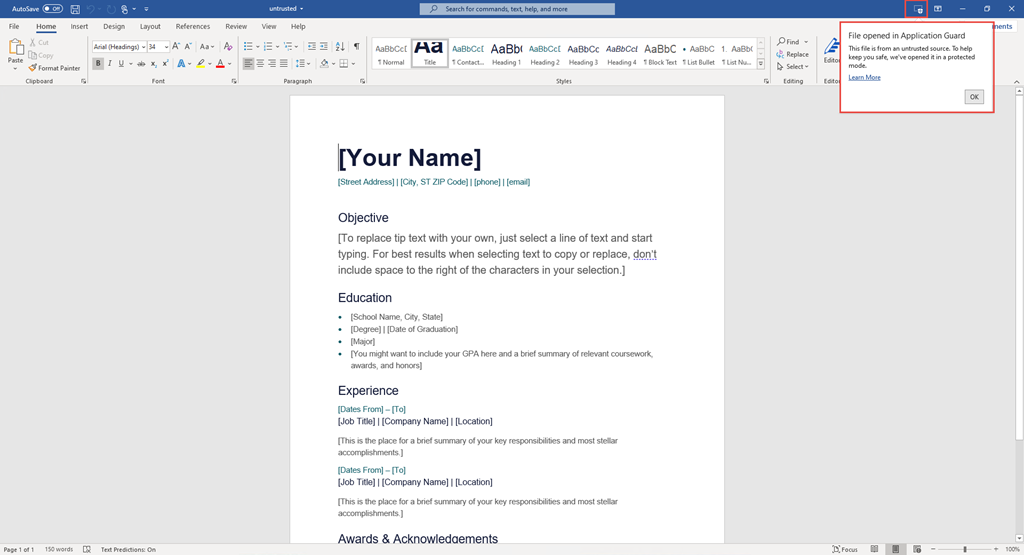
imageProtect your users by automatically opening suspicious emails & documents for them in hardware virtualized containers using the new “Microsoft Defender Application Guard”.

Application Guard for Office is now available in public preview!

Files from the internet and other potentially unsafe locations can contain viruses, worms, or other kinds of malware that can harm your users’ computer and data. To help protect your users, Office opens files from potentially unsafe locations in Application Guard, a secure container that is isolated from the device through hardware-based virtualization. When Office opens files in Application Guard, users can securely read, edit, print, and save those files without imagehaving to re-open files outside the container. This feature will be off by default.

Note:  This security service/feature will be coming to Microsoft 365 E5 or M365 E5 Security licensees.

Learn more about Application Guard here:

UPDATE 2/17/21:
This feature was removed from the roadmap.

ORIGINAL POST (AUG 2020)
Did you ever wish you could share your Microsoft Stream-based videos with people outside of your organization/company?

I spotted something that on the public Microsoft 365 roadmap:

image

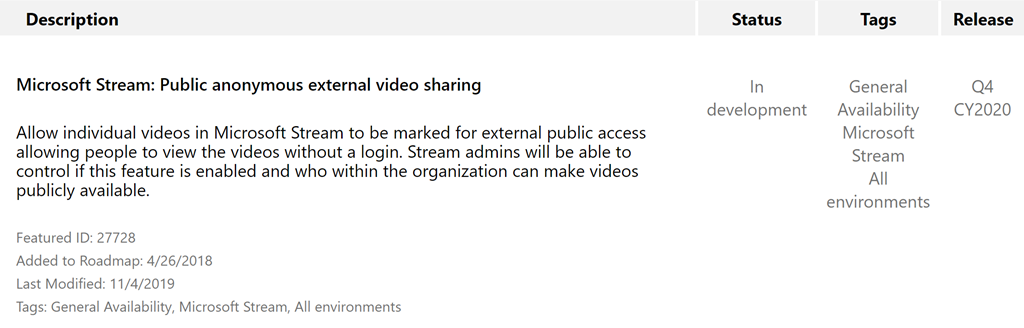
Microsoft Stream: Public anonymous external video sharing

Allow individual videos in Microsoft Stream to be marked for external public access allowing people to view the videos without a login. Stream admins will be able to control if this feature is enabled and who within the organization can make videos publicly available.

Slated for release “Q4 Calendar Year 2020”.

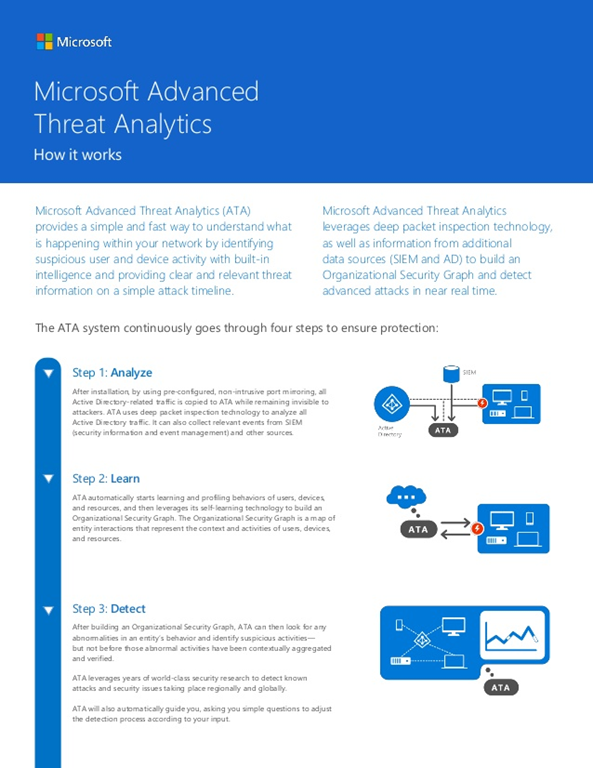
imageThe end of mainstream support for Advanced Threat Analytics (ATA) is coming on January 2021.

ATA will continue to be supported in extended support however after this date:

  • no further feature updates will be made to ATA (past updates are located here)
  • no functional patches other than security fixes will be published for ATA

WHAT TO DO?
Azure Advanced Threat Protection (AATP) has been the evolution of Advanced Threat Analytics, operating in the cloud & delivering improved protection at a rapid pace.

Folks using ATA know that it has always been a few steps behind AATP in features & functionality because it requires manual on-premises software updates, relative to AATP which is updated regularly in the cloud on customer’s behalf. 

It’s recommended that IT organizations consider beginning their transition to Azure Advanced Threat Protection to ensure their Active Directory Domain Controller environment is securely monitored for breaches & anomalous behaviors.  Resources to migrate are available here.

For more information, read the notification about the ending of ATA’s mainstream support:

Posted by: kurtsh | August 25, 2020

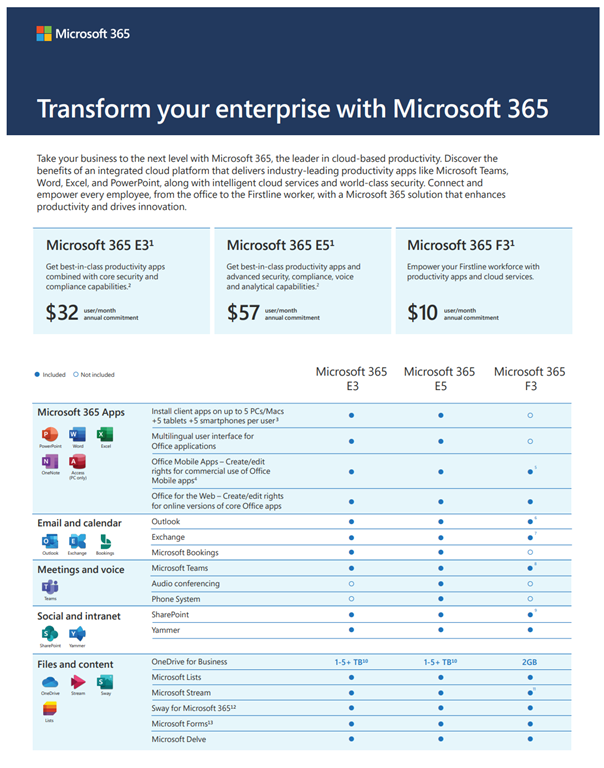
INFO: Comparing Microsoft 365 F1, F3, E3, & E5 Suites

imageDetermining the differences between Microsoft 365 F1, F3, E3, & E5 Suites can be difficult. 

On the surface, there’s a few pages documenting the general differences in applications & services available but scratching the surface reveals a lot more technical differences in those same services that you might not know about.

MARKETING COMPARISONS
These sites are a good starting point as they provide overall/all-up views on the available services & functional differences between each suite.

For example, these sites will tell you which M365 license suite has Exchange Online, which has the Office ProPlus apps, which have Azure Information Protection, etc.

SERVICE DESCRIPTION COMPARISONS
To understand feature level differences in each service or product, you need to go into the Service Descriptions for each suite/service.

For example, these sites will tell you “the differences in mailbox size” between suites, whether or not “mailbox litigation hold” or “data loss prevention” is available for a specific M365 license suite, etc.

Anyone that establishes a Contacts database in Teams/SharePoint Online can synchronize that database to their personal installation of Outlook.

Note: This synchronization does NOT mix the online database’s contacts with your personal contacts.  It establishes a new database in Outlook for you which is selectable to view & edit from the Contacts section of Outlook.

The following is for ANY person with access to the Contact database that wants to synchronize the contacts locally to Outlook:

To synchronize the database’s contacts with Outlook:

  1. Open Outlook on your desktop. 
    This will make the next step smoother as
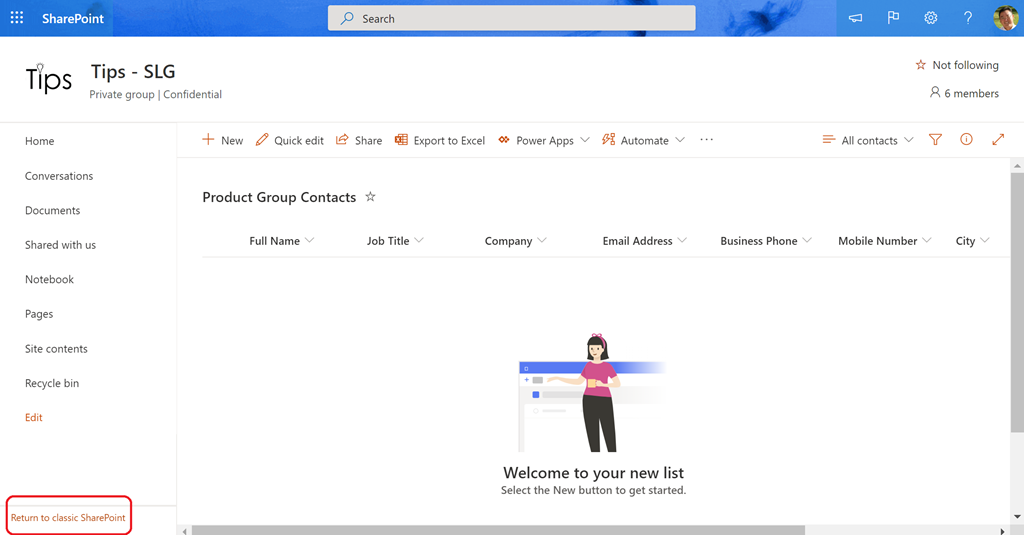
  2. Go back to your browser and jump to the Contacts web view for your Contact database. (If you’re using Teams, see the first 3 steps of the blog post, “Part 1: Creating a Contacts Database”)
    image
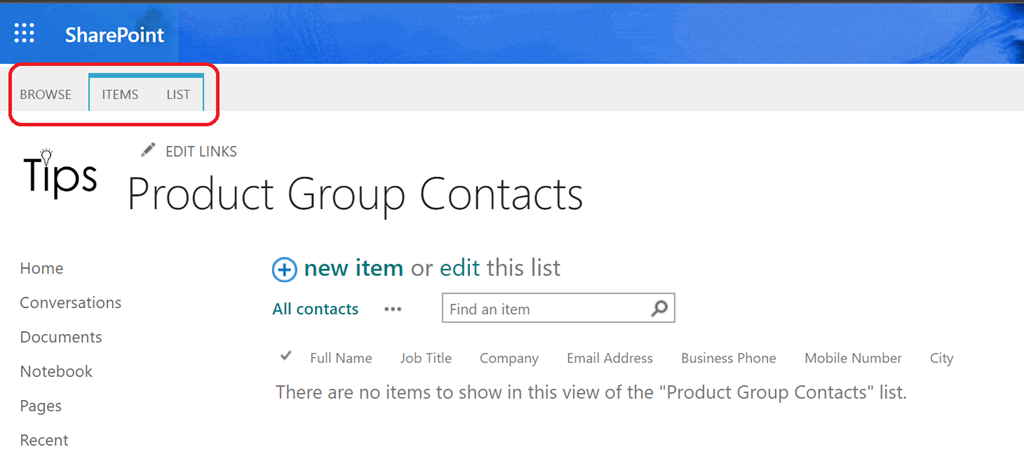
  3. Click the “Return to classic SharePoint” link at the bottom of the page.  The view should change with 3 menu items appearing near the top of the screen: “BROWSE, ITEMS, LIST”
    (It is possible that this might not work the first time – so you may need to click it AGAIN, a second time.)
    image

  4. Click “LIST”.  This should reveal a “ribbon” of options.
  5. Click “Connect to Outlook
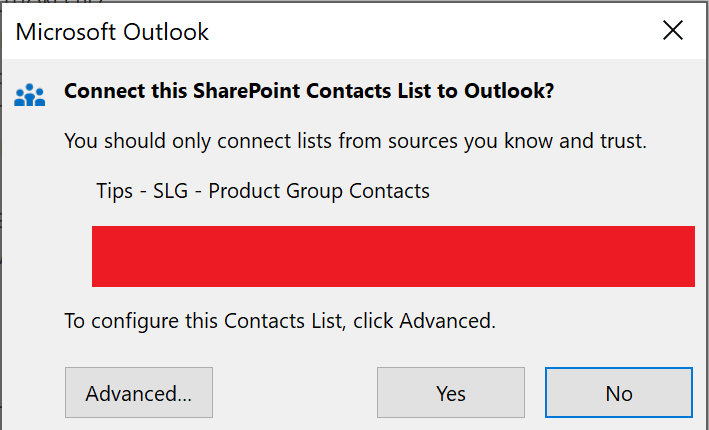
    This will immediately open a dialog box in Outlook requesting permission to establish a SharePint Contacts list sync.
    image
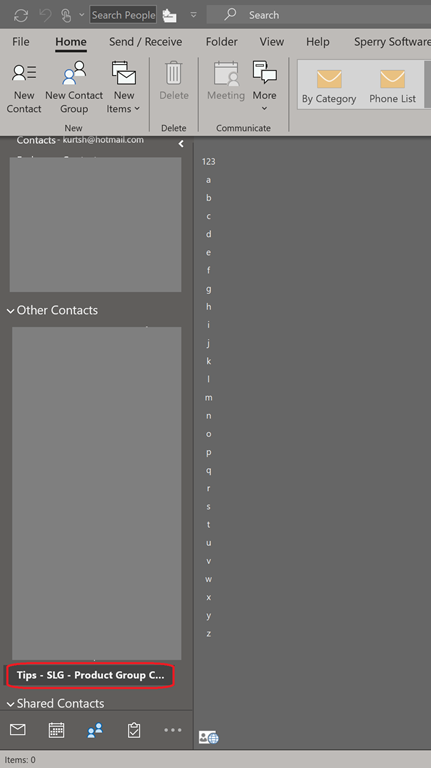
  6. imageClick the “Yes” button. Outlook will immediately establish a new Contacts database locally and sync it with the SharePoint Contacts database.
    The new Contacts database should appear on the left.
    (Note: In some rare cases, the new Contacts database will not appear in the Contacts database list despite having been created & synced. Simply restart Outlook to have it appear.)

That’s it.  At this point, you can:

  1. Copy Contacts from your personal contacts database to the new Contacts database established within Outlook.
  2. Any changes – additions, edits, deletions – you make to the newly created/synchronized Contacts database will be synced to the online database as well for others to see – and sync.

Caution: Any changes that OTHER people make to the synced contacts will also be synced back & reflected in the online database so be sure you trust those people you provide access to.

Everyone’s got contacts.  Very few people share them.

  • Interested in hosting a list of Contacts in Teams/SharePoint Online so everyone can see them?
  • Wish anyone could sync those Contacts to a separate contacts database in their installations of Outlook?
  • Now imagine editing those Contacts within Outlook & having those changes synced back to the online database for everyone else to receive?

Creating shared contacts databases appears to be a lost art but can be very useful when sharing contacts with everyone in a group.

CREATING A CONTACTS DATABASE IN MICROSOFT TEAMS/SHAREPOINT ONLINE
Here’s some basic steps to creating an initial Contacts database.  The first few steps are only for Microsoft Teams users to find the SharePoint Online site associated with their Microsoft Teams channel.  The remaining steps are for SharePoint Online.

For Microsoft Teams only:
      1. imageOpen Microsoft Teams & go to the Teams Channel in which you wish to create the Contacts database.
        At the top of the screen you should see a menu with “Posts, Files, Wiki”, etc.
      2. Click the FILES tab at the top of the screen.  A submenu should appear showing “New, Upload, Sync", etc.
      3. Click “Open in SharePoint” in the Submenu that appears. If you don’t see this, click on the “…” to reveal “Open in SharePoint” and select it.
        This should open a browser to reveal the SharePoint Online site associated with the Microsoft Team you’ve selected.

For SharePoint Online:

    1. Go to the SharePoint Online site you wish to build the Contacts database in.

For both Teams/SharePoint Online –
Creating the Contacts Database:

  1. Click Home.  This step is important!  Clicking Home will reveal a special “+New” button on the screen that will allow you to create a new “App”.
  2. Click “+New” & select “App”.
    (Note: You must have clicked “Home” prior for “App” to be displayed as a selection.)
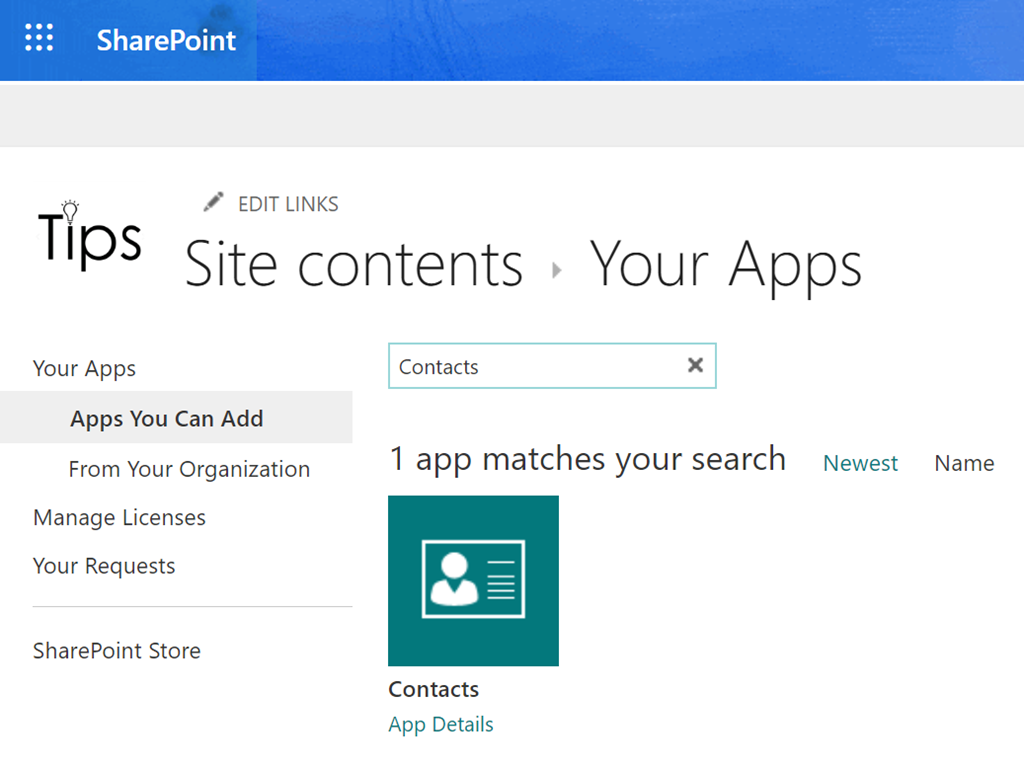
  3. imageClick the “Find an app” field & type “Contacts” & hit ENTER.
    This will search the possible apps for a Contacts database.
  4. Select “Contacts
      1. imageComplete the “Adding Contacts” dialog box by filling in the “Name” field and click the “Create” button.
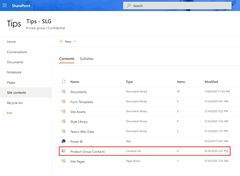
        Once completed, you will see a list of Site Contents for your SharePoint Online site. This should include an item of type “Contacts”
      2. Click on the Contacts database you just created in the list. You’ll be taken to a web view of the contacts in the database.
        (There’ of course won’t be anything in the database list yet.  If you want to create a sample contact entry, click on “+New” and create a new sample contact)

Changing the List View of the Contacts list [OPTIONAL]
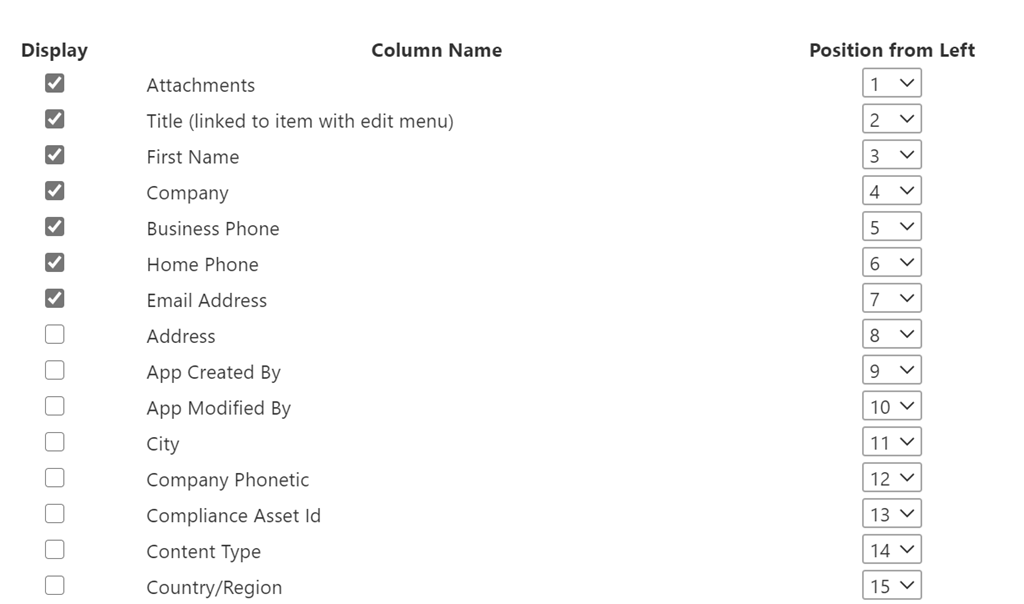
This is purely cosmetic however the default web view for each Contacts entry is not very useful and displays the following columns for all contacts at first:

  • Attachments
  • Title (Mr./Mrs./Ms.)
  • First Name
  • Company
  • Business Phone
  • Home Phone
  • Email Address

It doesn’t display last name, job title, mobile phone, etc.  imageTo change this, do the following from the Web View of your Contacts database:
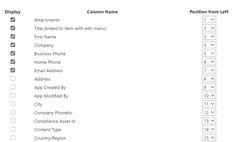
    1. Click “All Contacts” drop down list in the upper right hand corner.  You’ll be given a list of options.
    2. Click “Edit current view”.  You’ll be given a list of Columns to display in the view.
    3. Uncheck the columns/contact fields you don’t want to display and check those you do. Personally, I uncheck everything and then select:
          1. Full Name
          2. Job Title
          3. Company
          4. Email Address
          5. Business Phone
          6. Mobile Phone
          7. City
    4. Reorder the list of Columns by enumerating them in the “Position from the Left” column.
    5. Click OK to save this view.

COMING UP NEXT…
In the next blog entry, I’ll explain how to set up synchronization of the empty Contacts database with your local installation of Outlook so you can start copying Contacts into it.

« Newer Posts - Older Posts »

Categories