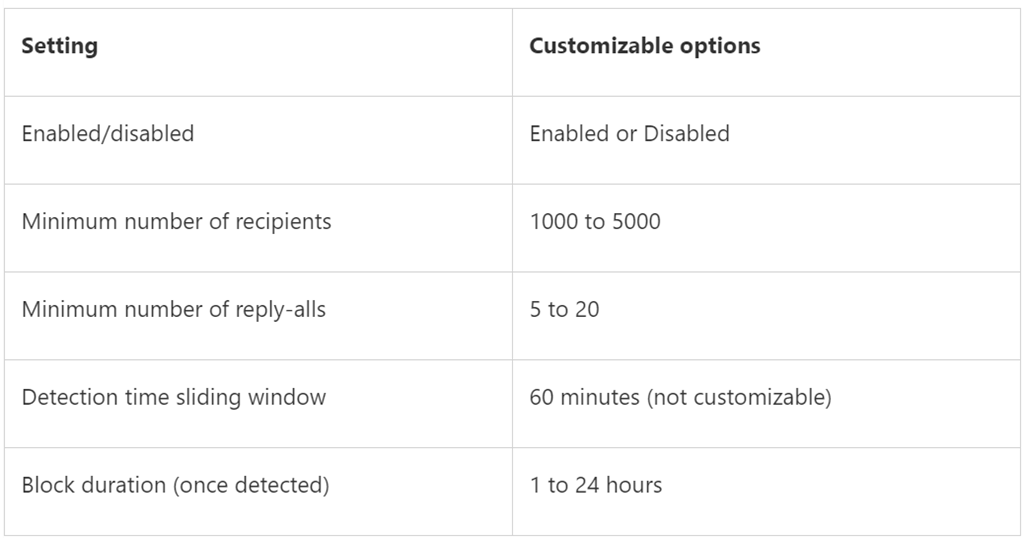
imageLast year we released a Reply-all Storm Protection feature to help protect your organization from unwanted reply-all storms. This feature uses global settings applicable to all Microsoft 365 customers for reply-all storm detection and for how long the feature will block subsequent reply-alls once a storm has been detected.
Today we’re pleased to announce you’ll now have the ability to make these settings specific to your Microsoft 365 organization; email admins will have the flexibility to enable/disable the feature, and set customized detection thresholds and block duration time. This not only makes it more flexible to tailor for your organization, but it also  allows more Microsoft 365 customers to take advantage of the Reply-all Storm Protection feature since the minimum number of reply-all recipients for detection can now be as low as 1000 when previously it was hard-coded at 5000.

Read more here:

Posted by: kurtsh | July 6, 2021

RELEASE: Microsoft PowerToys for Windows 10

Microsoft PowerToys is a set of utilities for power users to tune and streamline their Windows 10 experience for greater productivity.

There are over 9 Here’s a few of my favorites:

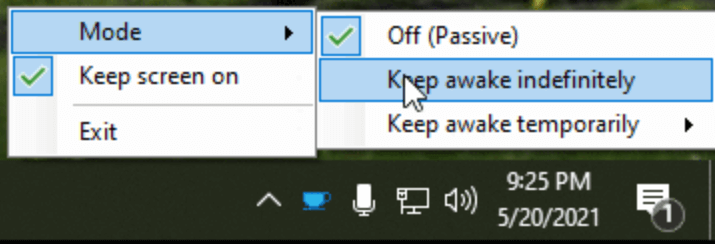
  • imageAwake is designed to keep a computer awake without having to manage its power & sleep settings. This behavior can be helpful when running time-consuming tasks, ensuring that the computer does not go to sleep or turn off its screens.
  • imageImage Resizer is a Windows Shell Extension for quickly resizing images. With a simple right click from File Explorer, resize one or many images instantly. This code is based on Brice Lambson’s Image Resizer.
  • Keyboard Manager allows you to customize the keyboard to be more productive by remapping keys and creating your own keyboard shortcuts. This PowerToy requires Windows 10 1903 (build 18362) or imagelater.

Read about the entire set here:

imageWe are reducing the price of the Power Apps per user and per app plans.  Also, the Power Apps per app plan entitlements are being simplified.

The following Power Apps licensing changes will go into effect on October 1, 2021:

  • The Power Apps per user plan will be priced at $20 per user/month, a decrease from the previous price of $40 per user/month. The plan will be available across Microsoft’s commerce channels – Volume Licensing (VL), Cloud Solution Provider (CSP) and web direct – without license minimums or other purchase requirements. Plan entitlements remain unchanged, including the ability for users to run unlimited apps and portals.
  • The Power Apps per app plan will be priced at $5 per user/app/month, a decrease from the previous price of $10 per user/app/month. Like the per user plan, the per app plan will also be available across the same commerce channels without license minimums or other purchase requirements.
    Additionally, we are simplifying entitlements for the per app plan by providing users with the ability to run one app or access one portal, in contrast with the current entitlement of two apps and one portal. This approach more directly aligns with the plan’s intent of providing flexibility for customers seeking to license users one app at a time. Customers with existing per app plan subscriptions purchased prior to Oct 1, 2021 will maintain the current entitlement for the duration of their agreement term.

In the interim prior to October 1, availability of the Power Apps limited time, promotional offers is being extended. Beginning today, July 1 and running through September 30, eligible customers interested in taking advantage of reduced pricing can select from these promotional offers: The Power Apps per user and per app plans are currently available for $12 per user/month (minimum purchase of 5,000 licenses) and $3 per user/app/month (minimum purchase of 200 licenses), respectively. Offer availability and other conditions may apply.

Lastly, we also recently made Power Apps portals login capacity available at a reduced price for eligible customers purchasing large volumes of sessions. This includes the addition of limited time offers for capacity tier 4 (25,000+ logins/month) and tier 5 (100,000+ logins/month), which joined the existing offers available for capacity ranging from 100+ to 5,000+ logins/month. With these limited time offers, Power Apps portals login capacity is available for a price as low as $12 per unit/month for tier 5 capacity. Minimum unit quantities and other conditions may apply.

Please visit the website, or contact your Microsoft representative or our sales team for more information on the terms and conditions for the Power Apps per user, per app and portals limited time offers.

The Message Center in Microsoft 365’s Admin Center is EXTREMELY IMPORTANT to pay attention to because Administrator’s receive notifications that are specific to their tenant in this area. This includes:

  • System Changes
  • New feature/service releases
  • Warnings/Issues

I highly recommend that all Microsoft 365 Administrators actively monitor the Message Center. An M365 Admin can monitor the Message Center in 3 ways:

  1. Regularly check the https://admin.microsoft.com Message Center
    (for individuals using the Admin Center frequently this shouldn’t be hard.)
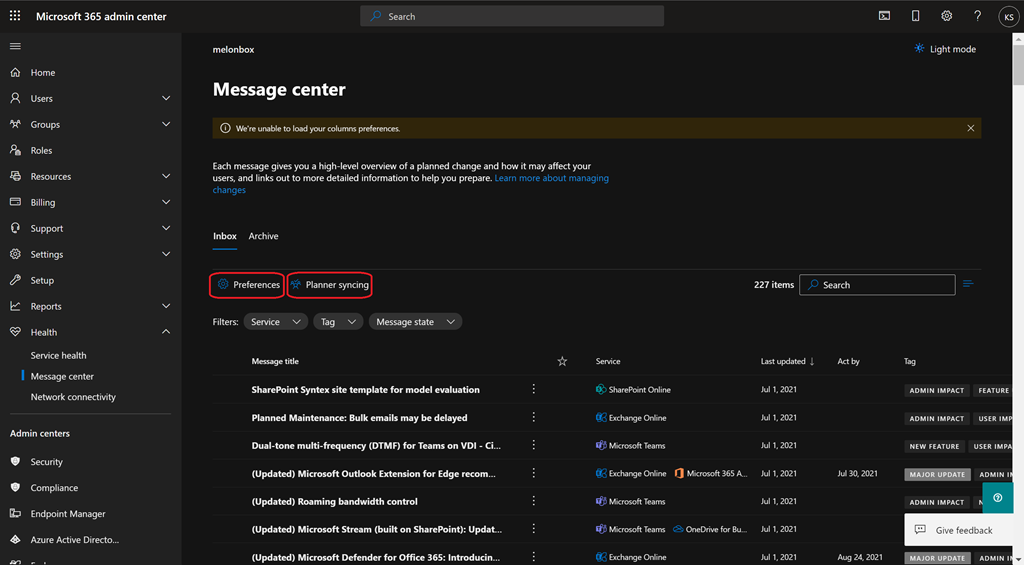
  2. Sync Message Center notices to Microsoft Planner using the “Planner Sync” feature – available from the Message Center
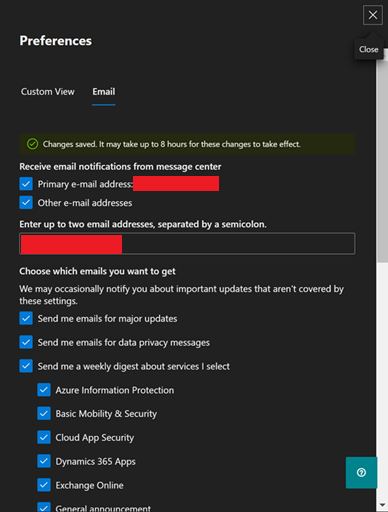
  3. Have Message Center send an email to the Administrator, for each notice posted using “PREFERENCES à EMAIL”.

imageGETTTING EMAILS SENT FOR MESSAGE CENTER NOTIFICATION/POSTS
This last option is the most common I see.  Here are the steps to get there:

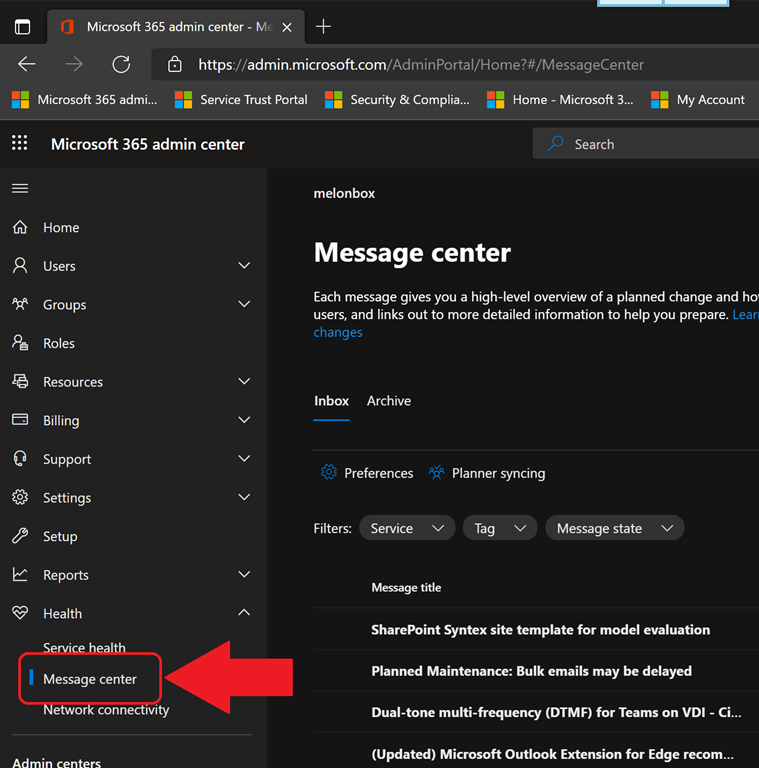
  • Go to the Microsoft 365 Admin Portal.
  • Click “Health” in the left side menu
    (You may need to click, “… Show all” before you’re able to see Health appear)
  • Click “Message Center”
    The Message Center console will appear.
  • imageClick “Preferences”
    A slideout window for Preference settings will appear.
  • Click “Email”
  • Check “Other email addresses” & enter the desired email.
  • Select the products that you want email notifications from.

  • Click “Save” at the bottom

Posted by: kurtsh | July 2, 2021

INFO: Tools to Move from IE11 to Microsoft Edge

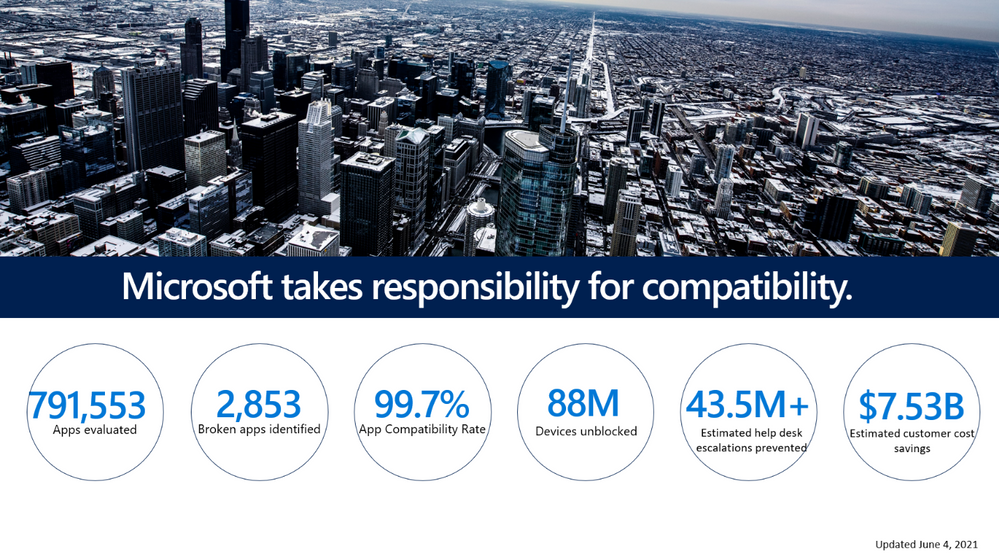
imageThe clock is ticking on Internet Explorer 11.

IE11 expires on June 15, 2022 meaning that no security patches/updates will be made available for it after this date & no support from Microsoft will be provided.  It also means:

  • All desktops must migrate off of Internet Explorer 11 by June 15, 2022
  • Alternative means of accessing any internal web sites & applications that actively require IE11 need to be found

SWITCHING TO MICROSOFT EDGE
The best solution for providing a true Enterprise browsing experience is Microsoft Edge.  Edge provides:

  • Chrome compatibility – the same sites accessed by users with Chrome are accessible using Edge, including the installation & use of Chrome extensions
  • Internet Explorer 11 compatibility – for sites that IT authorizes
  • Privacy Protection – ensure users behavior & information aren’t tracked or stored by advertising companies to prevent data leakage
  • VM-based Security – Protect users from bad web sites online by running browser tabs in hardware-based virtual machines/containers, blocking access to file systems, OS settings, and the your corporate network
  • Centralized Security Controls – IT policy-based management to control the security, configuration, and behavior of Edge
  • User-based Profile Sync – A login-based experience that provides the same favorites, home page, history, even extensions!, etc. for users
  • Enterprise Support – Full prioritized technical support – with escalation for customers with Premier/Unified support contracts with Microsoft

HOW TO SWITCH TO MICROSOFT EDGE
Fortunately, organizations have been switching off of Internet Explorer 11 for many years now and the tools by which they’ve done this are well documented.

imageThis list provides written guidance around the following to move from IE11 to Microsoft Edge:

  • Microsoft Edge setup guide aka “Edge Advisor”
  • Discover and configure sites that require IE mode
  • Microsoft Edge | Internet Explorer mode and compatibility
  • App Assure program

Read more here:

imagePower BI is an industry leading business intelligence platform adopted by the world’s largest enterprises (2021 Gartner Magic Quadrant I Microsoft Power BI). Power BI is the only BI product with built in data protection through Microsoft Information Protection.

In this webinar you’ll learn how you can:

  • leverage M365 sensitivity labels to classify sensitive content
  • inherit sensitivity labels from source systems
  • protect data when it leaves Power BI

Presented by: Anton Fritz, Principal Program Manager, Power BI R&D, Microsoft

US & EMEA Session

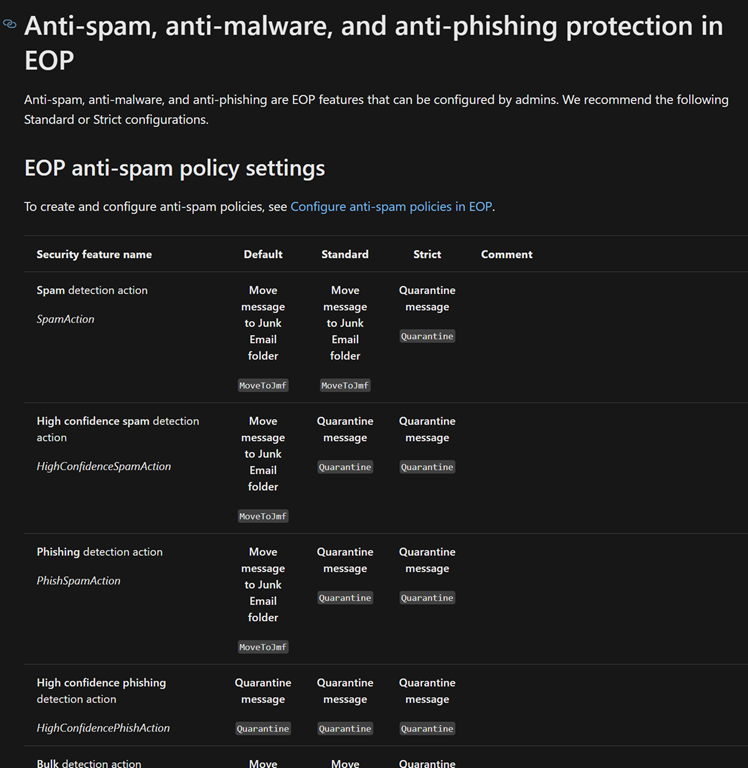
imageLooks like too many people needed explcit guidance around how to configure their Exchange Online Protection & Microsoft Defender for Office 365 security.

So it looks like we just published the settings that we recommend people configure… and provided an “Easy Button” i.e.  a way to simply “flip a switch” and autoset EOP/MDO365 to either “standard” or “strict” recommended policy settings.

It was published 6/18/2021 so it’s super current.  Read the docs here:

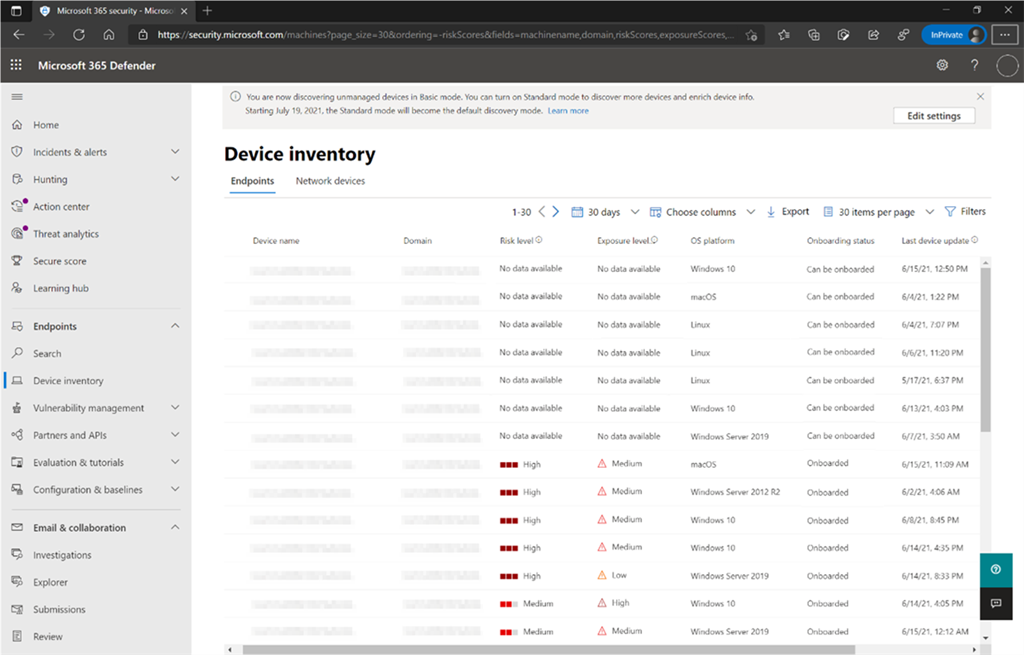
imageUnmanaged devices introduce some of the greatest risks to a customer’s cybersecurity posture.  Microsoft Defender for Endpoint can now provide visibility over unmanaged devices running on your networks.

As of today, if you are a Microsoft Defender for Endpoint subscriber, you will notice endpoint discovery has already been enabled on your tenant. This is indicated by a banner that appears in the Endpoint/Device inventory section of the Microsoft 365 Defender console.

With this release, customers will recevie a rich set of new capabilities, including:

  • Discovery of endpoints and network devices connected to your corporate network
    This capability provides Defender for Endpoint with the ability to discover unmanaged workstations, servers, and mobile endpoints (Windows, Linux, macOS, iOS, and Android) that haven’t been onboarded and secured. Additionally, network devices (e.g., switches, routers, firewalls, WLAN controllers, VPN gateways, and others) can be discovered and added to the device inventory using periodic authenticated scans of preconfigured network devices.
  • Onboard discovered devices and secure them using integrated workflows
    Once discovered, unmanaged endpoint and network devices connected to your networks can be onboarded to Defender for Endpoint. New integrated workflows and security recommendations in the threat and vulnerability management experience make it easy to onboard and secure these devices.
  • Review assessments and address threats and vulnerabilities on newly discovered devices
    Once endpoints and network devices have been discovered, assessments can be run using Defender for Endpoint’s threat and vulnerability management capabilities. These security recommendations can be used to address issues on devices helping to reduce an organization’s threat and risk exposure.

Read more about this release here:

imageOur Power BI Specialist, Cyrus Christian, who also runs the Power BI Government users group, wrote up the following differences between Power BI Premium & Power BI Report Server that is worth reviewing for any Power BI user.

The Power BI Report Server is effectively an upgraded version of SSRS.  If the goal is to eliminate the SSRS server, what do you gain by just replacing it with another server…

The Power BI Report Server is effectively a stepping stone between SSRS and the broader Power BI service.  Since you can now host SSRS type reports within the Power BI Service, it arguably doesn’t add anything of value anymore…

This comparison chart might help: https://docs.microsoft.com/en-us/power-bi/report-server/compare-report-server-service

For just your existing reports, the Report Server could be fine – but you don’t get access to creating Dashboards, data alerts, creating reports within the browser, packaging reports as “apps”, or more advanced features like Q&A, ARC GIS maps, Analyze in Excel, etc.

And for clarity – the “Premium” node isn’t really a VM – at least in how most people think about it.  There is no “server” exposed – there is nothing to “install” and nothing to “manage” in a Premium node.  All you need to do is setup the “capacity”, and then assign your workloads to use that “capacity”.  This typically takes minutes to setup – and then typically minimal (if any) maintenance after that.  https://docs.microsoft.com/en-us/power-bi/service-admin-premium-manage  The only time people typically have to “manage” a Premium capacity is if their utilization of Power BI is growing and they need to add more capacity, or if they want to start separating capacity – perhaps for different parts of the organization or “tiers” of reports (we need these 5 to run as fast as possible, these other 100 can run a little slower…).

So if you choose to run Power BI Report Server, we’ll need to:

  • Create and manage a VM (with underlying storage, compute, network, etc.)
  • Deploy, update, and support the OS
  • Deploy, update, and support the SQL Server
  • Deploy, update, and support the Power BI Report Server
  • Deploy, update, and support any management/etc. tools you use on your servers
  • Etc.

Contrast that with the Power BI Premium Node, where you’ll need to:

  • Configure and assign the capacity

    imageAs of this posting, there are 3 days left to create/assign vouchers for Software Assurance “Planning Services” & “Training Vouchers” – which expire June 30, 2021.

    So here’s some tips on using them both:

    PLANNING SERVICES

    White you don’t need to give your credit to a Partner before June 30th, 2021, you do need to assign the credit to a workload & a in-house project manager to create a voucher(s), it’s likely to your benefit to work with a partner in scoping how the credit will be used, allowing them to guide you through the process of using the vouchers to their potential.

    • WHAT CAN PLANNING SERVICES BE USED FOR?
      Keep in mind that technically, the Planning Services can only be used for on-prem workloads and there are specific categories that these credits can be used for. You can review the document available for download here that goes over each category. For example, “Private Cloud, Management, and Virtualization Deployment Planning Services (PVDPS)”
      https://www.microsoft.com/cms/api/am/binary/RE4rdet
    • WHAT STEPS SHOULD I TAKE TO CREATE A PLANNING SERVICES VOUCHER?
      You’ll need to be able to access the Volume Licensing Service Center to assign a Planning Services voucher to partner. (http://aka.ms/vlsc) If you want to see the entire workflow of how Planning Services vouchers are originated & processed by partners & their customers step-by-step, review the following doc. (Your part starts at page 3, “Customer creates and assigned voucher (existing partners)”)
      https://query.prod.cms.rt.microsoft.com/cms/api/am/binary/RE4oHrn
    • WHAT GOLD-CERTIFIED PARTNERS WILL ACCEPT THE PLANNING SERVICES?
      These are Gold-certified Microsoft Partners that I’ve worked with in the past that will accept Planning Services:

      TRAINING VOUCHERS

      While you may have specific training courses/subject in mind, I highly recommend starting with contacting a Learning Partner and working with them to understand a) what classes they actually have available, and b) what kind of training you’re interested in. They will, importantly, guide you through the process & help you get the vouchers assigned to them, as they are incented on doing so.

      • WHAT MICROSOFT LEARNING PARTNERS ARE THERE THAT WILL ACCEPT THE TRAINING VOUCHERS?
        These are Learning Partners that I’ve worked with in the past that will accept Training Vouchers.
      • WHAT CLASSES CAN I TAKE?
        Most training classes that are available are for on-premise products only – NOT Office 365, Azure, or Dynamics. There are some exceptions, so for a listing of all available courses, go to the following catalog online: http://savl-catalog.microsoft.com/. Set "Program Type" to SA and filter on "Language" for English, etc. This will list all 250+ courses that you can take. Note: This does NOT mean that there’s a training organization available that is delivering the course in the timeframe you want it in however. You will need to discuss that with different Learning Partners to see if they offer the course you specifically want.
      • WHAT STEPS SHOULD I TAKE TO CREATE A TRAINING VOUCHER?
        You’ll need to be able to access the Volume Licensing Service Center to assign a training voucher to a student & a training partner. (http://aka.ms/vlsc) If you want to see the entire workflow of how Training Vouchers are originated & processed by Learning partners & their customers step-by-step, review the following doc. (Your part starts on page 7 with “Customer creates and assigns voucher (existing partners)”)
        https://www.microsoft.com/cms/api/am/binary/RE4rihy

      « Newer Posts - Older Posts »

      Categories