 For those looking for details around Microsoft’s commitment to privacy:
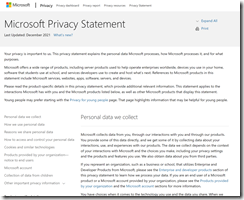
Your privacy is important to us. This privacy statement explains the personal data Microsoft processes, how Microsoft processes it, and for what purposes.
Microsoft offers a wide range of products, including server products used to help operate enterprises worldwide, devices you use in your home, software that students use at school, and services developers use to create and host what’s next. References to Microsoft products in this statement include Microsoft services, websites, apps, software, servers, and devices.
Please read the product-specific details in this privacy statement, which provide additional relevant information. This statement applies to the interactions Microsoft has with you and the Microsoft products listed below, as well as other Microsoft products that display this statement.
Young people may prefer starting with the Privacy for young people page. That page highlights information that may be helpful for young people.
- Personal data we collect
- How we use personal data
- Reasons we share personal data
- How to access and control your personal data
- Cookies and similar technologies
- Products provided by your organization—notice to end users
- Microsoft account
- Collection of data from children
- Other important privacy information
Product-specific details:
- Enterprise and developer products
- Productivity and communications products
- Search, Microsoft Edge, and artificial intelligence
Windows
- Entertainment and related services
Contact us:
If you have a privacy concern, complaint, or question for the Microsoft Chief Privacy Officer or EU Data Protection Officer, please contact us by using our web form. For more information about contacting Microsoft, including Microsoft Ireland Operations Limited, see the How to contact us section of this privacy statement.
For our privacy information, visit:
Comments Off on INFO: Microsoft Privacy Statement
Posted in Uncategorized
 This document is intended for administrators who may be deploying Virtual Desktop Infrastructure (VDI) systems and describes hardening steps specific to that workflow as well as general guidance that can be applied to any Azure deployment.





 kurtsh
 Kurt Shintaku's Blog
You must be logged in to post a comment.