image <taken from the Hotmail blog>

We are happy to announce that POP3 technology is now available to Hotmail users in the United States and Brazil in addition to the countries who rolled out the functionality last month (United Kingdom, Canada, Australia, France, Japan, Spain, Germany, Italy, and the Netherlands). If you don’t see your country or region in this list, never fear, we’ll be rolling POP3 out to more parts of the world later this year.

What is POP3? It is a protocol that allows almost any e-mail software program that you’ve installed on your mobile phone or PC* to get messages from your e-mail inbox on the web and deliver them in the designated program.

Although you always could access Hotmail on your web-enabled mobile phone by going to mobile.live.com, now that Hotmail has POP3, you can get to it more conveniently using the e-mail software on your PC or mobile device* such as a Windows Mobile phone, iPhone, or BlackBerry.

When you set up Hotmail in the e-mail program on your PC or mobile device, you may be asked for the following information:

POP server: pop3.live.com (Port 995)  
POP SSL required? Yes
User name: Your Windows Live ID, for example yourname@hotmail.com
Password: The password you usually use to sign in to Hotmail or Windows Live
SMTP server: smtp.live.com (Port 25 or 587)  
Authentication required? Yes (this matches your POP username and password)
TLS/SSL required? Yes

In addition to POP3, Microsoft offers additional technologies that can provide you with an even richer experience of your e-mail. Try viewing your Hotmail using Windows Live Mail, Microsoft Office Outlook via the Outlook Connector, or Windows Live for Windows Mobile phone.

Looking for help with Hotmail? Visit the Windows Live Hotmail Solution Center! The Solution Center has instructions on how to set up your e-mail software to send and receive Windows Live Hotmail messages using POP3. You’ll also find instructions on how to set up Hotmail on the web to give you POP3 access to a non-Windows Live e-mail account. If you have problems using POP3 access, Windows Live Hotmail Solution Center also has links to report a problem with Hotmail.

We hope you enjoy the many ways in which you can access your Windows Live Hotmail!

– The Windows Live Hotmail team

* If supported by your device and e-mail program

Digg This

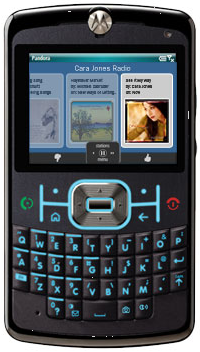
image It’s a new era for radio. Personalized, mobile, and free.

Pandora Radio is your own FREE personalized radio now available to stream music on your Windows Mobile handset. Just start with the name of one of your favorite artists, songs or classical composers and Pandora will create a "station" that plays their music and more music like it.

Already a Pandora user? Even easier. Just sign in. Pandora on Windows Mobile is fully integrated with Pandora on the web. Enjoy all your existing stations – and create new ones right from your Windows Mobile handset.

How to get it:
Point Pocket Internet Explorer on your Windows Mobile device to http://www.pandora.com.

Digg This

Posted by: kurtsh | February 20, 2009

VIDEO: Windows at Mobile World Congress – Feb 16-19

image

Experience Microsoft technologies and products that influence the mobile industry—Windows Mobile, Windows Live for Mobile, MSN Mobile, Mobile Advertising and many more. 

Among the many announcements made: 
Windows Mobile 6.5

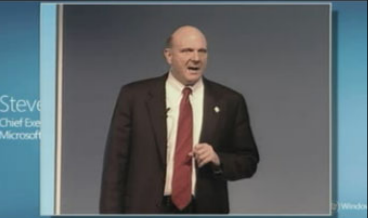
We’ve recorded the press conference hosted by Steve Ballmer: February 16th, 2009.

Watch the Video:
http://www.microsoft.com/windowsmobile/en-us/business/cmpn/mwc2009/default.mspx?WT.mc_id=SF_BallmerWMC_Feb

Virtual Press Room:
http://www.microsoft.com/presspass/events/
mobileworldcongress/default.mspx

Digg This

image <taken from the Sharepoint Team blog>
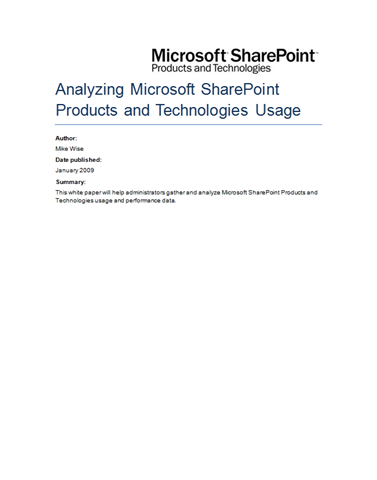
The current version of SharePoint gives an administrator the ability to look into what is actually happening on a farm, how many users are active, how heavy are they using the system, what type of requests are coming in, what kind of clients, etc.  Much of this information is captured in the IIS logs.

Mike Wise who works on the Customer Advisory Team specializes in SharePoint capacity planning and architecture and his goal is to make SharePoint capacity planning more of a science and less of an art.  His whitepaper is the first step, concentrating on the descriptive side of the task and showing one powerful technique that can be used today to make SharePoint performance and capacity measurable.  You can count on seeing more papers, reports, and calculation methods building off his technique in the coming months.

Topics covered in the whitepaper:

  • Preparing the Analysis Machine
  • Preparing the Server Logs
  • Initial Queries
  • Counting Users
  • Load Balancing
  • User Types
  • Request (RPS) Distribution over Time
  • Distinct Users over Time
  • User Agent Distribution
  • Browser Usage Patterns
  • Office Client Web Service Usage
  • Slow Home Page Percentages
  • Import IIS Logs into SQL

You can download the whitepaper here: 
http://www.microsoft.com/downloads/details.aspx?familyid=f159af68-c3a3-413c-a3f7-2e0be6d5532e&displaylang=en&tm

Digg This

Posted by: kurtsh | February 19, 2009

BETA: Forefront Threat Management Gateway Beta 2 released

image <taken from the ISA blog>
I wanted to publish a follow-on to Jim’s enthusiastic post about our public beta.  We have reached an important and critical milestone in the release of Forefront Threat Management Gateway (TMG), our comprehensive network protection solution. For those of you catching up on the TMG line, Forefront TMG is the future version of the Microsoft Internet Security & Acceleration Server (ISA Server) and will extend the capabilities of ISA Server with new features and security technologies. Forefront TMG will be available as both a standalone solution but also part of new integrated suites to be released in the future such as the upcoming Forefront “Stirling” security suite

Today, I am announcing that Beta 2 is available for public download and evaluation. This is a significant change from Beta 1 – the content and feature set is almost too rich too blog in a single posting to be honest. But I will try…

We really have 6 unique value propositions with this release that really emphasize our comprehensive approach to network protection:

  • Control network policy access at the edge (Firewall)
  • Protect users from web browsing threats (Web Client Protection)
  • Protect users from E-mail threats (Email Protection)
  • Protect desktops and servers from intrusion attempts (NIS)
  • Enable users to remotely access corporate resources (VPN, Secure Web Publishing)
  • Simplified management (Deployment)

From a “what’s new” perspective in Beta 2 from the Beta 1 release, we have really polished and completed a lot of features. On the firewall side, we have added key components such as VoIP traversal (SIP), enhanced NAT and ISP Link Redundancy. Combined with our NAP (Network Access Protection) integration with the VPN functionality, the firewall and remote access capabilities are richer than ever. On the web client protection area, we now have fully functional HTTP Anti-virus/spyware scanning and detection as well as HTTPS forward inspection. This provides an extremely rich secure web gateway for the clients that protects all web clients regardless of platform when going through the TMG proxy.

Some of the new areas we have added include a secure email relay deployment option providing email protection at the edge through Exchange Server and Forefront Security for Exchange integration to provide a hardened edge based anti-virus and anti-spam solution. Also we are excited to preview is our new Forefront Network Inspection System (NIS). Forefront NIS is a unique intrusion detection and response solution that integrates with the Forefront codename Stirling security suite to provide security assessment and responses.

Last, but not least, our deployment and management capabilities have received a complete upgrade. Everything from a UI and configuration wizards facelift for easier installation and maintenance, but a completely new array management infrastructure to ensure distributed enterprise deployments of multiple TMG installations.

In the end, I will let the beta speak for itself – we would love to hear your feedback on the feature set and quality in your environments and scenarios. The download is available now and public for everyone to install today – I welcome you to give it a test run!

Download center link:
http://www.microsoft.com/downloads/details.aspx?FamilyID=e05aecbc-d0eb-4e0f-a5db-8f236995bccd&DisplayLang=en

Digg This

Posted by: kurtsh | February 19, 2009

RELEASE: Grand Theft Auto IV: “The Lost and Damned”

imageNow available – EXCLUSIVELY ON XBOX 360 & XBOX LIVE!

Grand Theft Auto IV:  The Lose and Damned features a new main character, Johnny Klebitz, and a plot that intersects with the storyline of Grand Theft Auto IV.  New missions offer an entirely fresh way to explore Liberty City with new multiplayer modes, weapons, vehicles, and additional music.

http://www.xbox.com/en-US/games/g/grandtheftautoiv/lostanddamned/

—————

Johnny is a veteran member of The Lost, a notorious biker gang. Johnny has been creating business opportunities for The Lost in Liberty City, but his first loyalty must be to the patch he wears on his back and to Billy Grey, the club’s President. However, when Billy returns from rehab hell-bent on bloodshed and debauchery, Johnny finds himself in the middle of a vicious turf war with rival gangs for control of a city torn apart by violence and corruption. Can the brotherhood survive?

Developed by series creator Rockstar North and set in Liberty City, Grand Theft Auto IV™ The Lost and Damned™ features a new main character, Johnny Klebitz, and plot that intersects with the storyline of Grand Theft Auto IV; new missions that offer an entirely fresh way to explore Liberty City with new multiplayer modes, weapons and vehicles; and a diverse soundtrack with additional music—all with the incredible production values that are the trademarks of Grand Theft Auto.

The Lost and Damned is available now for download, exclusively from Xbox LIVE Marketplace. You can check out the screenshots from the new expansion above.

DOWNLOAD: 
http://marketplace.xbox.com/games/offers/0ccf0001-0000-4000-8000-0000545407f2

Digg This

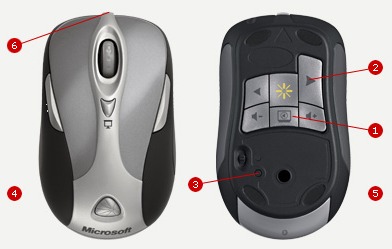
image I’ve noticed that many customers and even some people at Microsoft don’t realize you can program your Microsoft Wireless Mouse to remotely change the slides within the LiveMeeting client just as you might with Powerpoint… just like a wireless Powerpoint clicker.

  1. Install Intellimouse software from: 
    http://www.microsoft.com/hardware/download/
    download.aspx?category=MK
  2. Run Programs –> Microsoft Mouse –> Microsoft Mouse.  This will open the "Mouse Properties" dialog.
  3. Click the "Buttons" tab furthest left.
  4. Enable the Checkbox labeled, "Enable program-specific settings"
  5. Click "Settings…" button.  This will open a dialog box called "Program – Specific Settings".
  6. Press "Add…" button. 
    Depending on what version of the Mouse software you have, this will either:
    a) open a dialog box labeled "Add Program…" 
        If this is the case, proceed to the next step.
    b) open a dialog box labeled "Add Program or Game"
        If this is the case, click the link labelled, "Mannual add a program…".  
        A dialog box labeled "Add Program…" will appear.
  7. Enter the name of the LiveMeeting executable in the "File name" field.  This will depend on what Edition of Windows you are running – 32-bit of 64-bit.
    1. If you are running 32-bit Windows (most likely), in the "File name" field, type:
          C:Program FilesMicrosoft OfficeLive Meeting 8ConsolePWConsole.exe
      …then press the "Open" button.  This will return you to the "Program – Specific Settings" window.
    2. If you are running 64-bit Windows (x64), in the "File name" field type, type:
          C:Program Files (x86)Microsoft OfficeLive Meeting 8ConsolePWConsole.exe
      …then press the "Open" button.  This will return you to the "Program – Specific Settings" window. 
  8. Click & highlight the new Program called, "Microsoft Office Live Meeting".
  9. Click the drop down list for "Left side button" and select, "Keystroke…".  The "Keystroke Assignment" dialog will appear.
  10. Click into the Key Combination text field, and press the following keys on your keyboard at the same time:
       CTRL DOWNARROW
    The words "Ctrl + Down" will appear in the "Key Combination" field.
  11. Click "Ok" button to leave the "Keystroke Assignment" dialog.
  12. Click "Ok" button to return to the “Program – Specific Settings” dialog.
  13. Click the drop down list for "Right side button" and select, "Keystroke…"
  14. Click into the Key Combination text field, and press the following keys on your keyboard at the same time:
    CTRL UPARROW
    The words "Ctrl + Up" will appear in the "Key Combination" field.
  15. Click "Ok" button to leave the "Keystroke Assignment" dialog.
  16. Click "Ok" button to leave the "Program – Specific Settings" dialog.
  17. Click "Ok" button to leave the "Mouse Properties" dialog.

The next time you run LiveMeeting as a Presenter, you’ll be able to use the secondary left & right side buttons to change slides forward and back.

(NOTE:  This was written specifically for the Microsoft Wireless Notebook Laser Mouse 8000 however it could be applied to virtually any Microsoft Mouse, by remapping ‘other’ buttons on the mouse – including the traditional LEFT and RIGHT mouse buttons – using the Intellimouse software.)

Digg This

Posted by: kurtsh | February 17, 2009

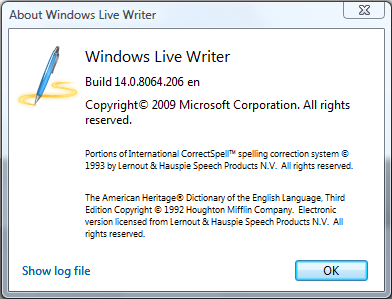
UPDATE: Windows Live Writer 2009 (Build 14.0.8064.206)

image

Well, along with a new version of Windows Live Messenger, apparently, we’ve released a new version of Windows Live Writer 2009 as well.

Only difference is that I haven’t the slightest idea what’s new about this version.  I believe the previous release was build 14.0.8050.1202.

For questions & comments, visit the forums for Windows Live Writer at:

Digg This

Posted by: kurtsh | February 17, 2009

RELEASE: Windows Live Messenger 2009

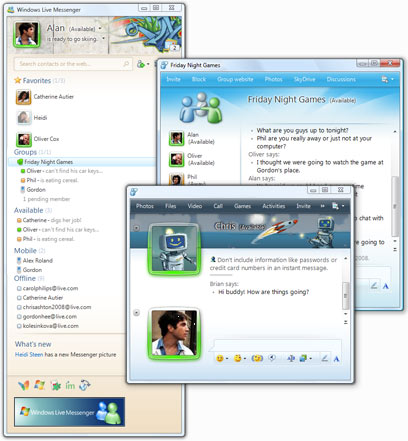
image With relatively little fanfare we announced the official release of Windows Live Messenger 2009(14.0.8064.0206)  This has been in beta form for a very long time and appears to be finally released.  The previous version was Windows Live Messenger 8.5.

  • Support for handwriting from Tablet PCs or those with digitizers
  • Personalization of the interface, including changing the background & color of the chat window, modifying the fonts used and transmitted to other parties
  • PC-to-PC video & audio calls
  • PC-to-phone/traditional telephone lines
  • Photo sharing
  • Web-based Messenger
  • Facebook Integration http://apps.facebook.com/
    windowslivemessenger
  • Minimal advertising

DOWNLOAD:
http://download.live.com/messenger/

ANNOUNCEMENT:
http://messengersays.spaces.live.com/blog/cns!5B410F7FD930829E!60258.entry

Digg This

« Newer Posts - Older Posts »

Categories