Posted by: kurtsh | March 9, 2009

DOWNLOAD: Security Compliance Management Toolkit v2.0

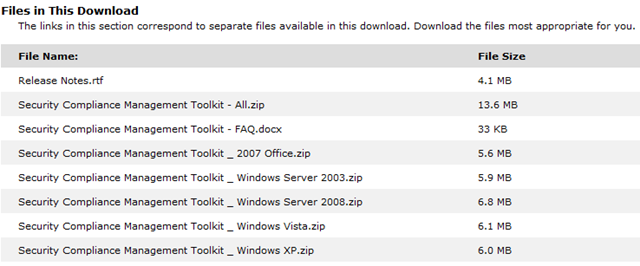
image The Security Compliance Management Toolkit series builds on previous Solution Accelerators to provide you with expanded best practices and additional automation tools to help configure and deploy security settings for the following operating systems and applications: Windows Server 2008, Windows Server 2003 Service Pack 2 (SP2), Windows Vista SP1, Windows XP Professional SP3, and 2007 Microsoft Office SP1.

After deploying the security settings, you can verify the accuracy of the setting policies and monitor policy changes by applying one or more of 26 Configuration Packs using the desired configuration management (DCM) feature of Microsoft System Center Configuration Manager 2007 SP1. This series includes the following toolkits:

  • Windows Server 2008 Security Compliance Management Toolkit
  • Windows Server 2003 Security Compliance Management Toolkit
  • Windows Vista Security Compliance Management Toolkit
  • Windows XP Security Compliance Management Toolkit
  • 2007 Microsoft Office Security Compliance Management Toolkit

Note: The GPOAccelerator tool is included with each toolkit download package.

Toolkit Components
Each of the Security Compliance Management Toolkits includes the following components:

  • Security guide. Each toolkit includes an updated version of a previously released security guides for either Windows Vista, Windows XP, Windows Server 2008, Windows Server 2003, or 2007 Microsoft Office. The guidance provides you with best practices and automated tools to help you plan and deploy your security baselines.
  • Attack Surface Reference workbook. A resource that lists the changes introduced as server roles are installed on computers running Windows Server 2003 and Windows Server 2008, for the toolkits specific to these operating systems.
  • Security Baseline Settings workbook. A resource that lists all of the prescribed settings for each of the preconfigured security baselines that the security guides recommend.
  • Security Baseline XML. XML files that allow your organization to consume the data defined in the security baseline settings workbooks.
  • GPOAccelerator tool. A tool that you can use to create all the Group Policy objects (GPOs) you need to deploy your chosen security configuration. This release also supports Windows Server 2003, and creating security configurations on machines not joined to a domain.
  • INF Files. INF files for Windows XP, Windows Vista, Windows Server 2003, Windows Server 2008.
  • Baseline Compliance Management Overview. The overview discusses best practices on how to monitor security baselines for Windows operating systems and Office applications.
  • DCM Configuration Pack User Guide. A step-by-step prescriptive user guide about how to use the Configurations Packs with the DCM feature in Configuration Manager 2007 SP1.
  • DCM Configuration Packs. The toolkit series includes 26 Configuration Packs.

DOWNLOAD:
http://www.microsoft.com/downloads/details.aspx?displaylang=en&FamilyID=5534bee1-3cad-4bf0-b92b-a8e545573a3e

Digg This

image The Microsoft SharePoint Administration Toolkit contains functionality to help manage Office SharePoint Server 2007 and Windows SharePoint Services version 3.0.

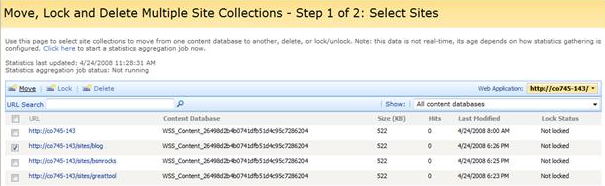
This toolkit contains the ability to diagnose performance issues, perform bulk operations on site collections, an Stsadm operation to update alert e-mails after the URL for a Web application has been changed, and a User Profile Replication Engine tool.

New Features:

  • The SharePoint Diagnostics tool provides administrators with a unified interface for troubleshooting SharePoint Server performance issues. Use the tool to collect data from performance counters, ULS log files, IIS log files, event logs, and WMI (Windows Management Instrumentation), and then display and analyze the data in snapshots and custom reports.
  • The setup program is updated to work gracefully with User Access Control. You no longer need to manually run as administrator.

See the following documentation on TechNet regarding use of the toolkit:

DOWNLOAD:
http://www.microsoft.com/downloads/details.aspx?displaylang=en&FamilyID=412a9ef1-3358-4420-b820-0ca3f4641651

Digg This

Microsoft Remote Server Administration Tools (RSAT) enables IT administrators to remotely manage roles and features in Windows Server 2008 from a computer that is running Windows Vista with Service Pack 1 (SP1). It includes support for remote management of computers that are running either a Server Core installation option or a full installation option of Windows Server 2008. It provides similar functionality to the Windows Server 2003 Administration Tools Pack.

System Requirements:

  • RSAT can be installed on 32-bit and 64-bit editions of the following configurations:
    • Windows Vista Ultimate with SP1
    • Windows Vista Enterprise with SP1
    • Windows Vista Business with SP1
  • RSAT can be used to manage 32-bit and 64-bit editions of Windows Server 2008.
  • RSAT should not be installed on a computer that is running the Windows Server 2003 Administration Tools Pack or the Windows 2000 Server Administration Tools Pack. Please remove all Administration Tools Pack versions from the computer before you install RSAT.
  • Only one copy of RSAT can be installed on a computer at one time. Before you install a new package, remove any existing versions of RSAT. This includes any copies that are in different languages.

Windows Server 2008 Administration Tools

  • Active Directory Certificate Services Tools
  • Active Directory Domain Services (AD DS) Tools
  • Active Directory Lightweight Directory Services (AD LDS) Tools
  • DHCP Server Tools
  • DNS Server Tools
  • File Services Tools
  • Network Policy and Access Services Tools
  • Terminal Services Tools
  • Universal Description, Discovery, and Integration (UDDI) Services Tools

DOWNLOAD:
http://www.microsoft.com/downloads/details.aspx?displaylang=en&FamilyID=9ff6e897-23ce-4a36-b7fc-d52065de9960

INSTRUCTIONS:
http://support.microsoft.com/default.aspx/kb/941314

Digg This

image The VMMCA is a diagnostic tool that you can use to scan important configuration settings for computers that either are serving or might serve VMM roles or other VMM functions. The VMMCA scans the hardware and software configurations of the computers that you specify, evaluates them against a set of predefined rules, and then provides you with error messages and warnings for any configurations that are not optimal for the VMM role or function that you specified for the computer.

image NOTE:  The VMMCA does not duplicate or replace the prerequisite checks performed during the setup of VMM 2008 components.

DOWNLOAD:
http://www.microsoft.com/downloads/details.aspx?displaylang=en&FamilyID=02d83950-c03d-454e-803b-96d1c1d5be24

BLOG:
For more information & step-by-step instructions on how to install and configure VMMCA, check out the SCVMM blog at:
http://blogs.technet.com/scvmm/archive/2009/01/05/scvmm-2008-installation-step-by-step.aspx

Digg This

image Windows Vista Service Pack 2 RC and Windows Server 2008 Service Pack 2 RC is now available to general public for download.

SP2 Release Candidate (RC) Standalone for computers that have Windows Server 2008 SP1 or Windows Vista SP1 installed and want to update to Service Pack 2:

Five Language SP2 Standalone: for computers with one or more of the following five languages: English, French, German, Japanese, and Spanish only (other languages installed on your computer will not work).

  • ISO for Windows Server 2008 x86/x64/ia64 and Windows Vista x86/x64
  • x86 for Windows Server 2008 and Windows Vista x86
  • x64 for Windows Server 2008 and Windows Vista x64
  • IA64 for Windows Server 2008 ia64

The service pack is delivered as a single release for both Windows Vista and Windows Server 2008. There will be a single 32-bit standalone installer (302 MB to 390 MB) for both Windows Vista and Windows Server 2008. However, there will be two 64-bit standalone installers, including one which covers x64 architectures (508 MB to 622 MB) and one for Itanium 64-bit (384 MB to 396 MB)

TECH CENTER LINK:
http://technet.microsoft.com/en-us/windows/dd262148.aspx

Digg This

image

Microsoft is pleased to announce the 5th annual Microsoft Project Conference being held September 14-17, 2009 at the Phoenix Convention Center in Phoenix, AZ. Join us to celebrate the successes of Microsoft Project and to see what’s coming, as we exclusively unveil the powerful capabilities included in the next release. At this year’s conference, you will learn how Project is helping customers today to save money, enhance efficiency and drive growth, as well as obtain unique insights into how the next release will continue to support your business tomorrow.

Project Conference 2009 is the global event to attend. It’s sure to be one of the most exciting and valuable Project Conferences yet with high-impact keynotes, 75+ in-depth breakout sessions, hands on labs, demonstrations and many opportunities to connect and collaborate with your peers, industry practitioners, certified partners and the Microsoft Project team. In the current economic climate, it’s vital to keep both your individual skills and organizational capabilities moving forward – don’t miss the opportunity!

  • Monday, September 14
    6:00pm – 9:00pm: Opening Welcome Reception
  • Tuesday, September 15
    9:00am – 5:00pm: Keynote Sessions and Breakout Sessions
    6:00pm – 9:00pm: Evening Rodeo Dinner at Corona Ranch
  • Wednesday, September 16
    9:00am – 5:00pm: Keynote Sessions and Breakout Sessions
  • Thursday, September 17
    9:00am – 2:00pm: Keynote Sessions and Breakout Sessions

LINK: 
http://msprojectconference.com/

Digg This

For those of you with Samsung i760s on Verizon Wireless:
(This technically will work with many different phones but may require a different Service Code depending on the model)

———————

image HOW TO CHANGE THE CODEC USED TO TRANSMIT & RECEIVE YOUR VOICE:

By default the codec used is Enhanced Variable Rate CODEC (EVRC). I believe the bandwidth on EVRC is 8kbs. By switching to the 13kbs Vocoder, call quality is theoretically better.
As taken from “Wirelessadvisor”:

The 13kbps Vocoder catches more of the nuances of a person’s speech and generally sounds a good bit better, but when there are errors in the bit stream it makes people sound robotic. The 8kbps EVRC codec is more efficient, but loses a lot of the nuances of speech. It is better at handling bit errors so it doesn’t make people sound so robotic or create the drastic shifts in tone that the 13kbps one does, but it does introduce the digital hiss that you hear in the background (it sounds like running water digitized at a very low bit rate) and when things get bad it drops frames (rather than creating such a dramatic shift in the speakers tone).

That being said, it appears that EVRC handles/keeps calls better in low-signal areas.

In case you wanted to change to the 13k Vocoder:

1. Dial **772
2. Enter the Service Code 000000 (six 0’s) and tap OK
3. Push the directional pad down until you see a screen that says:

SVC Mode NAM1
End of BASIC NAM
EXIT

4. Push the directional pad right so that "Exit" becomes "More"
5. Press the action button (middle of directional pad) to enter the additional settings menu.
6. Press down 1 time to get to the screen that says:

SVC Mode NAM1
Orig. SVC OPT
EVRC

7. The default is set to EVRC. To change to 13k Vocoder press right on the d-pad once.
8. Then press the action button once to save the change.
9. Finally, press the left soft key "Exit" to exit the service menu.

Digg This

image
Securing Sensitive Data in an Insecure Economy
Thursday, March 12, 2009 11:00AM–2:00PM, Manhattan Beach, CA

If you are charged with safeguarding sensitive information, please join RSA and Microsoft to discuss technologies and best practices that enable companies to discover, protect and securely share sensitive information.

Learn how RSA® Data Loss Prevention Suite (DLP) and Microsoft’s Active Directory Rights Management Services (AD RMS) can help you protect sensitive data while minimizing the resources required to implement, manage, and maintain the system. Accelerate your business with the knowledge that your information remains an asset and never becomes a liability.

Seminar topics for discussion will include:

  • Microsoft’s DLP Partnership with RSA
  • DLP 101—Challenges, Strategies, and Solutions
  • Building Your DLP Implementation Plan Around Best Practices
  • Securing Data in SharePoint

Date/Time:
March 12, 2009
11 AM – 2 PM
(Lunch will be served)

Location:
Manhattan Beach, CA

Registration:
Please contact me, if you are a customer of mine, for registration information to this seminar.

Digg This

image

Discover the best Optimized Desktop Delivery Solutions!
Attend a half-day seminar hosted by Microsoft, Citrix and HP.

In today’s economy, IT budgets are leaner, and adopting a green VDI solution is a great way to choose the client computing scenarios that best meet the unique needs of your business, while making a positive impact on the environment. That’s why Citrix® and Microsoft® have joined forces to offer one of the best Virtual Desktop Infrastructure (VDI) solutions for companies looking to take desktop management to the next level.

Are you interested in significantly increasing security, simplifying management, lowering cost of ownership – and reaping the green benefits of lower power and cooling, flexible work scenarios, and extended desktop life cycles?

Join us to hear more about the joint solution that virtualizes Windows® desktops and applications in the datacenter and delivers them as a service, while consolidating servers and reducing energy requirements. This solution runs Citrix XenDesktop™ with Windows Server® 2008
Hyper-V™, Microsoft Application Virtualization 4.5, and Microsoft Systems Center Virtual Machine Manager (SCVMM) on HP’s Thin Clients, Blade PCs and Servers.

Can you afford not to attend?

  • Increase data security and address regulatory compliance requirements
  • Energy-saving & flexible desktop configurations
  • Best possible desktop & application performance in a VDI scenario
  • Easily manage physical & virtual environments through world-class infrastructure management solutions
  • Dynamic provisioning delivers desktops & applications on demand

Register Now!   Seating is limited.

Agenda

  • 08:30 a.m – 09:00 a.m    Registration
  • 09:00 a.m – 09:40 a.m    Virtualization 360 – From the Desktop to the Datacenter (Microsoft)
  • 09:40 a.m – 10:20 a.m    Introduction to Microsoft Optimized Desktop and Virtualized Desktop Infrastructure (VDI) (Microsoft)
  • 10:20 a.m – 10:35 a.m    Break
  • 10:35 a.m – 11:30 a.m    Citrix Dynamic Desktop Delivery, Much More than VDI (XenDesktop) (Citrix)
  • 11:30 a.m – 12:10 p.m    Complete the Client Virtualization Solution with HP’s Innovative Hardware & Services (Thin Clients Blade PCs & Servers, and Services)(HP)
  • 12:10 p.m – 12:30 p.m    Q&A, Evaluations & Drawing

Attendees Receive

  • Entry to win a Powermonkey eXplorer solar-powered mobile charger
  • Cool organic cotton Lean & Green t-shirt & tote bag
  • 90-day XenDesktop evaluation license

Dates:

  • Los Angeles – Wednesday, March 18th
  • Phoenix – Tuesday, March 24th

Registration:
Please contact me for registration information if you are a customer of mine.

imageimage

Digg This

image In Windows Server 2008 R2 (“R2”) we are introducing PowerShell as the new scripting language for clustering technologies. 

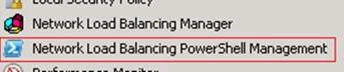
PowerShell with Network Load Balancing (NLB) will replace NLB.exe and WLBS.exe.  The Windows Server 2008 R2 release is the last release for NLB.exe and WLBS.exe.  This means it will still be available for use so it doesn’t break legacy scripts, but no improvements have been made so NLB.exe and WLBS.exe will be completely removed in the next release of Windows Server.  Do not worry – you will love PowerShell with its numerous benefits over standard command line interfaces, including easily customizable scripts and the dynamic use of variables. 

In Windows Server 2008 R2, PowerShell can also be run on Server Core machines.  Using PowerShell on a Core NLB cluster, you can directly create and manage your NLB cluster, without needing to manage the Core node through a UI-based remote machine.

How do I get R2 Beta?
The Windows Server 2008 R2 Beta build will be available shortly for deployment and testing.  There are numerous ways to get the Windows Server 2008 R2 Beta build which includes Network Load Balancing.  If you work for an organization which partners with Microsoft, try contacting your Technology Account Manager (TAM) to see if they can provide you with access.  If your organization is enrolled in the Technology Adoption Program (TAP) you may also have access through this channel.  Others may enroll in the Microsoft Connect program (http://connect.microsoft.com/) to receive access to major builds.

——
For more information:
http://blogs.msdn.com/clustering/archive/2008/12/26/9253786.aspx

Digg This

« Newer Posts - Older Posts »

Categories