clip_image002Introducing Windows Server 2008 R2, by Charlie Russel and Craig Zacker with the Windows Server Team at Microsoft, can be downloaded for FREE here (XPS file, 28 MB) and here (PDF file, 11 MB).

Here is the book’s Content at a Glance:

  • Introduction   
  • Chapter 1    What’s New in Windows Server R2
  • Chapter 2    Installation and Configuration: Adding R2 to Your World
  • Chapter 3    Hyper-V: Scaling and Migrating Virtual Machines
  • Chapter 4    Remote Desktop Services and VDI: Centralizing Desktop and Application Management
  • Chapter 5    Active Directory: Improving and Automating Identity and Access
  • Chapter 6    The File Services Role
  • Chapter 7    IIS 7.5: Improving the Web Application Platform
  • Chapter 8    DirectAccess and Network Policy Server
  • Chapter 9    Other Features and Enhancements
  • Index

And here’s part of the Introduction:

Introduction

Windows Server 2008 R2, or simply R2 for short, is the second release of Windows Server 2008. It isn’t a completely new release, but rather adds additional features and refinements to the existing release. In this book, we focus on the new features and refinements in R2. We assume you have at least a general knowledge of Windows Server, and that you have some familiarity with Windows Server 2008, although we don’t assume you’re actively running Windows Server 2008. Where an R2 feature is a refinement of a feature that was new in Windows Server 2008, we provide background on the Windows Server 2008 feature to
provide context.

Who This Book Is For

This book is targeted primarily at Windows server administrators who are responsible for hands-on deployment and day-to-day management of Windows-based servers for large organizations. Windows server administrators manage file and print servers, network infrastructure servers, Web servers, and IT application servers.

They use graphical administration tools as their primary interface but also use Windows PowerShell commandlets and occasionally write Windows PowerShell scripts for routine tasks and bulk operations. They conduct most server management tasks remotely by using Terminal Server or administration tools installed on their local workstation.

What This Book Is About

Covering every aspect of Windows Server 2008 R2 in nine chapters and approximately 200 pages is clearly an impossible task. Rather than try to cover everything, we’ve focused on what is new and important, while giving you the context from Windows Server 2008.

  • Chapter 1, “What’s New in Windows Server R2” Provides a brief overview of all the new features and capabilities of Windows Server 2008 R2.
  • Chapter 2, “Installation and Configuration: Adding R2 to Your World” Covers minimum system requirements, basic installation and configuration of R2, and what is involved in adding an R2 server to an existing Windows Server network. Configuration of the Windows Server Core installation option, added in Windows Server 2008, is covered, along with the steps required to add a Windows Server 2008 R2 domain controller to an existing Windows Server network.
  • Chapter 3, “Hyper-V: Scaling and Migrating Virtual Machines” Covers the new Hyper-V features of Windows Server 2008 R2, including dynamic storage management and Quick Migration of clustered virtual machines (VMs). Covers creation and management of virtual machines using the Hyper-V Manager console, Windows PowerShell, and the Failover Cluster Manager console and discusses the features of System Center Virtual Machine Manager 2008 R2.
  • Chapter 4, “Remote Desktop Services and VDI: Centralizing Desktop and Application Management” Covers Remote Desktop Services (the new name for Terminal Services) and the enhancements of Windows Server 2008 R2, including Virtual Desktop Infrastructure (VDI), which uses the new RD Virtualization Host capability of R2 to provide desktop virtualization. R2 also includes an all-new Remote Desktop Services provider for Windows PowerShell.
  • Chapter 5, “Active Directory: Improving and Automating Identity and Access” Covers the new features of Active Directory (AD), including an AD Recycle Bin, a new set of Active Directory Windows PowerShell cmdlets, and
    improvements in daily AD administration.
  • Chapter 6, “The File Services Role” Covers the new File Services features, including BranchCache, Distributed File System–ReadOnly (DFS-R), and the File Classification Infrastructure (FCI).
  • Chapter 7, “IIS 7.5: Improving the Web Application Platform” Covers the features of the new version of Internet Information Services (IIS), including the new Windows PowerShell management features.
  • Chapter 8, “DirectAccess and Network Policy Server” Covers the Network Policy Server (NPS) and the new DirectAccess feature that allows Windows 7 computers to be transparently connected to internal network resources from anywhere without requiring a virtual private network (VPN) connection.
  • Chapter 9, “Other Features and Enhancements” Covers the enhanced version of Windows Server Backup included in R2, including the Windows PowerShell commands for backing up. Also covered is the new BitLocker To Go capability, which provides an important new protection for removable  volumes such as backup disks.

DOWNLOAD: Introducing Windows Server 2008 R2
http://download.microsoft.com/download/5/C/0/5C0BD0AB-040D-4C56-A60B-661001012DDA/Windows_Server_2008_R2_e-book.pdf

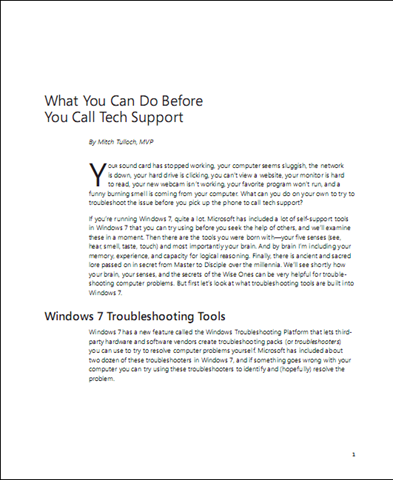
image A 3rd party (one of the Microsoft MVP’s for Exchange Server) published a monster sized eBook on Exchange Server 2010 – and it’s been made available for free online.

Weighing in a 195 pages, “Exchange 2010 – A Practical Approach” by Jaap Wesselius goes through the following chapters:

  • CHAPTER 1:  Introduction to Exchange Server 2010
  • CHAPTER 2:  Installing Exchange Server 2010
  • CHAPTER 3:  Exchange Server 2010 Coexistence
  • CHAPTER 4:  Managing Exchange Server 2010
  • CHAPTER 5:  High Availability in Exchange Server 2010

Each chapter has quite a few subchapters so don’t think the book is light.  It’s not.

Section 1.6 Exchange Server 2010 Server Roles, for instance, is particularly interesting in explaining the roles – especially for folks like me that still have the old 2003 architecture & server roles in mind.

Section 2.1 Installing the Exchange Server 2010 Prerequisites, reads like a to do list which is particularly useful if you’re new to the new “Exchange Server 2007+” world.

DOWNLOAD:
http://www.red-gate.com/specials/Exchange/esa_exchange2010.htm

image Mitch Tulloch, a Microsoft Most Valuable Professional and lead author of the just-published (and hot-selling) Windows 7 Resource Kit (Microsoft Press, 2010; ISBN: 9780735627000; 1760 pages), has created a short 11 page e-book called “What You Can Do Before You Call Tech Support.” Here are the opening paragraphs:

Your sound card has stopped working, your computer seems sluggish, the network is down, your hard drive is clicking, you can’t view a website, your monitor is hard to read, your new webcam isn’t working, your favorite program won’t run, and a funny burning smell is coming from your computer. What can you do on your own to try to troubleshoot the issue before you pick up the phone to call tech support?

If you’re running Windows 7, quite a lot. Microsoft has included a lot of self-support tools in Windows 7 that you can try using before you seek the help of others, and we’ll examine these in a moment. Then there are the tools you were born with—your five senses (see, hear, smell, taste, touch) and most importantly your brain. And by brain I’m including your memory, experience, and capacity for logical reasoning. Finally, there is ancient and sacred lore passed on in secret from Master to Disciple over the millennia. We’ll see shortly how your brain, your senses, and the secrets of the Wise Ones can be very helpful for troubleshooting computer problems. But first let’s look at what troubleshooting tools are built into Windows 7.

You can download the e-book in XPS format here and in PDF format here. Enjoy!

[taken from the MS Press blog]

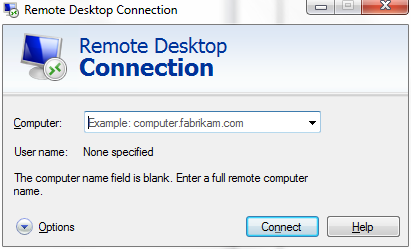
image WHOA.  I didn’t even know we released this.  This is a major, major update to the Remote Desktop Client for folks that use Terminal Services RDP protocol to remote into servers or desktops.

WHAT’S SO SPECIAL ABOUT RDC 7.0?
I can putz around and talk about all the little nook and cranny features of the new client but the big one is what I believe to be the integration of the real-time graphics acceleration & redirection technology we acquired from Calista Technologies.

Calista Technologies was a small 30 person company that specifically held patents on techniques that provided the ability to transmit multimeida, rapidly changing graphics and waveforms over desktop redirection connections such as an RDP session.  We acquired them and their talent a couple years ago with the intention of incorporating this technology directly into Terminal Services back then… now called Remote Desktop Services today in Windows Server 2008 R2.

In order to take advantage of much of this however, you need to have Calista’s technology on both sides of an RDP connection.  This is what was integrated into Windows 7’s RDP connection client and Windows Server 2008 R2.  Now, with RDC 7.0, it looks like other OS’s (XP, Vista) can take advantage of this technology – as long as the backend if Windows Server 2008 R2 (or Windows 7) of course.

Here’s a quick listing of the ‘multimedia relevant’ improvements to the Remote Desktop Connection client in the 7.0 release.

  • Windows Media Player redirection
    Windows Media Player Redirection enables content hosted in Windows Media Player to be redirected to the client for decoding on users’ computers. This improves the quality of the video and makes sure that video and audio are always in sync. This works for both full Windows Media Player and Windows Media Player controls hosted in Web pages.
  • Bidirectional audio
    You can redirect audio recording devices such as microphones on the client computer. This is ideal for applications such as Windows 7 voice recognition, and applications that record audio.
  • Multiple monitor support
    In Windows Vista and in Windows Server 2008, Terminal Services supported only monitor spanning. Remote Desktop Services now includes multiple monitor support for up to 16 monitors, and works for both Remote Desktop and RemoteApp programs.
    Note For connections with multiple monitor support enabled, AeroGlass support is currently not supported and will be turned off.
  • Enhanced video playback
    Bitmap acceleration improves the remote display of graphics-intensive applications such as PowerPoint, Flash, and Silverlight.

DOWNLOAD:
http://support.microsoft.com/kb/969084

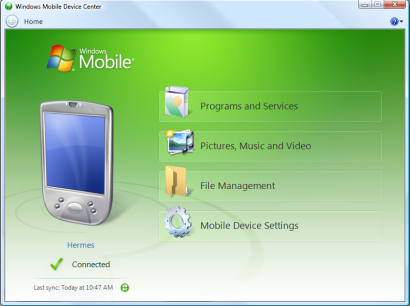
image Download and install Windows Mobile Device Center 6.1 if you run Windows Vista or Windows 7 on your computer and you want to sync content between your mobile phone and your computer. Windows Mobile Device Center is only compatible with Windows Vista and Windows 7; if you run Windows XP or earlier, you have to download Microsoft ActiveSync.

Key updates and system requirements for Windows Mobile Device Center

Windows Mobile Device Center 6.1 key updates

    • Information Rights Management (IRM) activation

      Automatically configures your Windows Mobile 6 phone to open IRM-protected documents and files.

    • Certificate enrollment

      Acquires certificates through the computer that your Windows Mobile 6 phone is connected to.

    • Product registration

      Register your Windows Mobile phone and get connected to information and offers available for your mobile phone.

    Windows Mobile Device Center system requirements
    You can use Windows Mobile Device Center 6.1 with the following versions of Windows only:

      • Windows 7 Ultimate

      • Windows 7 Professional

      • Windows 7 Home Premium

      • Windows 7 Starter

      • Windows Vista Ultimate

      • Windows Vista Enterprise

      • Windows Vista Business

      • Windows Vista Home Premium

      • Windows Vista Home Basic

      • Windows Server 2008

        Windows Mobile Device Center 6.1 works only with the following versions of the Windows Mobile operating system:

          • Windows Mobile 6.1

          • Windows Embedded CE 6.0

          • Windows Mobile 6

          • Windows Mobile 5.0 with Messaging and Security Feature Pack

          • Windows Mobile 5.0

          • Windows Mobile 2003 Second Edition

          • Windows Mobile 2003


          DOWNLOAD:  Windows Mobile Device Cetner 6.1 for Windows 7 x64
          http://www.microsoft.com/windowsmobile/en-us/downloads/microsoft/device-center-download.mspx

          This is NOT a rehash of the same discussions posted everywhere about “how to reinstall the x86 Windows Vista Sidebar”.  What this is, is a quick mention of a tool that someone wrote called “MaxMax” -a program that simulates one of the benefits of sidebar without actually using Sidebar because of the horrendous problems related to using x86 Sidebar on x64 Windows 7.

          WHAT PROBLEMS ARE YOU TALKING ABOUT?
          Installing the x86 Sidebar from an original copy of Windows Vista is anything but perfect.  I really don’t know why people don’t mention these caveats beforehand because they’d probably stop a lot of people from going through the exercise of installing the Sidebar into Windows 7.  There’s several problems but I’m going to only highlight the two that REALLY bothered me personally:

          1. NON-WORKING FLYOUTS
            Have you ever installed a Gadget into your Sidebar, then clicked on it and have the it “extend itself outside of the Sidebar”? 

            Flyouts allow a gadget to go from this:        … to this!
            image                     image
            Well, if you like that, TOUGH.  Installing the x86 Windows Vista Sidebar into Windows 7 x64 will disallow flyouts.  Has something to do with how x86 applications like the Sidebar are encapsulated and run on x64.  Nonetheless, it’s irritating.

          2. CAN’T INSTALL NEW GADGETS
            This one REALLY sucks.  If you attempt to download and install any new gadgets from the Windows Vista Gadget Gallery at http://vista.gallery.microsoft.com/vista/SideBar.aspx?mkt=en-us, it’ll allow you to download the gadget but the moment you attempt to install it, it’ll error out. 

            This is because the gadget is downloaded to one directory and the gadget installation procedure attempts to execute the gadget installation in another directory and can’t find the gadget.  The end result is that any new gadgets must be manually installed by extract & copying the gadget content into a directory. 

            Yeah, I know.  That sucks.

          OKAY.  SO WHAT DOES ONE DO INSTEAD?
          Well, the answer lies in simply not using the Sidebar any more.  Instead, you install gadgets directly onto the desktop like Windows 7 allows, and simply keep them aligned to the right.

          What this unfortunately does is eliminate one of the key benefits of Sidebar:  The ability to go “full screen” with application windows while always insuring your gadgets are visible on the Sidebar.  If you go full screen on any application without sidebar, you’ll find your gadgets are completely covered.  There’s no way to make sure your gadgets are “always on top” like there was with Sidebar.

          Here’s my current desktop.  The window in view is expanded using the “Maximize” button.  Notice that you can STILL see the gadgets on the right hand size, despite the window being maximized:

          image


          SO HOW’D YOU KEEP THE GADGETS EXPOSED ON THE RIGHT?
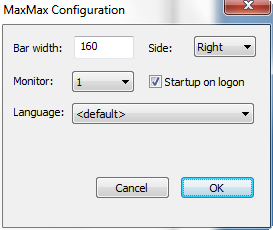
          Someone created a tool that effectively limits the territory in which Max Windows expands itself to, ensuring that gadgets placed on the far right hand are always in view.

          The tool is called “MaxMax” and it keeps gadgets on display anytime you expand windows out.  Sort of like an “Always on top”.  It allows you to set what monitor you want the “max window size” limitation set on, what side of the screen, how many imagepixels you want reserved from that side, whether to run in memory at Startup, etc. 

          All in all it’s a very good program and it’s free.  Take a look at it.


          DOWNLOAD:
          http://www.kmtools.win-os.pl/omaxmax.php?lang=ang

          IntroducingWindowsServer2008R2Greetings! We’re happy to say that another free e-book is now available. 

          Introducing Windows Server 2008 R2, by Charlie Russel and Craig Zacker with the Windows Server Team at Microsoft, can be downloaded here (XPS file, 28 MB) and here (PDF file, 11 MB).

          Here is the book’s Content at a Glance:

          • Introduction   
          • Chapter 1    What’s New in Windows Server R2
          • Chapter 2    Installation and Configuration: Adding R2 to Your World
          • Chapter 3    Hyper-V: Scaling and Migrating Virtual Machines
          • Chapter 4    Remote Desktop Services and VDI: Centralizing Desktop and Application Management
          • Chapter 5    Active Directory: Improving and Automating Identity and Access
          • Chapter 6    The File Services Role
          • Chapter 7    IIS 7.5: Improving the Web Application Platform
          • Chapter 8    DirectAccess and Network Policy Server
          • Chapter 9    Other Features and Enhancements
          • Index

          And here’s part of the Introduction:

          Introduction

          Windows Server 2008 R2, or simply R2 for short, is the second release of Windows Server 2008. It isn’t a completely new release, but rather adds additional features and refinements to the existing release. In this book, we focus on the new features and refinements in R2. We assume you have at least a general knowledge of Windows Server, and that you have some familiarity with Windows Server 2008, although we don’t assume you’re actively running Windows Server 2008. Where an R2 feature is a refinement of a feature that was new in Windows Server 2008, we provide background on the Windows Server 2008 feature to
          provide context.

          Who This Book Is For

          This book is targeted primarily at Windows server administrators who are responsible for hands-on deployment and day-to-day management of Windows-based servers for large organizations. Windows server administrators manage file and print servers, network infrastructure servers, Web servers, and IT application servers.

          They use graphical administration tools as their primary interface but also use Windows PowerShell commandlets and occasionally write Windows PowerShell scripts for routine tasks and bulk operations. They conduct most server management tasks remotely by using Terminal Server or administration tools installed on their local workstation.

          What This Book Is About

          Covering every aspect of Windows Server 2008 R2 in nine chapters and approximately 200 pages is clearly an impossible task. Rather than try to cover everything, we’ve focused on what is new and important, while giving you the context from Windows Server 2008.

          • Chapter 1, “What’s New in Windows Server R2” Provides a brief overview of all the new features and capabilities of Windows Server 2008 R2.
          • Chapter 2, “Installation and Configuration: Adding R2 to Your World” Covers minimum system requirements, basic installation and configuration of R2, and what is involved in adding an R2 server to an existing Windows Server network. Configuration of the Windows Server Core installation option, added in Windows Server 2008, is covered, along with the steps required to add a Windows Server 2008 R2 domain controller to an existing Windows Server network.
          • Chapter 3, “Hyper-V: Scaling and Migrating Virtual Machines” Covers the new Hyper-V features of Windows Server 2008 R2, including dynamic storage management and Quick Migration of clustered virtual machines (VMs). Covers creation and management of virtual machines using the Hyper-V Manager console, Windows PowerShell, and the Failover Cluster Manager console and discusses the features of System Center Virtual Machine Manager 2008 R2.
          • Chapter 4, “Remote Desktop Services and VDI: Centralizing Desktop and Application Management” Covers Remote Desktop Services (the new name for Terminal Services) and the enhancements of Windows Server 2008 R2, including Virtual Desktop Infrastructure (VDI), which uses the new RD Virtualization Host capability of R2 to provide desktop virtualization. R2 also includes an all-new Remote Desktop Services provider for Windows PowerShell.
          • Chapter 5, “Active Directory: Improving and Automating Identity and Access” Covers the new features of Active Directory (AD), including an AD Recycle Bin, a new set of Active Directory Windows PowerShell cmdlets, and
            improvements in daily AD administration.
          • Chapter 6, “The File Services Role” Covers the new File Services features, including BranchCache, Distributed File System–ReadOnly (DFS-R), and the File Classification Infrastructure (FCI).
          • Chapter 7, “IIS 7.5: Improving the Web Application Platform” Covers the features of the new version of Internet Information Services (IIS), including the new Windows PowerShell management features.
          • Chapter 8, “DirectAccess and Network Policy Server” Covers the Network Policy Server (NPS) and the new DirectAccess feature that allows Windows 7 computers to be transparently connected to internal network resources from anywhere without requiring a virtual private network (VPN) connection.
          • Chapter 9, “Other Features and Enhancements” Covers the enhanced version of Windows Server Backup included in R2, including the Windows PowerShell commands for backing up. Also covered is the new BitLocker To Go capability, which provides an important new protection for removable  volumes such as backup disks.

          DOWNLOAD:  Introducing Windows Server 2008 R2
          http://download.microsoft.com/download/5/C/0/5C0BD0AB-040D-4C56-A60B-661001012DDA/Windows_Server_2008_R2_e-book.pdf
          [taken from the MS Press blog]

          Posted by: kurtsh | October 28, 2009

          BETA: Microsoft® SQL Server® StreamInsight CTP2

           Microsoft® SQL Server® StreamInsight is a platform for the continuous and incremental processing of unending sequences of events (event streams) from multiple sources with near-zero latency. These requirements, shared by vertical markets such as manufacturing, oil and gas, utilities, financial services, health imagecare, web analytics, and IT and data center monitoring, make traditional store and query techniques impractical for timely and relevant processing of data.

          StreamInsight allows software developers to create innovative solutions in the domain of Complex Event Processing that satisfy these needs. It allows to monitor, mine, and develop insights from continuous unbounded data streams and correlate constantly changing events with rich payloads in near real time. Industry specific solution developers (ISVs) and developers of custom applications have the opportunity to innovate on and utilize proven, flexible, and familiar Microsoft technology and rely on existing development skills when using the StreamInsight platform.
          Some of the key feature areas are:

          • Derive meaningful and relevant information from data/events streams through complex patterns. These patterns can be defined using a declarative query paradigm based on well-defined streaming semantics with LINQ as query language.
          • For the development of applications, adapters, and analytics, the user can rely on well-established and powerful development frameworks and tools such as .NET, LINQ, and Microsoft Visual Studio.
          • The platform integrates with various data sources and sinks through input and output adapters. The framework to build domain-specific adapters utilizes a .NET API to make adoption of the platform easy. Independence between adapters and queries facilitates seamless integration of real-time and historical analysis.
          • The platform architecture supports a variety of deployment options, from scenarios with a low-footprint embedded option to high-end server deployments.
          • A rich set of manageability features such as a management interface, a diagnostic interface and a debugging tool are provided as part of the platform.

          The Microsoft® SQL Server® StreamInsight CTP2 has two different methods to complete the installation process:

          • Attended Installation – an interactive user interface will guide you through the set-up process and obtain all of the information and consent required to complete the installation. This includes the displaying, acknowledgement, and archiving of the applicable SQL Server license terms.
          • Un-attend Installation – this is a DOS command line set-up process that does not have an interactive user interface to guide you through the set-up process. In this case, you will be required to enter a parameter during installation that indicates your acceptance of the license terms.
            Here is the copy of the Microsoft® SQL Server® StreamInsight license terms for your review.

          DOWNLOAD:  SQL Server StreamInsight
          http://www.microsoft.com/downloads/details.aspx?displaylang=en&FamilyID=a3faa562-b6dc-4702-90c6-bf8e08df3b8b

          TECHCENTER:  SQL Server StreamInsight
          http://technet.microsoft.com/en-us/sqlserver/ee476990.aspx

          Digg This

          Windows 7 is good.  Very good.  I know I’m biased but the independent reviews in the media all generally agree that Windows 7 is a good product.

          image Is Windows 7 too good for Apple to FUD?
          What I really hope is that Rob Enderle is right and that Windows 7 is viewed by the consumers at-large as being simply too good for Apple’s negative campaigning to touch.  When Apple insists on banging the same tired drum over and over again, you have to wonder if anyone is still listening to their negative campaigning. 

          I mean, Enderle literally draws a comparison between Apple & some recent election losing politicians and their negative campaigning: “Is Apple the Tech McCain or George Bush?”  OUCH.

          Is Windows 7 too good for Apple to FUD?
          By Rob Enderle, Tuesday, October 27, 2009 06:20

          Opinion: Apple was blindsided by Windows 7. It wasn’t the product which they saw coming, it was the sustaining marketing budget and positive reviews from Apple loyalists like Walt Mossberg they didn’t see (though several Mac fans have told me that Steve Jobs has taken Walt to task and he is changing his tune).

          As a result they have shifted their negative campaign against Windows Vista into a FUD campaign against Windows 7 using innuendo and association to disparage Microsoft’s new platform. You can see the ads here but broken promises and PC News are pure but well done FUD.

          READ MORE: http://www.tgdaily.com/content/view/44437/141/

          imageHow Microsoft blindsided vulnerable Apple with Windows 7
          Rob Enderle also goes on to make some points about how he believes Microsoft got the drop on Apple and their ‘modest’ announcements.

          How Microsoft blindsided vulnerable Apple with Windows 7
          By Rob Enderle, principal analyst, Enderle Group, Thursday, October 22, 2009 18:05

          Column – I think the saying goes that those that don’t learn from history are destined to repeat it.

          This is likely to point with Apple this month as they sit stunned that Windows 7 is doing so well and they are left looking foolish with products priced out of the segment. Their big news this week was a couple of PCs, a new keyboard and a multi-touch mouse. This last will likely go down in history as one of the lamest devices yet as they should know, given the iPhone, that touch is connected to the screen and not anything else. They likely would have done better putting fir on the damn thing and building it to fart the star spangled banner at least that would have been patriotic.

          READ MORE:  http://www.tgdaily.com/content/view/44402/140/

          Digg This

          Downloadable Content for Windows 7 as well as updated content for the month of August 2009 is now available for download for the Productivity Hub:

          • Updated content for Access, Communicator, Excel, Outlook, Powerpoint, Sharepoint, and Word
          • 5 brand new content topics: Live Meeting, OneNote, Project, Publisher, and Visio

          DOWNLOAD: Content Packs for Productivity Hub (Requires registration)
          http://www.microsoft.com/downloads/details.aspx?displaylang=en&FamilyID=277fefca-d62f-41bc-943d-79002254cfee

          ———————————

          For those that forgot, the Productivity Hub is available to download for FREE.  Here’s a site that has a public installation of the product.

          DEMO SITE:  http://templates.wssdemo.com/sites/productivity/Pages/Default.aspx

          clip_image002

          The Productivity Hub is a SharePoint Server 2007 site collection. It comes packed with over 300* pieces of content, including videos, documents and PowerPoint slides. This gives you a great start at building a learning community behind your firewall.

          Microsoft has developed the Productivity Hub to help you optimize your Microsoft end user training plans, and is provided at no cost.

          The Hub centralizes Microsoft’s end user training content while providing a great use case for using SharePoint Server throughout your organization. It removes the need for you to have to find, centralize and publish Microsoft’s free end user training to an internal site; we have done the work for you. You can customize the Hub to fit your branding and needs. The flexibility and rich feature set of SharePoint Server 2007 allows you to add web parts, remove web parts, and add your own content to the Hub.

          The Hub highlights the best features of SharePoint Server 2007, while providing you with end user training for the newest versions of Office, SharePoint, and Windows.

          The Hub uses SharePoint Server’s social networking features to engage end users. It also offers training for “coaches” or power users internal to each customer. Coaches can help reduce the burden on training and helpdesk staff by adding another level of support. 

          The Productivity blog is another way to give your end users ongoing Tips and Tricks – and the blog is where you will find out about new content for the Hub. You can either keep the RSS feed on your Hub home page, or put it on a hidden page and reuse the blog content in your own internal SharePoint blog.

          Benefits to you:

          • Helps reduce costs: Streamlines training and helps reduce training overhead. Acts as a tool for training departments and IT.
          • Multiple learning paths: Includes learning roadmaps, coaches, forums, searchable content and more.
          • Helps increase productivity:  Accelerates 2007 Office system use through a learning community.
          • Drives adoption: Ongoing access to training enables deeper use and helps create new power users.
          • Ignites collaboration:  Encourages self-help through the coach program. 
          • Proof of concept: Provides a vision for collaborative learning – leading to collaborative work.

          Quarterly Content Updates
          We will provide quarterly content updates for your Hub beginning August 2009. You can learn about the updates on the Productivity blog. The following is an approximate delivery schedule (subject to change).

          Update

          Month

          First quarterly update

          August 2009

          Second quarterly update

          November 2009

          Third quarterly update

          February 2010

          Fourth quarterly update

          May 2010

          A Note on 2010 Office Content
          We will provide content updates for 2010 Office when it becomes available. We are also planning an upgrade to SharePoint Server 2010 and will have a migration path for customers currently using the SharePoint Server 2007 Hub.

          imageUpdated Content for Productivity Hub
          Once registered for the Productivity Hub download, you will see download buttons for both the Hub software itself along with an Installation Guide. In addition, as of recently, you will see Downloadable Content for Windows 7 as well as updated content for the month of August 2009 which includes:

          • Updated content for Access, Communicator, Excel, Outlook, Powerpoint, Sharepoint, and Word
          • 5 brand new content topics: Live Meeting, OneNote, Project, Publisher, and Visio

          Note that this is the same location is where you can anticipate Content Updates this coming November 2009.

          ORIGINAL POST:  http://kurtsh.spaces.live.com/blog/cns!DA410C7F7E038D!5750.entry

          Digg This

          « Newer Posts - Older Posts »

          Categories