Windows Server 2008 / R2 – Internet Information Services

Web Platform – Windows Server 2008 / R2
Windows Server 2008 R2, with Internet Information Services (IIS) 7.5, provides a security-enhanced, easy-to-manage platform for developing and reliably hosting Web applications and services. By providing more control, more choice, more reliability, and more security, organizations can ensure their Web platforms are available whenever and wherever they are needed.

Event Details:

Time

Agenda

60 Minutes

Welcome and Introduction to Internet Information Services 7.0 / 7.5

60 – 90 Minutes

Windows Server 2008 – IIS 7.0 Hands On Lab

In this lab you will implement the technologies covered in the Windows Server 2008: Web and Application Platform Scenario. You will first use the new Internet Information Services (IIS) Manager tool to configure new application pools and websites. You will then implement a shared configuration by moving the existing configuration and content to a shared file server. Next, you will implement remote management for both domain and IIS Manager user’s, and use feature delegation to control which settings they can modify. Finally you will use APPCMD and Windows PowerShell to perform some common administrative tasks using the command line, WMI, and the Microsoft.Web.Administration class.

60-90 Minutes

Deploying and Managing ASP.NET using IIS7.5 on Server Core.
In this lab you will install an ASP.NET Web site on Windows Server 2008 R2 Core. You will begin by using the OCSetup and DISM commands to install the required components for ASP.NET. Next, you will install and configure the IIS Management Service. You will then use IIS Manager on a remote computer to configure a new Web site which contains an ASP.NET application on Server Core. Finally, you will use the IIS Web Deployment Tool to migrate a site from a production Server Core computer to a development server for upgrades.

30 – 60 Minutes

Session Wrap Up
This instructor led session will cover common deployment scenarios and partner solutions.

Date, Time, Location, Registration:
This is an invite-only event.  If you are a customer of mine, please contact me for details on when, where, and how to register.

VDI & Remote Desktop Services – Hands-on Lab

VDI & Remote Desktop Services Session Description
This overview event will give students a hands-on introduction to deploying and configuring a Virtual Desktop Infrastructure based on the Remote Desktop Services technologies includes with Windows Server 2008 R2.

Companies are increasingly turning to virtualization as the answer to their desktop challenges. Desktop virtualization involves decoupling the different computing layers and storing some or all of them in a data center. Through virtualization, employees can access their applications and data very safely over a network, minimizing the risk of data loss. On the IT side, virtualization accelerates deployment of new capabilities without needing to acquire new hardware and configure components. It also helps reduce application testing requirements and compatibility issues and simplifies disaster recovery and compliance.

By attending this course you will become familiar with new VDI capabilities included with Windows Server 2008 R2.

Who Should Attend?
This hands-on-lab event is for IT Professionals who work in organizations of all sizes and are concerned with the installation, configuration, and maintenance of a variety of server types. The actual job roles of the individuals may vary, but in general they will fall within the categories of Systems Administration, Server Administration, and Systems Engineering.

Prerequisites:
To get the most from this lab, you will be experienced (skill level 200+) with the technologies included in Windows Server 2003 and Windows Server 2008.

Event Details:

Time

Agenda

60 Minutes

Welcome and Introduction to VDI using Remote Desktop Services

60 Minutes

Deploying Remote Desktop Session Host

This hands-on session walks you through the process of setting up a working Remote Desktop Services infrastructure. During this process, you create an Active Directory domain, install the Remote Desktop Session Host (RD Session Host) role service, and configure the Remote Desktop Connection client computer. This is the core infrastructure to build out a VDI Solution.

60-90 Minutes

Deploying Personal Virtual Desktops
This hands-on session walks you through the process of setting up a working personal virtual desktop accessible by using Remote Desktop Web Access (RD Web Access). During this process, you will create a test deployment that includes the following components:

  • A Remote Desktop Virtualization Host (RD Virtualization Host) server
  • A Remote Desktop Connection Broker (RD Connection Broker) server
  • A Remote Desktop Session Host (RD Session Host) server in redirection mode
  • A Remote Desktop Web Access (RD Web Access) server
  • A virtual machine configured as a personal virtual desktop

60 – 90 Minutes

Deploying Virtual Desktop Pools
This hands-on session walks you through the process of setting up a working virtual desktop pool accessible by using Remote Desktop Web Access (RD Web Access). During this process, you will create a test deployment that includes the following components:

  • A Remote Desktop Virtualization Host (RD Virtualization Host) server
  • A Remote Desktop Connection Broker (RD Connection Broker) server
  • A Remote Desktop Session Host (RD Session Host) server in redirection mode
  • A Remote Desktop Web Access (RD Web Access) server
  • Two virtual machines configured in a virtual desktop pool

60 – 90 Minutes

Delivering Applications with RDS RemoteApp
This hands-on session walks you through the process of setting up a working RemoteApp source and delivering applications to the VDI environment by using RemoteApp and Desktop Connection. During this process, you will create a test deployment that includes the following components:

  • A Remote Desktop Connection Broker (RD Connection Broker) server
  • A Remote Desktop Web Access (RD Web Access) server

30 – 60 Minutes

Session Wrap Up
This instructor led session will cover common deployment scenarios and partner solutions.

Date, Time, Location, Registration:
This event is invite-only.  If you are a customer of mine, please contact me for details around how to participate.

Posted by: kurtsh | January 18, 2010

TRAINING: Windows Server 2008 R2 – Hands On Labs

Windows Server 2008 R2 – Hands-on Lab Course Outline and Agenda

Windows Server 2008 R2 Session Description
This overview event will give students a hands-on introduction to Windows Server 2008 R2, with built-in web and virtualization technologies, which enable you to increase the reliability and flexibility of your server infrastructure. New virtualization tools, web resources, and security enhancements help you save time, reduce costs, and provide a platform for a dynamic and optimized datacenter. Powerful new capabilities like hosting ASP.NET application on Server Core, Live Migration of Virtual Machines, and Publishing Centralized Desktops provide cost saving solutions that ensure you have a flexible, manageable server infrastructure on which to build your business.

By attending this course you will become familiar with new capabilities across the four investment pillars – Web, Virtualization, Security and Management.

Who Should Attend?
This hands-on-lab event is for IT Professionals who work in organizations of all sizes and are concerned with the installation, configuration, and maintenance of a variety of server types. The actual job roles of the individuals may vary, but in general they will fall within the categories of Systems Administration, Server Administration, and Systems Engineering.

Prerequisites:
To get the most from this lab, you will be experienced (skill level 200+) with the technologies included in Windows Server 2003 and Windows Server 2008.

Event Details:

Time

Agenda

60 minutes

Welcome and R2 Introduction

45 – 60 minutes

Server Management and Powershell v2
Remote Management using Server Manager, Powershell Integrated Scripting Environment, Executing and managing background jobs, Powershell v2 transactions, Powershell remoting, Managing Server Core with Powershell

45 – 60 minutes

What’s New in Active Directory R2
Using the Active Directory Administration Center, Working with the Active Directory Powershell Module, Enabling Active Directory Recycle Bin, Configuring Offline Domain Joins

45-60 minutes

Implementing BranchCache
Configuring Distributed Cache, Configuring Hosted Cache, Configuring BranchCache for SMB shares.

60 minutes

Deploying and Managing ASP.NET on Server Core
Installing ASP.NET on Server Core, Installing and Configuring IIS Management Components, Configuring an ASP.NET website, Using the Web Deployment Tool to Deploy Website Packages

60-75 minutes

Remote Desktop Centralized Publishing
Install and Configure Remote Desktop Server, Install and Configure Remote Desktop Connections Broker, Install and Configure Remote Desktop Gateway, Install and Configure RemoteApp Applications

Date, Time, Location:
This event is invite-only.  If you are a customer of mine, please contact me for details on running events and registration.

image

Microsoft Technology Center Presents… Microsoft Deployment Day!
Is your organization planning to deploy either Windows 7, Windows Server 2008 R2 or Microsoft Office in the near future? If so, are you aware of the deployment tools and resources available? Microsoft wants to help your organization maximize the business value out of your technology investment with deployment guidance and best practices.

Come join your local Microsoft Team of Experts at the Microsoft Technology Center (MTC) for a ‘Deployment Day’. Attendees will learn how Microsoft Deployment can benefit your IT environment with integrated solutions from the desktop to the data center, management of physical and virtual IT environments, knowledge-driven management, and rapid time to value.

This half day event will be full of product demonstrations to show you how to:

  • Discuss the Microsoft Deployment Toolkit methodology and tools
  • Understand the latest technologies for Windows OS Imaging (server and desktop)
  • Use System Center Configuration Manager to deploy Windows 7 and Windows Server 2008 R2 quickly and cost effectively
  • Create a Windows 7 image with Driver support in System Center Configuration Manager
  • Create a Windows Server 2008 R2 image
  • Image systems from network (bare metal deployment)
  • Create an Office App-V package and deployment

Audience:


Technical Decision Makers to include: Director of Client, Sr. Manager End User Computing and Director-level responsible for imaging the desktop.

* Attendees will receive a NFR (Not for Resale) copy of Windows 7 32-bit version.
* Limit one copy per person. All NFR copies must be claimed at the event. This offer is non-transferable while supplies last. The offer is not redeemable for cash. Taxes, if applicable, are the sole responsibility of the recipient. If the NFR Windows 7 is not available at the time of event it will be shipped to attendees that were present at the event.

Date, Time, Location:
This event is invite-only.  If you are a customer of mine, please contact me for dates, times, and locations to participate in this event.

image

Register today to learn more about the state of the Enterprise 2.0 market and to hear how your peers are using SharePoint and NewsGator Social Sites to implement enterprise-class social computing platforms that deliver true business benefits.

Put Social Computing to Work
Enterprise 2.0 & Microsoft Office SharePoint Server with a Sneak Peak of SharePoint 2010

Fortune 2000 companies are adopting social computing at a record pace to reap benefits including enhanced collaboration, improved knowledge management, better innovation, and increased productivity. In fact, social networking software is the top enterprise spending category among Web 2.0 technologies that will generate $4.6 billion in sales globally by 2013, according to Forrester Research.

Speakers
Charles Maxson, Information Worker Solution Specialist, Microsoft
John Roe, Sr. Technology Specialist, speakTECH
Ashley Roach, Director of Product Management, NewsGator

This is an invite-only event.
This event is exclusive to my direct customers.  If you are interested and a customer of mine, please contact me for dates, location, & registration info.

image Unified Communications “Ignite” 2-Day Event
Seating is limited – Reserve your spot today!

As a valued customer of mine, I would like to extend to you an invitation to the 2-day Unified Communications (UC) Ignite training event. Day 1 will cover the essentials of Office Communications Server 2007 R2. Day 2 will cover features of Exchange Server 2010.

Please note that we can only guarantee your seat for a limited time, so please RSVP early!

The UC Ignite Instructor lead, hands-on technical training is the best way for you to get a first look at Office Communications Server 2007 R2 and Exchange Server 2010. During the event, you will have the opportunity to learn about technical details and key features, complemented by multiple hands-on labs.

Key Topics Covered

DAY 1

  • OCS 2007 R2 Architecture, Planning & Deployment
  • IM and Presence
  • Office Communicator 2007 R2 and Attendant
  • Communicator Web Access R2
  • Group Chat Functionality and Console
  • Conferencing in OCS R2
  • Coexistence of OCS R2 and Exchange Server 2007 SP1 Unified Messaging

DAY 2

  • Exchange Server 2010 New Features
  • Exchange 2010 Client Access Servers
  • Exchange Server 2010 Transport and Routing
  • Information Leakage Protection
  • Exchange Server 2010 High Availability
  • Management Tools and Role-Based Control

If you have any questions regarding the UC Ignite training, please email me.

Workshop Agenda
8:00AM Check-in/ 8:30AM Start

DAY 1: Office Communications Server R2

  • Lecture: Architecture, Planning & Deployment
  • Lecture: IM and Presence
  • Lab: Install and Use Office Communicator 2007 R2 and the Office Communicator 2007 R2 Attendant
  • Lab: Install and Configure Communicator Web Access R2
  • Lab: Install and Configure Group Chat Functionality and enable users for Group Chat Console
  • Lecture: Conferencing
  • Lab: Configure and Use Conferencing in Office Communications Server 2007 R2
  • Lecture: OCS 2007 R2 and Unified Messaging Coexistence
  • Lab: Configure and Use Microsoft Exchange Server 2007 SP1 Unified Messaging

DAY 2: Exchange Server 2010

  • Lecture: Overview New Features and Server Roles
  • Lecture and Lab: Exchange Server 2010 Client Access
  • Lecture and Lab: Management Tools and Role-Based Access Control
  • Lecture and Lab: Information Leakage Protection and Control
  • Lecture and Lab: Exchange Server 2010 Transport and Routing
  • Lecture and Lab: Exchange Server 2010 High Availability

Note: Lunch will be provided each day.

We look forward to having you participate in this exciting training event!

DATES:
February 2-3, 2010*

LOCATION:
Microsoft Office in Irvine, CA

REGISTRATION:
As usual, this training event is exclusive to my direct customers.  If you are a customer of mine, please contact me for registration information, time & arrival information, and other important details.  Because of the expense of the trainer, lunch, and lab equipment used, only registered customers will be permitted to participate.

Posted by: kurtsh | January 13, 2010

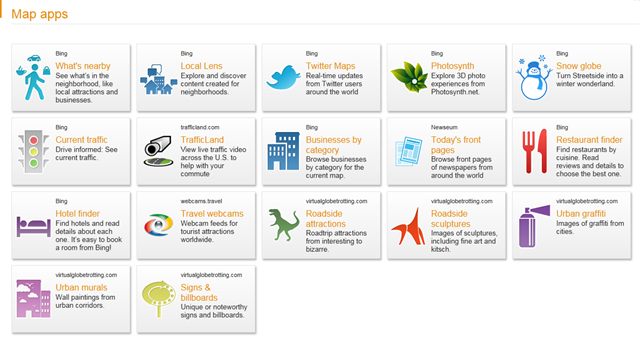
BETA: Bing Maps Application Gallery

image

The Bing Maps Application Gallery, a significant addition to the Bing Maps consumer beta site, is a simplified way to use search and map visualization for dynamic applications exposed through Bing. At launch, 16 applications were introduced—with plans for adding more apps soon.

To access the Application Gallery, look to the lower left-hand side of the Bing Maps beta site and click the [>] button.

Posted by: kurtsh | January 12, 2010

BLOG: “Why is OOF an OOF and not an OOO?”

image Did you ever wonder why people refer to being “out-of-office” as “OOF”?  Shouldn’t it logically be “OOO”?

It turned out that OOF is correct.  It’s meaning just changed over time.  Our Exchange Specialist pointed me to the rationale for the acronym “OOF”.

image

Microsoft recently announced the first CTP of a SQL Server Migration Assistant (SSMA) for MySQL v1.0, which automates aspects of the migration process to Microsoft SQL Server 2005 & 2008 including SQL Azure Database.

SQL Server Migration Assistant for MySQL is the newest migration toolkit, others include Oracle, Sybase, Access, and an analyzer for PowerBuilder. The toolkits were designed to tackle the complex manual process customers deal with when migrating databases. In using the SQL Server Migration Assistants, customers and partners reduce the manual effort; as a result the time, cost and risks associated with migrating are significantly reduced.  Our recent SSMA survey showed that 94% of SSMA downloaders would recommend the tool to others.

Since the SQL Server Migration Assistants for Oracle became available in June of 2005, Microsoft has seen more than a 250,000 downloads across all of the SSMAs.  Motorola, Simon & Schuster, Sony Ericsson and Artesia are just a few of the customers that have downloaded and used the SQL Server Migration Assistant toolkit to move to Microsoft SQL Server.

SQL Server Migration Assistant for MySQL is available for free download and preview at SSMA 2008 for MySQL v1.0 CTP1 and will be generally available in the summer of 2010. Customers and partners can also provide feedback via ssmateam@microsoft.com.

image Recently we made a big acquisition in the System Center, Datacenter Management technology ‘market space’.  By acquiring a company called “Opalis”, we can immediately provide time-tested datacenter automation for our System Center customers. 

In fact, licensees of System Center Enterprise or Datacenter CALs with Software Assurance on them AUTOMATICALLY RECEIVE THE RIGHT TO USE OPALIS’S SOFTWARE at no extra charge!

If you’re interested in knowing what Opalis does, here are a set of demonstration videos that should help clarify this:

« Newer Posts - Older Posts »

Categories