Posted by: kurtsh | July 19, 2010

BETA: Windows Intune Beta 2

[As announced at the Windows Intune blog at http://blogs.technet.com/b/windowsintune/]

Microsoft Windows Intune PC Management & SecurityWindows Intune simplifies how businesses manage and secure PCs using Windows cloud services and Windows 7—so your computers and users can operate at peak performance, from virtually anywhere.

Windows Intune is a comprehensive solution that includes PC management, malware protection, Windows upgrades, and more.

Use the Windows Intune cloud service beta to:

  • Manage updates
  • Protect PCs from malware
  • Proactively monitor PCs
  • Provide remote assistance
  • Track hardware & software inventory
  • Set security policies

INFORMATION:  http://www.microsoft.com/windows/windowsintune/default.aspx

WHAT’S NEW
We had many partners in the first beta who told us they wanted to use Windows Intune to manage several of their customers all at the same time. Based on their feedback, we’ve added a feature in this beta called the Multi-Account Console, which is designed to help partners manage multiple accounts through the single Web-based console.

From the account selection screen, partners will have an aggregate view of the environments they manage, so they can easily monitor the status and health of client PCs, including Agent Health, Alerts, Anti-Malware, and Updates. Partners can change the filter to view by health status, so customers in need of urgent assistance will rise to the top of the list. This addition makes the experience simple for partners to scale and will hopefully save them time, and ultimately money.

MORE INFO AT:  http://windowsteamblog.com/windows/b/business/archive/2010/07/12/windows-intune-second-public-beta-available-today.aspx

REQUIREMENTS
The Windows Intune client software is supported on both 32-bit and 64-bit versions of:

  • Windows 7 Enterprise, Ultimate and Professional
  • Windows Vista Enterprise, Ultimate, and Business
  • Windows XP Professional Service Pack (SP) 2 or SP 3 (recommended)

The Windows Intune client software has no additional hardware requirements for Windows 7 or Windows Vista-based computers. However, to install the client software on Windows XP-based computers you will need a CPU clock speed of 500 MHz or greater and at least 256 MB of RAM.

You will also require Administrator rights on the computer to complete the Windows Intune client software installation.

To access the Windows Intune Web console, administrators will need access to a Web browser that supports Silverlight 3.0, such as Internet Explorer 7.0 or higher.

PRICING
Today we are also announcing pricing for Windows Intune. Windows Intune will include the cloud management service with integrated antimalware (AV and antispyware) plus Windows 7 Enterprise upgrade rights all in a single subscription for $11 USD per PC, per month.

Businesses get a great deal with Windows Intune for several reasons. Because Windows Intune is built on a cloud service, customers and partners can realize the benefits of having a modern PC management and security system without the upfront software licenses, server hardware, and IT labor costs that are required to setup a traditional on-premise solutions.

PRICING DETAILS:  http://windowsteamblog.com/windows/b/business/archive/2010/07/12/windows-intune-second-public-beta-available-today.aspx

BETA ENROLLMENT
The purpose of this beta is to collect feedback and identify potential issues in advance of the final release. Thus only 10,000 accounts will be available. This number is limited so we can make certain that we get the feedback and testing required to ensure the quality of the final release.

To participate in the Windows Intune Beta, we ask that you meet the following requirements:

  • Deploy Windows Intune to manage at least five PCs.
  • Deploy and begin testing the beta within one week of signup.

Sound like you? Please sign up to use the Windows Intune Beta.

BETA REGISTRATION:  http://www.microsoft.com/online/windows-intune.mspx

We released two documents of note for IT departments focusing on Office 2010:

image Operations Guide for Microsoft Office 2010
This book provides information about how to maintain and manage your installation after you have deployed Microsoft Office 2010. The audience for this book includes IT generalists, IT operations, help desk and deployment staff, IT messaging administrators, and consultants.

The content in this book is a copy of selected content in the Office 2010 technical library (http://go.microsoft.com/fwlink/?LinkId=181453) as of the publication date. For the most current content, see the technical library on the Web.

DOWNLOAD:  Operations Guide for Microsoft Office 2010
http://www.microsoft.com/downloads/details.aspx?displaylang=en&FamilyID=85597d13-9b26-4994-bc14-dd7ea380afd2


——————-

imagePlanning Guide for Microsoft Office 2010
This book provides information about how to plan a deployment of Microsoft Office 2010 in an organization.  The audiences for this book are IT professionals who plan, implement, and maintain Office installations in their organizations.

The content in this book is a copy of selected content in the Office 2010 technical library (http://technet.microsoft.com/en-us/library/cc303401(office.14).aspx) as of the date above. For the most current content, see the technical library on the Web. 

image The Microsoft Outlook Social Connector Provider for Facebook allows you to connect your Facebook account to the Outlook Social Connector and obtain information about your friends and colleagues. You can see status updates and recently posted items from your Facebook contacts.

The Microsoft Outlook Social Connector Provider for Windows Live Messenger allows you to connect your Windows Live ID to the Outlook Social Connector and obtain information about your friends and colleagues. You can see status updates and recently posted files from your Windows Live contacts.

You can also use Outlook Social Connector to display a quick view of related Outlook content when you click on an email from a contact, such as recent e-mail conversations, meetings, and shared attachments to help you easily track your communications

NOTE: The Microsoft Outlook Social Connector Provider requires Microsoft Outlook Social Connector and the related update (KB983403) to be installed. If these components are not already installed on your machine, the Microsoft Outlook Social Connector Provider for Facebook will download and install the necessary updates from the Microsoft Download Center before completing the provider installation.

Posted by: kurtsh | July 19, 2010

Sorry for the lack of updates, but…

Y’ever hit the buzzsaw so badly that it freezes time and space around you as if nothing else exists around you and every thing other than the buzzsaw starts looking unkempt and begins growing weeds?

That’s what this past week plus has been like.  Suffice it to say that that there will be a rapid fire succession of updates hitting the wire this week to make up for my lack of attention over the past 10 days.

(To my friend that reads this blog that knows what I mean, my family is dealing with the c-word along with 2 other similarly major concerns that all arose suddenly last week.)

Posted by: kurtsh | July 10, 2010

NEWS: “Microsoft by the Numbers”

image Unless you were living under a rock, the other week there was quite a hubbub created over a blog post that Microsoft Corporate VP of Communications made that shined a light on some statistics that helped put matters of Microsoft’s relevance to the technology industry into perspective.

With media pundits blinded by the glitz, glitter, and flash of Google, or the purported dominance of Apple especially with the recent market cap parity between it and MSFT – as if that actually meant anything tangible – many have resorted declaring Microsoft as an “afterthought” or “irrelevant” in both today & tomorrow’s industry.

Microsoft VP Communications decided to release a few “let’s get back to reality” factoids to wake folks up – particularly the media elite – about the unquestionable definition of strength within an industry.

[taken from Scott Guthrie’s blog at ASP.NET]

We have been working on a new flavor of IIS 7.x that is optimized for developer scenarios that we are calling “IIS Express”. We think it combines the ease of use of the ASP.NET Web Server with the full power of IIS.  Specifically:

  • It’s lightweight and easy to install (less than 10Mb download and a super quick install)
  • It does not require an administrator account to run/debug applications from Visual Studio
  • It enables a full web-server feature set – including SSL, URL Rewrite, Media Support, and all other IIS 7.x modules
  • It supports and enables the same extensibility model and web.config file settings that IIS 7.x support
  • It can be installed side-by-side with the full IIS web server as well as the ASP.NET Development Server (they do not conflict at all)
  • It works on Windows XP and higher operating systems – giving you a full IIS 7.x developer feature-set on all OS platforms

IIS Express (like the ASP.NET Development Server) can be quickly launched to run a site from a directory on disk.  It does not require any registration/configuration steps. This makes it really easy to launch and run for development scenarios.

VS 2010 Integration

We are enabling IIS Express so that it can be easily used with Visual Studio 2010. You’ll be able to configure VS 2010 to use it instead of the ASP.NET Web Server as the default web-server on ASP.NET Projects.  Like the ASP.NET Development Server today, you won’t need to register a site or virtual directory to use IIS Express. It will support the same usage-model as the ASP.NET Development Server today – just with more feature support.

When you press F5 to run an ASP.NET project, Visual Studio can automatically launch IIS Express and use it to run/debug the application (no extra configuration required).  Like the ASP.NET Web Server, IIS Express will show up in your task-bar tray when running:

image

You can right-click and click “exit” on the icon above to quickly shutdown IIS Express.  You can also right-click and pull up a list of all sites running with it, as well as the directory location and .NET versions they are running under:

image


Two cool things to notice above:

1) The “Test Site” we are running, as well as IIS Express itself, live under the c:users[username] folder on disk. This enables non-administrator usage of IIS Express and sites – and enables a bunch of scenarios not possible with the full IIS today (including the ability to run IIS Express in both a locked-down enterprise environment as well as a locked-down school shared computer environment).

2) The “Test Site” we are running above using IIS Express supports both HTTP and HTTPS access.  IIS Express automatically installs a “self-signed certificate” and enables URL ACLs and SSL Certificates for ports so that developers (running as non-administrators on a machine) can use SSL without needing to elevate their accounts or setup any additional configuration.  This enables you to configure secure pages within your applications (like Logon forms) for SSL and run/test them at development time just like they’ll work on your real web-server.

IIS 7.x Feature Set

IIS Express is as easy to run and use as the ASP.NET Web Server you are familiar with today.  But because IIS Express is based on the IIS 7x codebase, you have a full web-server feature-set that you can use.  This means you can build and run your applications just they’ll work on a real production web-server.  In addition to scenarios like SSL, you can take advantage of the IIS 7.x URL Rewriter module, Media Extensions, Dynamic Compression, Advanced Logging, Custom Security and other rich modules now available.

In addition to supporting ASP.NET, IIS Express also supports Classic ASP and other file-types and extensions supported by IIS – which also makes it ideal for sites that combine a variety of different technologies.

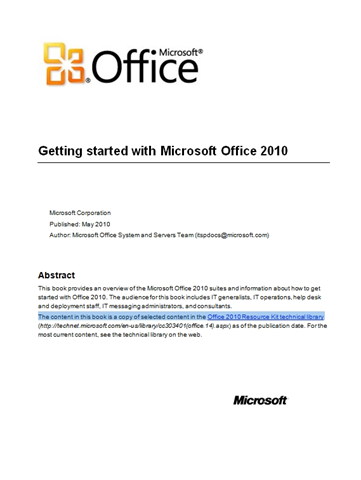
imageThis book provides an overview of the Microsoft Office 2010 suites and information about how to get started with Office 2010. The audience for this book includes IT generalists, IT operations, help desk and deployment staff, IT messaging administrators, and consultants.

The content in this book is a copy of selected content in the Office 2010 Resource Kit technical library (http://technet.microsoft.com/en-us/library/cc303401(office.14).aspx) as of the publication date. For the most current content, see the technical library on the web.

DOWNLOAD:  Getting Started with Microsoft Office 2010 (258 pages)
http://www.microsoft.com/downloads/details.aspx?displaylang=en&FamilyID=860761e2-ce6a-408d-a52d-67f8e6a9388e

image

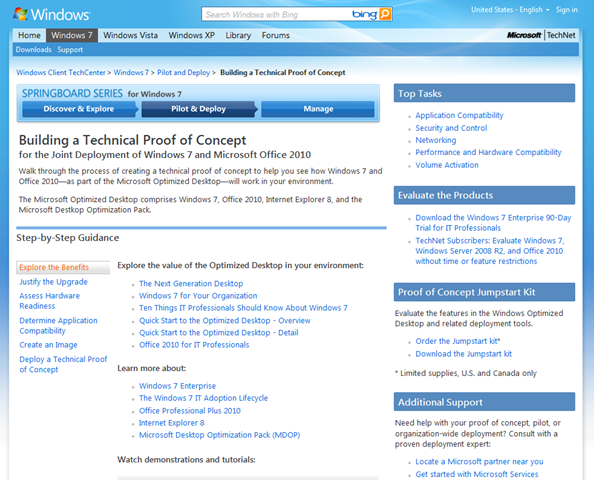
The PoC kit has been updated to include RTM, including pre-sequenced Office 2010 with App-V. 

So if you’re looking into Application Virtualization with productivity tools, this is a good opportunity to work with our latest and greatest in a fully sequenced App-V package.

imageMicrosoft has developed the Productivity Hub to help support your ongoing end user training efforts.

The Hub is a SharePoint Server site collection for 2007 and 2010 that serves as a learning community and is fully customizable. It provides a central place for your training efforts, and includes training content from Microsoft’s core products. Microsoft also provides ongoing and updated content packs.

The Hub uses SharePoint Server’s social networking capabilities, such as blogs and discussion groups. In addition, it offers the Coach program, a change management feature to help you train end users to self-help, reducing the burden on your training and IT staff. The Coach program impacts productivity in a collaborative and positive way.

The 2010 version of the Productivity Hub includes a quiz feature, a section called ‘Get it Done’ that offers training for tasks such as email management and collaboration, and also features Silverlight. There will be a non-Silverlight version of the 2010 Hub delivered in late June.

The 2007 Hub contains 2007 content only (v2) with 2010 content added in v3 (to be released in June 2010). You can also add 2010 content packages to your current Hub. Watch for more document on migration from your 2007 Hub to your 2010 Hub.

What the Productivity Hub is:

  • Format: Pre-loaded SharePoint site collection, optimized for Web 2.0 functionality and easily deployed within SharePoint Server 2007 or SharePoint 2010 environment, depending on version
  • Content: Convenient end user productivity training in a variety of formats (documents, videos, podcasts, etc.). Receive free quarterly updates of content that you will learn about through the Productivity blog.
  • Blog: The Productivity blog offers tips and tricks for end user productivity. Use it as is, or your training staff can use the posts as their own to help them get started in running an internal blog.
  • Train the trainer: Includes IT/Manager section to aid with deployment of the site collection, and guidance to develop the Coach program
  • Products: Office 2007 and Office 2010 (including SharePoint Server 2007 and SharePoint 2010), Windows 7 and Internet Explorer 8, Project, Visio, Live Meeting, and Communicator

You can also download additional content packages that expand the training materials you can make available through the Hub.

DOWNLOAD:  Productivity Hub 2010 for Sharepoint 2010/2007
http://www.microsoft.com/downloads/details.aspx?displaylang=en&FamilyID=4aaa9862-e420-4331-8bc3-469d7bae0ff1

imageAre you on Windows 7 and like the Bing homepage images? You can have the best of them as wallpapers for your desktop!

Here’s the 3 sets of Themes that the folks at Bing have produced to allow you to rotate through their background imagery.  I hear they’re working on a web service for something similar to avoid having to download the theme packs entirely but we’ll see how that goes.  In the meantime, grab these great high resolution images for free.

« Newer Posts - Older Posts »

Categories