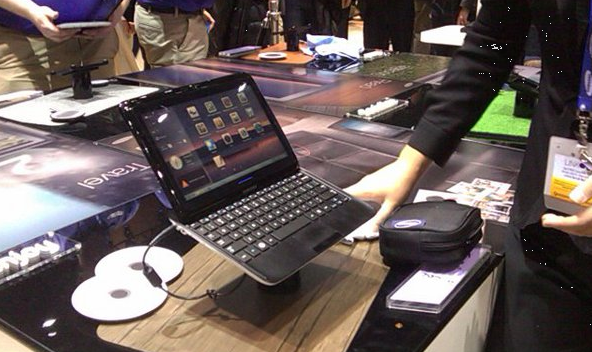
I don’t know if I’ll be able to keep this up but here’s a quick summary of what I thought was impressive at CES 2011 today.

Posted by: kurtsh | December 31, 2010

HOWTO: Instantly kill all instances of Internet Explorer

imageI’m sure this is a pain for a lot of people.  You have one Internet Explorer window that freezes and as a result, every Internet Explorer windows is locked up & not even right mouse click “CLOSE”ing the Internet Explorer windows in the taskbar will allow you to close the offending instance of IE. 

So now you have to go to Task Manager and kill the IEXPLORE.EXE process that is hosing you but this is a hunt-and-pecking game since you don’t know off the cuff what IEXPLORE.EXE instance represents the frozen window, so you end up randomly killing IEXPLORE.EXE processes until things return to normal.  Ugh.

Here’s a quick script to simply kill every IEXPLORE.EXE process running assuming you have administrative privileges.  Note that since you likely have Internet Explorer 8 and that with site recovery turned on, it’s easy to return back to all those site you were visiting previously:

  1. Start a new text file (i.e. run notepad.exe)
  2. Enter the following batch commands:

    @echo off
    taskkill /f /IM iexplore.exe
    start iexplore.exe
    exit

  3. Save the text file as RESTARTIEXPLORE.BAT.  (Note the extension saved is .BAT and not .TXT.  You’ll need to change the “Save as type” to “All Files (*.*)” to modify the extension)

The next time you run into the dreaded, never-ending Internet Explorer freeze, simply double click the .BAT file and BOOM:  Internet Explorer will VERY QUICKLY end & reappear allowing you to return to the sites you were visiting.  I drag & drop this .BAT file into the QuickLinks tray or the START menu.

Wanna be the envy of your next staff meeting? 

image
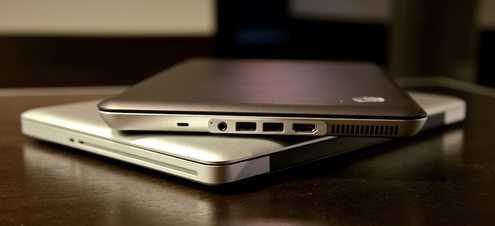
[photo taken from Gizmodo’s review of the HP 13” Envy]

If you’re one of those folks that wants a laptop that’s stylishly thin, light, but want all the power of a supportable & manageable Windows 7 laptop with faster system performance & a brighter screen at a cheaper price… look no further than the HP Envy 13”.

Gizmodo did a very thorough evaluation back when the laptop was priced at $1800.  (http://gizmo.do/dW0aHj) It sports system specs as follows:

  • 2.13GHz Intel Core 2 Duo Processor SL9600
  • ATI Mobility Radeon HD 4330 Graphics
  • 3GB of RAM
  • 4-cell battery (swappable)
  • Beats audio
  • 250GB hard disk drive
  • External Supermulti 8X DVD+/-R/RW optical drive with double layer support
  • Windows 7 Home Premium 64-bit.

The following notable results came up in Gizmodo’s review and in virtually every case, the HP Envy came up the victor… except for the original price ($1800), but with the recent price reduction down to $999, that’s clearly been rectified:

  • Size wise, the HP Envy is .2 inches shorter and thinner than the MacBook Air.
  • Display wise, the HP Envy has a gorgeous 1600×900 LED screen that called the “HP Radiance” that apparently blows anything else in this ultraportable category away.  The 410 nit display (a metric for screen brightness) has an 82% color spectrum (gamut) compared to other displays which traditionally are 40%-60%, including the MacBook Air which makes it, per Gizmodo, more “vivid and crisp”.
  • Processor wise, the HP Envy does numerically have a slightly lower frequency CPU sporting an 2.13GHz Intel Core 2 Duo Processor versus the MacBook Air’s 2.26GHz Intel Core 2 Duo, however Gizmodo reported that there was no performance hit in application execution comparisons.  The real performance difference is noticeable when they looked at the two systems in the next category…
  • Graphics wise, the Envy’s GPU (ATI Mobility Radeon HD 4330) outperformed the MacBook Air’s (Nvidia GeForce 9400M) by 40% in standard 3DMark testing; it also outperformed it by over a 30% better gaming frame rate attaining a full 30fps using Crysis as a benchmark versus the MacBook Air which maxed at 22fps.
  • Battery wise, the HP Envy’s 3.5 hr 4-cell battery is adhoc swappable unlike the MacBook Air’s which is screwed into the chassis; for power users, the HP Envy also has a 10-hour 6-cell battery available as a separate accessory.
    (And despite Apple’s claims of 5-hr battery life, the MacBook Air was found to only realistically deliver about 3.5 hrs of usage, per Anandtech’s evaluation)
  • Price wise, the HP Envy is $999 compared to the MacBook Air’s $1200 price tag.

I’ve got an ancient production laptop right now and I fully intend on buying one once I reorganize some finances.  Along with the HP Slate 500 which is delivering in 5 days.  Dammit.  Too much good hardware to procure.

Posted by: kurtsh | December 22, 2010

TOOL: GhostBuster for Windows 7

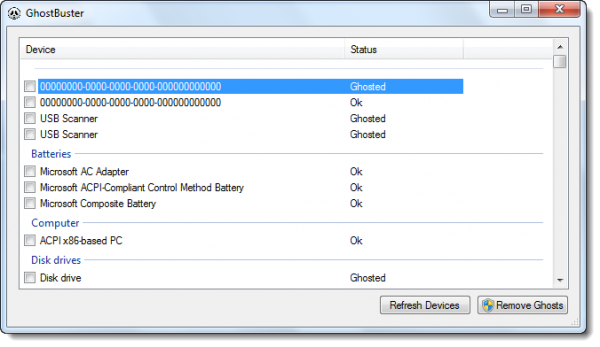
windows7-ghostbuster-600x347Looking for yet another way to quicken your Windows 7 boot up time?

This application enumerates all devices, detects ghosted devices and removes these if they match selectable devices types and/or devices classes with a single mouse-click.

Just another way to speed up boot times of Windows 7 x86/x64.  [Use with caution]

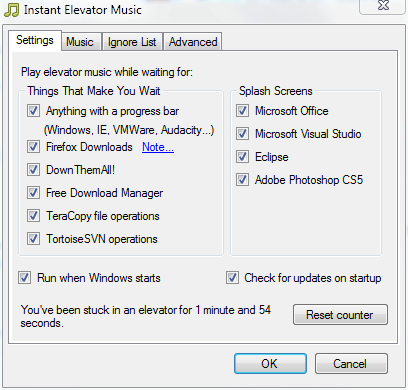
imageThis is hilarious and it’s made my computing day that much more tolerable.

I hate waiting for file copies or for Outlook to come up, etc. etc.  This is a tool that kicks in whenever you are waiting for some process to complete.  It actually plays elevator music in the background and it humorously makes waiting that much more tolerable.  It works when accomplishing tasks like file copies, etc.

DOWNLOAD:  “Instant Elevator Music” – Free elevator music tool during wait periods on Windows Vista/7
http://bit.ly/fYaXsY

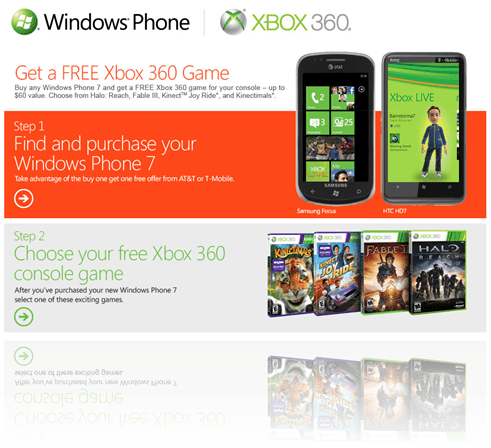
Whoa.  We’ve got a promo going that allows you to get an Xbox 360 game FREE when you buy any Windows Phone 7 device!

Visit http://xbx.lv/haCSlv for more information!

image

Want a framework for responding to malware that might hit your organization?  Here’s a document that helps lay that plan out for you.  Here’s the table of contents of this 55 page document:

imageContents

  • The Planning and Design Series Approach. 1
  • Introduction to Malware Response. 2
  • Step 1: Confirm the Infection. 4
  • Step 2: Determine Course of Action. 8
  • Step 3: Attempt to Clean the System.. 14
  • Step 4: Attempt to Restore System State. 22
  • Step 5: Rebuild the System.. 25
  • Step 6: Conduct Post Attack Review.. 28
  • Conclusion. 29
  • Appendix A: Malware Security Products at a Glance. 30
  • Appendix B: Examining Malware’s Effects on a System.. 31
  • Appendix C: Create an Offline Scanning Kit. 43
  • Version History. 54
  • Acknowledgments. 55

As a member of the Security Solution Accelerator review community your feedback is needed on the Infrastructure Planning and Design Guide for Malware Response Beta. This guide replaces the popular Malware Removal Starter Kit: How to Combat Malware Using Windows PE.

About the guide. Plan the best and most cost-effective response to malicious software by using the Infrastructure Planning and Design Guide for Malware Response. This guide assists organizations in determining the appropriate response strategy to an incident or outbreak of malware. The guide discusses three primary recovery methods: cleaning the system, recovering system state, and rebuilding the system. Each method presents different risks to the organization. The guide also describes approaches to investigating outbreaks and cleaning infected systems. Read this guide to make an informed decision about how to return the systems to operation while limiting the organization’s exposure.

Download the Beta! Get the Infrastructure Planning and Design guide for Malware Response by visiting the Microsoft Connect Web site at: 
https://connect.microsoft.com/site715/content/content.aspx?ContentID=23467

Posted by: kurtsh | December 17, 2010

RELEASE: System Center Service Manager SP1

imageAfter a very successful launch of System Center Service Manager 2010 last April, Microsoft is pleased to announce the release of Service Pack 1, which will be available globally for download on December 16, 2010.

System Center Service Manager 2010 SP1 addresses critical feedback received from customers and partners and provides greater language support, improved performance capabilities, and a number of usability enhancements. This service pack releases no new feature sets as the next version (R2) of SCSM is expected by the end of next calendar yr (2011).

In addition to the additional language support, over 500 improvements were made to address issues and customer change requests.

System Center Service Manager 2010 SP1 is available through the Microsoft Download Center from December 16th 2010 here.
http:// www.microsoft.com%2fdownloads%2fdetails.aspx%3fFamilyID%3d5118055b-9cd7-45cd-bae6-7fc287d832d7

Details on System Center Service Manager 2010 and the rest of the System Center suite can be found at http://www.microsoft.com/scsm

Get registered early… get a FREE subscription to Technet Professional & $300 off!

image

Full conference registration types and prices

The full conference registration fee for attendees includes breakfast, breaks and lunch each day of the program (Mon-Thu), attendee bag, notebook, pen, attendee shirt, name badge, lanyard, reception food, access to the Closing Attendee Party, and a 12 month Not For Resale (NFR) version of TechNet Subscription Professional.

Get Ahead Savings. $300 Savings. US $1,895 Register by December 31, 2010. Register Today Registration Assistance

Registration Type

Prices

Availability

$500 Super Early Bird

US $1,695

Register by June 30, 2010

$300 Get Ahead Savings

US $1,895

Register by December 31, 2010

$200 Last Chance Savings

US $1,995

Register by February 28, 2011

Standard

US $2,195

Register beginning March 1, 2011

http://northamerica.msteched.com/Registration

Posted by: kurtsh | December 17, 2010

INFO: Tethering your Samsung Focus to Windows 7 x64

Interested in tethering your Samsung Focus to a Windows 7 x64 installation?

I got these instructions from a coworker… and being that I don’t have a Samsung Focus but rather a LG Quantum, I haven’t personally tested these instructions.  So “caveat user”.

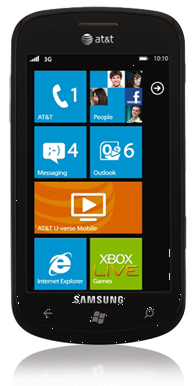
imageNote that while in “tethering mode,” phone will not sync with Zune over USB, nor will wireless sync work, even if it’s set up.  Switching back to “Zune mode” will re-enable this.  Use wap.cingular in the init string (see below) if you don’t have a tethering-enabled data plan (and use judiciously so you don’t get caught by AT&T), otherwise use isp.cingular.

Enabling the phone:

  1. If "Diagnosis" app shows in app list, select it to access diagnostic keypad, otherwise go to dialpad and dial ##634#, then hit the call button.
  2. Using diagnostic keypad, dial *#7284# to bring up the USB Path Control settings.
  3. Select the tether mode.  Allow phone to be restarted.  Zune sync won’t work while in this mode.  Use same steps to switch back to Zune sync mode.

Setting up Win7 x64 driver/modem:

  1. Run "SAMSUNG_USB_Driver_for_Mobile_Phones.exe" to get the modem drivers installed.
  2. Connect Focus via USB.  Drivers should be installed successfully.
  3. New modem, "SAMSUNG Mobile Modem," is installed.
  4. Open Device Manager, find the modem, and open its properties.
  5. In the Advanced tab, set the extra initialization commands textbox to:
    AT+CGDCONT=1,"IP","isp.cingular" ("wap.cingular" is the "non-tethering" access)
  6. Disconnect Focus and repeat steps 2-5 for every other USB port that might be used in the future.  For each port, a new modem entry will be added (with a sequential number), and each one needs to have its initialization string set.

Setting up the DUN connection:

  1. Make sure the Focus is connected via USB, that the phone has been enabled for tethering, and that the drivers and initialization settings are taken care of.
  2. Open the Network and Sharing Center.
  3. Click the link to set up a new connection.
  4. Select to set up a dial-up connection.
  5. If prompted to select a modem, select the Samsung modem.
  6. The number to dial is *99#
  7. The username is left blank
  8. The password is left blank

« Newer Posts - Older Posts »

Categories