Here’s the answer to a question that seems to be lurking on the Internet unanswered that I figured out on my own:

Q: What is “RESERVED SPACE AND OTHER CONTENT” on my Zune?  Why is it taking up 8.4GB of space (or whatever amount) on my device?  YES, I already tried changing that “Reserved Space slide bar” under Settings and it did nothing.

image

A: It’s lots of stuff.

  • Orphaned podcast content.  Do you use podcasts?  If you do, there’s a good chance that there’s old content in there from podcasts that you’ve since de-subscribed from.  Or content that you’ve downloaded manually outside of subscription.  This content is NOT considered part of your PODCAST storage but instead considered part of Reserved Space.  Yes, I know this makes no sense.  Just go with it.
    To delete it, connect your Zune to your Windows desktop, go to the Zune software on your desktop.  Now click DEVICE – PODCASTS.  Click on each podcast and look at the stuff there… are there old podcasts from a year ago in there?  If it’s not recent stuff, congratulations:  You just found some (or most) of the junk that’s clogging up your Reserved Space.  I cleared 3.5GB by eliminating orphaned podcasts.
  • Storage for Apps.  Have you installed Zune apps?  Those free games and tools that they offer off the marketplace?  It turns out they eat up a bit of storage each & how much depends on the app.  And this is NOT considered part of your APPS storage but instead considered part of Reserved Space.  I got rid of 500MB this way.
  • Content NOT managed by Zune PC client.  If some of the the music, videos, or pictures on your Zune are not managed (i.e. synchronized) with your PC through the Zune PC client software, it will not be categorized as music, videos, or pictures in the “storage bar”.  It will instead be categorized as Reserved Space.
    …this of course means that the Reserved Space isn’t actually being wasted.  It actually contains music/videos/pictures that you copied over to you Zune.  This content just isn’t classified as MANAGED music/videos/pictures. 

    If you want to “reduce” the Reserved Space allocation and instead recategorize your content in the music/videos/pictures categories, what you need to do is sync your Zune’s content to your PC:

      • Connect your device and go to a category – for example:  Music.
      • Select all the content that isn’t already being synchronized (or just select everything if you want it all synched and categorized as Music)
      • Right mouse click the content and select the right mouse menu item, “COPY TO MY COLLECTION”.
      • Watch the "Reserved Space” storage allocation in the storage bar diminish… and your “Music” allocation grow, as it shifts from one category to another.

I know there’s more.  I’ve heard that content that that you copy over as a guest while connected to someone else’s PC is considered “Reserved Space”.  I’ve also heard that remnants of failed copies can consume this space but I’ve not confirmed this.

A good explanation about what Reserved Space is, is available on the Answers site.
http://answers.microsoft.com/en-us/zune/forum/zune_install-player/reserved-space-and-content-from-other-computers/0e542859-b42e-4682-b980-495f863bfb2a

As I get more information re: “Reserved Space”, I’ll post it.

image

Wanna know how Windows 7 is licensed?  Here’s a 17 page guide that goes over OEM licensing vs Volume License Upgrades, Virtualized Desktops, Professional vs Enterprise, Step-ups, etc.:

The Windows® 7 operating system (OS) will help business users around the world become more productive and will help IT departments enhance security and control and streamline PC management.

Microsoft® Volume Licensing solutions provide the most flexible, cost effective way to give your organization access to the latest Windows desktop technologies. Whether your business wants to upgrade to Windows 7, have access to advanced technologies like Windows 7 Enterprise and the Microsoft Desktop Optimization Pack, or deploy emerging virtualization scenarios, there is a Volume Licensing program that is right for your organization.

This document provides an overview of the products available through Volume Licensing, information about the products that are eligible for upgrades, and the key choices you have for utilizing Windows in your organization.

This document is for descriptive informational purposes only and is not meant to replace or override other licensing documentation such as the Windows 7 End User License Agreement, Product Use Rights, Product List, or Licensing Briefs that will be available at http://www.microsoft.com/licensing/ with the launch of Windows 7.

Posted by: kurtsh | December 22, 2011

RELEASE: "Windows PowerShell Survival Guide"

Powershell2This is an incredible summary web site off of Technet.  It’s literally EVERYTHING you need to know about PowerShell – including v3.0 CTP!

Here’s the table of contents:

Posted by: kurtsh | December 22, 2011

INFO: My CES Preparation Checklist

imageHere’s a list of stuff that I’m packing for my trip to CES 2012 in Las Vegas.  Hope it helps someone who’s going:  (I will link this stuff to the items I have on Amazon as soon as I get the chance – since I bought most of it there anyway.)

  • Laptop
  • Jabra VOIP speakerphone for Lync 2010
  • Extra memory cards
  • Cellphone battery charger
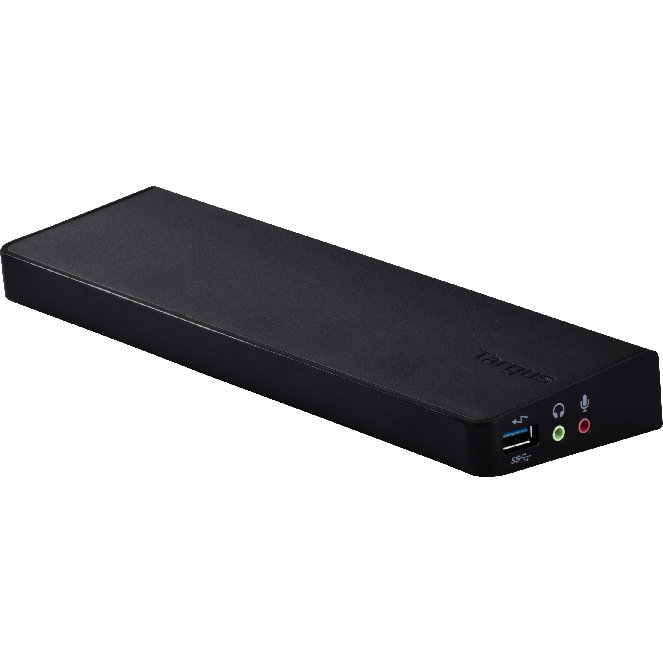
  • Targus Multi-tip portable tech charger
  • 1TB portable USB 3.0 Hard Drive (photos/videos)
  • Mini-power strip
  • Expandable power cable
  • Expandable RJ-45 Ethernet cable
  • Personal humidifier
  • Lysol disinfecting wipes – Travel pack
  • Charcoal tablets
  • 5 hour Energy Drink
  • Extra cell batteries
  • Lightweight backpack
  • Inflatable seat cushion
  • Umbrella
  • Noise cancelling headphones
  • Media Player
  • Visine
  • Basic Blackjack Strategy Card
  • Hand sanitizer
  • Map of Las Vegas
  • Map of hotel casino
  • List of phone numbers (Hotel, Lawyer, Relative, LV Metro, Restaurants)
  • Portable WiFi Router
  • Portable 10/100 Ethernet Hub
  • Personal 3G/4G WiFi Hotspot
  • Clothes pin to pin drapes
  • Imodium
  • Tums
  • Las Vegas Advisor
  • Restaurant.com coupon printouts
  • CD/MP3s of Vegas Tunes
  • Disposable camera
  • Breath mints
  • Sunblock
  • Lip balm
  • Bottled water
  • Aspirin
  • Vitamin C, Echinacea, or whatever you take to prevent getting sick
  • Portable snack – emergency
  • Sunglasses
  • Band-Aids (for feet)
  • Extra credit card

And to get you in the mood:

The new Tag app now supports Tag barcodes, QR Codes and NFC. With so many readers and formats, everyday users have been frustrated by the fragmentation in the industry. We’ve heard your concerns and have launched one app that can scan the most common 2D barcodes and NFC touchpoints. The new Microsoft Tag app for Android and iPhone lets users scan Tag barcodes and QR Codes – both those generated by Tag and third-party codes. But wait, there’s more! Android users who have NFC-enabled smartphones can use the updated app to also scan NFC touchpoints. Users of the new app will have all this as well as features such as:

  • A visual history of the most recent Tags and the ability to flag and organize favorites in a variety of ways
  • Ability to share Tag experiences with friends on Facebook or Twitter as well as via email
  • View other Tag campaigns through our Featured Tags section
  • Save and edit contact information

Windows Phone 7.5 also supports Tag barcode and QR Code scanning through the Bing Visual Search button.

So there is no reason to have more than one reader taking up space on your mobile device… and that’s space you can use for more important apps like Angry Birds or Fruit Ninja.

DOWNLOAD: Microsoft Tag Reader – now with QR code & NFC support!
(Available for all smartphone platforms including Windows Phone 7 and 7.5, Windows Mobile, iPhone, Android, BlackBerry, Symbian, and J2ME phones)
http://tag.microsoft.com/download.aspx

imageI’ve historically used FeedDemon, an old RSS reader from the stone ages for Windows that does a good job but is generally a little resource heavy.

Today, I discovered this really cool RSS Reader for Windows desktops:  “Mishra Reader” – a Free Metro-styled WPF RSS reader for Windows.

It has several benefits and a couple drawbacks:

  • The “Metro” interface is smooth as glass.  The Windows Presentation Foundation experience is really awesome and well done.  It feels cooooool to use.  I hope they make the jumpt to HTML5/Javascript in Windows 8!
  • The application is really easy on the eyes in terms of reading.  It’s not hard to consume the text.
  • There are SysTray notifications that show up in the taskbar when you get new feeds in.
  • It REQUIRES Google Reader accounts and can’t just consume OPML files.  I don’t understand why people write software that mandates that you use a web service when OPML works just fine.  Silly.
  • Free!

Give it a try.  I think this may be my newly adopted news reader!

(Incidentally, it’s co-developed by David Catuhe, a Microsoft employee that blogs at http://blogs.msdn.com/eternalcoding)

Posted by: kurtsh | December 19, 2011

INFO: Bing “NFL Instant Answers”

Keeping tabs on your favorite NFL teams and players just got a lot faster with Bing. Earlier this month we released an improved NFL Instant Answer to the Bing results page. With fast, up-to-the-minute scores, stats and ticket data, Bing is an easy play on Sunday.

Let’s begin and say you’re interested in getting the scoop about the Seahawks most recent game against the Redskins.  The Bing NFL Instant Answer is highlighted below:

image

Scroll over “Passing” to see basic passing stats for the game:

clip_image004

Scroll over “Rushing” to see the game’s rushing leaders:

clip_image005

At the bottom of this search result, there is a link where you can check out upcoming Seahawks games and, more importantly, access to ticket information. Look for the DEAL icon and click on “Seattle Seahawks:”

clip_image006

Next, let’s say you’re interested in how new ‘Hawks QB Tarvaris Jackson is doing this year. Simply search Tarvaris Jackson, and the instant answer includes stats for this season, Jackson’s entire career, and even a bio:

clip_image007

And what if you want scores fast? Search NFL Scores in the search box and get up-to-the-minute game day scores right at the top:

clip_image008

With lots of action left before the Super Bowl in February, be sure to use the new Bing NFL Instant Answer to get the quickest results for your NFL queries.

imageI hear people even to this day complain about the existence of Internet Explorer in Windows.  “Why do I have to have Internet Explorer on my machine?  I use Chrome/Firefox!”

This frankly betrays a lack of understanding about just how much value Internet Explorer provides to Windows & its users.  You probably use Internet Explorer every day in Windows because it’s a core technology responsible for visually presenting content on the screen virtually everywhere… you just don’t know it. 

Again, just because you don’t use it to browse the web doesn’t mean you’re not using it within Windows itself.  Internet Explorer – all versions – provides 2 things:

  • HTML rendering engine
  • Application Development APIs

Any time any application (Microsoft or 3rd party) or component with Windows has to render HTML in some fashion – you’re using Internet Explorer.  The HTML rendering engine within Internet Explorer is used everywhere within Windows… here’s a small sample of the systems that use Internet Explorer to present formatted text/graphics:

  • Windows Help
  • All Microsoft Office products
  • All of Microsoft administration tools
  • Windows Media Player
  • Performance Monitor
  • Half the stuff in Control Panel
  • Most of Windows Live’s tools such as Messenger & Writer
  • …etc…

INTERNET EXPLORER:  A PROGRAMMABLE HTML RENDERING SERVICE
Again, other applications take advantage of Internet Explorer and assume that the IE HTML rendering engine is available in every version of Windows to present HTML formatted content or to provide windows or dialog boxes with HTML based layouts.  IE is the programmable service by which everyone presents HTML formatted content.  For example:  Maxthon is a browser that leverages the HTML rendering services (aka “Trident”) of Internet Explorer but provides an interface that’s completely different and in many ways better than what IE9 provides out of the box:

If Windows did not include Internet Explorer as a HTML rendering service, every application would need to include & maintain it’s own HTML rendering service.  And in case you hadn’t noticed, most browsers these days are a good 50MB.  Fortunately, for all of us, there is a standard available to Windows developers… it’s called IE.

Let’s be clear:  Without IE, most of Windows doesn’t work.

SO WHY CAN’T I JUST REPLACE IE WITH CHROME/FIREFOX’S HTML ENGINE?
Obviously, Microsoft’s products, like Windows Help & Windows Media Player are never going to be using a 3rd party rendering engine based on WebKit or something like that.  But for products like JD Edwards OneWorld, which has Win32 applications that include browser windows within them… why not WebKit?  Or Gecko?

The fact is that other browser developers companies don’t seem to really care about providing their HTML rendering services programmatically to application developers in the same way that Microsoft does with Internet Explorer.  There’s not really any incentive for browser vendors to do so.  Sure, Mozilla encourages people to build ADD ONS for Firefox to make Firefox as a browser more useful, but to leverage Firefox as a rendering engine for other applications?  Not so much.

Posted by: kurtsh | December 18, 2011

INFO: Lync Federation Directory

imageHave you presented your Lync deployment with external access?  Are you interested in federating your Lync infrastructure with other companies like:

  • Columbia Sportswear
  • Level 3
  • Alliant Energy
  • AMD
  • Amgen
  • Aramark
  • BestBuy
  • BMW
  • CB Richard Ellis
  • CDW
  • Clear Channel
  • Conagra
  • Corning
  • Davita
  • DelMonte
  • Disney
  • First American
  • Gamestop
  • Hasbro
  • Honeywell
  • Ingram Micro
  • Jet Blue
  • Kodak
  • Kraft
  • Mattel
  • Gartner
  • British Telecom
  • Dell
  • Accenture
  • HP
  • Jabra
  • Microsoft
  • Polycom
  • etc.

These are just some of the marquee names I recognized and picked out of the directory.  Every one of these companies are using Lync/OCS technology and can be federated with.

Federation provides a means by which your company an SECURELY instant message with another company, as well as see the online presence of key contacts that have authorized you to communicate with them.

So if you want a closer relationship with these companies as a partner, customer, or a vendor… check out the Lync federation directory!

imageWindows XP Service Pack 3 (SP3) and Office 2003 will be reaching end of support in April 2014. The following post is designed to highlight the potential risks involved with the upcoming end of support of these products and to outline the options available to mitigate these risks.  

What is the situation and potential risk?

Windows XP SP3 and Office 2003 will no longer be supported from April 8, 2014 onwards. After this date, Microsoft will not provide any public support for these products, including security patches, non-security hotfixes or incident support.

Running Windows XP SP3 and Office 2003 in your environment after their end of support date may expose your company to potential risks, such as: 

  • Security & Compliance Risks – Unsupported and unpatched environments are vulnerable to security risks. This may result in an officially recognized control failure by an internal or external audit body, leading to suspension of certifications, and/or public notification of the organization’s inability to maintain its systems and customer information.
  • Lack of Independent Software Vendor (ISV) & Original Equipment Manufacturer (OEM) Support – A recent industry report from Gartner Research suggests "many independent software vendors (ISVs) are unlikely to support new versions of applications on Windows XP in 2011; in 2012, it will become common". And it may stifle access to hardware innovation: Gartner Research further notes that in 2012, most PC hardware OEMs will stop supporting Windows XP on the majority of their new PC models. See Creating a Timeline for Deploying Windows 7 and Eliminating Windows XP SP3, June 2011.

What are the available options?

  1. Upgrade – This option affords customers the best return on investment by deploying a modern PC with Windows 7 Enterprise and Office 2010. Whether you’re a small business or the largest corporation with offices worldwide, moving to a modern PC with Windows 7 Enterprise and Office 2010 offers your business the ability to improve productivity for your employees and increase operational efficiency through improved PC security and management.

    To help customers with the migration/deployment process, Microsoft and our consulting partners offer several options including proof of concept (POC) and production pilot programs, available through Microsoft Consulting Services or one of our Certified Service Partners, to help you achieve a successful upgrade to Windows 7 Enterprise and Office 2010. 

  2. Purchase a Custom Support contract through Premier Support to stay on unsupported products – If, for any reason, you decide to remain on Windows XP SP3 or Office 2003 after support ends, you have the option to purchase Custom Support. As a condition of buying a Custom Support contract, you must have a Premier Support agreement and we ask our customers to have a migration plan in place. The cost of Custom Support is significantly higher than regular support, and rises annually due to the rising costs of supporting a legacy product.
  3. Do nothing – Microsoft recommends customers avoid this option for it can put you at risk of potential security and compliance issues. 

Where can you find more information?

« Newer Posts - Older Posts »

Categories