Lenovo just published a driver for the Alps TouchPad that they have on some models.  I’ve been on a quest to find Windows 8 TouchPad drivers for all my laptops that have been upgraded to Windows 8 for one big reason:

I want Edge Swiping. 

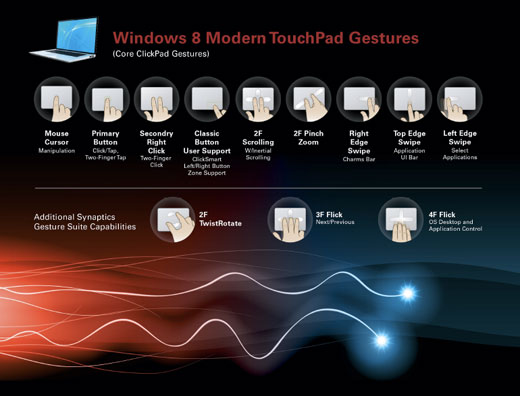
Edge Swiping is a function that needs to be built into the driver & its control software.  It allow the Windows 8 user to use their finger to ‘swipe left’ from the right edge, to reveal the Windows 8 Charms bar.  Functions that Edge Swiping provides include:

  1. Edge Swipe LEFT – “Reveal Windows 8 Charms bar”
  2. Edge Swipe RIGHT – “Change foreground task in Windows 8””
  3. Edge Swipe UP – “Reveal Windows 8 Configuration bar”

This is very specific to Windows 8 and does NOT WORK with previous Windows 7 drivers.

I have not tested this driver since I don’t actually have an Alps TouchPad on my Lenovo hardware but it’s clearly published very specifically for Windows 8.  I figured I’d post it just in case someone found this interesting.  The file’s 16MB in size.

UltraNav1Looks like Lenovo has published a BETA driver for their ThinkPad Synaptics UltraNav TouchPads for Windows 8.

They snuck it out a couple days ago I think and it supports bother 32/64bit Windows 8 on a ton of listed systems:

  • T530, W530, T430s, X230, X230 Tablet, X1 Carbon, L430, L530, Edge E420, Edge E425, Edge E520, Edge E525, T520, W520, T420s, X220, X220 Tablet, X1

I went ahead and tested this on my Lenovo ThinkPad x201 Tablet, and yes, sure enough, Edge Swiping for Windows 8 works!  Edge Swipe Left to get the Charms Bar, Edge Swipe Right to Change Tasks, Edge Swipe Up to get the Configuration Menu.

UltraNav2At first glance, the Mouse Tab for the UltraNav TouchPad doesn’t look that much different.  But once you bring up the Settings button, you’ll see some difference in references to Gestures & edges.

The file’s 32MB in size.

Posted by: kurtsh | September 14, 2012

WHITEPAPER: Windows & Office Language Rights Explained

Here’s a document that I received that goes over Language Rights for Office & Windows.  Enjoy.

image

VIEW ON/DOWNLOAD FROM DOCS.COM:
http://docs.com/NO6S

Posted by: kurtsh | September 14, 2012

BETA: Security Compliance Manager (SCM) 3.0 Beta

image

Just posted!  SCM 3.0 Beta!

As part of a select group of our key customers and partners, we are happy to invite you to participate in the Security Compliance Manager (SCM) 3.0 Beta review program which includes security compliance baselines for several new Microsoft products:

  • Windows Server 2012
  • Windows 8
  • Internet Explorer 10

The library of settings in SCM 3.0 enable you to customize your own baselines with settings not included in our built-in baselines. Use these new resources to define custom baselines, meet business-critical needs, and elevate the security of Windows Server 2012, Windows 8, and Internet Explorer 10 in your environment.

To download the beta release of the SCM 3.0 join the project on Microsoft Connect:

SCM is a free tool from the Microsoft Solution Accelerators team that enables you to quickly configure and manage your computers whether their located on desks, in traditional datacenter, or in a private cloud using Group Policy and Microsoft® System Center Configuration Manager. To learn more about the current version of Security Compliance Manager, SCM 2.5, visit the TechNet Library http://go.microsoft.com/fwlink/?LinkId=113940.

Please send any questions or comments to the Solution Accelerators Security Team: Secwish at microsoft dot com.

IMG_0350

UPDATE 9/15/12 12:45PM:
I’ve gotten confirmation today that the Synaptics TouchPad drivers (v12.3) I’d originally linked to, when installed on Windows 8, do in fact provide Windows 8 Edge Swipe capabilities just as the Elan Drivers do below! 

This will reveal the Charms bar on the right, the Configuration Bar on the bottom, and the Task Bar on the left of the screen.  Yay!

————–
ORIGINAL POST:
It’s clear that my last post about this was not clear enough based on all the pings I’m getting so, here’s attempt #2:

If you have Windows 8 installed on a laptop with an Elan Touchpad on it such as many (not all) of the Samsung Series 9 ultrabooks, here’s a driver that will provide you with the following functionality on the touchpad:  (See below if you have a Samsung Series 9 ultrabook that doesn’t have an Elan touchpad in it.)

  1. Edge Swipe LEFT – “Reveal Windows 8 Charms bar”
  2. Edge Swipe RIGHT – “Change foreground task in Windows 8””
  3. Edge Swipe UP – “Reveal Windows 8 Configuration bar”
  4. Multitouch Scroll – Use two fingers to scroll up & down in a window
  5. Disable Tapping – Stop the cursor from moving when you accidentally graze the touchpad
  6. Disable Drag & Drop – Prevent accidental movement of icons & highlighted content
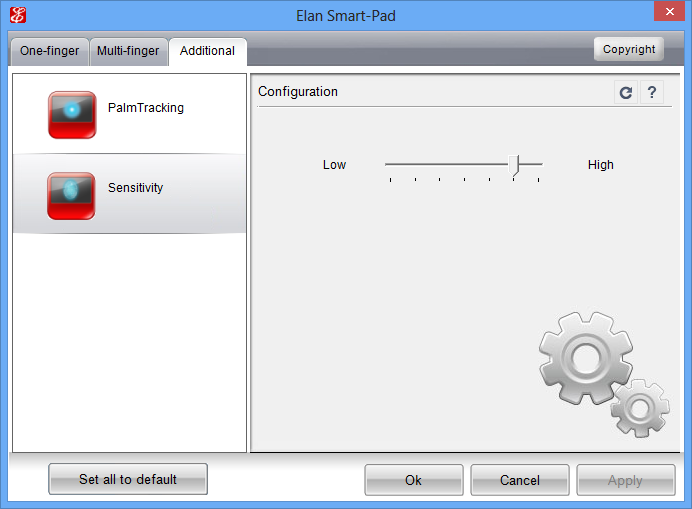
  7. Enable PalmTracking – Also known as Palm Rejection, prevent the pointer from moving when your palm accidentally rests on the touchpad
  8. Diminish Sensitivity – Reduce the sensitivity of the touchpad

(Note: Once this driver is installed this is all configurable from Control Panel – Mouse.)

Things to remember before installing the driver:

  1. ELAN1UNINSTALL PREVIOUS ELAN DRIVERS
    If you had previous ELAN drivers, uninstall them by going to CONTROL PANEL – PROGRAMS & FEATURES and get rid of anything that reads “ETD…” or “ELAN Technologies”.  If you fail to do this step, the Control Panel tab for your touchpad will not display correctly.
    (If you do screw this up, uninstall all the drivers again by plugging in a USB mouse to your system, and then reinstall the new Elan drivers and you should recover fine.)
  2. REBOOT AFTER EVERY STEP.
    After you uninstall the OLD Elan drivers (if you had them) reboot.  After you install the NEW Elan drivers, reboot.  If not, the Windows 8 specific functionality may not work.
  3. DOWNLOAD THE RIGHT ELAN DRIVER.
    Here’s a link to the driver you want. It appears to be for both x86/x64.
    Visit http://www.station-drivers.com/page/elantech.htm and click on the DISK icon for the 11.13.0.2 driver)

ELAN2CONFIGURATION
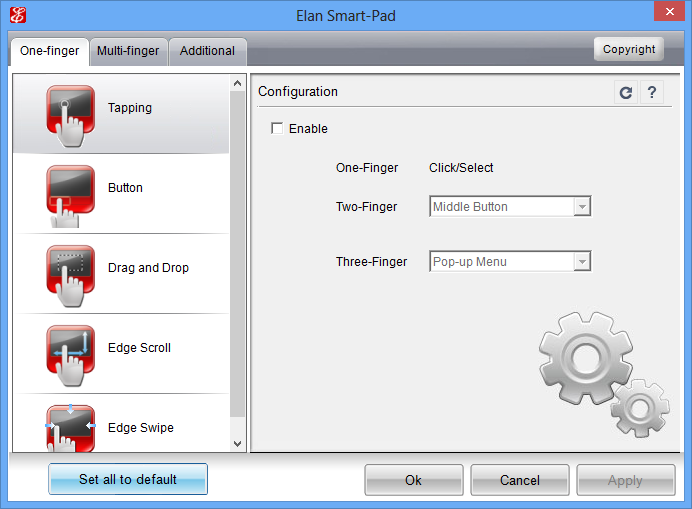
Once downloaded – go to CONTROL PANEL – MOUSE.  There should be an “ELAN” tab at the top.  Select it and click on the “Options…” button.  The following window should appear.  I recommend the following:

  1. DISABLE TAPPING
    Uncheck the “Enable” check box for Tapping.  It is what causes your mouse to jump all over the place.
  2. DISABLE DRAG & DROP
    It’s too easy to accidently move stuff when this is enabled.  Disable it by clicking on “Drag and Drop” and unchecking the “Enable” box.

ELAN3There are other options available in the “Additional” tab such as “Palm Tracking” and “Sensitivity” that you will need to play with to see what works for you.  See the photo to the right to see what options are available in this tab.

SYNAPTICS TOUCHPAD USERS:
What if you have a Synaptics Touchpad?  Here’s a quote from my previous post:

I have in fact found some Synaptics drivers with the version number of “16.2.12.3” published 9/7/12 for both 32bit & 64bit. Sound interesting? Yeah, I thought so. The problem is I don’t have a Synaptics touchpad to test this on any more so I have no idea if these work however here’s the link if you really feel daring. Caveat installer.)

imageHere’s a couple interesting documents available on the eLearning benefit from Software Assurance.  If you’re a Software Assurance benefits administrator, you’ll want to take a look at these to understand how to best get this computer-based training out to your users.

AlwaysOpenIEinDesktopFor those of you that prefer to use the desktop version of Internet Explorer 10 instead of the Modern UI version in the Start Page, you have the option of setting “Desktop IE10” as the default for all hyperlinks clicked throughout the OS.

The one-time task you need to do to set this up is:

  1. Open Desktop IE
  2. Go to Tools/Internet Options
  3. Select the Programs tab
  4. Under "Choose how you open links", choose "Always in Internet Explorer on the desktop"
  5. Select the "Open Internet Explorer tiles on the desktop" checkbox.

Many people don’t know that you can get a wealth of information about Microsoft Volume Licensing from our Volume Licensing web site at http://www.microsoftvolumelicensing.com.

One of the documents on this site is the Product List.

imageimage

image

System Center Configuration Manager (SCCM) SP1 Beta just posted.  And check out the enhancements listed below!

The System Center Configuration Manager team is pleased to announce the release of System Center 2012 Configuration Manager Service Pack 1 (SP1) Beta!  This build is now available for download on the Microsoft Download Center: http://www.microsoft.com/downloads/details.aspx?FamilyID=a171bcea-2dbb-4fc5-8dd1-4ec22f2eb4ef.

Configuration Manager SP1 enhancements include:

  • Deployment and management of Windows 8 and Windows Server 2012
  • Distribution point for Windows Azure to help reduce infrastructure costs
  • Automation of administrative tasks through PowerShell support
  • Management of Mac OS X clients and Linux and UNIX servers

One of the great new benefits of this platform is Windows 8 apps, and ConfigMgr 2012 SP1 allows you to deploy and update these apps alongside your existing native and virtual applications. ConfigMgr SP1 will support the deployment and management of Windows to Go USB drives, as well as enable you to more easily manage policies for new Windows 8 client-side caching, roaming user profiles, and folder redirection features.  For mobile workers, ConfigMgr 2012 SP1 Beta will include the new ability to detect 3G and 4G network connections to prevent delivering software at a time when data charges may apply. To read more about the Beta release, please view the following blog post:  http://blogs.technet.com/b/server-cloud/archive/2012/09/10/system-center-2012-configuration-manager-sp1-beta-and-windows-intune-update.aspx

Please note, ConfigMgr SP1 is a standalone build intended only for your lab environment.  Please do a fresh install, as upgrade from ConfigMgr 2012 or ConfigMgr 2007 is not supported.

ConfigMgr SP1 Beta Release Notes
For the ConfigMgr SP1 Beta release notes, please reference the TechNet link here: http://technet.microsoft.com/en-us/library/jj591611.aspx.

Submitting Feedback
We look forward to your feedback on ConfigMgr SP1 Beta!  Please submit your feedback using the ConfigMgr SP1 OpenBeta feedback form on Connect:https://connect.microsoft.com/ConfigurationManagervnext/Feedback.  Although we review each item submitted, we are unlikely to be able to respond to all feedback individually.

Discussions on ConfigMgr SP1 Beta
For general questions or discussion items, please leverage the ConfigMgr OpenBeta community discussion group here:
http://innovation.connect.microsoft.com/discussions?ProjectName=configmgrsp1openbeta.

Package Conversion Manager (PCM) v2.0
Microsoft System Center 2012 ConfigMgr SP1 Package Conversion Manager v2.0 (PCM) is a feature pack download that lets you convert ConfigMgr 2007 packages into System Center 2012 ConfigMgr SP1 applications. PCM has been updated and v2.0 Beta is being released in the download center here: http://www.microsoft.com/downloads/details.aspx?FamilyID=21191778-5308-4efc-82fe-c8396ed68169. Please note the RTM release of PCM is not compatible with ConfigMgr SP1 Beta – you must use PCM v2.0 if you are converting ConfigMgr 2007 packages to ConfigMgr SP1. For PCM v2.0 feedback, please leverage the feedback form here: https://connect.microsoft.com/ConfigurationManagervnext/Feedback.

Thank you,

System Center Configuration Manager Team

This may seem obvious for some however the touchpad of the Samsung Series 9 is, as most people have discovered, difficult to use when the default driver for mice is used.  The thing moves slowly, you can’t disable tapping, you can’t turn on multitouch gestures, you can’t optimize palm rejection, etc.

There’s two options:

OPTION #1:  INSTALL THE WINDOWS 7 DRIVER
The easy answer is to simply download and install the Windows 8 x64 driver into Windows 8.  I installed the driver using Windows 7 compatibility mode just to be safe and lo-and-behold, it was just fine to use after doing so.  (And making some configuration changes to the driver via CTRL PANEL-MOUSE, of course)

You SHOULD be able to click on the link below and just download the Windows 7 Touchpad driver fro the Samsung Series 9 here:
imageIf for some reason this doesn’t work, try this:

When you load the page, scroll to the tab called “Manuals & Downloads” and click it. What you’re looking for is a driver called “Touchpad (Driver) (ver.2.9.0.0)” dated Nov 25, 2011.  It’s a 194.6MB download.

Yeah – pretty big for a simple driver I know but part of the explanation for this massive download size is in the post I wrote called “Making configuration changes to the Samsung Series 9 touchpad” below.

image

After successfully installing the x64 drive, apply the optimizations that I write about here:

OPTION #2:  INSTALL THE ELAN WINDOWS 8 DRIVER
Here’s the thing:  I found some real Windows 8 Drivers for an Elan Touchpad.  Why do you care?  This is the touchpad brand that ships on many current Samsung Series 9 systems.

You’ll notice however that I didn’t say “ALL” current Samsung Series 9 systems.  The reason is, early Samsung Series 9 models shipped with the Synaptics touchpad and Synaptics drivers.  Later on, for whatever reason, Samsung started shipping Elan touchpads and Elan drivers – so if you download the touchpad driver from the Samsung web site, you’ll download a massive 180MB file that contains the drivers for both Synaptics & Elan in them, since the driver pack has no idea which touchpad your laptop has.

If you check your Samsung and you see under CTRLPANEL –> Device Manager:  “Mice”, the name “ELAN PS/2 port Smart-Pad”, you know you have a ELAN touch pad and the driver below will work.

The benefit of the Windows 8 driver is that it will enable “Windows 8 Gesture Support” meaning you can swipe-in from left to switch apps, swipe-in from right to display charms, swipe in from top to display app controls, as well as multi touch gestures for scrolling and zooming.

IMPORTANT:  You MUST uninstall any previous ELAN software that you’ve installed previously.  Go into Programs & Features & “uninstall” anything that reads “ELAN blahblahblah” then reboot before you install the Windows 8 drivers below (and reboot again after doing the new driver install), otherwise the Mouse Tab for configuring the touchpad options won’t display correctly.  If you screwed up and installed over the old ELAN software, just uninstall everything, reboot, then reinstall the Windows 8 ELAN drivers below… then reboot one more time.  (You will probably need to plug in a USB mouse to have some sort of mouse control.)

imageWAIT… WHAT IF I HAVE THE SYNAPTICS TOUCHPAD?
I’m afraid right now, that there’s no official drivers publicly available yet.  Synaptics doesn’t appear to have made the SGS 12.3 Windows 8-designed drivers available yet.

If you’re curious however as to what they do and how to use them once you get them, here’s the product page for the drivers:

———————–

(Note:  Alright, alright, alright.  So if you’re super-curious, I have in fact found some Synaptics drivers with the version number of “16.2.12.3” published 9/7/12 for both 32bit & 64bit.  Sound interesting?  Yeah, I thought so.  The problem is I don’t have a Synaptics touchpad to test this on any more so I have no idea if these work however here’s the link if you really feel daring.  Caveat installer.)

« Newer Posts - Older Posts »

Categories