Posted by: kurtsh | October 28, 2012

DOWNLOAD: Windows 8 Quick Reference Card

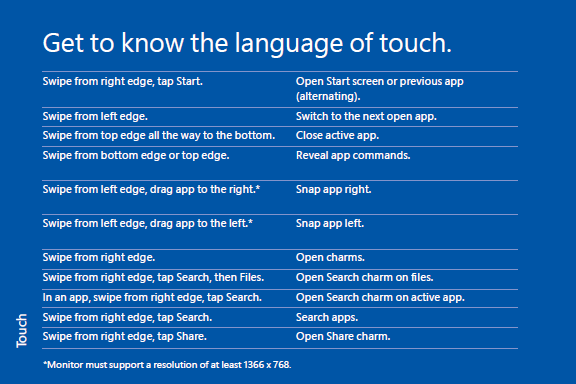
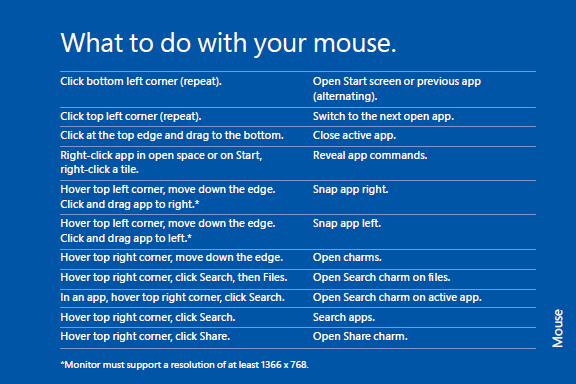
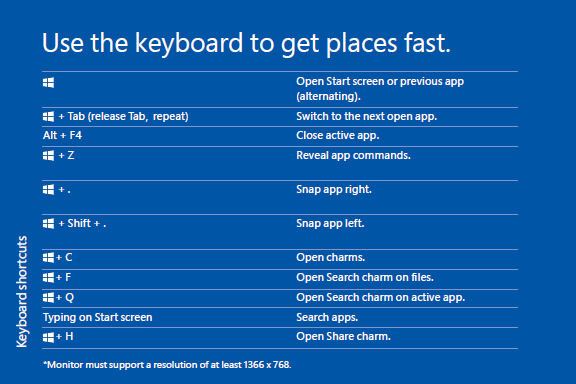
imageFor those who need to provide others with a quick step by step tutorial around how to use the Windows 8 interface via:
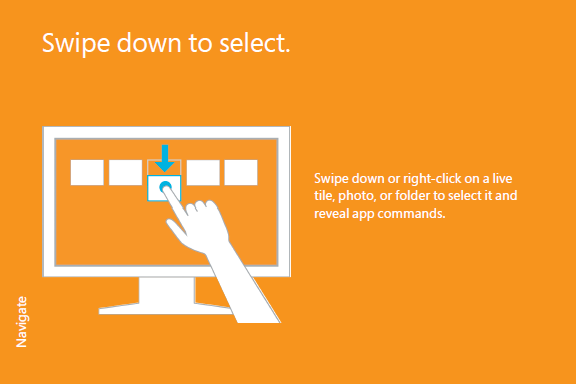
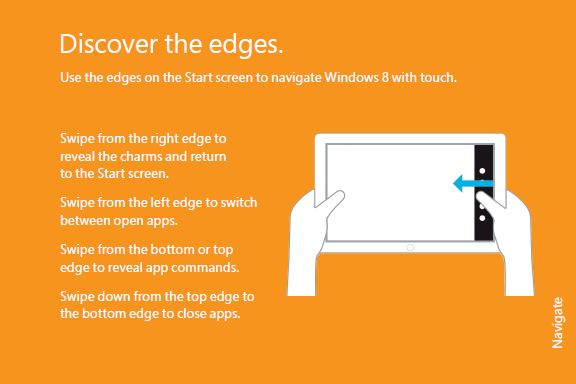
  • Touch
  • Mouse
  • Keyboard

Whichever way your user prefers to use their computer, this 48-page Windows 8 Quick Reference Card covers it. 

Sample pages:

 image
image

imageimage

image

image

image

Want a cheat sheet with all the keyboard shortcuts for the release version of Windows 8?  Here you go:

image

Posted by: kurtsh | October 28, 2012

HOWTO: Remove devices from your Amazon Kindle account

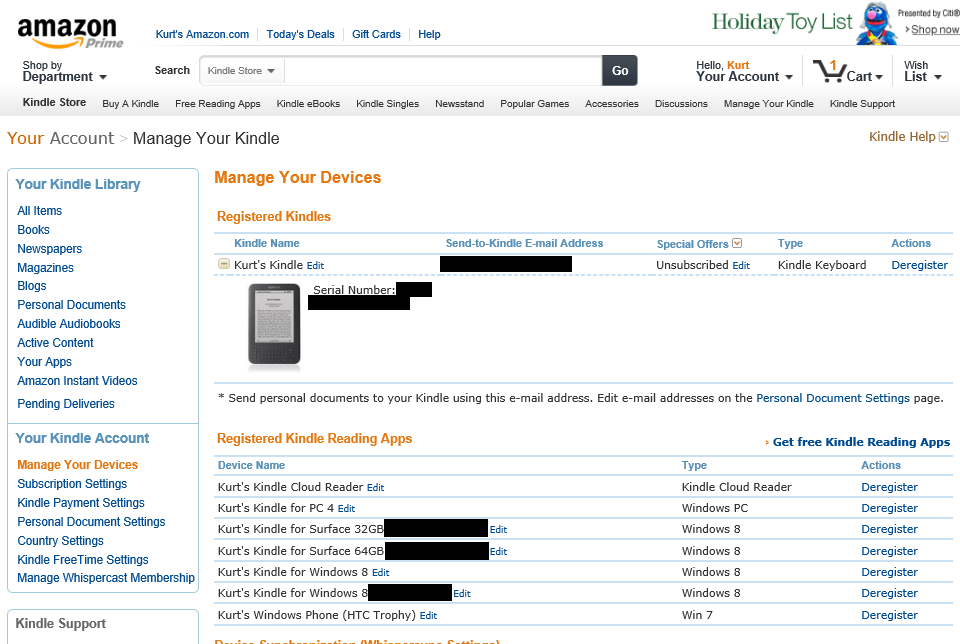
At some juncture, if you’re like me, you’ve been adding Windows 7 PCs, Windows Phone 7 devices, Windows 8 PCs, & newly purchased Surfaces to your Kindle account.

This can only go on so long.  At some juncture, Kindle will not let you load your eBooks up on to a newly added Kindle player since you’ve exceeded the maximum number of players that Amazon allows.

WHAT TO DO?
You need to remove older, unused Kindle readers/players/devices from your account.  The way you do this is

  1. Go to the following site:
    https://www.amazon.com/gp/digital/fiona/manage?ie=UTF8&ref_=ya_14&#manageDevices
  2. Click ‘Deregister’ next to each device you no longer use.
    You can verify the ‘Device Name’ of each device by going to each device you own and looking into the Options of each player.

image

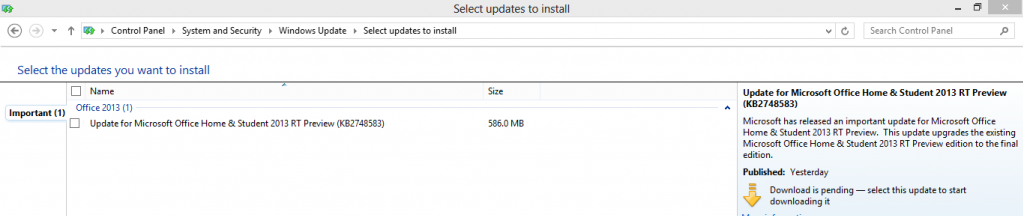
For those with new Windows RT-based devices enjoying the Office 2013 Preview Release, (like new Surface owners… yeah!) you’re in luck!  It’s time to start up Windows Update because the final release of Office Home & Student 2013 is available for autodownload and installation to your device at no charge!

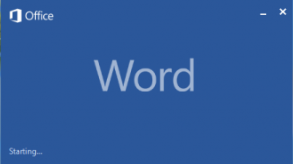
The download is 583MB in size so it’s gonna take a bit to download but once completed, you can look forward to immediately seeing this gratifying change:

imageimage

To install the Office RTM:

  1. Open the Charms bar by edge swiping from the right of the screen
  2. Select Settings & “Change PC Settings” at the bottom.
  3. Select Windows Update.
  4. Click “No important updates are scheduled to be installed.”
  5. Click “Get more info”.
  6. Click “Important update is available”
  7. Check the box next to “Update for Microsoft Office Home & Student 2013 Preview”
  8. Click Install in the bottom right hand corner.

image

imageAre you a big Windows user?  Do you have lots and lots of Windows computers assigned to your Microsoft account?  (a.k.a. Windows Live ID)  Have you been reformatting PCs and reinstalling, using the same Microsoft account to log in/  Then at some juncture you will find that you run up against the “5 PC limit” on which you can install your Windows Store applications.

So the question is:
“How do I remove PCs from my account so that I can continue to install my Windows Store apps on my current, active computers?”

If you’ve already used your account to install apps on five different PCs, you’ll need to remove one of those PCs from your account before you can install apps on another PC using the same account.

To remove a PC from your account
  1. On the Start screen, tap or click Store to open the Windows Store.

  2. Swipe in from the right edge of the screen, and then tap Settings.
    (If you’re using a mouse, point to the upper-right corner of the screen, move the mouse pointer down, and then click Settings.)

  3. Tap or click Your account. If you haven’t signed in to the Windows Store, sign in using your Microsoft account.

  4. Under Your PCs, tap or click Remove next to the PC you want to remove from your account.

Taken from “Use your Windows Store account to install apps on up to five PCs”
http://windows.microsoft.com/en-US/windows-8/windows-store-install-apps-five-pcs

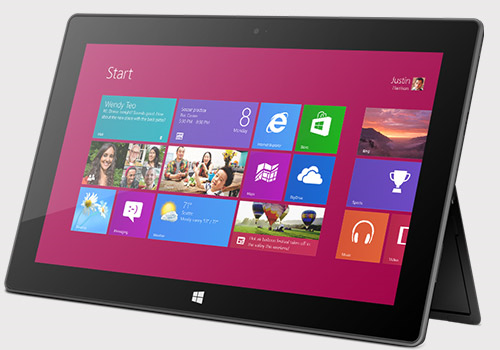
If you’re using a Surface, for more support for Surface with Windows RT, visit:

Posted by: kurtsh | October 27, 2012

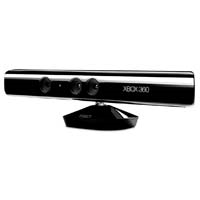
DEAL: Xbox Kinect Sensor refurbished… $50

imageInterested in a Xbox Kinect for only $50? 

Microcenter has refurbished units available.  (In person pickup ONLY – no delivery)

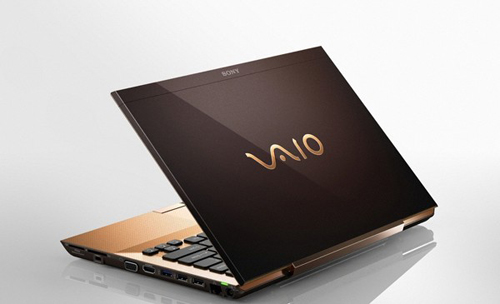
imageAttention owners of the Sony Vaio S (Model: VPCSA25GX): 
Your system is supported for Windows 8 with tested and posted drivers for:

  1. Camera
  2. Memory Card Reader
  3. Motherboard
  4. Network
  5. Notebook Control
  6. Pointing Device (Alps Touchpad)
  7. Power Management
  8. Security
  9. System Drivers
  10. Video
  11. Wireless Display
  12. Wireless LAN
Posted by: kurtsh | October 25, 2012

VIDEO: The Making of the Touch Cover for Surface

The Touch Cover is arguably the coolest part of the Surface’s engineering.  Everyone that’s evaluated it have confirmed that the Surface’s touch cover is awesome and feels great.  But if you were ever interested in how it was created, take a look at this ‘making of’ video by the research team that developed Touch Cover.

The Making of Touch Cover for Surface
Posted by: kurtsh | October 25, 2012

VIDEO: Surface is HERE.

A 360 degree view of the all-new Surface.

Surface is HERE.
Posted by: kurtsh | October 25, 2012

HOWTO: Manually save a conversation in Lync 2013

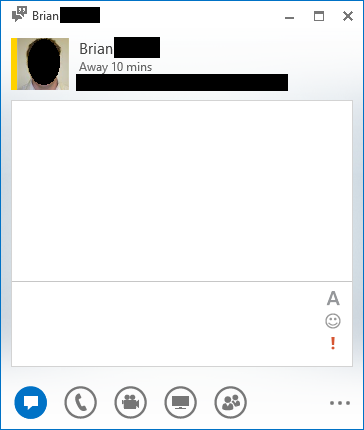
imageTake a look at the snapshot to the right:  This is the new Lync 2013 client.  Notice there’s no “gear-like” configuration icon?  There’s the “…” at the bottom of the screen but that doesn’t provide client UI configuration.

The point is, there’s no way to reveal a MENU BAR (File, Edit, Tools, etc.) like you used to with previous versions of Lync.

Q: So how do you manually save a conversation?

It turns out that the answer is “CTRL-S”.  This is the only way to do so without waiting for the client to ‘auto-save’ the conversation (if you have this set up.  There’s no FILE-SAVE CONVERSATION drop down any more.

For folks that haven’t used Lync before, the saved conversation will be found in a folder in Outlook called “Conversations History” off the root of your mailbox.

Why this isn’t documented in Lync’s help, I don’t know.  And that’s why I’m typing it up here.

« Newer Posts - Older Posts »

Categories