Scott Guthrie posted the details of a ridiculous new offer we’re making for MSDN Subscribers, in addition to some amazing discounted rates for Windows Azure:

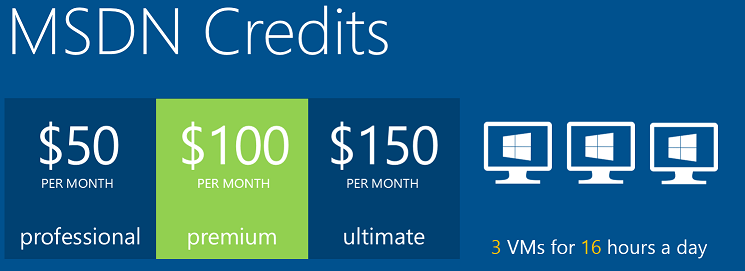
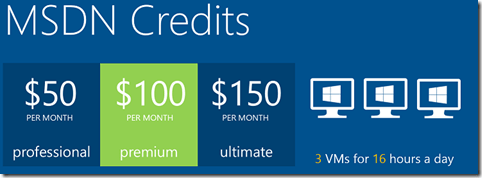
We are making the above discounted rates even more compelling by also giving every MSDN subscriber up to $150 per month of monetary credits that can be used to run any Windows Azure resource for Dev/Test purposes.  MSDN Professional Subscribers will be provided with $50/month, MSDN Premium Subscribers with $100/month, and MSDN Ultimate Subscribers with $150/month.

These monetary credits can be applied towards any Windows Azure resource being used for Dev/Test purposes.  This includes: Virtual Machines (both Windows and Linux), SQL Databases, Cloud Services, Web Sites, Mobile Services, Hadoop Clusters, BizTalk Services, Storage, Media and more.  The previous per-unit restrictions in place with the old MSDN offer are also being removed – instead you now have a monetary credit that can be applied and mixed/matched on resources however you want.

Below are just a few examples of how a MSDN Premium customer (who will now gets $100/month of credits with their MSDN subscription) could use the monetary credit:

1) A MSDN Premium subscriber can now run 3 Windows Server VMs for 16 hours a day (at 6 cents/hr) every day of the month.  And he or she can run SQL Server Enterprise, BizTalk Server, or SharePoint Server in them using their MSDN use-rights at no additional charge.  And if they ran these 3 VMs for 16 hours a day for 31 days in the month they’d still have $10.32 in credit left over to spend on something else! 🙂
image

2) Alternatively the $100/month credit could be applied towards spinning up 80 Windows Server VMs (with SQL, BizTalk, SharePoint, etc) to use in a load-test for 20 hours

3) Or the $100 credit could be used to spin up 50 Hadoop cluster nodes for 10 hours of a dev/test MapReduce run

4) Or the $100 credit could be used to dev/test 100 web-sites with a SQL Database

The above examples provide just a flavor of the different options now available with this program.  The great thing about the monetary credits is that you can use them with any Windows Azure resource – so you have the flexibility to apply them in whatever combination you want.  The credits themselves reset every month (meaning if you are a MSDN Premium customer the credits will reset to $100/month every month).  So every month you also have the opportunity to change how you allocate them however you want. 

You can optionally choose to pay additional money on top of the monetary credit (meaning if you need $200 of resources in a month, the MSDN Premium Monetary Credit will cover the first $100 of usage and then you can pay the rest).  Note that any overages will still take advantage of the MSDN Discount Rate (meaning the VMs will only be charged at 6 cents/hr) so you still benefit from a major price discount on that as well. 

By default we enable a “spending limit of $0” on MSDN based subscriptions to ensure that customers are never accidentally billed for usage above their MSDN credits.  You can turn this of if you want to use more resources than the built-in credits support and pay for overages.

Read more about the offers & discounts at Scott’s blog at:

Posted by: kurtsh | June 19, 2013

VIDEO: Targeted Attacks Video Series from TechNet

imageWe have a new security video resource called the Targeted Attacks Video Series  on Advanced Persistent Threats (APTs), or what we at Microsoft call Targeted Attacks by Determined Human Adversaries. These five short informational videos summarizes three security whitepapers, Determined Adversaries and Targeted Attacks, Mitigating Pass-the-Hash (PtH) Attacks and Other Credential Theft Techniques, and Best Practices for Securing Active Directory. The five short videos are:

  1. Introduction to Determined Adversaries and Targeted Attacks: Tim Rains, Director, Microsoft Trustworthy Computing, provides background information on these types of attacks and set the context for the rest of the video series.
  2. Mitigating Pass-the-Hash Attacks: Patrick Jungles, Security Program Manager, Trustworthy Computing, explains what a Pass-the-Hash attack is and some tested mitigations to help manage the risk associated with credential theft attacks.
  3. Anatomy of a Cyber-attack Part 1: Sean Finnegan, CTO of the Microsoft Consulting Services Cybersecurity Practice, walks through a typical targeted attack, step by step, describing how attackers perpetrate these attacks.
  4. Anatomy of a Cyber-attack Part 2: Sean Finnegan finishes his briefing on how determined adversaries commit targeted attacks.
  5. Importance of Securing Active Directory: Bret Arsenault, Microsoft CISO, discusses the importance of protecting your Active Directory in the context of target attacks.

To learn more, I recommend you read the blog post on Targeted Attacks Video Series, written by Tim Rains, that summarizes the video series and the whitepapers.  I encourage you to view the series and share it with any of your peers you may think would benefit.  

—————————-
[horribly plagiarized from my coworker, Mark McReynolds, who’s incidentally probably lifted a few blog pages here and there from me anyway so I’m feeling a guilty but not too guilty]

We recently published a ton of eBooks and guides for architects of SharePoint Server 2013 solutions.  Take a look:

imageTest Lab Guides:

Additional documentation for SharePoint Server 2013:

Posted by: kurtsh | June 15, 2013

DOWNLOAD: SQL Server 2012 System Views Map

image

The Microsoft SQL Server 2012 System Views Map shows the key system views included in Microsoft SQL Server 2012, and the relationships between them.

The map is similar to the prior versions of Microsoft SQL Server System Views Maps and includes updates for the Microsoft SQL Server 2012. Note that not all possible relationships are shown.

image

The poster depicts the workflow for Windows Azure Media Services, from media creation to media processing to delivery and then consumption. It summarizes common development scenarios. It also lists supported Player SDKs and frameworks, APIs, and video codecs.

Windows Azure Media Services is a scalable media platform for distributing content to any screen, on any network.

Based on REST APIs, you can encode, protect, and stream media to web, Windows, iOS, Android, TVs, game consoles, and other devices.

You can use Microsoft or 3rd party components for ingestions, encoding, DRM, origin service, and CDN when developing media workflows for consumers or the enterprise.

imageThe poster describes Infrastructure Services and common scenarios: dev and test, app hosting, infrastructure for SQL Server, single sign-on for hybrid apps, and SharePoint farms. The poster is intended to be printed and measures 26" x 39”.

Virtual Machines and Virtual Network deliver cloud infrastructure that will quickly adapt to your changing business needs.  You get scalable, on-demand compute, network, and storage while paying only for what you use – by the minute.  And you can easily move apps between Windows Azure, hosted clouds, and on-premises.

  • Bring your existing app as-is, no changes required
  • Extend your datacenter to the cloud with Virtual Network
  • Manage with System Center as you do on-premises
  • Authenticate with Active Directory

Download the poster here:

Posted by: kurtsh | June 15, 2013

POSTER: "Quick guide to Office editions"

image

Download a copy of the "Quick guide to Office editions" poster and get links to additional information about what’s covered in the poster.

Not sure what Office 365 ProPlus is? Curious about the difference between Office Web Apps and Office on Demand? Did you know there are Office apps specifically designed for Windows 8?

We’ve created a quick guide to help you learn more about the different options you have for providing Office to the users in your organization.

Read more here about the poster as well as:

  • Office 365 ProPlus
  • Office Web Apps
  • Office on Demand
  • Office on Windows 8
  • Office Standard & Office Professional Plus

Original post:

imageMicrosoft BitLocker Administration and Monitoring (MBAM) is an enterprise-scalable solution for managing BitLocker technologies, such as BitLocker Drive Encryption and BitLocker To Go.

MBAM, which is part of the Microsoft Desktop Optimization Pack, helps you improve security compliance on devices by simplifying the process of provisioning, managing, and supporting BitLocker-protected devices.

This guide describes how to deploy MBAM, with a focus on automating the deployment and configuration of the MBAM client to managed devices. It first describes the MBAM components. Then, it shows you how to prepare for deployment and provides step-by-step instructions for deploying the MBAM client by using the following tools and technologies: Group Policy software installation, Microsoft Deployment Toolkit (MDT) 2012, Microsoft System Center 2012 Configuration Manager, and scripted installation (e.g., command prompt).

Posted by: kurtsh | June 14, 2013

RELEASE: Bing Translator for Windows 8

imageThe Bing Translator App for Windows is your companion when you need to quickly translate what you are looking at. Use your camera or just type the text you want to translate. Text and camera translation work offline with downloadable language packs, so you can get the power of Bing Translator on-the-go, even when you don’t have an Internet connection.

Features

  • Text translation – Type and translate text into more than 40 languages.
  • Camera translation – Translate signs, menus, newspapers, or any printed text with your device’s camera in an instant.
  • Text to speech – Hear translations spoken with a native speaker’s accent.
  • Offline translation – Translate when you are not connected to the Internet and when you want to avoid expensive data roaming charges by using downloadable offline language packs.
  • Translate from anywhere – Translate text from other Windows Store apps using the Share charm. Just select and share
  • Multitask with Snap View – Translate quickly while doing other tasks by snapping Bing Translator to the right or left of your screen.

image


To download this free tool for Windows 8, click below:

Did you ever wish you could report a piece of email as SPAM so that you could fight back against spammers and make a difference in other people’s email experience by tagging it as SPAM so that others might not have to receive it?

That’s where the “Junk Email Reporting Add-in for Microsoft Outlook” comes in.  Add this add-in to your Outlook configuration and when you use it on a piece of email in your inbox, that email:

  • Automatically gets moved to the “Junk Email” folder
  • Gets submitted back to Microsoft’s anti-spam service for analysis

Note:  This will also work for multi-selected emails & has multi-language support.

image

Read the following to understand & download the Junk Email Reporting add-in:

« Newer Posts - Older Posts »

Categories