Posted by: kurtsh | October 20, 2013

RELEASE: Microsoft Message Analyzer 1.0

We are excited to announce the official release of Message Analyzer to the Microsoft Download Center. This really is a new beginning for troubleshooting and analysis. Message Analyzer brings a set of new ideas, new techniques, and new paradigms in order to make analysis of protocols, log files, and system events a cohesive activity which allows correlation across all those types of traces.

Microsoft Message Analyzer is a new tool for capturing, displaying, and analyzing protocol messaging traffic and other system messages. Message Analyzer also enables you to import, aggregate, and analyze data from log and trace files. It is the successor to Microsoft Network Monitor 3.4 and a key component in the Protocol Engineering Framework (PEF) that was created by Microsoft for the improvement of protocol design, development, documentation, testing, and support. With Message Analyzer, you can choose to capture data live or load archived message collections from multiple data sources simultaneously.

Message Analyzer enables you to display trace, log, and other message data in numerous data viewer formats, including a default tree grid view and other selectable graphical views that employ grids, charts, and timeline visualizer components which provide high-level data summaries and other statistics. It also enables you to configure your own custom data viewers. In addition, Message Analyzer is not only an effective tool for troubleshooting network issues, but for testing and verifying protocol implementations as well.

Please also visit Message Analyzer Team Blog for continued updates and helpful information.

In case you missed it, we published a blocker toolkit for IE11’s automatic upgrade on Windows 7 Service Pack 1 for business folk that aren’t already managing Windows Updates via WSUS or SCCM.

imageBusiness and organizations that want to manage their own update schedule can use the IE11 Automatic Update Blocker Toolkit to disable automatic delivery of Internet Explorer 11. This Blocker Toolkit—like its predecessors for IE10, IE9, IE8, and IE7—is now available on the Microsoft Download Center. While we encourage all customers to upgrade their browser to the latest version as quickly as possible, this approach enables organizations to control when they are ready to deploy IE11 to their Windows 7 users. All other Windows 7 users not using the toolkit will be automatically upgraded to IE11 through Windows Update.

The IE11 Automatic Update Blocker Toolkit can be used to prevent Internet Explorer 11 from being automatically installed on users’ Windows 7 machines when it is available via Automatic Update. This Toolkit has no expiration date and is configured either by running the registry file on the client machine or by deploying Group Policy in domain joined environments. The toolkit also provides an unblock procedure that allows IE11 to be installed through Automatic Update.

Read more here:

Download the IE11 Automatic Update Blocker Toolkit here:

Review the “Internet Explorer 11 Deployment Guide for IT Pros” here:

image

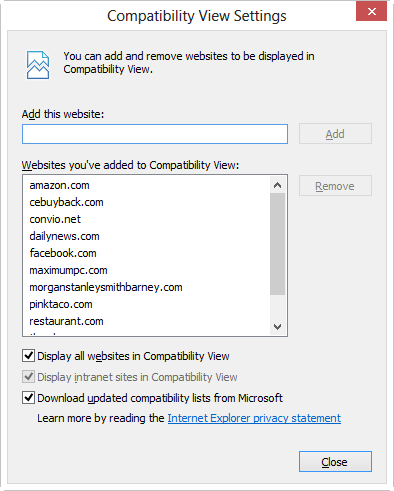
If you start to get “mobile views” of web sites that you’re used to going to, after upgrading to Windows 8.1, simply turn on Compatibility View for that particular site (or for all web sites) and you’ll find that life returns to normal.

Here’s some steps to follow to enable Compatibility View on the site that is showing it’s “Mobile” version/view:

  1. Navigate to the website that isn’t displaying properly.
  2. In Internet Explorer (desktop), tap and hold on the bar at the top (or right click).
  3. Tap on "Menu bar" so it’s highlighted and there is a tick by it. A menu with File, Edit, View, Favourites, Tools and Help should appear.
  4. Go to tools and open "Compatibility View Settings". "Add this website" should have the domain of the site you’ve visited already filled, so click "Add".
    Alternatively, you can also simply check the “Display all websites in Compatibility View to have this done for all sites you visit.
  5. Close the windows then revisit the website that wasn’t displaying properly.  (While a refresh should work, you may need to close the tab entirely)  It should hopefully now display as it should.

clip_image001Come celebrate our first DUAL launch of the latest Assassin’s Creed IV & Battlefield 4 Midnight Launch next week on October 28th at 10pm.

Compete for fun and bragging rights. We will also hold a tournament in our theater area as usual along with prizes for the winners of the tournament.  We will also have free play sections for those who just want to enjoy the launch. 

Enjoy food, drinks and prizes. First 50 people to arrive will receive a special giveaway.

clip_image002LOCATION:

Microsoft Store Los Angeles
(Westfield Century City)

10250 Santa Monica Blvd
Los Angeles, CA 90067
Phone: (310) 228-3550

Finished! 

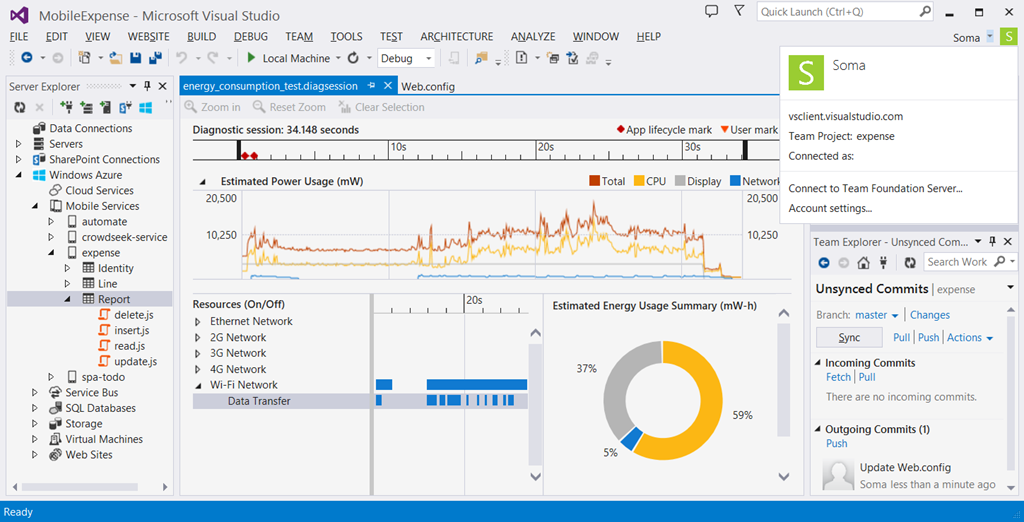
I’m excited to announce that the final releases of Visual Studio 2013, .NET 4.5.1, and Team Foundation Server 2013 are now available for download!  MSDN subscribers can download from the MSDN Subscriber Downloads page.

Visual Studio 2013 is the best tool for developers and teams to build and deliver modern, connected applications on all of Microsoft’s platforms.  From Windows Azure and SQL Server to Windows 8.1 and Windows Phone 8, Visual Studio 2013 supports the breadth of Microsoft’s developer platforms.

As part of the Cloud OS vision, Visual Studio 2013 enables developers to build modern business applications that take advantage of the cloud and target a variety of devices and end-user experiences, all delivered within today’s rapid and dynamic application lifecycles.

image

Read more here:

Download the new VS 2013 & read “What’s New in Visual Studio 2013” here:

Sign up for the Visual Studio 2013 Virtual Launch on November 13th here:

Posted by: kurtsh | October 17, 2013

INFO: Touch support for Visio Services in Office 365

image

If you are an Office 365 subscriber using Visio Services then you will be pleased to hear that we have made an update to Visio Services, changing the way we handle hyperlinks and navigation for a better user experience and especially an optimized touch experience.

Read more about the new touch support here:

Read more about Visio Services here:

You read that right.  With the new “Student Advantage” program students can get Office 365 ProPlus at additional no cost.  This means full access to:

  • Word 2013, Excel 2013, PowerPoint 2013, Outlook 2013, Lync 2013
  • OneNote 2013, Publisher 2013, Access 2013

image

This ALSO includes the ability to install the software on up to 5 devices simultaneously… on Windows PCs or Macintoshes. (Although Macs do not have OneNote 2013, Publisher 2013, Access 2013 available to them since versions don’t exist)

imageIn an effort to help prepare students for the technology skills required in the workforce, Microsoft on Tuesday announced Student Advantage, a new benefit to qualifying institutions that brings Microsoft Office 365 Education to more students worldwide. Microsoft Office 365 Education, an always-up-to-date cloud productivity service, is currently used by 110 million students, faculty and staff around the world. Office 365 Education enables students to communicate and collaborate more efficiently, access assignments in shared workspaces, have notes synchronized in OneNote and have familiar Office applications such as Word, PowerPoint and Excel anywhere, across virtually any device.

Beginning Dec. 1, 2013, any institution worldwide that licenses Office 365 ProPlus or Office Professional Plus for staff and faculty can provide access to Office 365 ProPlus for students at no additional cost. Today, more than 35,000 institutions are automatically eligible to deliver the Student Advantage benefit to their students. Office 365 ProPlus includes all the familiar and full Office applications — locally installed on up to five devices and available offline. When a school combines Student Advantage with Microsoft’s other cloud services, Exchange Online, SharePoint Online and Lync Online, all available free through Office 365 Education, students have access to the same set of gold-standard productivity tools and services used by Fortune 500 companies all over the world.

“Students use Office every day for school work and activities that are most important to them. Office not only helps students stay organized and get their work done today but at the same time develops skills that will be required when they enter the work force. In fact, no other software or services show up in the top 20 most important skills identified in the research report,” Salcito said. “We are thrilled to offer Student Advantage to schools across the globe so students have access to the latest, most up-to-date version of the world’s leading set of productivity tools in order to give them a competitive advantage when entering the workforce.”

Nearly 98 percent of students using productivity software currently use Office. Student Advantage enables students to access the familiar experience of Office in an always-up-to-date cloud service across their compatible PCs, tablets and phones.

Read the full announcement here:

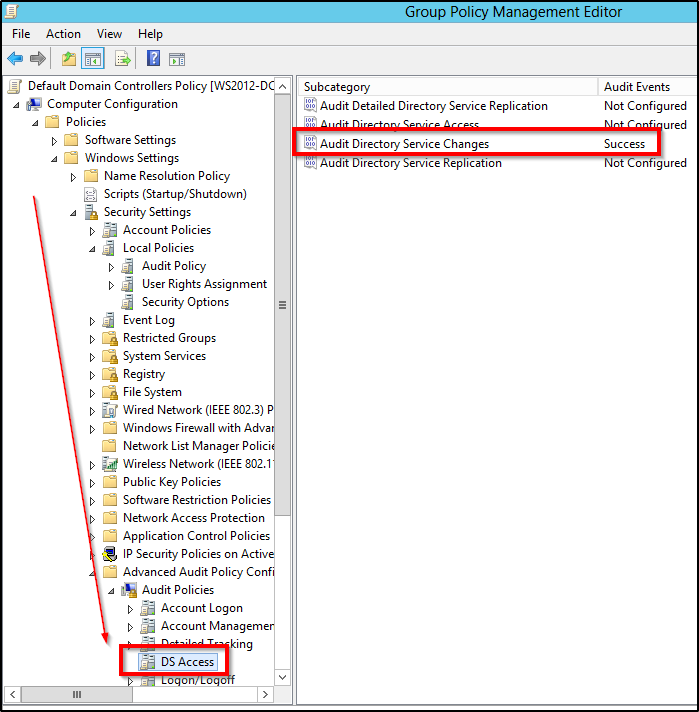
imageA customer of mine in the past had this issue so I thought it important that I raise the awareness of this article.  Ask PFE Platforms wrote an article about “how to audit changes to AD-integrated DNS Zones”. 

Now for those of you that know what this implies, you know it’s a potentially catastrophic issue that can result in massive corporate downtime with NO ONE being able to log in throughout the company unless they somehow have address resolution cached previously.  Basically, if someone screws up or deletes AD-related DNS records, if there’s no precautions or auditing in place, you may have no idea who did it and there’s no accountability.

If this is something that sounds like it could happen to you, you need to read this article before it does:

I got asked this by a friend so I figure it’s worth posting in case it wasn’t well known.  The recent announcement about Remote Desktop (RDP) clients being released for iOS & Android were surprises to most folks – including myself.

  • imageMicrosoft unleashes fall wave of enterprise cloud solutions
    “…Further, with Windows Server 2012 R2 Microsoft is introducing the Microsoft Remote Desktop app, available for download in application stores later this month, to provide easy access to PCs and virtual desktops on a variety of devices and platforms, including Windows, Windows RT, iOS, OS X and Android.”
    http://www.microsoft.com/en-us/news/press/2013/oct13/10-07hybridcloudpr.aspx

WAIT… WHAT ABOUT iTAP?
Some folks in the IT industry with experience in this space remembered that for Mac OS X support for RDP & other platforms, the generally accepted way of connecting to Remote Desktop Services was to go to a solution commonly known as “iTap” from a company called HLW Software Development.  The “original” RDP client for Mac OS X from Microsoft had effectively ceased to evolve (it had no edge gateway support, for example, which was a showstopper for Enterprises) and there were no Microsoft-supported clients for iOS & Android.

Then one day, the iTap web site had this written on it:

  • imageiTap Mobile: “Important Update”
    Effective October 8th 2013, iTAP mobile RDP apps for iOS, Mac OS X and Android platforms are discontinued.  We will continue to support the customers who have installed this app up to this date but the app will no longer be available at the application stores and no further updates will be released. We recommend you evaluate the new Microsoft Remote Desktop app available in app stores later this month.
    http://itap-mobile.com/itap-rdp

HMM.  THAT SOUNDS CURIOUS.
Notice that there’s not remarks about Microsoft competing against their business by releasing free RDP clients for iOS/OSX/Android.  Of course that led everyone to believe that iTap’s technology had been acquired by Microsoft.  After all, if their not complaining, may be they got something out of all of this.

And lo-and-behold:

So there you go.  The key thing here is that this isn’t 1.0 technology:  It’s battle tested through iTap/HLW and the great news is that RDS/RDP customers now get it for no charge.

image

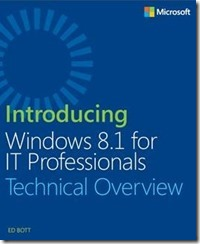
Now here’s a doozy.  Microsoft Press just released a free 130pg eBook written by ZDnet journalist, Ed Bott, called “Introducing Windows 8.1 for IT Professionals – Technical Overview”.  Check out this table of contents:

Table of Contents:

  • Chapter 1: An overview of Windows 8.1
  • Chapter 2: The windows 8.1 user experience
  • Chapter 3: Deploying Windows 8.1
  • Chapter 4: Security in Windows 8.1
  • Chapter 5: Internet Explorer 11
  • Chapter 6: Delivering Windows Store apps
  • Chapter 7: Recovery options in Windows 8.1
  • Chapter 8: Windows 8.1 and networks
  • Chapter 9: Virtualization in Windows 8.1
  • Chapter 10: Windows RT 8.1
  • Chapter 11: Managing mobile devices

I’ve read this book already front to back.  Yeah, it’s that good & that easy a read.  Heck, I learned something and I’ve been using 8.1 for eons.  (The Deploying Windows 8.1 chapter & the Security in Windows 8.1 primers are really excellent intros for folks not familiar with Windows 8.1 deployment.)

Download the book here:

Read more here:

« Newer Posts - Older Posts »

Categories