image

Considering whether your business would benefit from a hybrid strategy?

This paper looks at five areas where cloud resources help address existing pain points, along with real customer examples illustrating the benefits in each area.

Posted by: kurtsh | June 23, 2014

INFO: Mouse without Borders Setup and User Guide

imageUPDATE 2/27/17:
I see that this post still gets a lot of hits.  Just a mention that I’ve stopped using Mouse without Borders entirely and moved on to using “Stardock/EdgeRunner Multiplicity”, which accomplishes the same thing as Mouse without Borders except it’s supported on Windows 10, provides encrypted PC-to-PC communication, has great tech support, and other improved features.

Please see the following post for more info:
https://kurtsh.com/2017/01/17/tool-kurts-favorite-tools-for-windows/

ORIGINAL POST – 6/24/14:
I found this user guide for Mouse without Borders, aka MagicMouse and in case it’s not published, here it is.

Mouse without Borders Setup and User Guide

Supported operating systems
  • Mouse without Borders works in the following operating systems, both X86 and X64: Windows 8, Windows 7, Vista, Windows Server 2008, Windows Server 2003 and Windows XP.
Setup and configure Mouse without Borders
  • Download and run the msi file to install Mouse without Borders separately in every machine.
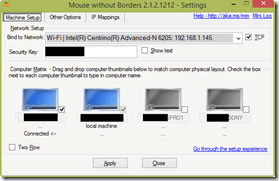
  • Mouse without Borders gets launched after installation. You will see Mouse without Borders icon in the system tray (in Windows 7 you might need to click on the small arrow “Show hidden Icons” button on the system tray and pull the Mouse without Borders icon down to keep it visible). Now right click on the icon and choose <Settings>, settings form will show up. Click on the [Help] link on the form to see setup steps.
Features
  • The main feature is to use one set of keyboard and mouse to work with multiple machines. When you move the mouse cursor to any machine, you can use keyboard to control that machine.
  • You can simply copy text/image/file from one machine and paste to all other machines.
  • Drag and Drop file across machines is a plus feature. You can drag and drop a single file only and the file will be dropped to your desktop.
  • You can also use Mouse without Borders to get screenshots of other machines. Click on the menu item on Mouse without Borders popup menu to use this feature.
  • You can switch to multi mode to control all machines concurrently. Press the Ctrl key fast three times to switch to this mode, do this again to switch to normal mode.
  • And a fancy feature for Windows 7. Personalize your Logon Screen using your local copy of photos or Bing home page image.
Usage tips, known issues and FAQs
  • You can lock/unlock all machines at one by switching to multi-mode first (hit Ctrl fast three times) then use Windows+L to lock all machines. Assuming you use the same account in all machines so you can then type the same password to unlock them at the same time.
  • If you lose keyboard control for any reason then Ctrl+Alt+Del would help.
  • TCP protocol is recommended. If UDP protocol is used, Mouse without Borders might not work well with machine with wireless network connection or machine with multiple Network Interface Cards. To configure see type and IP addresses of your network connections, run ncpa.cpl (Windows+R then type ncpa.cpl and hit enter).
  • You can configure Mouse without Borders service to start manually in the service control manager. By doing so, Mouse without Borders only starts when you launch it from Start\All Programs\MouseWithoutBorders. To run service control manager, click on Run, type services.msc then hit Enter. Look for Mouse without Borders Service in the list, double click on it then set Start type to manual

Known issue

  • Share clipboard sometimes stops working, a workaround is to use Ctrl+C to do copying then it should work most of times.
  • Few users found out disabling UAC helps when Share clipboard does not work at all.
  • Copy file, drag and drop folder and multiple files across machines are not supported in the current version.
  • If the controlled machine has multiple monitors, mouse will move faster than normal in that machine.
  • A known issue while using TCP is a little delay of losing control whenever UAC shows up on the controlled machine. A workaround is to configure UAC to show on the user desktop by running the following command in an elevated cmd : reg.exe ADD HKLM\SOFTWARE\Microsoft\Windows\CurrentVersion\Policies\System /v PromptOnSecureDesktop /t REG_DWORD /d 0 /f

FAQ

  • How secure is data sent over the network? A: All packages sent between machines are encrypted using the Advanced Encryption Standard.
  • How can I add some of my personal photos to have them as an input of the Personalization Logon Screen feature? A: 1. Create one folder named MouseWithoutBorders under Windows\Web\, 2. Drop your photos there (jpg only) and 3. In a cmd windows, run del “%USERPROFILE%\AppData\Local\Temp\Low\MM.Local.Indexer.txt” then restart Mouse without Borders.
  • How can I uninstall Mouse without Borders? A: Like other installed applications, you can uninstall Mouse without Borders in Control Panel. Run appwiz.cpl to go directly to Programs and Features where you can uninstall Mouse without Borders.
Create Mouse without Borders dump file for triaging
  • If you run the Debug build of Mouse without Borders you can create Mouse without Borders dump file by click on the menu item Generate log from the Mouse without Borders system tray icon. The file contains all information on runtime objects of the process that can be used to help debug any issue found.
Allow Mouse without Borders through Windows Firewall

Mouse without Borders setup automatically adds itself to the Windows Firewall allowed program list. But few users found these steps helpful in some cases to allow and customize the tool through Windows Firewall:

1. Click on the Start button then click on Control Panel.

2. Click on Administrative Tools.

3. Click on Windows Firewall with Advanced Security.

4. Select Inbound Rules on the right tree.

5. Click on the New Rule… in the Actions list on the left.

6. Select Program option and click next.

7. Browse to select Mouse without Borders application (%ProgramFiles%\Microsoft Garage\Mouse without Borders\MouseWithoutBorders.exe) and click Next.

(In X64 machine the path should be %ProgramFiles(X86)%\Microsoft Garage\Mouse without Borders\MouseWithoutBorders.exe)

8. Select Allow the connection and click Next.

9. Select all options for “When does this rule apply?” and click Next.

10. Enter the name for the rule and click Finish.

11. The rule should now show up in the list, you can double click on it to view details and make change.

12. Restart Mouse without Borders.

(If you have multiple network interfaces, wired and wireless, you can also customize to allow the application on the type of interface in step 11 above – In Advanced tab, click on Customize. Mostly you would always want to allow the application through the Local area network).

imageAs of this July, OneDrive (consumer service) will provide 15GB of initial online storage absolutely free to anyone, including existing users.

SIGN UP TODAY FOR 15GB, NO CHARGE
This means, if you don’t use OneDrive today, you can sign up or use a Microsoft account at http://onedrive.com and immediately get 15GB to store files & folders on, accessible for any web connected device.  Additionally, you can download any of the available OneDrive agents/apps for your device to sync or access your cloud content without opening a web browser.  This includes:

  • Windows
  • Macintosh
  • Windows 8 Tablet
  • Android
  • iOS
  • Windows Phone
  • Xbox

GET MORE FOR AS LITTLE AS $1.99/MO
If you need more storage, but don’t need an Office 365 subscription, we will also still provide monthly subscription storage options – at dramatically reduced rates.The new monthly prices will be:

  • $1.99 for 100 GB (previously $7.49)
  • $3.99 for 200 GB (previously $11.49)

SIGN UP HERE:

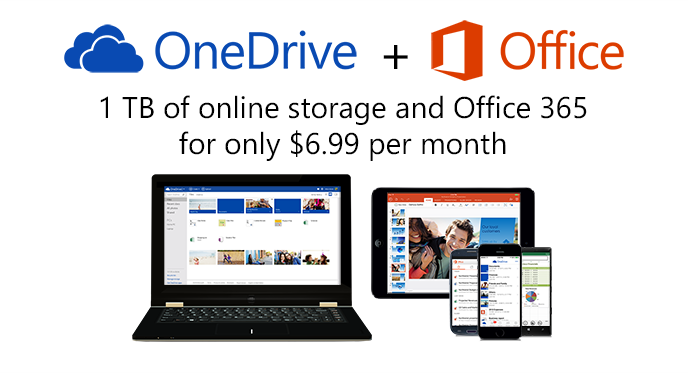
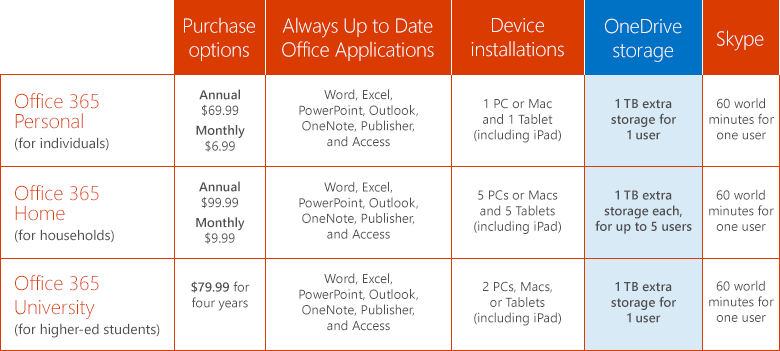
imageAs of July, you will be getting 1TB of OneDrive storage if you subscribe to any of the following consumer subscriptions:

  • Office 365 Home
  • Office 365 Personal
  • Office 365 University

This new announcement reiterates our commitment to the cloud and our customers that have invested in Microsoft’s cloud technologies & services.

GETTING 1TB OF STORAGE FOR EACH FAMILY MEMBER
What’s missing in all of this is that you can share your Office 365 Home subscription with up to 4 other family members.  What this means is that each family member will get:

  • Access/usage of all the Office 365 applications (For Windows: Outlook. Word, Excel, PowerPoint, Access, OneNote, Publisher… or for Mac: Word, Excel, PowerPoint, Outlook) while also getting
  • 1TB of storage in OneDrive for each user

That’s up to 5TB of storage and access to the world’s #1 Office suite all through 1 subscription.  It’s an amazing deal.  For instructions on how to do this follow this link:

Here’s the announcement from the Office Blog:

imageToday, OneDrive and Office are announcing a BIG change to that benefit for consumers, to the tune of 1 TB per user. That’s right–we’re increasing the OneDrive storage allotment included with Office 365 Home, Office 365 Personal, and Office 365 University from 20 GB to 1 TB. That’s a whopping 50 times, or 5,000 percent increase in storage–and it’s going to be here before classes are in session!

image

Read more here:

Three great videos summarizing the major themes of E3 from the men themselves, Phil Spencer, Larry “Major Nelson” Hyrb, & Dan Ayoub.

Expert Zone E3 2014: The Xbox Keynote & Phil Spencer Q&A


Expert Zone E3 2014: Major Nelson’s Q&A


Dan Ayoub of 343 Industries on “Halo: The Master Chief Collection”

imageStrangely, this Free eBook doesn’t seem to have gotten much publicity.

Now available free from Microsoft Press:  “Patterns & Practices: Cloud Design Patterns”

Containing twenty-four design patterns and ten related guidance topics, this guide articulates the benefit of applying patterns by showing how each piece can fit into the big picture of cloud application architectures. It also discusses the benefits and considerations for each pattern. Most of the patterns have code samples or snippets that show how to implement the patterns using the features of Windows Azure. However the majority of topics described in this guide are equally relevant to all kinds of distributed systems, whether hosted on Windows Azure or on other cloud platforms.

Additionally, there is sample code:

The example applications for use in conjunction with Cloud Design Pattern guide. It consists of 10 samples to show how to implement design patterns using the features of Windows Azure.
See the Readme for information about the sample code. Each sample has a corresponding readme for information about how to run the sample.
Note: The samples are simplified to focus on and demonstrate the essential features of each pattern. They are not designed to be used in production scenarios.

Posted by: kurtsh | June 19, 2014

INFO: Microsoft’s two free eBook libraries

image

We have two eBook libraries that folks should know about

Posted by: kurtsh | June 19, 2014

RELEASE: Office 365 Roadmap

One of the things that Microsoft has aspired to make available for all our products & services is a clearly defined roadmap for what capabilities we plan on releasing & when so that our Enterprise customers can plan, budget & set expectations appropriately.

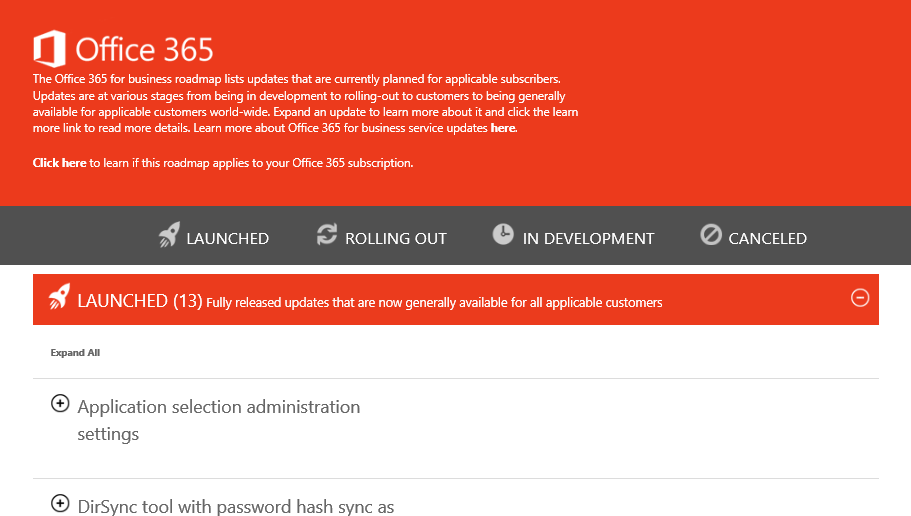
Today, we released the Office 365 Roadmap:

image

The Office 365 for business roadmap lists updates that are currently planned for applicable subscribers. Updates are at various stages from being in development to rolling-out to customers to being generally available for applicable customers world-wide. Expand an update to learn more about it and click the learn more link to read more details. Learn more about Office 365 for business service updates here.

For more information, visit:

imageThe Office Online Services description contains a wealth of valuable information for any organization deploying Office 365.  It provides IT with the information necessary to help explain the differences between Office Online and Office 365 Pro Plus.

For example:
Table: “Word, Excel, OneNote, and PowerPoint feature availability across offers

image

Also:
Table: “Supported file types for Office Online

image

For more information, read the following:

imageLooking for items to create buzz (posters, flyers, emails), how to prep help desk, etc.  We just provided some new adoption kits for your end users.

Quickstart to Office 365

This is the first download that has a plethora of materials to evangelize the service within your business:

  • Fast Track to Office 365 tips and best practices guide
  • Email samples
  • Policies and best practices templates
  • Presentations for introducing Office 365
  • Posters and other print communications
  • Help desk and support resources
  • End-user surveys
  • Videos

Interested?  It’s 99.4MB.

—————–

Office 365 Change Management Guide for the Enterprise
There’s also the Change Management Guide for the Enterprise, which describes a proven, four-phase process that organizations have used to drive up new technology adoption and maximize their return on investment. A comprehensive set of samples and templates let you build a customized set of project planning documents and user awareness materials based on your specific organization’s needs.  Included in this download package:

imageOffice 365 Change Management Guide for the Enterprise:

  • Change Management for the Enterprise guidance
  • Project planning workbook
  • Email samples
  • Policies and best practices templates
  • Presentations for introducing Office 365
  • Posters and other print communications
  • Help desk and support resources
  • End-user surveys
  • Videos

Interested in this one?  It’s 102.9MB.

—————–

imageOffice 365 Readiness & Adoption Kit
Finally, this is a pre-bundled web site you can deploy on your intranet which contains all of the materials above in a nice neat web site package.

« Newer Posts - Older Posts »

Categories