In case you missed it, we announced the availability of the Technical Preview of System Center Configuration Manager and System Center Endpoint Protection Technical Preview specifically for the management of Windows 10 workstations.  Excerpt:

Today we are making available the System Center Configuration Manager and System Center Endpoint Protection Technical Preview. In this preview, you will get an early glimpse of the functionality that we are planning to release in Q4 of this calendar year, bringing with it full support for client deployment, upgrade, and management of Windows 10.

New features in today’s Technical Preview include:

  • Support for Windows 10 upgrade with OS deployment task sequence – In addition to providing support for existing wipe-and-load (refresh) scenarios, the ConfigMgr Technical Preview includes enhanced upgrade support with in-place upgrade to Windows 10.
  • Support for installing Configuration Manager on Azure Virtual Machines – Similar to how you can install ConfigMgr on Hyper-V today, you can now run ConfigMgr in Azure VMs. This provides flexibility to move some or all of your datacenter server workloads to the cloud with Azure.
  • Ability to manage Windows 10 mobile devices via MDM with on-premises Configuration Manager infrastructure – With this new option, you can manage Windows 10 mobile devices using ConfigMgr integrated with Microsoft Intune (hybrid) without the need to store your data in the cloud. This is especially helpful for managing devices that are unable to connect to the Internet such as Windows IoT/Embedded devices. So go ahead and try it out – you can enroll devices, set policies, and wipe/retire devices today with more functionality to be added in the future to manage all of your Windows 10 devices with MDM.

And we’ve done the same of Microsoft Intune:

At the Microsoft Ignite event today, we announced that Microsoft Intune now supports the management of Windows 10. All existing Intune features for managing Windows 8.1 and Windows Phone 8.1 will work for Windows 10, including:

  • Enrollment
  • Policies
  • Company resource access
  • Application management
  • Inventory
  • Reporting
  • Remote wipe

So if you’re interested in Enterprise Management – either from on-premise, in-the-cloud, or both/hybrid, check out the following posts:

Yup.  Nokia Theatre/LA Live is being renamed to Microsoft Square. 

Taken from their announcement:

WE’VE CHANGED OUR NAME!
We are proud to officially announce that L.A. LIVE’s 7,100-seat concert and special events venue has officially been renamed Microsoft Theater. The theater, formerly known as Nokia Theatre L.A. LIVE, opened on October 18, 2007 and has hosted over 700 concerts, family shows, product launches, conventions, special events and annual awards shows including the American Music Awards, Primetime EMMY Awards, ESPY Awards, BET Awards, People’s Choice Awards, 2010 & 2011 MTV Video Music Awards and 2014 MTV Movie Awards among others.

"We are proud to partner with one of the world’s greatest and most recognizable brands," said Lee Zeidman, President, L.A. LIVE, Microsoft Theater and STAPLES Center. "As technology continues to transform the live entertainment business, I couldn’t think of a better partner to help us create an even better experience for our fans… both on the stage and throughout Microsoft Theater."

STAY CONNECTED
Check out our new website at www.microsofttheater.com and make sure to follow us on our new social media platforms to stay up to date on upcoming events, exciting news, special offers and contests:

The actual sign was put up the other day.  Here’s a video capturing the name and insignia change.

Introducing Microsoft Theater


Per the Hollywood Reporter:

Posted by: kurtsh | June 1, 2015

NEWS: Windows 10 available July 29th

Full announcements around Windows 10 hitting the news this morning. 

Introducing Windows 10

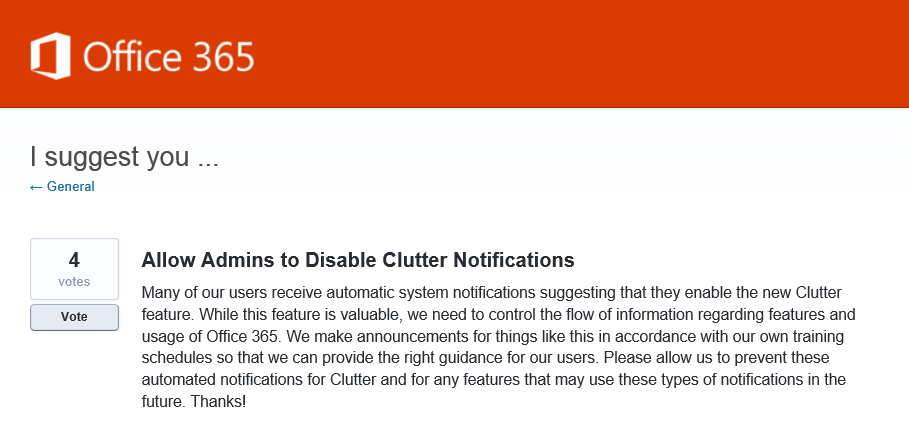
imageI have a question for everyone that’s reading my blog and using Office 365:

Recently, we’ve released a feature called “Clutter” in Office 365 that sorts email that is less relevant to the end user into an automatically generated folder in a user’s inbox called “Clutter”.

Currently, email notifications about Clutter are being sent directly to Clutter users in Office 365 by the service.  This does not go through IT and is not filterable in anyway.

If you have an issue with this and would like to leave feedback, please vote & comment here:

imageI keep hearing this request over and over again during Lync 2013 or Skype for Business meetings:

“Can you post the deck in this Lync/Skype session for us to download somewhere?”

Folks, if you’re having an internal meeting and there’s a PowerPoint presentation that’s being presented, if you’re a fellow presenter (usually if you’re a coworker of the presenter) there’s a really good chance you already have access to download the .PPT deck directly from the Lync/Skype for Business meeting itself.

Follow these instructions and if you are a coworker of the presenter, or the presenter has explicitly stated that attendees should have access to download the currently presented deck, you’ll be able to grab the .PPT during the meeting:

  1. Click the "Monitor" icon…
  2. Click "Manage Presentable Content"…
  3. Click the "More…" button next to the presentation you wish to download…
  4. Click "Save As…"…

You should be able to download the deck now.  If you do NOT see any presentations listed, it is possible that the presenter has blocked the download of the deck for attendees or other presenters.  Additionally by default within Lync/Skype for Business, all coworkers of the presenter are given download permissions to PowerPoint decks being presented, but your organization may have changed this default to disallow downloads.

Two caveats:

  1. SCREEN SHARING
    This won’t work if the presenter is simply sharing their screen via desktop sharing or application sharing.  If they’re redirecting their screen to show the presentation, then this isn’t going to work because they have not uploaded the deck to Lync/Skype for Business.
  2. ATTENDEES
    This may also not work if you are an attendee to another company’s Lync/Skype for Business meeting.  By default, attendees do not have download permissions to the presenter’s PowerPoint deck unless they’ve explicitly provided permissions to do so.

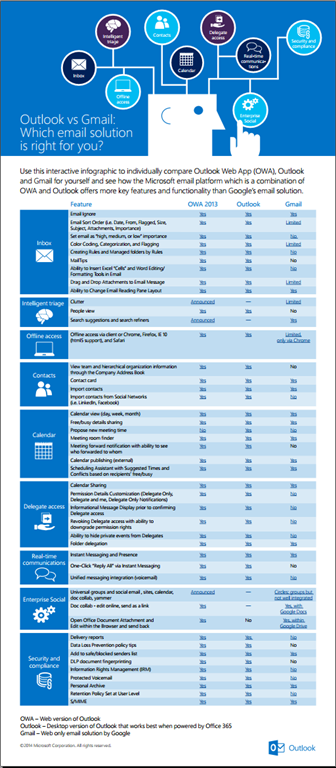
Use this interactive infographic to individually compare Outlook Web App (OWA), Outlook and Gmail for yourself and see how the Microsoft email platform which is a combination of OWA and Outlook offers more key features and functionality than Google’s email solution.

image

Posted by: kurtsh | May 14, 2015

RELEASE: Microsoft Hyperlapse

imageIntroducing Microsoft Hyperlapse, available for download at http://aka.ms/hyperlapse.

Microsoft Hyperlapse lets you creates smooth and stabilized time lapses, distilling your experiences into beautiful, shareable videos. Show off footage from your hike, or let your friends experience how it felt to fly down the mountain on skis.

Hyperlapse is available as:

Meet Hyperlapse


Read more at the announcement page:

image

Nasuni put out their annual, non-commissioned cloud storage benchmarking report and Microsoft Azure came out on top.

“Microsoft has come out as the highest performer, particularly in the benchmark tests. Amazon, as expected, is a close second, and edged out Microsoft in some aspects of scalability and availability, but ultimately fell short in some of the critical benchmark evaluations.”

“This year, Microsoft out-performed Amazon, specifically, in our critical benchmark tests.”

Read the full 13 page report here:

imageToday, I noticed I had only 5GB left on a 256GB SSD flash drive on my Surface Pro 3.  I don’t use that much storage so something is wrong

So I do a quick scan using my favorite space mapping tool, Spacemonger, and lo-and-behold, in the %Temp% folder, 50GB+ is being taken up by the following files alone:

  • outlook.exe.log
  • winword.exe.log
  • excel.exe.log
  • powerpnt.exe.log
  • onenote.exec.log
  • csisync.exe.log

Near as I can tell, somewhere along the line I got a registry key flipped that initiates debug logs for all of the Office products.  (I assume our IT Helpdesk must have done this for some reason even though the last time I talked to them the issue had nothing to do with Office) In any case, the offending key can be deleted and the logging process will stop.

  • HKEY_CURRENT_USER\Software\Microsoft\Office\x.0\Common\Debug –> TCOTrace

The logs in the %Temp% folder are all safely delete-able and can be manually removed – unless you have the relevant application open in which case the file can’t be deleted until you’ve shut the owning application down.

For details on how to do this, read the following Support article:

Posted by: kurtsh | May 9, 2015

INFO: What is an Exchange Resource Mailbox?

imageThe following FAQ highlights some important distinctions around when exactly you need to purchase an Exchange Online subscription: http://products.office.com/en-us/exchange/microsoft-exchange-licensing-faq-email-for-business

Here’s an excerpt:

  • Do conference rooms require subscriptions? Is there a limit to the number of them?
    No. Resource mailboxes, including Room Mailboxes and Equipment Mailboxes, are special mailbox types that are provided free of charge as part of Exchange Online. There is no limit to the number of conference room subscriptions.
  • Do shared mailboxes require subscriptions?
    No. Shared mailboxes don’t have login credentials, so they are only accessible by licensed users who have been granted delegate access (full mailbox permission, send as, or send on behalf of). Note that Exchange Online Kiosk users don’t have delegate access, so they cannot access shared mailboxes.

    Shared mailboxes have a smaller quota than regular mailboxes (10 GB), and do not include a personal archive or legal hold capabilities. If you need these features, then you can purchase either Exchange Online Plan 1 or Plan 2 and assign it to the shared mailbox.

    There is no limit to the number of shared mailboxes.

  • Can I enable In-Place Archive for a shared mailbox?

    You must assign the shared mailbox to either an Exchange Online Plan 1 plus Exchange Online Archiving subscription, or to an Exchange Online Plan 2 subscription in order to enable In-Place Archive. A shared mailbox can’t be used to archive email for an organization, except for those messages that are sent from the shared mailbox or received by the shared mailbox.

    An In-Place Archive can only be used to archive mail for a single user or entity for which a license has been applied. Using an In-Place Archive as a means to store mail from multiple users or entities is prohibited. For example, IT administrators cannot create shared mailboxes and have users copy (via CC or Transport rule) a shared mailbox for the explicit purpose of archiving.

  • Can I put a shared mailbox on In-Place Hold?
    You must assign the shared mailbox an Exchange Online Plan 2 subscription in order to put it on In-Place Hold.
  • Do mailboxes used to send email via SMTP (such as those used by line of business applications and on-premises appliances) require subscriptions?
    Yes, these mailboxes require a subscription. The subscription type can be Exchange Online Kiosk or Exchange Online Plan 1 or Plan 2.
  • If a user leaves my company, and I need to retain a copy of the data in their mailbox and In-Place Archive, what are my options?
        • You can export that user’s data to a PST file and store it on-premises.
        • You can retain the data in that user’s mailbox by placing the user on In-Place Hold and marking the mailbox as inactive , as described here. It isn’t necessary to maintain a user subscription license for the inactive mailbox.
        • If you have a hybrid deployment of Exchange Server and Exchange Online, you can migrate the mailbox back on-premises. Learn more about hybrid deployments here.

« Newer Posts - Older Posts »

Categories