Get answers to your questions about adopting Windows 11 and managing Windows devices across your organization. Find out how to proactively implement and monitor Zero Trust practices. Get tips on keeping devices up to date. Learn how to move forward with cloud-native workloads, even if you have on-premises or hybrid needs.

Windows Office Hours is our continuing series of live Q&A for IT professionals here on Tech Community every 3rd Thursday of the month.

How does it work?
We will have a broad group of product experts, servicing experts, and engineers representing Windows, Microsoft Intune, Configuration Manager, Windows 365, Windows Autopilot, security, public sector, FastTrack, and more. They will be standing by here — in chat — to provide guidance, discuss strategies and tactics, and, of course, answer any specific questions you may have.

Post your questions in the Comments early and throughout the one-hour event.

Note: This is a chat-based event. There is no video or live meeting component. Questions and answers will appear in the Comments section below.

Tune in as the Windows Cloud Experiences engineering team showcases the next generation of experiences for end users. See how new Windows protocol enhancements bring new “like local” experiences in connectivity, reliability, and device redirections to your Cloud PC.

Missed an episode?
Catch up on demand and dive into Windows 365 capabilities with insights and demos from the Microsoft engineers bringing you Windows in the cloud! Learn how to easily deploy and manage Cloud PCs—and create a protected and productive experience for your end users! Join host Christiaan Brinkhoff as he also brings in members of the Windows 365 community to share best practices and adoption tips.

Have questions? Want tips from the engineers behind the product?
Post your questions below in advance and anytime during the show. You can also join our monthly Windows 365 Ask Microsoft Anything (AMA) events here on the Tech Community!

Are you confident who the people in your organization are interacting with online?

Identity verification is fundamental in protecting your organization from impersonation. Attend this session and walk away with the knowledge you need to bring strong identity verification to your organization and improve confidence that digital interactions are safe and secure.

The Microsoft Entra Verified ID team will kick off with a comprehensive understanding of how to set up Verified ID. We’ll walk through key concepts, including Verified ID’s significance in enhancing digital identity, security, and trust. Then we’ll show you how to configure your environment, set up and issue your first credential, and use the Microsoft Entra admin center to manage credentials across your organization.

Click Attend to save your spot and receive event reminders, then add the event to your calendar. Post your questions in the Comments in advance and during the live broadcast. The event will also be recorded and available on demand shortly after the broadcast concludes.

Join us for this two-day event to learn about the essential guidance, resources, products and tooling you need to accelerate your next Azure and AI project or enhance your existing Azure deployments.

Get in-depth technical guidance from Microsoft experts to enhance the reliability, security and ongoing performance of your Azure workloads. Learn more about AMD products and solutions to accelerate cloud adoption.

Agenda as follows:

Tuesday, February 11, 2025

Wednesday, February 12, 2025

Be sure to register below to receive event reminders and exclusive post-event content, including access to session presentations.

Date/Time:

  • Feb 11, 2025 7:30 AM – Feb 12, 2025 10:30 AM PST

Registration:

Posted by: kurtsh | February 2, 2025

EVENT: Windows Server Summit 2025 – April 29-30, 2025

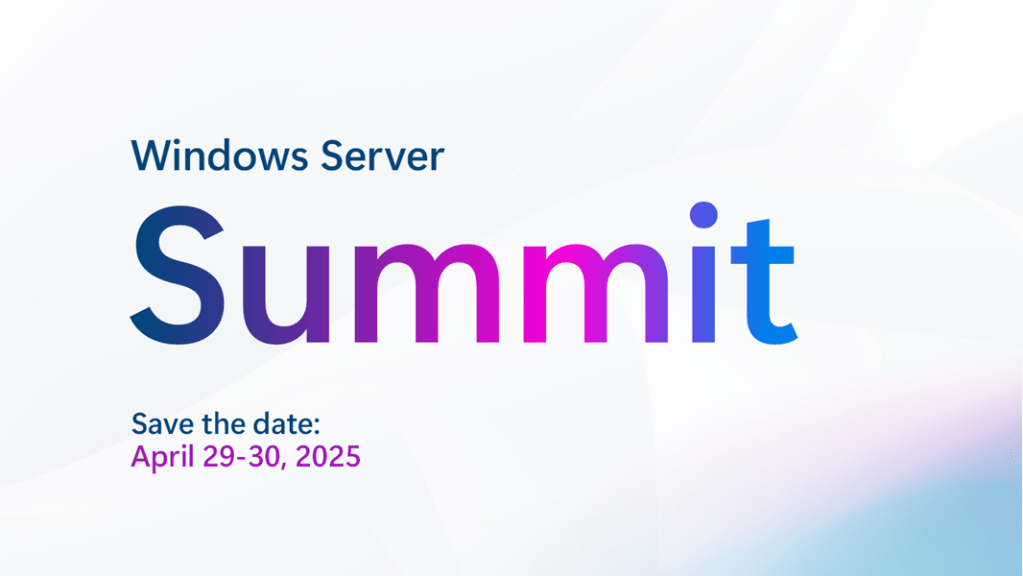
Save the date! On April 29-30th we are kicking off our annual Windows Server Summit virtual event, featuring demos, technical sessions, and live Q&A, led by Microsoft engineers. The event will be hosted on Microsoft Tech Community and will feature deep-dive sessions on:

  • Windows Server 2025 upgrades and implementation
  • Best practices for security and identity
  • What you can do with Windows Server on Azure
  • Hybrid cloud management and technologies like Azure Arc
  • New features, including a sneak peek at what’s coming next in preview
  • and much more! 

All sessions will be streamed live here on the Tech Community and experts will be answering your questions live. We are still fine-tuning the agenda, but plan to reveal the full lineup on February 18, 2025.

Date:

  • Windows Server Summit 2025
    April 29-30, 2025

Registration Page:

Looking to get started using “Microsoft 365 Copilot” or “Microsoft 365 Copilot Chat” but don’t know where to begin?

Cheat Sheet: “Microsoft 365 Copilot”
Here’s a cheat sheet of prompts that are designed to work in Microsoft 365 Copilot with your work data: (Microsoft 365 Copilot is AI that natively provides responses within Microsoft 365 Apps like Word, Outlook, Teams, etc. & is based on work data you have access to such as your Exchange Online inbox, OneDrive account, Teams & SharePoint Online)

  1. “What’s the latest on this issue…”
  2. “What’s the latest from this person…”
  3. “Recap this meeting…” 
  4. “What’s hot in my inbox?”
  5. “Help me prepare for this meeting…”
  6. “Create an FAQ based on…”
  7. “Create a presentation from this doc…”
  8. “Analyze this data…”
  9. “Summarize the Teams messages where I mentioned”
  10. “Summarize messages from my boss this week.”
  11. “Rewrite this …”
  12. “Draft a marketing brief based on this document…”
  13. “What’s on my calendar tomorrow?”
  14. “What are my next three customer meetings?”
  15. “Give me a summary of the recent news from…”
  16. “Draft an update to my team based on this document…”
  17. “Draft a proposal using this document as a template and this doc for the details…”
  18. “Summarize this email thread…”
  19. “What action items do I have from this meeting?”
  20. “Summarize this presentation…”
  21. “Analyze the sentiment of this data…”
  22. “Add a column to this spreadsheet…”
  23. “Create a line chart using this data…”
  24. “What does this document say about…”
  25. “How much time have I spent on this over the last week…”
  26. “Find a time when I can meet with…”

Cheat Sheet: “Copilot Chat”
What if you don’t yet have a subscription license for “Microsoft 365 Copilot” but do you have “Microsoft 365 Copilot Chat“? (Copilot Chat is a no-cost Copilot for Microsoft 365/Entra ID licensed users that provides responses based on web-based information & files directly submitted to it but does not directly access, index or distill work data in Exchange Online, OneDrive, SharePoint or Teams)

Here’s a cheat sheet of prompts for Copilot Chat to get you started:

  1. “Summarize this document for me…” with uploaded document
  2. “What does this document say about…” with uploaded document
  3. “What can you tell me about…”
  4. “Help me write…”
  5. “Help me rewrite…”
  6. “Help me brainstorm…”
  7. “Help me diagnose what’s happening with…”
  8. “Help me think through the pros and cons of…”
  9. “How would you approach…”
  10. “Create a graph…” with uploaded spreadsheet.
  11. “Give me step-by-step instructions for…”
  12. “Explain…”
  13. “Get me up to speed on…”
  14. “Compare this to that…”
  15. “Compare this file to that file…”
  16. “Create an image…”
  17. “Translate…”
  18. “Write the code to…”
  19. “Convert this to that…”
  20. “Give me some tips for…”
  21. “Help me express this differently…”
  22. “Remind me how this works…” for mathematical concepts
  23. “Remind me how this works…” for scientific concepts
  24. “Remind me how this works…” for business concepts
  25. “How do I…” for technology tasks

References:

Microsoft is excited to participate once again in Enterprise Connect, the leading conference and exhibition for enterprise communications and collaboration in North America.

‌Taking place March 17-20, 2025, Enterprise Connect attracts IT decision makers, partners and analysts to learn from industry thought leaders about strategies for planning and implementing communications and collaboration and contact center solutions. 

‌We are delighted to be the first vendor keynote of the event and we will participate across several panels. 

(Click here to view the full schedule and session line-up.)

Registration:

Did you know you get unlimited virtualization through Azure Hybrid Benefit for SQL Server in an Azure VMware Solution private cloud?

This is accomplished by establishing a “Placement policy”. (Note: This is technically a required step for licensing compliance with Azure Hybrid Use Benefit policy.)

Here are 3 simple steps to enable & configure the required “Placement Policy” for SQL servers on Azure VMware Solution clusters from the Azure administrative portal:

  1. Select Azure Hybrid Benefit > Create VM-Host affinity placement policy
  2. Fill in the required fields for creating the placement policy
    (Name, Type, AHUB acknowledgement, Cluster, Enable Policy?)
  3. Select the hosts and VMs to be applied to the VM-Host affinity policy
    (Select hosts, Select VMs, Review & Create)

The following video walks you through the process of establishing the aforementioned Placement policy:

For written steps on how to complete this, visit:

·

UPDATE: May 3, 2025
I’m late on posting this but better late than never. We cancelled the introduction of the External Recipient Rate Limit which was slated to be enforced April 2026 but will no longer. The current limits documented at Exchange Online limits – Service Descriptions will remain in place until further notice. Read the announcement below:

ORIGINAL POST: January 26, 2025
If you have marketing, communications or sales departments that are using Exchange Online to “email blast” messages out to more than 2,000 recipients a day, you need to read the following:

In April 2024, we announced that Exchange Online would begin enforcing an external recipient rate limit (ERRL) of 2,000 recipients in 24 hours. This will begin in October 2025 at the earliest. (MC787382 – Exchange Online to introduce External Recipient Rate Limit)

Exchange Online currently enforces a Recipient Rate limit of 10,000 recipients. The 2,000 External Recipient Rate Limit (ERRL) will become a sub-limit within this 10,000 Recipient Rate limit. There is no change to the Recipient Rate limit, and both of these will be rolling limits for 24-hour windows. You can send to up to 2,000 external recipients in a 24-hour period, and if you max out the external recipient rate limit then you will still be able to send to up to 8,000 internal recipients in that same period. If you don’t send to any external recipients in a 24-hour period, you can send to up to 10,000 internal recipients.

This new limit is not going to be applicable to the following Microsoft integrations until further notice:

How will this change happen?
The new “External Recipient Rate limit” will be introduced in 2 phases:

  • Phase 1 – October 2025, the limit will apply to cloud-hosted mailboxes of trial tenants and all cloud-hosted mailboxes of tenants created after that date. This phase will include an Exchange Admin Center mail flow report detailing the External Recipient count of cloud-hosted mailboxes belonging to the tenant.
  • Phase 2 – April 2026, we will start applying the limit to cloud-hosted mailboxes of existing tenants.

Please refer to the ACS email documentation (Prepare an email communication resource for Azure Communication Services – An Azure Communication Services concept article | Microsoft Learn) or reach out to your Microsoft account team for further support in this journey.

What are the options for customers who have business needs that exceed the ERR limit?
If you have a cloud-hosted mailbox that needs to exceed the ERR limit, you can move to Azure Communication Services for Email, which is designed specifically for high volume email sent to recipients external to your tenant.

Is this limit counted against per recipient or per unique recipient?
We will be counting per recipient not per unique recipient. So, if you sent 100 emails to the same 5 external recipients, it would count as 500 external recipients.

Read more about this & remediation steps here:

(Note: This change only applies to Microsoft 365 Commercial instances. The rate limit will be applied to GCC instances in the future however at the moment, they are exempt.)

Beginning on Jan 27th, 2025, any OneDrive user accounts in Microsoft 365 COMMERCIAL cloud instances that have been unlicensed for longer than 93 days will be inaccessible to admins & end users.

  • For example, if a OneDrive account became unlicensed on August 1st, 2025, this account will be inaccessible as of Oct 1st, 2025.

Accounts become unlicensed when the admin removes the license, or the user is deleted from Entra ID. These accounts will be automatically archived and will still be viewable via admin tools but will not be accessible until admins take action on them through the following:

  1. Setting up the Archive billing for unlicensed accounts to be able to access and edit the archived files.
  2. Optionally re-license the unlicensed account to maintain access.

All Purview features will work with archived, unlicensed OneDrive accounts including retention policies, legal holds, and eDiscovery search & export, however to access the data that is eDiscovered or legally held, you MUST establish Microsoft 365 Archive billing or the content will not be extractable or downloadable.

To learn how to establish Archive billing, read more about this change below:

(Note: This will apply to Microsoft 365 GCC/Government cloud instances in the future however a specific date is not set yet.)

« Newer Posts - Older Posts »

Categories