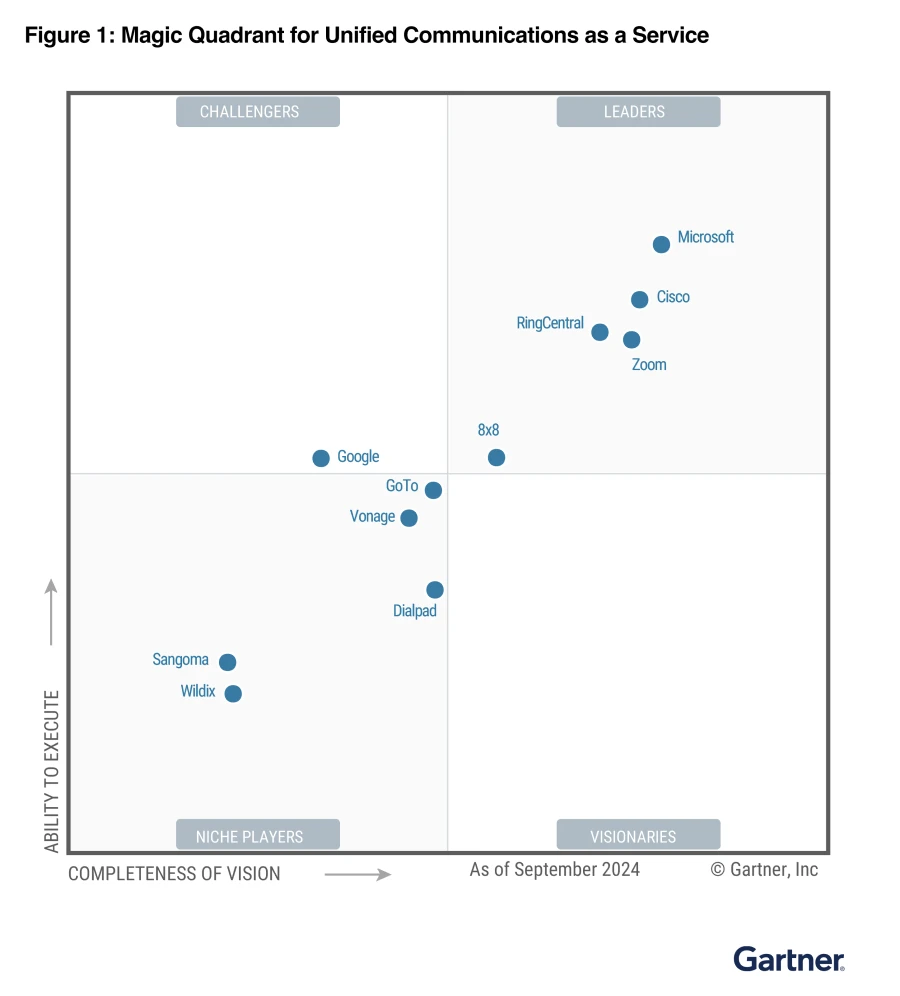
We’re honored to announce that Microsoft has, once again, been recognized as a Leader in the 2024 Gartner® Magic Quadrant™ for Unified Communications as a Service (UCaaS), Worldwide. This is the sixth year we’ve received this recognition and we’re thrilled to be positioned highest in the ability to execute and furthest on completeness of vision axes.

Read more at:

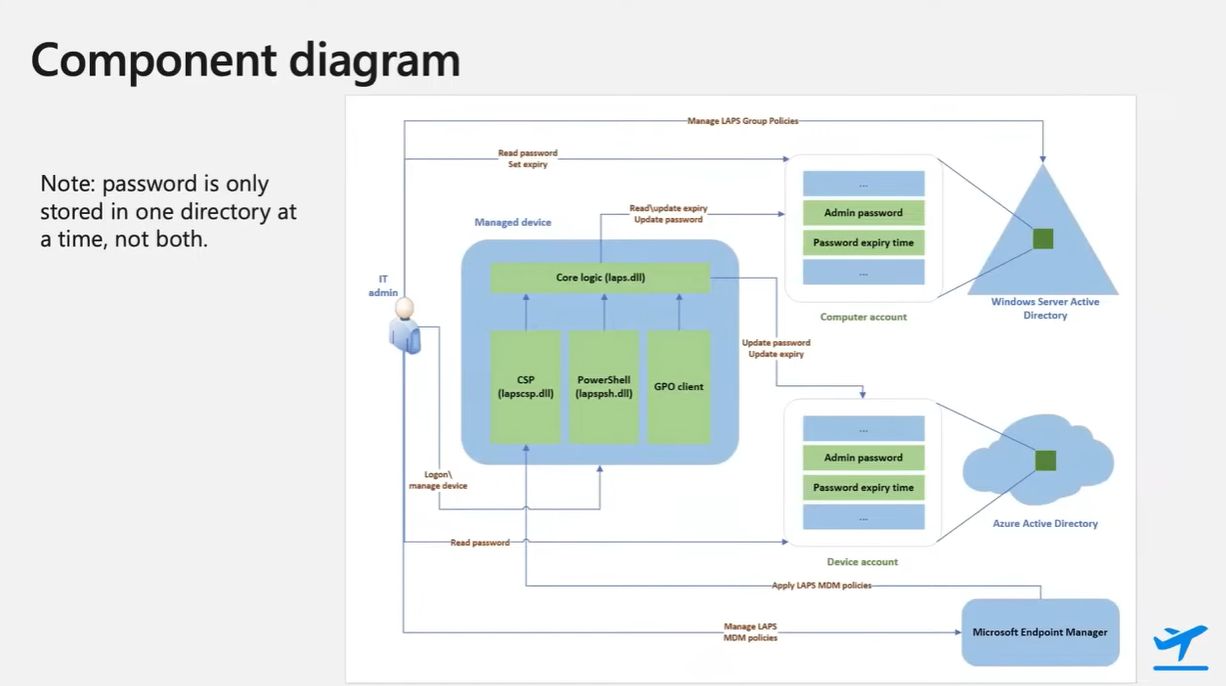
We released the NEW Windows Local Administrator Password Solution (Windows LAPS) close to a year ago and I’m still running into customers that had no idea the solution (or even the previous Legacy LAPS) solution existed. <yikes>

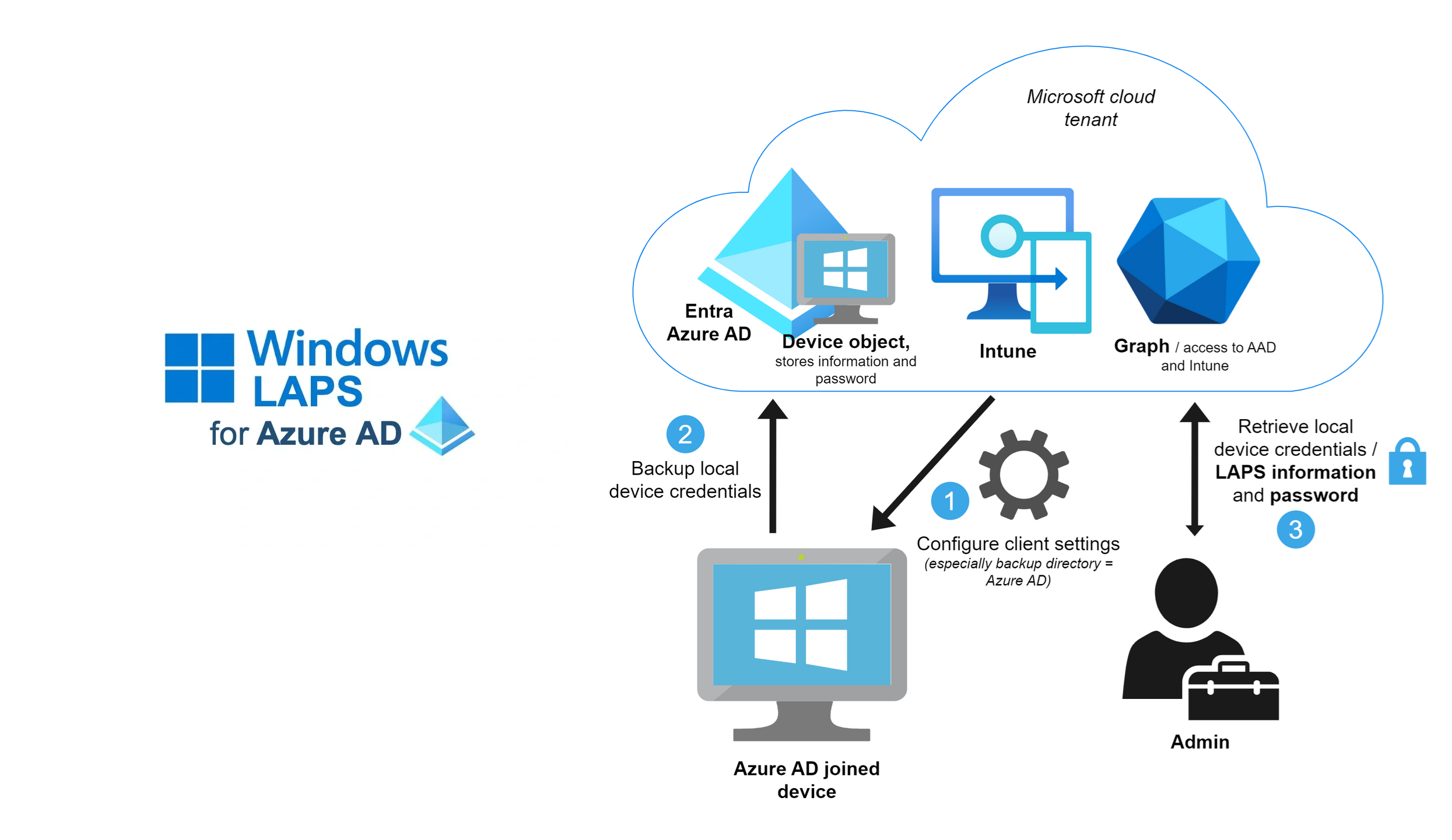
The Windows Local Administrator Password Solution (Windows LAPS) is a solution that changes the Local Admin password on your Windows clients & servers to a randomly generated password on a regular basis & stores the password in Entra ID directory (formerly Azure AD). A privileged role is given the ability to recover Local Admin passwords if required to ‘backdoor’ a workstation or server.

Windows LAPS has the benefit of preventing lateral movement of bad actors from machine to machine in your infrastructure by ensuring every machine has a different local admin password, while also ensuring that every machine’s admin password is changed regularly.

And did I mention Windows LAPS is free to use for any Windows administrator for supported versions of Windows client & server?

Here are some resources to use in deploying Windows LAPS:

As of October 15, 2024, all Microsoft cloud administrators for Microsoft 365, Azure, Intune & Entra ID are required to use Multifactor Authentication to signing into their respective admin portals. Usually this is accomplished by using Entra ID Multifactor Authentication. Enabling users for MFA through the standard Entra ID login is easy & well documented.

I encountered a customer that asked if they could use a 3rd party MFA solution because they weren’t licensed for Entra ID Multifactor Authentication P1 or P2. In this scenario, we have a solution in Preview that, if the 3rd party MFA is configured properly, will pass the multipleauthn claim to Entra ID to satisfy the Admin MFA requirement mandate.

Information about this is available here:

For details on around the multifactor authentication mandate for Microsoft cloud administrators, visit:

Microsoft offers 4 different virtual environments in the cloud that can be accessed & used by developers, depending on need:

  1. Azure Virtual Desktop
    https://azure.microsoft.com/en-us/services/virtual-desktop/
    Microsoft’s Enterprise cloud-hosted VDI offering.  A fully IT-managed Virtual Desktop Infrastructure platform with complete configurability for OS, software & hardware – including the ability to add Nvidia GPUs. Optionally available for integration with 3rd party tools including Citrix XenDesktop, VMware Horizon, and other historically on-prem 3rd party VDI solutions.  Costs are determined based on monthly usage & configuration.  The original Microsoft hosted desktop offering and the one with the greatest maturity & largest ecosystem.
  2. Microsoft Windows 365
    https://www.microsoft.com/en-us/windows-365
    Provides a Windows 10/11 virtual machine and persists the user’s personalized apps, content, and settings—from the Microsoft cloud to any device.  Uniquely available in “t-shirt sizes” providing a flat monthly price for each subscribed VM, ranging from $39-$65/month depending on configuration – with the caveat that there is very little flexibility in hardware configuration beyond what initial VM option is chosen.  With different options available for small & medium businesses vs Enterprise-class customers, Windows 365 provides a turnkey solution for individuals and organizations looking for a balance between predictable costs as well as VM-level flexibility.
  3. Microsoft DevBox – Virtual Machines for Developers
    https://azure.microsoft.com/en-us/blog/announcing-microsoft-dev-box-preview/
    Service that provides hosted Windows hardware & software tailored to development work. Enables quick provisioning of standard tools & platform software for developers in a hosted environment.  Leverages Windows 365 as the backend.  Full hosted Windows VM – full control over the hosted environment including having Administrator privileges to configure the OS & even install applications like SQL Server.  Can be managed using Intune/Endpoint Manager.  Works with any IDE and any source control system that runs on Windows.  Can be managed using Intune, Endpoint Manager or the Azure portal.
  4. GitHub Codespaces
    https://github.com/features/codespaces
    A GitHub Codespace is a development environment that’s hosted in the cloud. Customize your project for GitHub Codespaces by configuring dev container files to your repository (often known as configuration-as-code), which creates a repeatable codespace configuration for all users of your project. GitHub Codespaces run on a various VM-based compute options hosted by GitHub.com, which you can configure from 2 core machines up to 32 core machines. Connect to your codespaces from the browser or locally using an IDE like Visual Studio Code or IntelliJ.
Posted by: kurtsh | September 30, 2024

TRAINING: Azure Arc-enabled Servers

Here’s a list of training & educational resources for individuals interested in Azure Arc.

SELF-PACED TRAINING
There are 3 invaluable FREE self-paced training courses on deploying & managing Azure Arc-enabled Servers:

YOUTUBE VIDEOS
There’s also a number of playlists from the Arc Jumpstart YouTube channel:

JUMPSTART
Microsoft also has “Arc Jumpstart”, which includes step-by-step instructions on getting an Azure Arc environment up and running quickly, fully extensible, automated & open source. The Jumpstart Scenarios are available at: https://azurearcjumpstart.com/azure_arc_jumpstart Specific scenarios available include:

DOCUMENTATION
Docs for Azure Arc-enabled Servers are available at:
https://learn.microsoft.com/en-us/azure/azure-arc/servers/

The docs include Quickstarts, Tutorials, Samples, How-to Guides, Security, References for Azure CLI, PowerShell, .NET, REST, Go, Java, JavaScript, Python, Azure Policy

SUPPORT/COMMUNITY
Azure Arc has a community to ask questions through via Microsoft Q&A, the official platform for technical questions and answers about Microsoft products and services.
https://learn.microsoft.com/en-us/answers/tags/146/azure-arc

Wanna use Azure Arc but don’t want to directly connect your datacenter servers to external Internet services?

If you use enterprise firewalls or proxies to manage outbound traffic in your datacenter, the “Azure Arc gateway” lets you onboard infrastructure to “Azure Arc” for monitoring & management using only seven (7) endpoints. With “Azure Arc gateway“, you can:

  • Connect to Azure Arc by opening public network access to only seven Fully Qualified Domains (FQDNs).
  • View and audit all traffic an Azure Connected Machine agent sends to Azure via the Arc gateway.

This is a Limited Public Preview, so customer subscriptions must be allowed by Microsoft to use the feature. To participate, complete the Azure Arc gateway Limited Public Preview Sign-up form.

How it works:
Azure Arc gateway consists of two main components:

  • The Arc gateway resource: An Azure resource that serves as a common front-end for Azure traffic. This gateway resource is served on a specific domain. Once the Arc gateway resource is created, the domain is returned to you in the success response.
  • The Arc Proxy: A new component added to Arc agentry. This component runs as a service called “Azure Arc Proxy” and acts as a forward proxy used by the Azure Arc agents and extensions. No configuration is required on your part for the gateway router. This router is part of Arc core agentry and runs within the context of an Arc-enabled resource.

When the gateway is in place, traffic flows via the following hops: Arc agentry → Arc Proxy → Enterprise proxy → Arc gateway → Target service.

For more details on deploying the Azure Arc Gateway, visit:

One of the best virtual events we ever did was called the Microsoft Technical Takeoff. It covered so many universally requested & needed topics about desktop infrastructure… Windows, Intune, Azure Virtual Desktop, Window 365, Windows Firewall, Windows Autopatch, Desktop Analytics, PKI… over a 4 day period, it was wonderful.

And I’m discovering that a lot of people had no idea it existed. So fortunately, the whole thing was recorded. Here’s the topics covered with links to the recordings:

For the main page, visit:

Microsoft Sentinel is now eligible for complimentary remote guidance through Microsoft’s FastTrack Architecture & Advisory program.

Microsoft Sentinel is a scalable, cloud-native solution that provides security information and event management (SIEM) and security orchestration, automation, and response (SOAR). 

Microsoft’s FastTrack architects that are assigned to Sentinel customers at no cost, can provide remote guidance for:

  • Providing an overview of the prerequisites for Microsoft Sentinel deployment.
  • Providing conceptual workspace architecture best practices and considerations, including multi-tenancy scenarios.*
  • Assisting in prioritizing data connectors to optimize Microsoft Sentinel configuration, including:
    • Explaining data transformation and collection customization to assist with optimization.*
  • Planning roles and permissions.
  • Conducting cost expectation analysis based on planned configuration.*
  • Enabling the Microsoft Sentinel service.
  • Discussing and configuring data retention.
  • Configuring data connectors, including:
    • Setting up Microsoft data connectors.
    • Demonstrating how to configure third-party data connectors.*
    • Exploring ingestion cost expectations.*
  • Configuring analytics rules, including;
    • Built-in analytics rules.
    • A query starter pack.
    • Additional rules for Zero Trust and insider threats.
    • User entity behavior analytics rules.
    • Apache Log4J enhancements.
  • Providing an overview of the following:
    • Security operations center (SOC) optimization.
    • Workbooks.
    • Watchlists.
    • User and entity behavior analytics (UEBA).
    • Logic app playbooks.
    • Incident response capabilities*, simulations, and tutorials (like practice scenarios, fake malware, and automated investigations).

*Supported with limitations.

For more information, visit:
https://learn.microsoft.com/en-us/microsoft-365/fasttrack/microsoft-defender#microsoft-sentinel

Contact your FastTrack Manager or Microsoft account team for more information.

Join us for a special event with Satya Nadella and Jared Spataro to learn about the next phase of Copilot innovation. The live stream starts at 8 AM Pacific Time on September 16.

Register:
https://www.linkedin.com/events/7236780403867443202/

1000025133

Heads up: Microsoft administrators have 2 months left to enable multifactor authentication for access Microsoft Azure portal, Microsoft Entra admin center, and Microsoft Intune admin center.

Here’s the Microsoft 365 Message Center notification MC862873:

Starting on or after October 15, 2024, to further increase security, Microsoft will require admins to use multi-factor authentication (MFA) when signing into the Microsoft Azure portal, Microsoft Entra admin center, and Microsoft Intune admin center. Note: This requirement will also apply to any services accessed through the Intune admin center, such as Windows 365 Cloud PC. To take advantage of the extra layer of protection MFA offers, we recommend enabling MFA as soon as possible. To learn more, review Planning for mandatory multifactor authentication for Azure and admin portals.

How this will affect your organization:

MFA will need to be enabled for your tenant to ensure admins are able to sign-in to the Azure portal, Microsoft Entra admin center and Intune admin center after this change.

What you need to do to prepare:

  • If you have not already, set up MFA before October 15, 2024, to ensure your admins can access the Azure portal, Microsoft Entra admin center, and Intune admin center.
  • If you are unable to set up MFA before this date, you can apply to postpone the enforcement date.
  • If MFA has not been set up before the enforcement starts, admins will be prompted to register for MFA before they can access the Azure portal, Microsoft Entra admin center, or Intune admin center on their next sign-in.

For more information, refer to: Planning for mandatory multifactor authentication for Azure and admin portals.

« Newer Posts - Older Posts »

Categories