Microsoft open sourced WPF, Windows Forms and Windows UI XAML Library at Microsoft Connect(); 2018.

Read more about this announcement here:

imageFor best practices around implementation, lessons learned, recommended approaches, visit our Instructor-led Training site for Microsoft Teams.

This site includes a set of webinars hosted by Microsoft’s Engineering Team for customers to learn more about the main features of Teams, or to discuss hot topics – E.g. Skype to Teams transition. 

Here’s a listing of what’s available now:

  • #ThisIsTeams – Microsoft Teams Overview
  • Getting started with Teams
  • Teams tips & tricks
  • Manage your upgrade from Skype for Business to Microsoft Teams
  • Switch from Skype for Business to Teams: End User Guidance
  • Teams for Education – Webinars

Customers can enroll in the webpage at no charge.

Posted by: kurtsh | December 18, 2018

INFO: A Year of Microsoft 365 Updates

imageThe Microsoft 365 Blog publishes the newly released services & features available to customers every month in a single blog post.

For review, here’s the 2018 year’s posts/updates: (Yes, September is missing.)

imageRegistration is open for Microsoft Business Applications Summit 2019.

Meet the engineers behind the tools you use every day and get a sneak peek at what’s new and next.

Microsoft Business Applications Summit
June 10-11, 2019
Georgia World Congress Center
Atlanta, GA

Registration:
https://www.microsoft.com/en-us/businessapplicationssummit

Check out last year’s sessions available on-demand:

Microsoft Business Applications 2018 included 200+ keynotes and sessions led by the experts behind Dynamics 365, Power BI, PowerApps, Mixed Reality, Microsoft Flow and Excel.

https://www.microsoft.com/en-us/businessapplicationssummit/sessionsondemand

Posted by: kurtsh | December 12, 2018

BETA: Microsoft Edge Insider Program

imageWe’ve announced the “Microsoft Edge Insider Program”, a program that will allow everyone’s voices to be heard as we adopt the Chromium open source project in the development of Microsoft Edge to create better web compatibility for our customers and less fragmentation of the web for all web developers.

Read more about this transition here:

Sign up for the Edge Insider program here:

Posted by: kurtsh | December 10, 2018

TRAINING: Microsoft Teams training for IT Pros

New free Microsoft Teams training for IT Pros is available online as of this week.

The module below is part 1: “Introduction to Upgrade from Skype for Business to Microsoft Teams (Upgrade part 1 of 4)” (33:00)https://www.youtube.com/watch?v=lAoqEG777d8

Modules 2-4 are available at:
https://aka.ms/TeamsAcademy

Posted by: kurtsh | December 10, 2018

INFO: Deploying Microsoft Teams

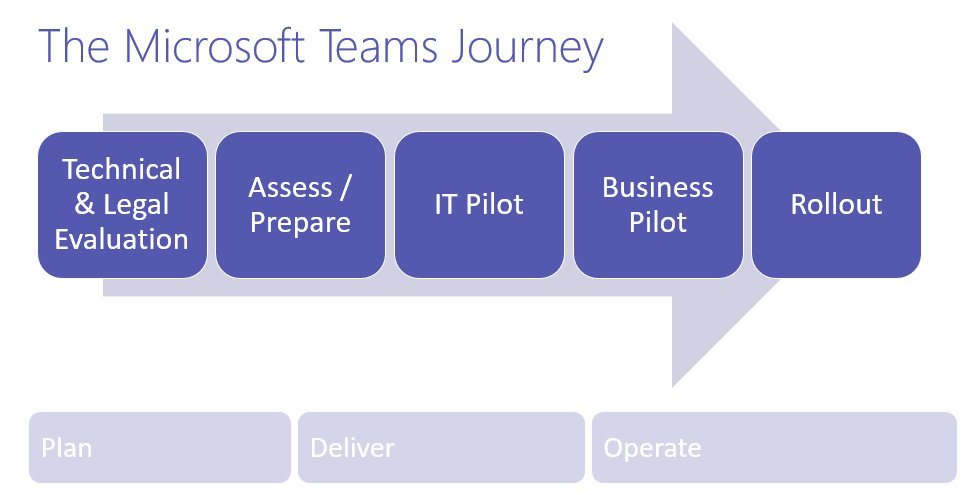
imageLooking to make the journey to Microsoft Teams? Read this overview of a Teams deployment:

    1. Technical and legal assessment in the early stages to identify and define what controls are required to implement Microsoft Teams in your organization.

    2. Undertake a network assessment and prepare for the rollout. At this point you can start to create the adoption and change management strategy and key user stories that drive user engagement during and after the rollout.

    3. Test these change management and adoption strategies with an IT Pilot.

    4. Refine and run a business pilot in one or two business units leveraging these strategies.

    5. Refine and leverage the strategy and learnings for a wider rollout.

More details available here:

Posted by: kurtsh | December 5, 2018

HOWTO: Customize Microsoft 365 usage analytics reporting

imageMicrosoft 365 usage analytics provides a dashboard in Power BI that offers insights into how users adopt and use Office 365. The dashboard is just a starting point to interact with the usage data. The reports can be customized for more personalized insights.

You can also use the Power BI desktop to further customize your reports by connecting them to other data sources to gain richer insights about your business.

For instructions on how to customize the existing PowerBI reports, read the documentation at:

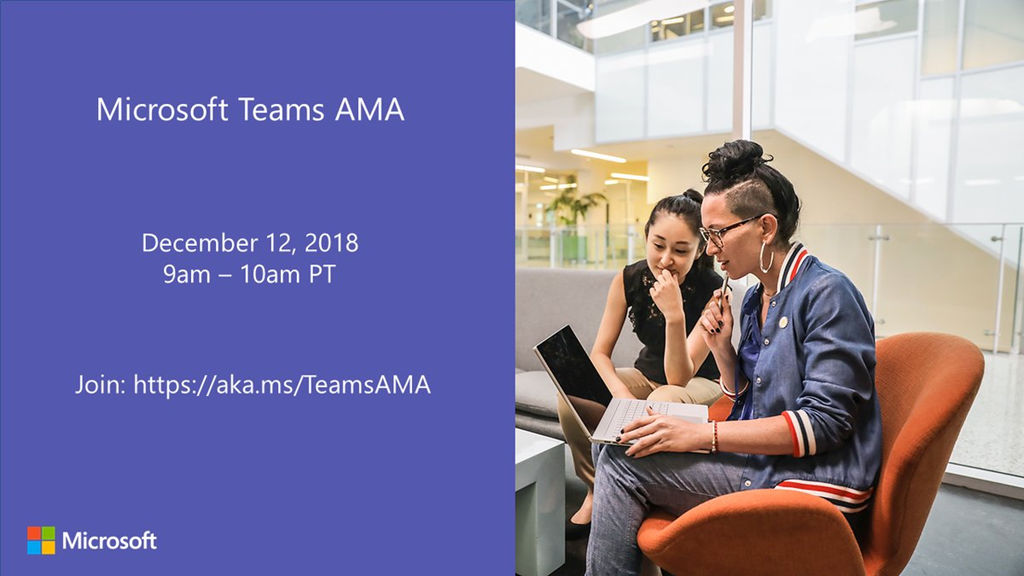
imageWe are very excited to announce a Microsoft Teams ‘Ask Microsoft Anything’ (AMA) for Microsoft Teams!

The AMA will take place on Wednesday, December 12th, 2018 from 9:00 a.m. to 10:00 a.m. PT in the Microsoft Teams AMA Space. Add the event to your calendar and view in your time zone here.

———-

An AMA is a live online event similar to a “YamJam” on Yammer or an “Ask Me Anything” on Reddit. This AMA gives you the opportunity to connect with members of the product engineering team who will be on hand to answer your questions and listen to feedback.

clip_image002Scheduling meetings is painful, time-consuming, and complicated. 

By now, however, you’ve hopefully heard of & used Microsoft FindTime™, Microsoft’s self-service solution for Office 365 users that facilitates meeting scheduling between both internal & external participants by automating the process of sending inquiries regarding each person’s availability for a meeting.  This solution has been readily available for Exchange Online/Outlook 365 & delighted Office 365 users for more than 2 years!

Introducing Calendar.help (Preview)
Move over FindTime.  There’s a new assistant in town to both automate & expedite the scheduling of meetings for Office 365 users and it’s called Calendar.help. 

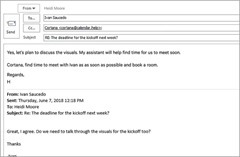
Calendar.help does one thing really well:  Quickly schedule meetings for you with other people based on everyone’s availability.  You simply put “Cortana” on the cc: and instruct her in the email body as to what you want to schedule.

  • “Cortana, can you help us book a 30 minute call next week?”
  • “Cortana, can you find us an hour for coffee at Starbucks at 5th Ave and Broadway?”
  • “Cortana, schedule Tuesday at 3pm for us to Skype.”

Calendar.help’s intelligence addresses most meeting scenarios:

Why Calendar.help?

  • Saves you time – To use Calendar.help, cc: Cortana in an email with other people and ask her to schedule a meeting. Cortana handles all the back-and-forth emails to find a time when everyone can meet and then sends out an invite on your behalf.
  • Schedules intelligently – With the speed of artificial intelligence and the personal touch of a human assistant, it’s the best of both worlds. Cortana communicates with your contacts by email to provide a natural, almost human, scheduling experience.
  • Knows your calendar – Calendar.help works with your Office 365, Outlook.com, or Google calendar. Cortana, using Calendar.help, knows your meeting preferences and uses them to find the best times.

Here’s a video demonstration of Calendar.help:

Calendar.help comes with Office 365 & requires that your mailbox be in the cloud. (i.e. Exchange Online)  Interested in giving it a try?  Here’s the sign up page:

  • Calendar.help – An artificially intelligent agent for Office 365 users from Microsoft
    https://calendar.help/

(Note: This technology accesses user’s calendars for availability as well as others in your organization.  Usage of Calendar.help is predicated on your IT organization’s participation.  In order to facilitate this process, an Office 365 Administrator needs to kick off this authorization process by going to: https://calendar.help/AdminConsent/Microsoft?bp=Auth)

« Newer Posts - Older Posts »

Categories