imageWith business applications forming the backbone of any organization, staying competitive requires app modernization. And that means migrating to the cloud.

Read Expedition Cloud: Inside Microsoft’s Cloud Migration and Application Development Journey for detailed guidance on how Microsoft planned and implemented its own app modernization strategy. By following Microsoft’s approach, you’ll learn how to:

  • Assess your applications to identify when each app should be migrated.
  • Understand the five different migration approaches: rehost, refactor, rearchitect, rebuild, and replace.
  • Choose the best application migration approach and solutions.

Get the eBook here:

Posted by: kurtsh | October 9, 2019

DOWNLOAD: Microsoft Intune Customer Adoption Pack

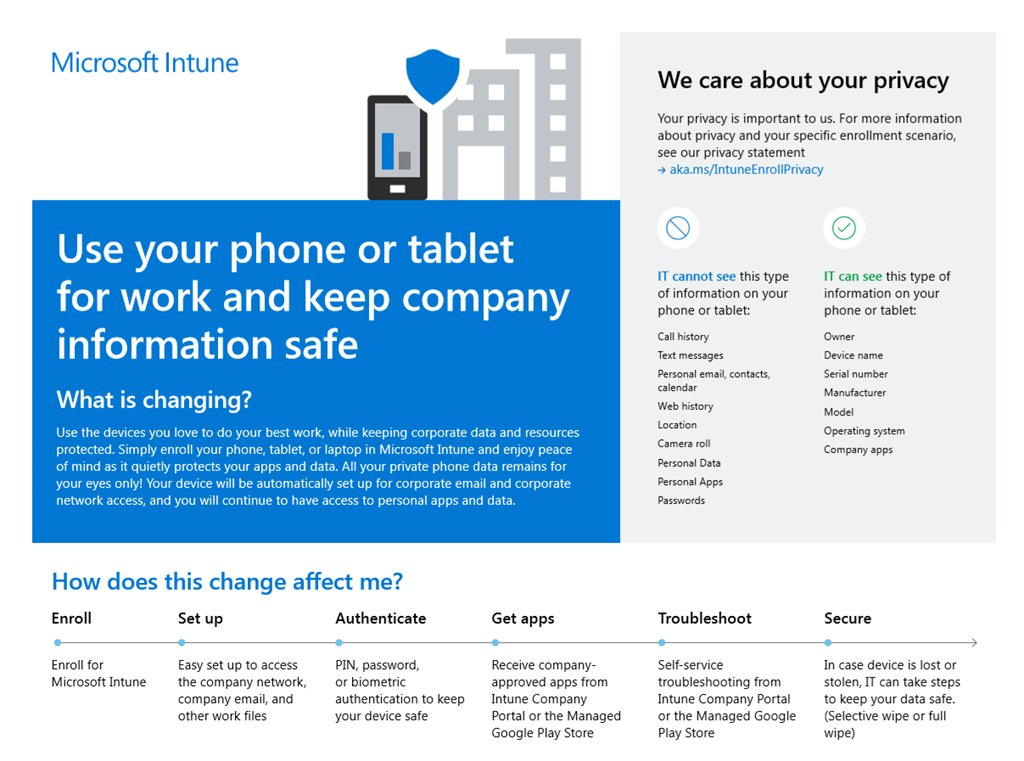
imageDownload the new Microsoft Intune adoption kit and customize your own communication plan.

We are excited to announce the updated Microsoft Intune Customer Adoption Pack is now available. It is a set of content and guidance that IT administrators, trainers, champions, and change management professionals can use to drive Microsoft Intune adoption in your organization and help ensure your users get up and running quickly.

imageThe Intune Customer Adoption Pack includes:

  • Email Templates for Communications Plan (Value, expectations, schedule, availability, instructions for enrollment, reasons for migration)
  • Intune End User Enrollment Guide:
    Reference document in PDF or .DOC – customizable with internal resources
  • Step-by-step videos to aid users in enrolling devices for Intune
    • Enroll your Android device for full management
    • Enroll your Android device for Work Profile management
    • Enroll your iOS device
    • Enroll your macOS device
    • Enroll your Windows 10 device

Read more at the announcement blog post:

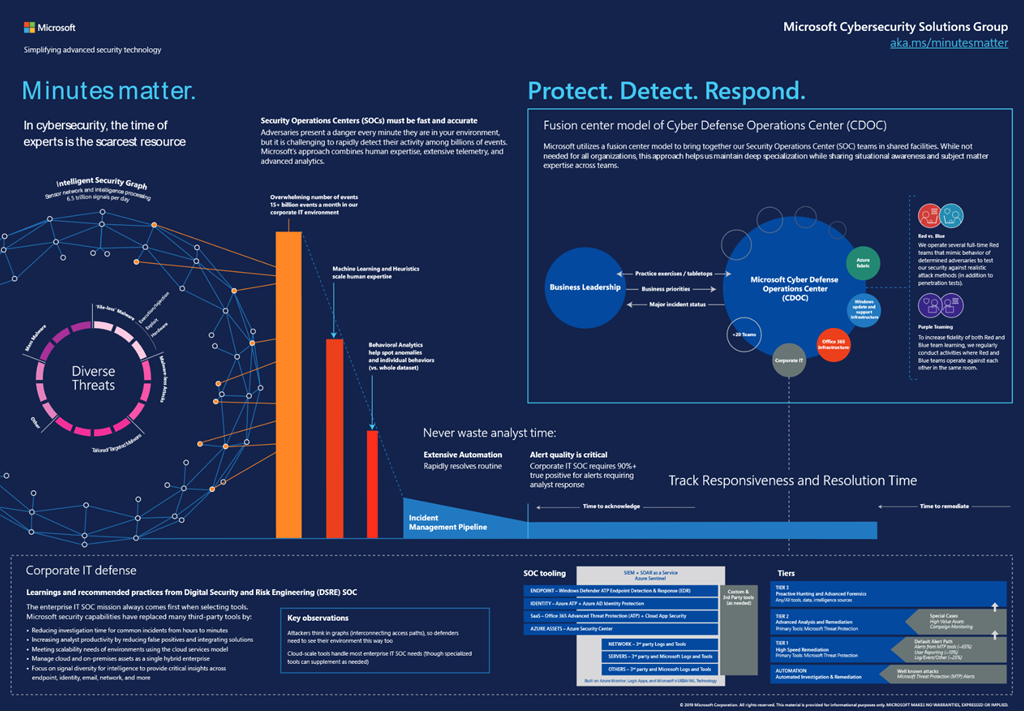
imageThe Lessons learned from the Microsoft SOC blog series is designed to share our approach and experience with security operations center (SOC) operations. Our learnings in the series come primarily from Microsoft’s corporate IT security operation team, one of several specialized teams in the Microsoft Cyber Defense Operations Center (CDOC).

Here are the series releases to date, with more coming:

(Graphic of the Microsoft SOC philosophy is available as a poster at https://aka.ms/minutesmatter)

imageSharePoint is a great organizational data store.  SharePoint lists offer a quick and easy way for users to store and share millions of items, while document libraries have become the industry standard for document management, supplying secure, reliable storage. SharePoint libraries supply the backbone for document storage in all of Office 365. When you add documents to Microsoft Teams, or Yammer, they’re stored in a document library. 

In addition to lists, documents can also contain valuable data. For example, where one user may create a list to store data in rows and columns, another user may choose to do so in Excel, and then save the Excel file to a document library. Both containers hold valuable data, and as with most data, there will be a need to report on it. 

Once the reporting needs go beyond the features available in a SharePoint view, a different reporting platform is necessary. 
There are several different platforms and technologies for working with SharePoint data, such as Power Query, Excel, Power BI, SQL Server Reporting Services and SQL Server Integration Services.

Your choice of reporting platform depends on the report type, data, storage, and your skill level.  With a wide variety of choices available, it is important to understand the strengths and weaknesses of different approaches to choose the right tool for the job. 

This white paper examines the different platforms and approaches that can be used to report on SharePoint data and explains the procedures.

This is a great edit of the entire Microsoft event from October 2nd, 2019 with most of the announcements, culled down to 15 minutes.

If you only have 15 minutes, give this a view. 

If you’d like to watch the entire event, here’s the recording:

https://www.microsoft.com/en-us/surface/microsoftevent

(Note: There are official videos for each announced product available here: https://www.youtube.com/playlist?list=PLNA-j_cL4mUTrUHNAt6gnxNckcmA50YD-)

Panos Panay, Microsoft Chief Product Officer, announced what’s coming next in Microsoft’s Surface family as well as Windows & Office. 

He sent a summary of the announcements to us at Microsoft that I thought I’d share some of:

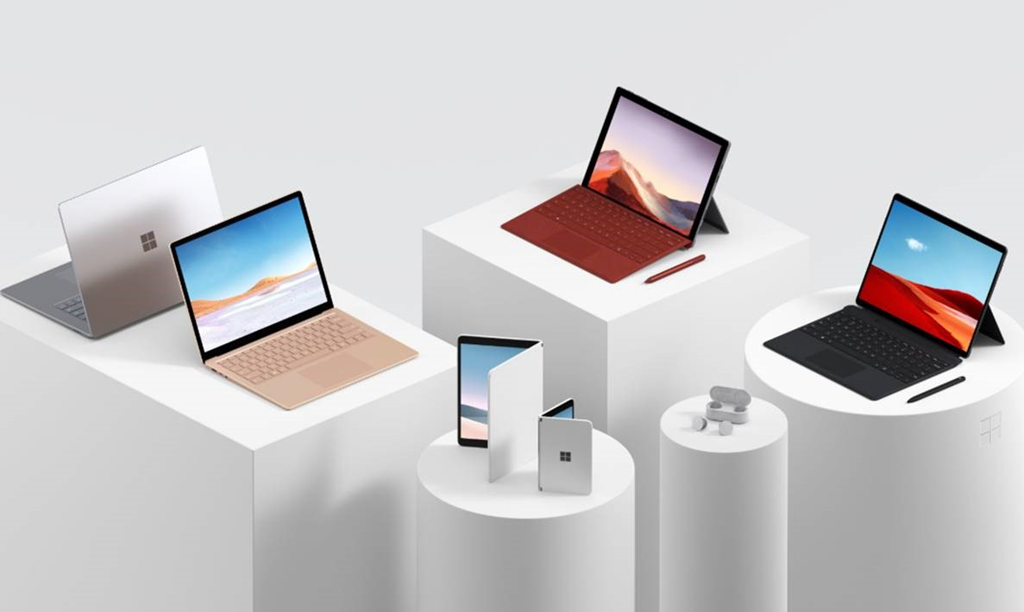
imageToday we came together as a company in New York for an incredible event, sharing what’s next for Microsoft in Surface, Office, and Windows.

We announced new products lead by new silicon, new experiences, new platforms, and a new expression of Windows 10. Our company is evolving, and today was a big moment for Surface and Microsoft. As we came off the stage this morning all I could think about is how humbled and grateful I am to have had the support of so many across the company, both in creating the products and experiences we shared with the world today, and in making this event happen.  Thank you so much for the hard work that got us here, and your continued hard work to get these products and experiences into the hands of our customers.

In case you didn’t get to watch today’s announce, we’ve included a summary of what we shared below as well as an early look at what the press and our fans are saying about the line-up.

  • Surface Laptop 3
    • The new Surface Laptop 3 provides the perfect balance of power and elegance. Now twice as fast with the same slim design and all-day battery life and offering a choice between colors – Matte Black, Cobalt, Platinum, or the all new Sandstone, materials – fabric or all metal aluminum chassis, size – 13.5” and 15” displays, and silicon – Intel 10th generation processor in the 13.5” and the custom AMD Ryzen Surface Edition in the 15”.
  • Surface Pro 7
    • Surface Pro 7 has been redesigned from the inside out, now twice as fast with a new 10th generation Intel core processor, both USB-A and USB-C, and all-day battery. While Surface Pro 7 keeps the iconic design customers love and businesses rely on, it has more performance and amazing new experiences across Office.
  • Surface Pro X
    • Surface Pro X is about what’s next for the 2-1 category. At 5.33mm and 1.68 pounds with LTE advanced connectivity, pen storage and charging, and the thinnest bezels of any 2-1 ever created, it’s an incredibly thin, light, connected, and powerful product for our customers who want the most modern device.  The new Microsoft SQ1 processor co-designed with Qualcomm for Surface Pro X pushes 2 teraflops of graphics processing power, and 9 teraops of computational power, making it the fastest Qualcomm processor ever created for a PC. 
  • Surface Earbuds
    • Featuring an ultra-comfortable and stable fit, premium sound, and all-day battery-life, Surface Earbuds offer intuitive touch and voice controls for music, calls, and incredible integration with new Office features like transcription, translation, and slide control.
  • New accessories
    • We’re also announcing a range of accessories– from type covers, pens, and mice designed to work with our Surface products to a selection of accessories to help you be more productive from any PC. We built on decades of experience delivering workspace comfort with new Microsoft Ergonomic keyboard and mouse, and are adding  new sleek, affordable Bluetooth®  products including a keyboard and compact, colorful Bluetooth® mouse, as well as bringing new colors for our popular Arc Mouse.
  • New Office Features
    • New Office enhancements include transcription in Word for the web, inking capabilities in Excel that leverage the new Surface Slim Pen and ultra-portability of the Surface Pro X, gesture support in PowerPoint for the new Surface Earbuds and ink and voice comments in Word.
  • Surface Neo – Coming in 2020
    • Surface Neo is our new dual-screen device powered by a new expression of Windows – Windows 10X. It’s built for productivity and creativity from anywhere with a 360-degree full-friction hinge that connects two 9” screens, enabling Surface Neo to adapt to you with every posture you need.  When you open it up you have a full-size 13” display with the thinnest LCD in its class.
  • Windows 10 X – Coming in 2020
    • Windows has a long history of enabling productivity for people. To support Surface Neo, we are evolving Windows 10 with a new edition of the Windows product line – Windows 10X – to enable breakthrough dual-screen experiences. With Surface Neo the combination of hardware and software from across Microsoft empowers you to be productive from anywhere.
  • Surface Duo – Coming in 2020
    • Surface Duo is the first Surface to fit in your pocket. It brings together the best of Microsoft productivity experiences, Android mobile apps, and Surface hardware design into a single device you can take with you anywhere.  With two paper thin 5.6-inch screens that unfold to 8.3 inches and a 360 degree hinge enabling dual-screens and a variety of postures, along with the ability to make phone calls and texts, Surface Duo is the ultimate in mobile creation and productivity. 

We’ve seen incredible feedback already from press and fans about these products:

  • @JezCordenApple who? Samsung what? Microsoft crushed everyone today. #Surface
  • @SmashDawgOver 60 coax cables –each thinner than a human hair — connects the two screens on the Surface Neo — the coolest thing you’ve seen in computing in years.#SurfaceEvent
  • @RealTonyBradleyMicrosoft unveiled an array of innovative hardware at the Surface Event: Surface Laptop in 13” and 15”, Surface Pro 7, Surface Pro X, Surface Earbuds, and the future of the Surface line—Surface Neo and Surface Duo.
  • @briantongWhat @Microsoft brought to the table today just moved us, competitors and the entire industry forward. LOVE IT. Can’t wait to get my hands on this stuff!#MicrosoftEvent @surface #Surface #SurfaceNeo #SurfaceDuo
  • @JoannaSternMost exciting Microsoft event I’ve been to since the original Surface event in Los Angeles. A dual screen Windows tablet, the Surface Neo. A dual screen phone, the Surface Duo.

These products are the culmination of incredible partnerships across Microsoft. It’s been an amazing experience seeing so many teams come together to make this launch a reality. The innovation in form and function, the joining of software and hardware experiences, and the focus of putting people at the center of our products is all thanks to the hard work of people across the company. 

I truly believe that products are a reflection of the people who make them and the people who use them.  Each of the products we announced today is a reflection of the passion, dedication, and care of so many. THANK YOU…product-making takes a village, and Microsoft is a great one.

We will be retiring the Planning Services benefit in Software Assurance.

Bimageeginning in February 2020, we’re retiring the Deployment Planning Services benefit in Software Assurance. We’re consolidating our programmatic deployment planning assistance to a single approach, and Microsoft FastTrack is our primary implementation support offer. You can use FastTrack for Azure, Microsoft 365, and Dynamics 365 engagements. Cloud services will be retired from Deployment Planning Services eligibility in February 2020 in favor of FastTrack deployments. Learn more about FastTrack.

Deployment Planning Services will be available until January 2022. With deployment planning you get in-depth planning assistance from qualified partners or Microsoft Consulting Services to help you plan your deployment—whether on-premises or in hybrid environments. These structured engagements help you plan your deployment of the latest Microsoft technology.

  • Help ensure efficient deployments through collaborative planning built on best practices.
  • Extend your IT staff with expert advice from on-site deployment planning specialists.

The above was taken from:

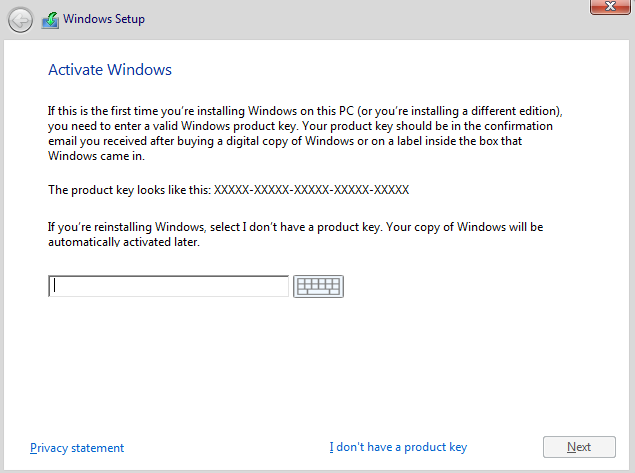
imageSo for those of you who still need to install & activate Windows 10 PCs occasionally, using Windows 7/8/8.1 activation keys still conveniently works to activate personal installations of Windows 10. (Thanks to a change that was made as of Windows 10 Threshold 2/1511)

Here’s some pointers:

  1. DOWNLOAD WINDOWS 10 INSTALLATION MEDIA
    Download the Winodws 10 Media creation tool from the link below.  There are other options listed as well if you have access to the Volume Licensing Service Center, have MSDN, are a Windows Insider, etc. 
    https://www.microsoft.com/en-us/software-download/windows10/
  2. GET YOUR 25-DIGIT WINDOWS 7/8/8/1 ACTIVATION KEY
    I am assuming that you have your Windows 7/8/8.1 key stashed away.  (I have more keys than I know what to do with. Smile)  You can use this during or after the installation of Windows 10 – the key will be accepted just as a Windows 10 activation key would.
    EXTRACTING YOUR KEY FROM WINDOWS 7
    If you DON’T have your key, take a look at the link below on how to use NirSoft’s tool for extracting the key from your existing Windows 7 installation.
    https://www.howtogeek.com/206329/how-to-find-your-lost-windows-or-office-product-keys/

  3. USE YOUR 25-DIGIT WINDOWS 7/8/8.1 KEY TO ACTIVATE
    If you’re activating Windows 10 after the installation, go to Settings > Update & Security > Activation to enter the key.
    (Follow the instructions here for steps on how to use the key if it isn’t clear.
    https://www.howtogeek.com/266072/you-can-still-get-windows-10-for-free-with-a-windows-7-8-or-8.1-key/)

The following was sent to all SA Benefit Administrators & SA Benefit Primary Contacts:

imageMicrosoft is retiring two Software Assurance benefits that have similar offerings outside of Software Assurance and changing the eligibility criteria for a third benefit. Specifically:

1. We’ll retire the Deployment Planning Services benefit and fulfill your implementation needs through Microsoft’s premier cloud migration and deployment program Microsoft FastTrack.

2. Microsoft is investing in new, modern skilling programs. Training vouchers will be phased out as a Software Assurance benefit and will no longer be used to convert to planning services.

3. We’re adjusting the eligibility criteria of 24×7 support and changing support allocations to align Software Assurance support with Microsoft’s new Unified Support offering.

The first of these changes go into effect in February 2020, with the remaining changes gradually rolled-out through Jan 1 2022, to give your organization time to accrue and use your remaining planning days, training vouchers, and support incidents. You can find details on each benefit change and timeline for benefit allocation and use deadlines here.

Software Assurance continues to offer a set of helpful benefits coordinated across software and cloud to support your organization’s deployment, management and support needs. Contact your Microsoft sales professional for more details. You can see a full list of benefits and eligibility at https://www.microsoft.com/licensing, and learn more about FastTrack, Microsoft Learn, and Microsoft Support.

The public statement of these changes are highlighted on the following page under each of the SA benefits tabs:

imageOne of my new favorite – and free – tools: PureText.

PureText is a tiny tray utility that removes all text formatting from your clipboard and optionally pastes the resulting pure text to the active window with a single hotkey.

Have you ever copied some text from a web page or Word document, and wanted to paste it as plain text into another application without getting all the formatting from the original source?

PureText makes this simple. Just copy/cut whatever you want to the clipboard, click on the PureText tray icon, and then paste to any application. Better yet, you can configure a PureText Hotkey to convert and paste the text for you. The pasted text will be pure and free from all formatting.

After running PureText, you will see a "PT" icon appear near the clock on your task bar. You can click on this icon to remove formatting from the text that is currently on the clipboard. You can right-click on the icon to display a menu with more options.

The easiest way to use PureText is to simply use its Hotkey to paste text instead of using the standard CTRL+V Hotkey that is built into most Windows applications. To configure PureText, right-click on its tray icon and choose "Options" from the pop-up menu. The default Hotkey is WINDOWS+V, but this can be changed. In this Options window, you can also configure PureText to run each time you start Windows.

« Newer Posts - Older Posts »

Categories